Accessibility
Accessibility in Zoho Analytics help you personalize the interface for better readability, visibility, and navigation.You can adjust link visibility, cursor size, font size, keyboard shortcuts, and color contrast to make the workspace easier to use.
Below are the options available on the Accessibility settings page:
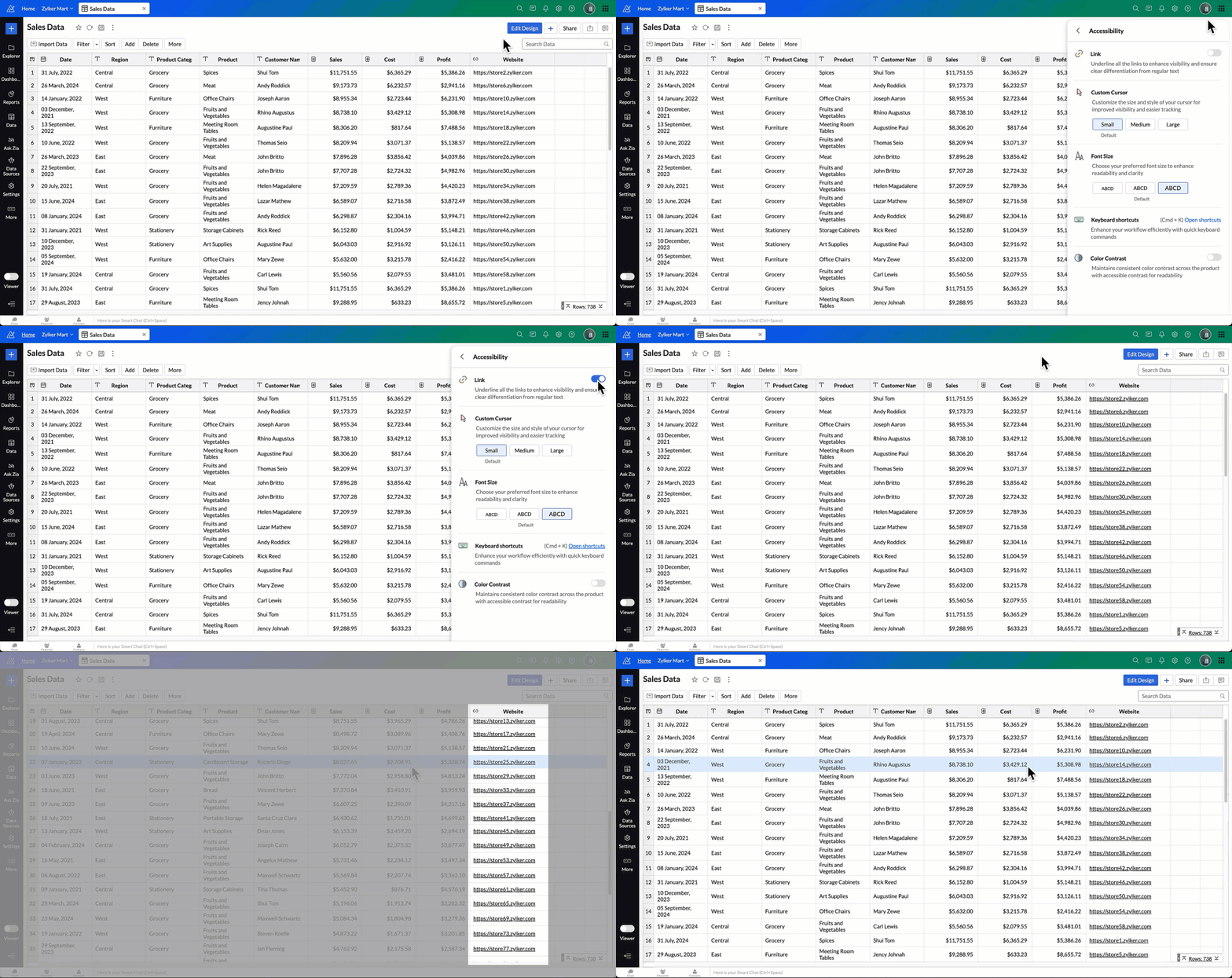
- Link: Enable this option to underline all hyperlinks across the interface.This helps you identify links easily and distinguish them from regular text.
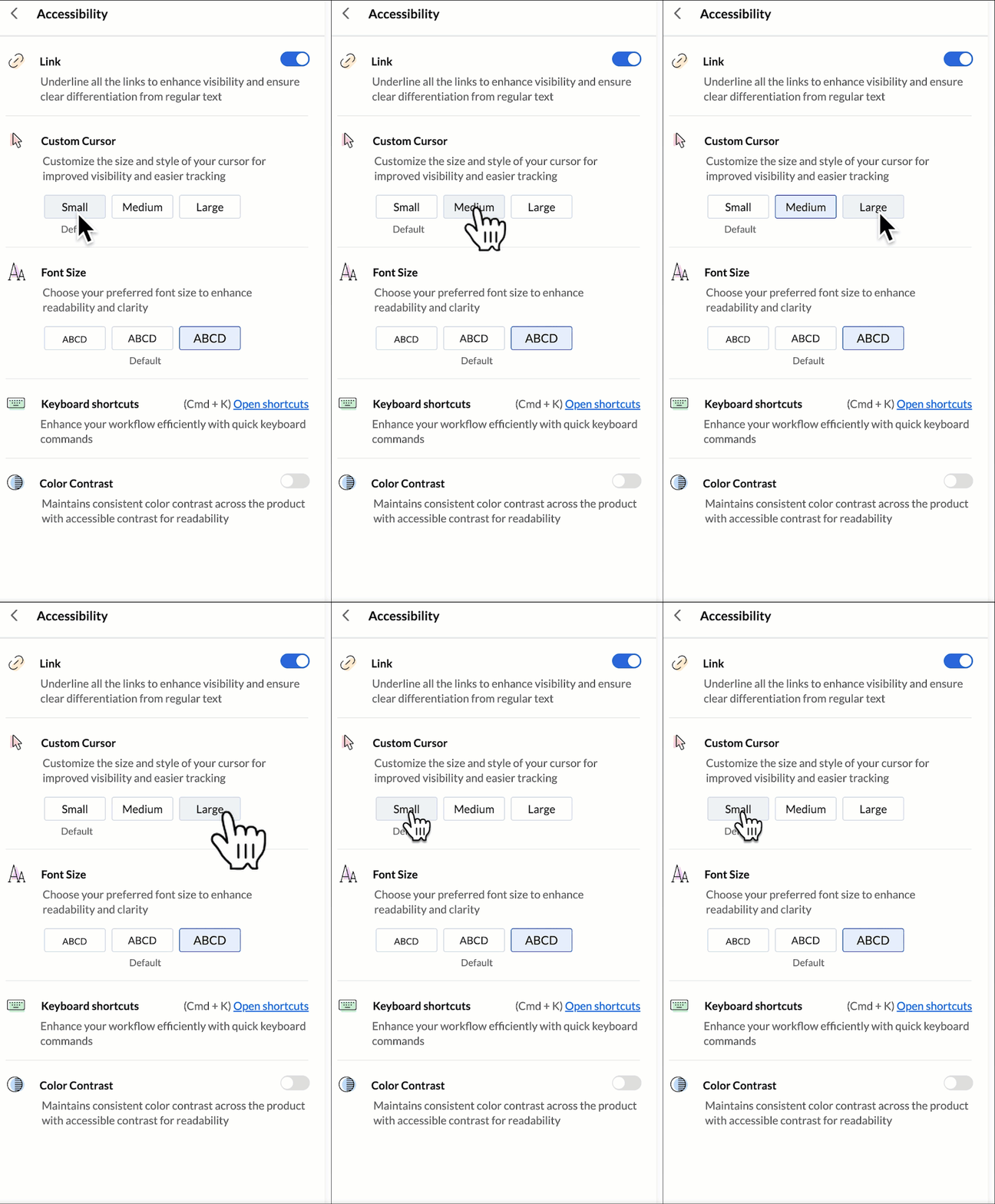
- Custom Cursor: Choose the size of your cursor for better visibility and easier tracking on the screen.
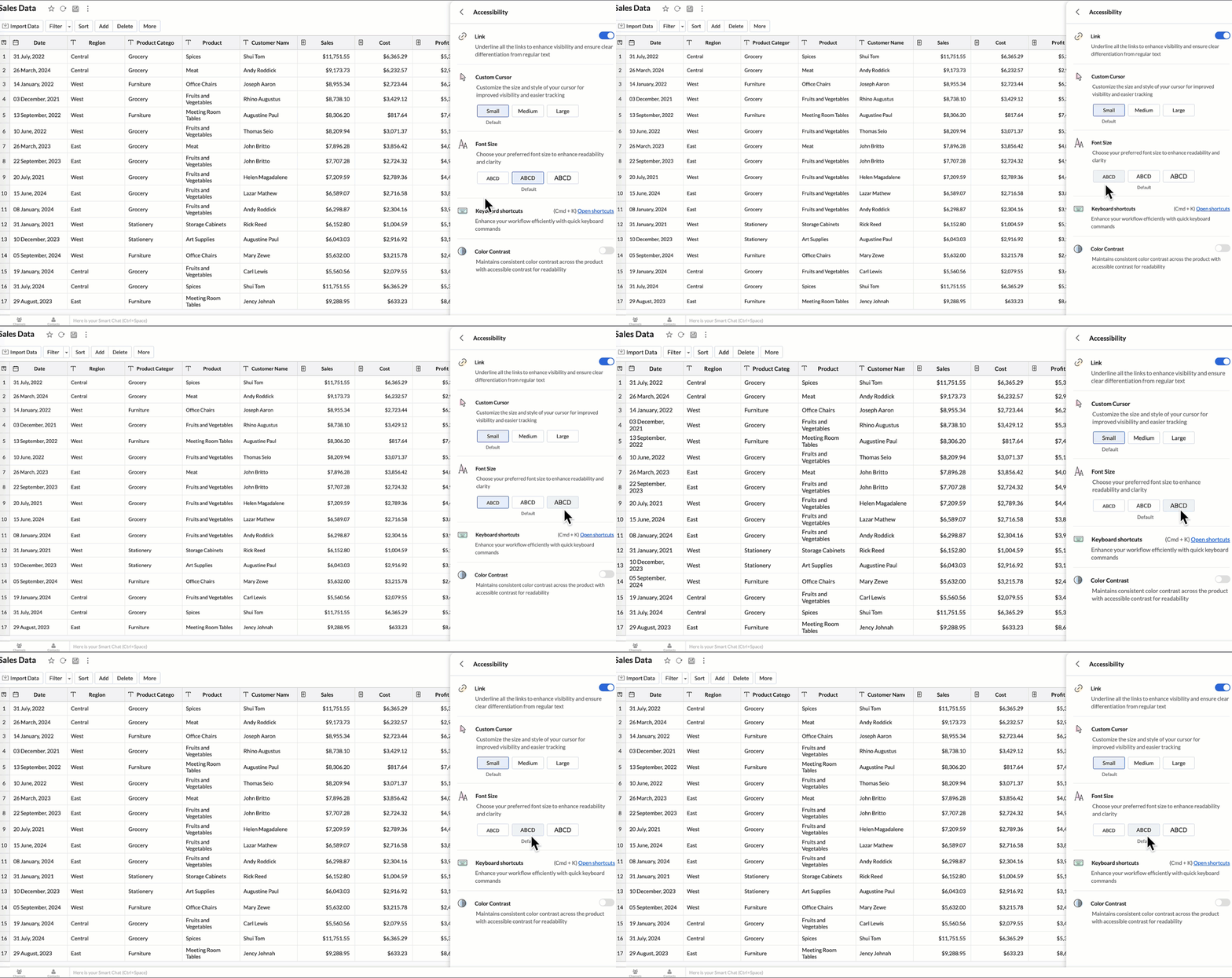
- Font Size: Select your preferred font size to improve readability and comfort while navigating the application.
Keyboard Shortcuts: Access and manage predefined key combinations to perform frequent actions quickly.
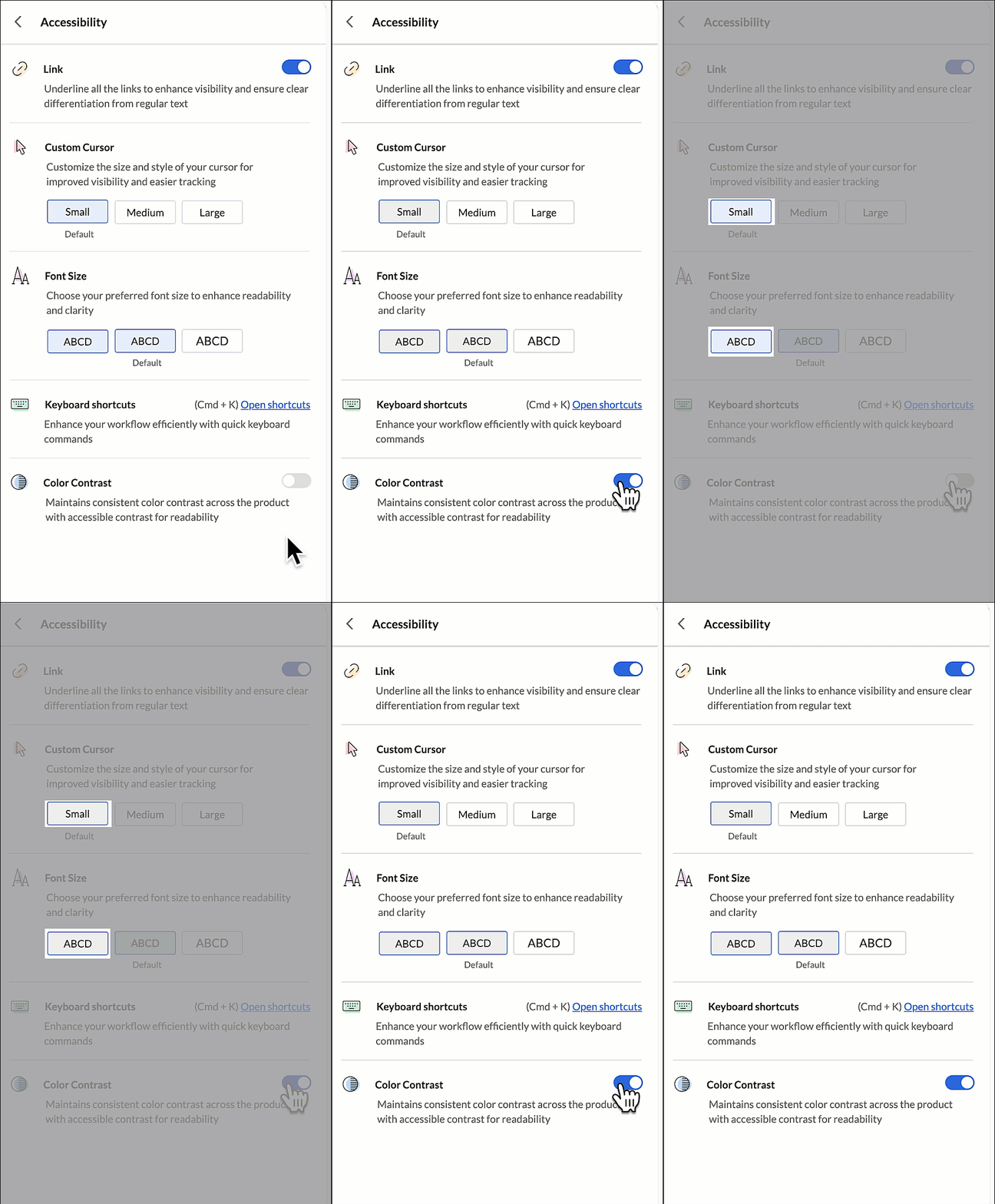
Action Shortcut (Mac) Shortcut (Windows) Explorer Move to next tab Shift + → Shift + → Return to previous tab Shift + ← Shift + ← Report Undo changes Cmd + Z Ctrl + Z Redo changes Shift + Cmd + Z Shift + Ctrl + Z Table, Query Tables, and Tabular View Copy Cmd + C Ctrl + C Paste Cmd + V Ctrl + V Go to the first cell of the table Fn + Ctrl + ← Fn + Ctrl + ← Go to the last cell of the table Fn + Ctrl + → Fn + Ctrl + → Go to the first cell of the row Fn + ← Fn + ← Go to the last cell of the row Fn + → Fn + → Select multiple columns or rows Shift + Click Shift + Click Move between cells ← / → / ↑ / ↓ ← / → / ↑ / ↓ General Save Cmd + S Ctrl + S Go to the next element Tab Tab Go to the previous element Shift + Tab Shift + Tab Select focused element Space / Enter Space / Enter Exit focus Esc Esc - Color Contrast: Enable this option to maintain consistent and accessible contrast levels throughout the interface, ensuring clear readability for all users.
To configure Accessibility settings,
- Click your Profile icon at the top-right corner.
- Click on Accessibility.
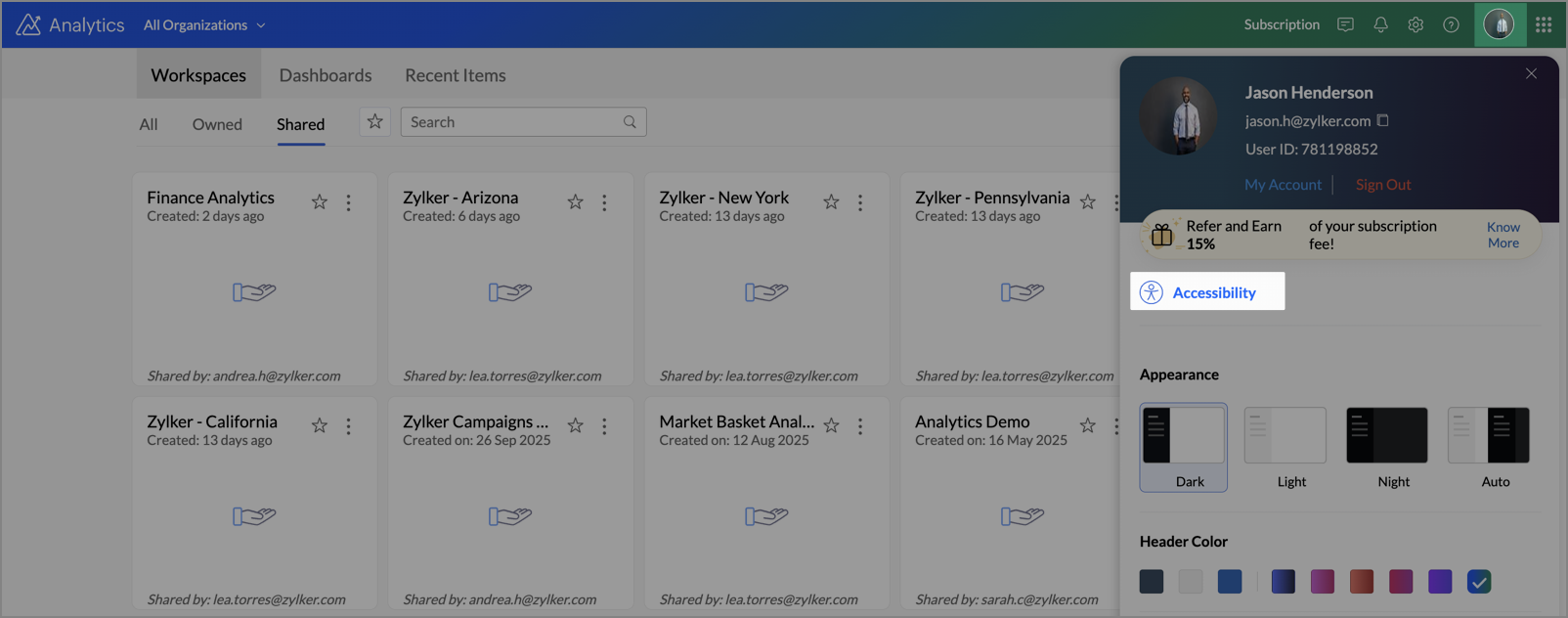
- In the Accessibility window, configure any of the following options:
- Toggle Link to underline all hyperlinks.
- Select the desired Custom Cursor size - Small, Medium, or Large.
- Choose your preferred Font Size - Small, Medium, or Large.
- Click Open Shortcuts to view available Keyboard Shortcuts.
- Toggle Color Contrast to enable accessible color contrast.
The changes will be applied immediately and retained for your next session.
Note:
- Accessibility settings are user-specific and do not affect other users in the workspace.
- The preferences are saved automatically and applied across all Zoho Analytics components.