Advanced Analytics for ShipStation
Advanced Analytics for ShipStation, powered by Zoho Analytics, empowers you with robust data analysis and reporting capabilities. Gain valuable insights by analyzing your ShipStation data to make informed decisions, enhance operational efficiency, and drive growth in your shipping and logistics processes.
The connector comes with a unique set of hand-picked reports and dashboards that enables you to jumpstart your analytics easily.
Prerequisites
To connect ShipStation data with Zoho Analytics, you must authenticate using the ShipStation API and provide the API Key and API Secret. This section explains how to obtain these credentials from your ShipStation account.
Generating API Key and API Secret
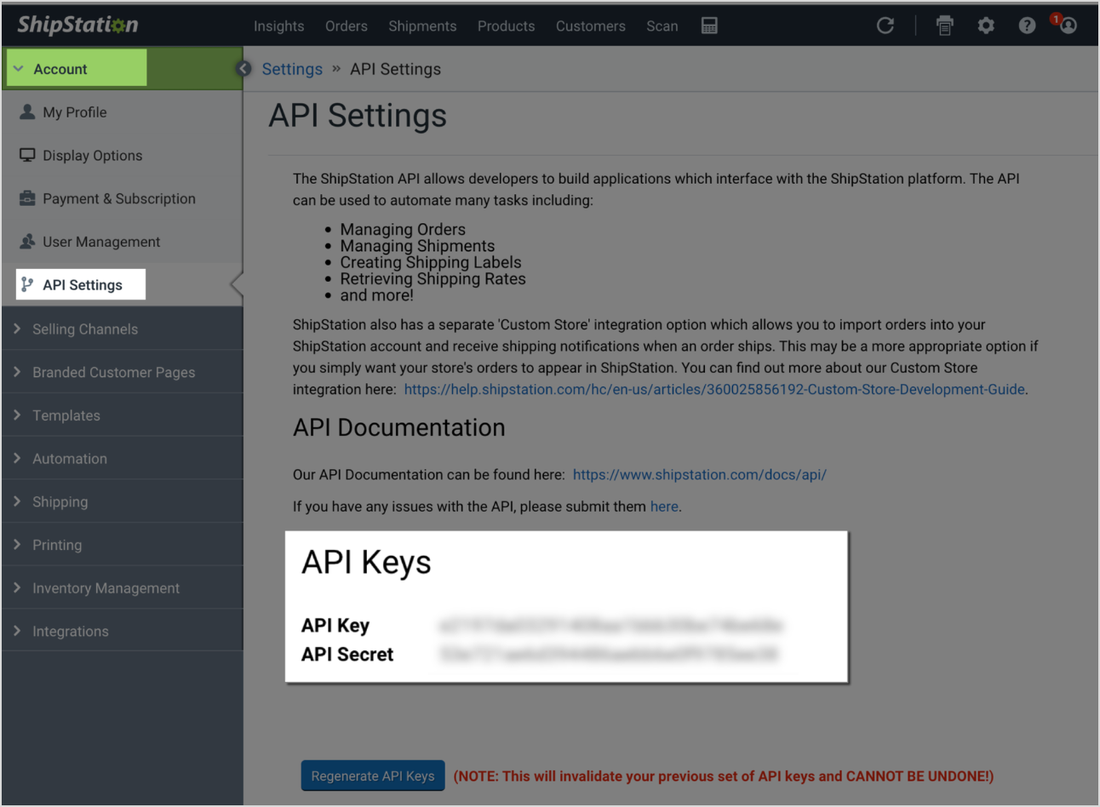
- Log in to your ShipStation account.
- Click the Settings icon in the top-right corner.
- Under the Account Settings section, select the API Settings tab.
- Copy the API Key and API Secret from this page.
Setting up the Integration
A Zoho Analytics user with administrator privileges (Account Admin and Org Admins) can configure the integration.
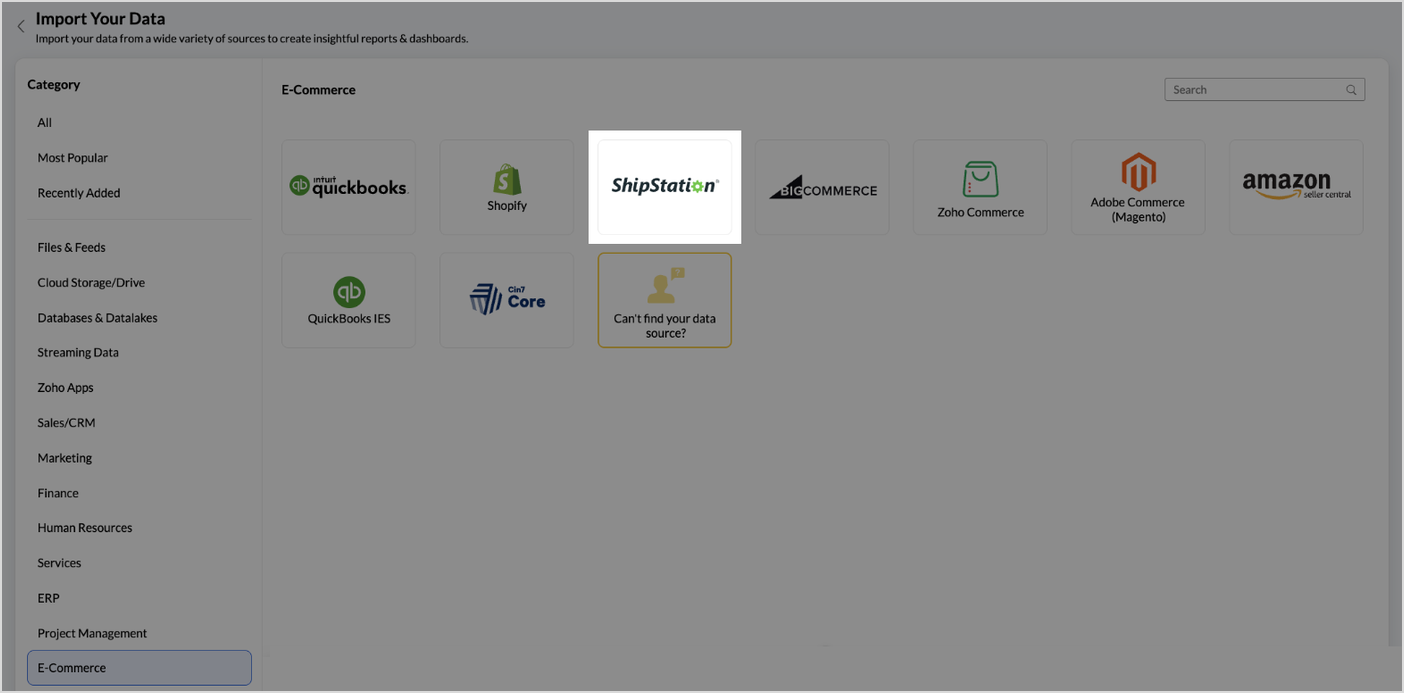
- Click Import Your Data from the Zoho Analytics homepage.
- Choose E-Commerce > ShipStation.
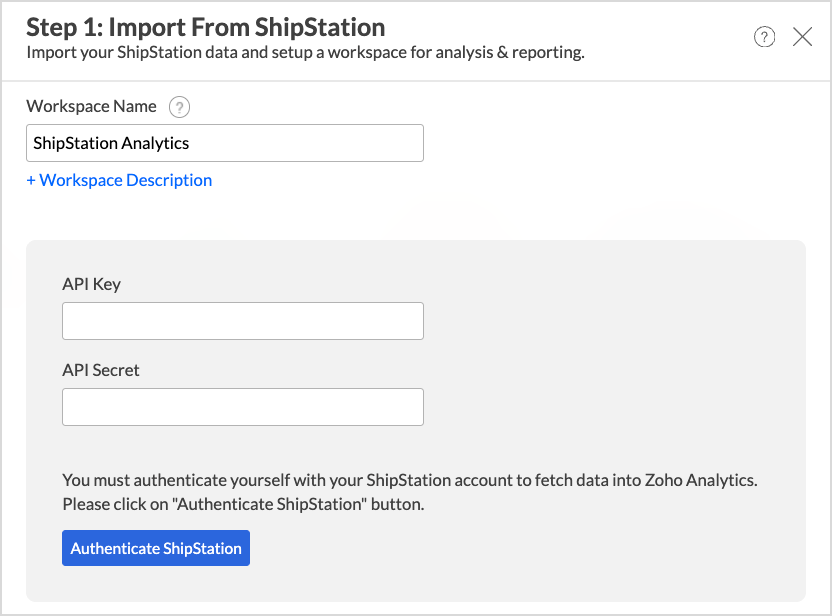
- Provide a suitable Workspace Name and Description (optional).
- Enter the API Key and API Secret copied from your ShipStation account.
- Click Authenticate ShipStation to authenticate and initiate the data fetch.
- Choose the Modules and Fields to be imported.
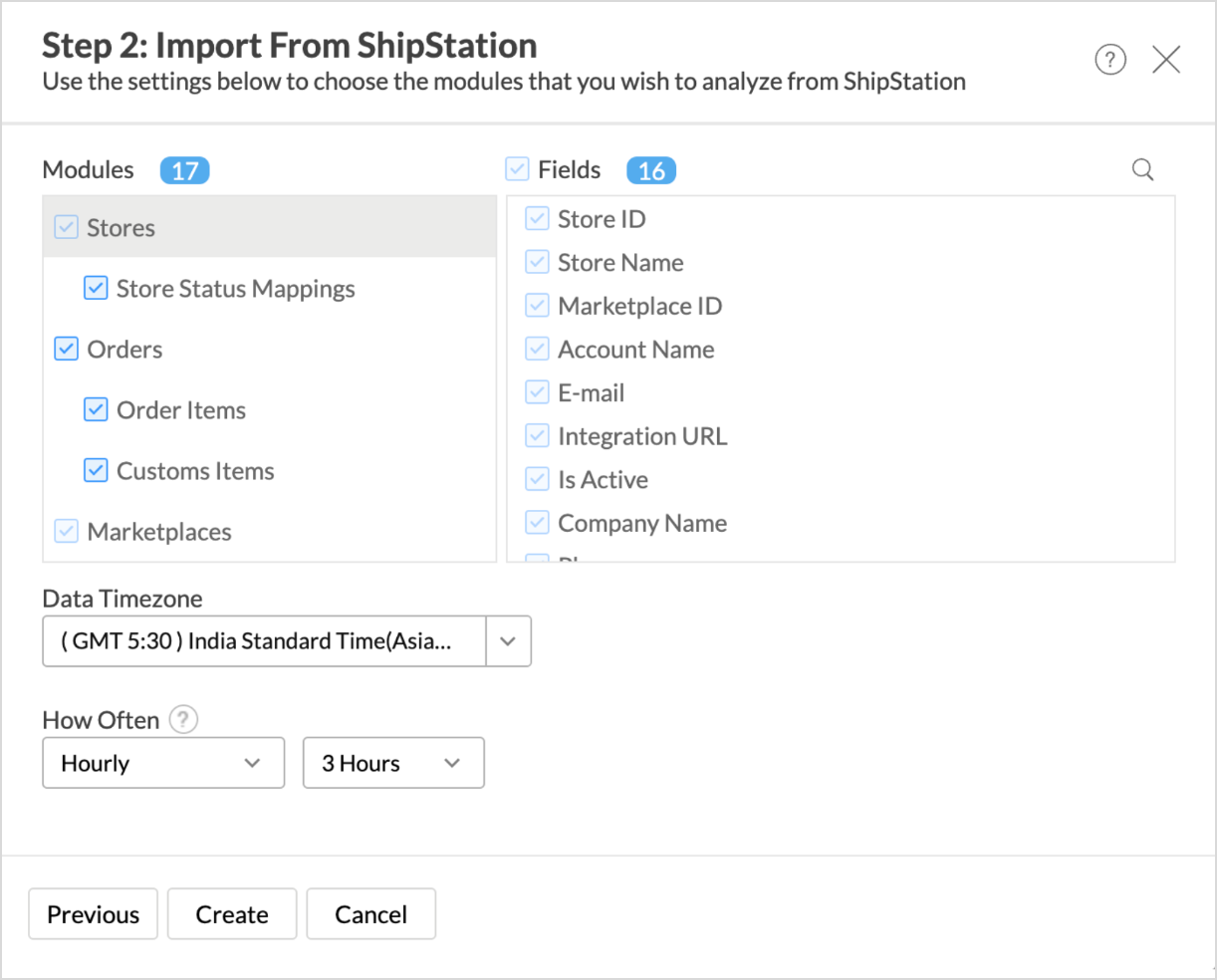
Select the Data Sync Interval in which the data should be imported:
- Hourly
- Daily
- Not Scheduled (imports the data only once during setup)
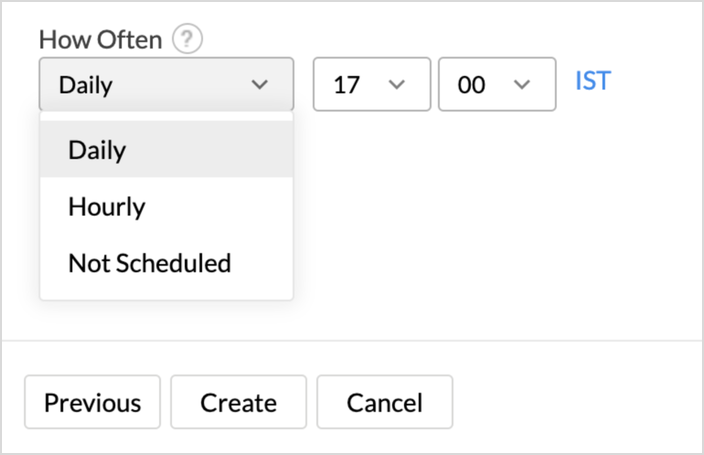
- Click Create.
Note:
- The initial fetch might take a few minutes depending on the volume of the data to be imported. An email and an in-app notification will be sent once the initial fetch is complete.
- The setup process can sometimes fail for a variety of reasons. In this case, we request you to access the Data Sources tab and click the Retry link to import again. If the issue persists, write to support@zohoanalytics.com.
Modules & Fields
The below table lists the modules and fields that will be synced to Zoho Analytics.
| Modules | Fields |
| Stores | Store ID, Store Name, Marketplace ID, Account Name, E-mail, Integration URL, Is Active, Company Name, Phone, Public E-mail, Website, Refresh Date, Last Refresh Attempt, Create Date, Modify Date, Is Auto Refresh |
| Store Status Mappings | Store ID, Order Status, Status Key |
| Orders | Order ID, Order Number, Order Key, Order Date, Create Date, Modify Date, Payment Date, Ship by Date, Order Status, Customer ID, Order Total, Amount Paid, Tax Amount, Shipping Amount, Customer Notes, Internal Notes, Is Gift, Gift Message, Payment Method, Requested Shipping Service, Carrier Code, Service Code, Package Code, Confirmation, Ship Date, Hold Until Date, Weight Value, Weight Unit, Weight Unit ID, Insurance Provider, Is Insured Shipment, Insured Value, International Contents, Non Delivery, Ship From Location ID, Non Machinable, Saturday Delivery, Contains Alcohol, Store ID, Custom Field1, Custom Field2, Custom Field3, Source, Bill To Party, Bill To Account, Bill To Zipcode, Bill To Country code, Bill To My Other account, User ID, Is Externally Fulfilled, Externally Fulfilled by, Bill To Address Name, Bill To Address Company, Bill To Address Street1, Bill To Address Street2, Bill To Address Street3, Bill To Address City, Bill To Address State, Bill To Address ZipCode, Bill To Address Country, Bill To Address Phone, Bill To Address Is Residential, Is Bill To Address Verified, Ship To Address Name, Ship To Address Company, Ship To Address Street1, Ship To Address Street2, Ship To Address Street3, Ship To Address City, Ship To Address State, Ship To Address Zipcode, Ship To Address Country, Ship To Address Phone, Ship To Address Is Residential, Is Ship To Address Verified |
| Order Items | Orderitem ID, Lineitem Key, SKU, Item Name, Order ID, Quantity, Unit Price, Item Tax amount, Item Shipping Amount, Product ID, Adjustment, Item Create Date, Item Modify Date, Image URL |
| Customs Items | Customsitem ID, Description, Order ID, Customs Quantity, Customs Value, Harmonized Tariffcode, Country Of Origin |
| Marketplaces | Marketplace Name, Marketplace ID, Can Refresh, Is Custom Mappings Supported, Is Custom Statuses Supported, Can Confirm Shipments |
| Carriers | Carrier Code, Carrier Name, Account Number, Is Funded Account Required, Balance, Nick Name, Shipping Provider ID, Is Primary |
| Services | Carrier Code, Service Code, Name, Is Domestic, Is International |
| Packages | Carrier Code, Package Code, Name, Is Domestic, Is International |
| Customers | Customer ID, Customer Name, Company, Street1, Street2, City, State, Zip Code, Country Code, Phone, Customer E-mail, Customer Address Verified Status, Create Date, Modify Date |
| Marketplace User Names | Customer User ID, Customer ID, Marketplace ID, User Name, Create Date, Modify Date |
| Users | User ID, User Name, Name |
| Ship From Locations | Ship From Location ID, Ship From Location Name, Create Date, Is Default, Origin Address Name, Origin Address Company, Origin Address Street1, Origin Address Street2, Origin Address Street3, Origin Address City, Origin Address State, Origin Address Zipcode, Origin Address Country, Origin Address Phone, Origin Address Is Residential, Is Origin Address Verified, Return Address Name, Return Address Company, Return Address Street1, Return Address Street2, Return Address Street3, Return Address City, Return Address State, Return Address Zipcode, Return Address Country, Return Address Phone, Return Address Is Residential, Is Return Address Verified |
| Fulfilments | Fulfilment ID, Order ID, User ID, Customer E-Mail, Tracking Number, Create Date, Ship Date, Delivery Date, Void Date, Fulfillment Fee, Marketplace Notified, Notify Error Message, Ship To Address Name, Ship To Address Company, Ship To Address Street1, Ship To Address Street2, Ship To Address Street3, Ship To Address City, Ship To Address State, Ship To Address Zipcode, Ship To Address Country, Ship To Address Phone, Ship To Address Is Residential, Is Ship To Address Verified |
| Products | Product ID, SKU, Name, Price, Width, Length, Height, Weight in Oz, Fulfillment SKU, Create Date, Modify Date, Is Active, Warehouse Location, Default Carrier Code, Default Service Code, Default Package Code, Default International Carriercode, Default International Servicecode, Default International Packagecode, Default Confirmation, Default International Confirmation, Customs Description, Customs Value, Customs Tariff Number, Customs Country Code, Category ID, Category Name |
| Shipments | Shipment ID, Order ID, User ID, Create Date, Ship Date, Shipment Cost, Insurance Cost, Tracking Number, Is Return Label, Batch Number, Ship From Location ID, Is Voided, Void Date, Is Marketplace Notified, Notify Error Message, Carrier Code, Service Code, Package Code, Weight Value, Weight Unit |
| Shipment Items | Orderitem ID, Product ID, Quantity, Unit Price, Order ID, Shipment ID |
Data Sync Frequency
Zoho Analytics offers flexible sync schedules to ensure that your data is always up-to-date for effective analysis. You can choose to synchronize data at one of the intervals mentioned below.
- 1 Hour (Enterprise plan only)
- 3 Hours (Standard plan and above)
- 6 Hours (Standard plan and above)
- 12 Hours (Standard plan and above)
- Every day (Basic plan)
Handling Data Synchronization Failure
Data synchronization can fail,
- If the data type of a field is changed in the ShipStation application.
- If the Modules and Fields selected for analysis are deleted in the source application.
- If the user who configured the integration no longer has permission to access the modules, or the API keys are regenerated.
In any of the above mentioned cases, the data sync will be paused. You will be notified via email and in-app notification with the exact reason for failure along with the solution.
To resolve the sync failure, delete or restructure the views, or restore the specific modules and fields from the source application. Refer to Data Sync failure and solutions article for more details.
Once you have made the changes, click the Sync Now option in the Data Sources tab to resume data sync. If the issue persists, contact support@zohoanalytics.com.
Managing Data Sources
The Data Sources tab provides essential information to monitor and manage the integration setup. It also allows you to edit the settings as needed. Users with administrator privileges will be able to view and modify the connection settings.
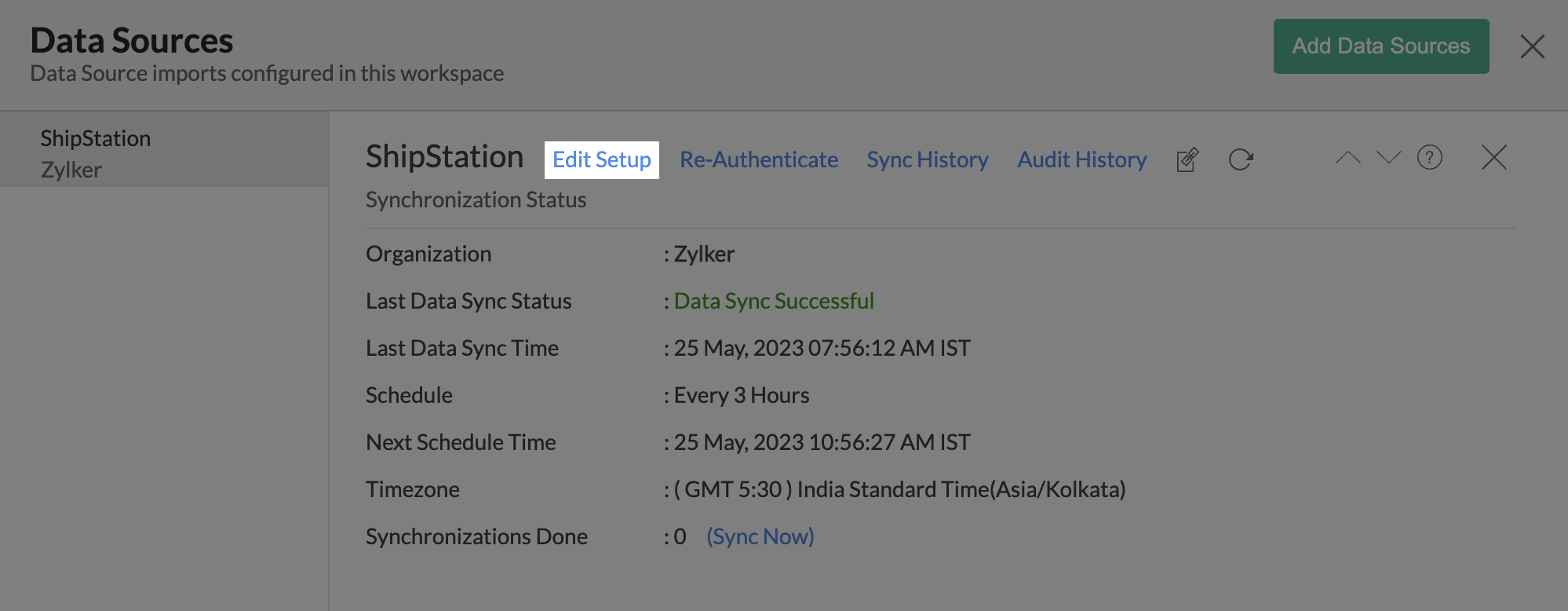
Data Source Permalink
The Data Source Permalink helps you easily access the Data Sources tab, and this link can be pasted in dashboards so that everyone accessing the dashboard can know about the sync status.
Edit Setup
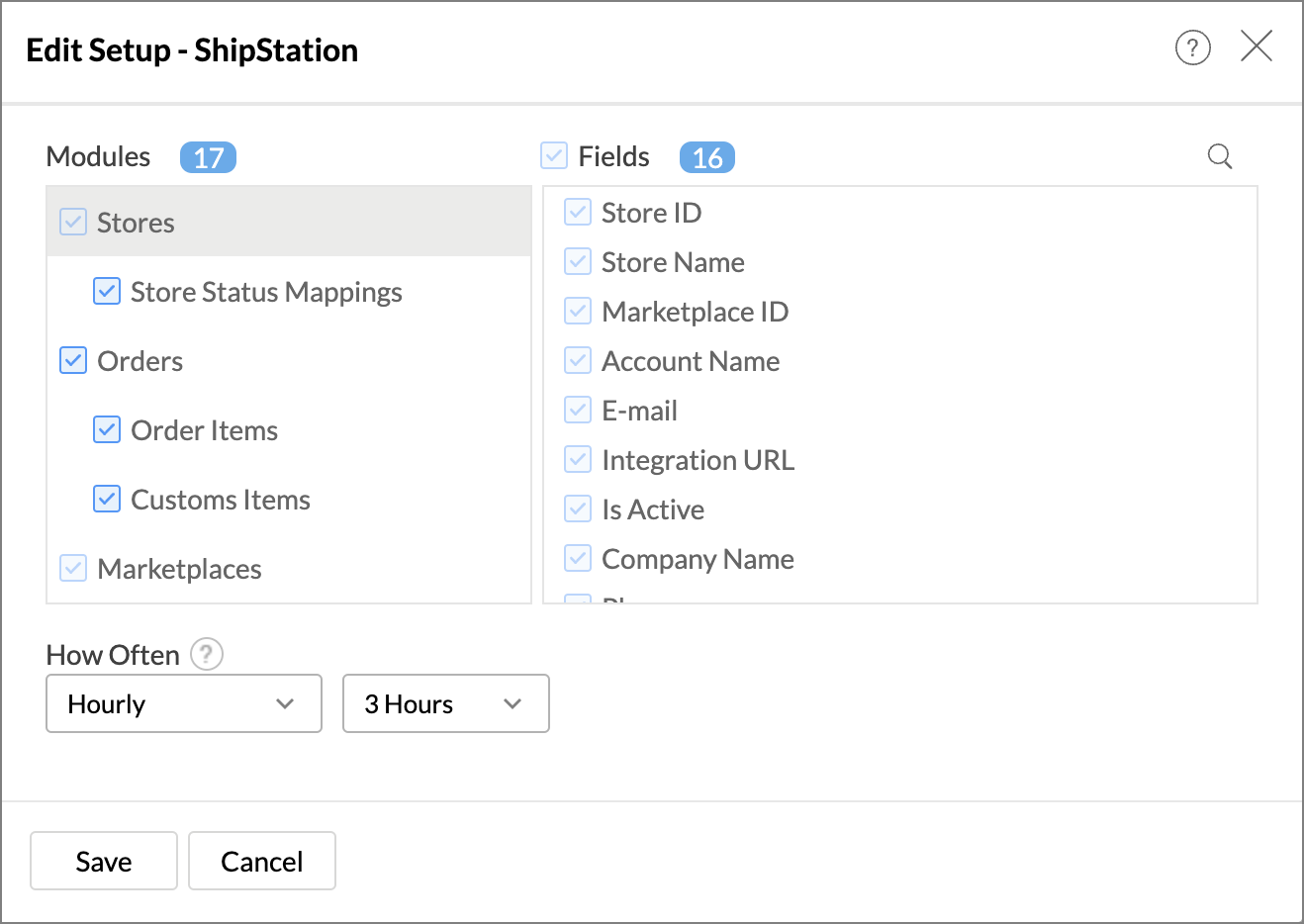
The Edit Setup option allows you to add or delete modules or fields, change the schedule interval, and modify other settings specific to the business application.
To modify the settings,
- Click Data Sources > Edit Setup.
- The Edit Setup - ShipStation dialog will open. Modify the settings as needed and click Save. The changes will be applied from the next synchronization interval.
Re - Authenticate
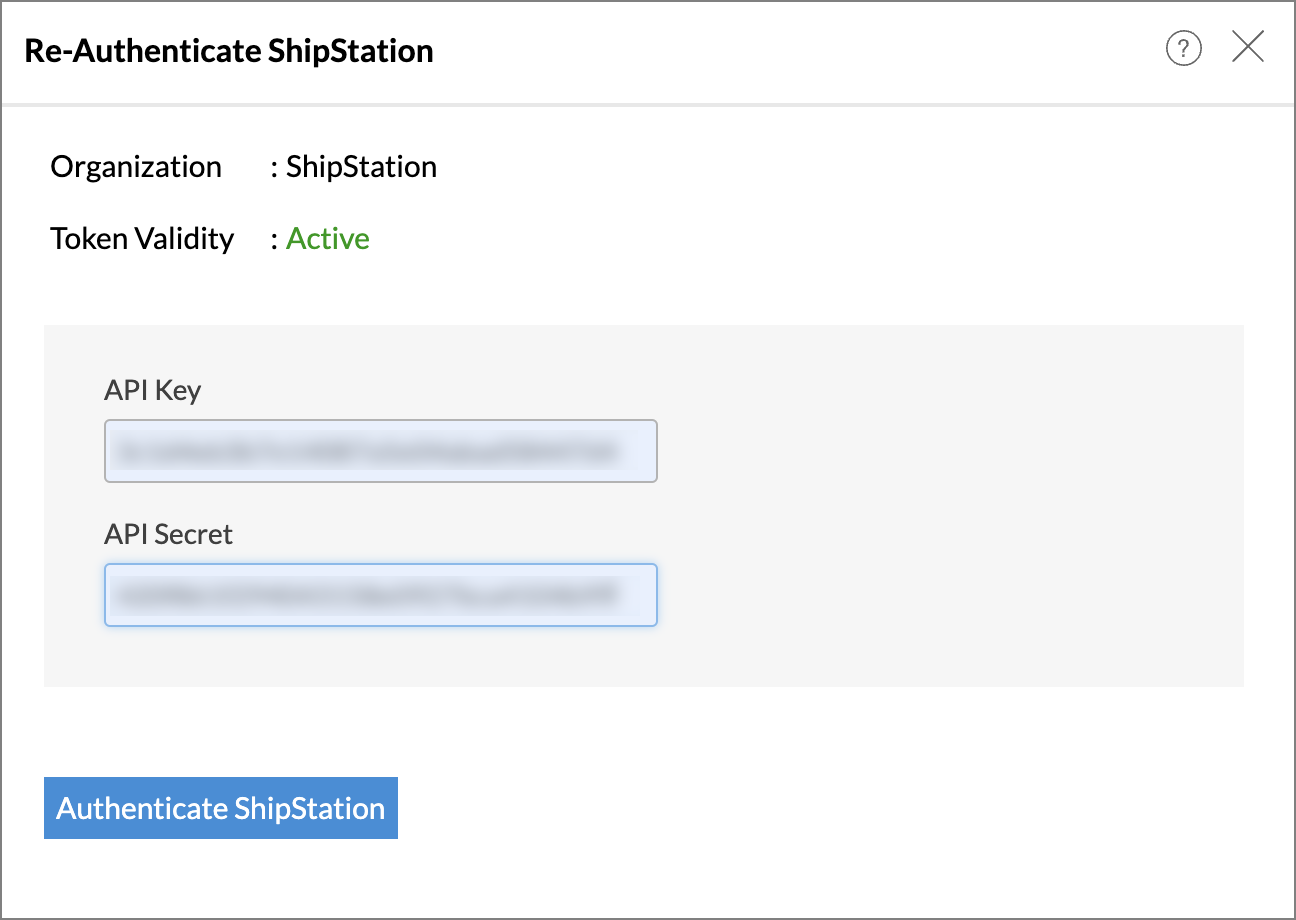
Re-authentication will be helpful when the API Key or API Secret is changed. In this case, the data sync will be paused, and only the administrator who configured the connector setup can re-authenticate to resume the data sync.
To re-authenticate,
- Click Data Sources > Re-Authenticate.
- The Re-Authenticate ShipStation dialog will open. Enter the credentials and click Authenticate ShipStation.
Sync History
The Sync History option provides details about the data sync for the last 45 days. A successful data sync is marked in green, and a sync failure is marked in red.
To view the sync history,
- Click Data Sources > Sync History.
- A calendar with the Sync History of the last 45 days will open. The date when the data sync has happened will be highlighted. Hover to view the number of times the data had got synced on a specific date.
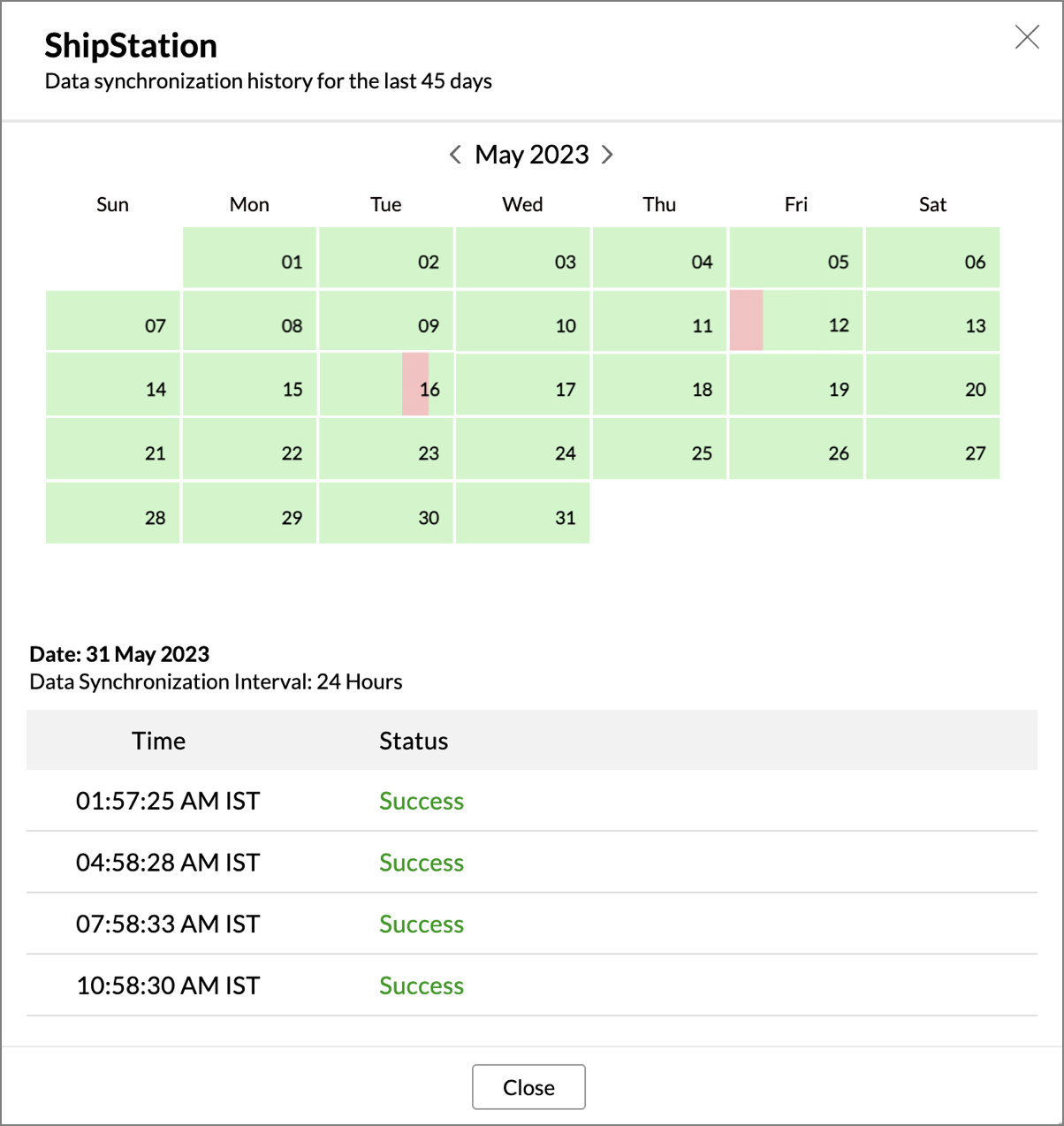
- Click the date to view more details.
- Time - Displays the time when the data is synced.
- Status - Shows whether the sync was a success or a failure. In case of failure, the reason will be displayed.
Audit History
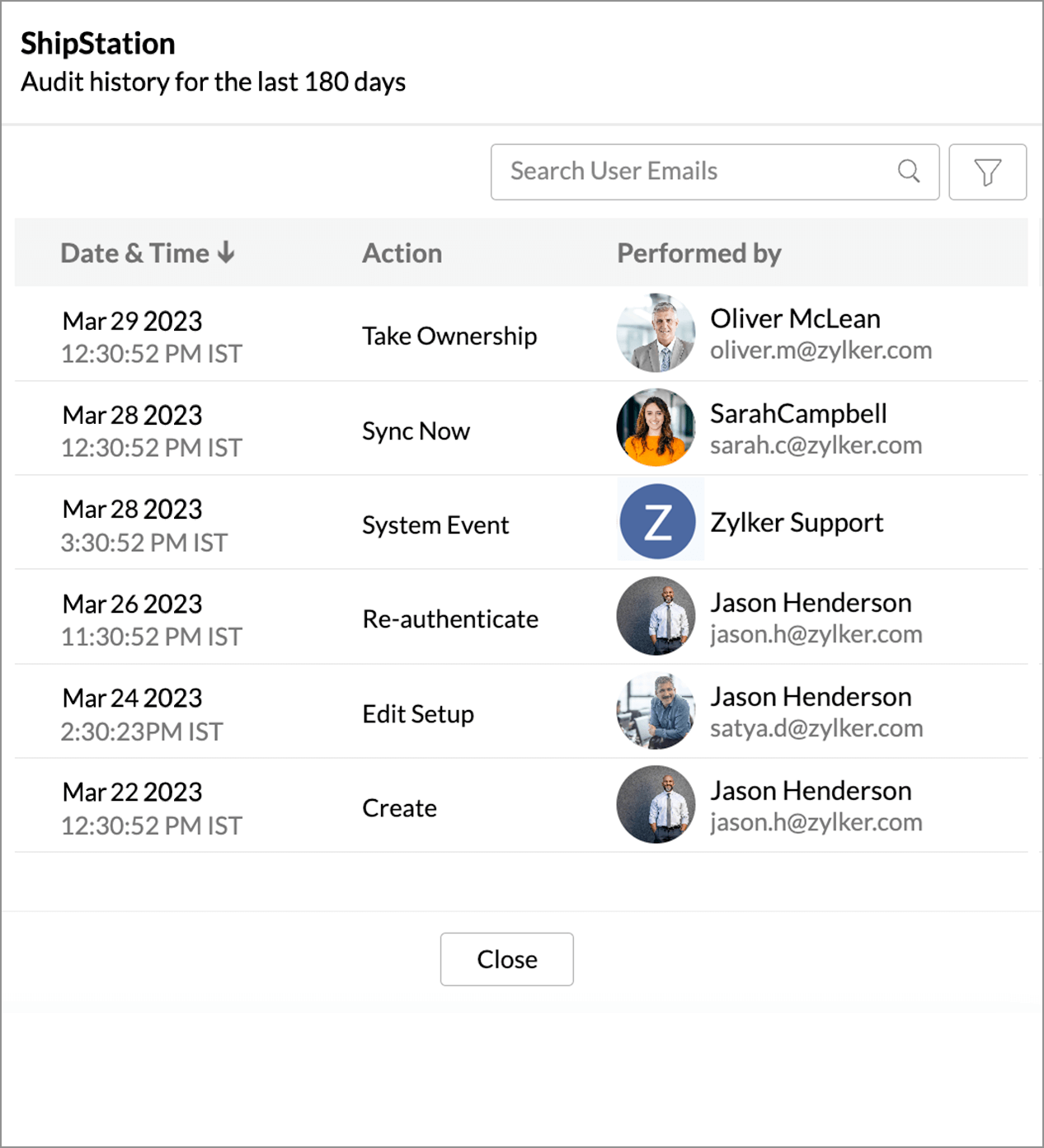
Zoho Analytics logs all the user activities and system events within the ShipStation workspace. The following actions are logged in Zoho Analytics,
- User Action: Create, Modules Added, Modules Removed, Fields Added, Fields Removed, Schedule Change and Entities Modified, Delete, Take Ownership, Re-authenticate, Sync Now, Retry Now.
- System Action: Plan upgrade or downgrade, connector activated, deactivated, deleted or restored, and sync schedule changed to suit the new pricing plan.
To view the audit history,
- Click Data Sources > Audit History.
- A dialog with the activities for the last 180 days will open.
Transfer Connector to Another Admin
The ShipStation connector in your account can be transferred to another administrator in the organization.
- Account Transfer: An Account Administrator can transfer the connector by transferring the account to an Organization Administrator. Refer to Managing Organizations to learn more.
- Leaving the Organization: An Organization Administrator can transfer the connector setup to another administrator by unsubscribing from the organization.
- Transfer Connector: If the Organization Administrator continues to be part of the organization but wishes to transfer the ShipStation connector to another Organization Administrator, write to support@zohoanalytics.com.
Remove Data Source
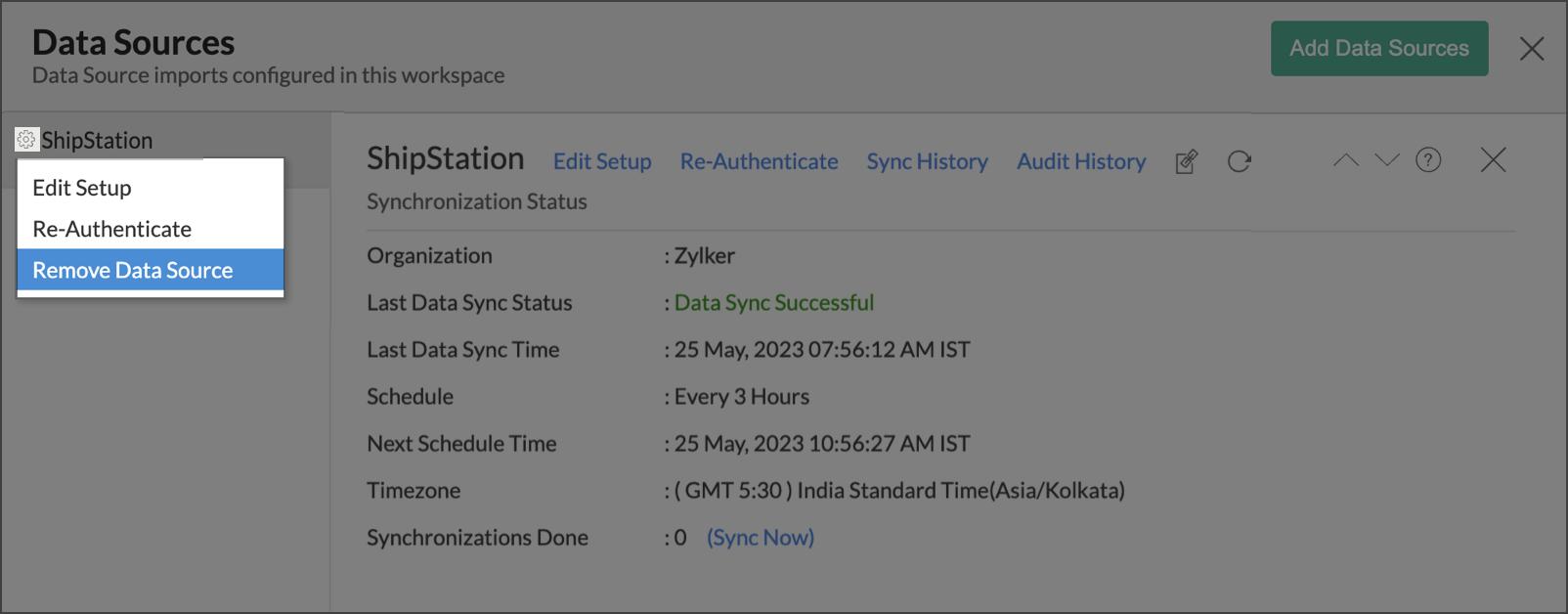
Zoho Analytics allows you to remove the integration if needed. Removing the integration will suspend further data synchronization. The data tables and the reports will be available.
Click the Settings icon in the Data Sources tab, and select Remove Data Source from the drop-down menu.
Data Blending
Zoho Analytics allows you to blend data from ShipStation with data from other sources such as Zoho apps, spreadsheets, or third-party business applications to create unified reports and dashboards.
Combine Data Using Lookup Relationships
To blend data, you need a common column (such as Customer ID or Email) between the two tables. This allows you to define a lookup relationship.
Follow these steps to create a lookup:
- Open the required table.
- Right-click the column you want to convert.
- Select Change to Lookup Column.
- In the dialog box, choose the column to look up from the related table.
- Click Save & Close to apply the lookup.
Learn more about Lookup columns
Import and Blend Data from Other Applications
To import data from Zoho apps or third-party business applications into the ShipStation Advanced Analytics workspace:
- Open your ShipStation Advanced Analytics workspace.
- Click Create (+) > New Table / Import Data.
- In the Import Your Data window, select the application or data source you want to import from.
- Authenticate the connection.
- Select the Modules and Fields you want to analyze.
- Schedule how often the data should be updated.
- Click Create to complete the setup.
Data Modeling & Preparation
Zoho Analytics allows you to combine data from various sources such as Files, Feeds, Databases and Business Applications for an in-depth analysis. Query Tables allows you to combine data from different tables to create reports.
While blending data from other data sources, Zoho Analytics automatically identifies similar columns and provides suggestions for lookups. Refer to the Joining Tables article for more details.
Formulas
Formulas are calculations that help you derive key business metrics for reporting and analysis. When you set up the ShipStation connector, Zoho Analytics adds the following default formulas. You can view them by opening the corresponding table and selecting Add > Edit Formulas from the toolbar. You can also create your own custom formulas.
The below table lists the default formulas created in the Customers table.
| Formula Name | Formula Type | Formula | Description |
| Number of Customers | Aggregate Formula | count("Customers"."Customer ID") | Gives the count of total customers. |
| Verified Email IDs Count | Aggregate Formula | count_if("Customers"."Customer Address Verified Status" = 'Verified') | Gives the count of Verified Email IDs. |
| Verified Account Percentage(%) | Aggregate Formula | ("Customers"."Verified Email IDs Count"/count("Customers"."Customer ID"))*100 | Gives the percentage of Verified Accounts. |
The below table lists the default formulas created in the Fulfilments table.
| Formula Name | Formula Type | Formula | Description |
| Average Fulfilment Fee | Aggregate Formula | avg("Fulfilments"."Fulfillment Fee") | Calculates the Average Fulfilment Fee. |
| Number of Fulfilments | Aggregate Formula | count("Fulfilments"."Fulfilment ID") | Gives the count of total Fulfilments. |
The below table lists the default formulas created in the Order Items table.
| Formula Name | Formula Type | Formula | Description |
| Order Item Quantity | Aggregate Formula | sum("Order Items"."Quantity") | Calculates the total quantity of order items. |
| Average Order Value | Aggregate Formula | sum("Order Items"."Item Total")/count_distinct("Order Items"."Order ID") | Calculates the average value of the order. |
| Average Quantity Per Order | Aggregate Formula | count("Order Items"."Orderitem ID")/count_distinct("Order Items"."Order ID") | Calculates the average quantity of each order. |
| Number of Distinct Products Ordered | Aggregate Formula | count_distinct("Order Items"."Product ID") | Gives the distinct count of the ordered products. |
The below table lists the default formulas created in the Orders table.
| Formula Name | Formula Type | Formula | Description |
| Average Order Value Per Customer | Aggregate Formula | sum("Orders"."Order Total")/count("Customers"."Customer ID") | Calculates the Average Order Value Per Customer. |
| Order Count | Aggregate Formula | count("Orders"."Order ID") | Gives the total orders count. |
| Shipped Orders Count | Aggregate Formula | count_if("Orders"."Order Status" = 'shipped') | Gives the count of total shipped orders. |
| Shipped Orders Value | Aggregate Formula | sum_if("Orders"."Order Status" = 'shipped',"Orders"."Order Total") | Gives the total value of shipped orders. |
| Average Order Value | Aggregate Formula | avg("Orders"."Order Total") | Calculates the average value of orders. |
| YTD Order Count | Aggregate Formula | ytd(count("Orders"."Order ID"),"Orders"."Order Date") | Gives the total order count from beginning of year till date. |
| YTD Order Value | Aggregate Formula | ytd(sum("Orders"."Order Total"),"Orders"."Order Date") | Gives the total order value from beginning of year till date. |
| MTD Order Count | Aggregate Formula | mtd(count("Orders"."Order ID"),"Orders"."Order Date") | Gives the total order count from beginning of the month till date. |
| MTD Order Value | Aggregate Formula | mtd(sum("Orders"."Order Total"),"Orders"."Order Date") | Gives the total order value from beginning of the month till date. |
The below table lists the default formulas created in the Products table.
| Formula Name | Formula Type | Formula | Description |
| Total Number of Products | Aggregate Formula | count_distinct("Products"."Product ID") | Gives the total distinct count of products. |
| Count of Active Products | Aggregate Formula | count_if("Products"."Is Active" = 'Yes') | Gives the total count of active products. |
The below table lists the default formulas created in the Shipment Items table.
| Formula Name | Formula Type | Formula | Description |
| Total Shipment Quantity | Aggregate Formula | sum("Shipment Items"."Quantity") | Gives the total quantity of shipment items. |
| Average Quantity Per Shipment | Aggregate Formula | sum("Shipment Items"."Quantity")/count_distinct("Shipment Items"."Shipment ID") | Gives the average quantity of items per shipment. |
The below table lists the default formulas created in the Shipments table.
| Formula Name | Formula Type | Formula | Description |
| Total Shipment Cost | Aggregate Formula | sum("Shipments"."Shipment Cost") | Calculates the total Shipment Cost. |
| Total Insurance Cost | Aggregate Formula | sum("Shipments"."Insurance Cost") | Calculates the total Insurance Cost of shipments. |
| Avg Cost Per Label | Aggregate Formula | avg("Shipments"."Shipment Cost") | Calculates the average shipping cost per Label. |
| Average Charge per Shipment | Aggregate Formula | "Shipments"."Total Shipment Cost"/count("Shipments"."Shipment ID") | Calculates the average charge per shipment. |
| Number of Shipments | Aggregate Formula | count("Shipments"."Shipment ID") | Gives the count of total number of shipments. |
| YTD Shipment Count | Aggregate Formula | ytd(count("Shipments"."Shipment ID"),"Shipments"."Create Date") | Gives the total shipments count from beginning of year till date. |
| YTD Shipment Cost | Aggregate Formula | ytd(sum("Shipments"."Shipment Cost"),"Shipments"."Create Date") | Gives the total shipment cost from beginning of year till date. |
Data Visualization/Analysis
When you set up the ShipStation connector, a set of hand-picked default reports and dashboards are automatically created. You can also create your own reports by dragging and dropping columns from the linked ShipStation tables, or simply Ask Zia in plain English.
| Visualization | Types |
Bar | Stacked bar, Histogram, Horizontal bar |
Stacked Bar | Horizontal Stacked bar, 100% vertical and horizontal stacked bar |
Area | Area with markers, Smooth Area, Smooth area with Markers |
Line and Bar Combination chart | Bar with Line, Bar with Bubble, Bar with Scatter, Bar with Area, Area with Bubble, Line with Bubble and Custom Combination |
Bubble Chart | Bubble Pie, Packed Bubble, Word Cloud |
Stacked Area | Stacked area with markers, Smooth stacked area, Smooth stacked area with markers |
Map | Heat Map, Map Scatter, Map Bubble, Map Pie, Map Bubble Pie, Map Filled, Geo Heat Map |
Tree map | Standard tree map |
Pie | Pie, Ring, Semi Pie, Semi Ring |
Doughnut | Standard Doughnut chart |
Matrix View | Pivot table |
Tabular | Summary and Tabular view |
Dashboards and KPI widgets | Single Numeric Widget, Dial Chart Widget Bullet, Chart Widget |
Sharing and Collaboration
- Share data and reports with your colleagues & friends with fine-grained permission
- Enable real-time commenting on a shared view to efficiently collaborate with your users
- Publish reports for wider consumption. Embed reports/dashboards within your websites, web applications, and blogs.
- Export, Email, and Print reports in a variety of formats.
- Use Zoho Analytics mobile apps (optimized for both IOS and Android platform) and access the reports and dashboards on the go.
Help & Support
We offer 24x5 technical support (Monday to Friday). In case if you need our assistance kindly do mail us your questions to support@zohoanalytics.com.
You can also reach out to us on our toll-free numbers.
United States: +1 (888) 900 9646
United Kingdom: +44 (20) 35647890
Australia: +61-2-80662898
India: 044 - 69656060