GenAI Configuration
The GenAI Configuration in Zoho Analytics lets you manage how generative AI skills work across your organization. From this page, you can enable specific AI-powered skills, choose the language model that powers each skill, optimize response accuracy by sharing workspace metadata, and manage the credentials and access for your connected AI vendors.
These settings give you centralized control over how Zoho Analytics uses AI to support everyday tasks such as creating reports and dashboards, writing formulas and queries, transforming data, building pipelines, and generating insights.
Note: Only the Account Admin can access and manage the GenAI Configuration page.
The GenAI Configuration page is organized into three tabs:
- GenAI Skills - Enable AI skills, choose the language model for each skill, and set access control.
- Optimization - Improve the accuracy of AI responses by sharing workspace metadata for vector embedding.
- Authentication - Manage credentials for connected AI vendors, view token usage, and access GenAI logs.
The rest of this page walks through each tab in detail, followed by how your data is handled and answers to common questions.
Access GenAI Configuration
To open the GenAI Configuration page:
- Sign in to your Zoho Analytics account.
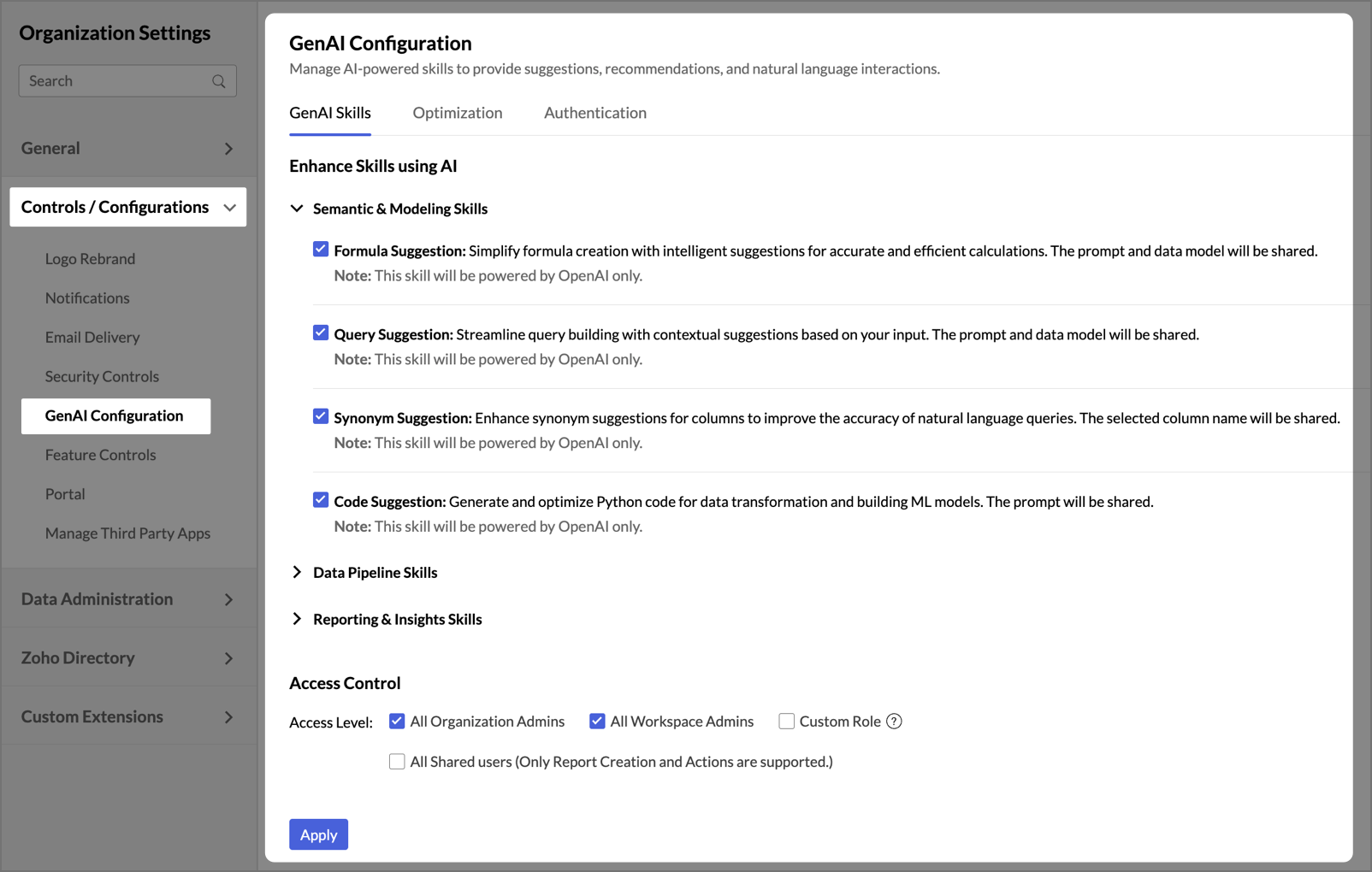
- Go to Organization Settings > Controls / Configurations > GenAI Configuration.
The GenAI Skills tab opens by default.
GenAI Skills
The GenAI Skills tab is where you enable the AI skills available in Zoho Analytics, choose the language model that powers each skill, and control which users can access them. Skills are grouped into three categories based on the kind of work they support:
- Semantic & Modeling Skills - Skills that assist with formulas, queries, synonyms, and code.
- Data Pipeline Skills - Skills that assist with data preparation and pipeline creation.
- Reporting & Insights Skills - Skills that assist with report creation, dashboard generation, slideshows, and Zia-driven insights.
Each category can be expanded or collapsed independently. Within each category, select the checkbox next to a skill to enable it.
Choose the AI vendor for a skill
Each GenAI skill is paired with the language model best suited for its task. For select skills, you can choose between Zoho LLM and OpenAI using the Select the AI Vendor dropdown shown alongside the skill.

Note: Each skill can use only one vendor at a time. If you change the vendor, the skill starts using the new vendor for all subsequent requests.
Before you enable any OpenAI-powered skill, you must configure your OpenAI credentials on the Authentication tab.
Semantic & Modeling Skills
These skills help Ask Zia interpret prompts more accurately and assist you with writing formulas, queries, synonyms, and code.
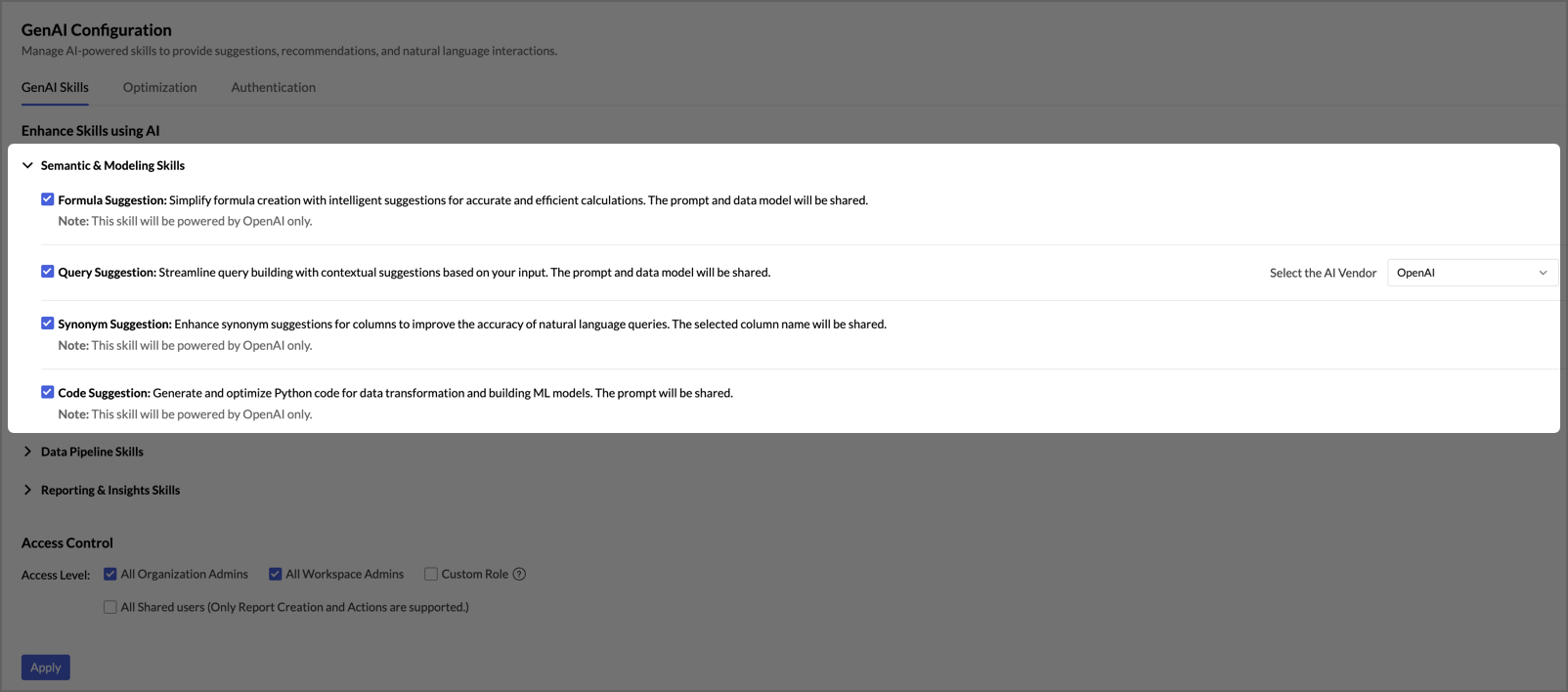
- Formula Suggestion - Simplifies formula creation with intelligent suggestions for accurate and efficient calculations. The prompt and data model are shared with the AI vendor. Learn more
Note: This skill is powered by OpenAI only.
- Query Suggestion - Streamlines SQL query building with contextual suggestions based on your input. The prompt and data model are shared with the AI vendor. Learn more
- Synonym Suggestion - Provides alternate terms for columns to improve the accuracy of natural language queries. Only the selected column name is shared with the AI vendor. Learn more
- Code Suggestion - Generates and optimizes Python code for data transformation and machine learning tasks. The prompt is shared with the AI vendor. Learn more
Data Pipeline Skills
These skills help streamline data transformation and pipeline building using natural language prompts.
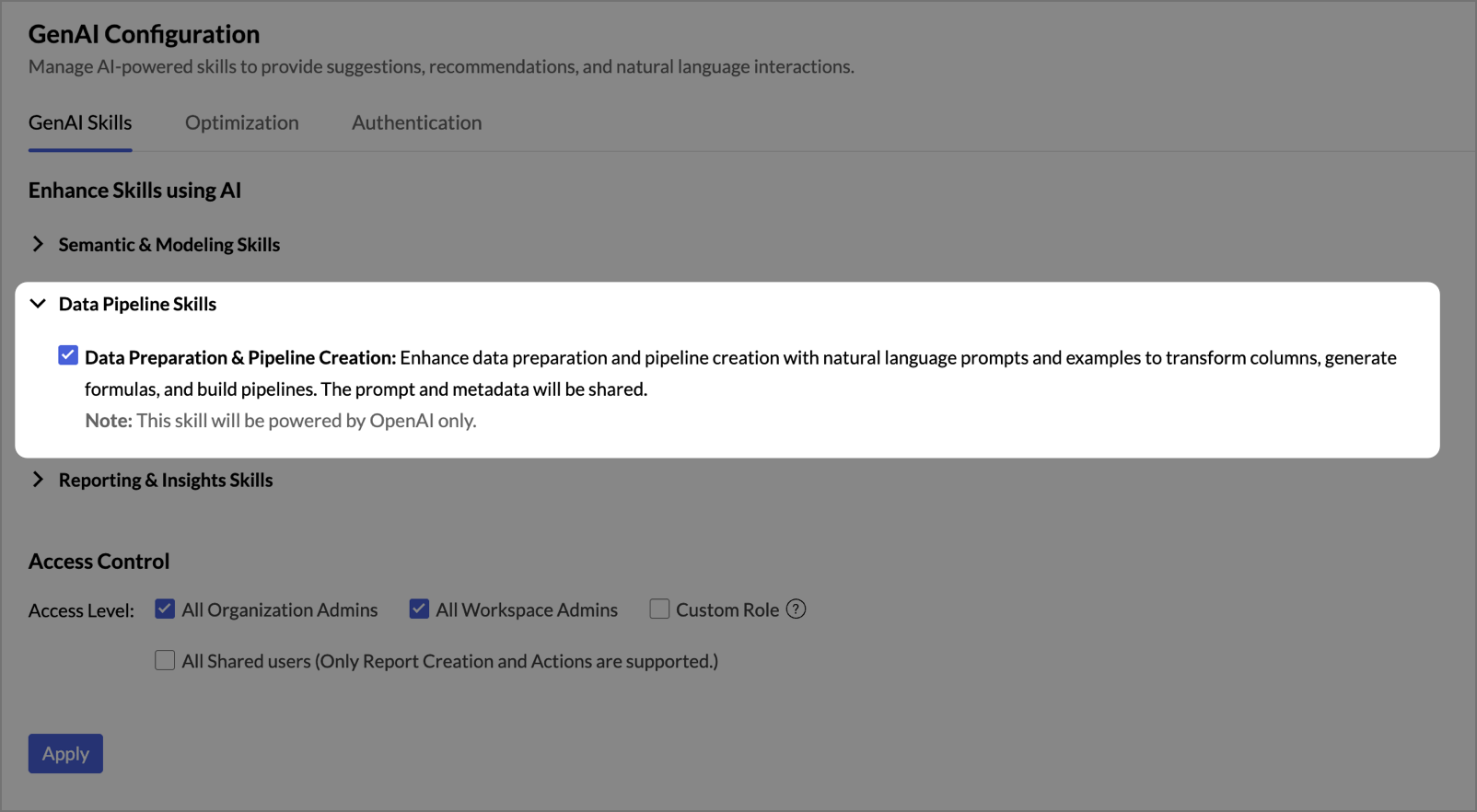
- Data Preparation & Pipeline Creation - Enhances data preparation and pipeline creation with natural language prompts and examples to transform columns, generate formulas, and build pipelines. The prompt and metadata are shared with the AI vendor. Learn more
Reporting & Insights Skills
These skills help you create reports, dashboards, and slideshows using natural language prompts, and surface AI-generated insights from your data.
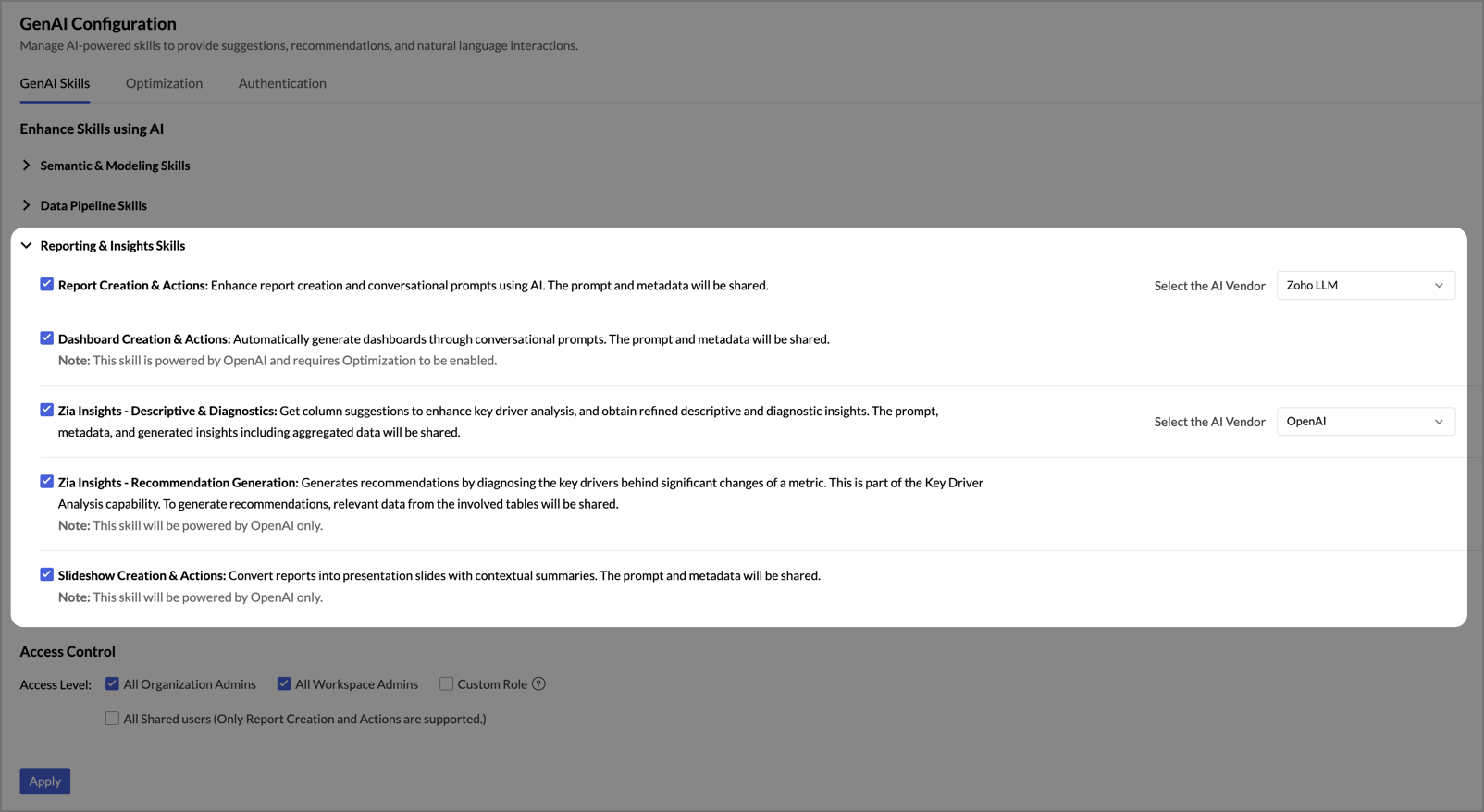
- Report Creation & Actions - Enhances report creation and conversational prompts using AI. You can also perform actions such as viewing, listing, opening, sharing, exporting, and scheduling reports through natural language. The prompt and metadata are shared with the AI vendor. Learn more
- Dashboard Creation & Actions - Automatically generates dashboards through conversational prompts. You can also perform actions such as opening, listing, scheduling, and exporting dashboards. The prompt and metadata are shared with the AI vendor. Learn more
- Zia Insights - Descriptive & Diagnostics - Provides column suggestions to enhance key driver analysis and surfaces refined descriptive and diagnostic insights. It helps you understand what is driving the changes in your data and uncover patterns, outliers, and root causes. The prompt, metadata, and generated insights (including aggregated data) are shared with the AI vendor.
- Zia Insights - Recommendation Generation - Generates recommendations by diagnosing the key drivers behind significant changes to a metric. This skill is part of Zia's Key Driver Analysis capability. Relevant data from the involved tables is shared with the AI vendor to generate recommendations.
- Slideshow Creation & Actions - Converts reports into presentation slides with contextual summaries. You can also perform actions such as opening, listing, scheduling, and exporting slideshows. The prompt and metadata are shared with the AI vendor. Learn more
Access Control
Under Access Control, choose who in your organization can use the enabled GenAI skills. These settings determine whether the skills appear for administrators or shared users across the workspaces they have access.
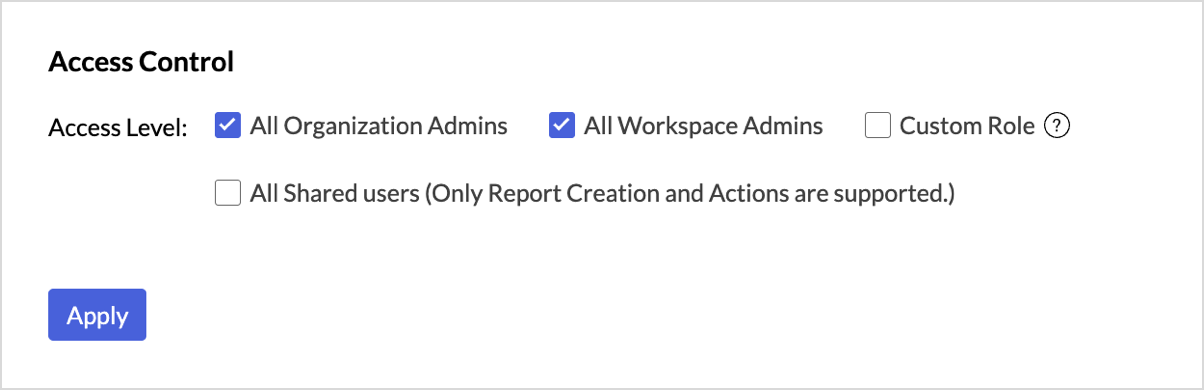
- All Organization Admins - Only organization-level administrators can use the enabled GenAI skills.
- All Workspace Admins - Both organization administrators and workspace administrators can use the enabled GenAI skills.
- Custom Role - Grants GenAI skill access to users assigned to custom roles. To grant access at the role level, enable GenAI skills for each custom role in the Manage Roles section under General tab.
- All Shared users - Grants access to all shared users in the workspace. Only Report Creation & Actions is supported for shared users.
After you select the required access level, click Apply to save your selection.
Optimization
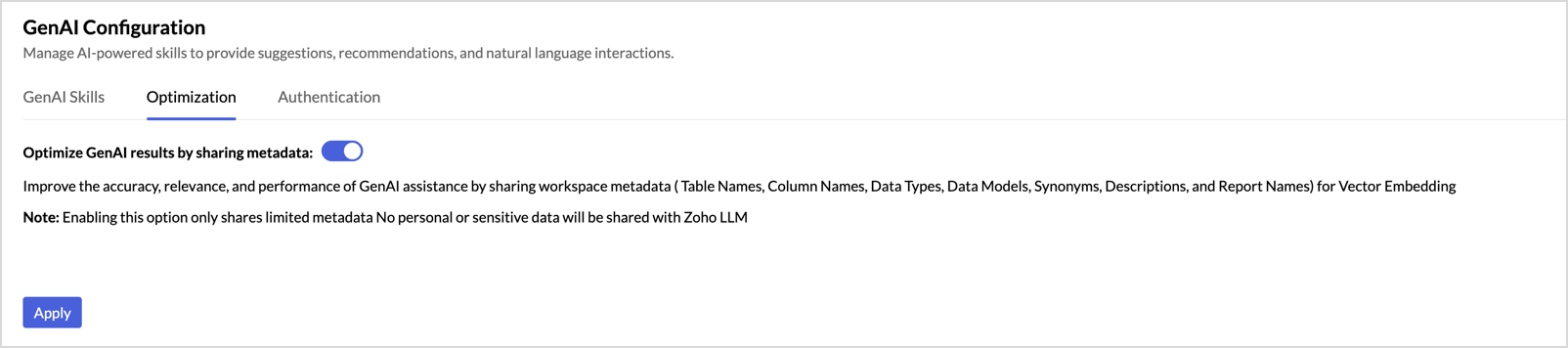
The Optimization tab lets you improve the accuracy, relevance, and performance of GenAI responses by sharing selected workspace metadata with the language model. When enabled, Zoho Analytics converts this metadata into vector embeddings that the language model uses as context when answering prompts.
Enable optimization
To turn on optimization, toggle the Optimize GenAI results by sharing metadata switch to the on position, and click Apply.
Note: Optimization must be enabled for the Dashboard Creation & Actions skill to work. Other skills can function without optimization, but their accuracy improves significantly when it is turned on.
What gets shared
When optimization is enabled, the following workspace metadata is shared for vector embedding:
- Table Names
- Column Names
- Data Types
- Data Models
- Synonyms
- Descriptions
- Report Names
Note: Only limited metadata is shared. No personal (PII) or sensitive data is shared with the language model.
How it works
The optimization feature is built on Retrieval Augmented Generation (RAG), a technique that improves language model responses by retrieving relevant context before generating an answer.
When optimization is turned on, Zoho Analytics shares workspace metadata with the embedding API of the connected language model, which generates vector representations (text converted into numerical format) of the metadata. These vectors are securely stored within Zoho Analytics. This processing occurs asynchronously in the background.
When you ask a question in Ask Zia, your input is also converted into a vector representation using the same process. A relevance search is then performed to fetch the most relevant metadata based on your input. This metadata is included in the context provided to the language model, resulting in more accurate and context-aware responses.
This approach helps the language model understand your data structure more effectively, leading to improved suggestions and insights across all supported skills.
Note: For the US, EU, and IN data centers, embedding processing for GenAI skills is handled by Zoho LLM. In other data centers, embedding processing is handled by OpenAI.
To learn more about the underlying concepts, see OpenAI's guides on Retrieval Augmented Generation (RAG) and Vector embeddings.
Authentication
The Authentication tab is where you manage access to your connected AI vendors. From this tab, you can authenticate Zoho LLM and OpenAI, update or remove credentials, monitor how many tokens each vendor has consumed, and access detailed usage insights and logs.
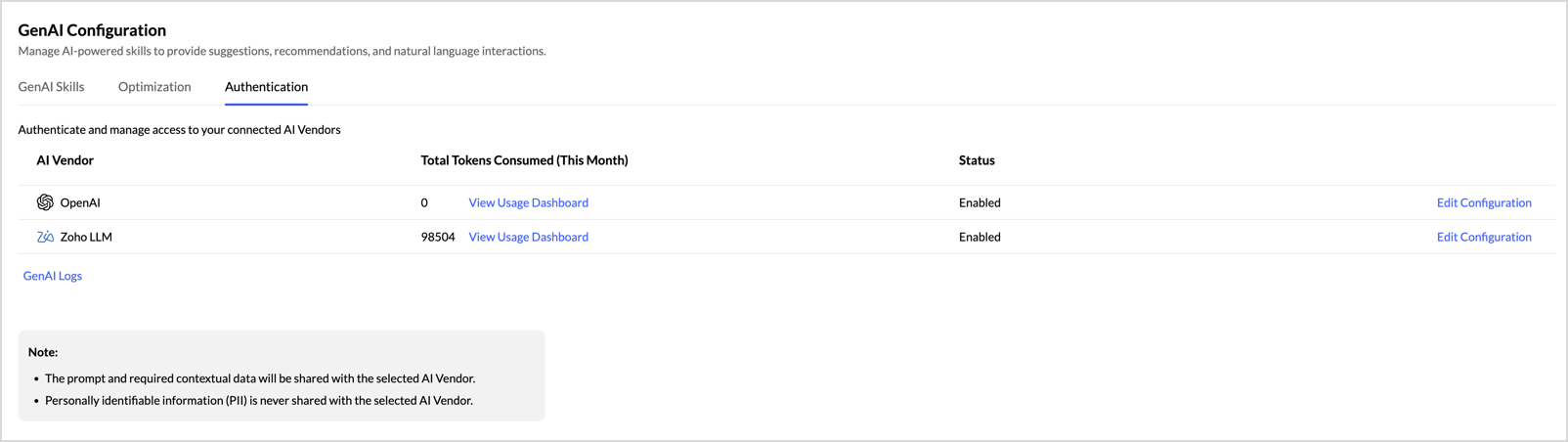
The tab displays a list of all supported AI vendors along with the following details:
- AI Vendor - The name of the language model provider (Zoho LLM or OpenAI).
- Total Tokens Consumed (This Month) - The cumulative number of tokens consumed by GenAI skills for the current month. Click View Usage Dashboard to see a detailed breakdown.
- Status - Shows whether the vendor is currently Enabled or Disabled.
- Edit Configuration - Opens the configuration panel where you can update credentials, toggle the vendor on or off, or remove credentials.
A GenAI Logs link is also available below the vendor list. Clicking this link opens the GenAI API Usage Dashboard, which provides organization-wide GenAI usage insights. This is similar to the dashboard that opens when you click View Usage Dashboard next to an individual vendor, except that the View Usage Dashboard entry point pre-filters the view to show data only for the selected vendor. See the View Usage Dashboard section below for details.
Note: The prompt and required contextual data will be shared with the selected AI vendor. Personally identifiable information (PII) is never shared with the selected AI vendor.
Configure OpenAI
To use OpenAI as a language model for any GenAI skill, you must first enter your OpenAI credentials. These include your OpenAI Org ID and Secret Key.
Get your OpenAI credentials
Before configuring OpenAI in Zoho Analytics, obtain your credentials from OpenAI:
- Sign in to your OpenAI account.
- Go to the Settings page.
- Under the Organization section:
- Go to the General tab to find your Organization name and ID.
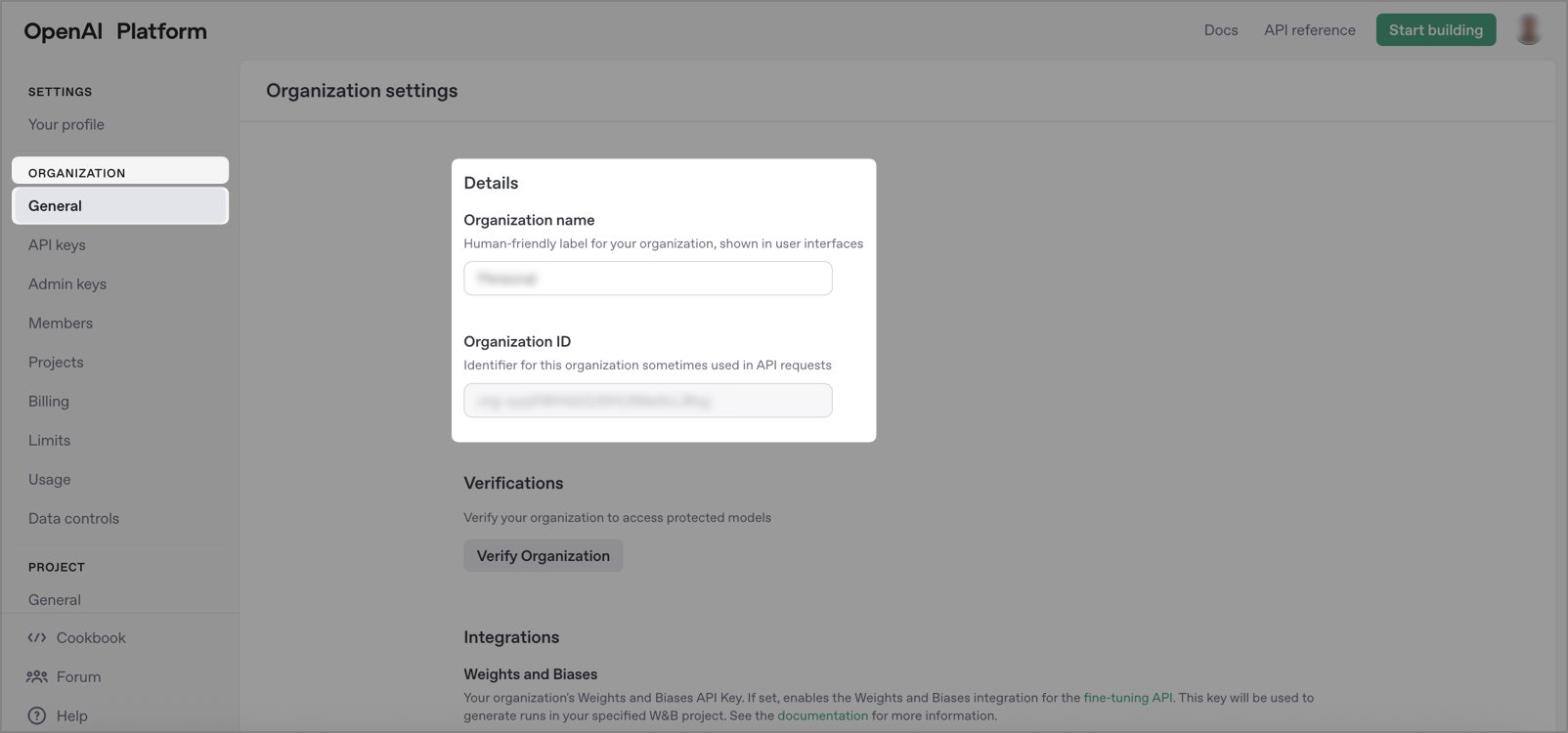
- Go to the API keys tab to generate or copy your Secret API Key.
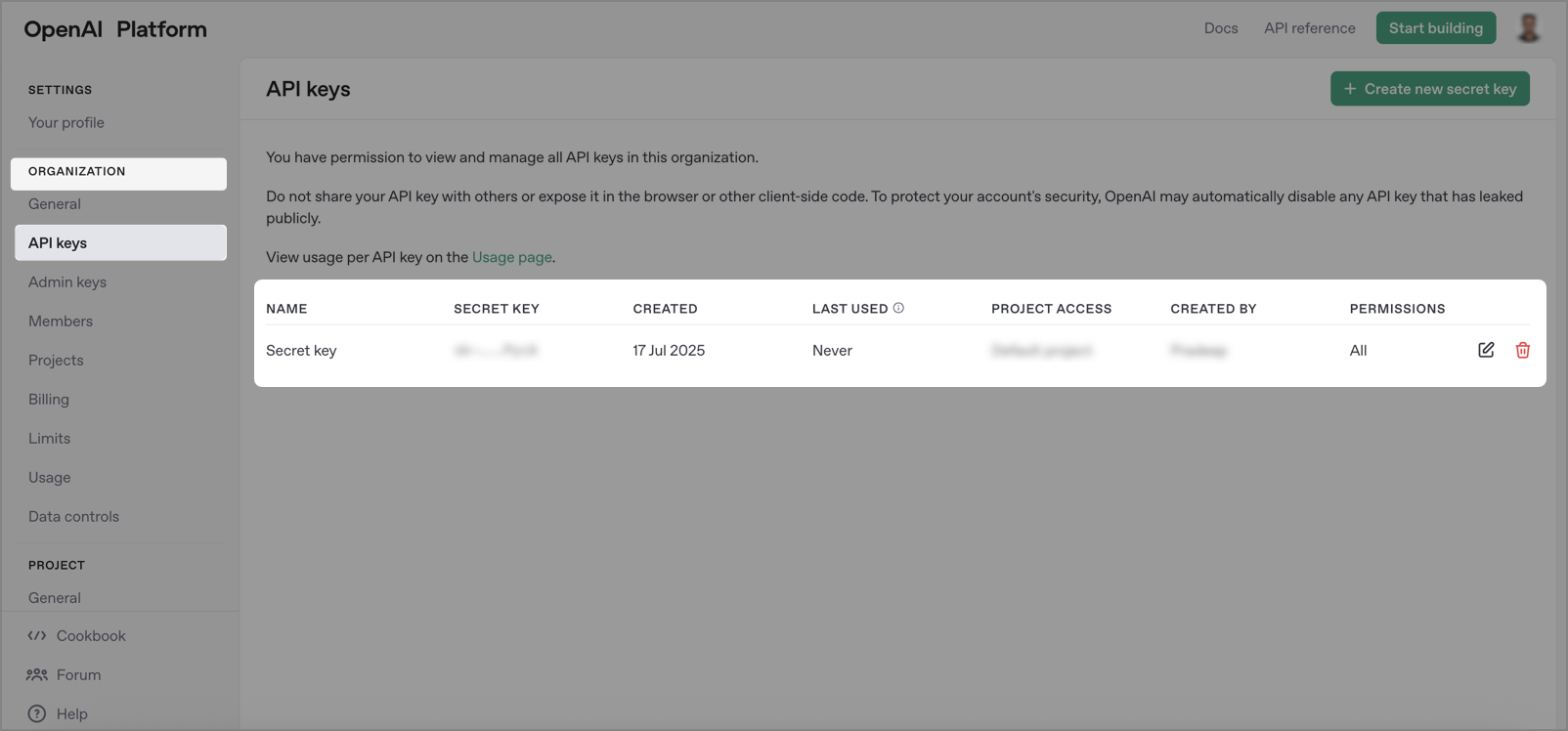
- Go to the General tab to find your Organization name and ID.
For more information, see OpenAI's guide on setting up your organization.
Enter OpenAI credentials in Zoho Analytics
- On the Authentication tab, click Edit Configuration next to OpenAI.
- In the Edit Configuration panel, toggle the OpenAI switch to the on position.
- Enter your OpenAI Org ID and Secret Key in the respective fields.
- Click Save.
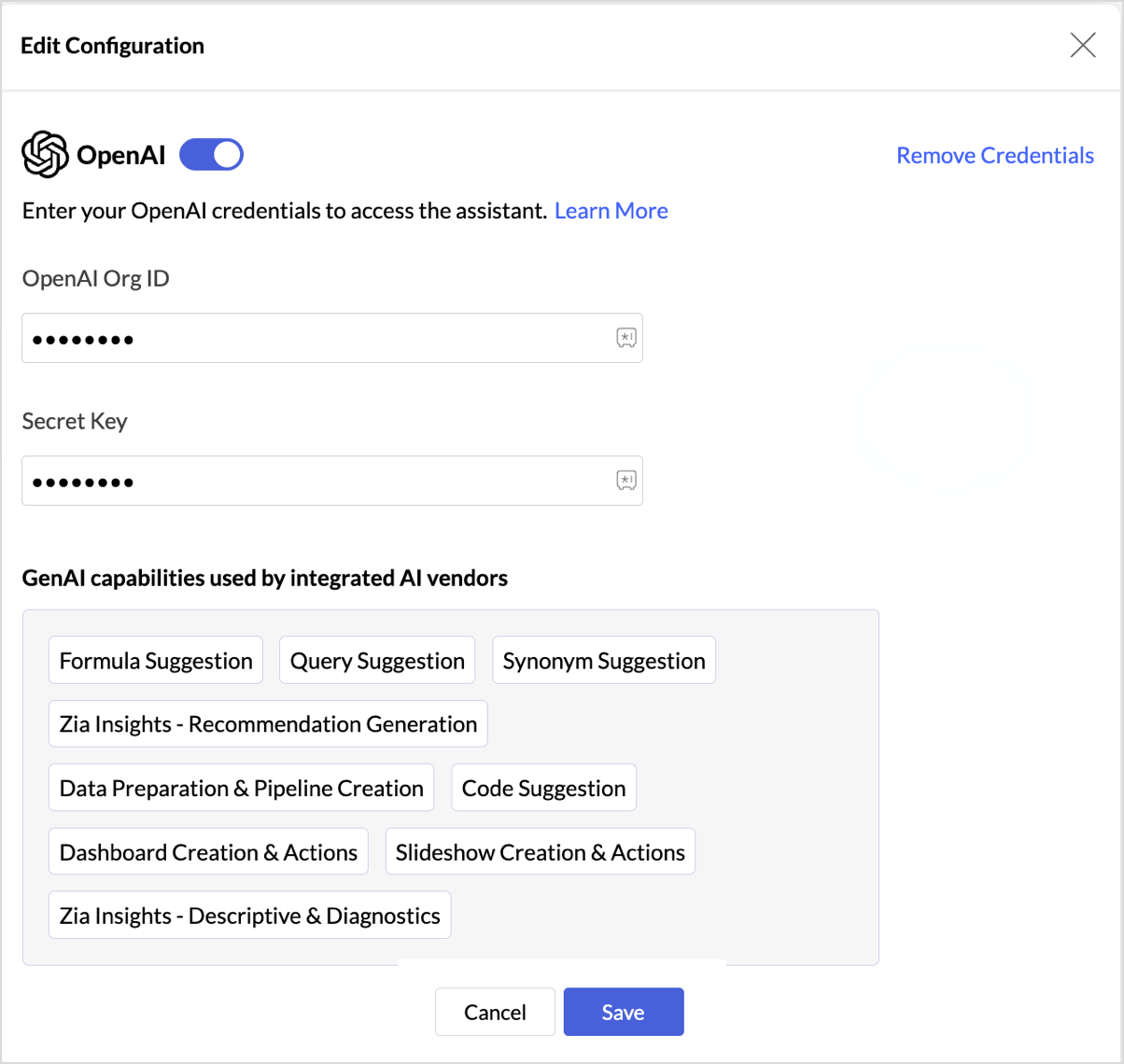
The GenAI capabilities used by integrated AI vendors panel at the bottom lists the skills currently configured to use OpenAI. This is a read-only reference that helps you see which skills will be affected by any changes to the OpenAI configuration.
Remove OpenAI credentials
To disconnect OpenAI from Zoho Analytics, click Remove Credentials in the Edit Configuration panel.
Note: Removing the credentials disables all skills that use OpenAI as the vendor. These skills remain disabled until new OpenAI credentials are entered.
Configure Zoho LLM
Zoho LLM is built into Zoho Analytics and does not require external credentials.
To configure it:
- On the Authentication tab, click Edit Configuration next to Zoho LLM.
- In the Edit Configuration panel, toggle the Zoho LLM switch to the on position.
- Click Save.
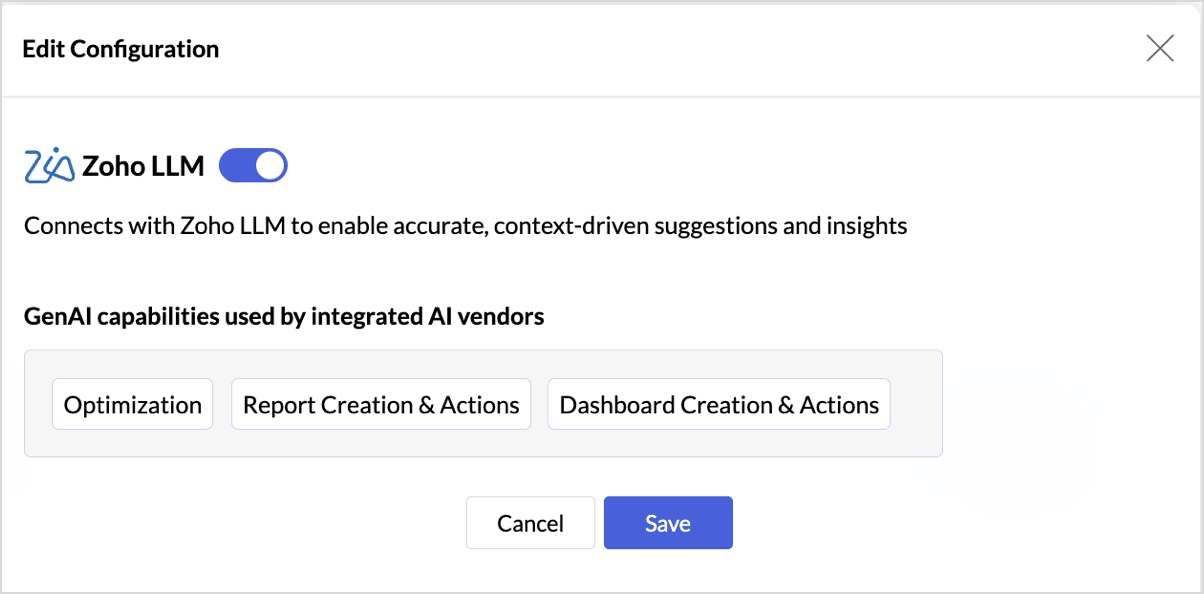
The GenAI capabilities used by integrated AI vendors panel at the bottom lists the skills currently configured to use Zoho LLM.
Note: Toggling off Zoho LLM disables all skills that use it as the vendor. These skills remain disabled until Zoho LLM is toggled back on.
View Usage Dashboard
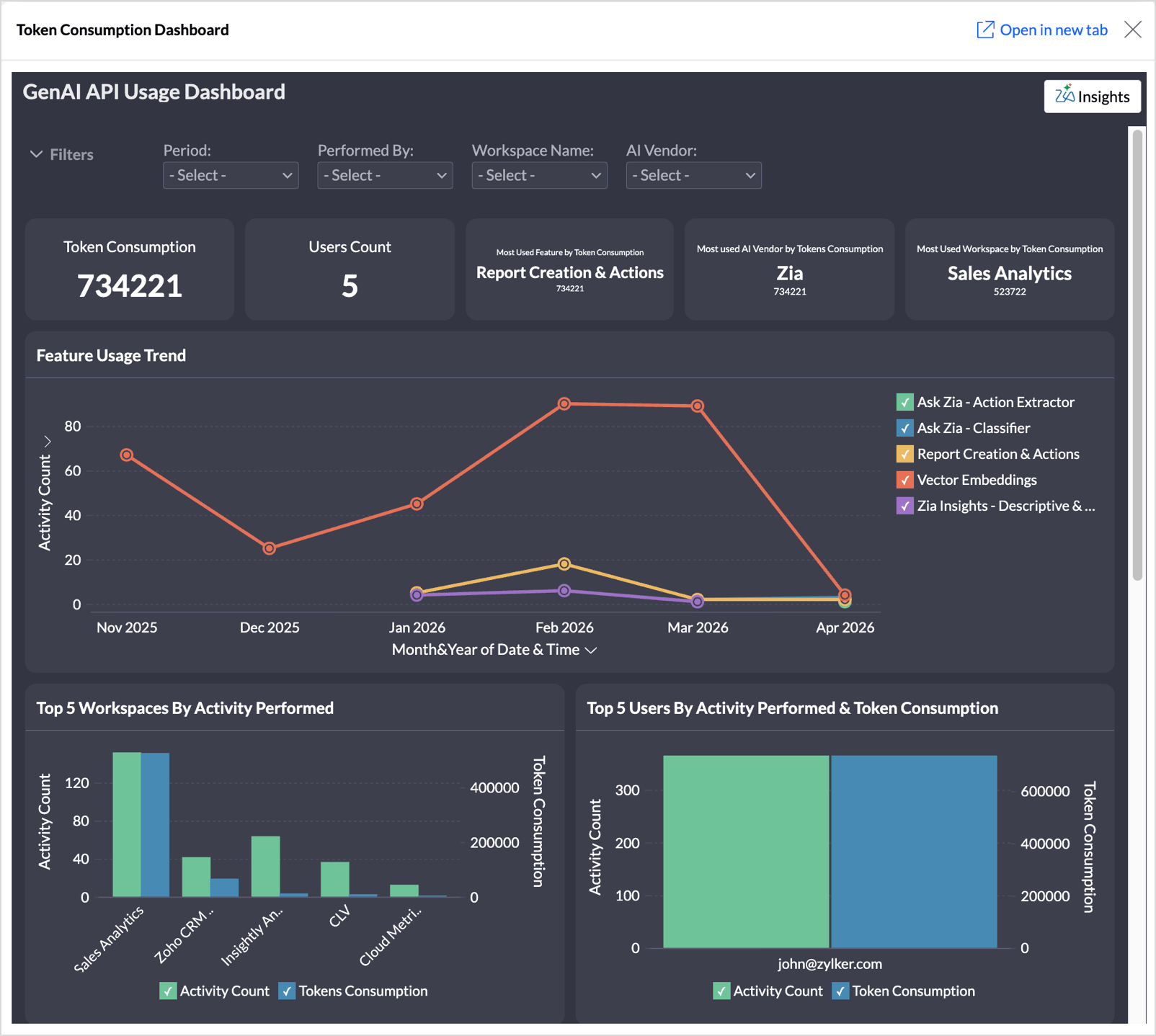
Click View Usage Dashboard next to any vendor to open the GenAI API Usage Dashboard pre-filtered to show data only for the selected vendor. This provides a focused view of how GenAI skills powered by that vendor are being used across your organization.
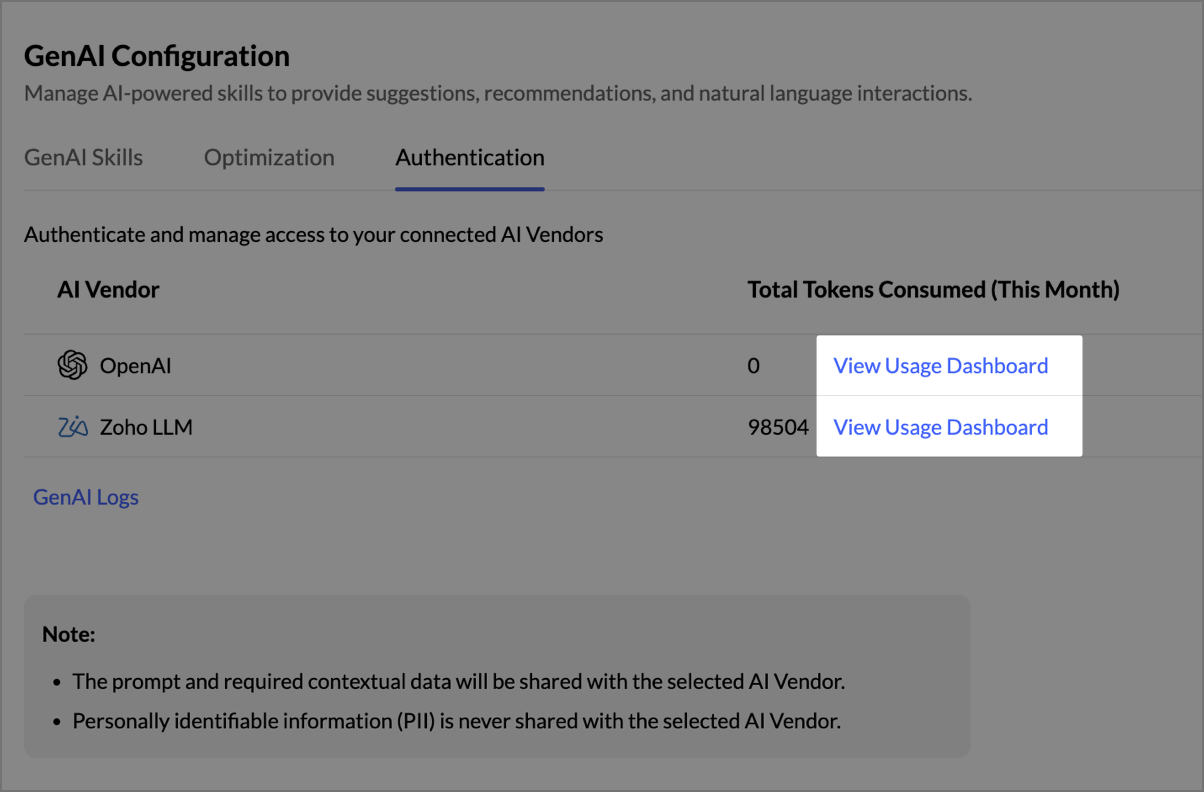
The dashboard surfaces key metrics such as total token consumption, most-used features and vendors, and top workspaces and users, along with detailed reports on feature usage trends, token distribution, and activity status. For a complete list of KPIs and reports available, see GenAI Logs.
Use the filters at the top of the dashboard to narrow the view by Period, Performed By, Workspace Name, or AI Vendor. Click Open in new tab to view the dashboard in a full browser tab.
Data handling
GenAI skills in Zoho Analytics follow a minimum-necessary model: only the information required to answer a prompt is shared with the selected AI vendor. The flow is transparent, auditable, and designed to protect sensitive data at every step.
What is shared
The following table summarizes what is shared with the AI vendor for each GenAI skill and the purpose of sharing it.
| Skill | What is shared | Purpose |
| Formula Suggestion |
| Generates context-aware formula suggestions. |
| Query Suggestion |
| Generates context-aware SQL query suggestions. |
| Synonym Suggestion |
| Offers alternate terms to improve natural-language search. |
| Code Suggestion |
| Builds or refines Python code for data preparation or machine learning. |
| Data Preparation & Pipeline Creation |
| Transforms columns, generates formulas, and builds pipelines. |
| Report Creation & Actions |
| Selects relevant fields and chooses best-fit visuals. |
| Dashboard Creation & Actions |
| Selects relevant fields and layouts for dashboards. |
| Zia Insights - Descriptive & Diagnostics |
| Identifies key drivers and produces narrative insights. |
| Zia Insights - Recommendation Generation |
| Generates recommendations based on key driver analysis. |
| Slideshow Creation & Actions |
| Converts reports into presentation slides with contextual summaries. |
When the Optimization setting is enabled, the following workspace metadata is also shared with the embedding API of the connected language model to generate vector representations: table names, column names, data types, data models, synonyms, descriptions, and report names.
What is not shared
- Personally identifiable information (PII) such as email addresses, phone numbers, or customer IDs.
- Complete dashboards, full report layouts, or entire formulas.
- Usage metrics outside the current request.
Frequently Asked Questions
Can I switch a skill from OpenAI to Zoho LLM after it is enabled?
Yes. For skills that support vendor selection (currently Report Creation & Actions and Zia Insights - Descriptive & Diagnostics), you can change the vendor at any time using the Select the AI Vendor dropdown on the GenAI Skills tab. The skill starts using the new vendor for all subsequent requests. Skills that are powered by OpenAI only cannot be switched.Why don't I see a vendor dropdown for all skills?
Only a few skills support both Zoho LLM and OpenAI. All other skills are powered by OpenAI only, so no vendor selection is needed. Each skill's supported vendors are noted in the skill description on the GenAI Skills tab.What happens to my data if I remove OpenAI credentials?
Removing OpenAI credentials disables all skills that use OpenAI as the vendor. These skills remain disabled until new OpenAI credentials are entered. No data previously shared with OpenAI is affected by this action. For details, see the Remove OpenAI credentials section.Does enabling Optimization share my actual data or only metadata?
Optimization shares only workspace metadata (table names, column names, data types, data models, synonyms, descriptions, and report names). Your actual data, including rows, cells, and personally identifiable information (PII), is never shared for optimization. For details on how optimization works, see the Optimization section.Where can I see how many tokens my organization has used?
Go to the Authentication tab to view the total tokens consumed by each AI vendor for the current month. For a detailed breakdown by feature, workspace, user, and time period, click View Usage Dashboard next to a vendor, or click the GenAI Logs link below the vendor list.Can shared users use GenAI skills?
Shared users can use GenAI skills only if you select All Shared users under Access Control on the GenAI Skills tab. Only Report Creation & Actions is supported for shared users.Does Zoho Analytics share my data with AI vendors for model training?
No. Zoho Analytics does not share your actual data with AI vendors. Only the minimum information required to answer a request - such as the prompt, table and column names, data types, and aggregated values where applicable - is shared. Personally identifiable information (PII) is never shared. The information that is shared is used only to generate the response for the current request; it is not used to train the language models. For a complete breakdown of what is shared per skill, see the Data handling section.What is the difference between Zoho LLM and OpenAI?
Zoho LLM is a set of open language models that are fine-tuned and run securely within Zoho's environment. OpenAI is an external AI vendor that requires you to configure your own account credentials. Both vendors follow the same minimum-necessary data-sharing model described in the Data handling section.