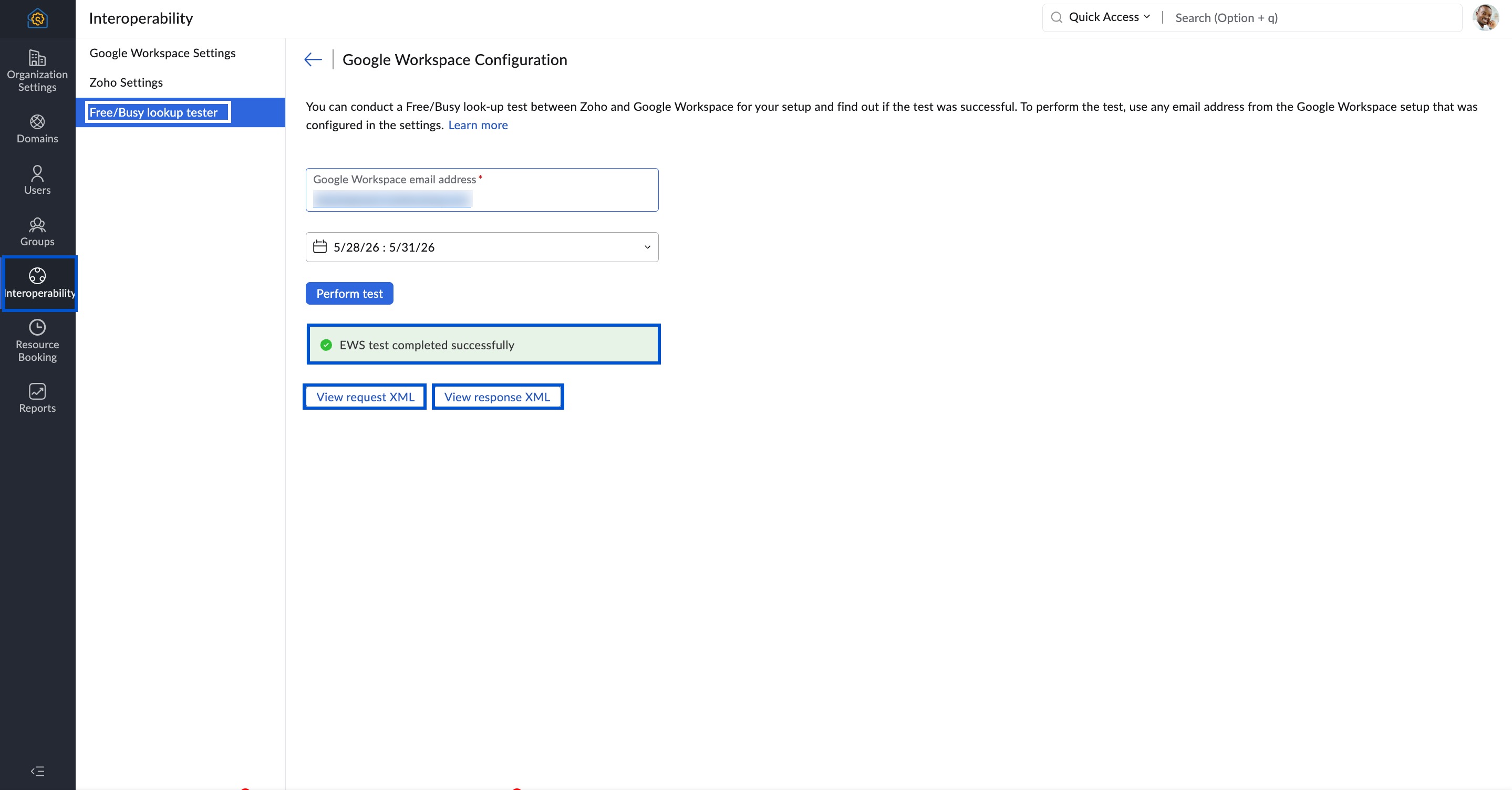
Free/Busy lookup tester for Google Calendar Interoperability
Once you have set up your Google and Zoho accounts, you can verify if the setup has been successful using the Free/busy lookup tester and get the desired results. The Free/busy tester provides you with the result of the request placed during the test.
Different steps to verify your setup
Below are some of the different steps listed to verify your setup between Zoho Calendar and Google Calendar.
- Sign in to a Zoho user account and issue an availability query for Google Calendar user. To issue an availability query:
- Log in to Zoho Calendar.
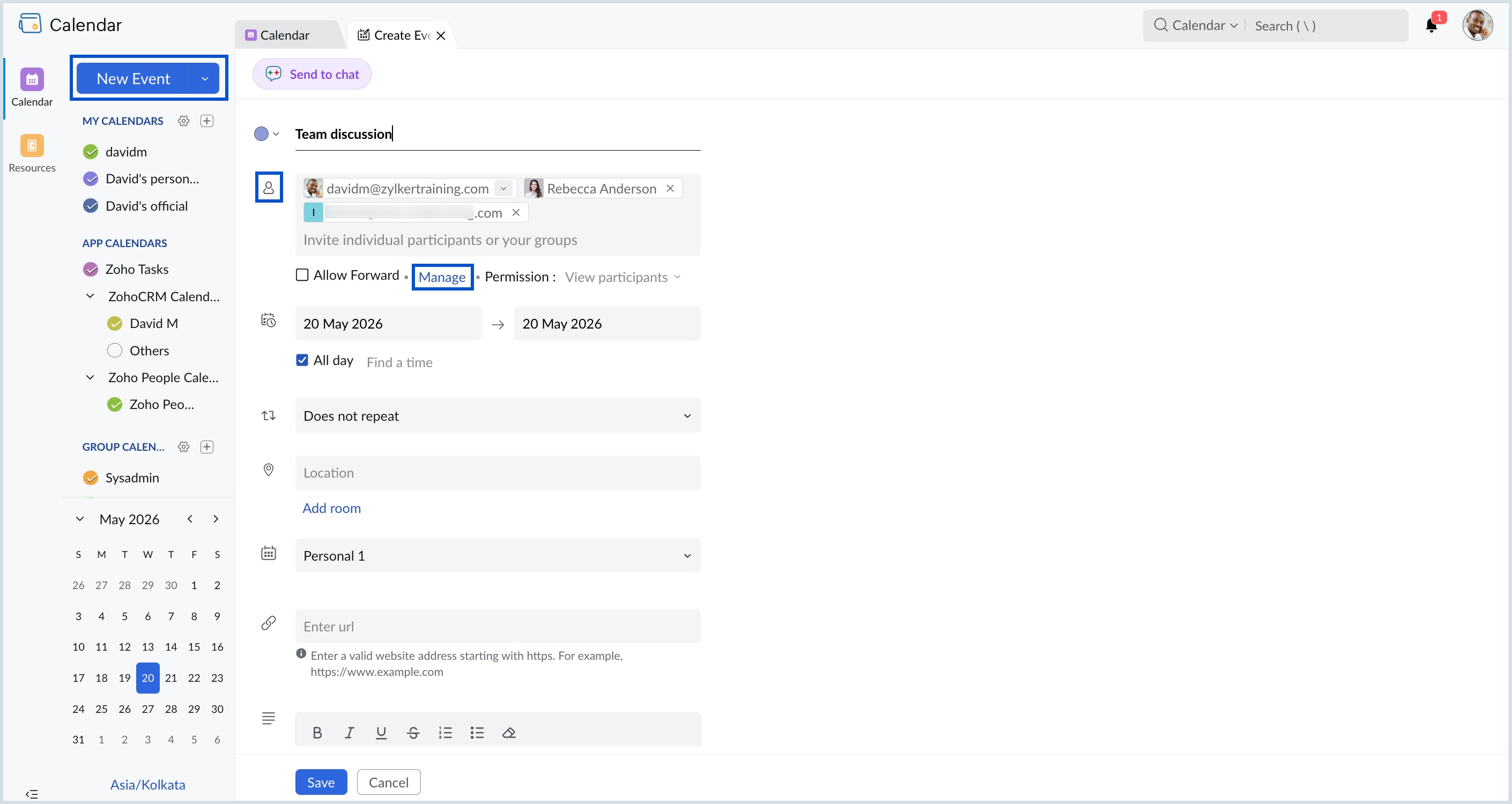
- Select New Event from the left pane.
- In the Create Event window, click on Manage under the Attendees field.
- Enter the attendee name (Google Calendar user) in the Invite participants field of the Check Availability pop-up window and choose their email address.
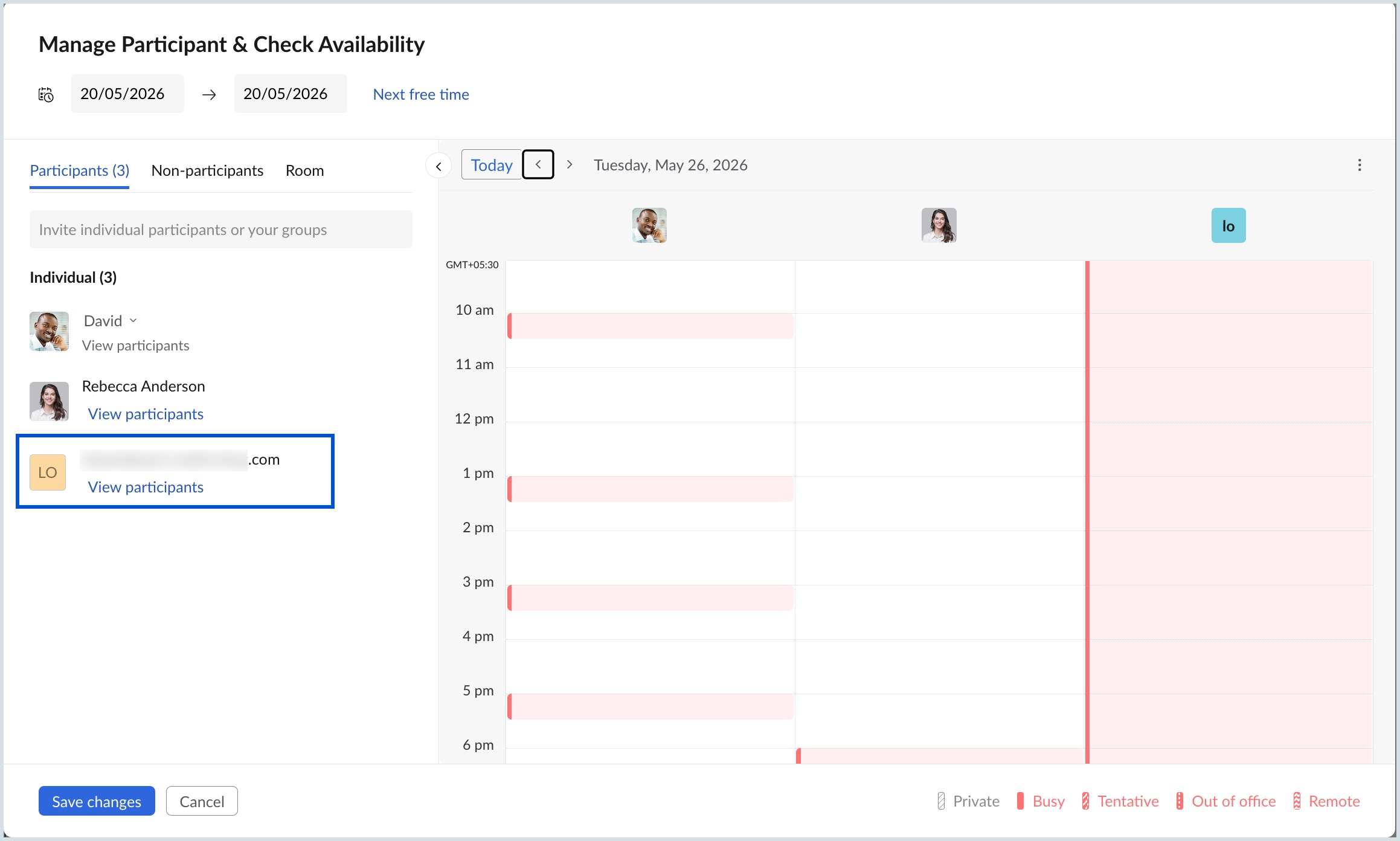
- If the query to check the availability isn't successful, the error message will be displayed with the reason for failure.
- You can check the activity status in the Zoho Calendar Admin Console > Reports > Calendar activity tab. The Calendar activity section will display the status of the query.
- If there are no errors displayed, then login to an Google Calendar user account and issue an availability query for a Zoho Calendar user.
- Click on Create Event window in Google Calendar and navigate to the Find a time tab.
- Enter the email address of the Zoho role account by clicking Add guest in the right pane of the window and check the availability.
- If the user availability query fails, then try out the Free/Busy lookup tester to resolve issues.
Steps to perform test in Free/Busy lookup tester
If the availability query to verify your setup fails, you can find out the reason behind the failure by performing a test in the Free/Busy lookup tester.
- Log in to Zoho Calendar Admin Console.
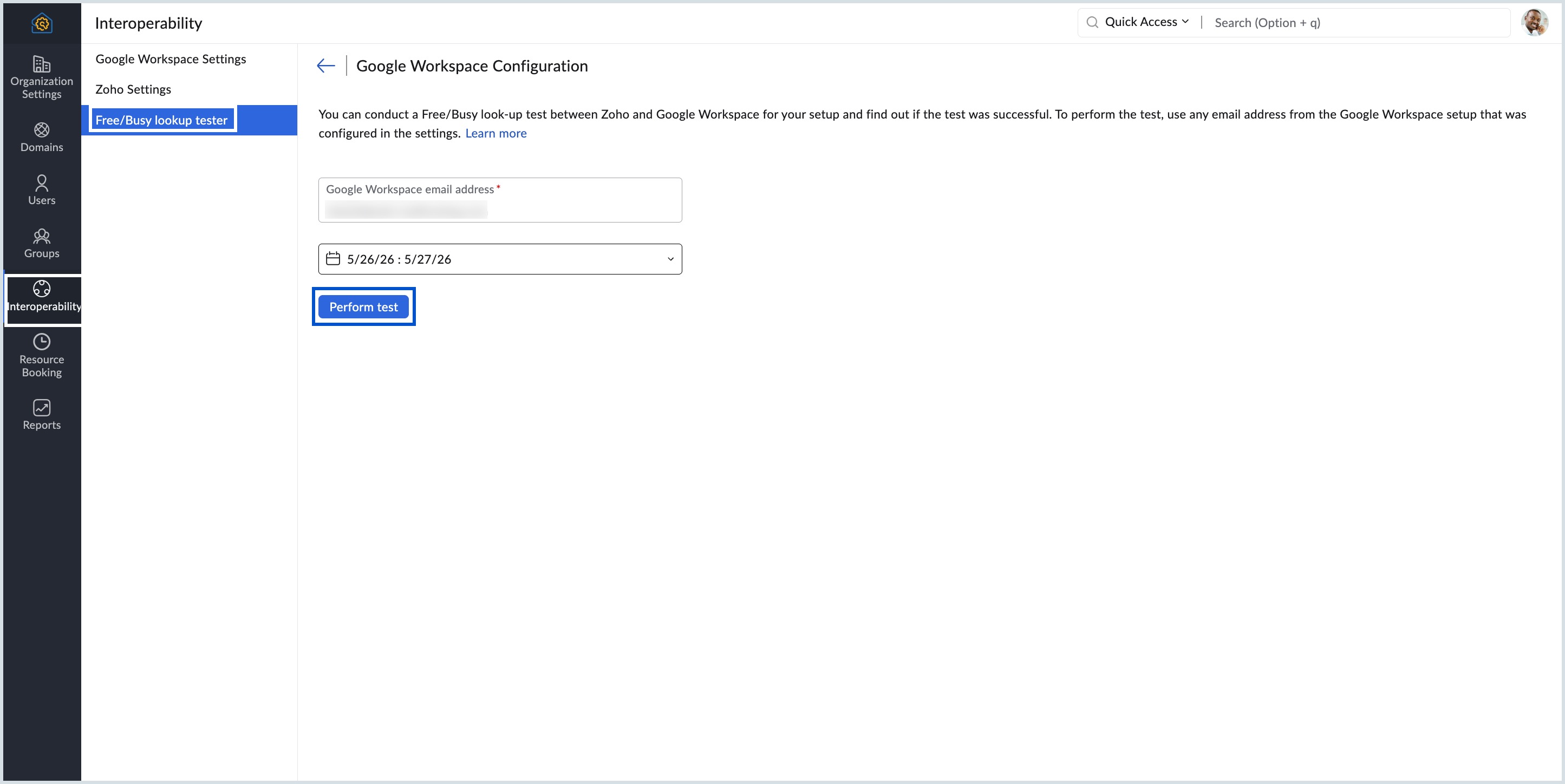
- Navigate to the Free/Busy lookup tester under Calendar Interoperability.
- Enter the Google Calendar user email address.
- Specify the start of time window and the end of time window.
- Click on Perform test.
The request is processed in Exchange Web Services(EWS) and the details of the request XML and response XML are displayed when the test is complete. You can view the XML files by clicking on the View request XML or View response XML button.