Manage Room Categories for Resource Booking
Room categories help you organize resources based on their purpose or type, making it easier for users to identify and book the appropriate room. Zoho Calendar provides a set of default categories that cannot be modified or deleted. You can also create custom categories to suit your organization's requirements, such as Board Room, Training Center, or Client Meeting Room.
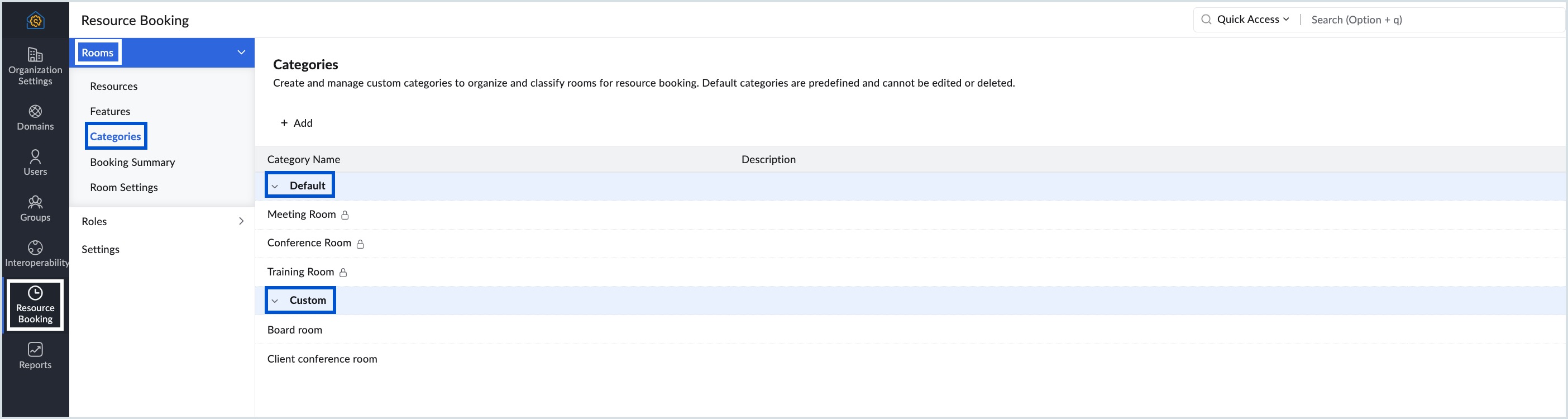
Default and Custom Categories
Room categories are divided into two types:
- Default Categories – Predefined categories provided by Zoho Calendar. These categories are system-defined and cannot be edited or deleted.
- Custom Categories – Categories created by your organization. You can add, edit, or delete these categories at any time.
Add a Custom Category
To create a new room category:
- Sign in to your Zoho Calendar Admin Console.
- Navigate to Resource Booking in the left pane.
- Select Rooms > Categories.
- Click Add.
- In the Add Category dialog, enter the following details:
- Category Name – Enter a unique name for the category.
- Description (Optional) – Provide a brief description of the category.
- Click Add.
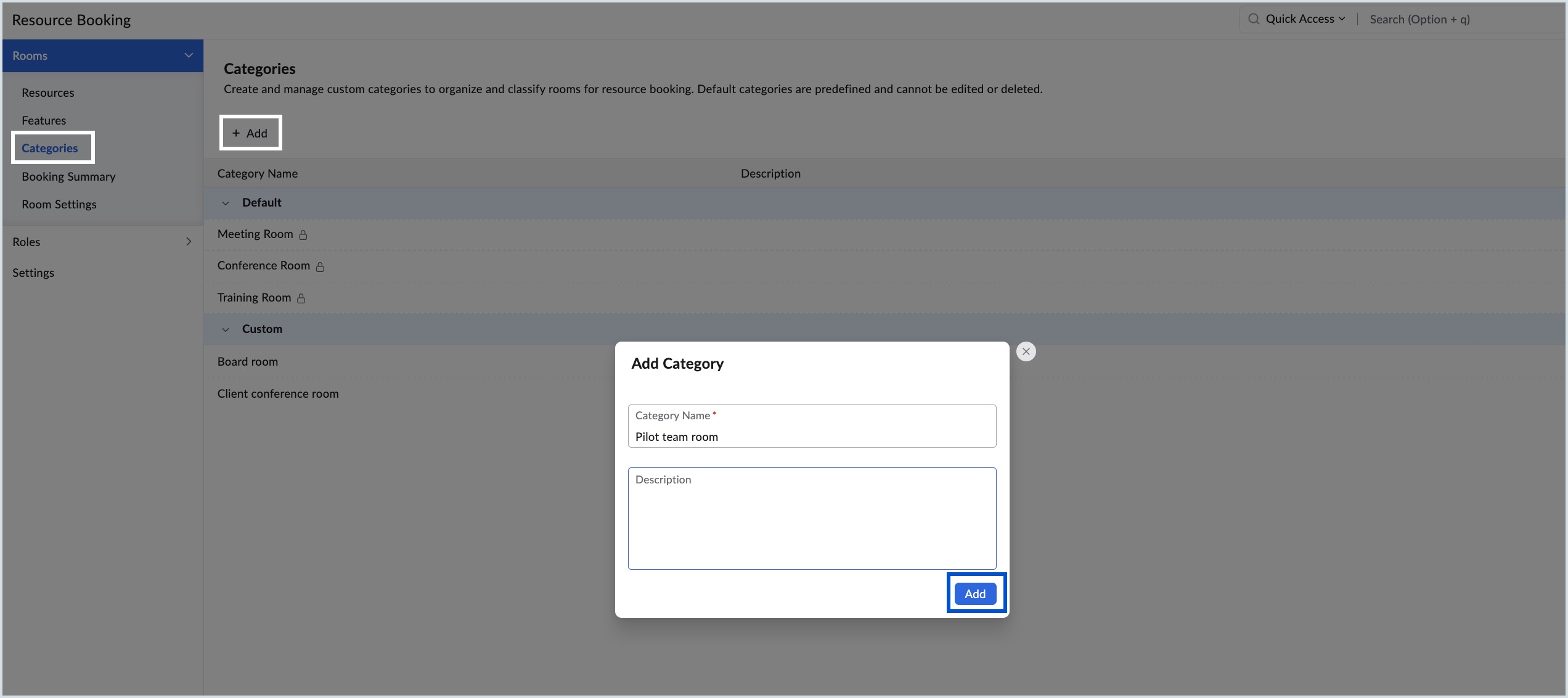
The new category is added under the Custom section and will be available while creating or editing room resources.
Edit a Custom Category
To modify an existing custom category:
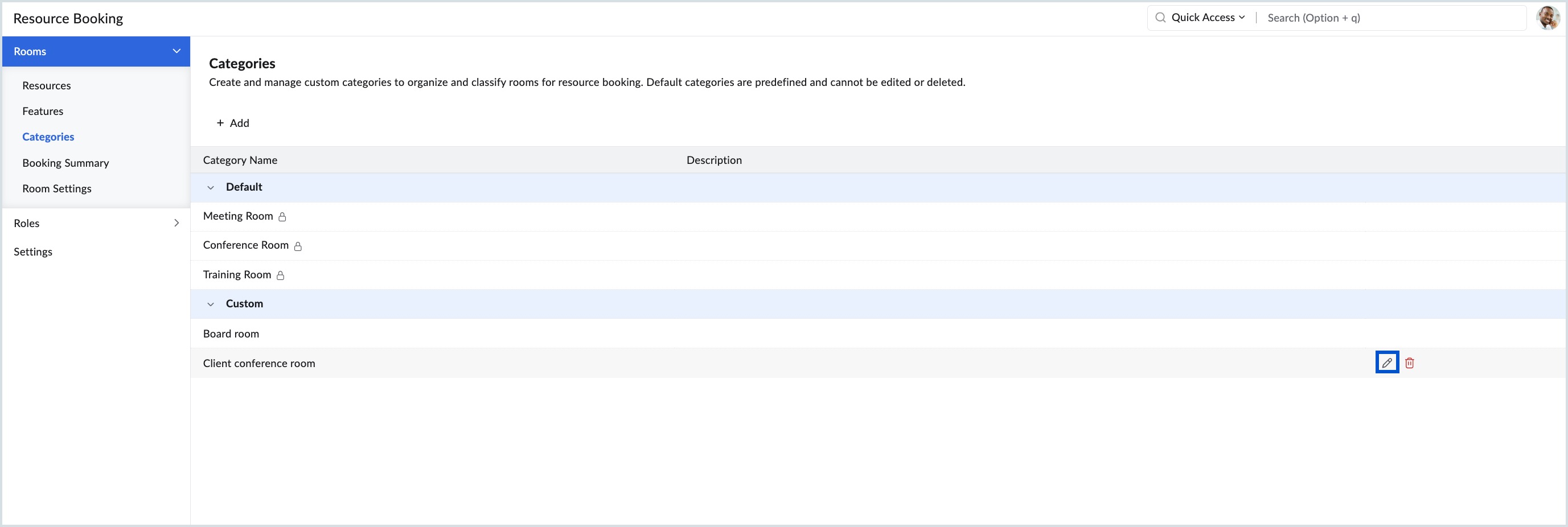
- Navigate to Resource Booking > Rooms > Categories.
- Under the Custom section, locate the category you want to update.
- Click the Edit icon.
- Update the category name or description as required.
- Save your changes.
Delete a Custom Category
To remove a custom category:
- Navigate to Resource Booking > Rooms > Categories.
- Under the Custom section, locate the category you want to delete.
- Click the Delete icon.
- Confirm the deletion.
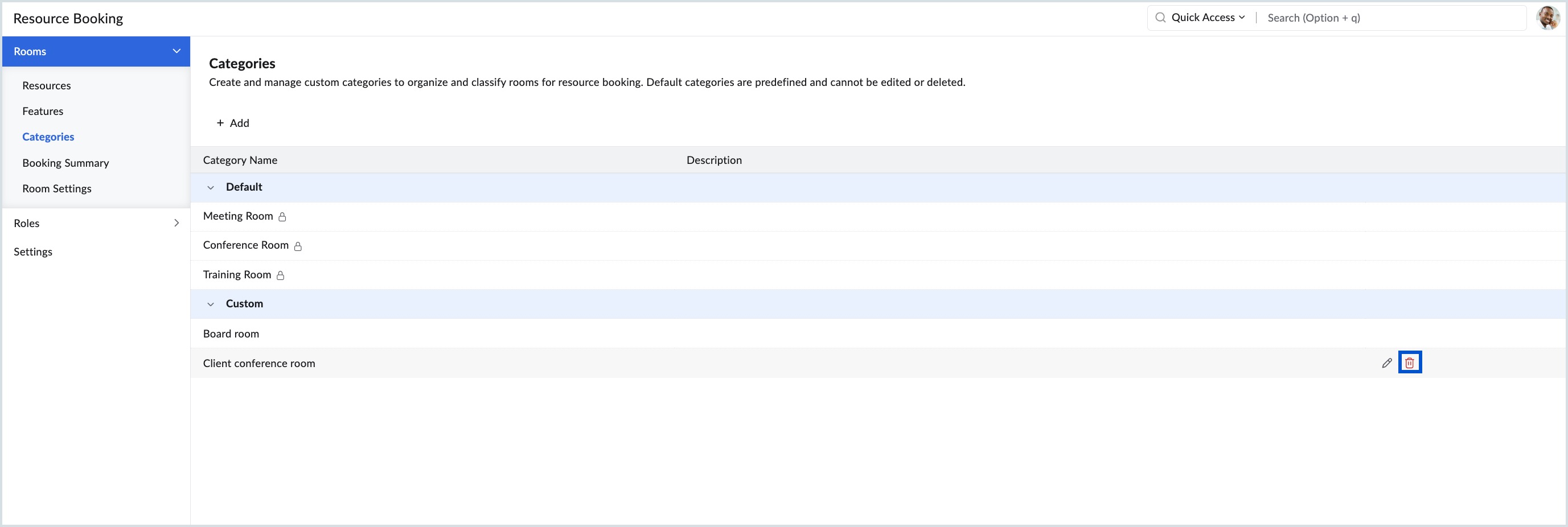
The selected category is removed from the list.
Note
You cannot delete a custom category that is assigned to one or more room resources. Before deleting the category, edit the associated rooms and assign them to a different category.