Embed Calendars
If you have a requirement to include your calendar in your blog or your webpage, you can fetch the embed code of the calendars owned by you on Zoho Calendar. This embed code can be integrated with your website's HTML code and the calendar will be added to your website. You can also embed your Zoho Calendar into your blogs if required.
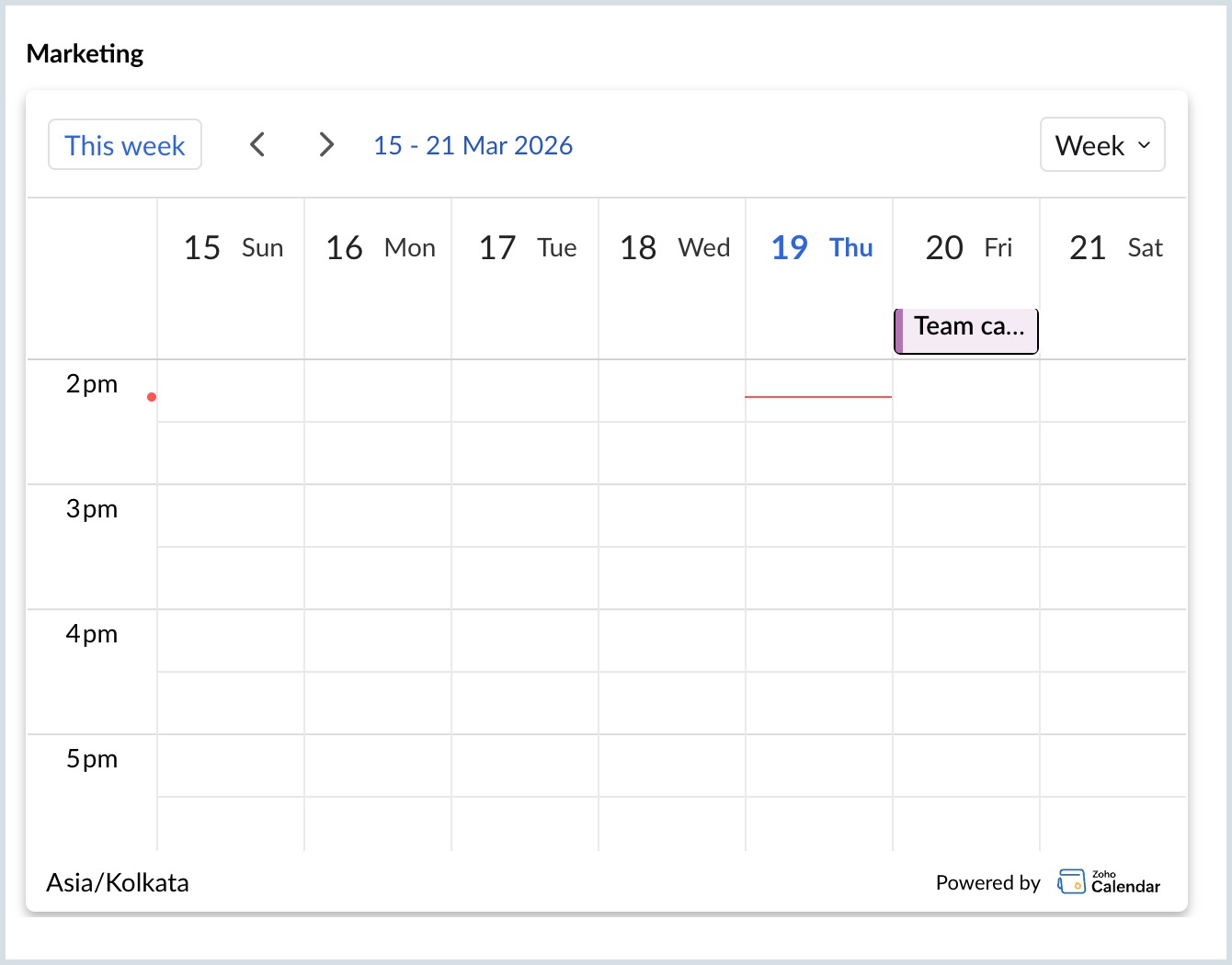
You have the option to choose from ten default templates that are provided in Zoho Calendar for embedding purposes. Enhance your calendar's look according to your website's theme and choose from a wide range of templates available. Customize the title, language, height/width of the calendar, calendar view and time zone before copying the embed code. You can also select/deselect the title, time zone and details view to be displayed on the calendar that is to be embedded before copying the code.
Steps to Embed Personal Calendars
- Log in to Zoho Calendar.
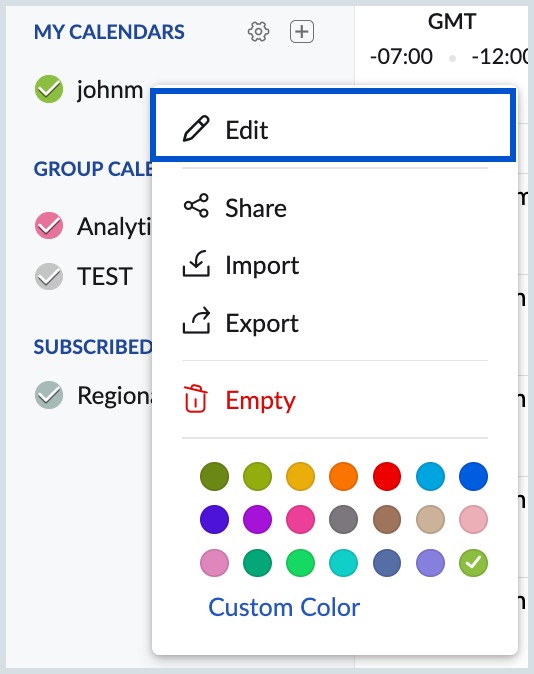
- Right-click the calendar under My Calendars from the left pane of the calendar window and click Edit (or) Go to Settings > Calendar > My Calendars and click on the calendar you want to embed.
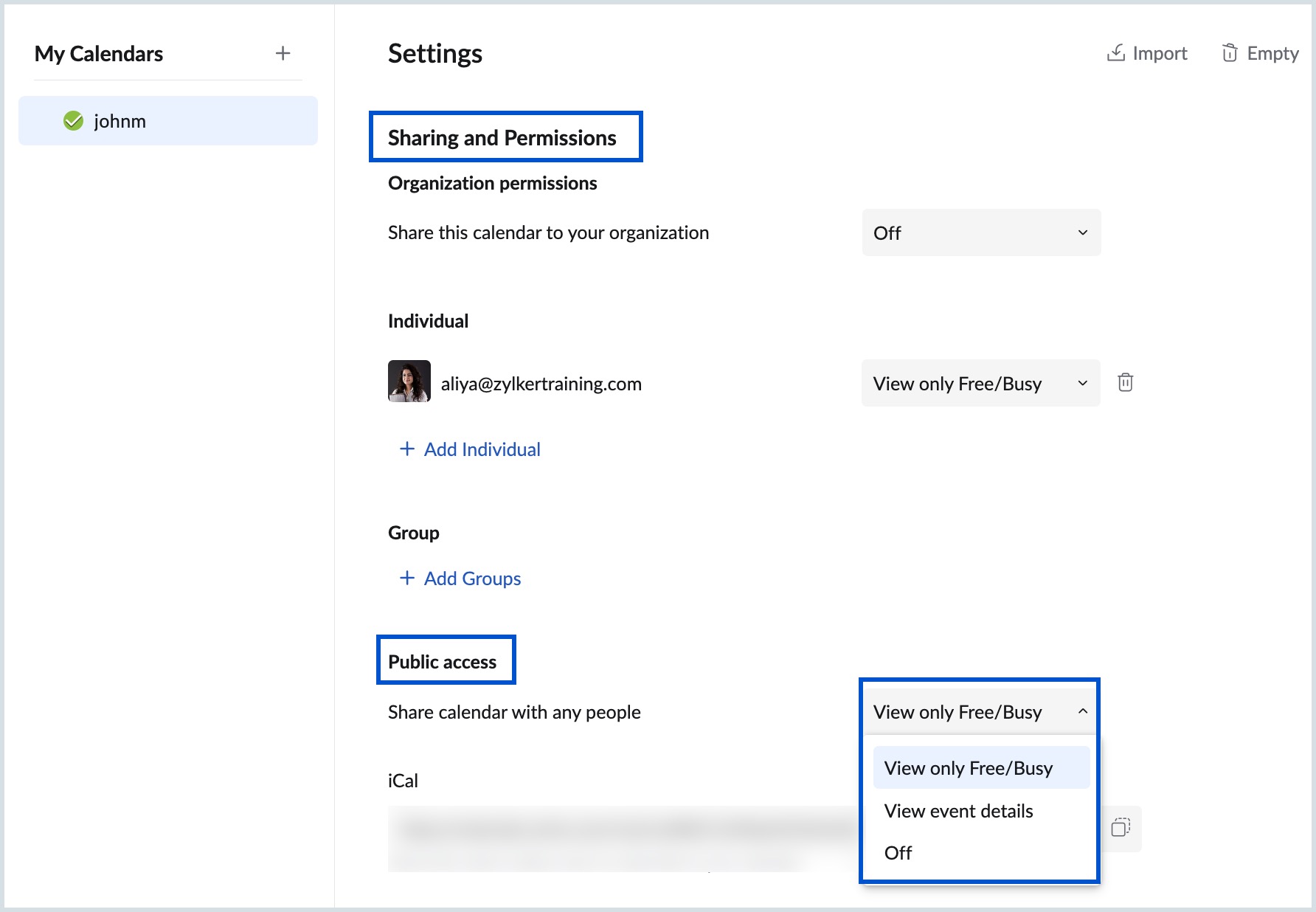
- Under Sharing and permissions > Public access, enable public access for the calendar by selecting either View only Free/Busy and View event details from the drop-down.
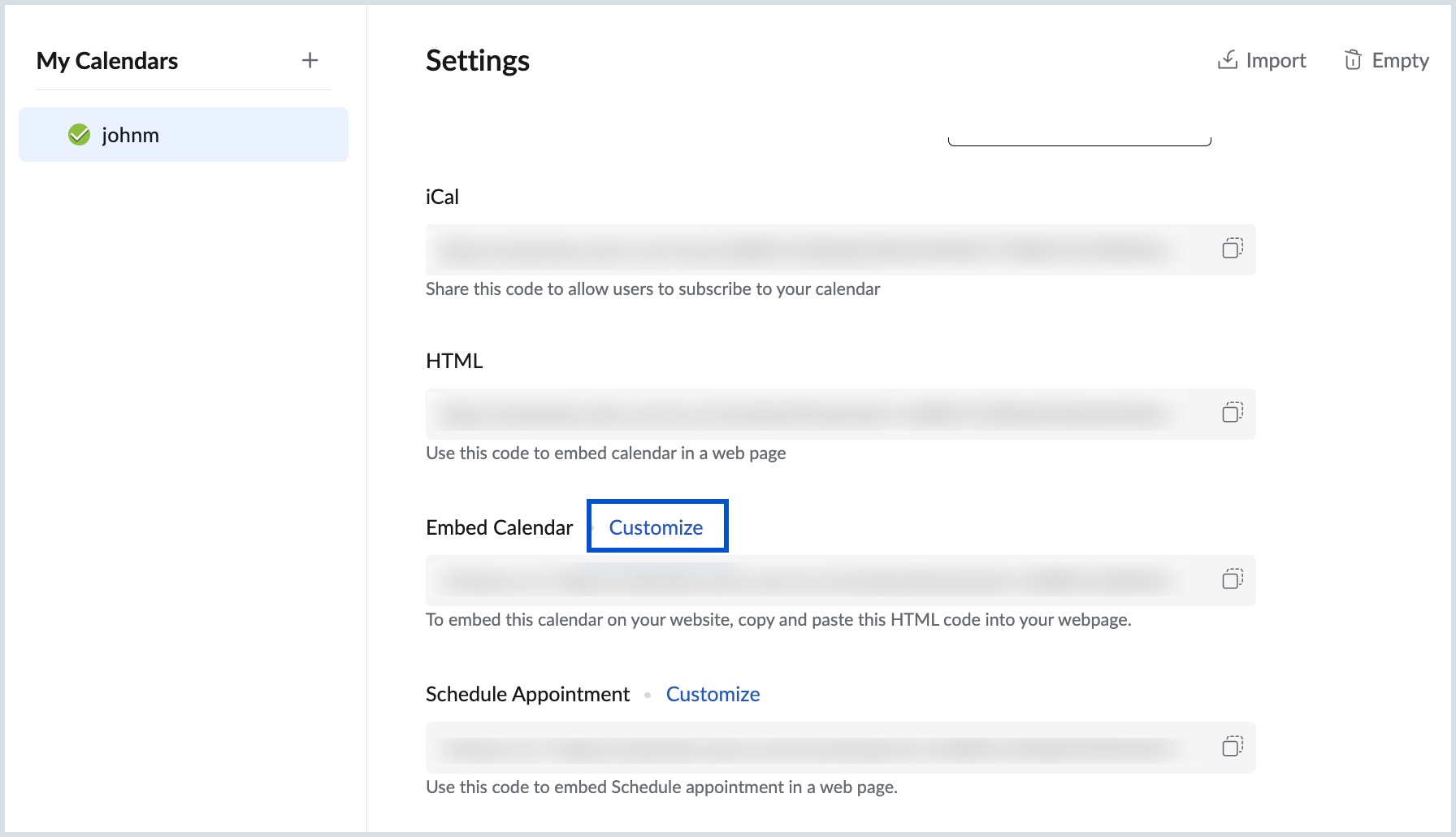
- Click on Customize near the Embed Calendar option.
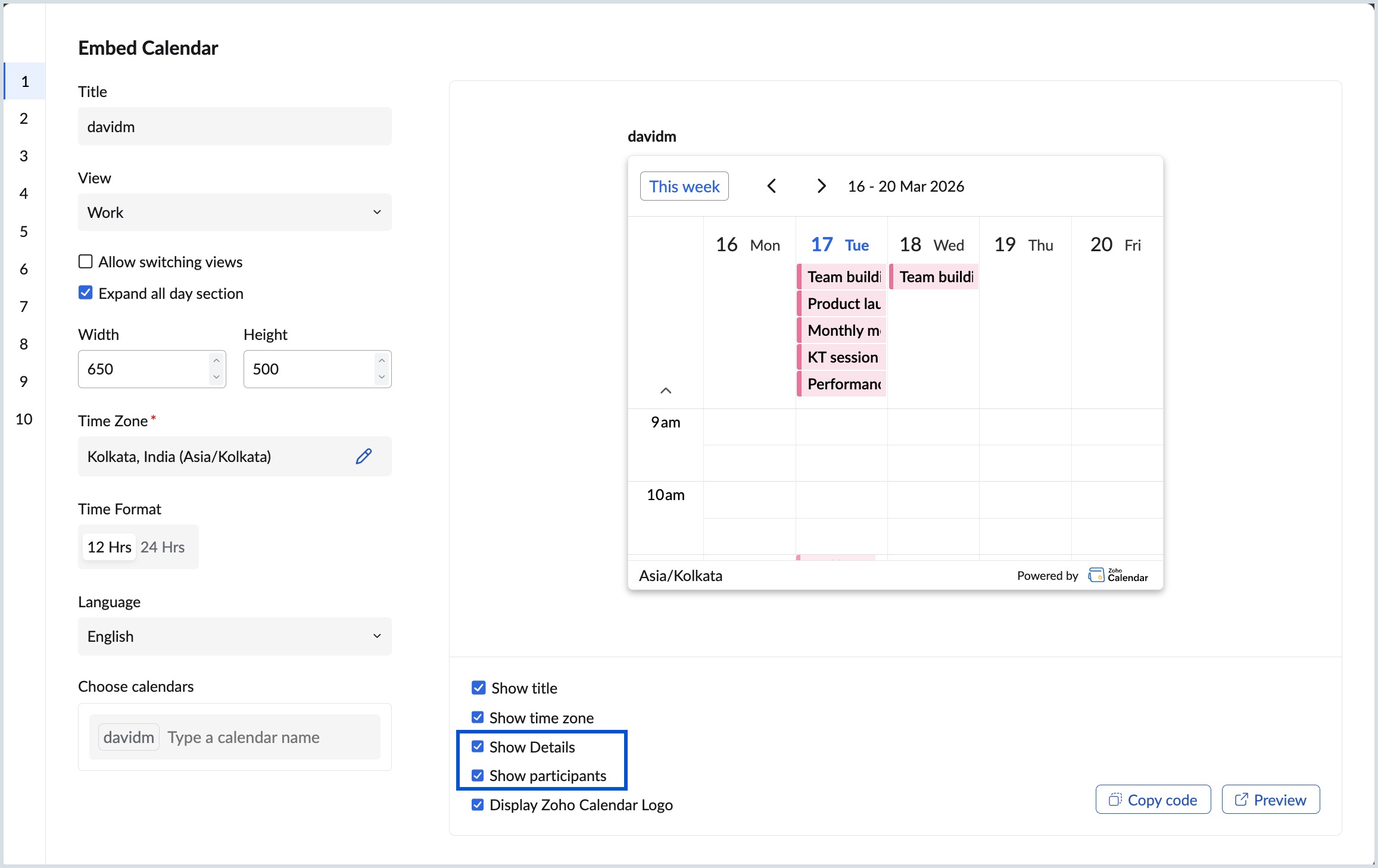
- You can choose from 10 default templates and personalize your embedded calendar by updating the Title, View, Time Zone, Time Format, Language, Width, and Height. For supported templates, you can also customize the template color.
- In the right pane, select Show title, Show time zone, and Display Zoho Calendar logo to include these elements in your embedded calendar.
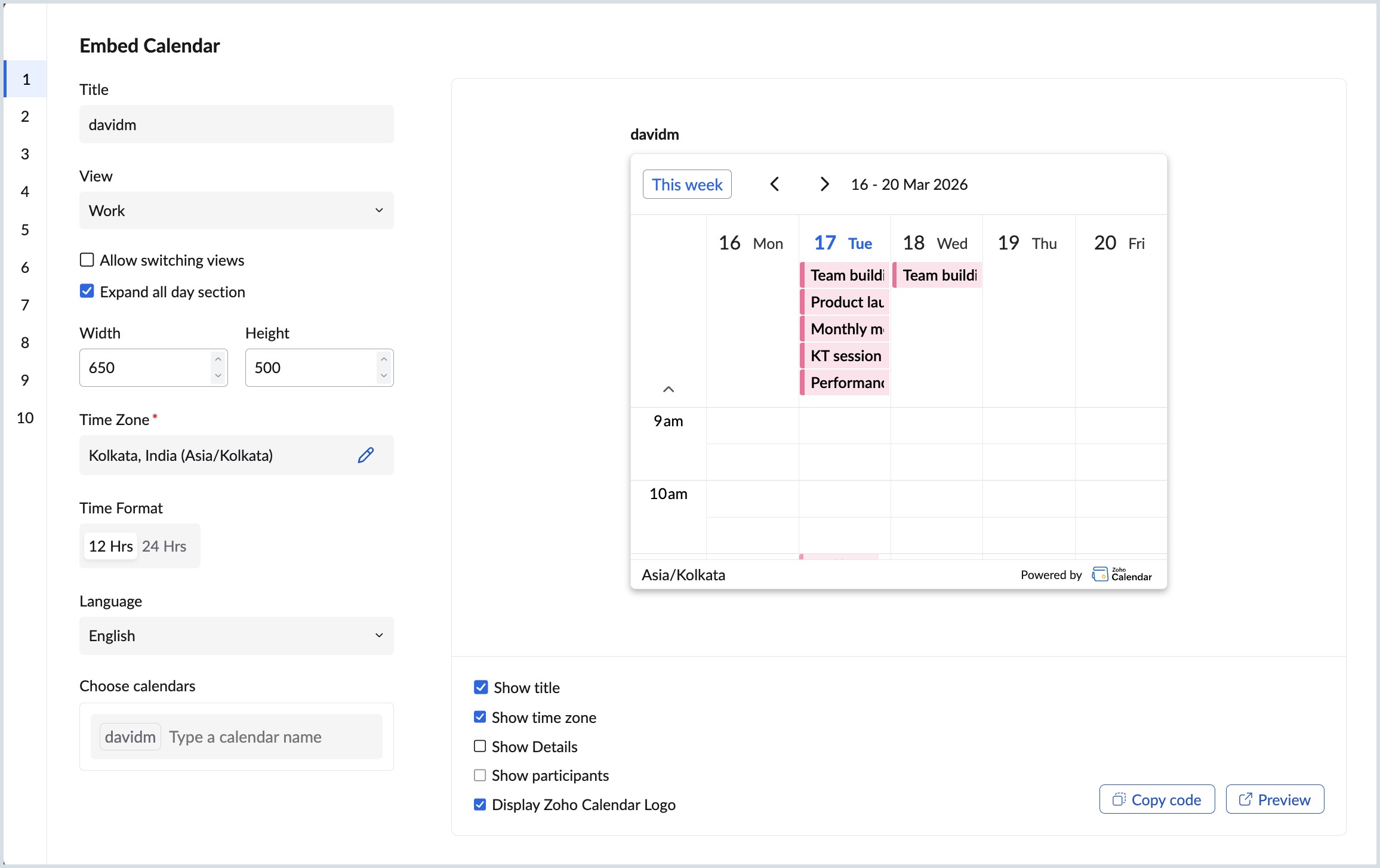
- To access detailed event information, choose Show Details and Show participants to access the detailed view of an event in your selected calendar.
- Click Preview to see how your calendar will appear.
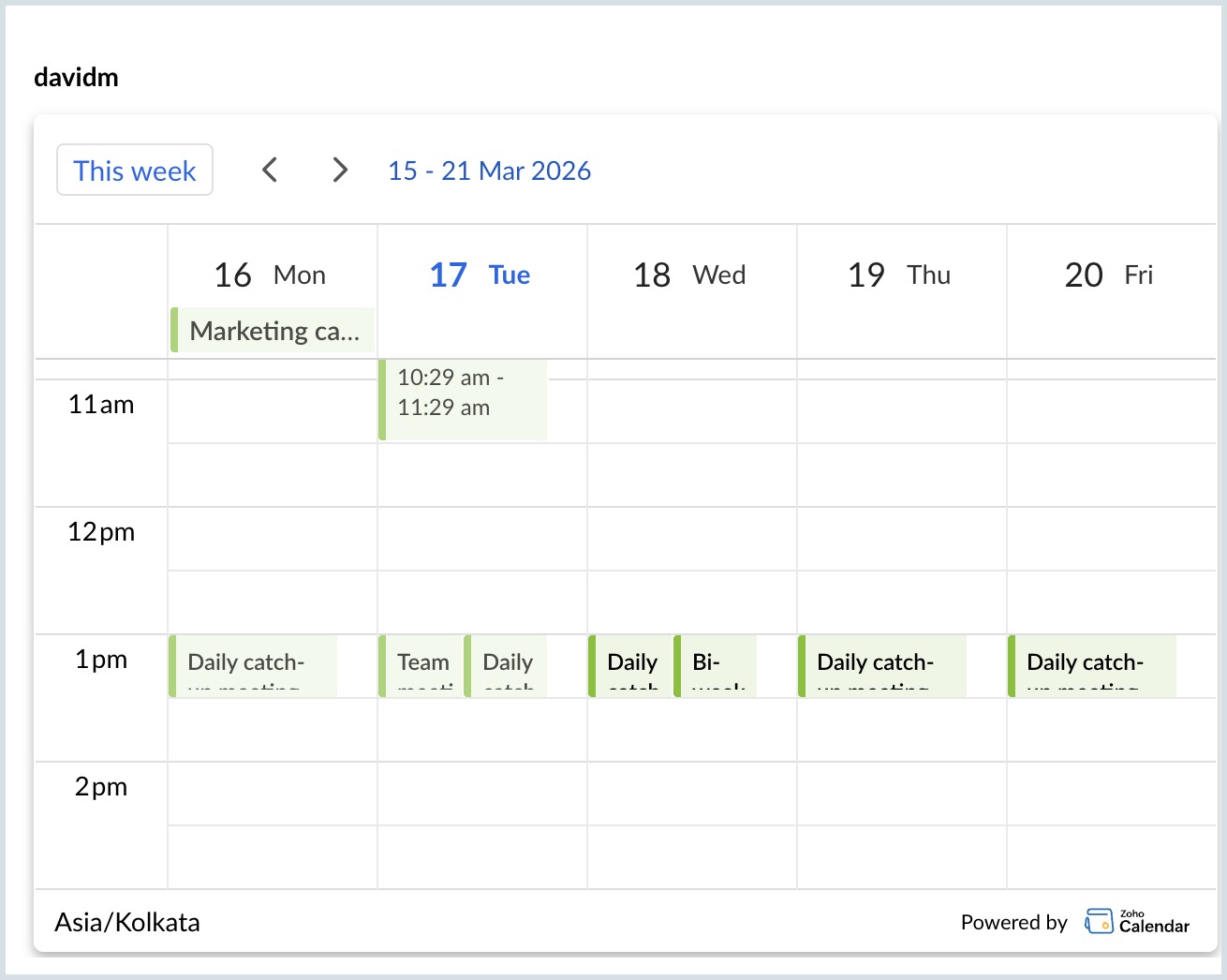
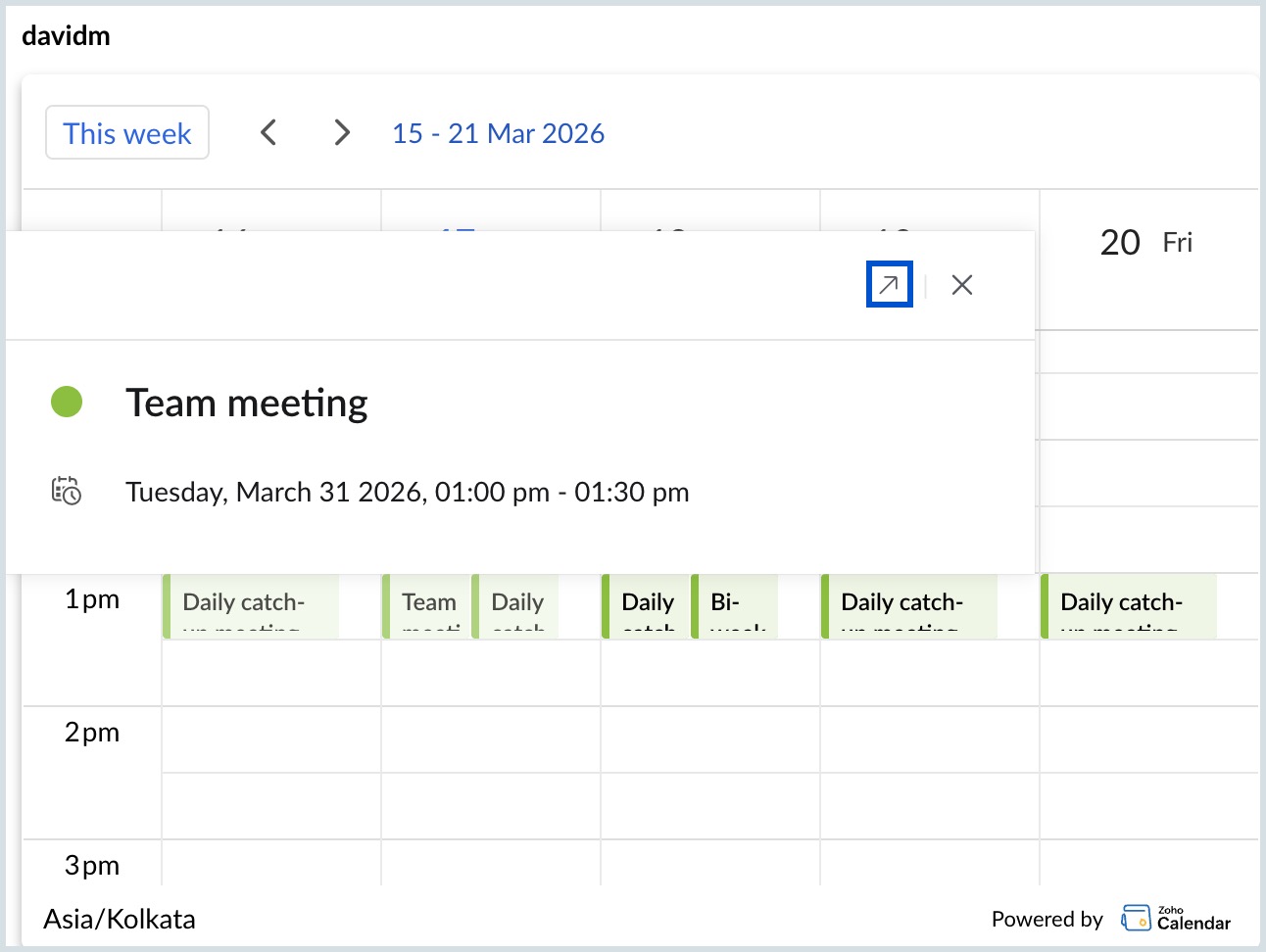
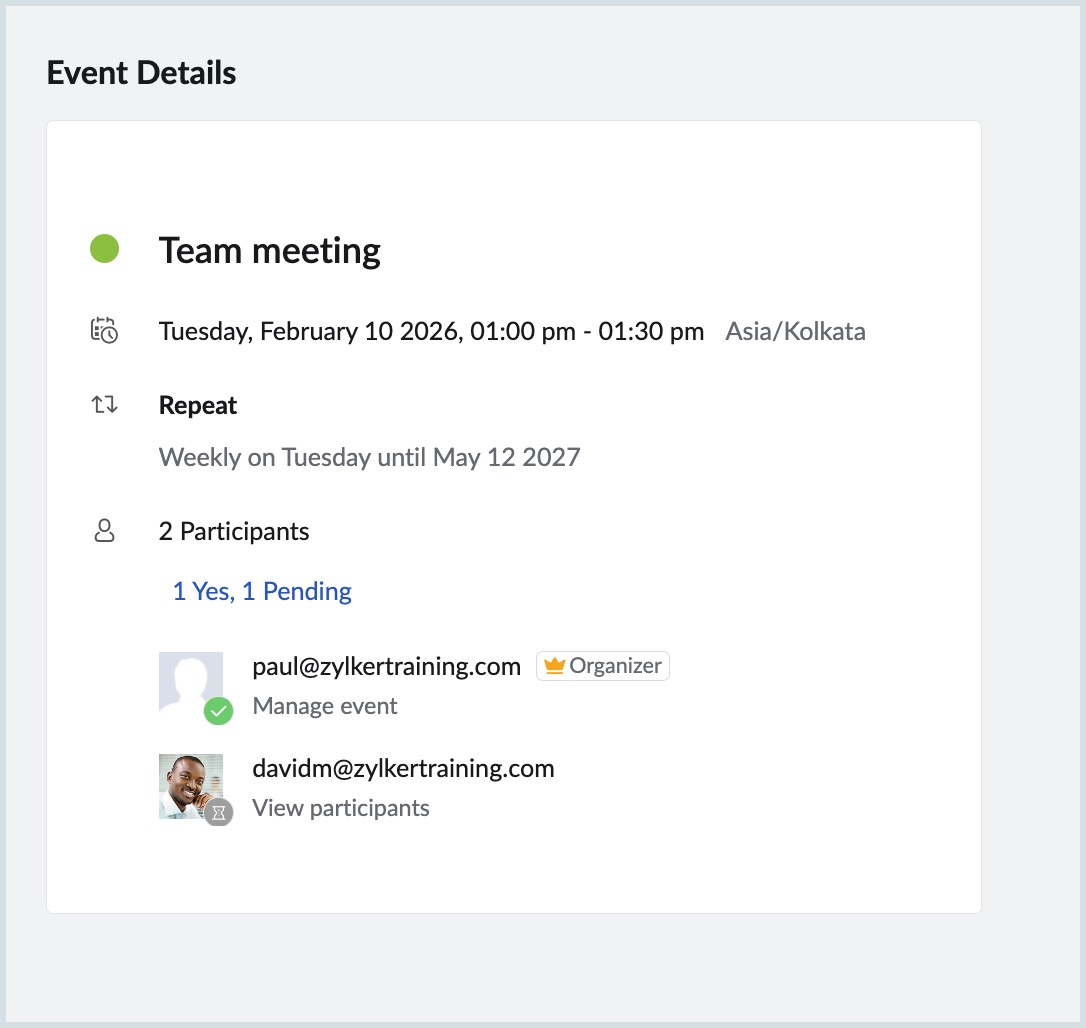
- In the Preview window, click the event for which you want to view more details, then click the arrow icon in the top-right corner to open the Event Details page.
- To copy the embed code for this personal calendar, click on the Copy code button in the window and the embed code will be copied to the clipboard.
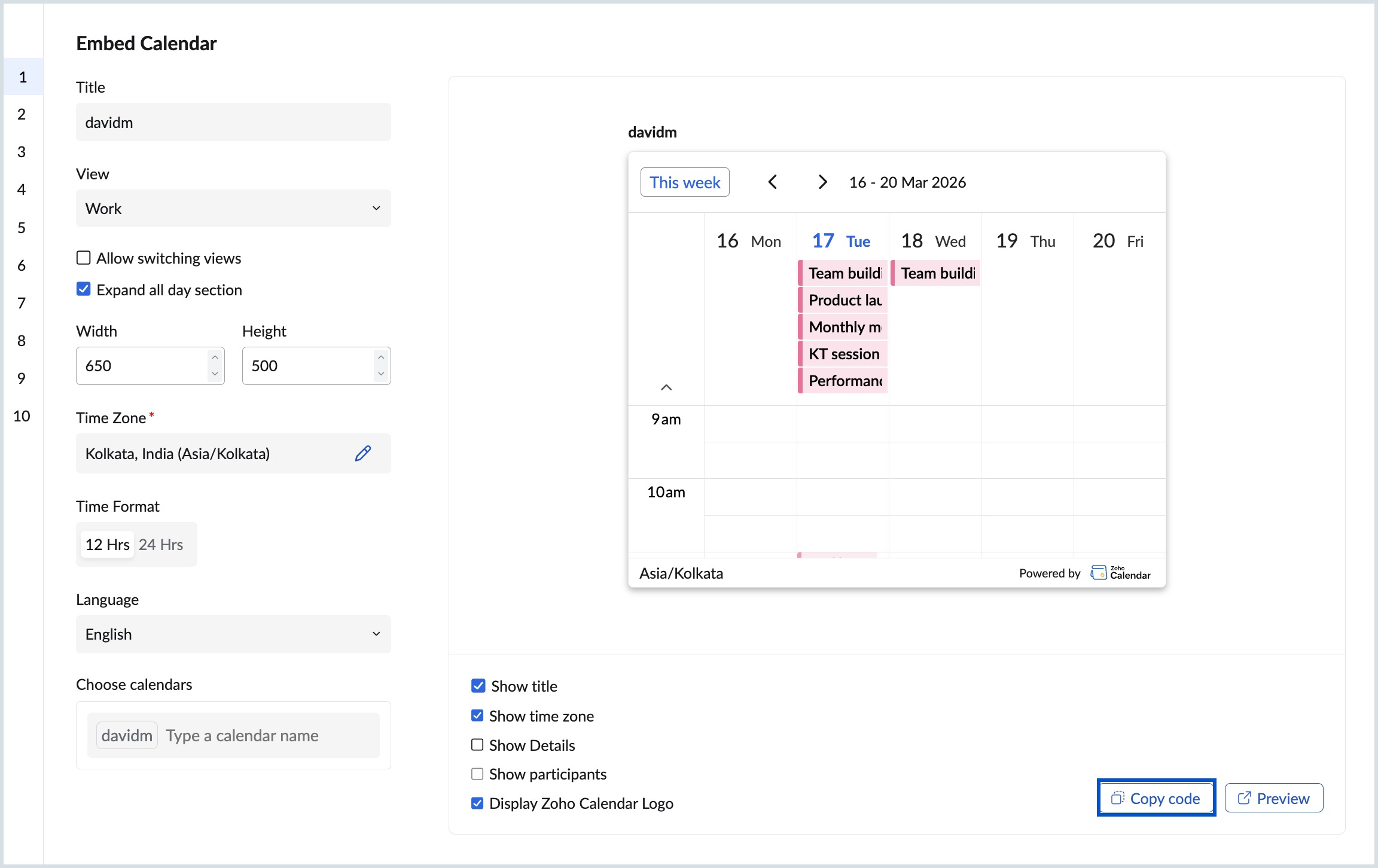
- Now paste the copied calendar embed code into your website's HTML code. The chosen calendar will be embedded in your website.
Note
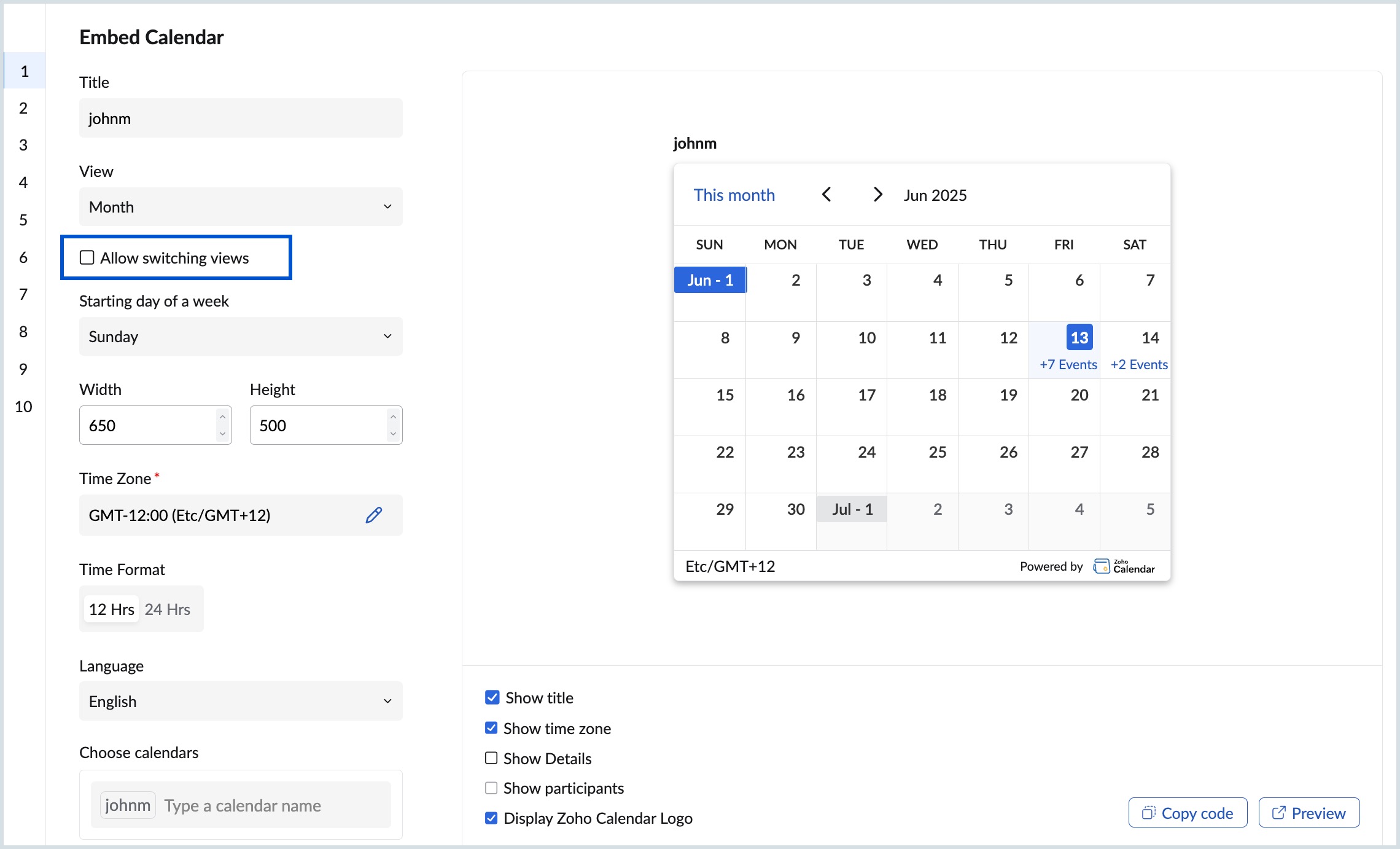
- You can choose the calendar view you want for your embedded calendar from day view, work view, week view, or month view by selecting the check box - "Allow switching views". This option is available only in template 1.
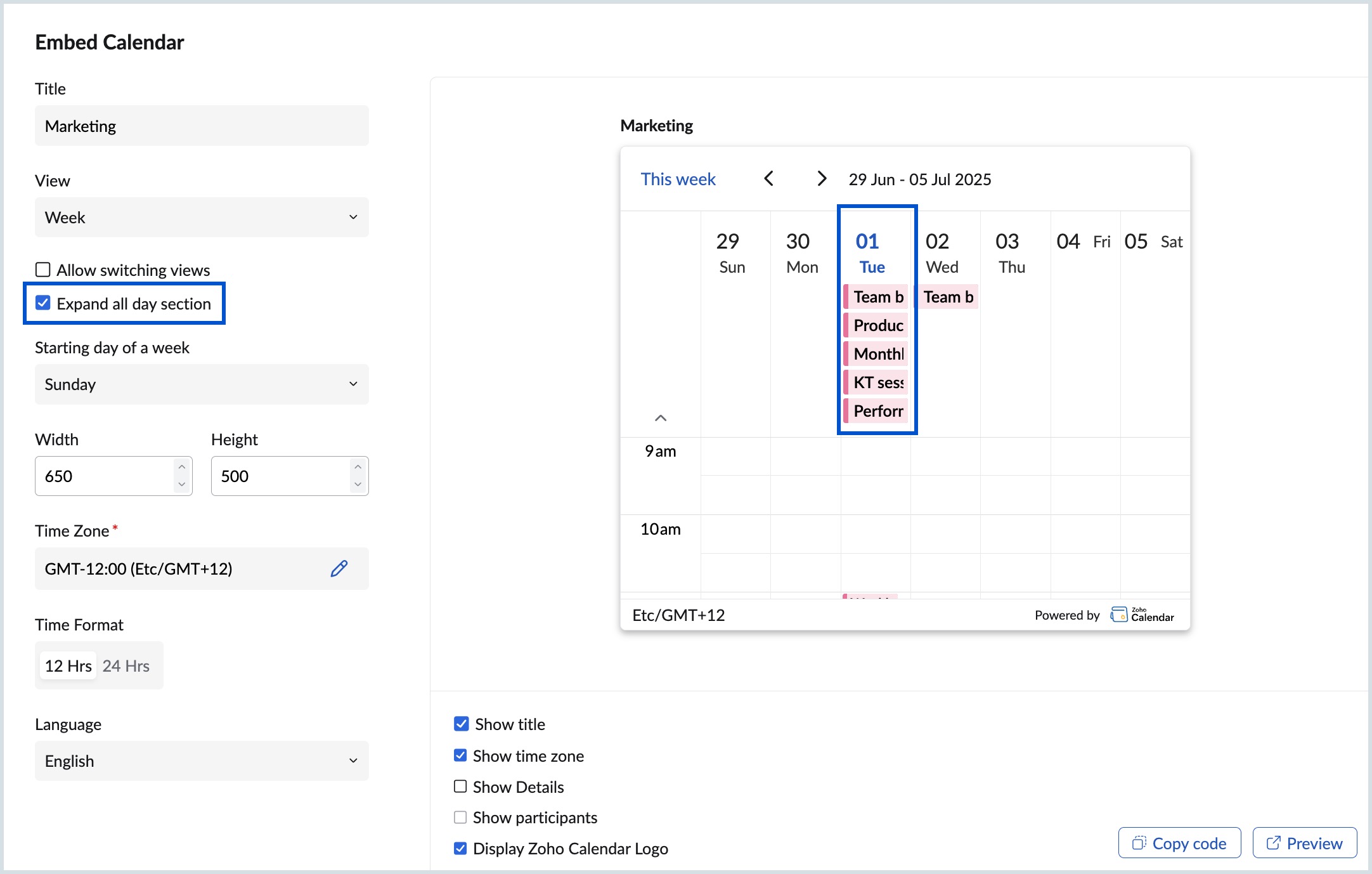
- Select Expand all day section check box available in Day, Week, or Work view to display the list of all the events in a particular day.
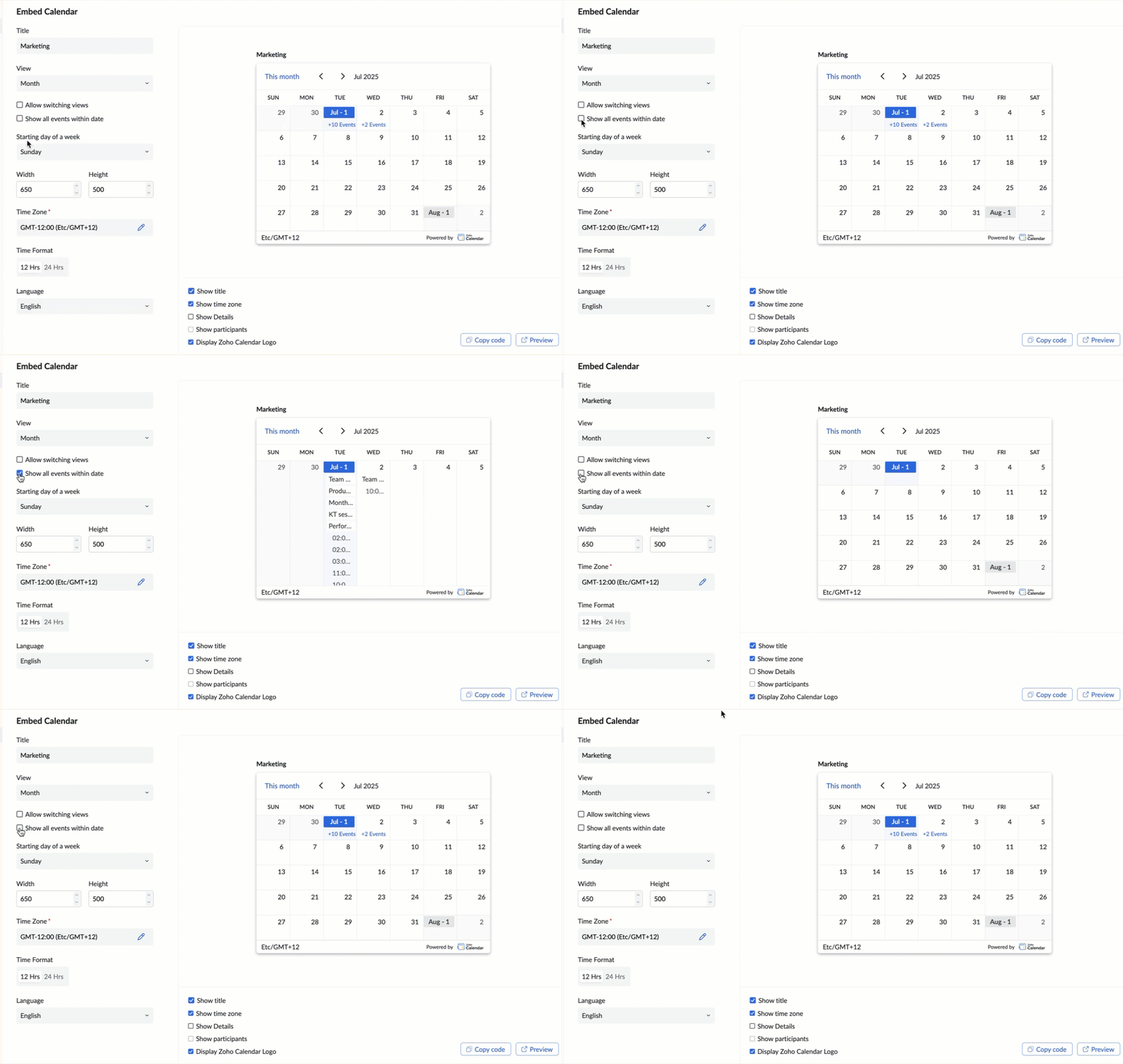
- Select Show all events within date checkbox under Month view to display all the events within the selected date.
Steps to Embed Group Calendars
- Log in to Zoho Calendar.
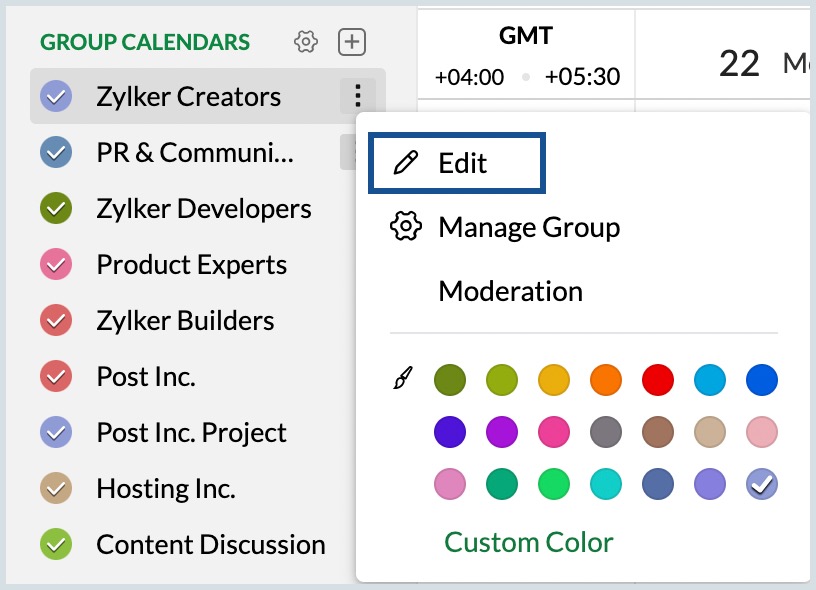
- Right-click the calendar under Group Calendars from the left pane of the calendar window and click Edit (or) Go to Settings > Calendar > Group Calendars and click on the calendar.
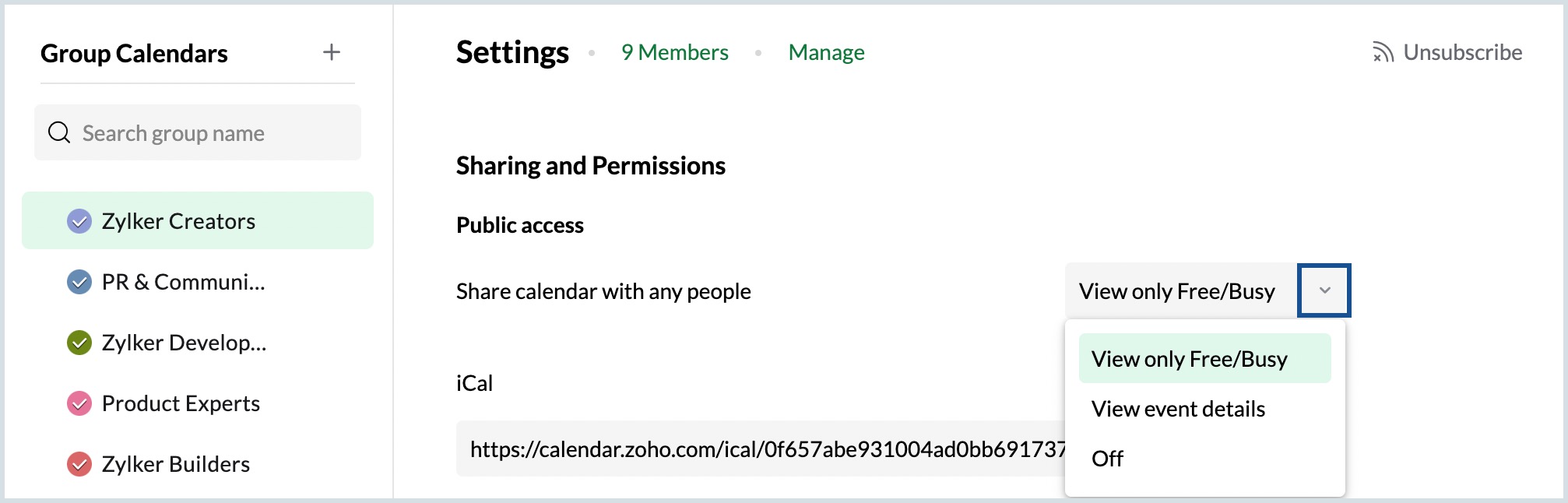
- Under Sharing and permissions > Public access, enable public access for the calendar by selecting either View only Free/Busy and View Event Details from the drop-down.
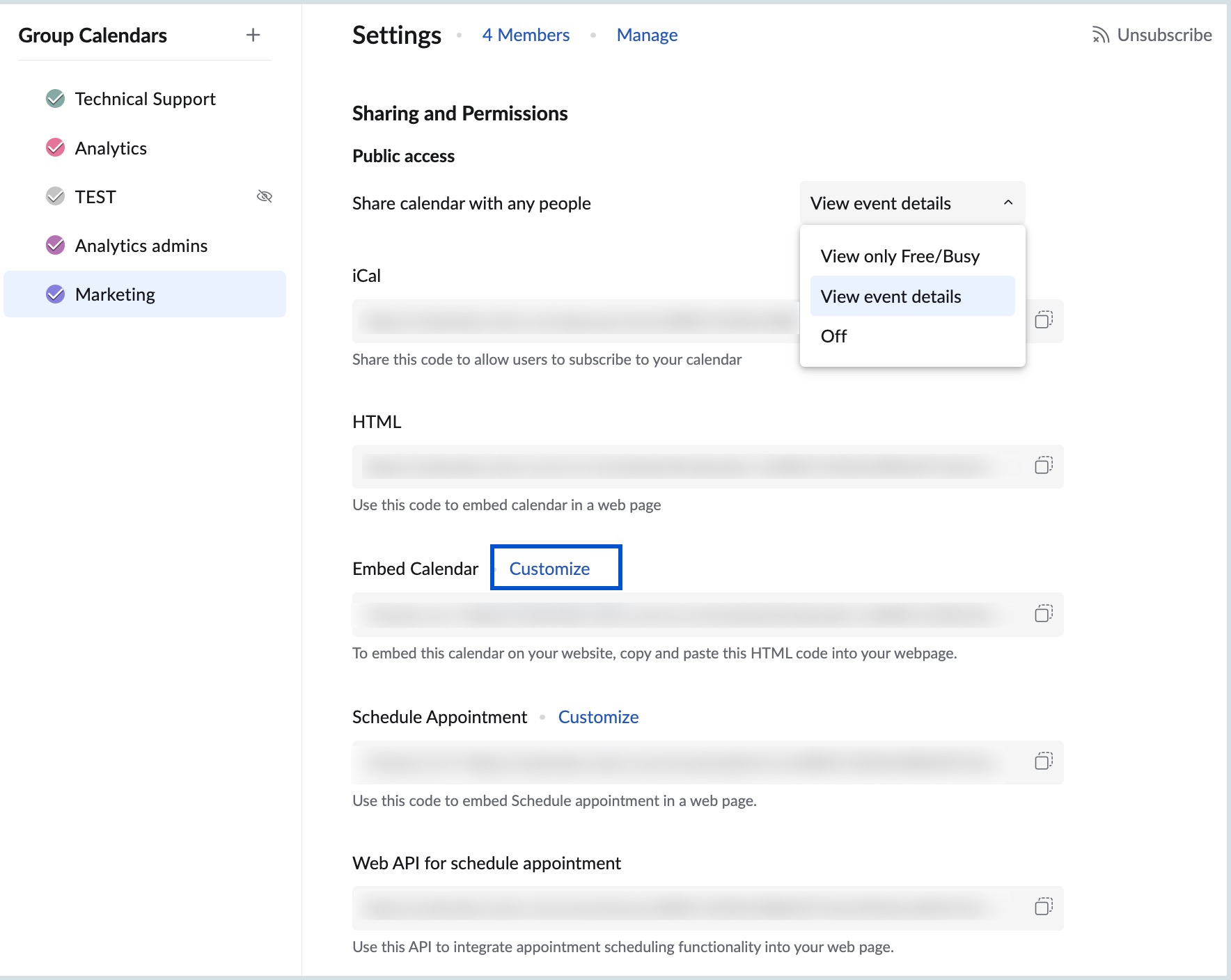
- Click on Customize near the Embed Calendar option.
- Choose a template and customize your embedded calendar by updating the Title, View, Time Zone, Time Format, Language, Width, and Height. For supported templates, you can also modify the template color.
- Select Show title, Show time zone, and Display Zoho Calendar logo to include these elements in the embedded calendar.
- Enable Show details and Show participants to access detailed event information.
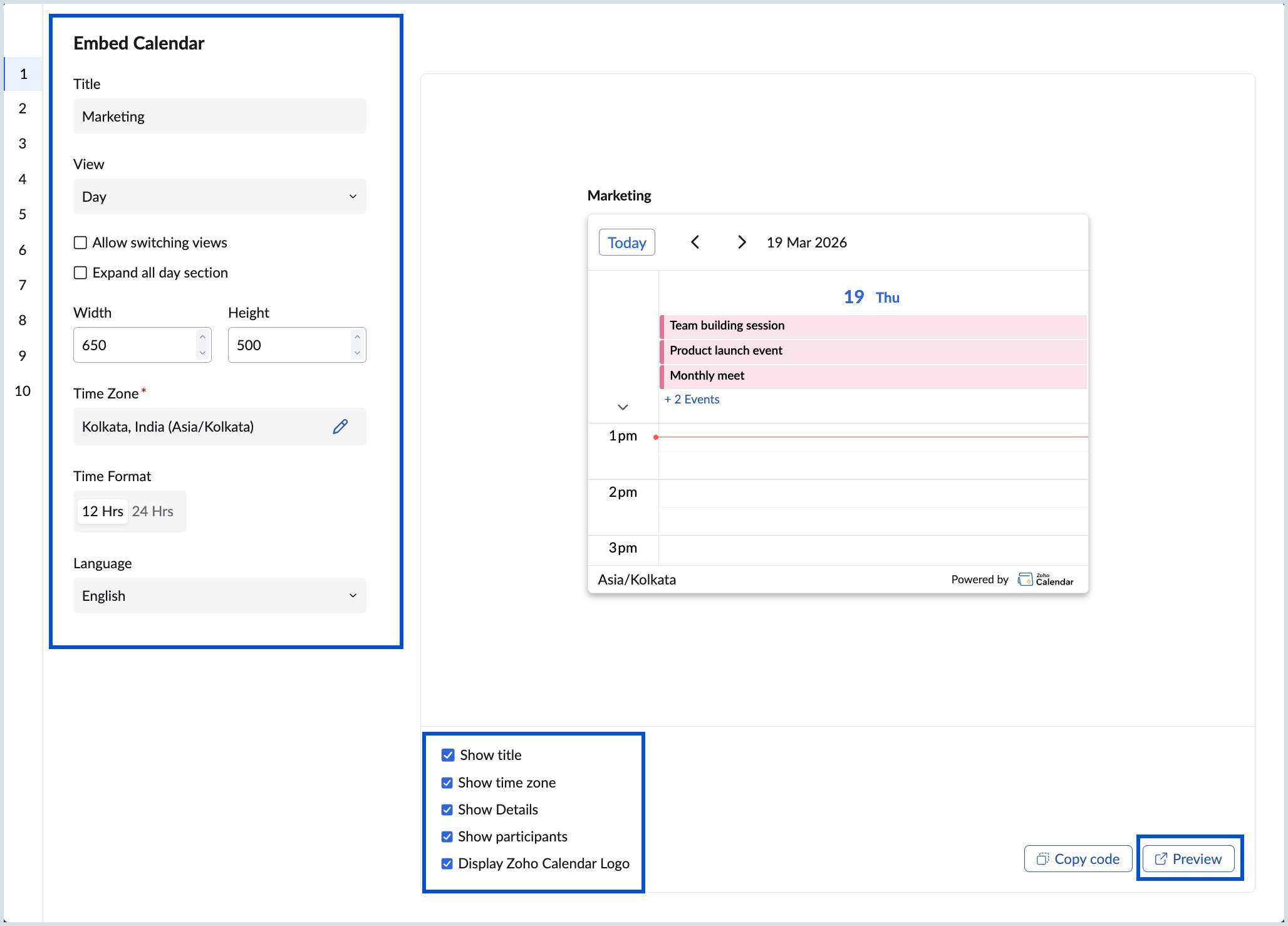
- Click Preview to view the calendar. In the preview, select an event and click the arrow icon to open the Event Details page.
- To copy the embed code for this personal calendar, click on the Copy code button in the window and the embed code will be copied to the clipboard.
- Now paste the copied calendar embed code into your website's HTML code. Your selected group calendar will now be embedded in your website.
Note
- To embed a Group Calendar, you need to be either the owner or the moderator of the group calendar.
- The older interface of Zoho Calendar has been deprecated in phases beginning January 31, based on the data center in which your account is created, as per the dates given in this announcement. All users have been moved to the new calendar interface.
- If you have created an embedded calendar URL from the old Calendar UI and using it in your blog or website or anywhere, you need to regenerate the embed calendar URL from the new Calendar UI.
Tip
Recipients of the embedded calendar link can view event details from the Preview window, provided the Show Details and Show participants options are enabled.