Keyboard shortcuts in Calendar
Keyboard shortcuts offer a quick and intuitive way to navigate your calendar, saving time and streamlining your workflow. Whether you're scheduling meetings, searching for an event, or customizing your calendar view, Zoho Calendar provides a wide range of shortcuts to help you manage your schedule efficiently.
You can also choose from different keyboard shortcut presets based on your preferred calendar experience. Zoho Calendar supports presets for Zoho Calendar, Google Calendar, Outlook, and Custom shortcuts, making it easier for users transitioning from other calendar platforms.
Steps to view the Keyboard Shortcuts
- Log in to Zoho Calendar.
- Navigate to Settings > Keyboard shortcuts.
- Click the toggle next to Keyboard Shortcuts to turn shortcut options On or Off.
- The list of predefined keyboard shortcuts along with their descriptions will be displayed on the screen.
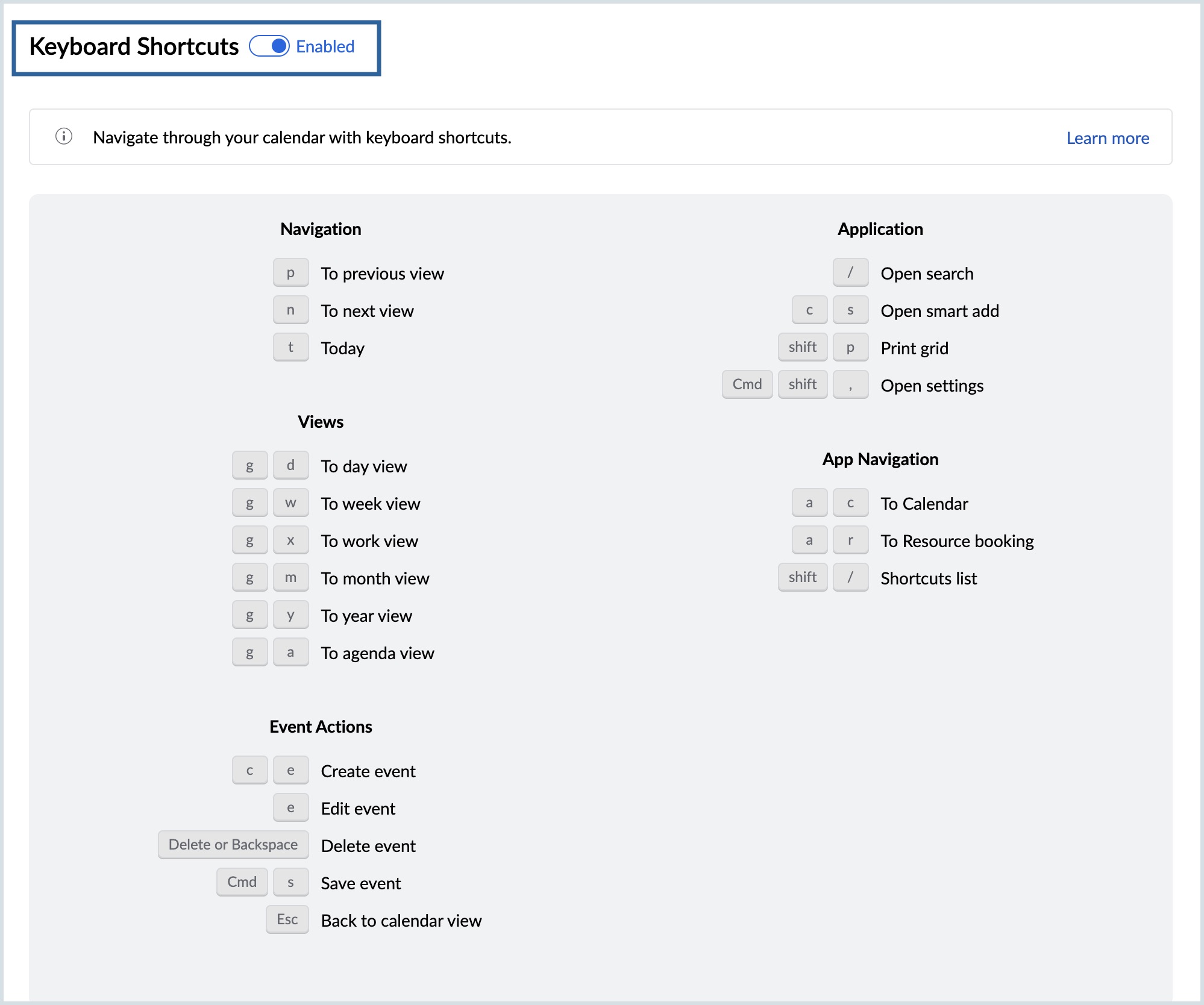
You can refer to this list to quickly navigate through your calendar, switch views, and perform event actions directly using your keyboard.
Steps to choose a keyboard shortcut preset
- Go to Settings > Keyboard Shortcuts.
- Click the Preset dropdown at the top-right corner of the page.
- Select the preset you want to use.
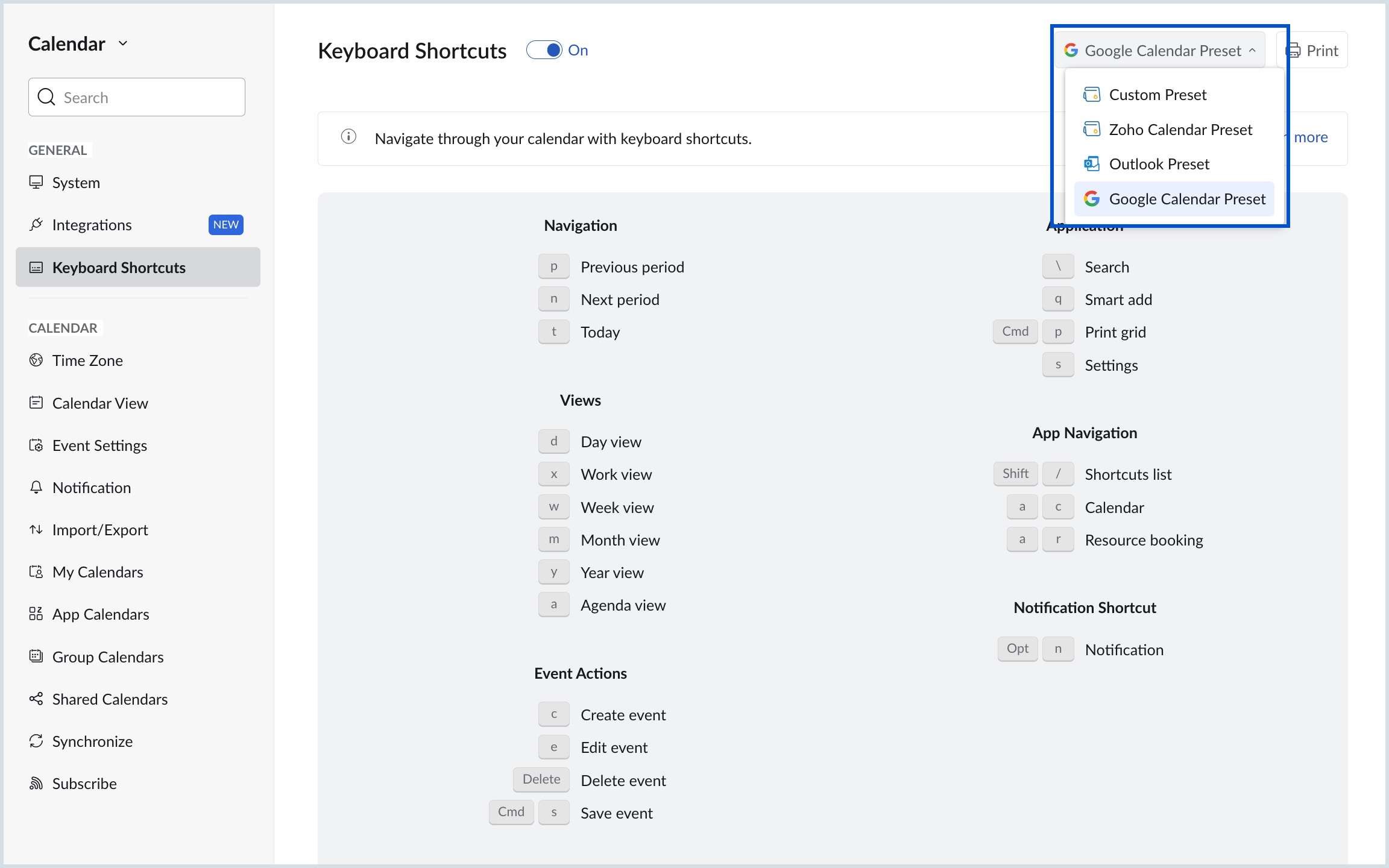
Available preset options include:
- Custom Preset – Allows you to define and customize keyboard shortcuts according to your preferences.
- Zoho Calendar Preset – Uses the default keyboard shortcuts designed for Zoho Calendar.
- Google Calendar Preset – Applies shortcut keys similar to those used in Google Calendar.
- Outlook Preset – Applies keyboard shortcuts similar to those used in Microsoft Outlook Calendar.
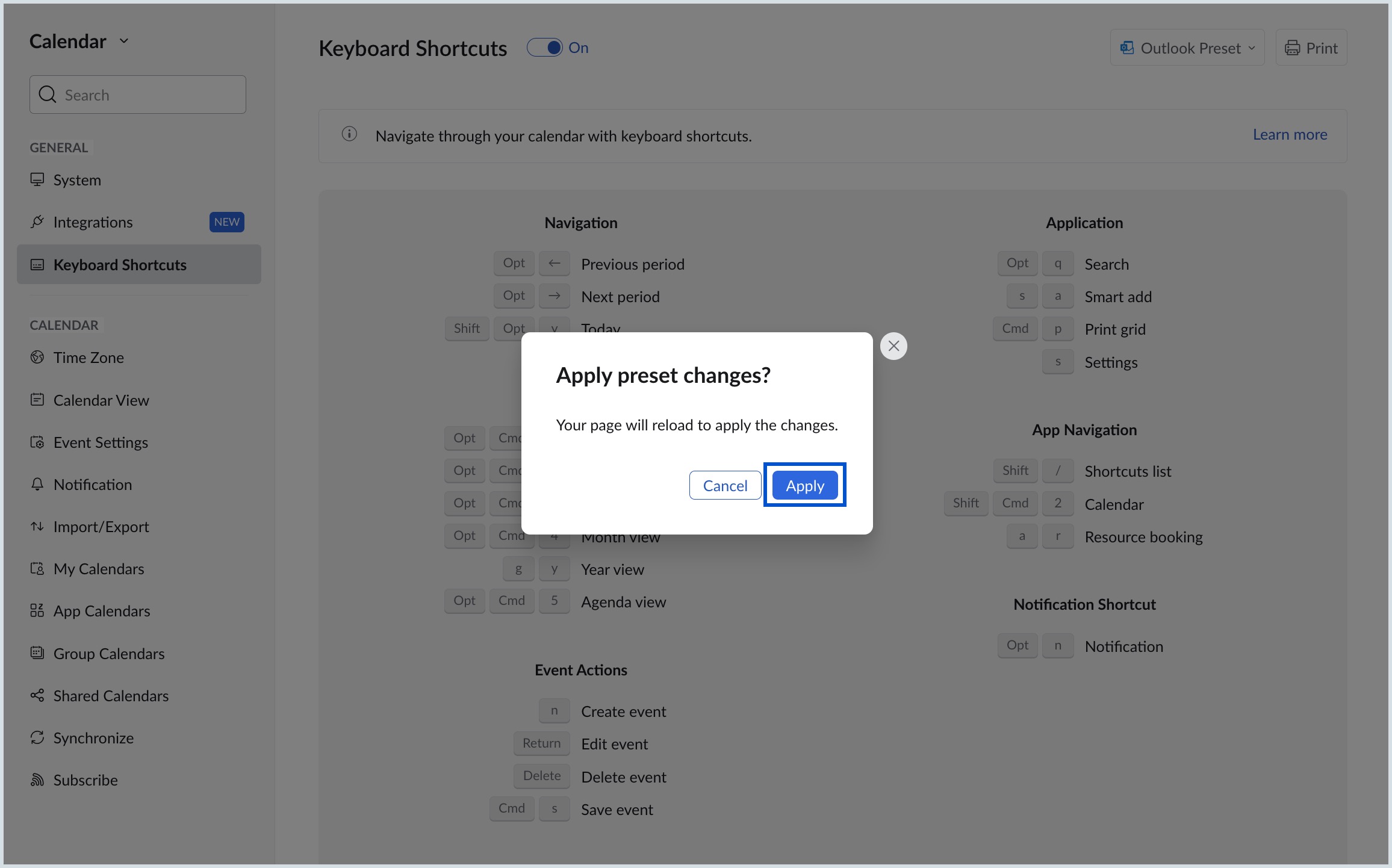
- After selecting a preset, click Apply in the confirmation dialog. The page will reload and the selected preset will be applied.