Out of office
When you take time away from work — whether for a vacation, a business trip, or personal reasons — setting up an Out of Office entry ensures that no one inadvertently schedules meetings with you during your absence. Zoho Calendar's Out of Office feature lets you block your availability, automatically decline event invitations, and notify event organizers that you are unavailable.
Out of Office can be configured in two ways:
• Directly from Zoho Calendar
• Via Zoho Mail settings
Configure Out of office from Zoho Calendar
In Zoho Calendar, you can set up one or more Out of office entries directly within the calendar interface. You can create multiple Out of office entries as long as they do not overlap on the same date.
Follow the steps to create an Out of office entry via Zoho Calendar.
- Login to your Zoho Calendar account.
- Click the + New Event button to open the event creation panel.
- In the event creation panel, click the Out of office button next to the Event button at the top.
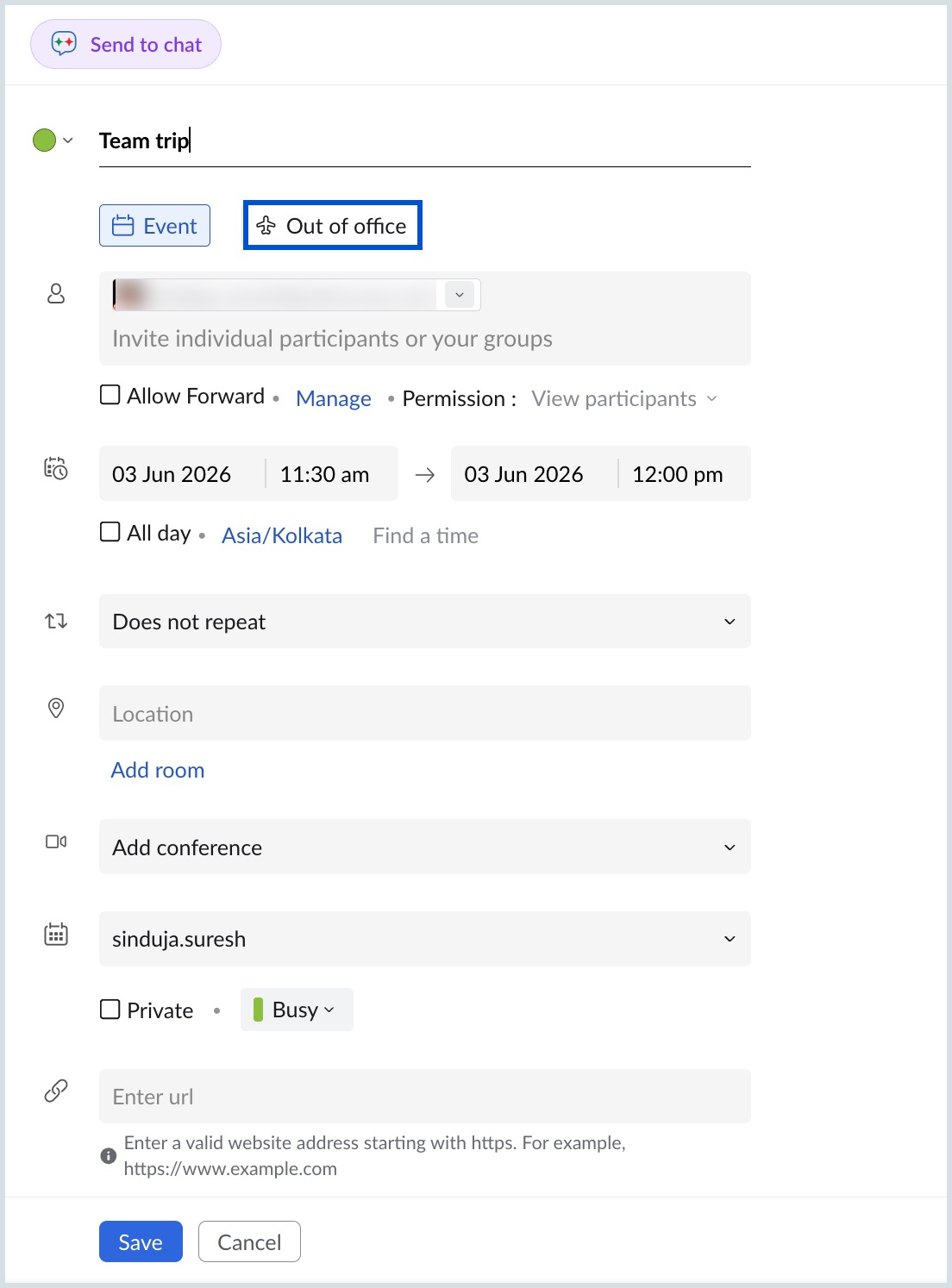
- Enter a title for your Out of office entry (for example, "Team trip" or "Annual Leave").
- Select the Start date and time, and the End date and time for your absence.
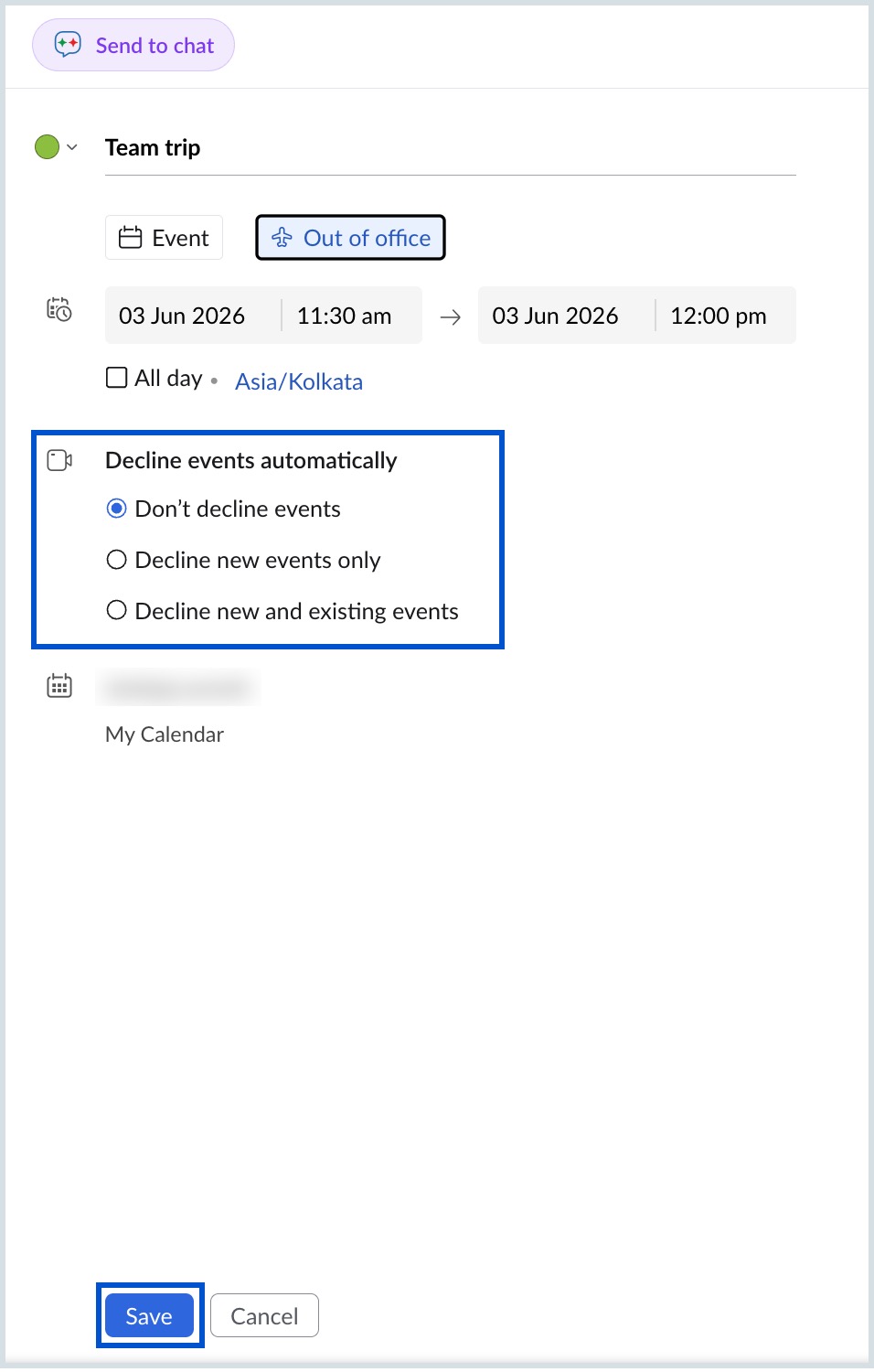
- Under the Decline events automatically section, select your preferred option:
- Don't decline events - Your calendar is marked as Out of office, but existing and new event invitations are not automatically declined.
- Decline new events only - Only newly received event invitations during the Out of office period are automatically declined. Existing events remain unchanged.
- Decline new and existing events - Both newly received and previously accepted event invitations during this period are automatically declined.
- In the message field, enter a short note or reason that will be shown to event organizers when their invitation is declined (for example, "Team trip" or "On leave").
- Click Save.
Note
Once your Out of office entry is saved:
- Your calendar will be marked as Out of office for the configured duration.
- Existing meetings and new event invitations will be declined automatically based on the settings you configure.
- Your availability will appear as Out of office when others check your free/busy availability.
Configure Out of office from Zoho Mail
To mark your calendar as Out of office, you need to setup up an Out of office message in Zoho Mail.
- Login to your Zoho Mail account.
- Click the Settings icon.
- Navigate to Out of Office from the Mail Settings.
- Configure your Out-of-office reply by following steps 1-8 on the auto-responder help page.
- Choose the 'Mark as Out of office in Calendar' checkbox to mark your calendar as Busy.
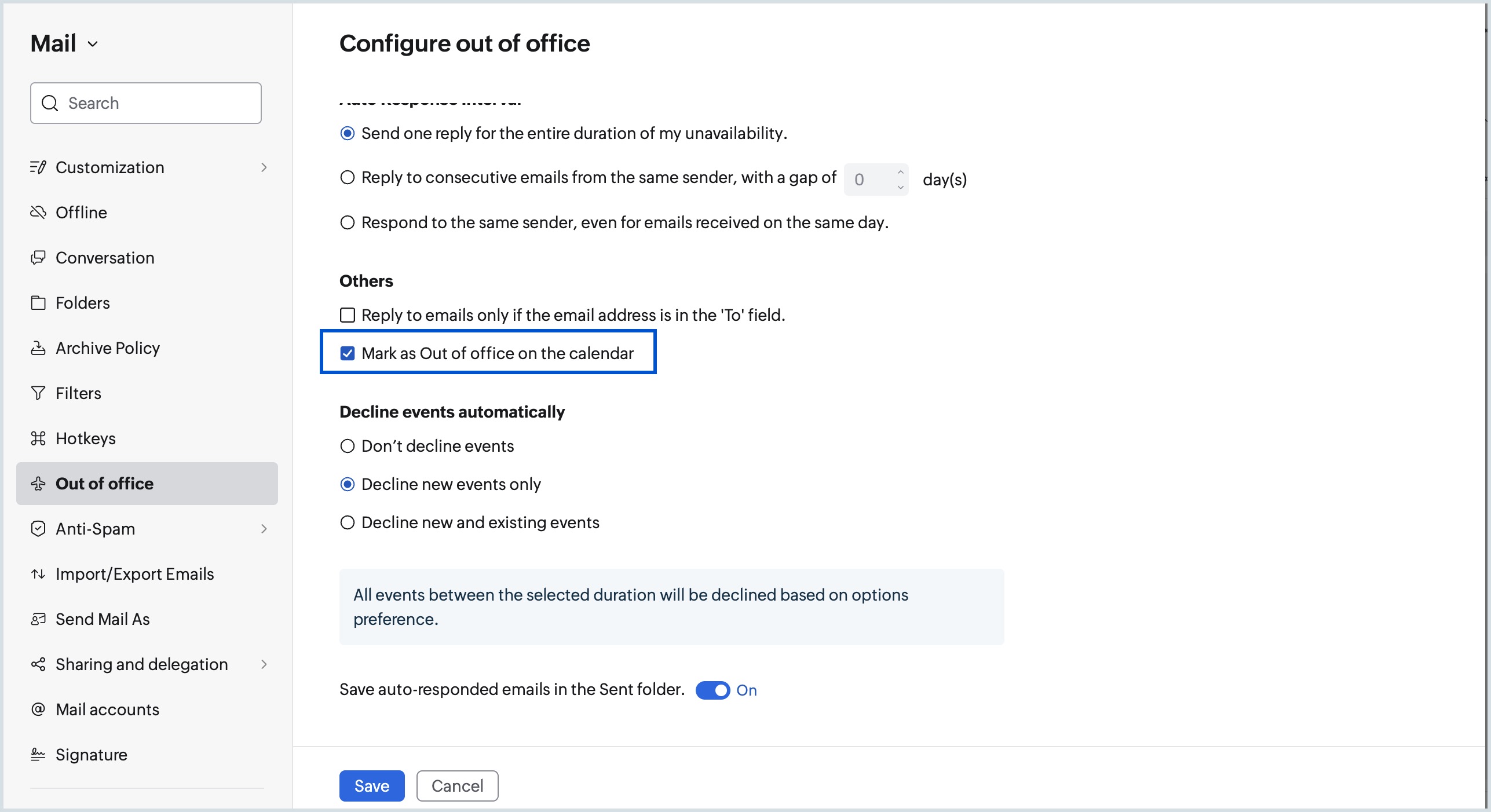
- By default, all new events will be declined during the Out of office duration. To change your preference, choose any of the options under the 'Decline events automatically' section.
- Dont decline events
- Decline new events only
- Decline new and existing events
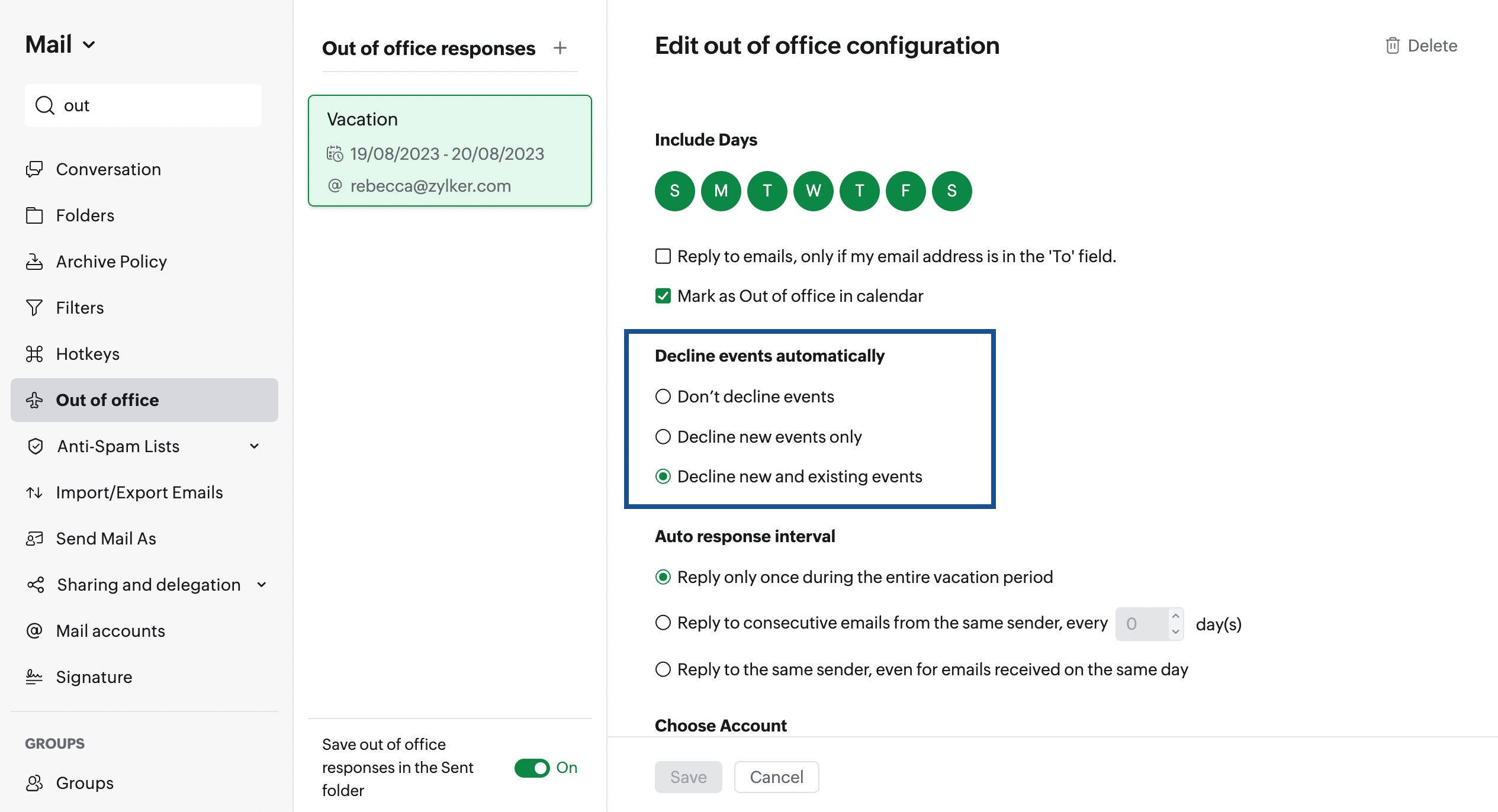
Once configured, your calendar will be marked as Out of office. All the existing meetings and any new meeting invitations will be declined based on the settings configured. When others check your free/busy availability, your calendar will be marked as busy.