RSVP for Invited Events
When an event is created and an attendee is added, an event invitation notification is sent as an email. You can respond to an event invitation via mail event invitation card. Apart from the mail, event invitation is sent via notification in Zoho Calendar and Zoho Mail. You can respond to the invitation from the Notification drop-down. You can also respond to the event invitation from the Quick view and Event view tabs. Similarly, you can also respond to all your future events from the Yet to respond option available on your calendar home page.
Email event invitation
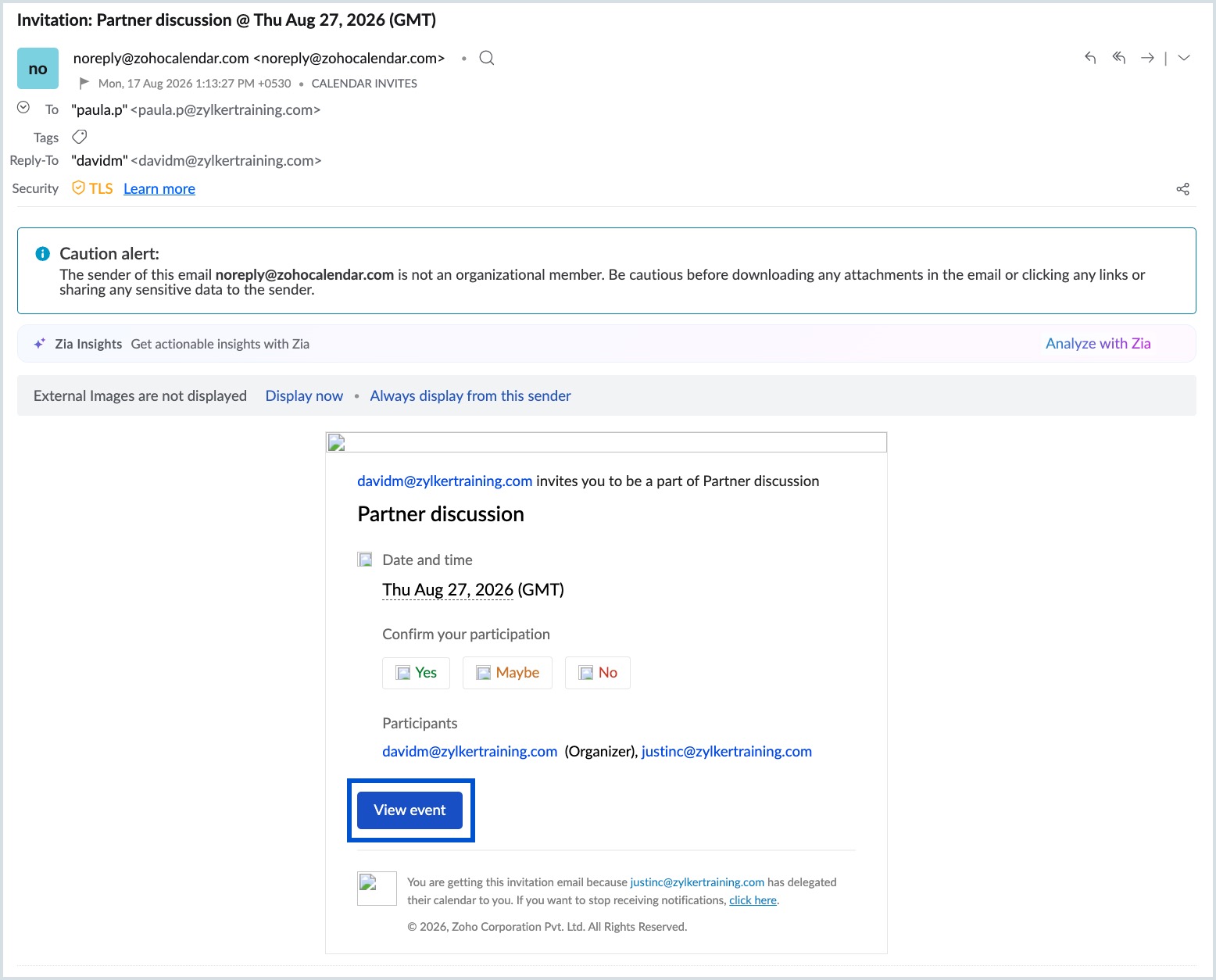
When you create, edit, or delete an event an intimation mail about the action will be sent to the attendees. The attendees can respond to a new event invite or edit their response by choosing "Yes", "No", or "Maybe" from the invitation card in the email. Once they click the responses they will be redirected to the event invitation page of Zoho Calendar.
Steps to RSVP for Event Invitation Mail
- Log in to Zoho Mail or any other email service in which the attendee's email address exists.
- Click on the Event Invitation mail from the Inbox.
- RSVP to the event by clicking on View event in the event link.
- You will be redirected to Zoho Calendar, where you can respond to the invitation, set reminders, view the organizer details, time zone, and participants' responses, and add a note for the organizer.
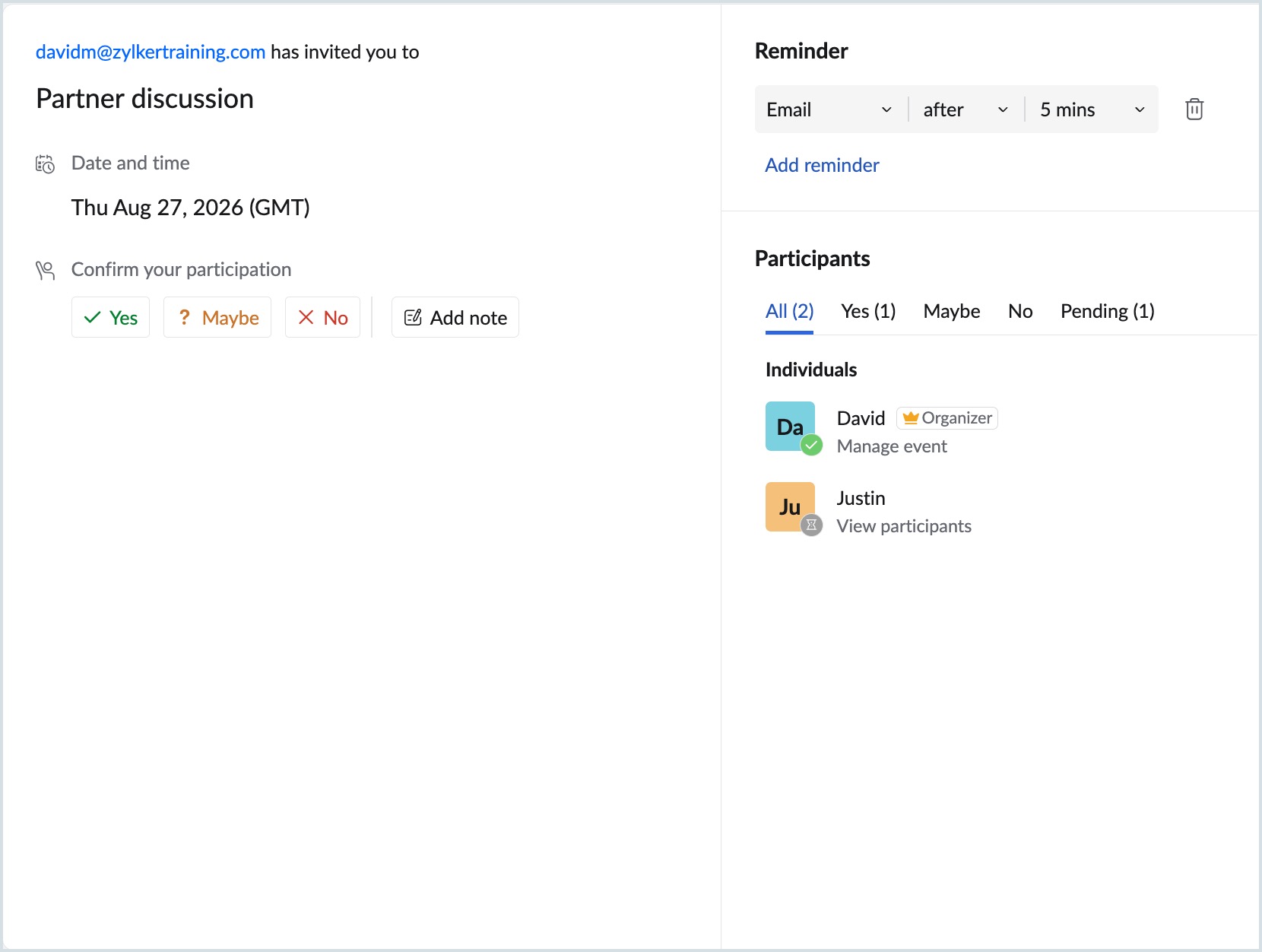
- The status of your response will be intimated to the organizer by email.
Calendar event invitation
Once an organizer creates an event by providing the attendee details the event will be displayed in the Zoho Calendar of the attendee. The attendees can click the event in the calendar grid and choose their response from the Quick view or the Event view tab.
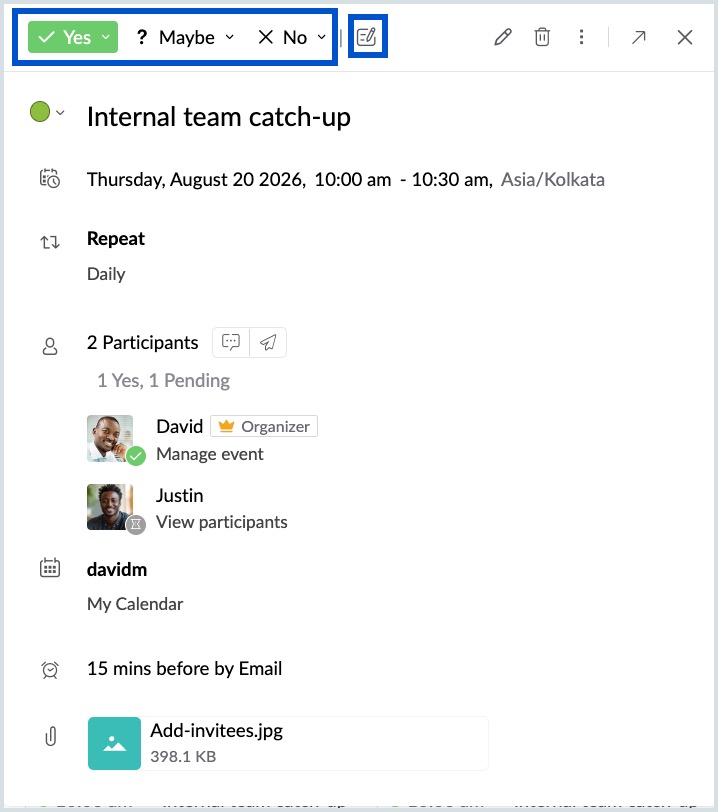
Along with your RSVP response (Yes, Maybe, or No), you can click the Add note icon to include a message for the organizer. The note is sent together with your RSVP response.
Add a note to your RSVP
ou can include a note when responding to an event invitation to provide additional context to the organizer. For example, you can explain your availability, share updates, or communicate any special requests along with your RSVP.
To add a note:
- Log in to Zoho Calendar.
- Click the respective event in the calendar grid to open the event invitation.
- Click Yes, Maybe, or No.
- Click the Add note icon next to the RSVP options.
- Enter your message in the Add note dialog.
- (For recurring events) Choose whether the note applies to:
- This event only – Sends the response only for the selected occurrence.
- All events – Sends the response for the entire recurring series.
- Verify or change your RSVP status if required.
- Click Send.
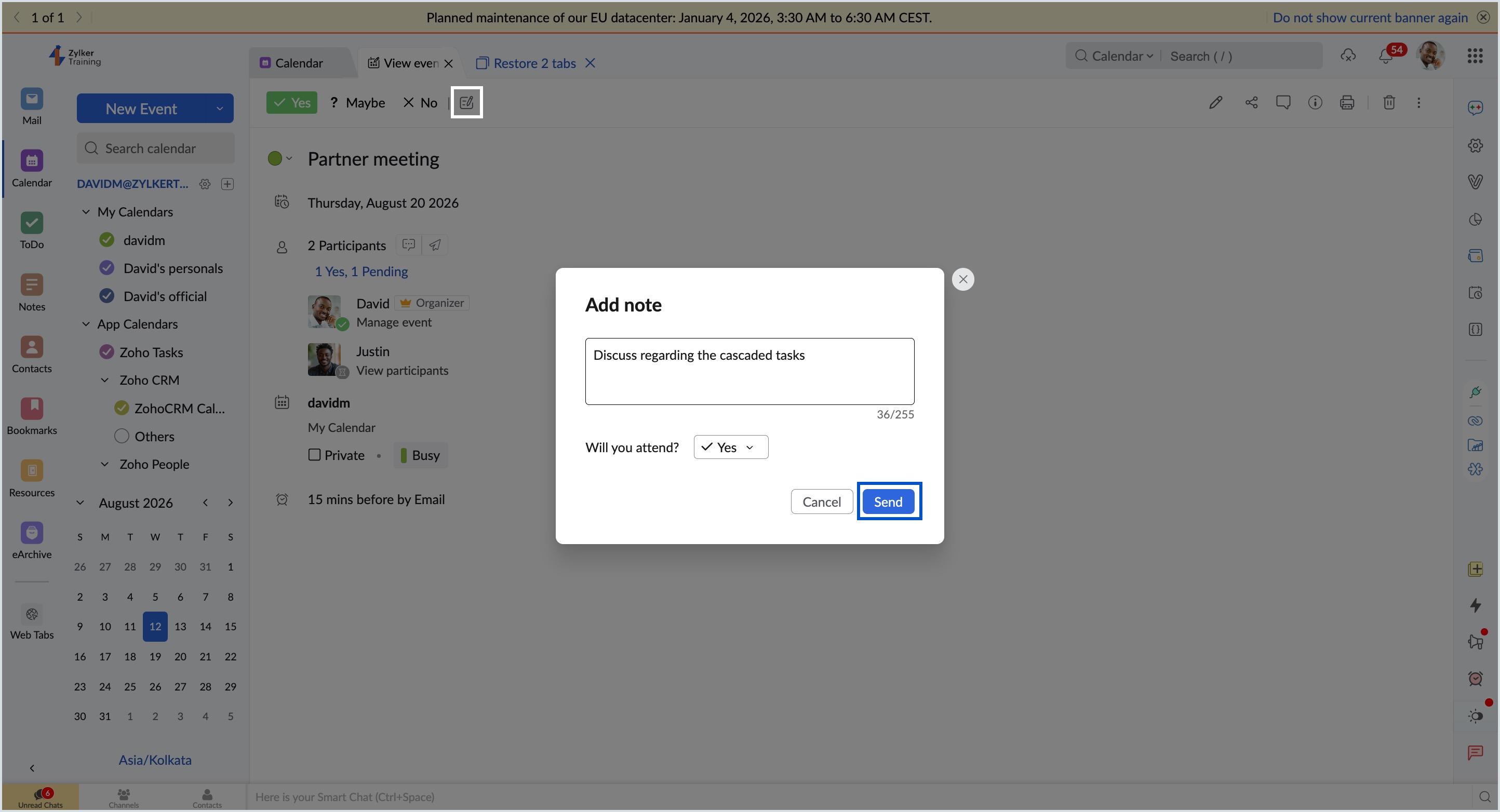
The organizer will receive your RSVP along with the note.
Note
- The note is included with your RSVP notification sent to the organizer.
- For recurring events, the selected scope determines whether the note applies to a single occurrence or the entire series.
Yet to respond
Once you create or modify an event, you'll receive an event invitation that requires your response. To help you keep track of pending invitations, Zoho Calendar provides the Yet to respond option in the top-right corner. This panel lists all your upcoming event invitations that are awaiting your response, allowing you to RSVP directly without opening each event individually. You can also add a note while responding to invitations from the Yet to respond panel.
Steps to RSVP from the Yet to respond
- Log in to Zoho Calendar.
- Click on the Yet to respond option in the top right corner.
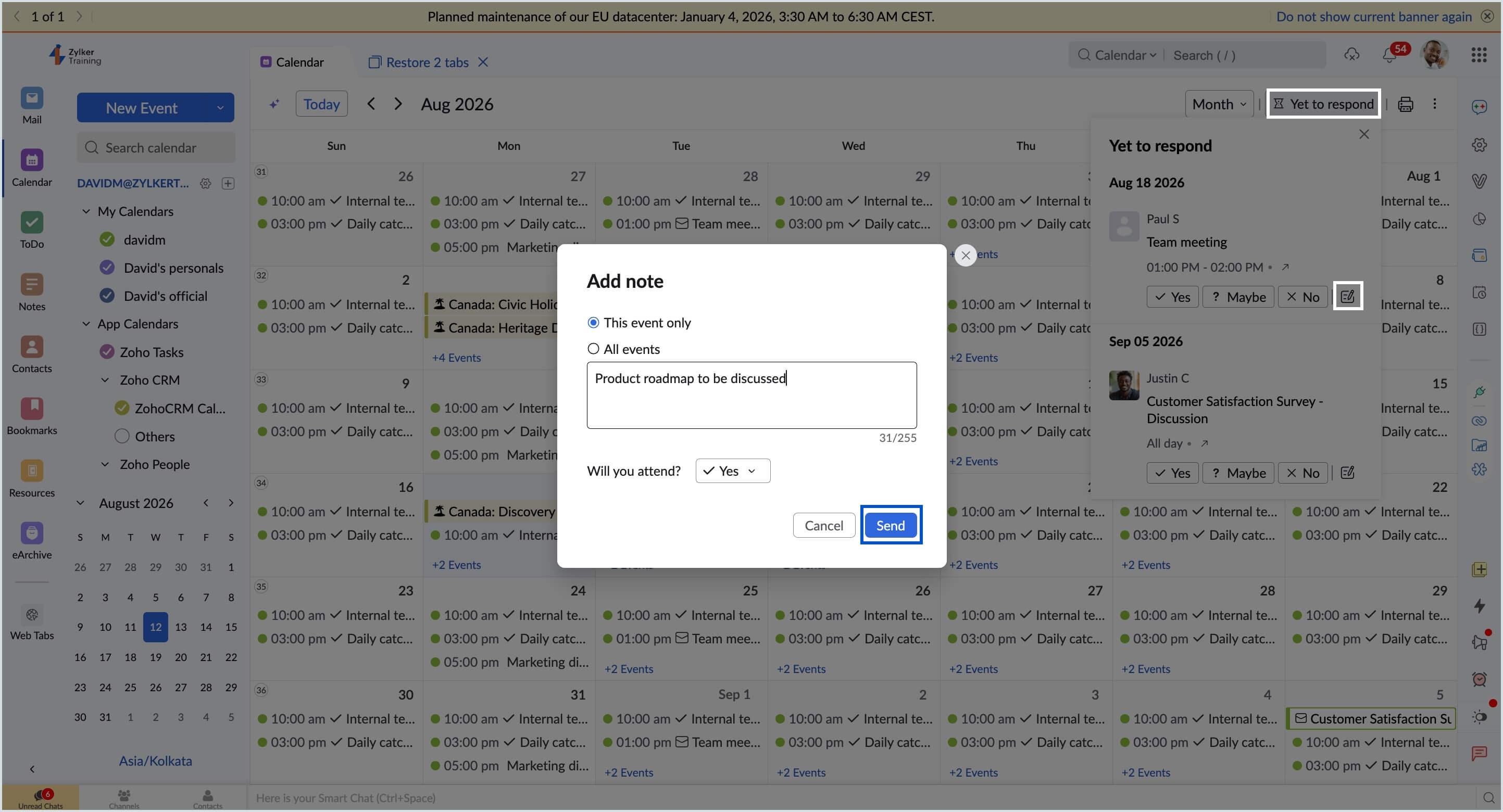
- RSVP to all your upcoming events from the list of events
- Click on the Open in new tab icon next to each event to see view the event in another tab.
Note
The Yet to respond feature applies only to the events created in the calendars under My calendars. The list of events does not include events from other calendars (Group calendars, Subscribed calendars, App calendars, Shared calendars and Subscribed calendars)
RSVP for repeat events
When a repeat event has been created, all the attendees can RSVP to the event from the View event tab, Yet to respond section, or in the email event invitation. Once a response has been chosen, it will be applied to all the event instances.
If you want to change your response to the repeat event later,
- Click on the event you want to change your response.
- Select your response - Yes /Maybe/ No.
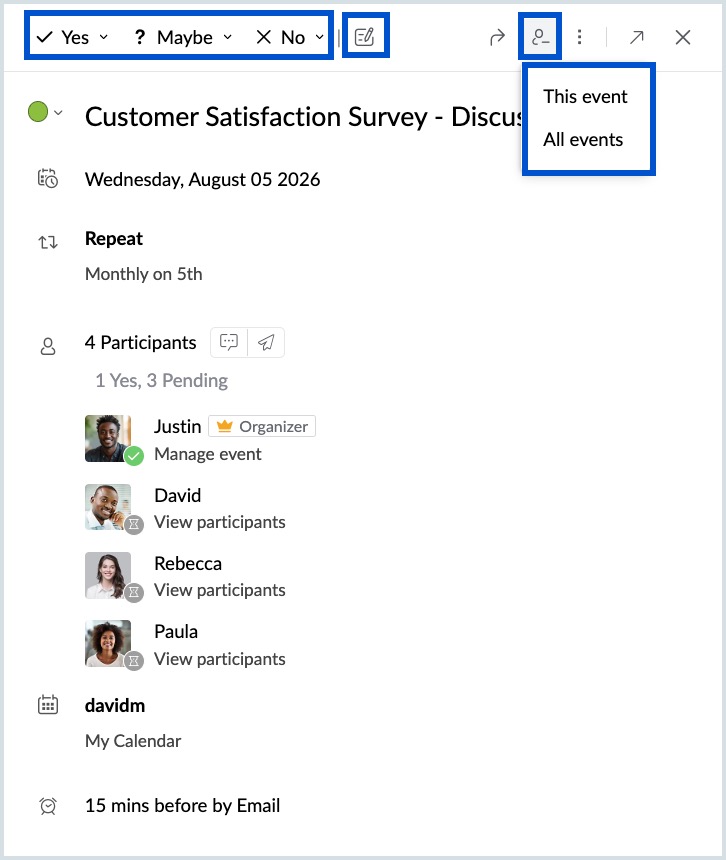
- Choose,
- 'Only this occurrence- if you want to change your response only for that instance.
- 'All occurrences' - If you want to change your response to all the instances.
- Your response will be saved.