Sync Google Calendar with Zoho Calendar
Manage both your Google Calendar and Zoho Calendar in one place using the sync feature in Zoho Calendar. Google Calendar sync lets you view and manage events from your Google Calendar directly within Zoho Calendar — without switching between tabs or apps.
Once synced, you can choose which calendars from your Google account to bring into Zoho Calendar, including personal calendars, family calendars, and holiday calendars listed under My Calendars in Google.
Note
- The third-party calendar sync feature is available only for the organization users who have subscribed to one of the paid plans of Zoho Mail, Zoho Workplace, or Zoho One.
- This feature is being rolled out in phases. If it is not yet available for your organization, please contact our support team to have it enabled.
- Only one Google Calendar account can be synced with Zoho Calendar at a time.
Set up Google Calendar sync
- Log in to Zoho Calendar.
- Go to Settings > Calendar > Calendar Accounts.
- Click on Google Calendar.
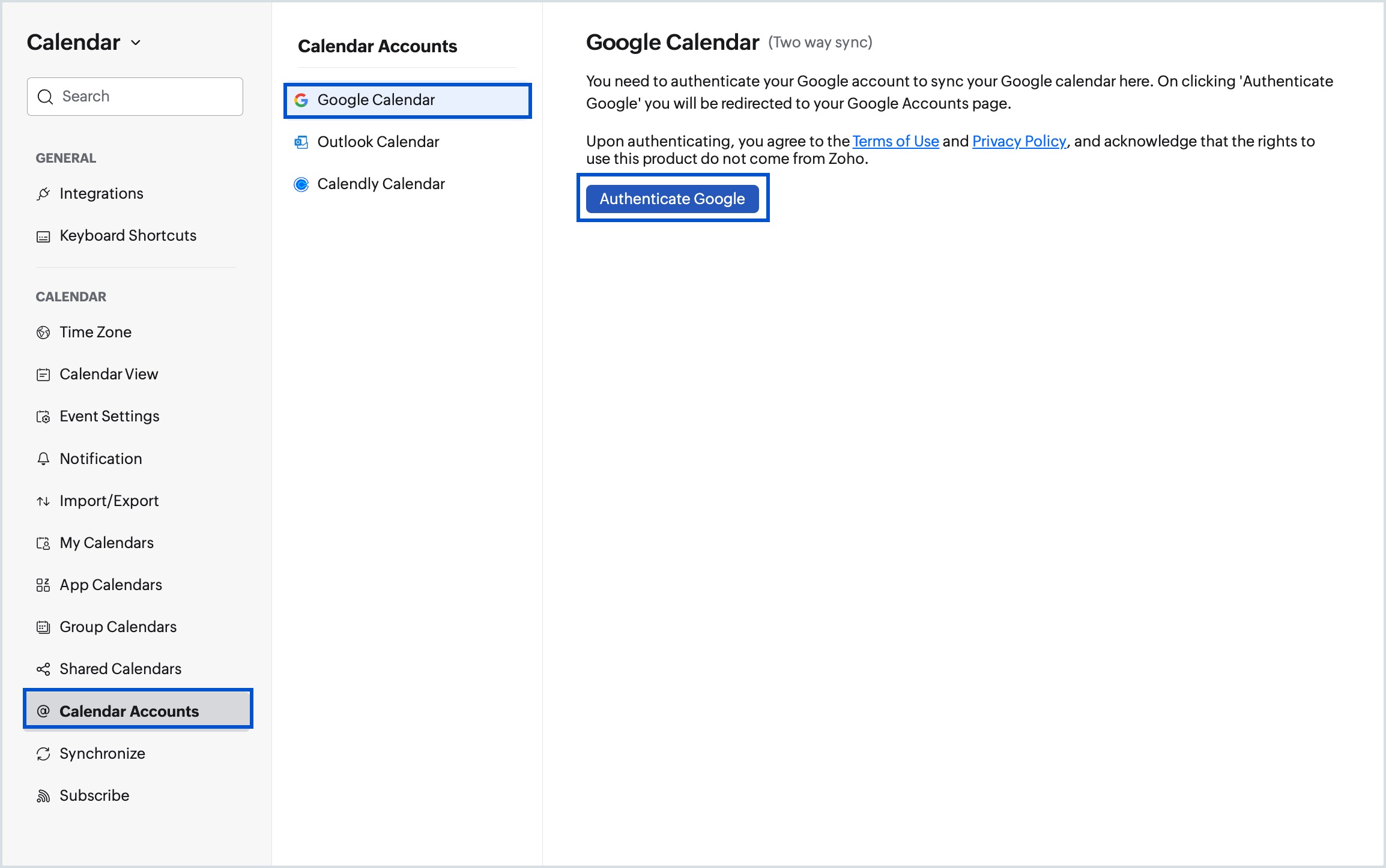
- Click Authenticate Google in the right pane.
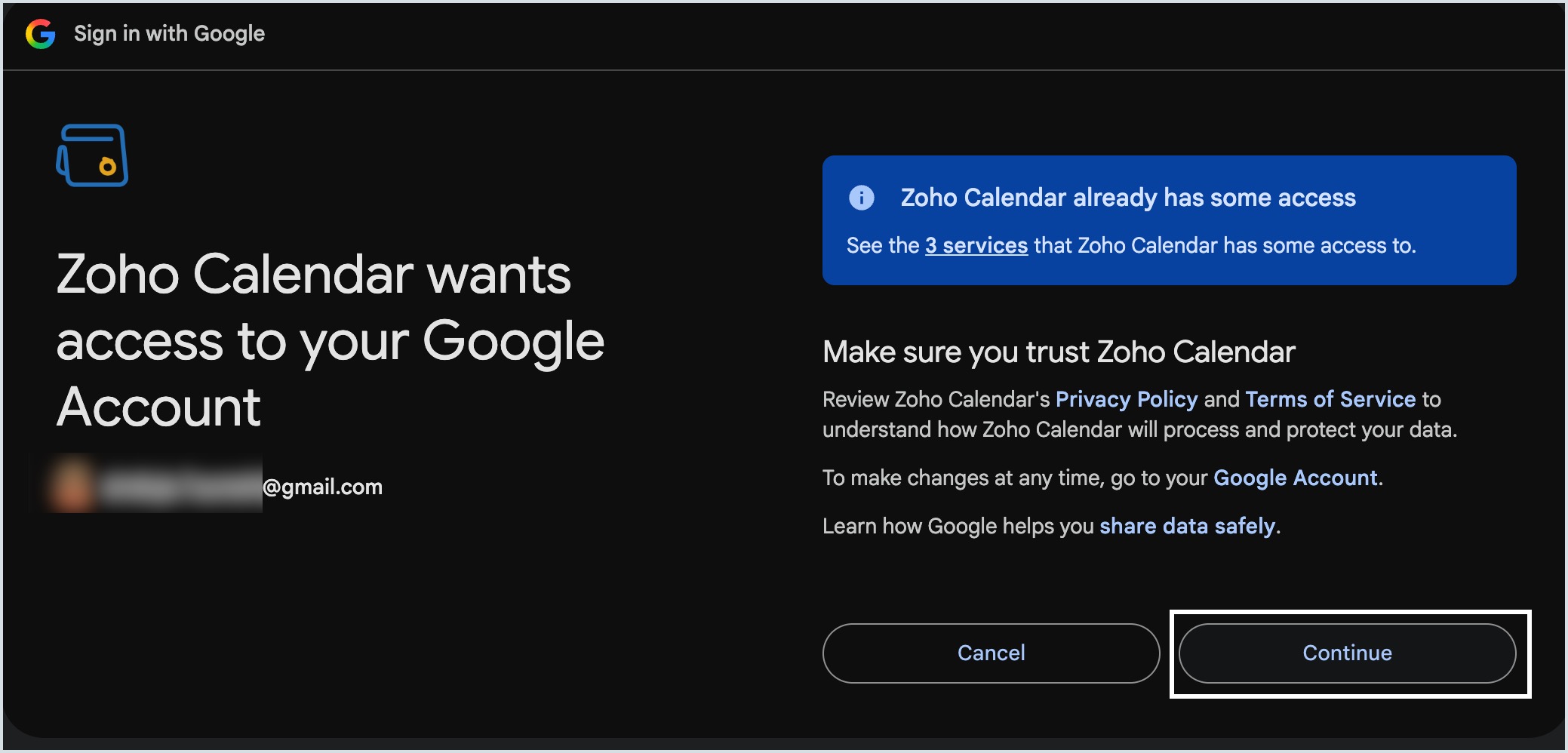
- In the Google sign-in window that opens, select the Google account you want to sync and click Continue.
- Review the permissions Zoho Calendar is requesting, then click Continue to grant access.
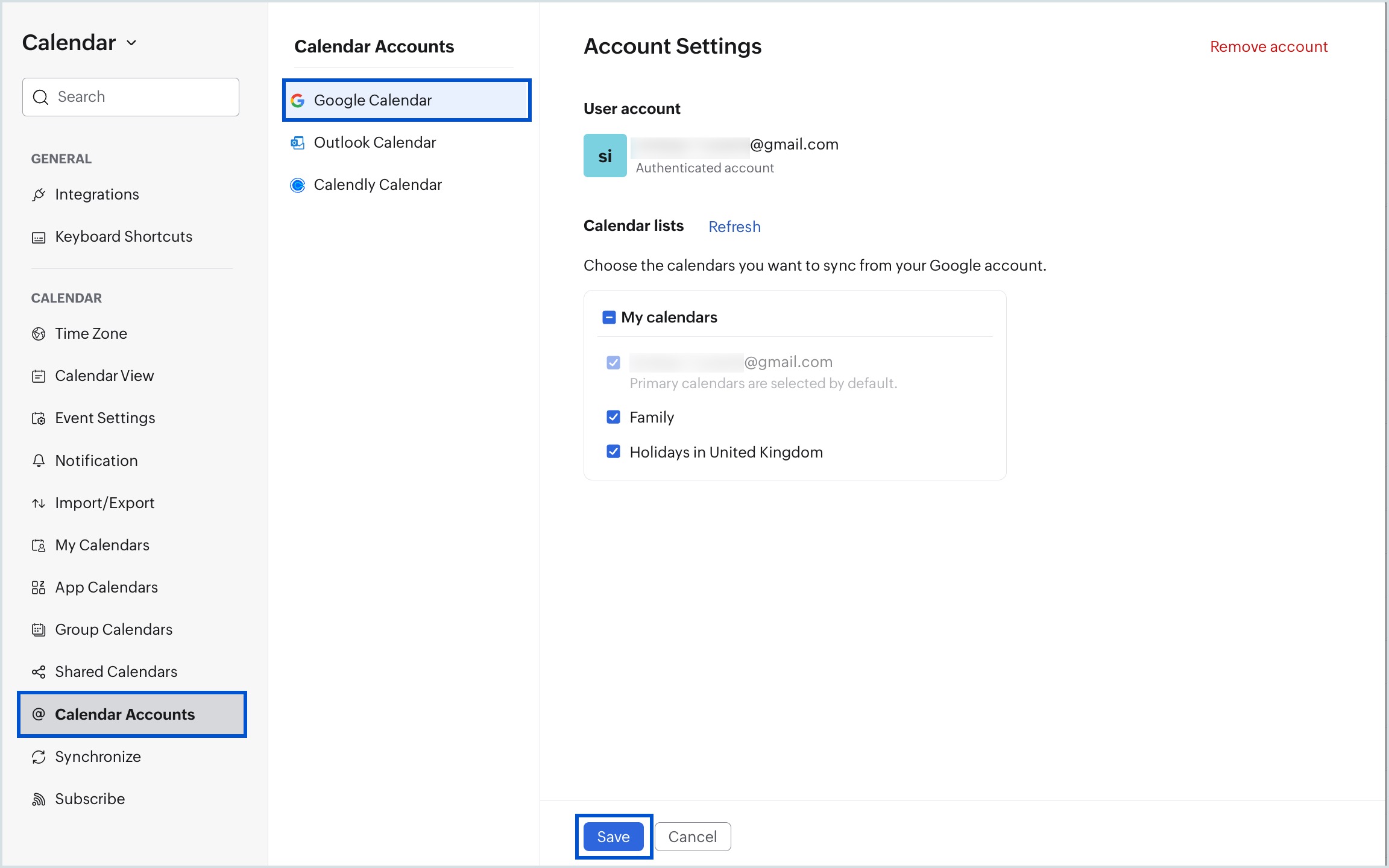
- After authentication is complete, the Account Settings panel displays your authenticated Google account along with a Calendar lists section.
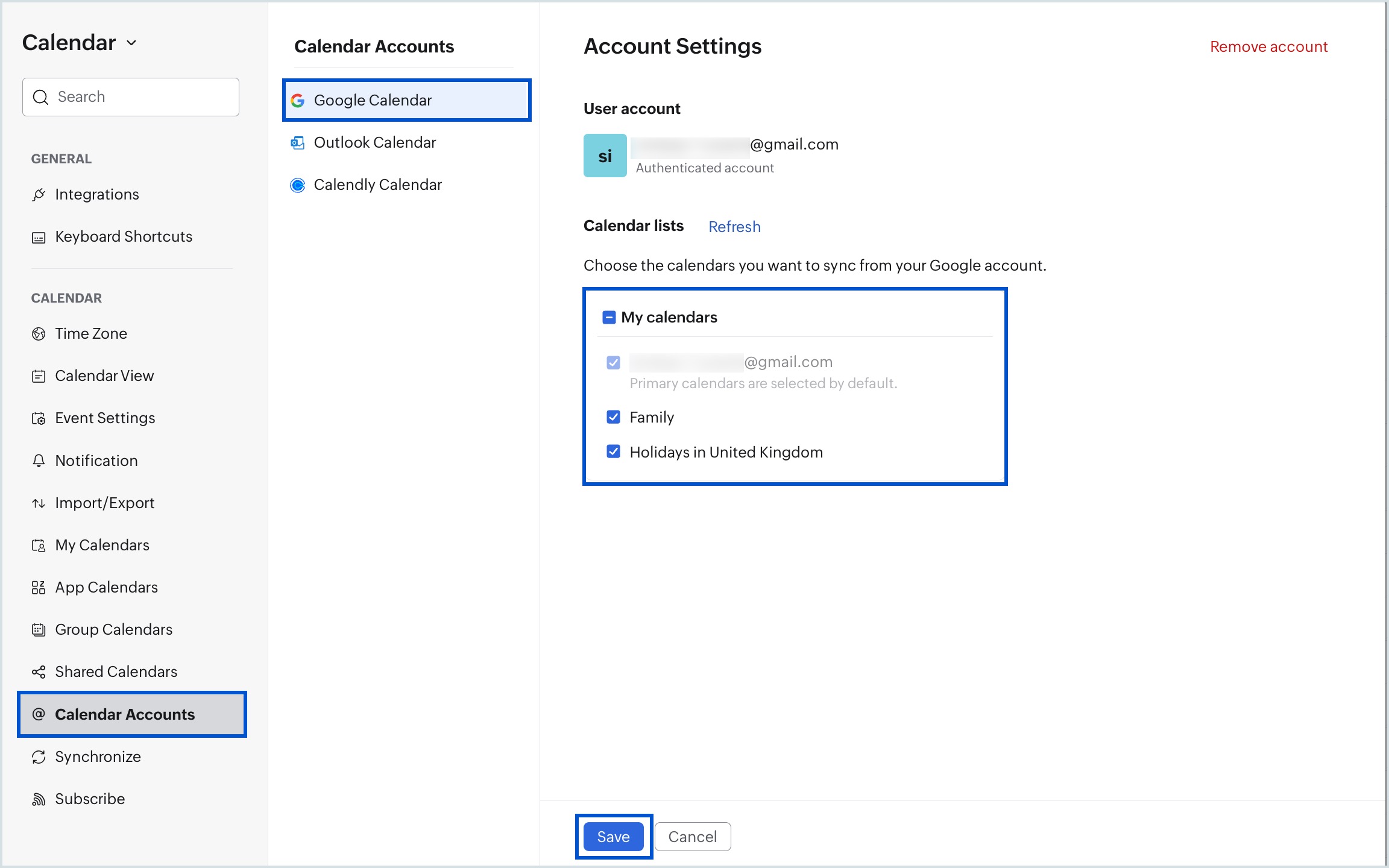
- Under Calendar lists, select the calendars you want to sync from your Google account (Your primary calendar is selected by default).
- You can also choose additional calendars, such as shared family calendars or holiday calendars, listed under My Calendars.
- Click Save.
Note
- Disable the pop-up blocker in your browser before starting Google Calendar sync.
- Changes made to an event may take up to 5 minutes to reflect on both calendars.
- Synced Google calendars appear under App Calendars in the calendar grid.
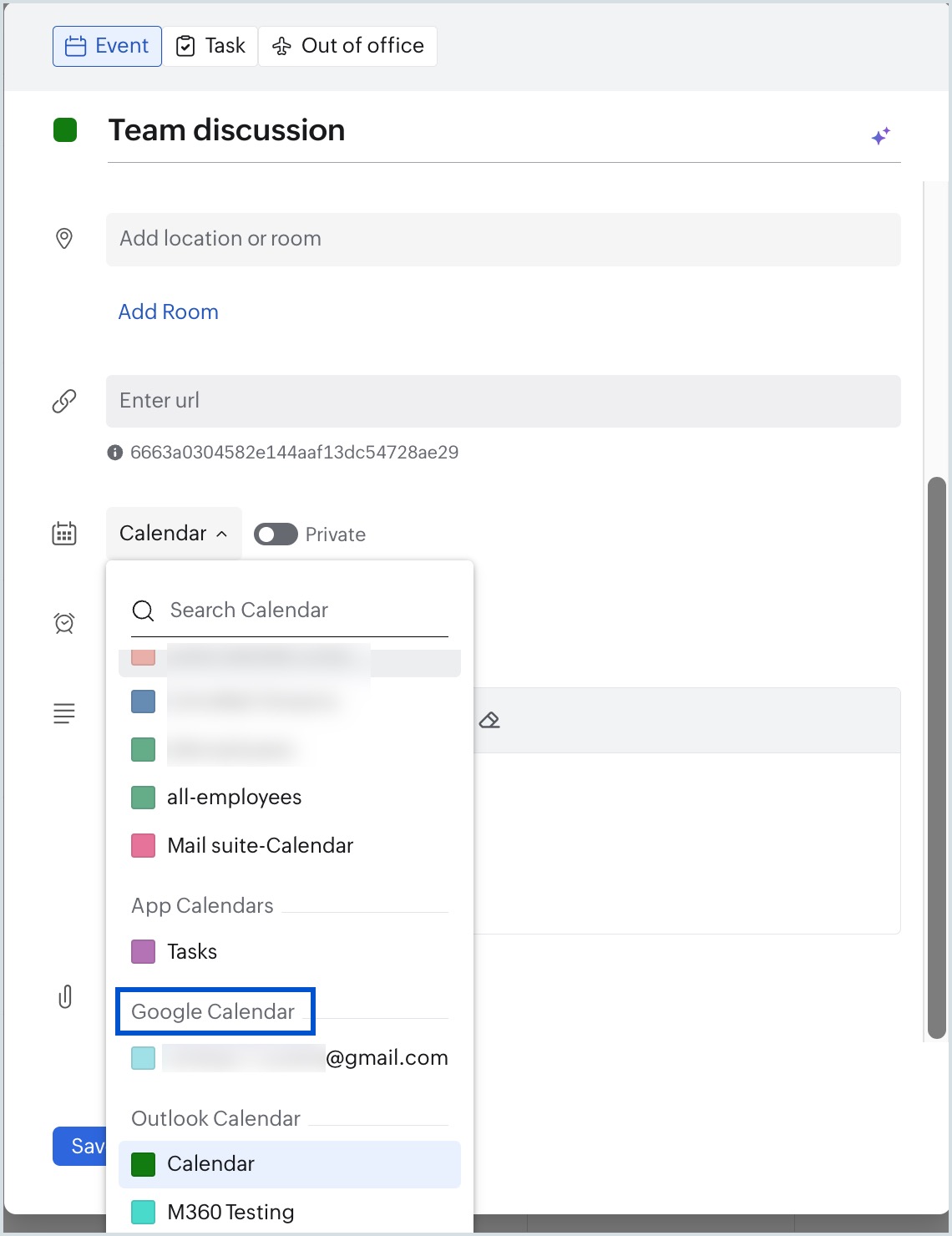
- To add events to your Google Calendar from Zoho Calendar, select the relevant Google calendar from the Calendar drop-down in the Create Event window.
Manage Google calendars
You can update your calendar selection at any time after the initial setup.
- Log in to Zoho Calendar.
- Go to Settings > Calendar > Calendar Accounts.
- Click Google Calendar.
- Click Refresh next to Calendar lists to load the latest calendars from your Google account.
- Select or deselect calendars as needed, then click Save.
Note
Click Refresh to load any new calendars you have added to your Google account before updating your selection.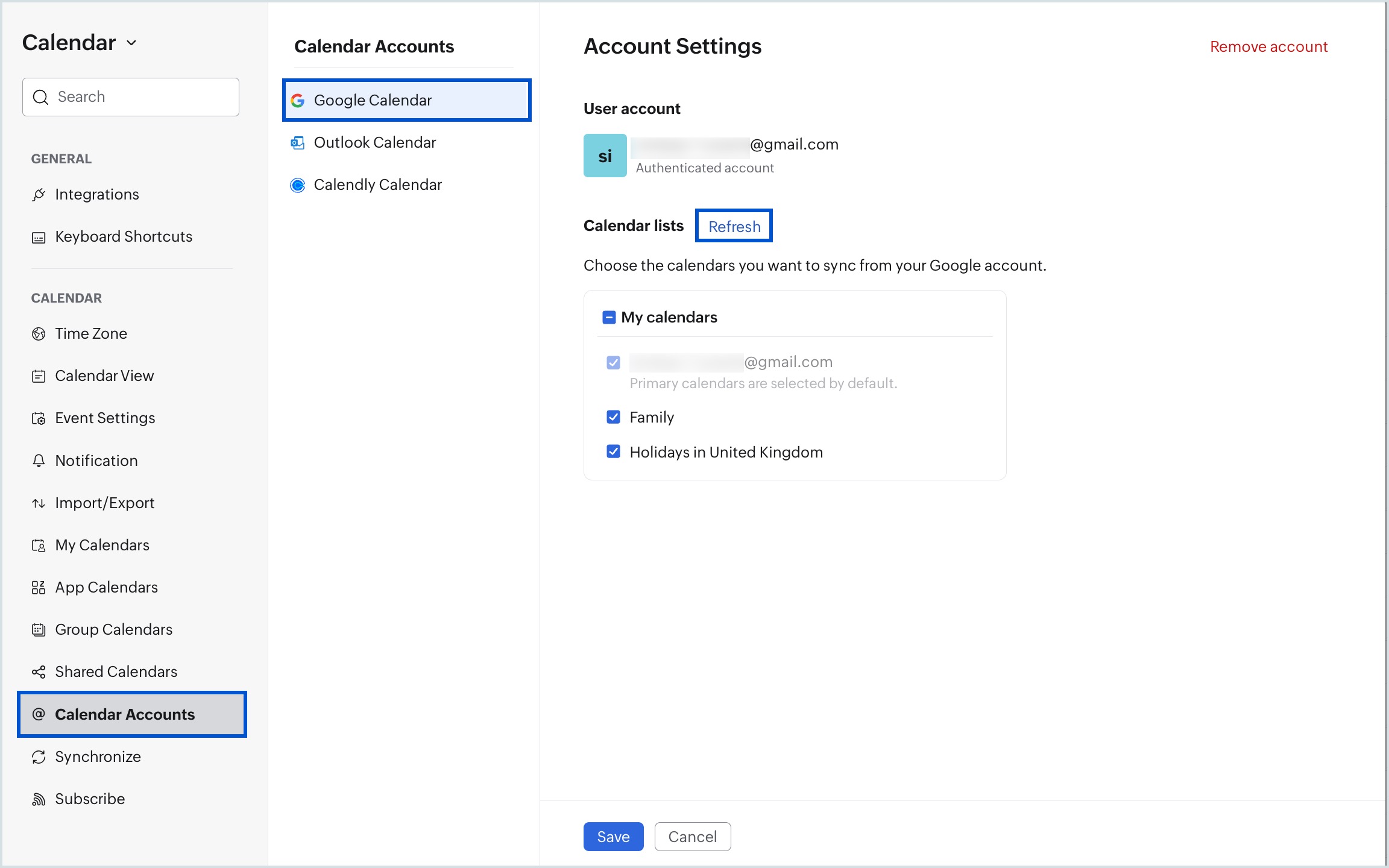
Remove Google Calendar Account from Zoho Calendar
Removing your Google Calendar account from Zoho Calendar stops the sync and removes all associated Google Calendar events from your Zoho Calendar view. Your original data in Google Calendar remains unaffected.
- Log in to Zoho Calendar.
- Go to Settings > Calendar > Calendar Accounts.
- Select Google Calendar, then click Remove account.
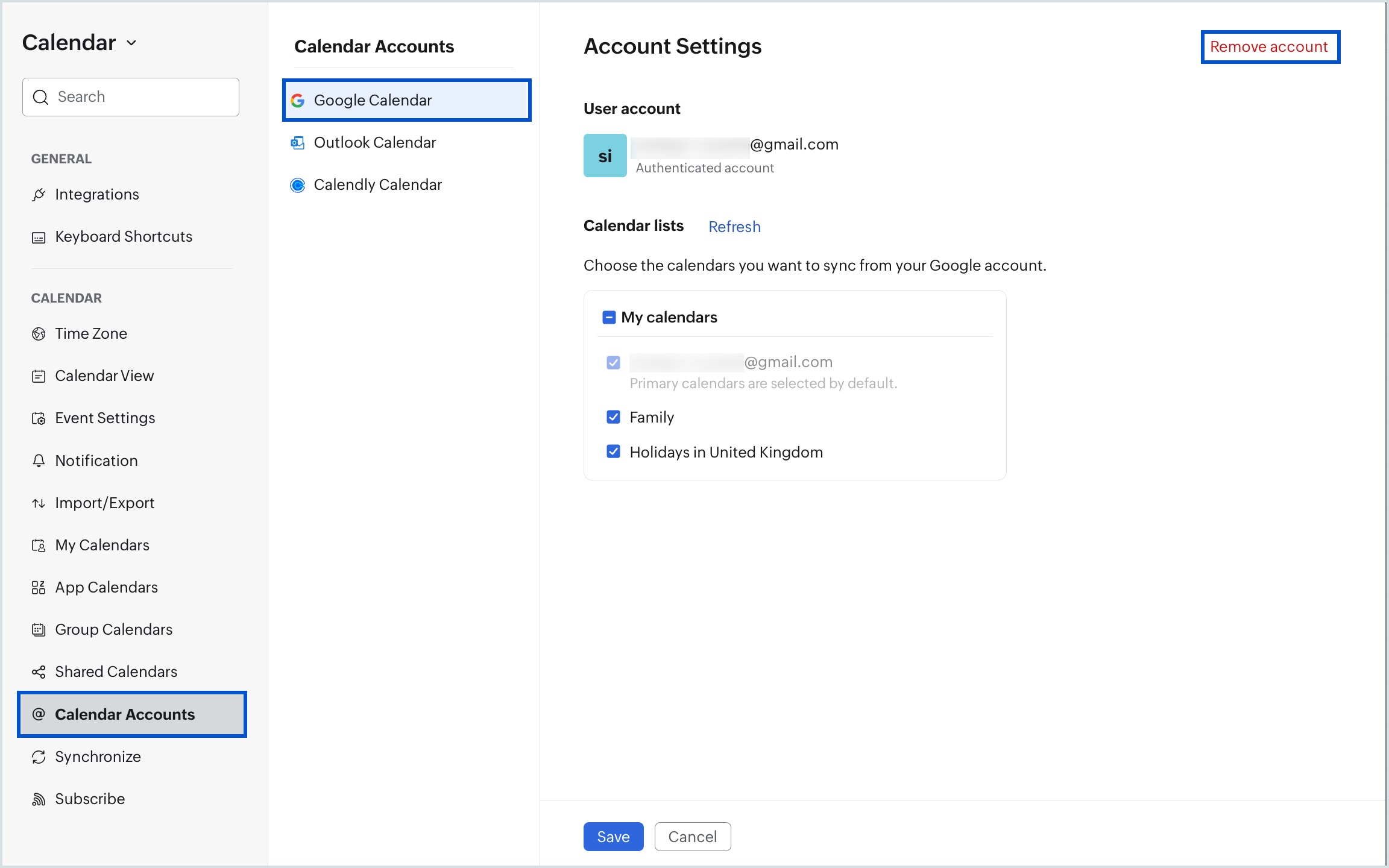
Removing your Google Calendar account from Zoho Calendar only removes the synced events from your Zoho Calendar view. Your original events and data in Google Calendar remain intact.
Frequently asked questions
Can I sync multiple Google Calendar accounts with Zoho Calendar?
No. Zoho Calendar supports syncing only one Google Calendar account at a time. To switch to a different Google account, remove the existing account from Settings > Calendar > Calendar Accounts and authenticate a new one.
Which Google calendars can I sync with Zoho Calendar?
You can sync any calendar listed under My Calendars in your Google account — including your primary calendar, shared family calendars, and holiday calendars. You can select or deselect individual calendars during setup or update your selection anytime from Calendar Accounts.
Will my existing Google Calendar events appear in Zoho Calendar after syncing?
Yes. Once you authenticate your Google account and save your calendar selection, your existing events from the selected calendars will appear under the Google Calendar section in the Zoho Calendar grid.
Why are my Zoho Calendar events not syncing to Google Calendar?
When creating an event in Zoho Calendar, make sure you select the correct Google calendar from the Calendar drop-down in the Create Event window. Events added to a Zoho-native calendar will not sync to Google Calendar.
How long does it take for changes to sync between Zoho Calendar and Google Calendar?
Changes made to events on either calendar may take up to 5 minutes to reflect on both sides. If an event is not appearing, wait a few minutes and refresh your calendar.
Why is the Google Calendar sync not starting when I click on it?
This is usually caused by a pop-up blocker in your browser. Enable pop-ups for Zoho Calendar in your browser settings and try again. The Google sign-in window needs to open as a pop-up to complete authentication.
Can I choose which Google calendars to sync, or does everything sync automatically?
You can choose exactly which calendars to sync. During setup, Zoho Calendar shows all calendars listed under My Calendars in your Google account. Your primary calendar is selected by default, but you can select or deselect others before saving.
Does syncing Google Calendar with Zoho Calendar affect my Google account data?
Zoho Calendar requests permission to view and manage your Google Calendar data to enable two-way sync. You can review these permissions during authentication and revoke access at any time from your Google Account settings.