Sync Outlook Calendar with Zoho Calendar
Outlook Calendar sync allows you to synchronise your Outlook calendar with your Zoho calendar. Once the sync is set up, you can view, add, edit, and delete events in your Outlook calendar directly from Zoho Calendar — without switching between applications.
Note
- The third-party calendar sync feature is available only for the organization users who have subscribed to one of the paid plans of Zoho Mail, Zoho Workplace, or Zoho One.
- This feature is being rolled out in phases. If it is not yet available for your organization, please contact our support team to have it enabled.
- Only one Outlook Calendar account can be synced with Zoho Calendar at a time.
Steps to set up Outlook Calendar sync
- Log in to Zoho Calendar.
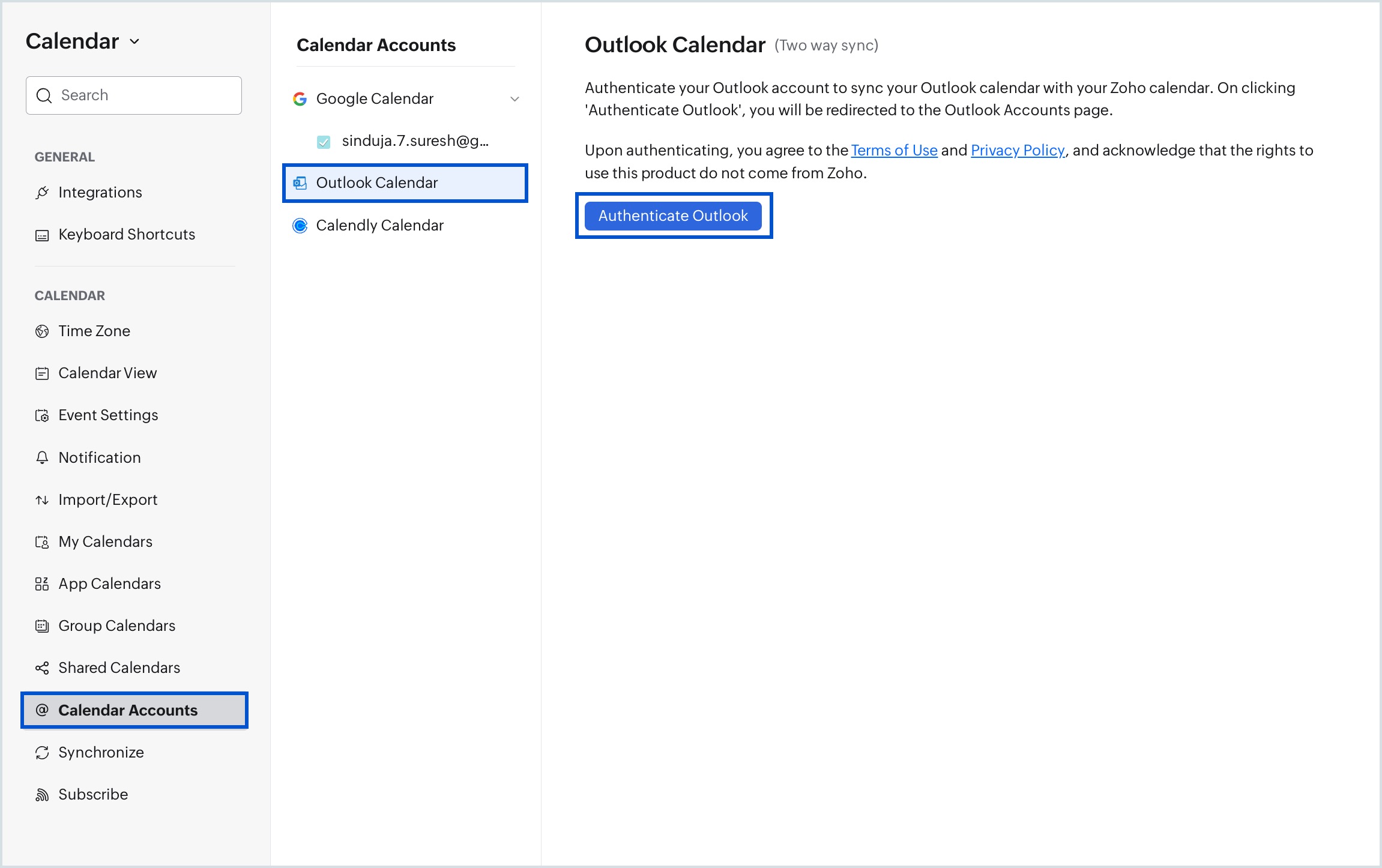
- Go to Settings > Calendar > Calendar Accounts.
- Select Outlook Calendar from the Calendar Accounts list.
- Click Authenticate Outlook on the right pane.
- In the authentication window, enter your Outlook account credentials and sign in.
- Once authenticated, your Outlook account is added to Zoho Calendar and the Account Settings pane will appear.
- Select the calendars you want to sync from the Calendar lists section. Your primary calendar is selected by default. Check or uncheck additional calendars as needed.
- Click Save.
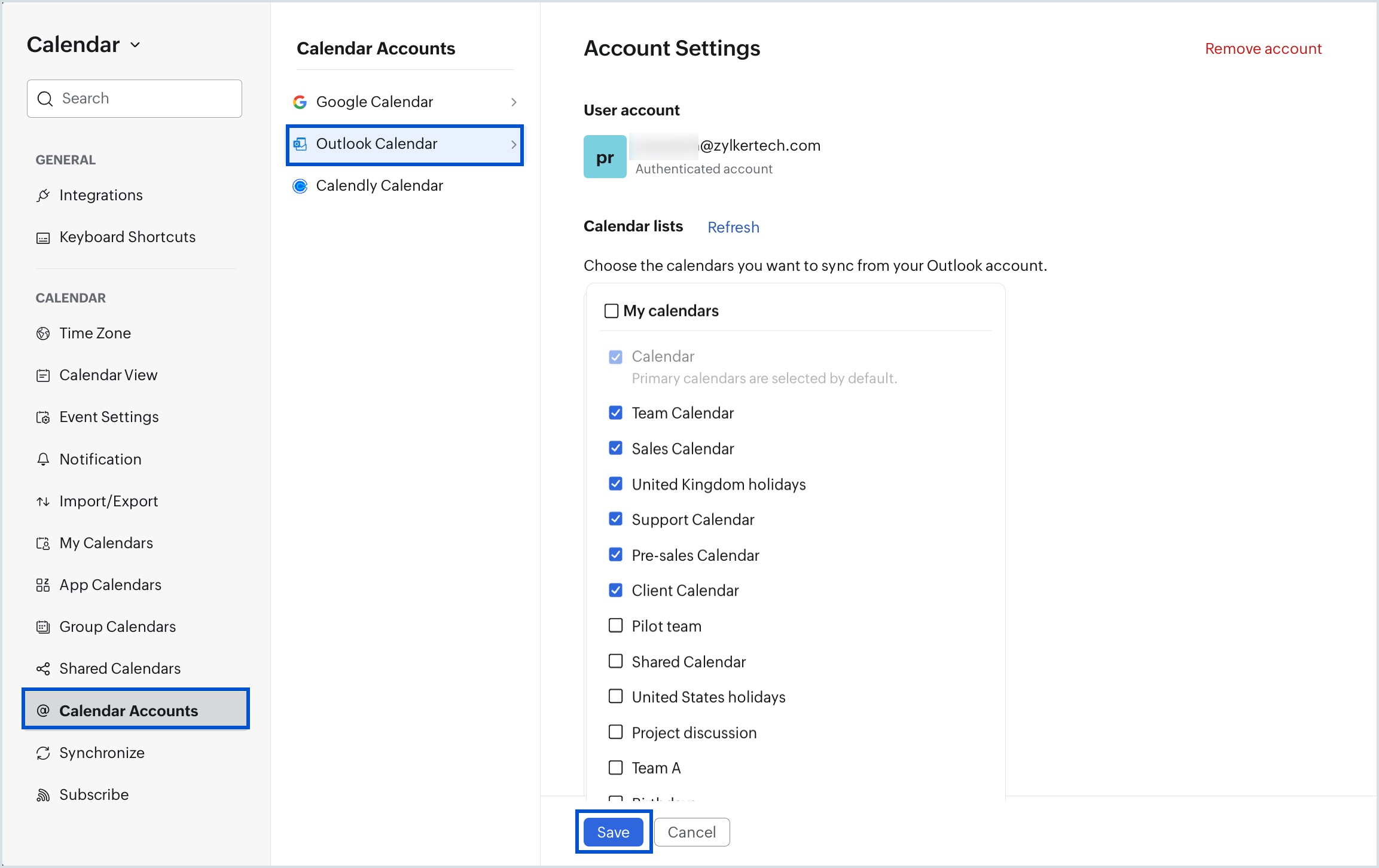
- Any new calendars that you add to your Outlook account are automatically synchronized and displayed under My calendars in the Outlook Calendar section of Calendar Accounts.
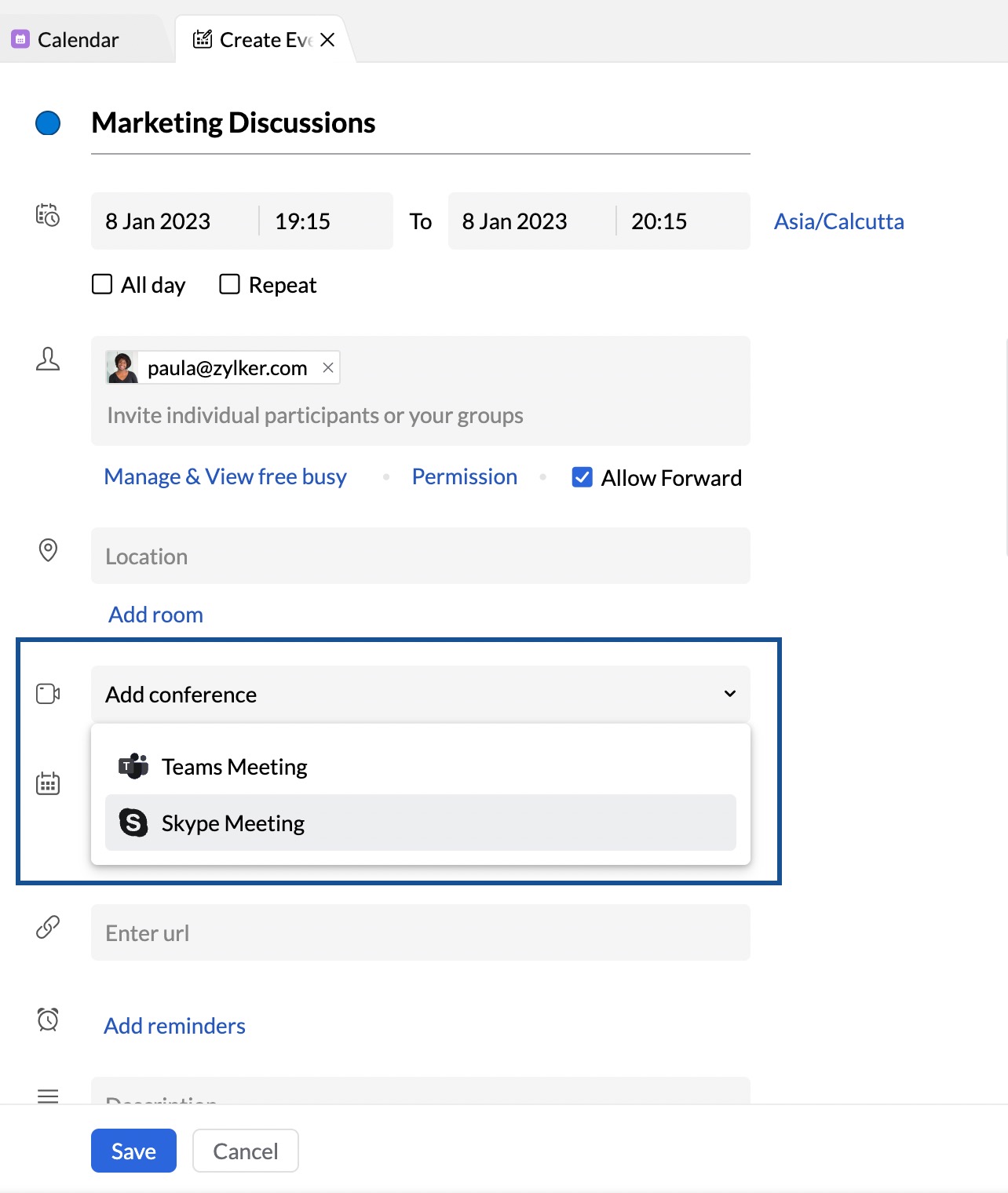
After syncing your Outlook Calendar, you can include conferencing when creating Outlook events directly from Zoho Calendar.
- Personal accounts: Skype Meeting is the default conferencing option.
- Professional accounts: Teams Meeting and Skype for Business are available, depending on your Microsoft 365 licenses.
Manage Synced Calendar lists
You can update which Outlook calendars are synced at any time.
- Log in to Zoho Calendar.
- Go to Settings > Calendar > Calendar Accounts.
- Select Outlook Calendar.
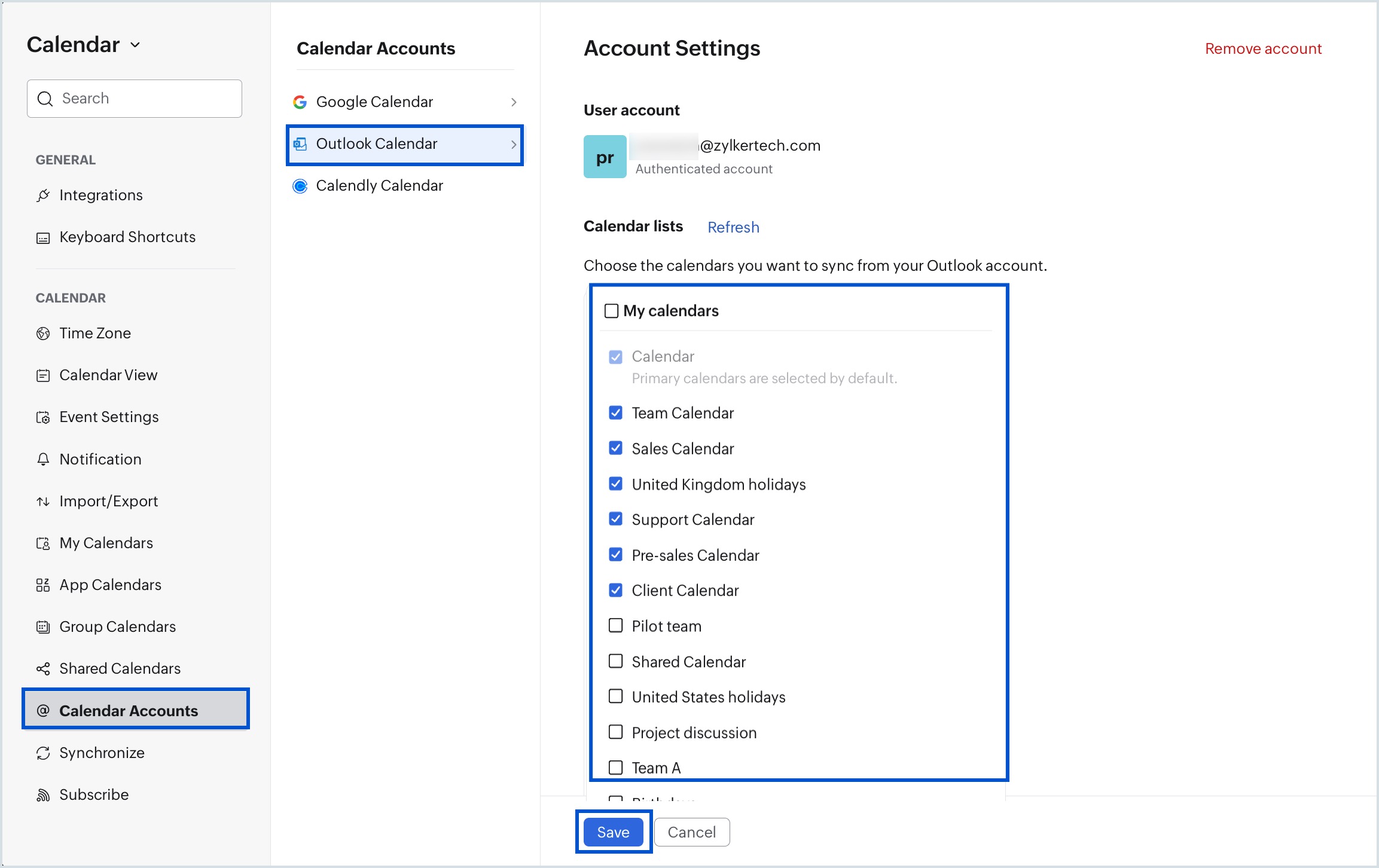
- In the Calendar lists section, check or uncheck the calendars you want to include or exclude.
- Click Save to apply the changes.
Note
Click Refresh to load any new calendars you have added to your Outlook account before updating your selection.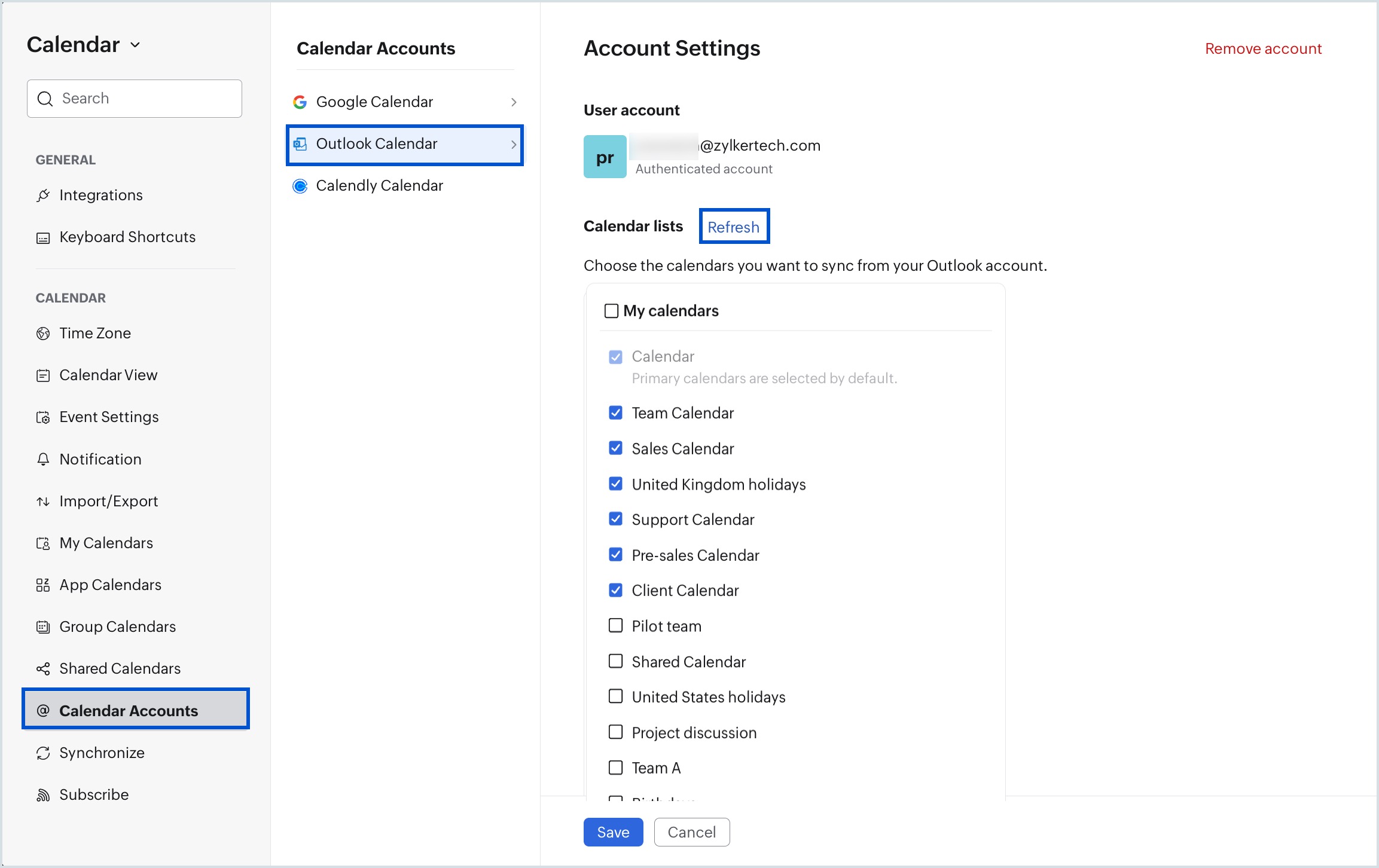
Remove Your Outlook Calendar account from Zoho Calendar
You can remove the authenticated Outlook account at any time from the Calendar Accounts settings.
- Log in to Zoho Calendar.
- Go to Settings > Calendar > Calendar Accounts.
- Select Outlook Calendar.
- Click Remove account at the top right of the Account Settings pane.
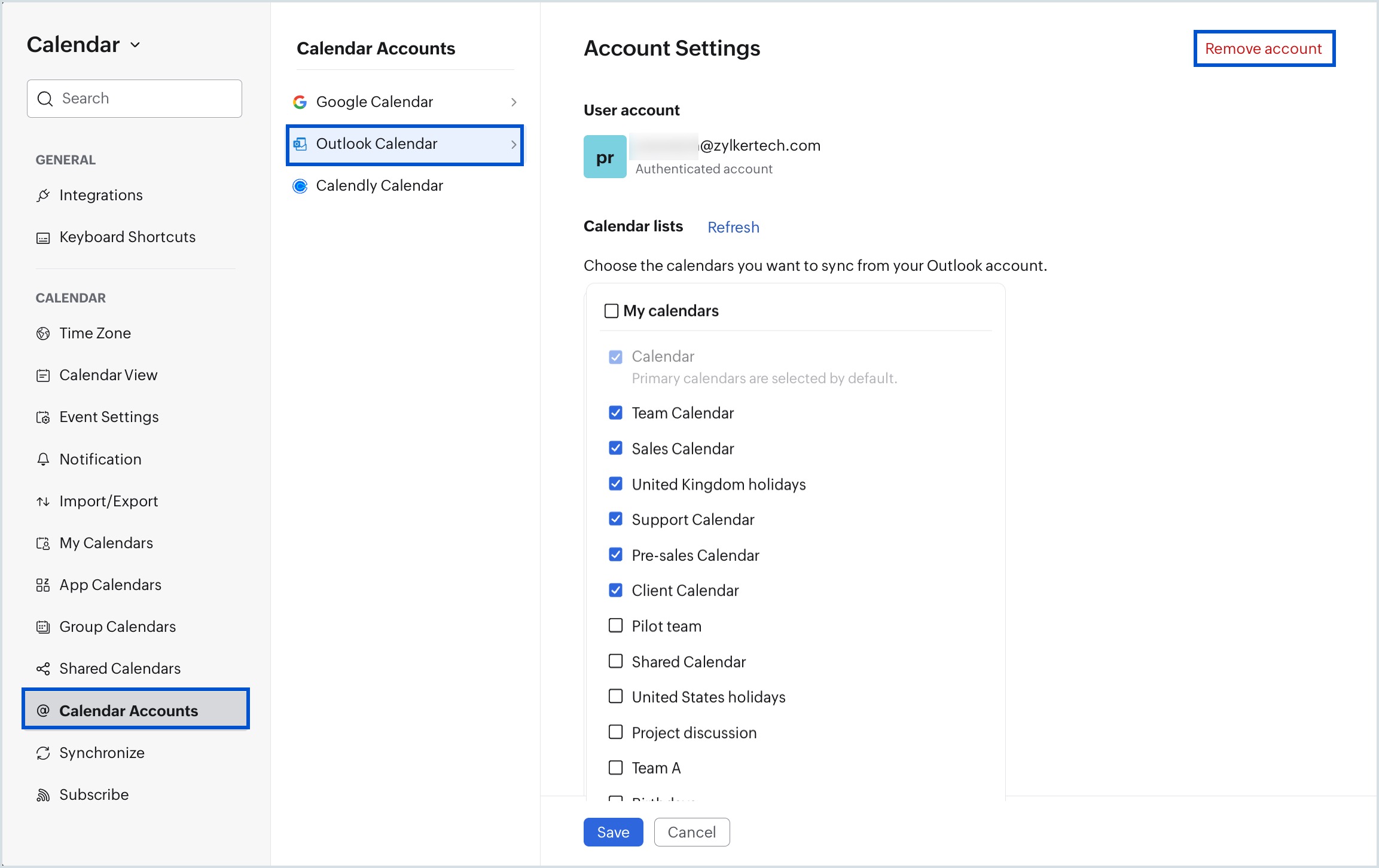
Once You remove the Outlook account from the Zoho calendar all the synced events corresponding to that Outlook account will be removed from the Zoho Calendar.
Note
- Disable the pop-up blocker in your browser before starting the Outlook Calendar sync.
- Whenever changes are made to an event, a delay of up to 5 mins is observed for the changes to be reflected on both calendars.
- The Outlook Calendar will be available under App Calendars.
- Only the primary calendar in Outlook Calendar can be synced with Zoho Calendar.
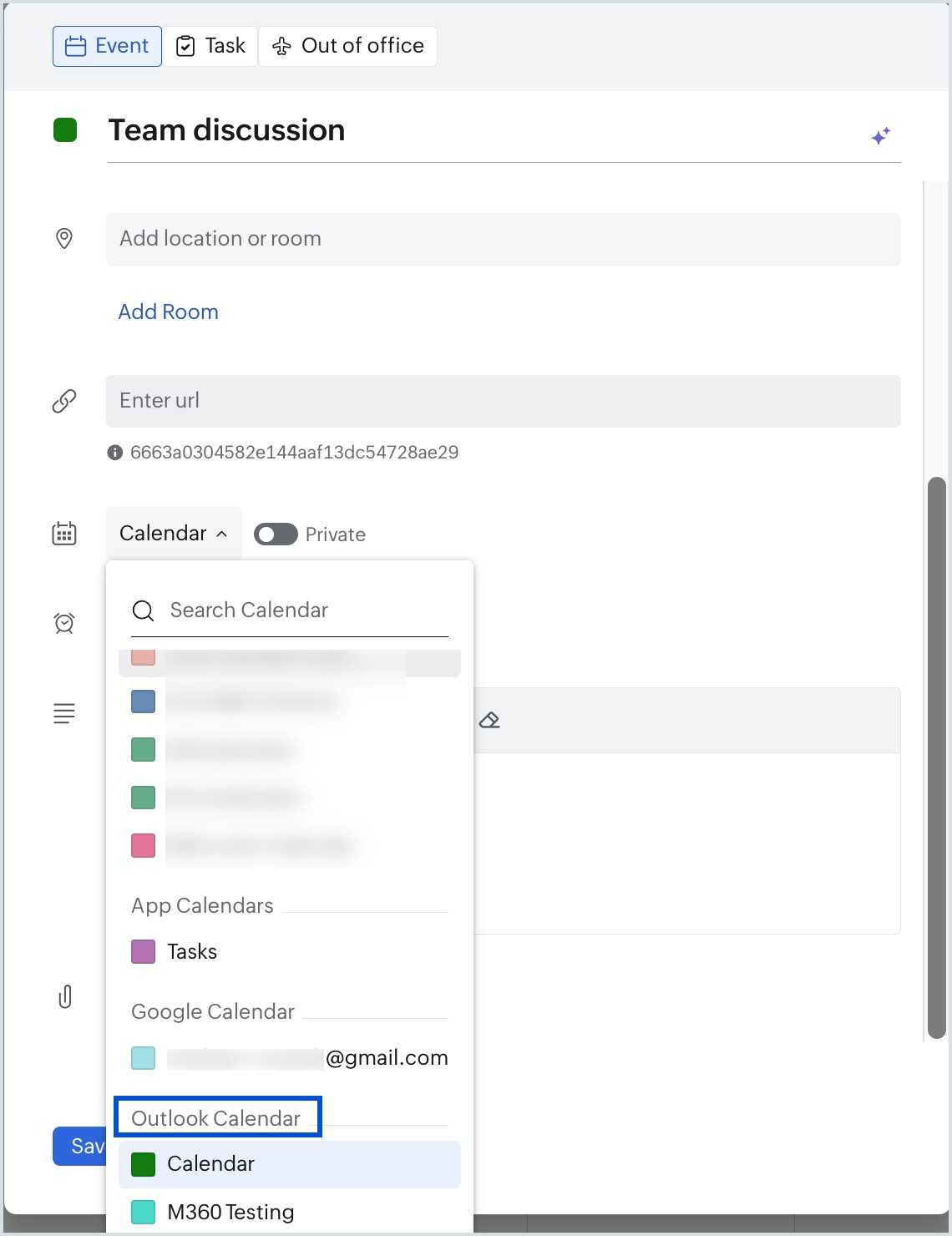
- To add events to your Outlook Calendar from Zoho Calendar, you need to choose Outlook Calendar from the Calendar drop-down section in the Create Event window.
Troubleshoot Outlook Calendar sync
Events added in Zoho Calendar are not syncing to Outlook Calendar
When creating an event in Zoho Calendar, make sure you select Outlook Calendar from the Calendar drop-down in the Create Event window. Events added to a different calendar will not sync to Outlook. There may also be a short delay before the event appears — refresh the calendar after a few minutes.
Clicking Outlook Calendar sync does not start the sync
This usually happens when your browser is blocking pop-ups. Enable pop-ups for Zoho Calendar in your browser settings, then try clicking Outlook Calendar sync again. Enter your credentials in the authentication window to complete the setup.
Account sync has expired
If your Outlook account sync has expired because your Outlook account password was changed, re-authenticate your account to restore synchronization.
Frequently Asked Questions
Can I sync my Outlook Calendar with Zoho Calendar for free?
No. Outlook Calendar sync is available only for organization users subscribed to a paid plan of Zoho Mail, Zoho Workplace, or Zoho One. It is not available on free plans.
Is Outlook Calendar sync in Zoho Calendar a two-way sync?
Yes. Outlook Calendar sync in Zoho Calendar is a two-way sync. Events created, edited, or deleted in your Outlook Calendar are reflected in Zoho Calendar, and vice versa — provided you select Outlook Calendar as the target calendar when creating events in Zoho Calendar.
How long does it take for Outlook Calendar events to sync with Zoho Calendar?
Changes to events — including additions, edits, and deletions — may take up to 5 minutes to reflect on both calendars. If an event is not appearing, wait a few minutes and refresh your calendar.
Can I choose which Outlook calendars to sync with Zoho Calendar?
Yes. After authenticating your Outlook account, the Account Settings pane displays all available calendars under My Calendars. Your primary calendar is selected by default. You can check or uncheck any additional calendars — such as team, shared, or holiday calendars — and click Save to apply your selection.
Will new calendars I create in Outlook automatically appear in Zoho Calendar?
Yes. Any new calendar you add to your Outlook account will automatically appear under My Calendars in the Account Settings pane in Zoho Calendar. Go to Settings > Calendar > Calendar Accounts > Outlook Calendar to view and select the new calendar for sync.
Can I add Teams or Skype conferencing to Outlook events from Zoho Calendar?
Yes. Once your Outlook Calendar is synced, you can add conferencing when creating Outlook events directly from Zoho Calendar. Skype Meeting is available for personal accounts. Teams Meeting and Skype for Business are available for professional accounts, depending on your Microsoft 365 licenses.
Why are events I create in Zoho Calendar not appearing in my Outlook Calendar?
When creating an event in Zoho Calendar, you must select Outlook Calendar from the Calendar drop-down in the Create Event window. If you select a different calendar — such as a Zoho calendar — the event will not sync to Outlook. There may also be a short delay of up to 5 minutes before the event appears.
Why did my Outlook Calendar sync stop working in Zoho Calendar?
The sync expires if your Outlook account password has been changed. To restore the sync, go to Settings > Calendar > CalendarAccounts > OutlookCalendar and click Authenticate Outlook to re-authenticate your account.
Can I sync multiple Outlook accounts with Zoho Calendar?
Zoho Calendar supports authenticating one Outlook account at a time under Calendar Accounts. If you need to switch accounts, remove the existing account and authenticate a new one.
Does removing my Outlook account from Zoho Calendar delete my Outlook events?
No. Removing your Outlook account from Zoho Calendar only removes the synced calendars and events from the Zoho Calendar view. Your original data in Outlook remains intact and unaffected.