Automatic Email Cleanup in Zoho Mail Admin Console
As mailboxes grow over time, managing storage across your organization can become challenging. Automatic Email Cleanup helps administrators address this by automatically removing old emails from user mailboxes based on configurable conditions. This ensures mailboxes stay within their allocated storage limits without requiring manual intervention.
Note:
Automatic Email Cleanup is being released in a phased manner. If you wish to enable this feature for your organization, please reach out to support@zohomail.com
Administrators can define cleanup rules based on criteria such as email age, folder threshold by giving them precise control over what gets removed and when.
Note:
You can perform Automatic Email Cleanup for emails in mail folders such as Inbox, Sent, and custom folders (created by user). Other folders are not supported for cleanup.
Cleanup trigger conditions
Administrators can configure the following trigger conditions for Automatic Email Cleanup:
- Email Age (REQUIRED)
- Storage Threshold (OPTIONAL)
Cleanup can be based on email age alone, or combined with a storage threshold for more targeted control.
When only Email Age is configured, emails older than the specified age are automatically deleted regardless of the mailbox size.
When the Storage Threshold is also configured, cleanup runs only when both conditions are met: the mailbox exceeds the defined storage limit and there are emails old enough to be eligible for deletion.
How to configure the Email Age condition for Automatic email cleanup in Zoho Mail
Email Age is a mandatory condition that must be configured to enable automatic cleanup. Administrators specify a minimum age threshold, and only emails older than this value become eligible for deletion. Emails newer than the configured age are never considered for cleanup, ensuring recent emails remain unaffected.
Follow the below steps to configure the condition:
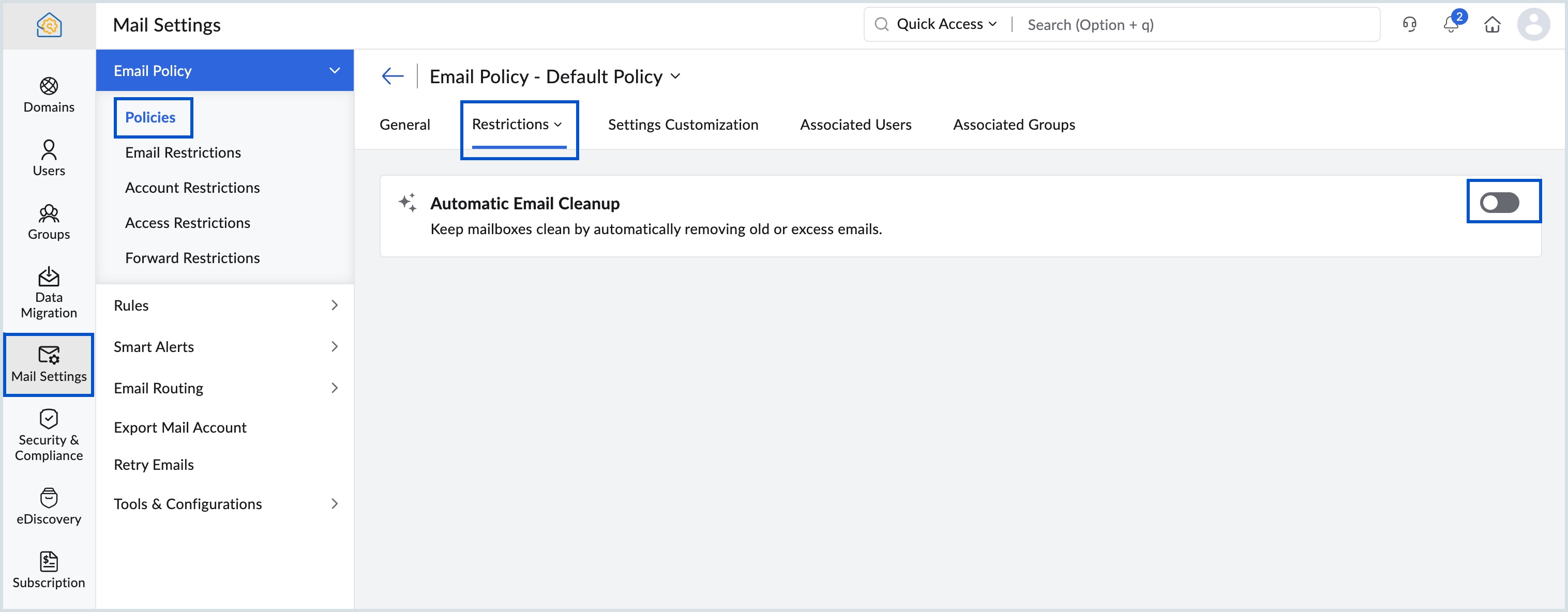
- Log in to Zoho Mail Admin Console.
- Navigate to Mail Settings and select Policies under Email Policy.
- Select any one of the listed policy or click +Create to add a new policy name.
- Once the policy is selected, navigate to Restrictions tab and select Auto Email Cleanup from the drop-down.
- Enable the toggle button ON against Automatic Email Cleanup and click Save.
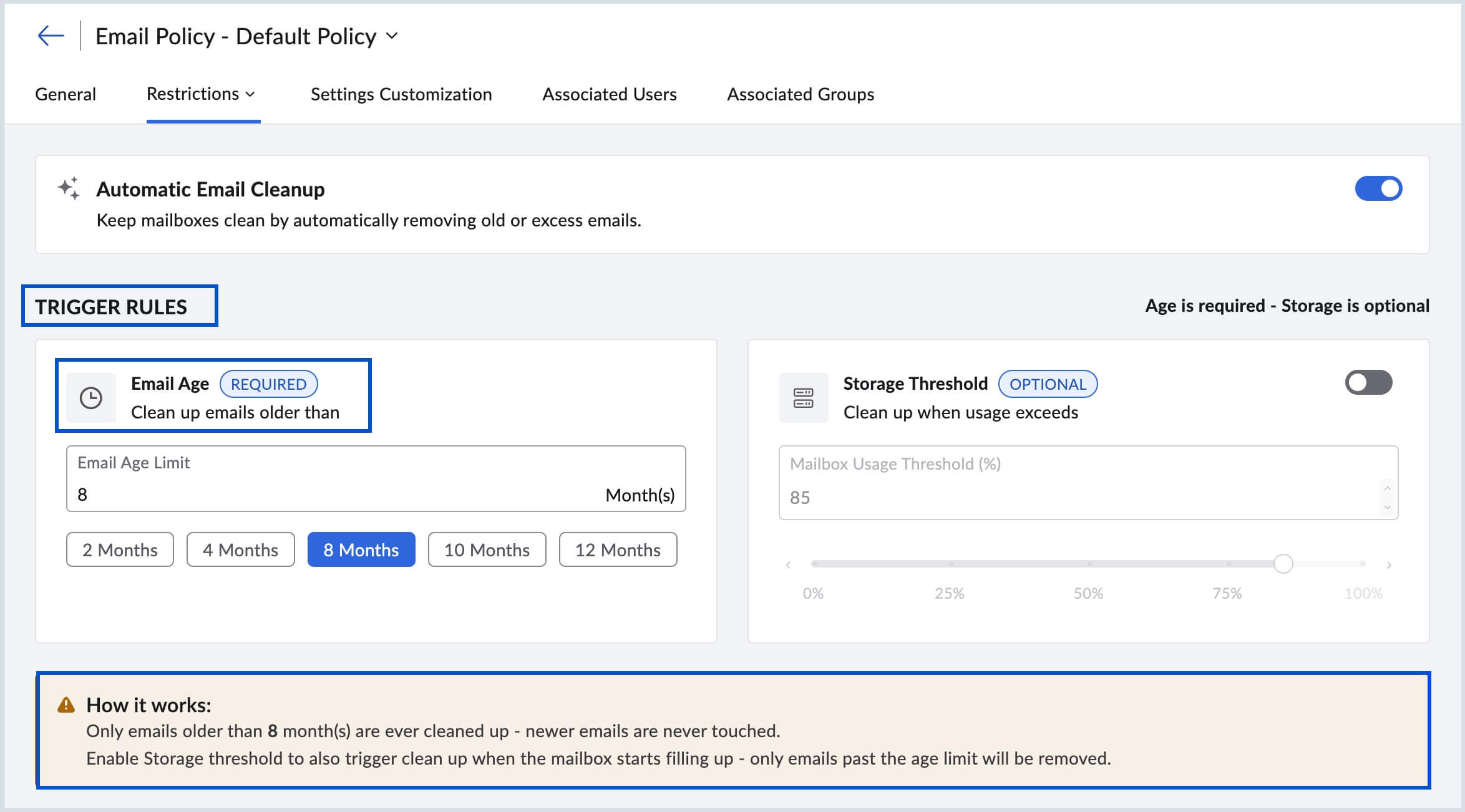
Under TRIGGER RULES, set the Email Age as 2 Months, 4 Months, 8 Months, 10 Months, or 12 Months in the Email Age Limit field.
Note:
Emails newer than the configured age limit are never considered for cleanup.
For example, if the Email Age is set to 2 months, as of August 1st, 20XX, all emails received before June 1st, 20XX are deleted, while emails from June and July are retained.- If you wish to enable Storage Threshold along with Email Age, enable the toggle button ON against Storage Threshold and set the desired values.
- The working of the TRIGGER RULES based on the option selected is explained in the How it works: section.
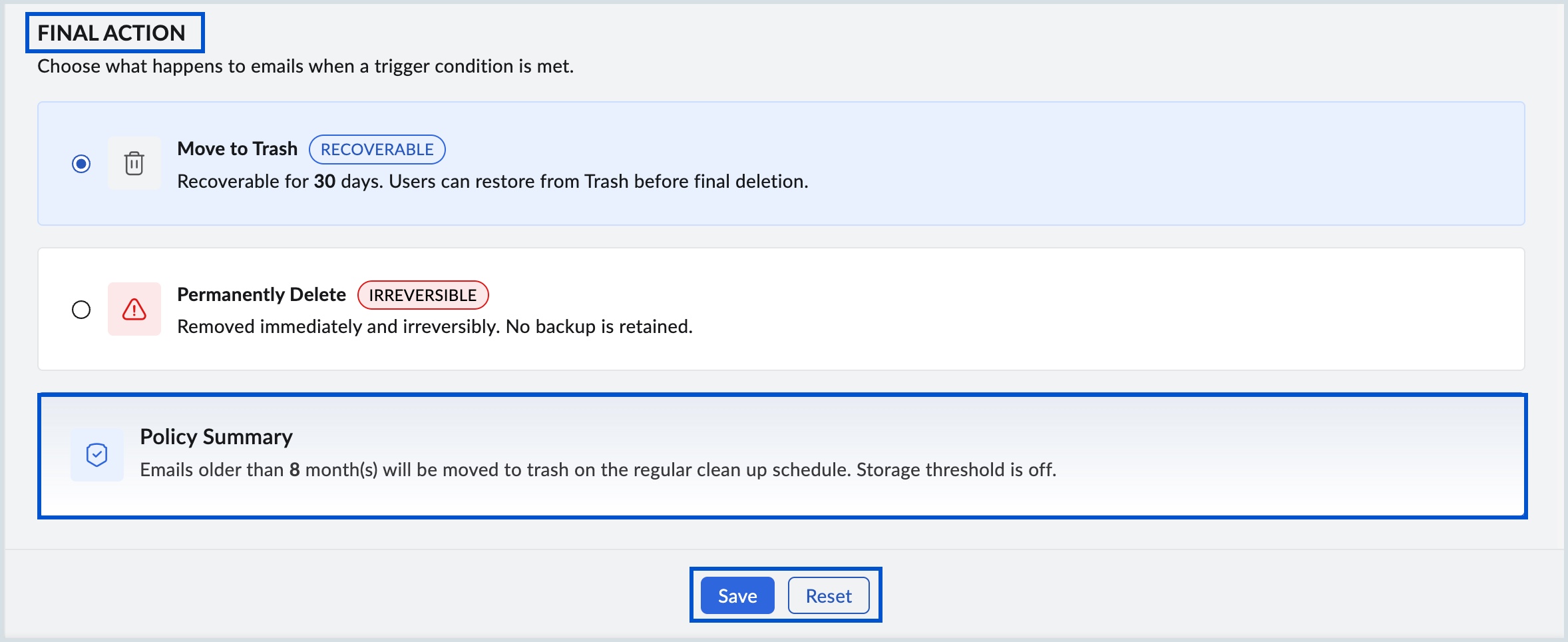
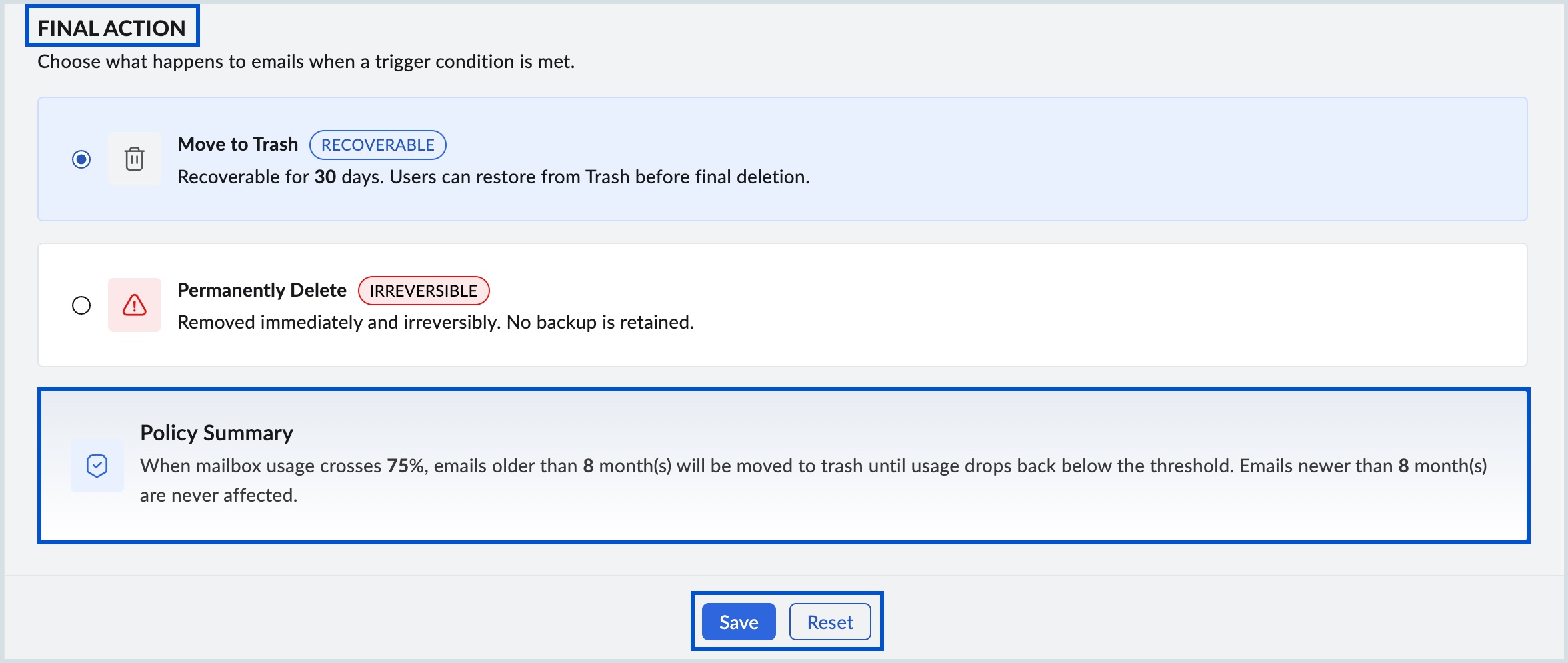
- Select either Move to Trash or Permanently Delete under FINAL ACTION section.
- You can overview the options selected and its summary in the Policy Summary section.
- Click Save to confirm the settings, else select Reset to enter different values.
How to configure the Storage Threshold condition for Automatic email cleanup in Zoho Mail
Storage Threshold is an optional condition that works in combination with Email Age and cannot be configured independently. When set, cleanup runs only when the mailbox usage exceeds the specified percentage and emails meet the configured age condition. If usage remains below the threshold, no cleanup is performed even if emails meet the age condition. This allows administrators to add an extra layer of control, ensuring cleanup occurs only when storage actually becomes a concern.
Follow the steps mentioned to configure Storage Threshold:
- Log in to Zoho Mail Admin Console.
- Navigate to Mail Settings and select Policies under Email Policy.
- Select any one of the listed policy or click +Create to add a new policy name.
- Once the policy is selected, navigate to Restrictions tab and select Auto Email Cleanup from the drop-down.
- Enable the toggle button against Automatic Email Cleanup and click Save.
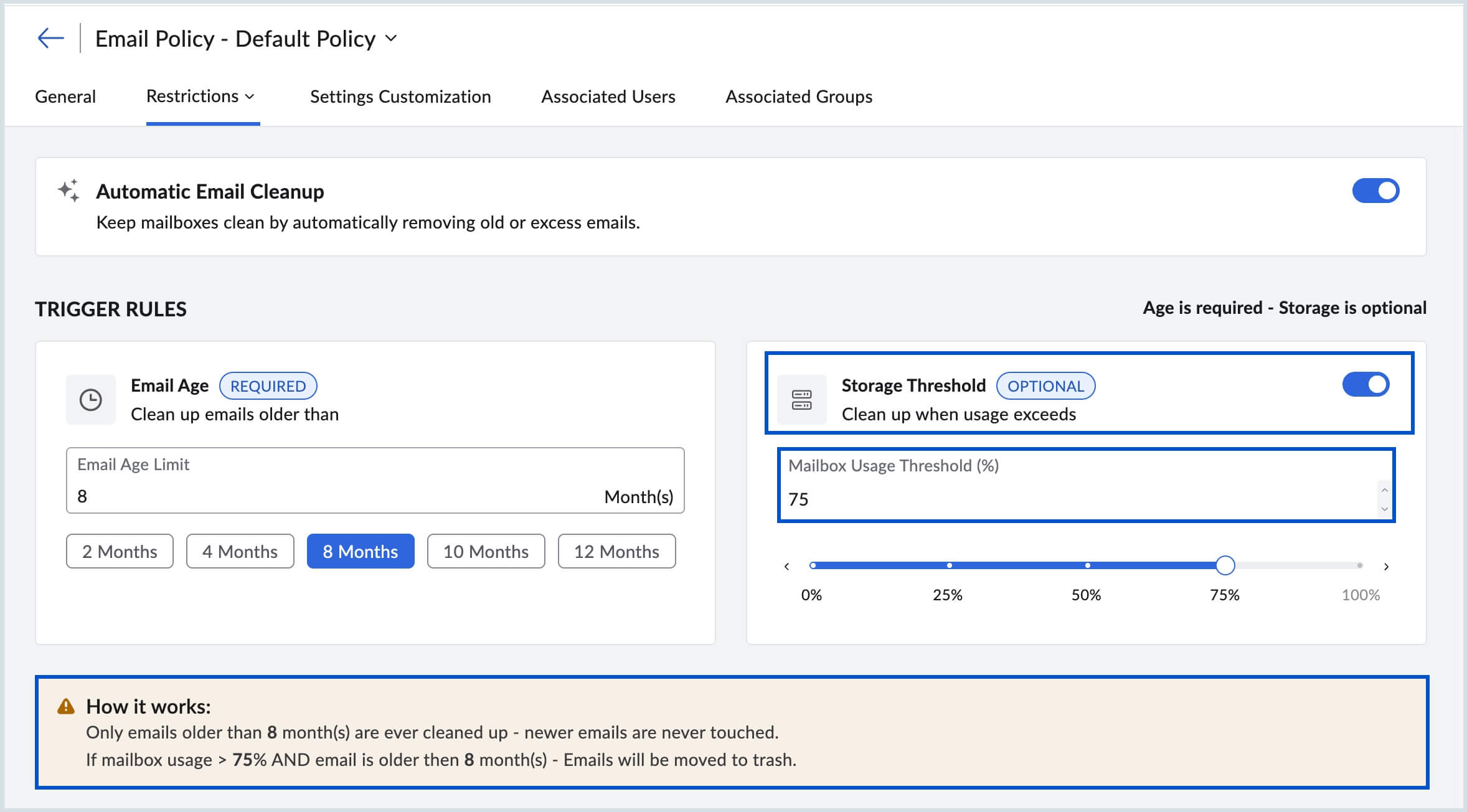
- Under the TRIGGER RULES, enable the toggle button ON against Storage Threshold condition.
- Move the percentage slider to the desired storage value to automatically fill the Mailbox Usage Threshold (%) field.
For example, if the Email Age is set to 2 months and the Storage Threshold is set to 50%, cleanup is triggered only when the mailbox usage exceeds 50%, and only emails older than 2 months are removed. - The working of the TRIGGER RULES based on the option selected is explained in the How it works: section.
- Select either Move to Trash or Permanently Delete under FINAL ACTION section.
- You can overview the options selected and its summary in the Policy Summary section.
- Click Save to confirm the settings, else select Reset to enter different values.
Note:
Storage usage is not considered for mailbox cleanup when the Storage Threshold condition is disabled.
What happens when the trigger conditions are met
Once the configured trigger conditions are met, administrators can choose how eligible emails are handled. Emails can either be moved to the user's Trash folder or permanently deleted, depending on the selected action.
- Move to Trash (Recommended)
- Permanently Delete
Move to Trash
This is the recommended action as it provides a safety net before emails are permanently removed. Eligible emails are moved to the user's Trash folder and can be restored by the user within the Trash retention period. After the retention period expires, the emails are automatically and permanently deleted. This option is ideal for organizations that want to avoid accidental data loss.
- Emails are recoverable within the Trash retention period of 30 days.
- After the retention period, emails are permanently deleted.

Permanently Delete
This action immediately and permanently removes all eligible emails from the mailbox with no option for recovery. Unlike the Move to Trash option, there is no grace period and no backup is retained through this feature. Administrators should use this option only when they are certain the emails are no longer needed, as the action cannot be undone.
- Emails are deleted immediately and cannot be recovered.
- No backup of the emails are retained.
