How to set up and manage outgoing rules in Zoho Mail Admin Console
With the help of outgoing rules, you can decide which emails can be sent by the users and filter out unnecessary emails based on the entire content of the email including the email header, email content and attachment content. In order to filter the outgoing emails, you have to establish a set of conditions against which all the outgoing emails of your organisation will be validated.
Note:
- It is mandatory to enable Organization Rules from the Spam Processing section in the Admin Console.
- The outgoing rules feature is available only for organizations that use one of our paid plans.
Steps to create an outgoing rule
Admins create outgoing rules by naming the rule, choosing a condition type, defining conditions with operating parameters, and assigning an action. A rule can be enabled immediately on creation or saved for later use.
To create a new outgoing rule, follow these steps:
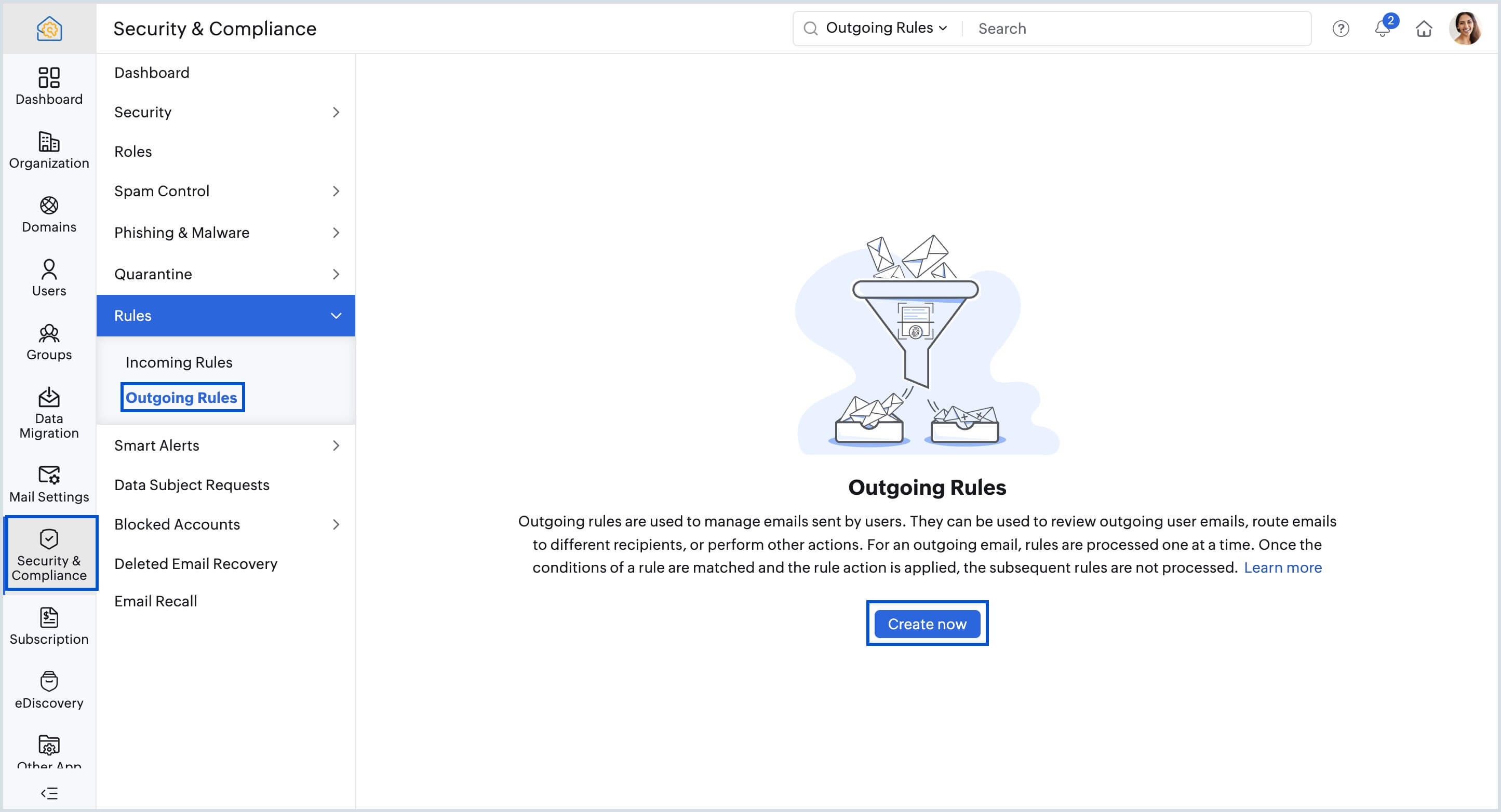
- Log in to Zoho Mail Admin Console and select Mail Settings on the left pane.
- Navigate to Rules and select Outgoing Rules.
Click the Create now button to add the first rule or click Create from the top pane.
Note:
If Organization Rules setting is not enabled, the below note will be displayed while creating a rule. Click Enable now to enable it and proceed with the configuration.
- Provide a rule name and a description for the rule. If the entered rule name is already in use, "Name already exists" warning is shown.
- If required, set an Expiry Date.
- Select either of the Condition Type from the below options:
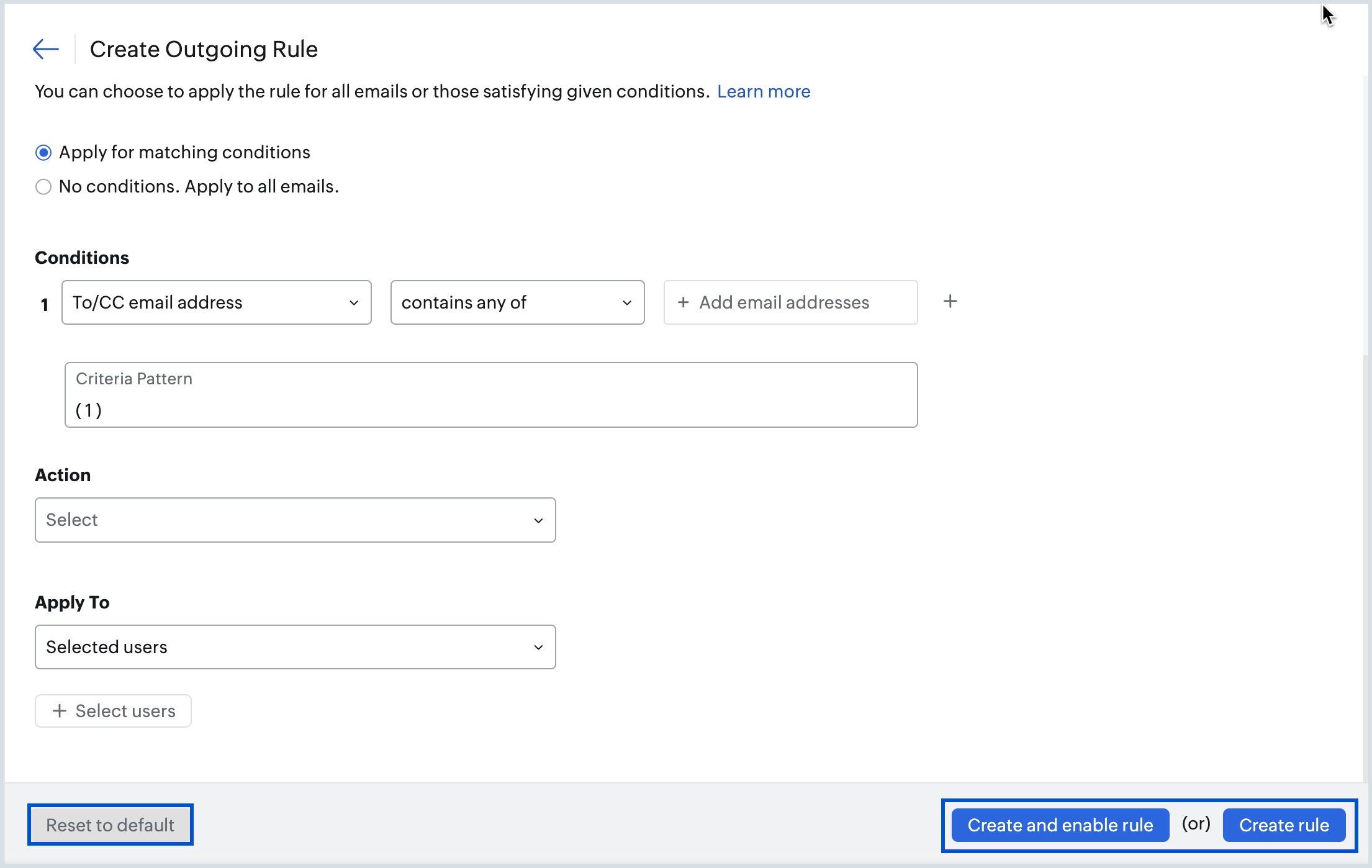
- Apply for matching conditions - When chosen, all the emails will be checked for the conditions mentioned.
- No Condition. Apply to all emails. - When chosen, all the emails you receive will go through the preferred action.
- Select one or more Conditions, the Operating parameter and the corresponding Action.
- Click +Add values under Conditions to enter multiple values separated by a delimiter which you can choose from Choose delimiter drop-down. Select Custom from the drop-down, to add your own custom delimiter for the values and select Update.
- Choose the users whom you want to select or exclude from the rule under the Apply To section:
- All users - The rule will be applied to all the users in your organization.
- Selected Users - The rule will be applied to the specific set of users you add.
- Selected Groups/Shared Mailbox - The rule will be applied only to the users who are members of the specified groups/Shared Mailbox.
- Excluded Users - The rule will not be applied to the selected list of users.
- Excluded Groups/Shared Mailbox - The rule will not be applied to the users who are members of the selected groups/Shared Mailbox.
- Skip to this step if you chose All users.
- Select the users you want to add to the list and click Submit. You can also remove a user from the list by clicking the Deleteicon next to the user.
- Select the Reset to default button when you have to clear all the selected conditions and provide a different criteria.
- Review your rule and do one of the following:
- Create and enable rule - Your rule will not only be created but also be enabled automatically to start processing emails with respect to its conditions and actions.
- Create rule - Your rule will only be created and not enabled. That means if you want the rule to be applied to the emails you receive, you will have to manually activate it.
- Click Yes in the Confirm Action! dialog box.
Select either Done or Go to created rule or Add more rules depending on your requirement once the rule is created successfully.
Note:
The new rule created will be highlighted in the list of rules section under Outgoing Rules home page.
- By default, all the rules added are listed in the order of their creation in the Outgoing Rules home page. However, you can change the Priority number of the rules by reordering them.
Note:
The maximum number of Outgoing Rules that can be configured for an organization is 500.
What conditions can you set in an outgoing rule?
Conditions are the filtering criteria that determine which outgoing emails a rule applies to, covering sender details, recipient data, email headers, content, attachments, and spam signals. Multiple conditions can be combined in a single rule to build precise filters suited to your organization's needs.
The various conditions are listed in the tables that follow:
| Parameter | Description | Value |
| Display name | The display name of the sender | Click Add values, enter the user's display name and click Add. |
| From email address | The sender email address of the outgoing mail. | Click Add email addresses, enter the "from" email address and click Add. |
| Original sender's email address | Email address of the actual sender of the outgoing mail | Click Add email addresses, enter the original sender email address and click Add. |
| Reply-to email address | The reverse-path/ bounce address of an outgoing email. | Click Add email addresses, enter the reply-to email address and click Add. |
| Sender IP address | The IP address of the email sender | Click +Add IP addresses, enter one or more IP addresses and click Add. |
| Parameter | Description | Value |
| External recipient count | Validates the number of external recipients in the email | Provide a value between 1 to 100. |
| Has external recipient | Validates the presence of external users in the recipient list | Select Yes or No from the drop-down. |
| Internal recipient count | Validates the number of internal recipients in the email | Provide a value between 1 to 100. |
| Recipient* | Validates the domain and email address in the email. | Click Add email addresses or domains, enter the desired domain name or email address and click Add. If required, select the Skip validation for internal recipients option. |
| Recipient domain | Validates the domain address of the recipient | Click Add domains, enter one or more domain names and click Add. |
| Recipient count | The number of recipients in the outgoing email | Provide a value between 1 to 100. |
| To/CC email address | The email address in the To/CC field | Click Add email addresses, enter the desired email address and click Add. |
| BCC email address | The email address in the BCC field of the outgoing email. | Click Add email addresses, enter the desired email address and click Add. |
Note:
*Recipient - The outgoing rule will be processed only for those emails that "does not match" the email address or domain added to this rule.
| Parameter | Description | Value |
| User agent | The software/ Client used to send the emails | Click Add values, enter the user agent you wish to validate and click Add. |
| Subject | The subject of the email | Click Add values, enter the desired subject and click Add. |
| Parameter | Description | Value |
| Email language | The language in which the email was composed | Click Select languages, add the desired languages and click Add. |
| URL domain | The domain names of the URLs available in email content | Click Add domains, enter one or more domain names and click Add. |
| MIME Message ID* | The ID that can be gathered from a MIME email's header | Click Add values, enter the desired MIME value and click Add. |
| MIME size (in MB) | The size of the non-text attachment specified in MB | Enter a value between 1 to 40. |
Note:
*MIME message - Multipurpose Internet Mail Extensions supports non-text email attachments. A MIME header is added to the original email header from where you can gather the unique content ID/message ID used to identify the message.
| Parameter | Description | Value |
| Attachments | To check the malware content in the email attachment. | Select any one of the values given below:
|
| Has attachment | Checks if any file is attached | Select Yes or No from the drop-down. |
| Attachment size (in MB) | The size of the attached file in MB | Enter a value between 1 to 40. |
| Attachment type | The type of attached file | Click Select attachments, add the attachment types and click Add. You can also enable the Show add & import options toggle button ON to add any custom attachment type or import from CSV file. |
| Has password-protected attachments | Checks if any outgoing email contains password-protected attachments | Select Yes or No from the drop-down. |
| Parameter | Description | Value |
| Has macros | The existence of macros in the email content | Select Yes or No from the drop-down. |
| Has suspicious macros | The existence of suspicious macros in the email content | Select Yes or No from the drop-down. |
How operating parameters work in outgoing rules
Below are the list of operating parameters that are available.
| Operators | Description |
| is | The respective parameter in the outgoing email should exactly match the given criteria value. |
| is any of | The respective parameter in the outgoing email should match any of the given criteria values. |
| is not | The respective parameter in the outgoing email should not match the given criteria value. |
| is not any of | The respective parameter in the outgoing email should not match any of the given criteria values. |
| contains | The respective parameter in the outgoing email doesn't have to be an exact match but will pass even if it contains the given criteria value. |
| does not contain | The respective parameter in the outgoing email doesn't have to be an exact match but will pass if it does not contain the given criteria value. |
| begins with | The respective parameter in the outgoing email should begin with the given criteria value. |
| ends with | The respective parameter in the outgoing email should end with the given criteria value. |
| is empty | The respective parameter in the outgoing email should be empty. |
| is not empty | The respective parameter in the outgoing email should not be empty. |
| matches pattern | The respective parameter in the outgoing email should match the regular expression pattern. |
| does not match pattern | The respective parameter in the outgoing email does not match the regular expression pattern. |
| is any of in range | The outgoing email's IP address falls within the range entered. |
| is not any of in range | The outgoing email's IP address does not fall in the range entered. |
| yes | The given condition should be true. |
| no | The given condition should be false. |
| is greater than | The respective parameter in the outgoing email should only be greater than the given criteria value. |
| is lesser than | The respective parameter in the outgoing email should only be lesser than the given criteria value. |
| is greater than or equal to | The respective parameter in the outgoing email can be greater than or equal to the given criteria value. |
| is lesser than or equal to | The respective parameter in the outgoing email can be lesser than or equal to the given criteria value. |
After selecting the Conditions and the Operating parameters, provide the values with respect to the chosen conditions that need to be verified against. Upon providing these proceed to select the Actions that need to be performed for the emails with the chosen conditions.
What actions can you apply to outgoing emails that match a rule?
Actions define what Zoho Mail does when an outgoing email satisfies a rule's conditions, with options including restricting sending, permanently blocking the sender, quarantining for admin review, and forwarding copies for compliance.
Select the necessary action and, if required, provide a value as given in the table that follows:
| Action | Description | Value |
| Restrict email sending | Emails that match the given conditions will not be sent from our servers and a standard message or the custom error message configured will be shown. | Click Add message (optional), enter the custom text and click Add. |
| Action | Description | Value |
| Block sender | All those emails that satisfy the given condition/s will not be delivered by our servers and email outgoing will be blocked permanently for the sender. | N/A |
| Action | Description | Value |
| Move to quarantine | The emails that satisfy the given condition/s will be moved to quarantine for the administrator's approval. | N/A |
| Action | Description | Value |
| Add BCC and deliver to recipient | The specified email address will be added in BCC to all the outgoing emails that satisfy the given conditions. | Click Add BCC addresses, select the users to be added in BCC and click Add. |
| Forward the email | Forward a copy of the email to the specified email address. | Click Add forward addresses, select the desired users to whom you wish to forward the email and click Add. |
Steps to filter and search outgoing rules in Zoho Mail
The Filter option on the Outgoing Rules lets admins view rules by status (Active, Inactive, Expired) or by the type of action they perform. Admins can also search by rule name or associated user to quickly locate rules in large rule sets.
Follow the below steps to perform the filter operation:
- Select Filter button on thetop pane of Outgoing Rules home page.
Click the desired status/action from the drop-down. The types of rules based on the status are:
- Active Rules - Lists all the rules where the status is marked active.
- Inactive Rules - Lists all the rules where the status is marked inactive.
- Expired Rules - Lists all the rules where the set expiry date of the specific rule has been lapsed. However, you can modify the expiry date of a rule by hovering over the status and selecting a different date.
Note:
The expired rules are also included in the filtered list when Inactive Rules is selected from the Filter drop-down.- Select Action from the Filter drop-down to filter rules based on the available actions.
How rule processing priority works in Zoho Mail outgoing rules
The outgoing rules are created to apply specific filters to the outgoing emails. These emails are handled based on one or more filters. In such cases, the multiple filters applied are processed according to their priority such that the filters with high importance gets applied before the others for better handling of emails. The types of priority available are:
What is filter level priority in outgoing rules?
You can add any number of Outgoing Rules to process different types of outgoing emails. When there are multiple filters, the sequence of processing will be based on the priority of filters. The filter with the highest priority (1) will take precedence over the filters with lower priority (2). Once a particular rule is processed, subsequent rules will not be processed for the same email.
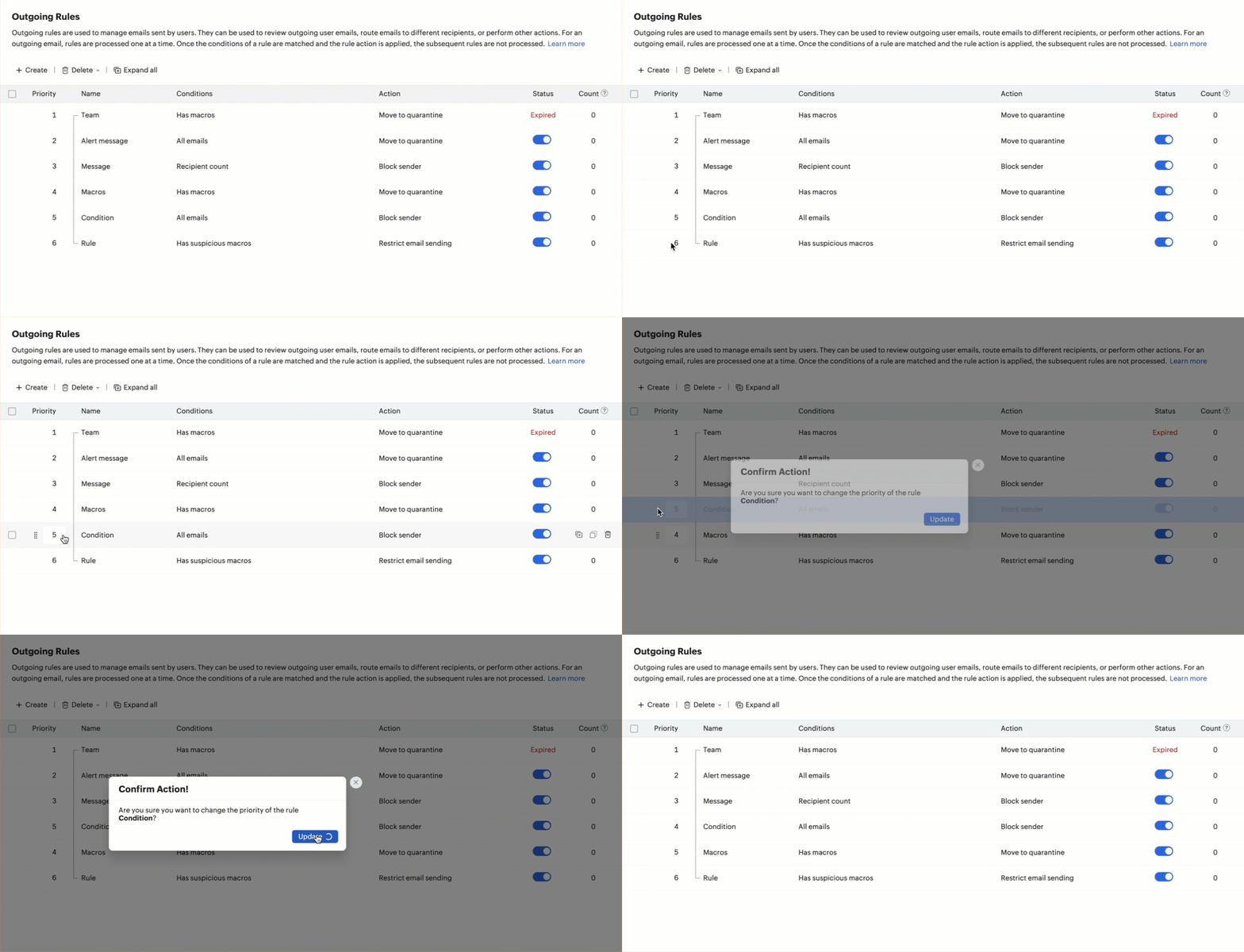
Follow the below steps to reorder the listed rules:
- Hover over a rule in the list to rearrange it using the drag and drop icon. You can only drag and drop rules created within the same rule type indicated by your theme colored bar towards the left pane.
- You can edit the Priority number to change the order in which the Outgoing Rules are executed.
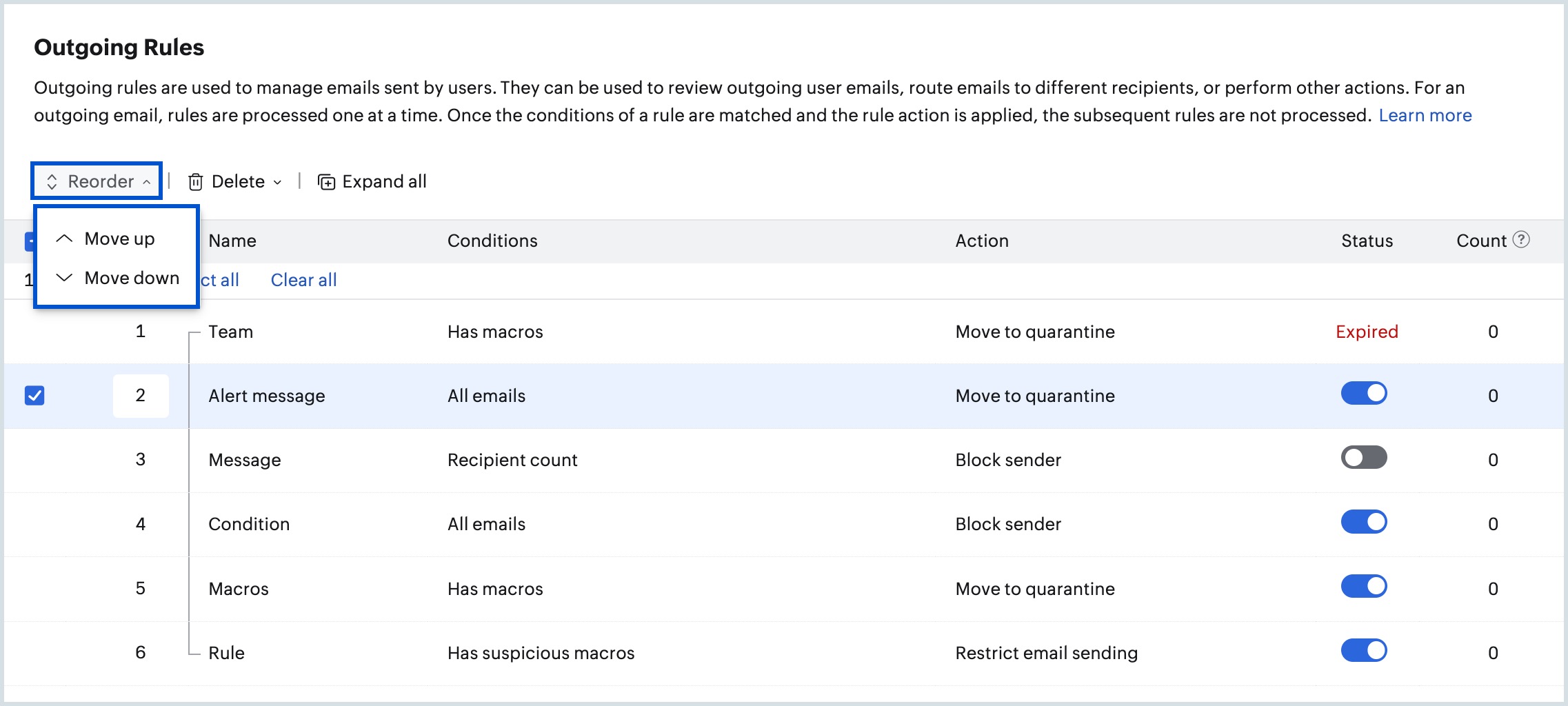
- Alternatively, you can select the rule to be rearranged, and click the Reorder button on the top pane. Now select Move up or Move down from the list.
What is apply to priority in outgoing rules?
When you create an outgoing rule, you can choose who the rule applies to or excludes using the Apply To section. Each selection type has its own priority, and the rule is evaluated based on these priorities:
- All Users
- Selected users(priority 2)
- Selected groups/Shared Mailbox (priority 4)
- Exclude users or groups
- Exclude users(priority 1)
- Exclude groups/Shared Mailbox(priority 3)
When a rule is evaluated, the system checks the selected and excluded entities in the order of their priority. This ensures that higher-priority exclusions or inclusions override lower-priority selections.
Below are detailed examples to illustrate this:
Case 1: If a user is added under Exclude users, the rule will not be applied to that user, even if the group they belong to is included under Selected groups/Shared Mailbox. This happens because Exclude users has the highest priority and is processed first.
Case 2: If a user’s group is added under Exclude groups/Shared Mailbox, but the individual user is added under Selected users, the rule will apply to that user. This is because Selected users has a higher priority than Exclude groups/Shared Mailbox.
Case 3: When a user is added under Exclude users, and no other selections are made under the All Users category, the rule will still be applicable to all users by default, except for the users listed under Exclude users. This happens because All Users is considered the default scope for every rule.
Steps to export outgoing rules
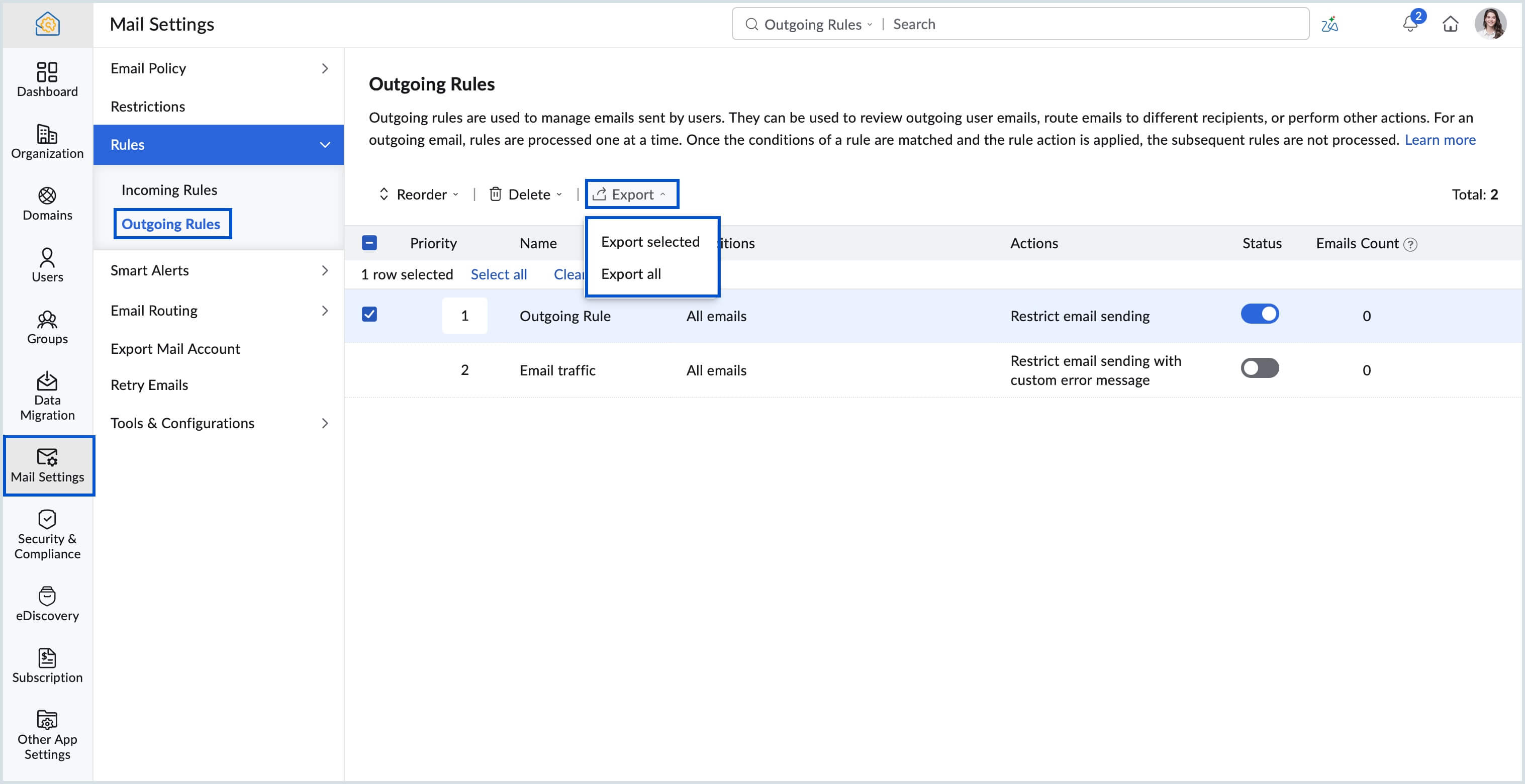
Admins can export selected or all outgoing rules as a CSV file from the Outgoing Rules page for auditing, documentation, or backup. This is useful for organizations managing large rule sets or needing to share configurations with security teams.
Follow the below mentioned steps to export an outgoing rule:
- Log in to Zoho Mail Admin Console and select Mail Settings on the left pane.
- Navigate to Rules and select Outgoing Rules.
- Select the desired rules from the list and click either of the below options:
- Export selected - To export only the selected outgoing rules.
- Export all - To export all the rules listed under the Outgoing Rules section.
- The rules will be exported in CSV format and saved to your system based on the option selected.
Steps to edit an existing outgoing rule
Existing outgoing rules can be modified at any time. Admins can update conditions, actions, scope, or expiry dates from the Outgoing Rules page.
Follow the instructions given below to modify a rule:
- Log in to Zoho Mail Admin Console and select Mail Settings on the left pane.
- Navigate to Rules and select Outgoing Rules.
- Select the desired rule and click Edit from the top right corner.
- Make the desired changes and click Update.
Additionally, you can search and edit the outgoing rules based on the rule name, or associated users. Navigate to the search bar on the top right corner and select the contains or applicable to parameters from the listing as per your requirements. Type in a rule name, or select a specific user from the list and press enter. All the outgoing rules satisfying the search will be displayed. You can then select the rules from the list and make the required changes.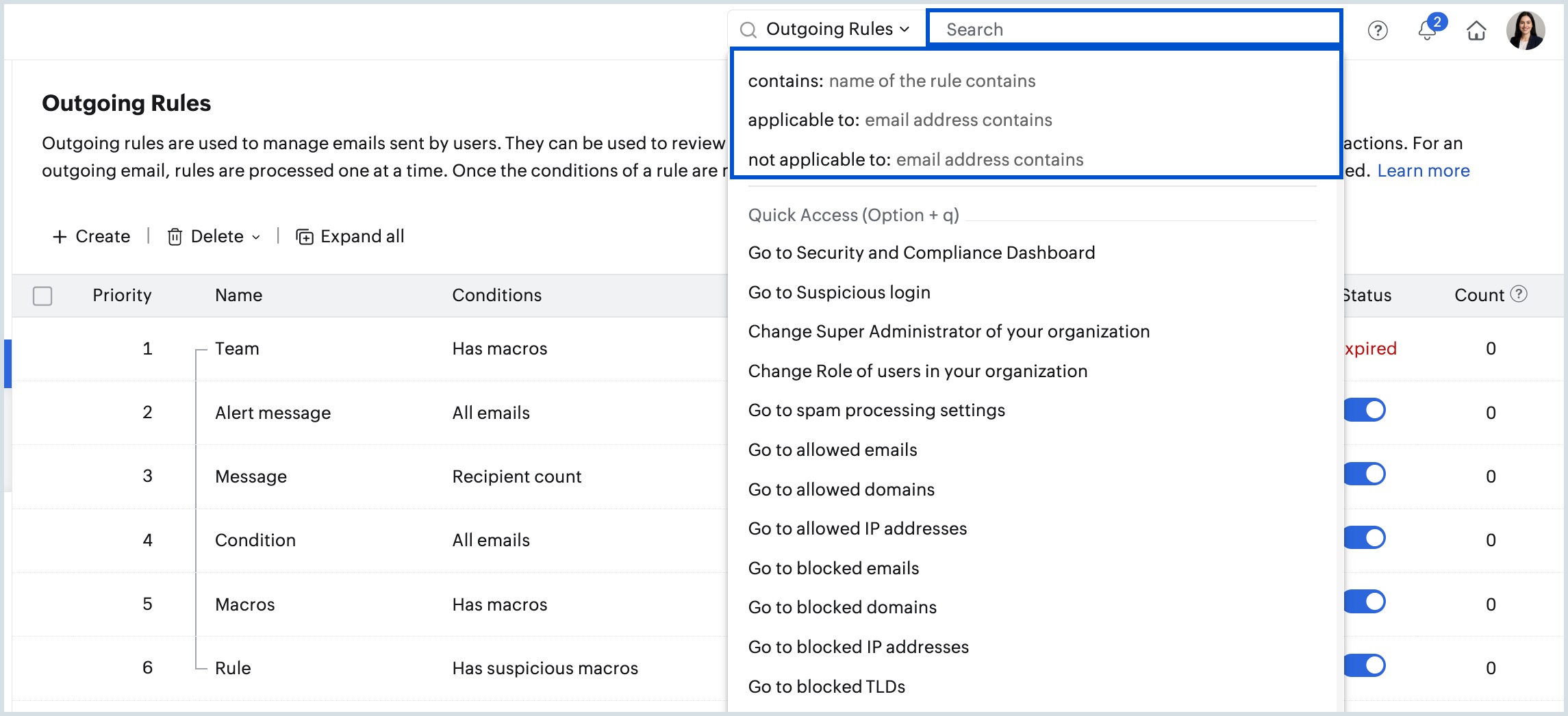
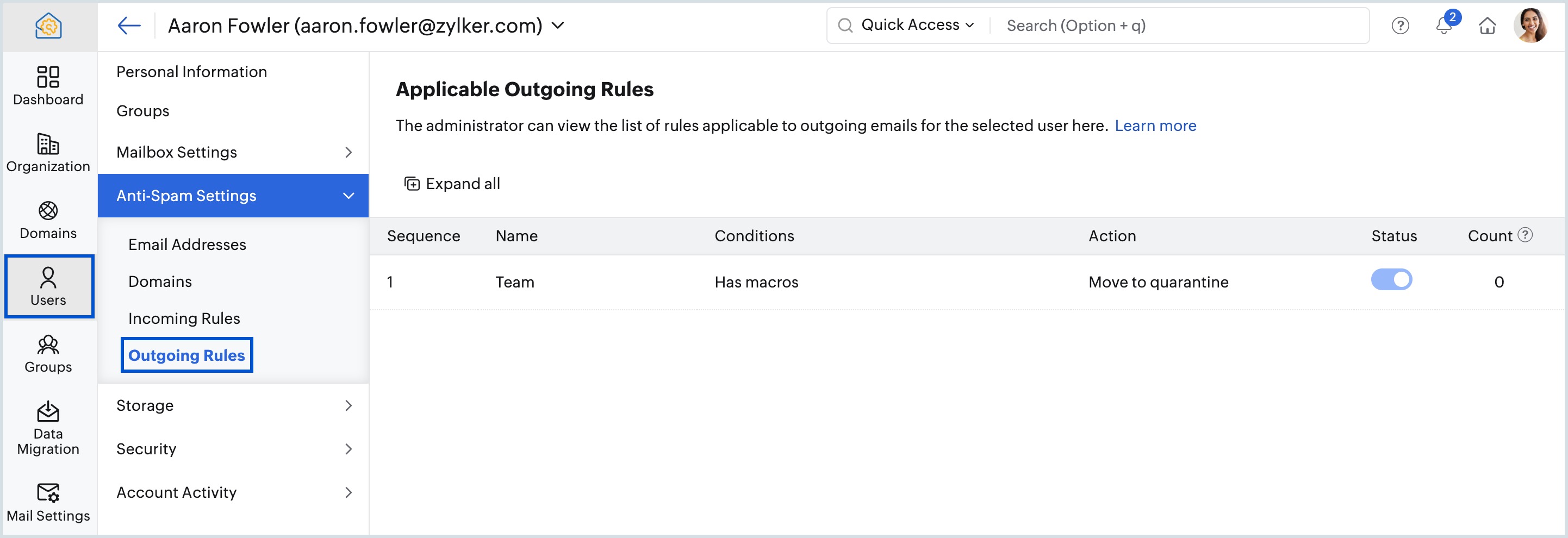
User-specific outgoing rules can be viewed by selecting Users on the left pane of Admin Console. Under Anti-Spam Settings, select Outgoing Rules to view the list of outgoing rules applicable for that user.
Enable or disable an outgoing rule in Zoho Mail
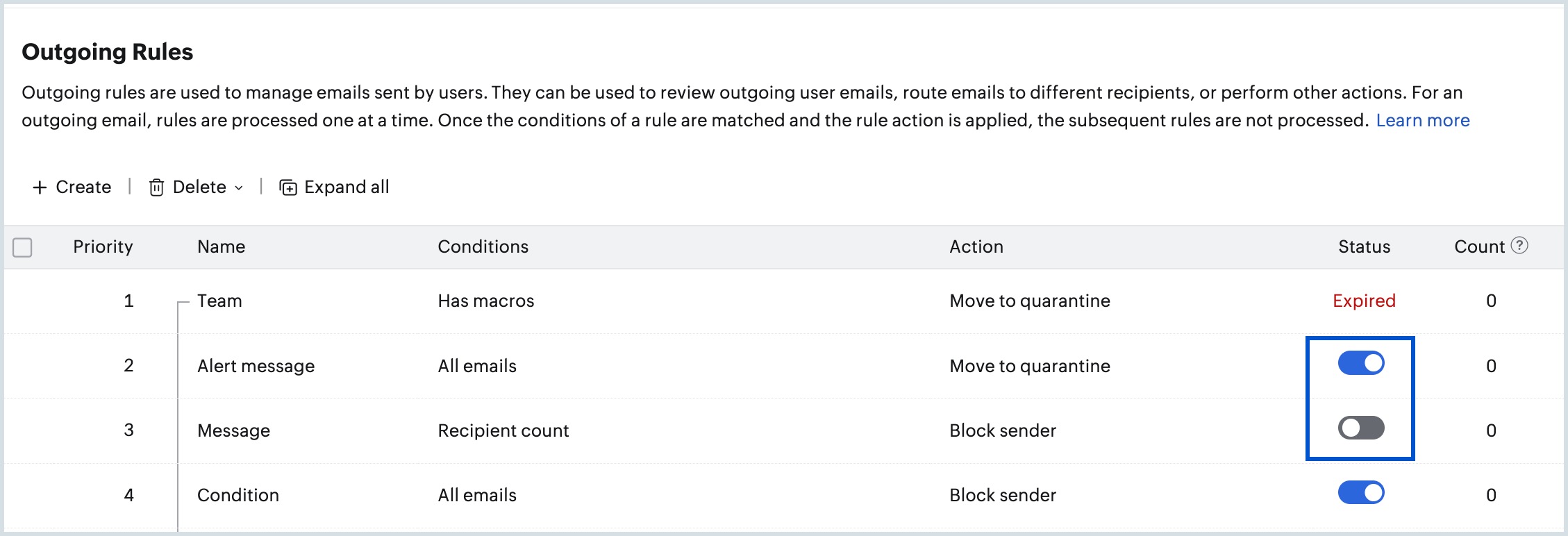
Each Outgoing Rule has a toggle that lets admins enable or disable it instantly without deleting its configuration. This is useful for temporarily suspending a rule during testing, maintenance, or policy reviews.
Follow the below steps to enable or disable an Outgoing Rule:
- Log in to Zoho Mail Admin Console and select Mail Settings.
- Navigate to Rules and select Outgoing Rules. You will find the list of filters you have already added.
- Toggle the Status key to ON or OFF in order to enable or disable a rule.
Delete outgoing rules
Admins can delete individual rules, all expired rules, or all rules at once from the Outgoing Rules page. Admins can remove them using the delete option.
Follow these steps to delete a rule:
- Log in to Zoho Mail Admin Console and select Mail Settings on the left pane.
- Navigate to Rules and select Outgoing Rules.
- To remove a rule:
- Hover over an existing or expired rule and click the delete icon.
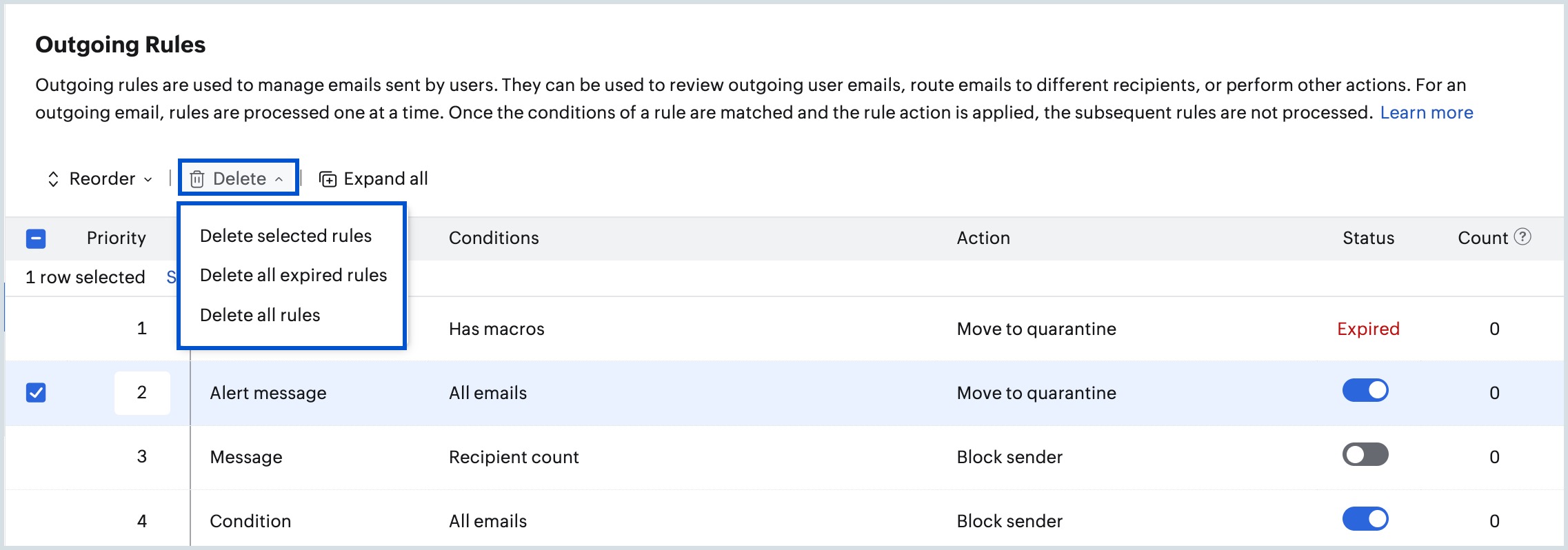
- Alternatively, you can select the desired rules, click Delete on the top menu and choose the required option:
- Delete selected rules
- Delete all expired rules
- Delete all rules
Click Delete in the confirmation dialog that appears.
Note:
When a filter is applied, the Delete drop-down includes additional value of Delete filtered rules for quick deletion of rules that satisfies a specific filter.
This will remove the outgoing rules from your list and cannot be recovered.
Frequently asked questions (FAQs)
What is the difference between restrict email sending and block sender in Zoho Mail outgoing rules?
Restrict email sending prevents a specific matched email from being sent and notifies the sender with a custom error message, while Block sender permanently stops that user from sending any outgoing emails through the organization's servers. Use Restrict email sending for policy-based content violations and Block sender for confirmed security threats or compromised accounts.
Can a Zoho Mail admin prevent users from sending emails to external domains?
Yes. Using the Recipient domain or Has external recipient condition in an Outgoing Rule, admins can restrict or block emails addressed to domains outside the organization. Applying the Restrict email sending action ensures users are notified when their email is blocked, and a custom message can be configured to explain the policy.
What happens when an outgoing email matches more than one rule in Zoho Mail?
Once an outgoing email satisfies the conditions of a rule, the action for that rule is applied and the email is not evaluated against any subsequent rules. Admins should order rules by priority to ensure the most critical rules are evaluated first.
Can outgoing rules be applied to specific users or departments instead of the entire organization?
Yes. The Apply To section in each outgoing rule lets admins scope the rule to all users, selected users, or selected groups and shared mailboxes. Specific users or groups can also be excluded from a rule even when it is applied broadly, using the Exclude Users and Exclude Groups options.
Does Zoho Mail notify the sender when an outgoing email is blocked by a rule?
It depends on the action configured. Restrict email sending shows the sender a custom error message when their email is blocked. Block sender, however, permanently prevents email delivery without any notification to the sender. Admins should choose the action based on intended policy enforcement.
Related pages
Outgoing quarantine settings in Zoho Mail Admin Console | Spam control settings in Zoho Mail Admin Console