Shared Mailbox
Overview
An organization's Admin or a Super Admin can add their organization users to a Shared Mailbox from the Admin Console while creating a group. The Shared Mailbox feature is an extensive collaborative platform where members of the group can share their views through comments, deep dive and provide a solution to the customers. It brings a lot of synergy since multiple team members across the organization can access the same set of emails when they are either part of the shared mailbox or invited by a group member.
The advantage of a shared mailbox is that when emails are sent to a group email address, the user's inbox does not get flooded with emails. Instead, the emails are listed as threads under the Shared Mailbox. Refer to the Create Shared Mailbox help page for steps to create a new shared mailbox.
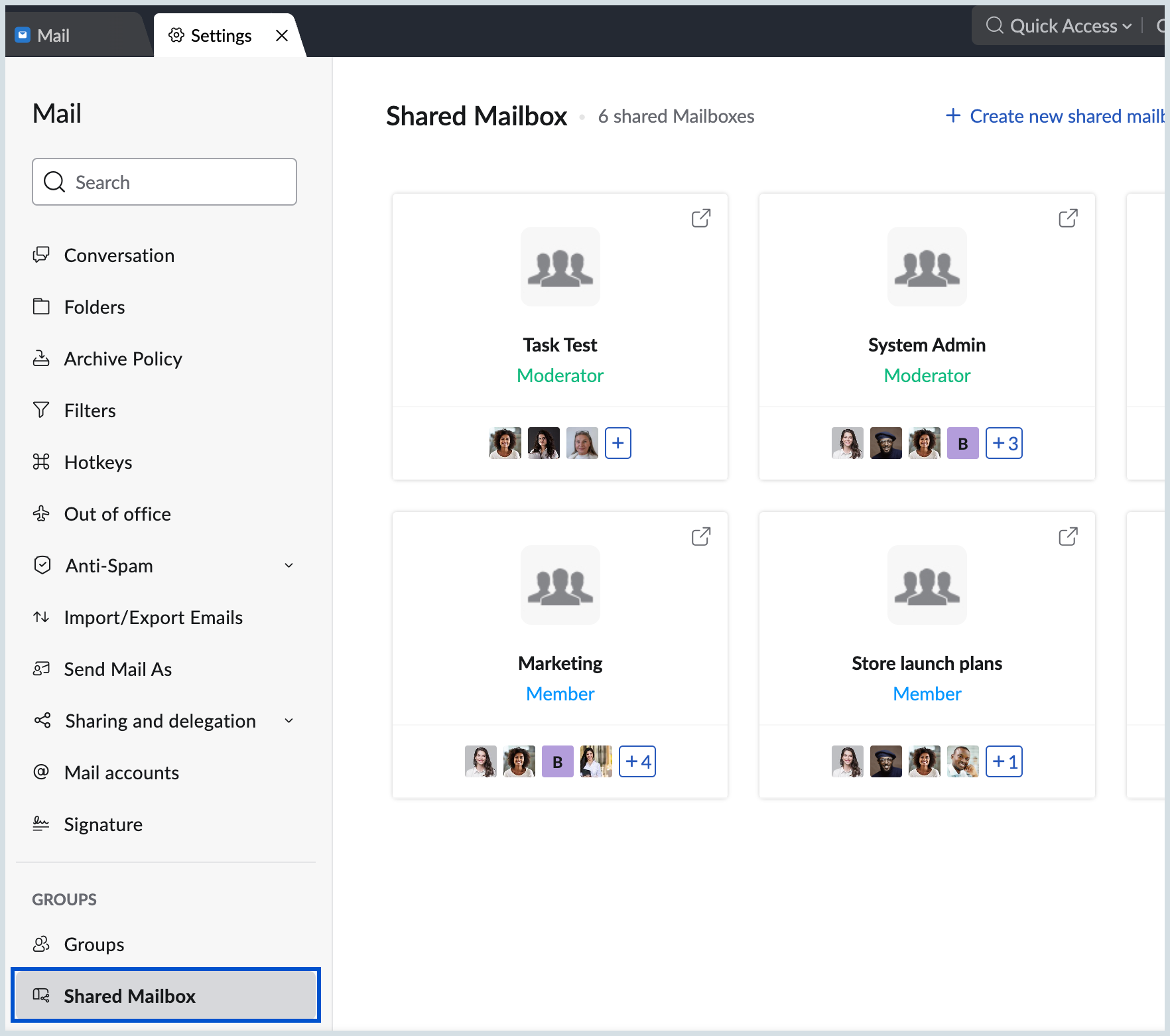
You can view and manage your Shared Mailboxes by navigating to settings> Groups> Shared Mailbox.
Shared Mailbox Views
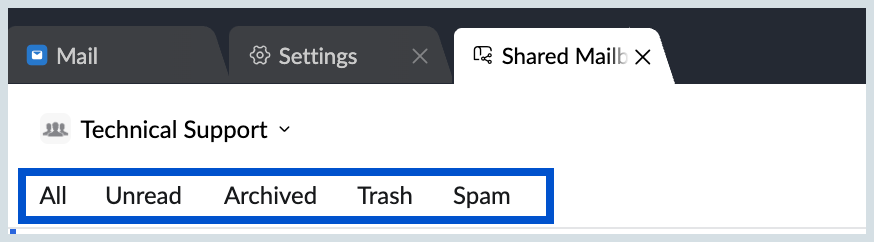
To enhance your email management, you can now access your Shared Mailbox with a more structured and organised view. This allows you to efficiently sort and navigate through all your emails, saving you time and effort. Here's how:
- All – Displays all emails sent to the Shared Mailbox email address.
- Unassigned – Displays emails that have not been assigned to any member of the Shared Mailbox.
Assigned – Displays emails that have been assigned to a member of the Shared Mailbox along with who it has been assigned to.
Email listing and Preview
Choose how your Shared Mailbox emails will be dispalyed in the email listing
By default, the emails are listed in the Classic view and the emails open in the Vertical Preview pane. You can customize the behavior to suit your preferences from the Change View icon in the right corner portion of your inbox.
The Classic layout for email listing is spacious with ample spacing between each email. This view lists fewer emails per page, compared to the Compact view.
However, to view more emails per page, you can switch to the Compact view, which reduces the white space and lists more emails in a single page. In the compact view, the sender's avatar will be displayed. When you click on it, details like the sender's name and email address will be displayed.
The Super Compact View further reduces the white space and lists even more number of emails than Compact View.
Folders
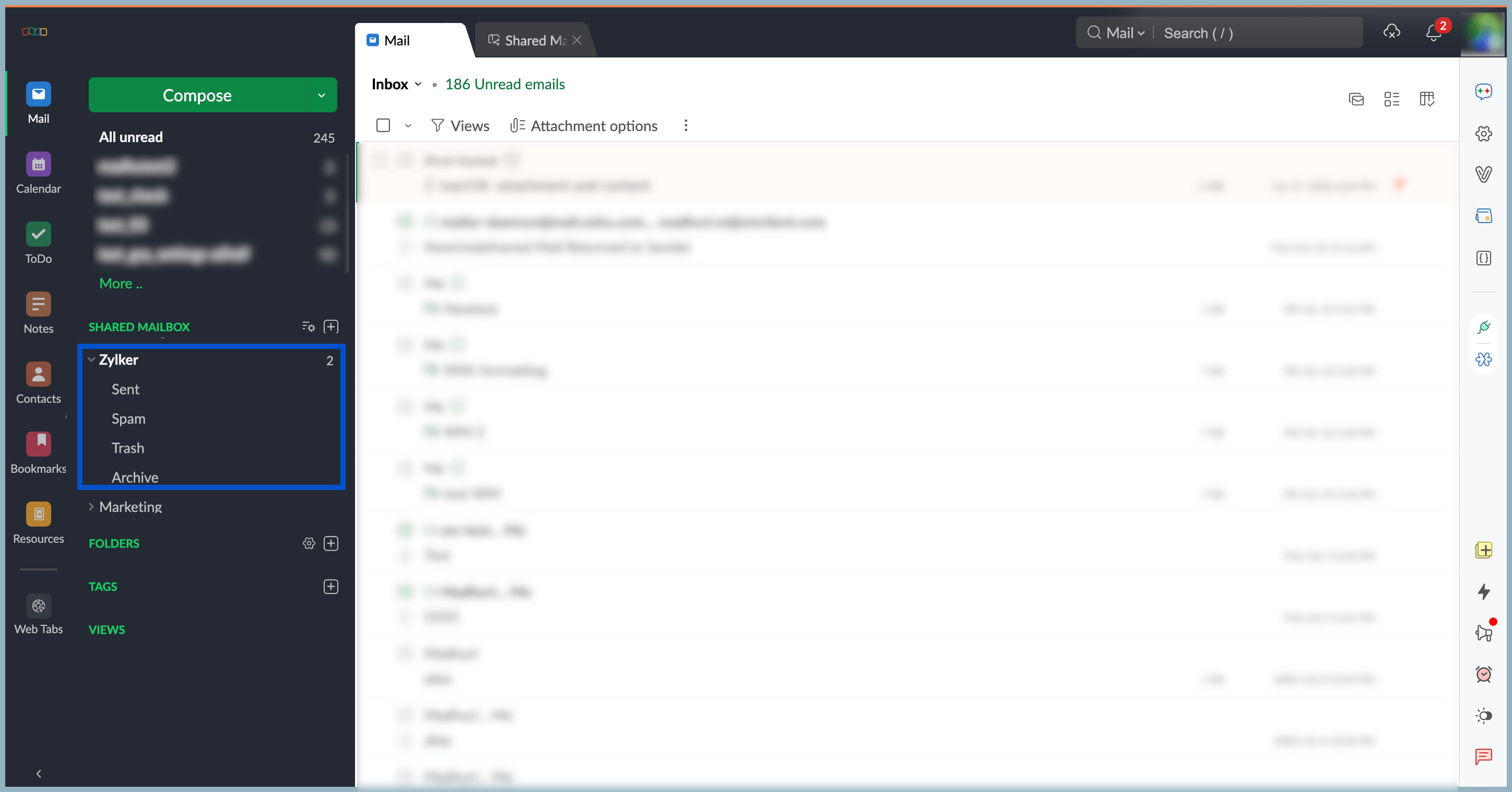
- Sent Folder - View all emails sent from the Shared Mailbox. This allows members to view and track all outgoing emails sent using the Shared Mailbox address.
- Spam folder - Displays emails that have been identified as spam or manually moved to the Spam folder. Review this folder periodically to ensure that legitimate emails have not been incorrectly classified as spam.
- Trash folder - Emails that have been deleted from the Shared Mailbox will be moved to Trash. Deleted emails remain in the Trash folder until they are permanently deleted or restored.
- Archive folder - Emails that have been removed from the inbox but retained for future reference will be listed under the Archive tab. Archiving helps keep the inbox organized without deleting important conversations.
Contact Card
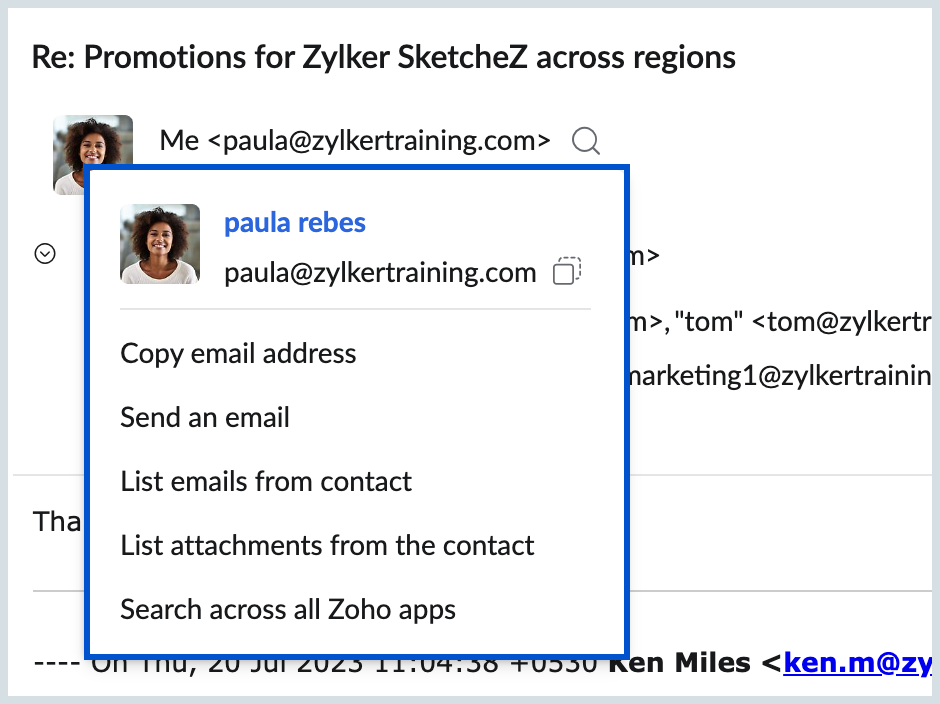
Contact Card in Shared Mailboxes enhances collaboration by providing quick access to relevant contact information. When you click on a user’s name within the shared mailbox, a contact card will pop up, displaying essential details such as their email address, adding them as contacts, email from the user and much more. Contact Card is designed to facilitate seamless communication and collaboration within and outside your team.
Shared Mailbox Actions
In Shared Mailbox, you can perform multiple actions, such as inviting users to view an email, tag important emails, and provide feedback, along with a header that provides a streamlined view to manage your emails. Refer here to know more about Shared Mailbox actions.