Zoho Notebook Extension
Zoho Notebook is an easy-to-use note-taking app that can be synced across all your devices. eWidget lets you view, add, and edit notes, to-dos, upload, or attach media to Zoho Notebook from Zoho Mail.
Using Notebook integration in Zoho Mail
- Login to your Zoho Mail account
- Navigate to eWidget > Zoho Notebook
- All your notes are listed in latest to oldest order for you to view and edit.
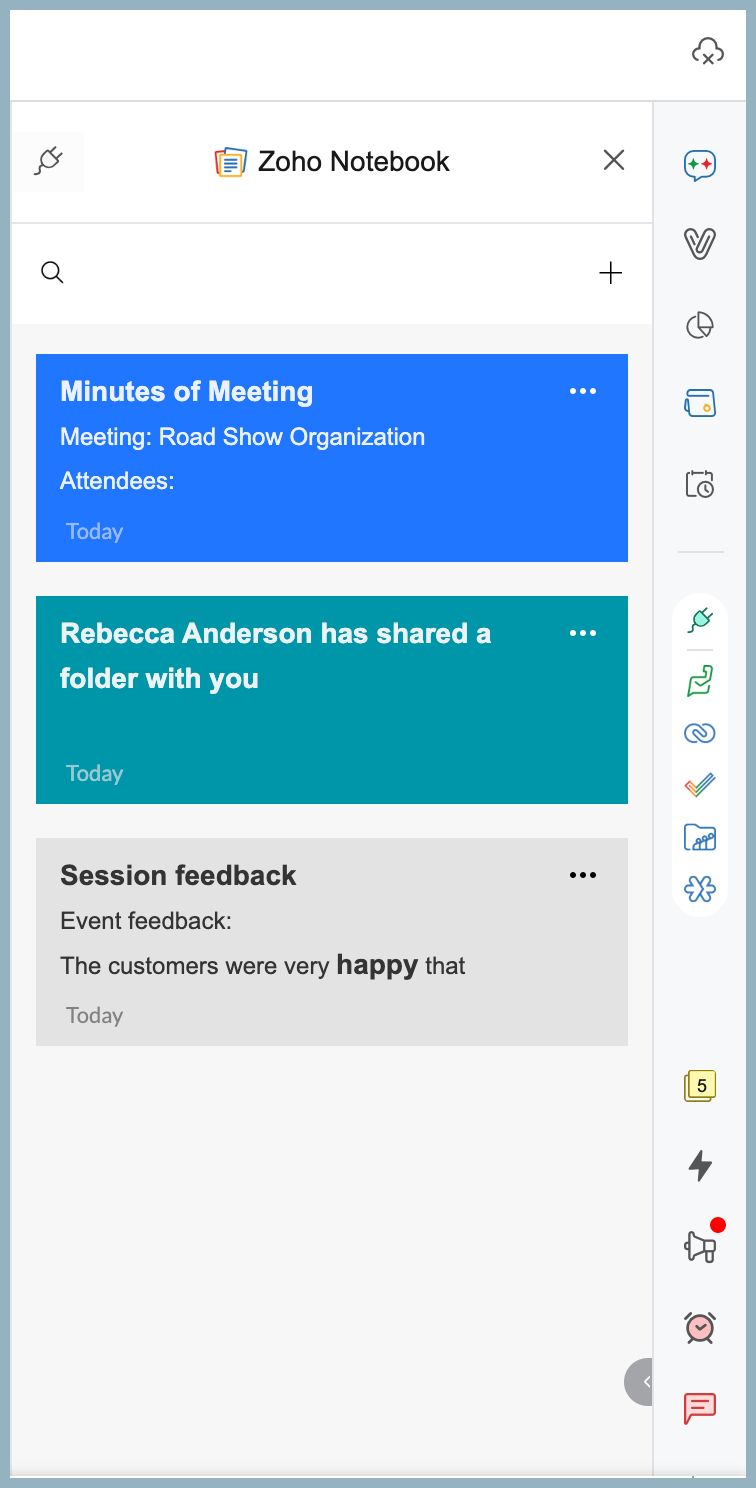
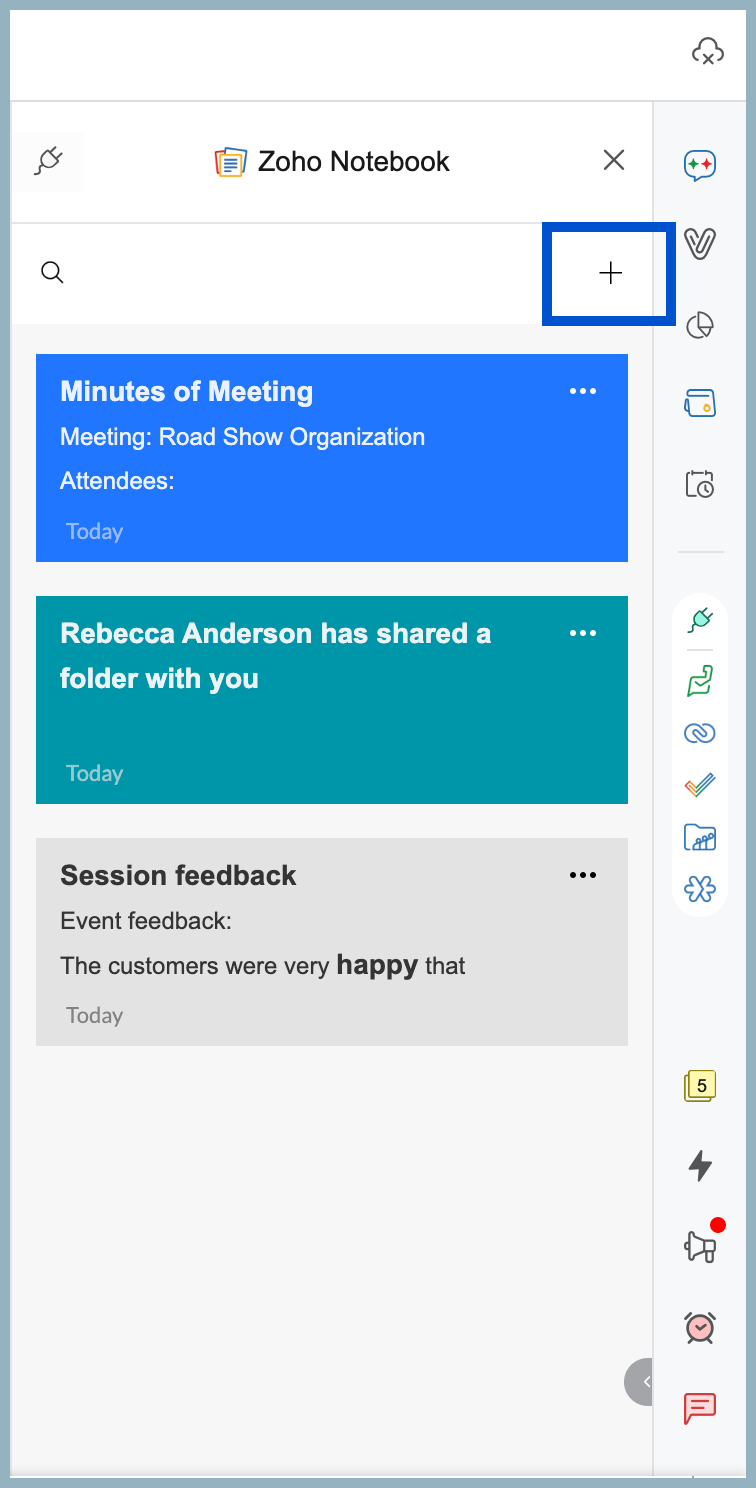
- Click the + icon to add a note or to-do list.
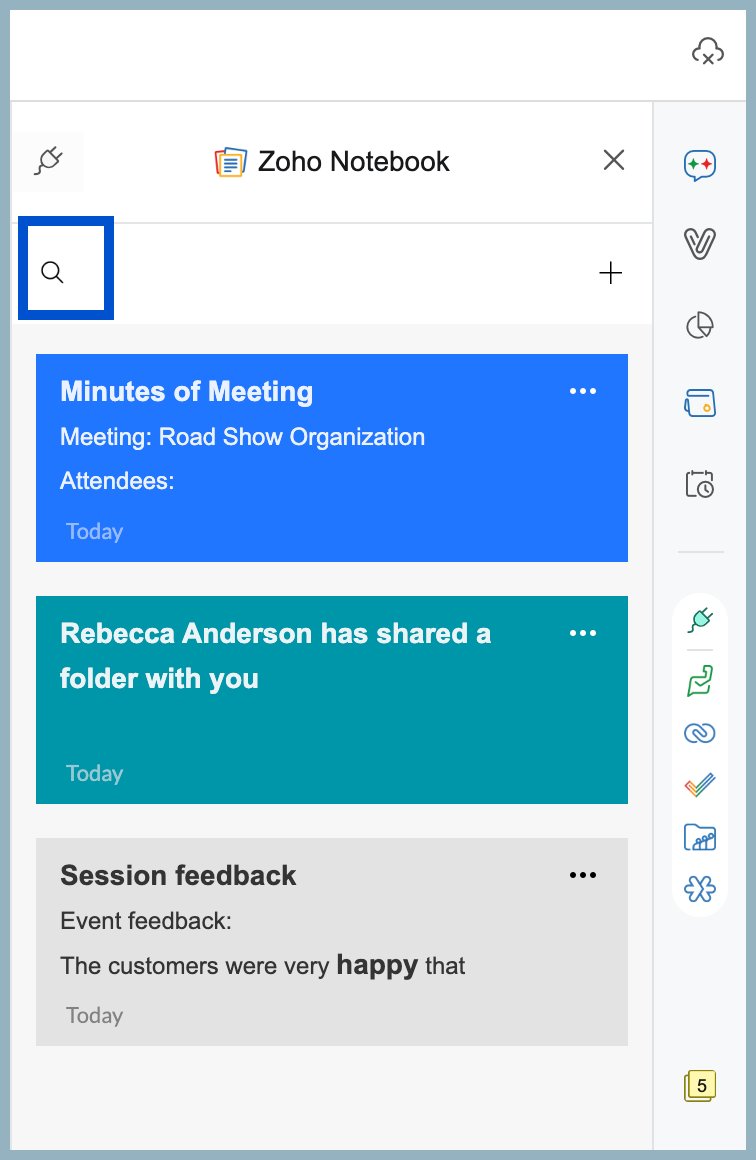
- Use the search option to find a particular note.
Adding an email as a Note
You can add an email in Zoho Mail as a note in Zoho Notebook.
- Navigate to the eWidget icon on the bottom-right corner of your mailbox.
- Select Zoho Notebook from the app menu.
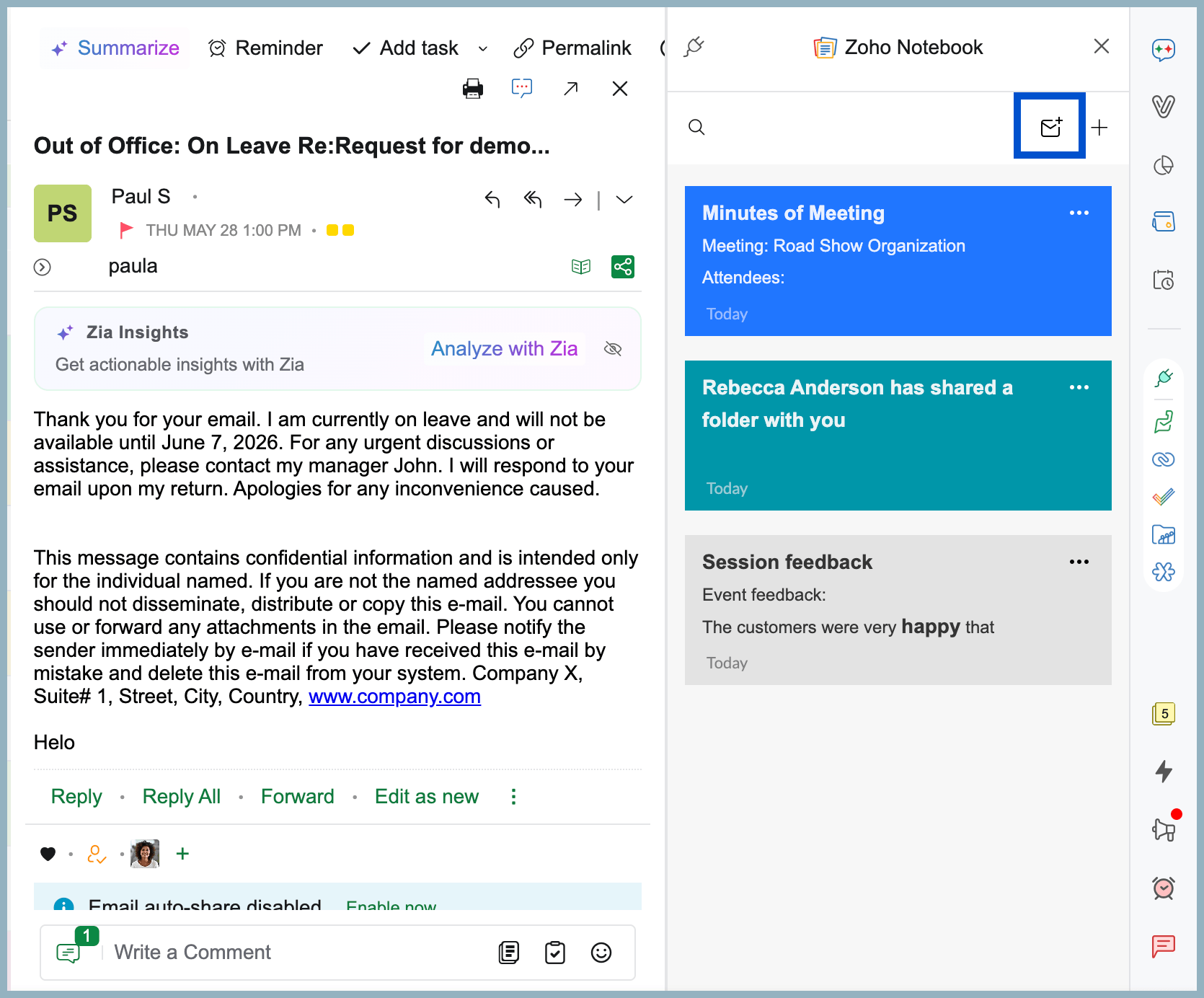
- Click on the Create from email icon.
- Select the Notebook into which you want to add the note from the drop-down box.
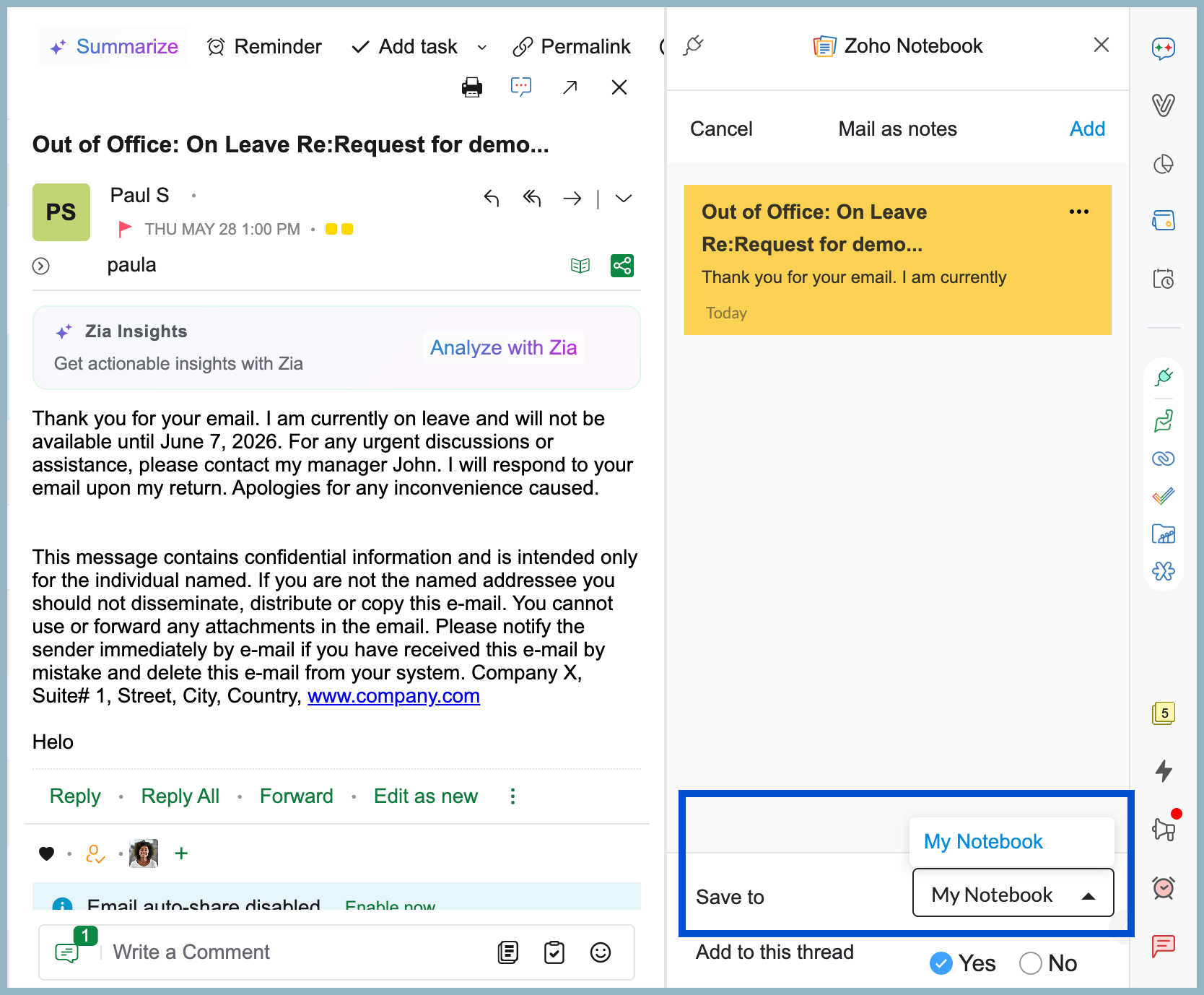
- Click Add to add the email as a note in Zoho Notebook.
View notes from Notebook
Zoho Notebook integration in Zoho Mail lets you access notes shared with you directly from the email preview pane for quick and seamless viewing. Shared notes can be viewed in read-only mode.
To view notes in email preview pane:
- Log into your Zoho Mail account.
- Select the email notification from Zoho Notebook.
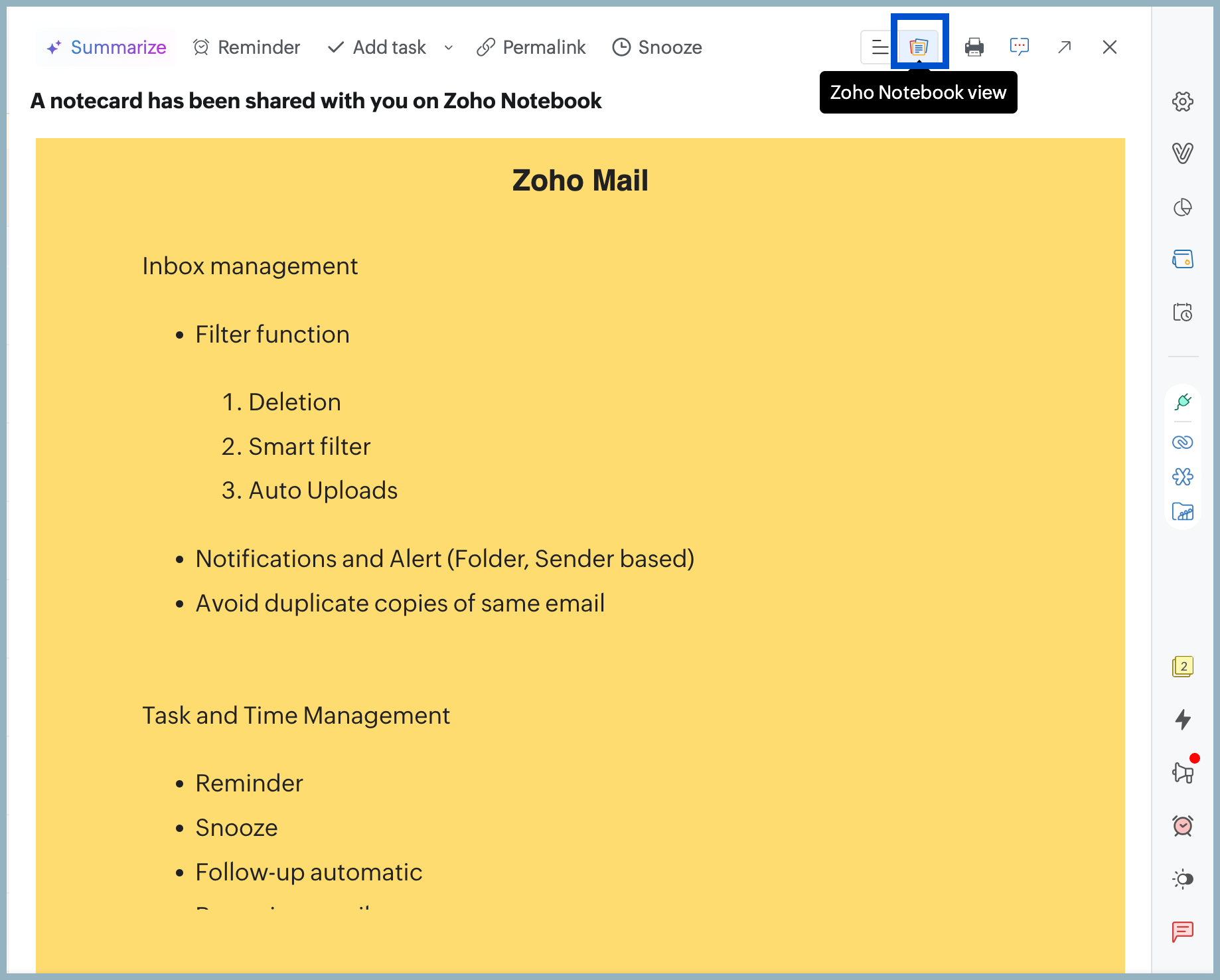
- On the top right corner of the email preview pane, click on the 'Zoho Notebook view' option to view the email in Zoho Notebook notes format.