Getting started with Mail360
Mail360 is an email API platform to connect and access email functionalities. You can send, receive, store, and retrieve all your emails conveniently in a single place. The steps involved in setting up your account are :
Signing up and TFA
- Navigate to the Mail360 webpage and choose to sign up for the service.
- If you are a Zoho user, you may use your Zoho email address to sign up. Since Mail360 is a separate service altogether, you are required to create an account with us even if you use other Zoho products.
- Enter the relevant details and click Sign up.
- Once you sign up, you will receive an email confirmation to validate the email address. You will be able to access the account only after you verify your email address.
- Post verification, you will be given the option to set up Two Factor Authentication (TFA) for your account. You can choose from the list of TFA options to enable it.
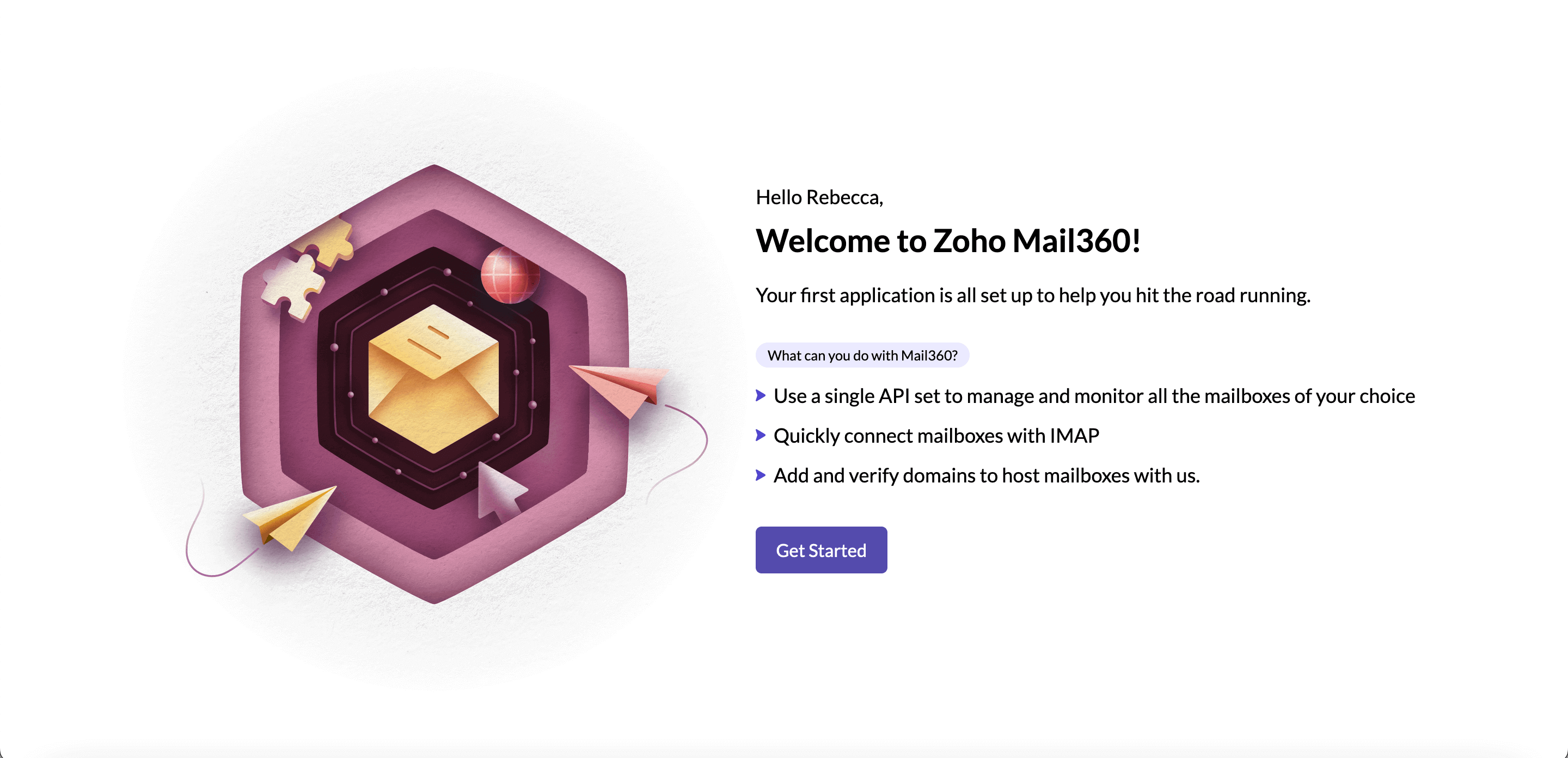
- You will be taken to the Welcome page. Click Get Started to start using your account.
Account creation
Accounts in Mail360 represent the mailboxes you want to access through Mail360's universal APIs in your application.
Based on where the email accounts are hosted, there are two types of email accounts that can be added in Mail360.
They are:
Sync accounts
Native accounts
To add an account:
- Navigate to the Accounts section in the left panel.
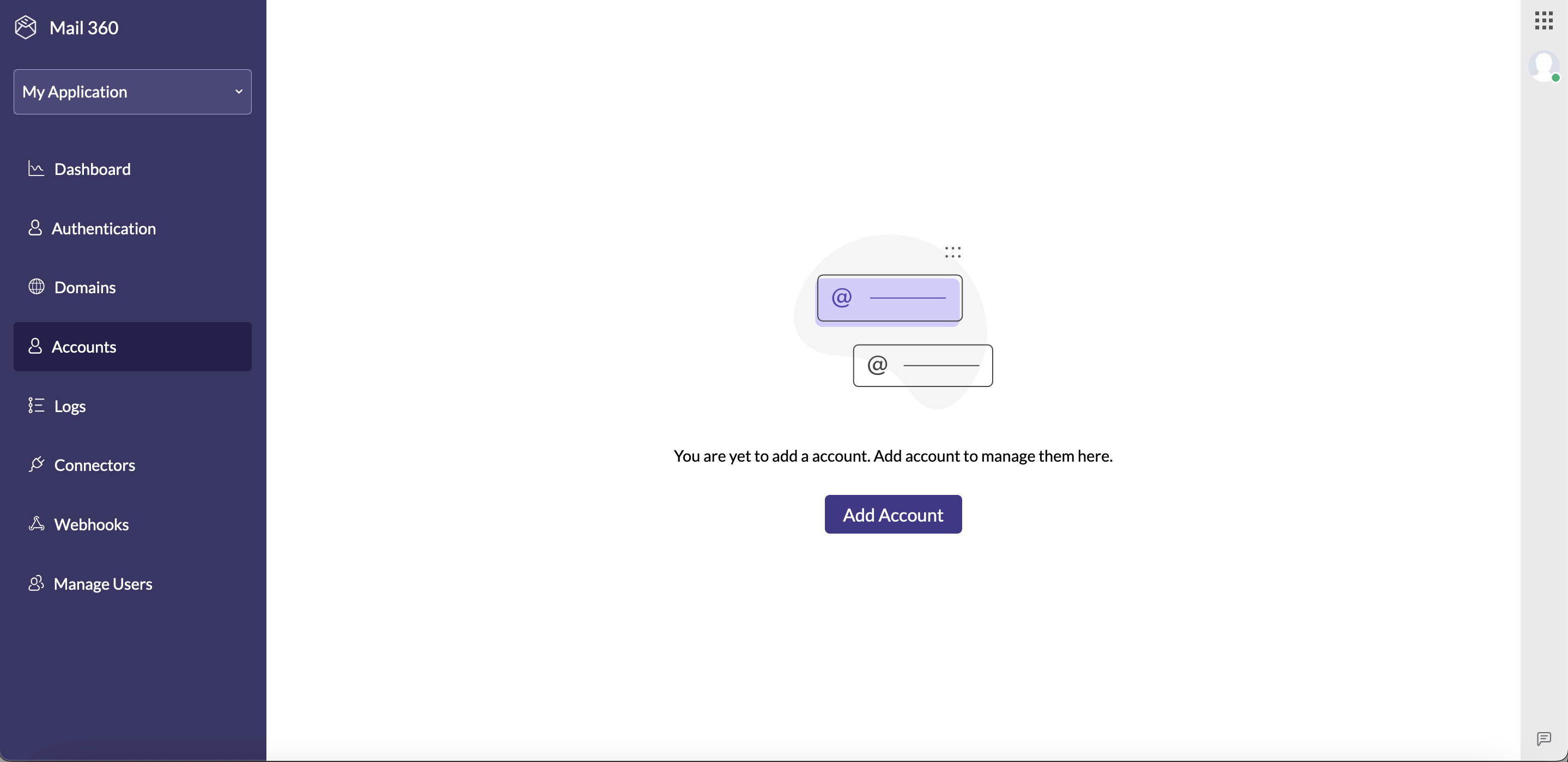
- Click Add Account to include the required email address.
- Fill in the details in the pop-up that appears. Click save.
- Refer here for the detailed procedure.
Domain addition
If you own a domain, you can access the email functionality using Mail360 by adding your domain to your account. To add your domain :
- Select Domains from the left panel.
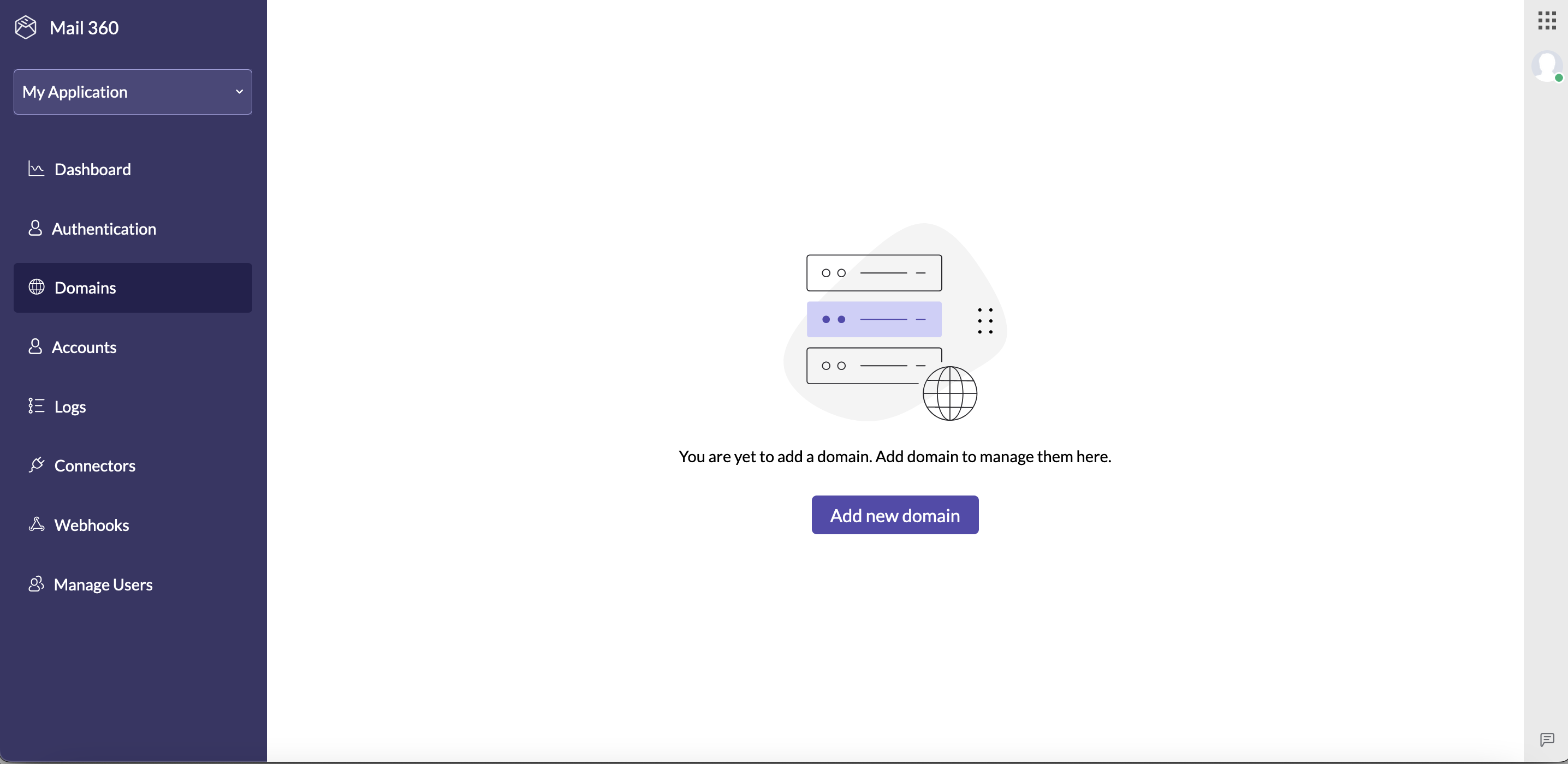
- Click Add new domain and enter your domain name. Click submit.
- Follow the subsequent steps to verify the domain you have added.
- Your domain should be verified to start using Mail360 for your email requirements.
- Refer here for the detailed procedure.