Triggers, Events, and Functions
Triggers are used to respond to an event. Create triggers to associate Functions with Events. Let's say you want to trigger an email when a task is created. You can create a send mail function. Next, create a trigger and associate the send mail function with the create a task event. An email will be sent when a task is created. Zoho Projects supports the following events:
- Run an extension
- Stop and extension
- Install an extension
- Uninstall an extension
- Disable an extension
- Enable an extension
- Update an extension
- Upgrade an extension
- Delete a task
- Create a task
- Add comment to a task
- Update a task field
Create a function
Functions let you customize your extensions by connecting other cloud services. Functions can be associated with events in Zoho Projects such that they are triggered when a particular event takes place. Let's create a sample function to send an email.
- Navigate to Functions module and click Add Function in the top right corner.
- Enter a function name and give a description.
- Click Create.
- Open the newly created function.
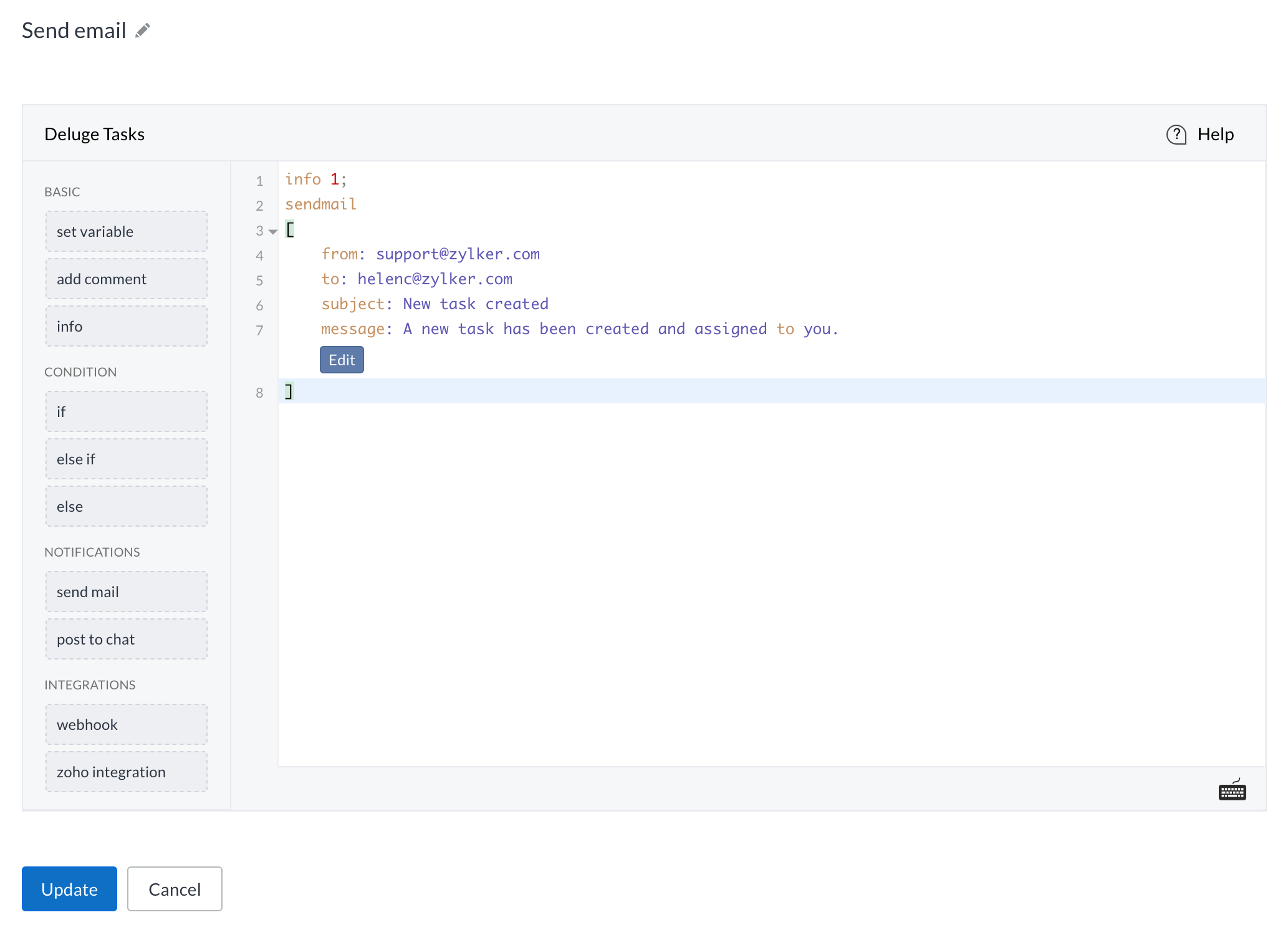
- Drag and drop the send mail function under the Notifications section.
- Specify the sender and recipient email address, the email subject, and the main text.
- Click Edit to add place holders to your email.
- Click Update.
Create a trigger
- Navigate to Extension module and hover over your extension and then click <icon>.
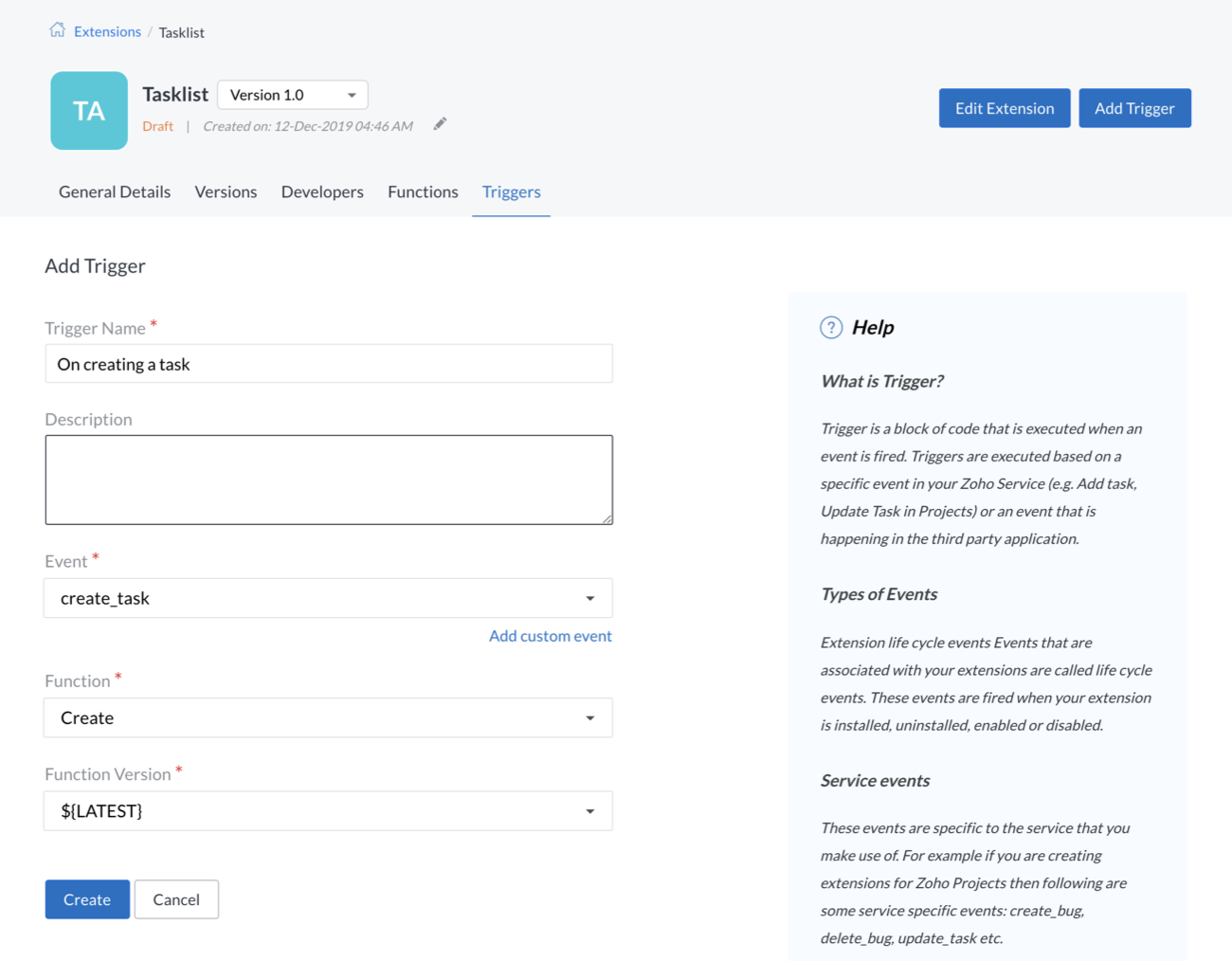
- Navigate to Triggers and then click Add Trigger.
- Enter a name for your trigger.
- Select the event for which you want the trigger to be fired.
- Select a function to associate with your trigger.
- Choose the function version.
- Click Create.