Integration cards
Add lead
This card lets you create leads in your CRM. It supports the following CRM integration
The card works according to the CRM solution integrated in your SalesIQ account. If SalesIQ is integrated with Zoho CRM, the card will create the lead in Zoho CRM.
- To add the card to the flow, click on the cardholder icon (+) and choose Add Lead under the Integration Card section.
- Now, specify a name for the card.
- Provide the input field and output field attributes:
- Company - Company name of the lead to be created.
- Lead ID - Assign a variable name to store the Lead ID after the lead is created and pushed to CRM. This variable can be used in further flow to perform any CRM-related actions.
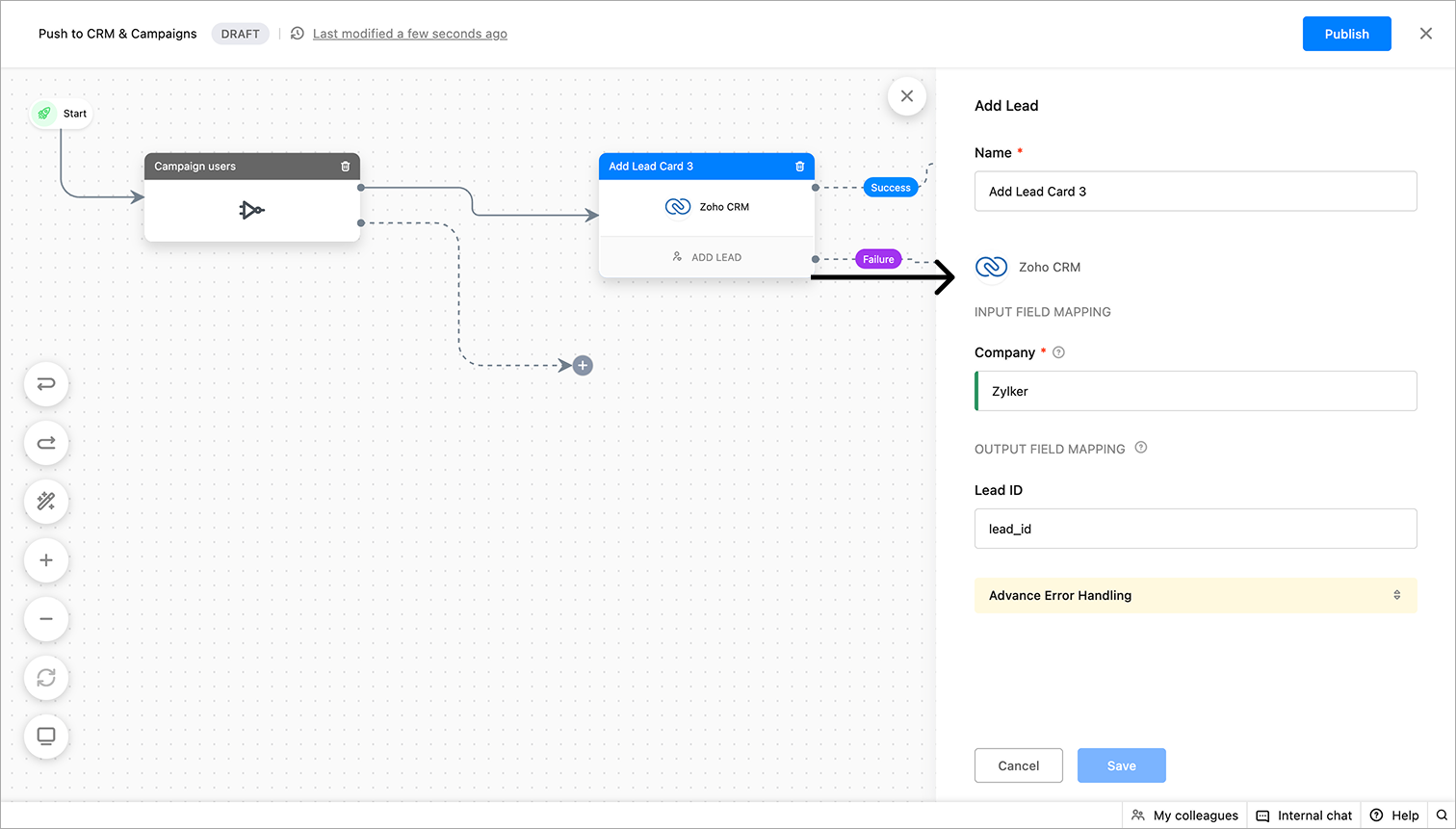
- Inside the Advance Error Handling section, you can handle cases like when the integration is inactive or when the CRM record already exists.
- These are the possible flows while converting visitors to a lead in Zoho CRM:
- Success - To add cards based on lead creation success.
- Failure - To add cards in case of lead creation failure due to technical reasons.
- Integration is inactive - To add cards, in case the Zoho CRM integration is deleted or disabled.
- CRM record already exists - To add cards when the visitor is already a CRM record.
- After clicking Save, you can view the card on the flow builder.
This card lets you create a contact in your CRM. It supports the following CRM integrations.
The card works according to the CRM solution integrated in your SalesIQ account. If SalesIQ is integrated with Zoho CRM, the card will create the contact in Zoho CRM.
- To add the card to the flow, click on the cardholder icon (+) and choose Add Contact under the Integration Card section.
- Now, specify a name for the card.
- Provide the output field attribute,
- Contact ID - Assign a variable name to store the Lead ID after the lead is created and pushed to CRM. This variable can be used in further flow to perform any CRM-related actions.
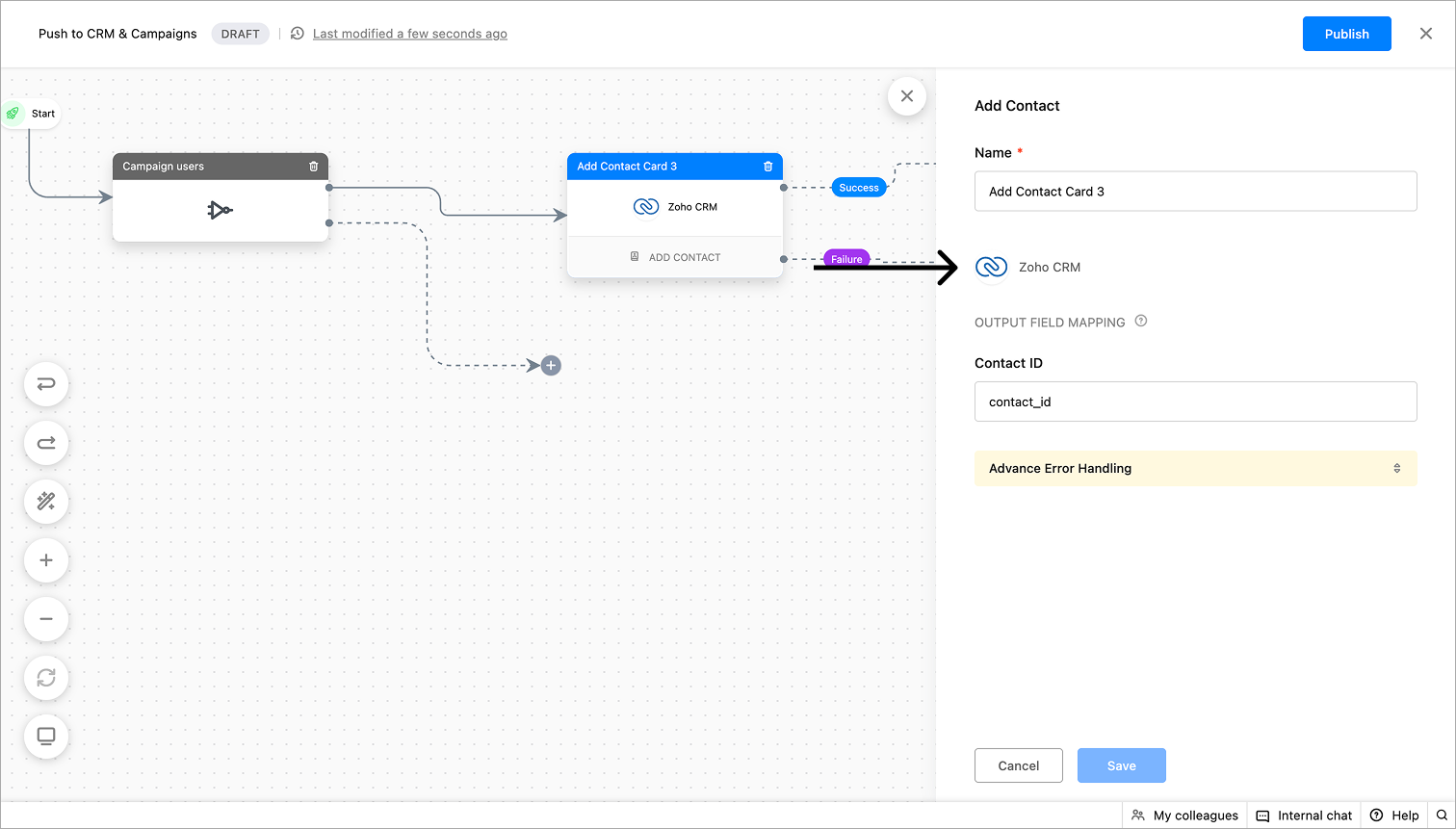
- Inside the Advanced Error Handling section, you can handle cases like when the integration is inactive.
- These are the possible flows while converting the visitor to a contact:
- Success - To add cards based on contact creation success.
- Failure - To add cards in case of contact creation failure due to technical reasons.
- Integration is inactive - To add cards in case the Zoho CRM Integration may be deleted or disabled.
- After clicking Save, you can view the card on the workflow builder.
This card lets you create deals in your CRM. It supports the following CRM integration
The card works according to the CRM solution integrated in your SalesIQ account. If SalesIQ is integrated with Zoho CRM, the card will create the deals in Zoho CRM.
- To add the card to the flow, click on the cardholder icon (+) and choose Add Deal under the Integration Card section.
- Now, specify a name for the card.
- Provide the input field and output field attributes:
- Stage - Select the stage of the deal to be associated.
- Date - Enter the date of the deal to be associated.
- Amount - Enter the deal amount.
- Contact ID - Provide the CRM contact ID of the visitor.
- Deal ID - Assign a variable name to store the Deal ID after the deal is created and pushed to CRM. This variable can be used in further flow to perform any CRM-related actions.
- Inside the Advance Error Handling section, you can handle cases like when the integration is inactive.
These are the possible flows while creating a deal in CRM:
- Success - To add cards based on deal creation success.
- Failure - To add cards in case of deal creation failure due to technical reasons.
- Integration is inactive - To add cards in case of the Zoho CRM integration is deleted or disabled.
After clicking Save, you can view the card on the workflow builder.
This card lets you create support ticket in your Desk. It supports the following desk integrations.
The card works according to the Desk solution integrated in your SalesIQ account. If SalesIQ is integrated with Zoho Desk, the card will create tickets in Zoho Desk.
- To add the card to the flow, click on the cardholder icon (+) and choose Add Ticket under the Integration Card section.
- Now, specify a name for the card.
- Provide the input and output field attributes:
- Subject - Subject for the ticket (dynamic text can be used).
- Status - Status for the ticket, you can use either the inbuilt Desk status such as Open, Need Information, Escalated, Closed, On Hold, or bot context.
- Priority - Priority of the ticket, you can use either the inbuilt Desk priorities like High, Medium, Low, None, or bot context.
- Classification - Classification of the ticket, it can be either inbuilt Desk classification namely Question, problem, Feature, Others, or bot context.
- Department - The department for the ticket to be assigned. (Note: Only the department associated with Zoho Desk will be available here)
- AssigneeID - Unique ID of the agent to which the tickets are to be associated.
- Then, assign a variable for,
- Ticket ID - Assign a variable name to store the ticket ID after the ticket is created and pushed to the Desk. This variable can be used in further flow to perform any Desk-related actions.
- Ticketnumber - Assign a variable name to store the ticket number after the ticket is created and pushed to the Desk. This variable can be used in further flow to perform any Desk-related actions.
- Inside the Advance Error Handling section, you can handle cases like when the integration is inactive, invalid desk department, or invalid ticket assignee. Click Save.
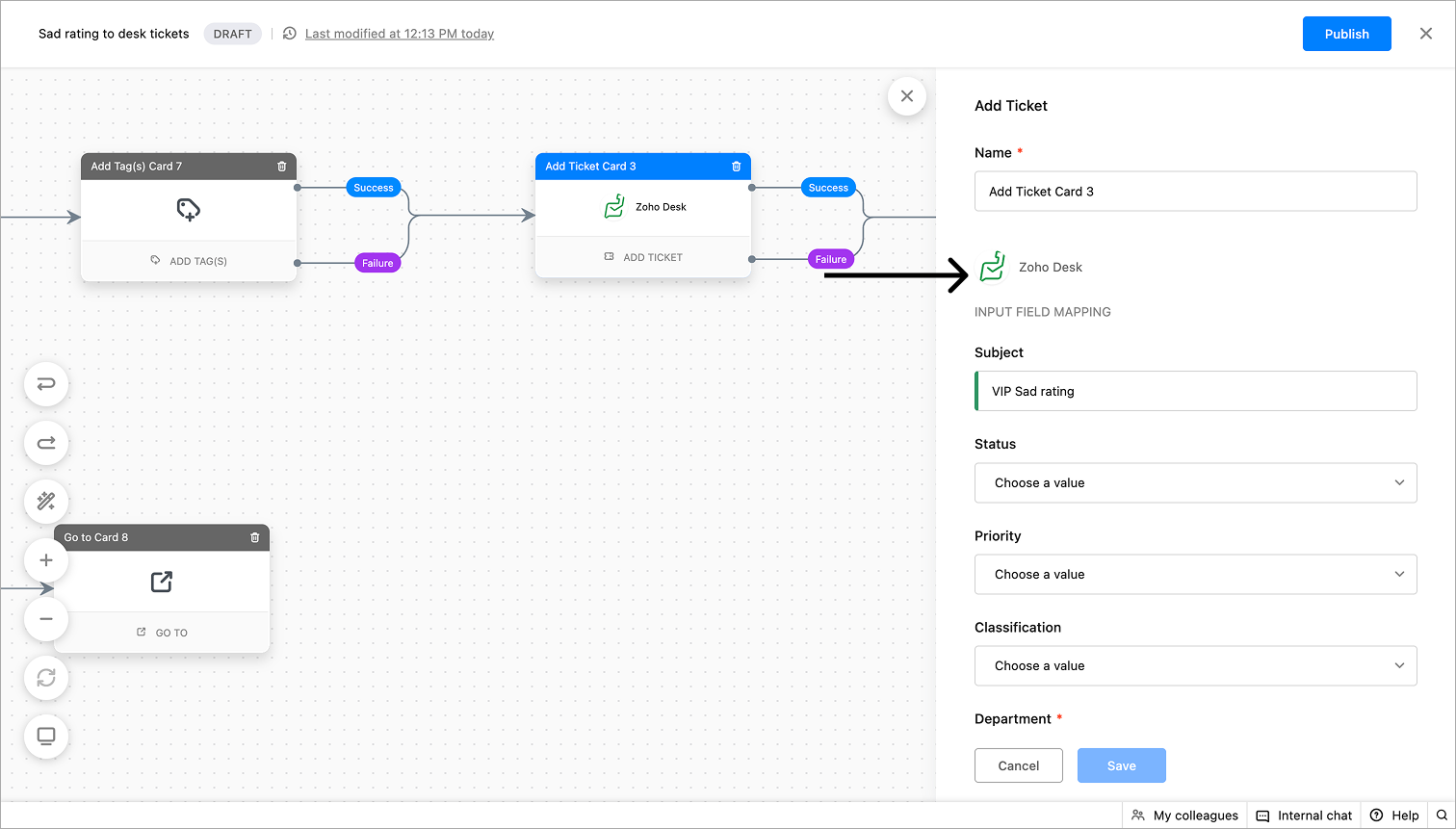
These are the possible flows while associating a ticket in Zoho Desk:
- Success - To add cards based on ticket creation success.
- Failure - To add cards in case of ticket creation failure due to technical reasons.
- Integration is inactive - To add cards in case the Zoho Desk integration is deleted or disabled.
- Invalid desk department - To add cards in case of the department in Zoho Desk integration is either invalid, deleted, or disabled.
- Invalid ticket assignee - To add cards in case the operator in Zoho Desk integration is either invalid, deleted, or disabled.
After clicking Save, you can view the card on the workflow builder.
Add to mailing list
This card lets you add the visitors to your campaign's mailing list, tt supports both the following campaign integrations
The card works according to the campaign solution integrated in your SalesIQ account. If SalesIQ is integrated with Zoho Campaign, the card will add visitors to Zoho Campaign's mailing list.
- Click on the card holder (+) icon to view the cards gallery and select the Add to Mailing list card under the Integration Card section.
- Now, specify a name for the card.
- Provide the input field and output field attributes:
- Under the Name and Email sections, add the bot context variables to dynamically update the visitors' data to the Campaign.
- Enter the visitor's phone number if required.
- Now, choose the campaign list in the List Key section.
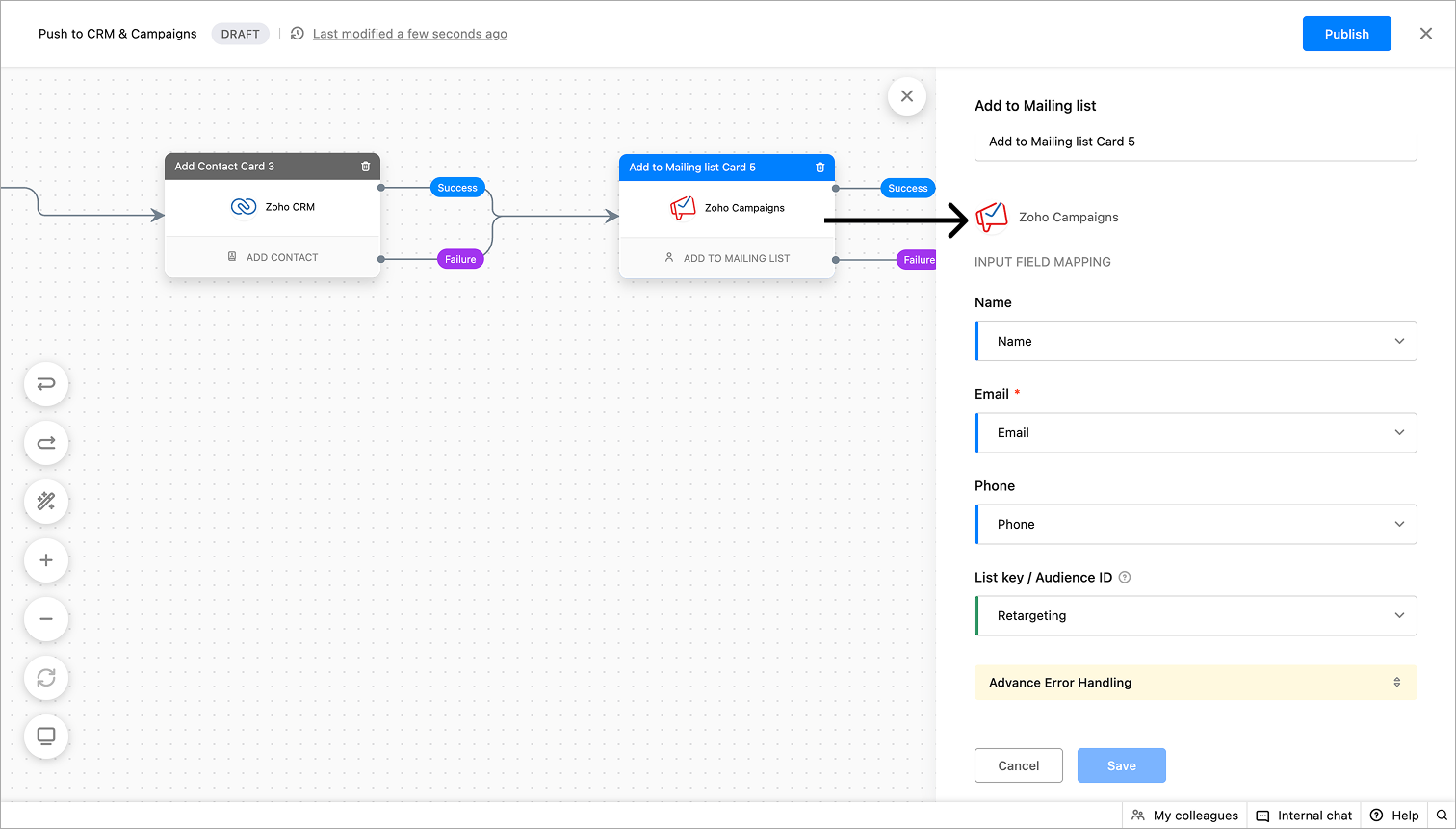
These are the possible flows while adding to the mailing with the integrated campaign service:
- Success: To add cards after successful execution.
- Failure: To add cards in case of subscription failure due to technical reasons.
- Integration inactive: To add cards in case of the campaign integrated service is deleted or disabled.