Adding tasks
In Zoho ToDo, you can add tasks via various different methods to suit your requirements.
Add a Personal task
- Login to Zoho ToDo
- Click on the New Task button to create a task. Once the create task window pops up, mention your Task title and an assignee.
- Select Personal tasks from the drop-down list. You can also choose a Personal Category by clicking the drop-down list next to under.
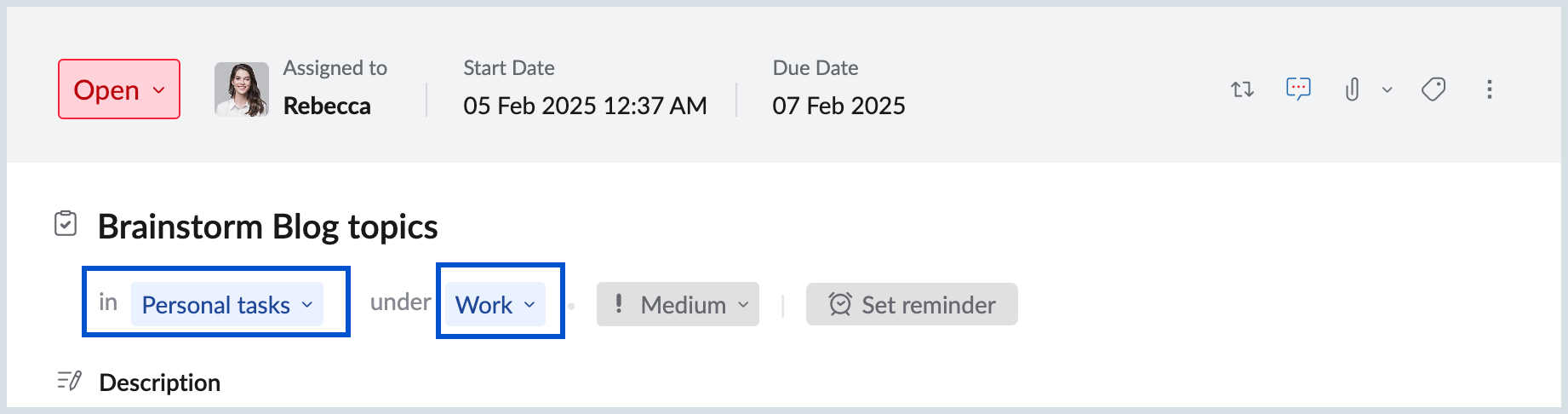
- Once you filled in other necessary details, click Save.
Add a Group task
- Login to Zoho ToDo
- Click on the New Task button to create a task. Once the create task window pops-up, mention your Task title and an assignee.
- Select the appropriate group from the drop-down list next to in. You can also choose a Group Category by clicking the drop-down list next to under.
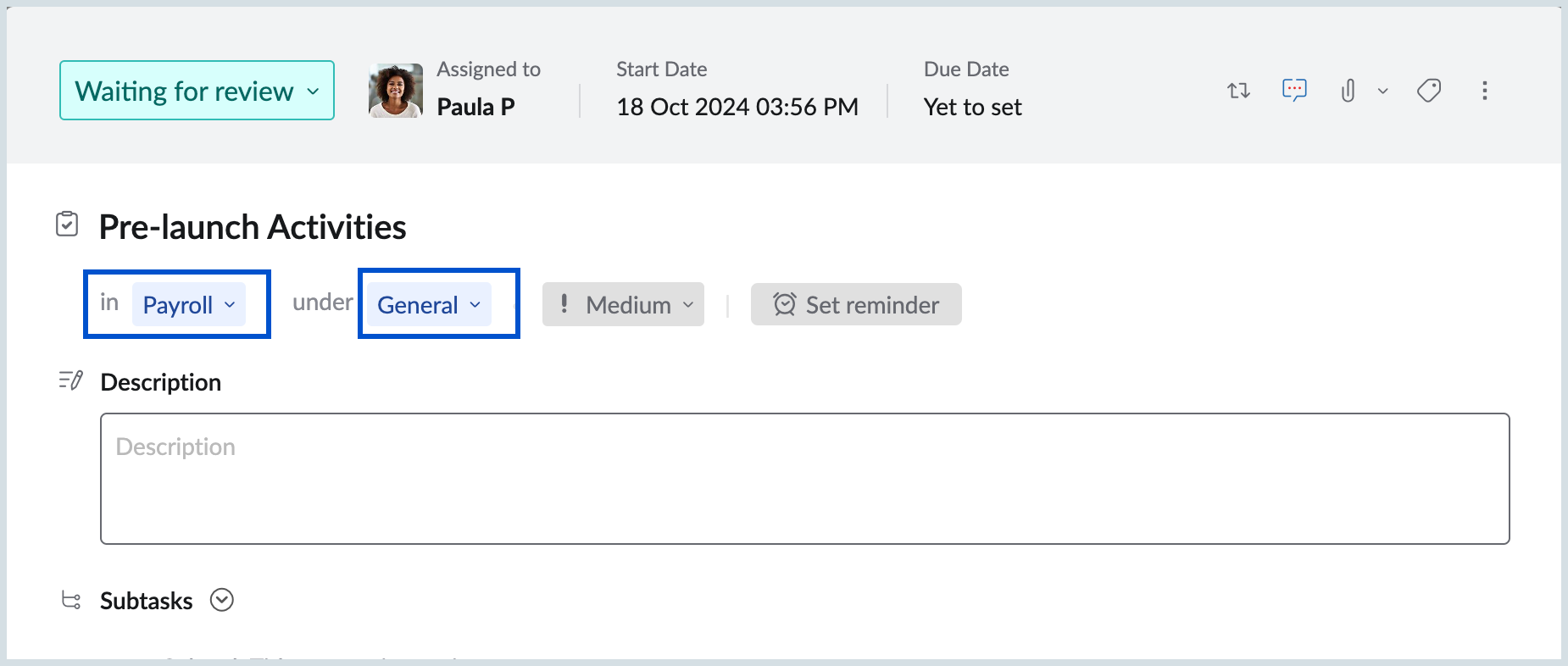
- Once you filled in other necessary details, click Save.
Add a Recurring task
- Login to Zoho ToDo
- Click on the New Task button to create a task. Once the create task window pops-up, mention your Task title and an assignee.
- Select the appropriate task type—Group or Personal tasks, and Category, if needed, from the drop-down lists.
- Once done, click the recurring icon to open the Recurrence pattern settings.
- Choose the recurrence pattern suitable to you and then click Save.
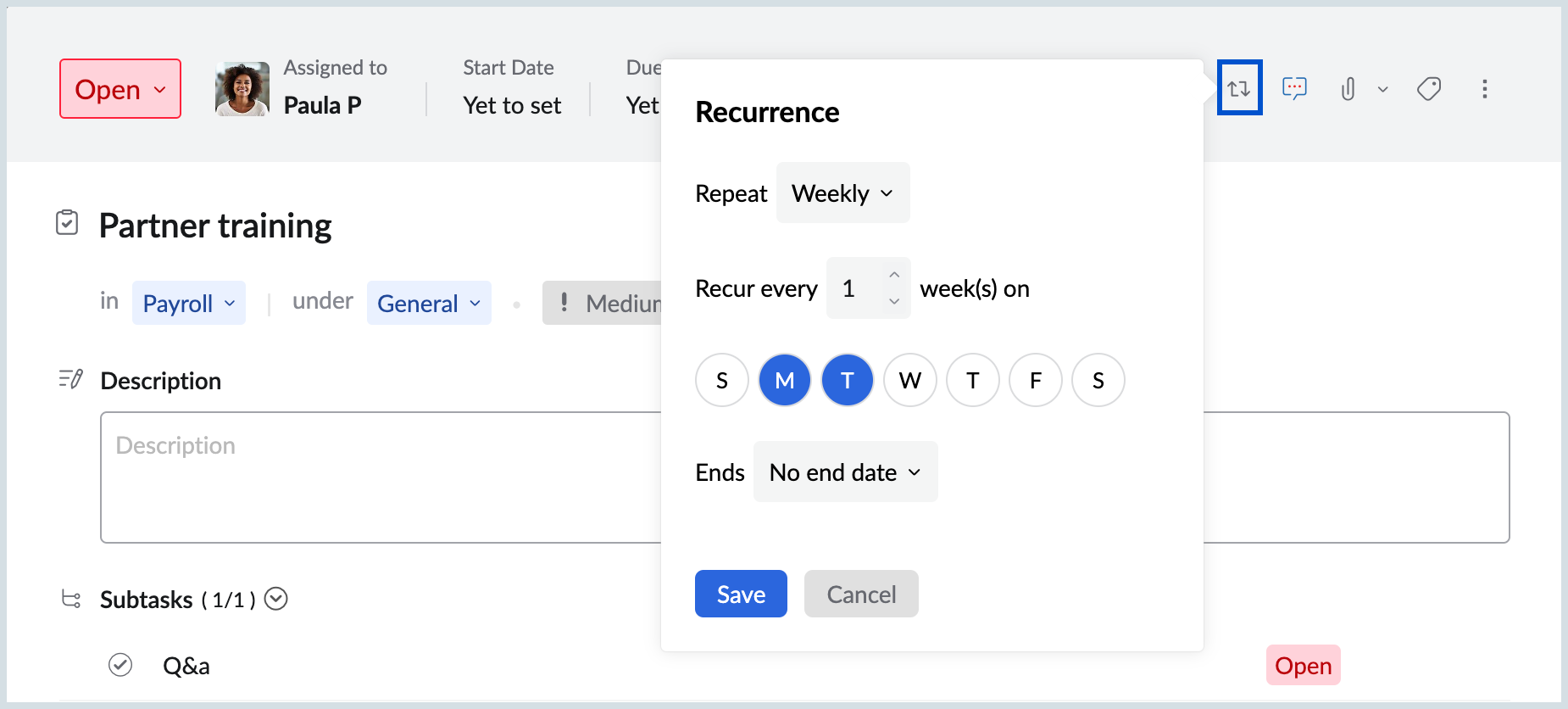
- After adding other necessary details to the task, click Save.
Add subtask
- Login to Zoho ToDo
- Click on the New Task button to create a task. Once the create task window pops-up, mention your Task title, assign a user and set the due date.
- Select the appropriate task type—Group or Personal tasks, and other necessary details.
- In the Subtasks section, mention the task name and the assignee. Hit the enter key to save the Subtask. You can add as many subtasks as you want and assign anyone from the organization for the same.
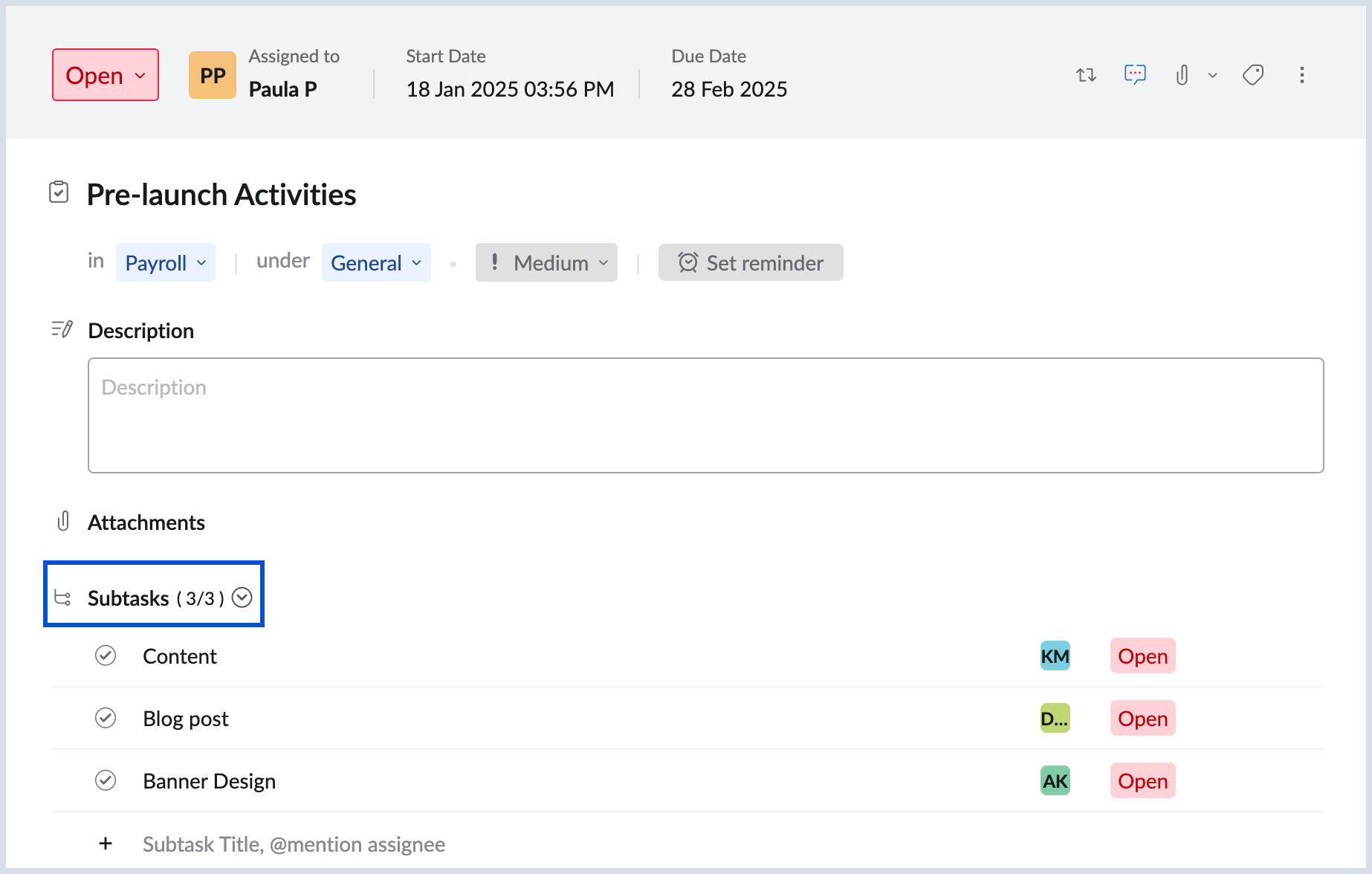
- Once done, click Save to create the overall task.
Multiple ways to create a task
Add using the New Task button
- Login to Zoho ToDo
- Click the New Task button in the left pane.
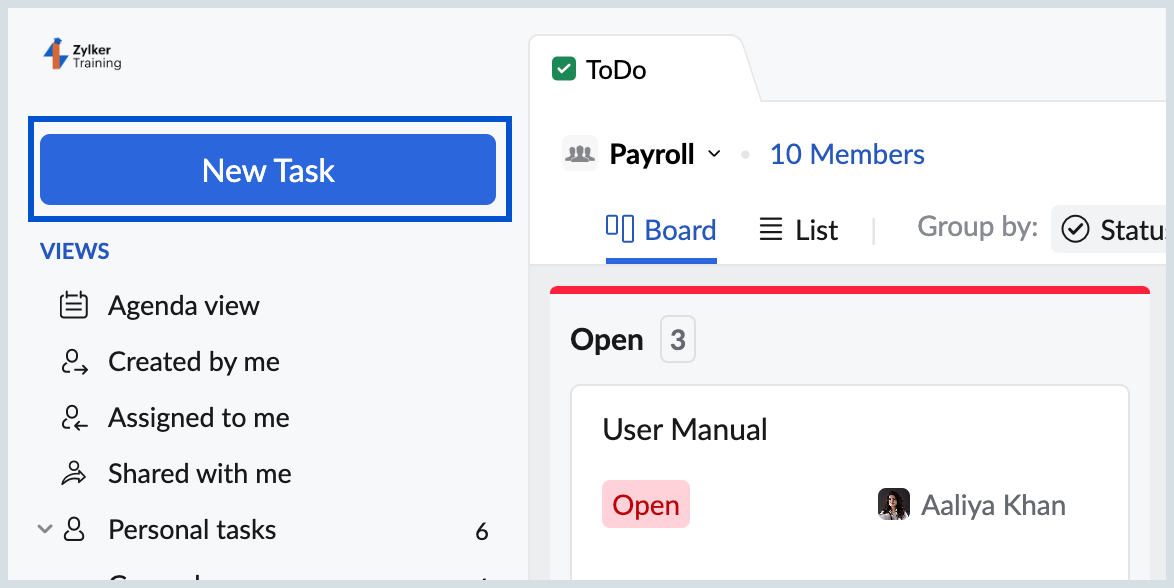
- Enter your task name and other required details in the New task pop-up.
- Once done, click Save.
Add Task from Views
- Login to Zoho ToDo
- From any View and design mode, click the + icon.
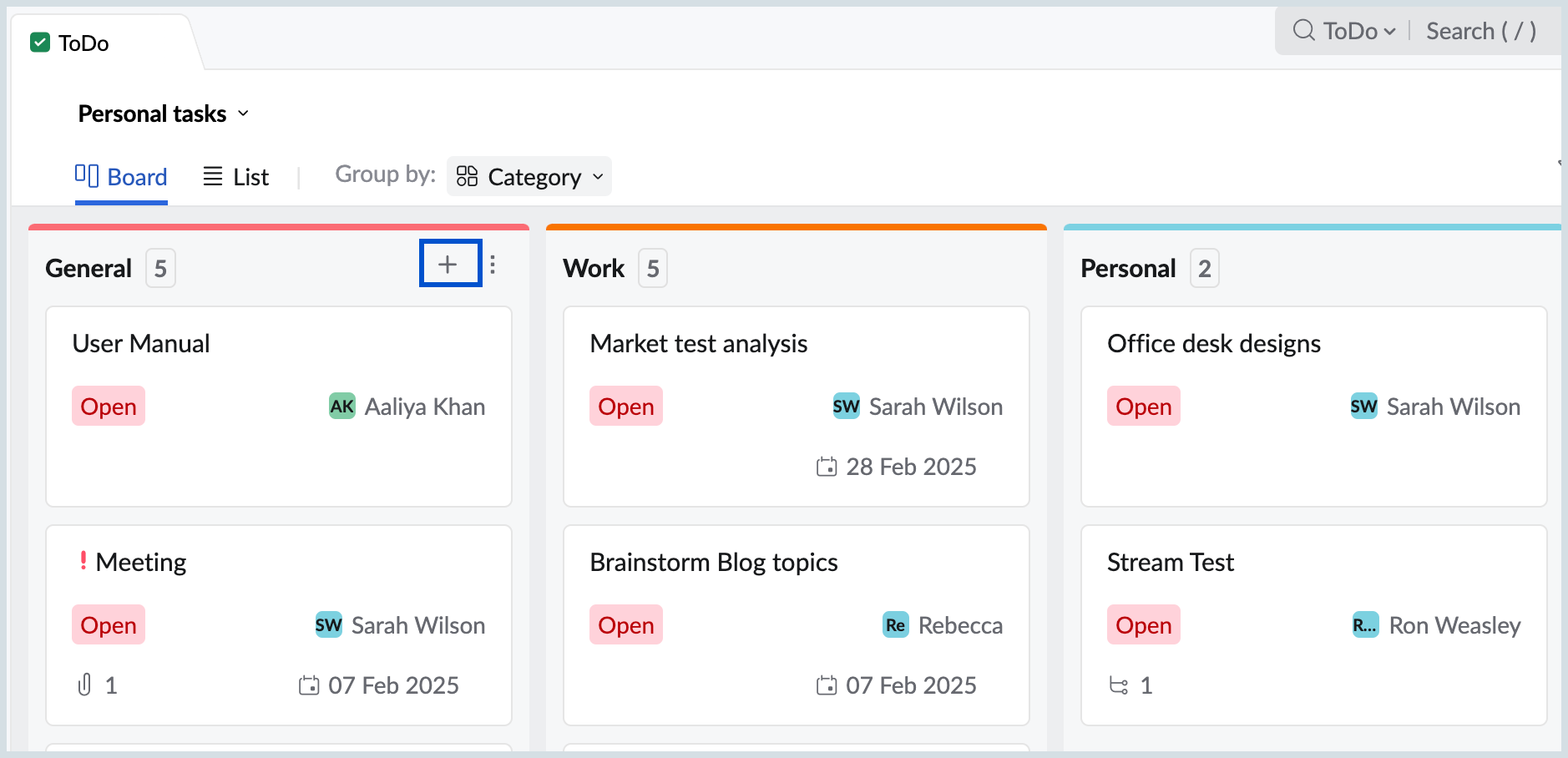
- Enter the Task title and @mention the assignee.
- And then press the enter or return key in your keyboard.
Note:
When you add a task using this method, the task will automatically take the value of the section you are adding the task from. For example, say you grouped your tasks by Priority. And there are three sections displayed—High, Medium, and Low. If you click the + icon available in the High section, to add a new task, the task will be automatically set to High Priority. It works the same way with other fields like Assignee, Category, and Status among others.
Add Flagged emails as tasks
When you flag an email in your Inbox as Important, Info, or Follow Up, it will automatically be added as a task in ToDo. This helps you turn emails that require attention into tasks, making it easier to organize, prioritize, and keep track of your work without having to create a task manually.
The Flagged Emails option can be enabled only from Zoho Mail settings. Once enabled, flagged emails will be added as tasks and will also be displayed in ToDo.
Note
- Only emails flagged in your primary Zoho Mail mailbox will be converted into tasks. Flagged emails from Shared Mailboxes will not be added as tasks.
- When you enable Flagged emails as tasks for the first time, emails flagged within the last 30 days will be automatically added as tasks. Once the option is enabled, any new emails you flag will also be automatically added as tasks.
Flagged emails will be created as tasks only in Personal tasks. Flagged emails from both Trash and Archived will also included to be created as tasks.
The Flagged Mail task creation option must be enabled from settings for flagged emails to be created as tasks.
- Login to your Zoho Mail account.
- Navigate to Settings > Mail View Options.
- Search or Scroll down to Flagged emails as tasks option.
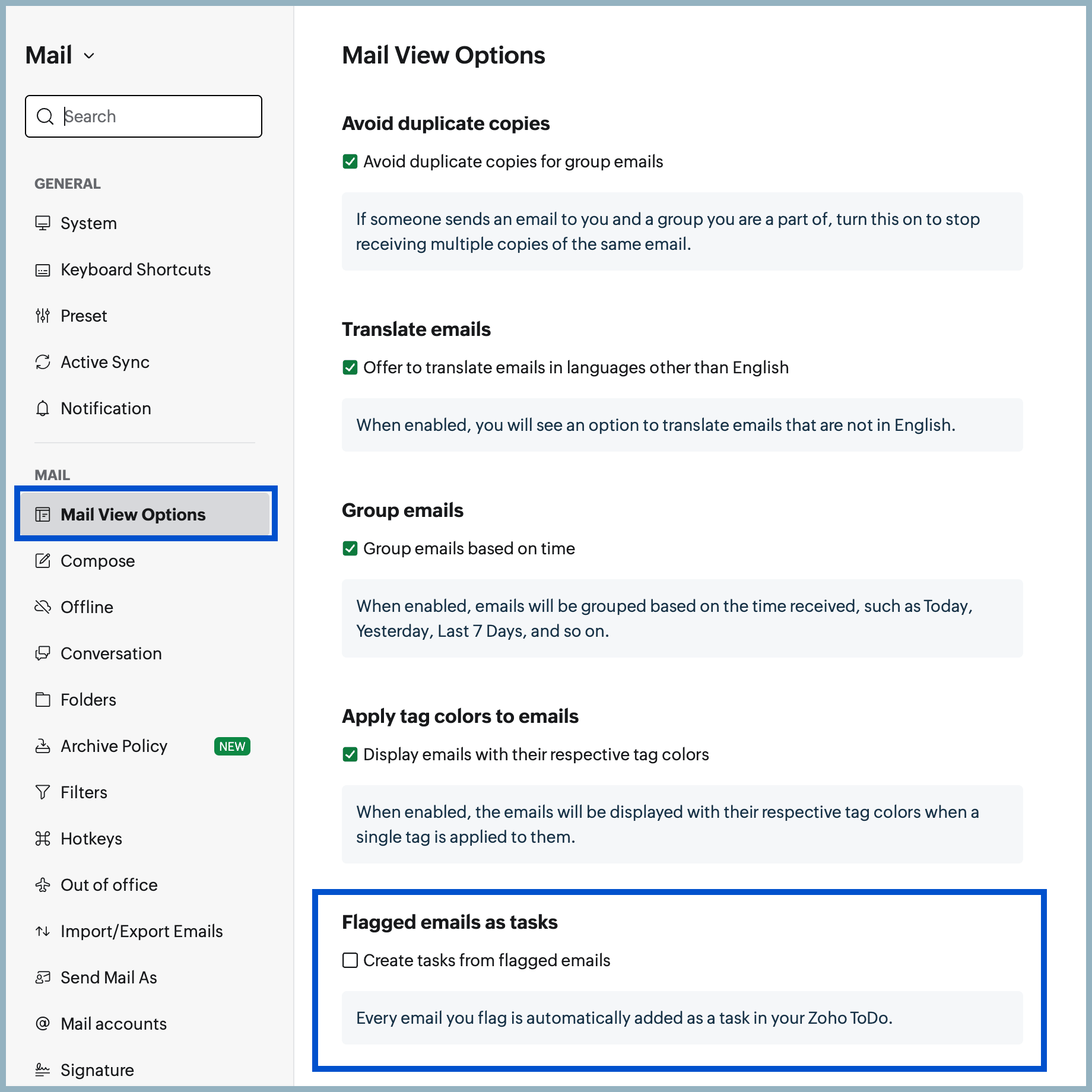
- Check the Create tasks from flagged emails checkbox.
- The task titled will be created based on the email subject and the email content will be added as description.
When you remove the flag from an email, the corresponding task will be marked as Closed. If you flag the email again after the task has been closed, a new task will be created for that email.
Import tasks
You can import tasks from any other application or desktop anytime into the Tasks application. The options to import tasks are:
Add Custom fields to your tasks
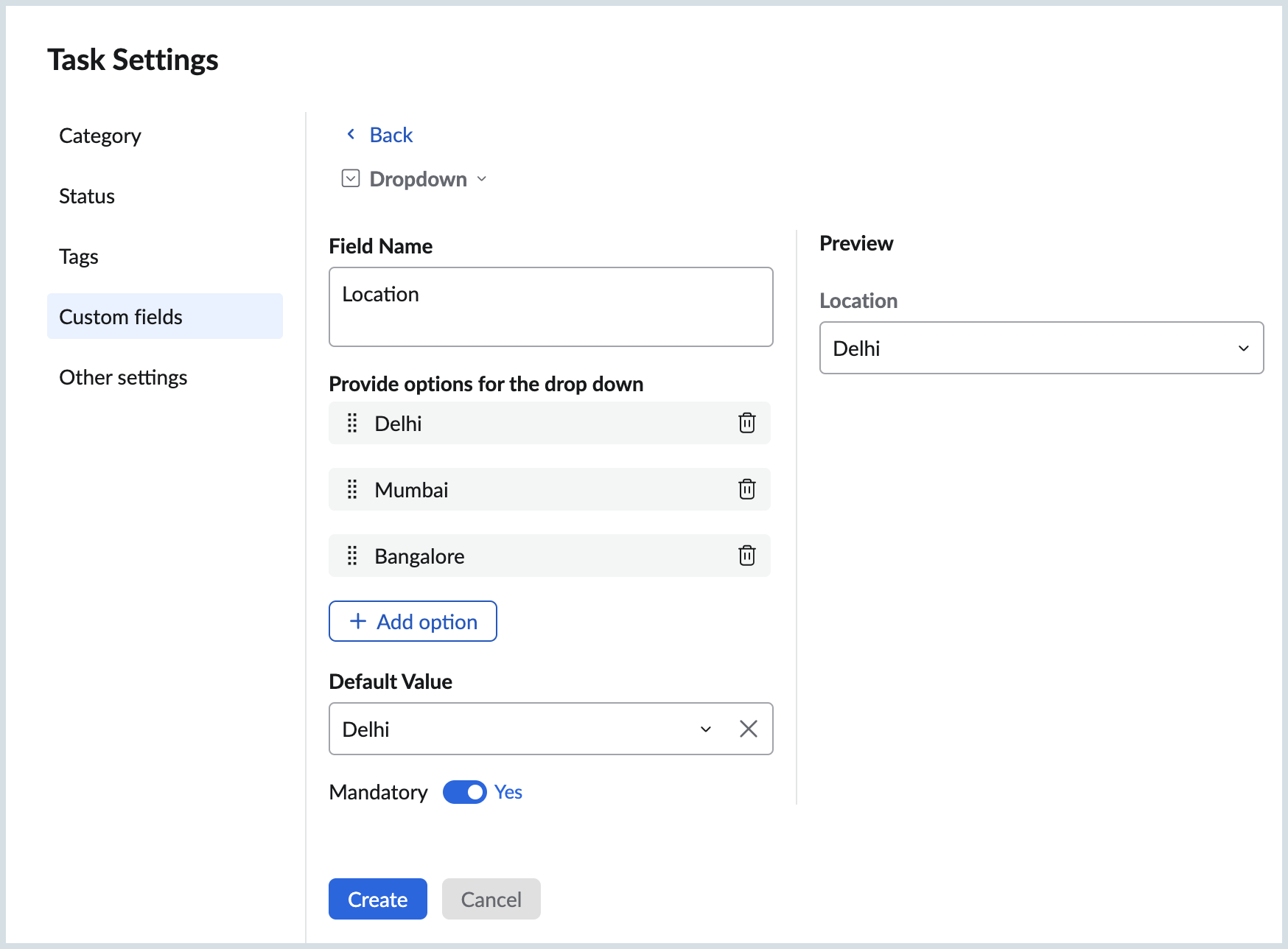
Every organization is different. You might want your organization users to add more information to your tasks. For example, if you work in the construction field, you might want your users to add the location of the project they add tasks for. In such cases, you can add a custom field.
Custom fields are specific to the group you create them for. To add a custom field,
- Login to Zoho ToDo
- If you want to add Custom fields for your Personal tasks then select Personal tasks from the LHS menu. If you want to add Custom fields for your Groups, then select the respective group.
- Click the More Actions icon and navigate Task settings.
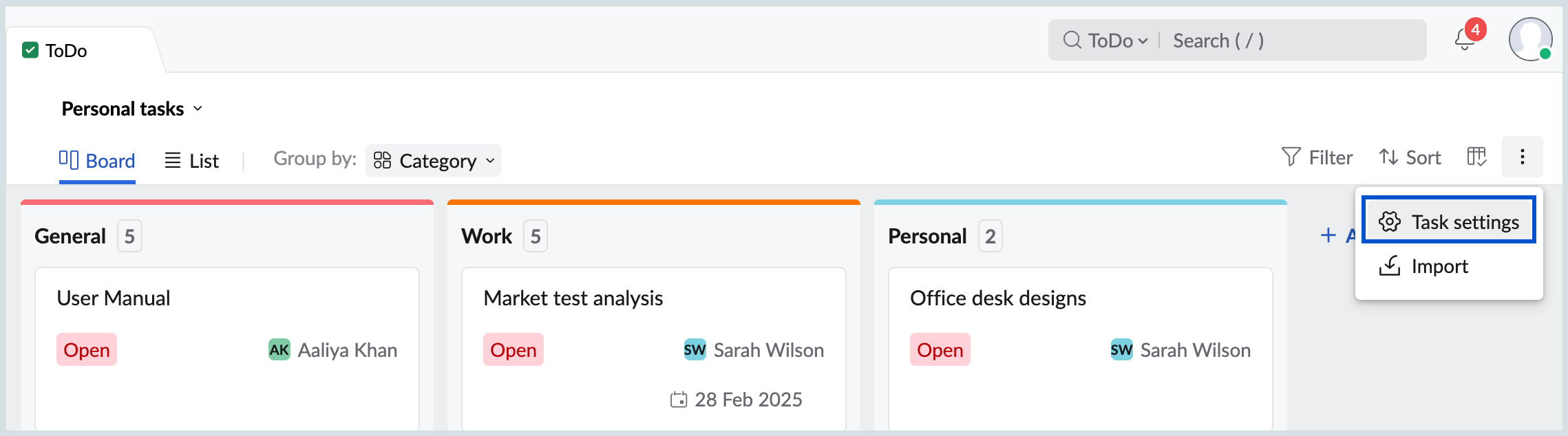
- Under the Task Settings, navigate to the Custom fields section. Click on Add Custom field.
- Select the field type.
- Text field: You will have to type in the value. The field will accept alphabets, numbers, and special characters.
- Numeric: You can give in any number as the value. It can be a whole number or a decimal number.
- Dropdown: You will have to provide a set of values by clicking Add option from which one of the choices can be selected as a value.
- MultiChoice: You will have to provide a set of values by clicking Add option from which one or more choices can be selected as values.
- You can make the Custom field mandatory for the users to fill during task creation by enabling the Mandatory toggle.
- Check the preview generated and once you are satisfied with the result, click Create.
Add Task to other Zoho applications
You can add tasks to other Zoho applications—Zoho CRM, Zoho Connect, Zoho People, Zoho Desk and Zoho Projects, right from Tasks' Unified view. Click here to know more.