Configure an External Voice AI (External SIP URI) Profile
Create an External SIP URI profile to route inbound calls to external AI voice agents and SIP-enabled applications. Once configured, you can use the profile in inbound call configuration, IVR call flows, and off-duty call handlers.
Prerequisite
Before configuring an External SIP URI profile in Zoho Voice:
Configure and activate the SIP endpoint with your AI voice agent provider.
Obtain the following details from your AI voice agent provider:
SIP URI: The unique SIP address of the AI voice agent or SIP-enabled application that will receive calls from Zoho Voice.
Transport protocol (UDP, TCP, or TLS): The communication method used to establish SIP connections between Zoho Voice and the AI voice agent provider. Your selected protocol must match your provider's configuration.
SRTP (Secure Real-time Transport Protocol) requirement: Determines whether the call audio is encrypted during transmission. When enabled, call audio is encrypted during transmission between Zoho Voice and the external SIP endpoint (AI voice agent).
Configure an External SIP URI in Zoho Voice
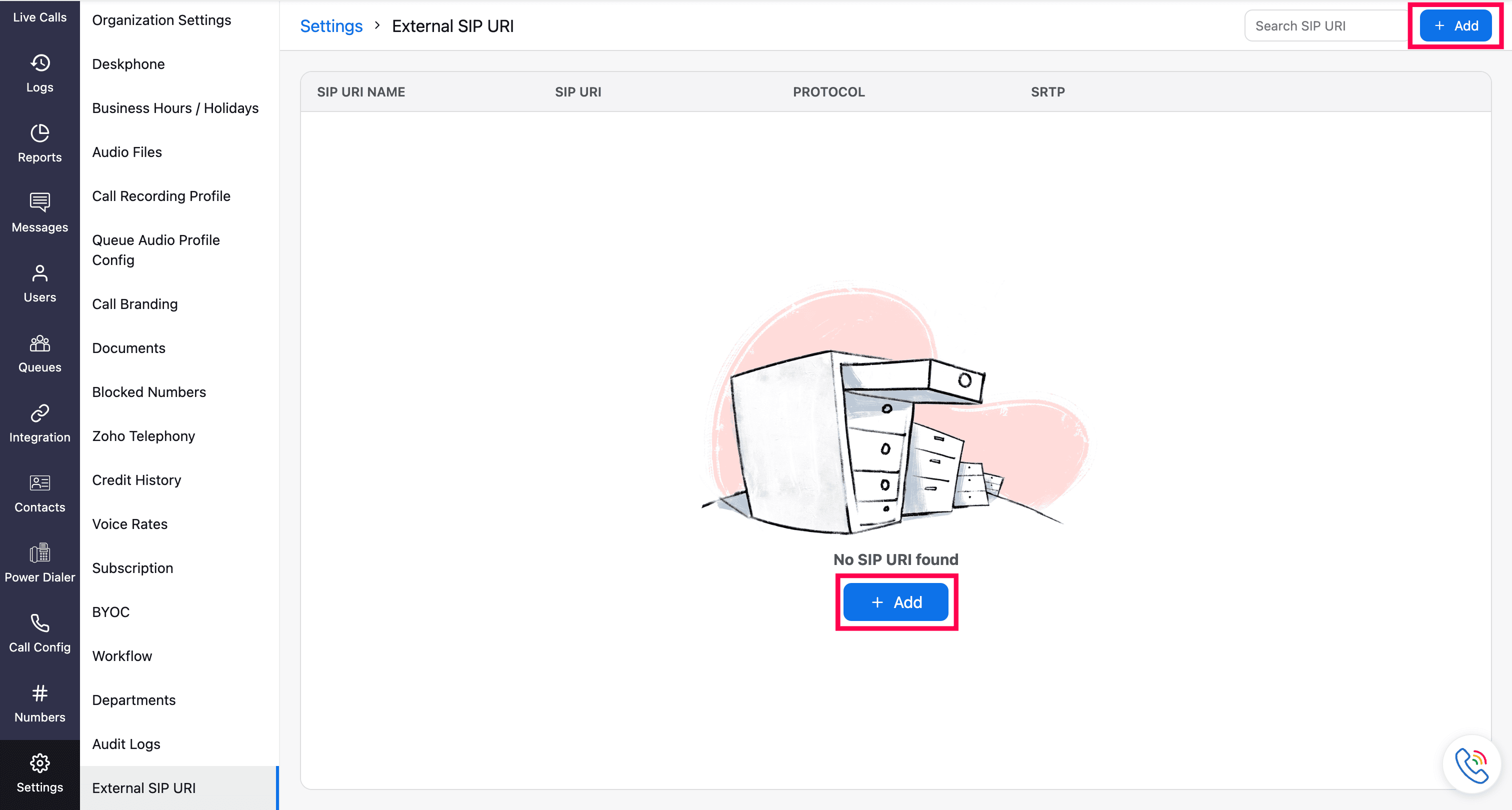
Go to Settings and select the External SIP URI.
On the External SIP URI homepage, click the Add button.
Enter the required fields and click Save.
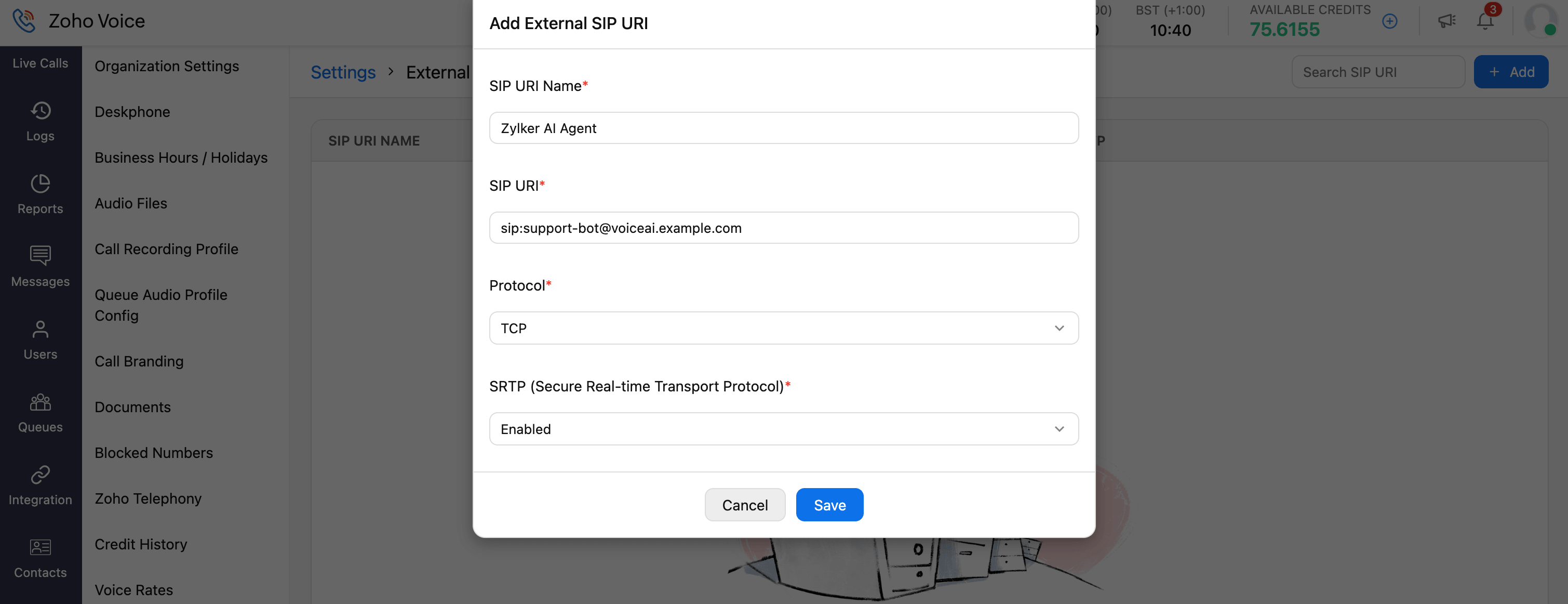
Fields
Field | Description |
SIP URI Name | Enter a unique name to identify the SIP URI configuration. |
SIP URI |
Example: support-bot@voiceai.example.com Note: A SIP URI that has already been saved cannot be added again. |
Protocol | Select the transport protocol used for SIP signalling between Zoho Voice and the external SIP endpoint (AI voice agent). Available options are UDP, TCP, and TLS. Ensure that the selected protocol matches the configuration provided by your AI voice agent provider. |
SRTP | When SRTP (Secure Real-time Transport Protocol) is enabled, it encrypts voice media exchanged between Zoho Voice and the external SIP endpoint. Ensure that the SRTP setting matches your AI voice agent provider's configuration. |
Use External SIP URIs profile in call flows
After configuring an External SIP URI profile, you can use it to route inbound calls to external AI voice agents through:
Incoming Call Configuration
Call Action Handlers
IVR call flows
Off-duty Action Handlers
This enables you to direct callers to AI voice agents during business hours, after business hours, or at specific stages within an IVR flow.
Incoming Call Configuration
To route inbound calls directly to an External SIP URI:
Go to the Call Config module.
Under the Active tab, click the Edit Config icon next to the required number.
In the Mode field, select External SIP URI.
Select the required External SIP URI profile from the dropdown.
Click Save.
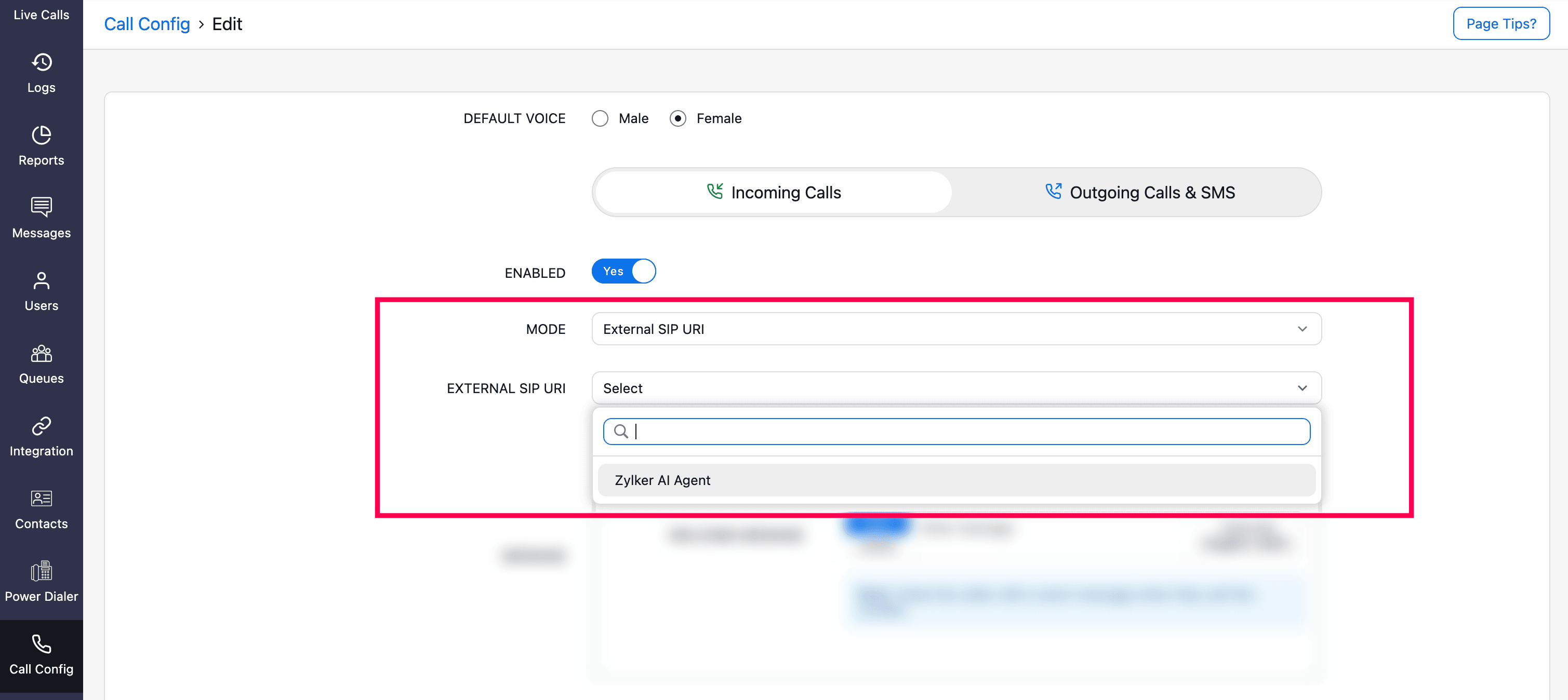
All inbound calls received on the selected number will be routed to the configured External SIP URI (External AI voice agent).
Call Action Handler in Incoming Call Config
You can configure an External SIP URI profile in the Call Action Handler for incoming call configuration modes (Agent, IVR, Dial Extension, Queue, External SIP URI).
In the Incoming Calls Config page, you can also configure External SIP URI in the Call Action Handler.
Navigate to the Call Action Handler section and click Edit.
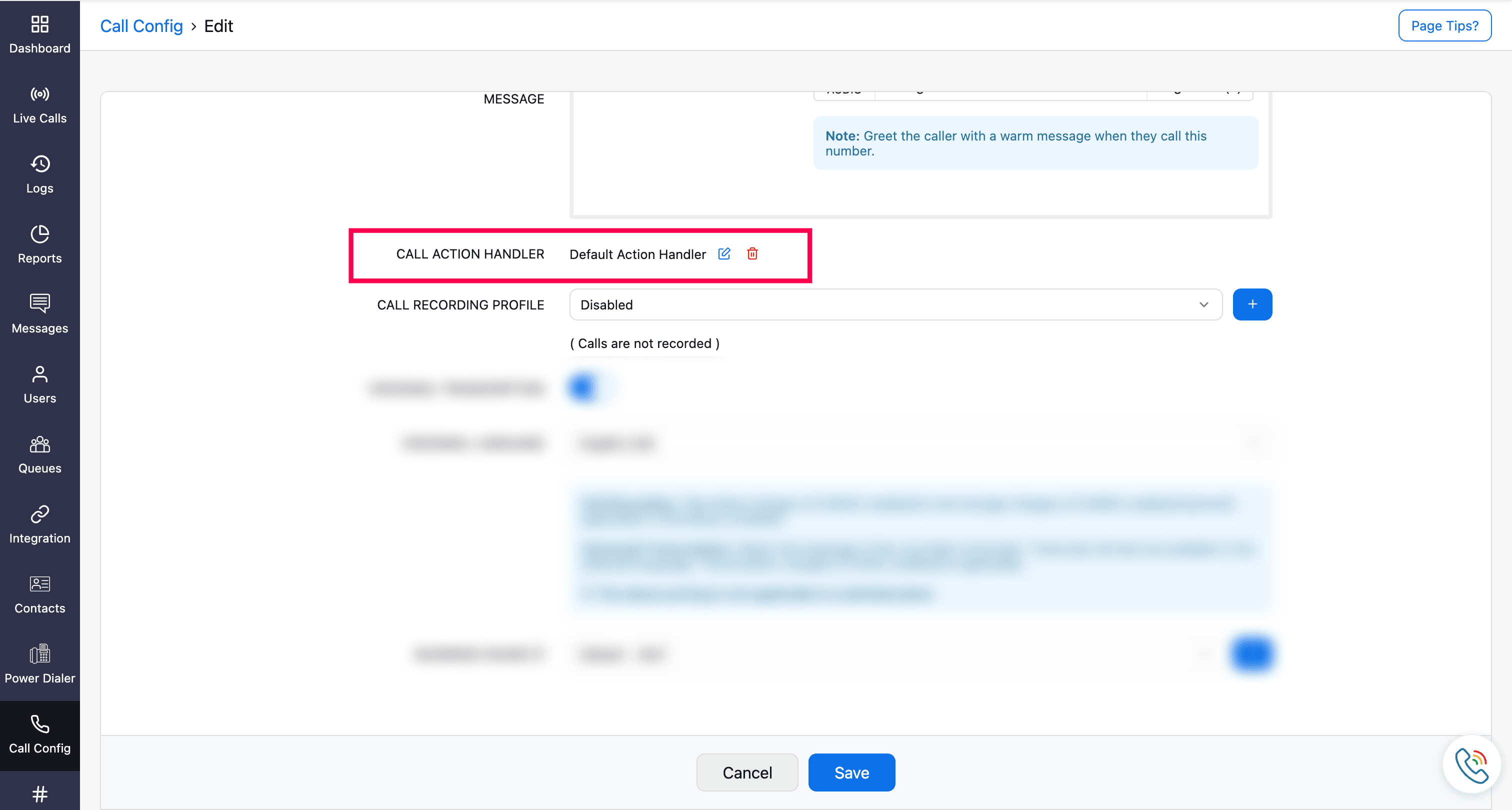
Select the required External SIP URI profile from the dropdown.
Save the Call Handler configuration.
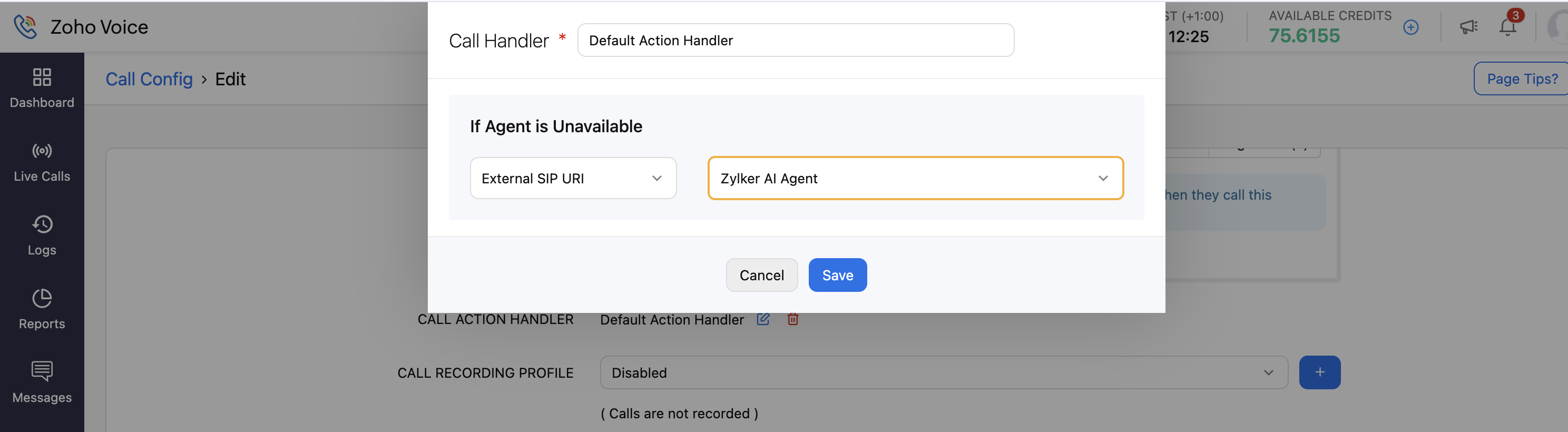
Calls handled by the configured Call Action Handler will be routed to the selected External SIP URI (External AI voice agent).
Learn more about call action handler
IVR in Inbound Call Configuration
To route calls to an External SIP URI through an IVR:
Go to the Call Config module.
Under the Active tab, click the Edit Config icon next to the required number.
In the Mode field, select IVR.
You can create a new IVR or edit an existing IVR configuration.
In the IVR Menu Config page, select External SIP URI under Action.
Select the required External SIP URI profile from the dropdown.
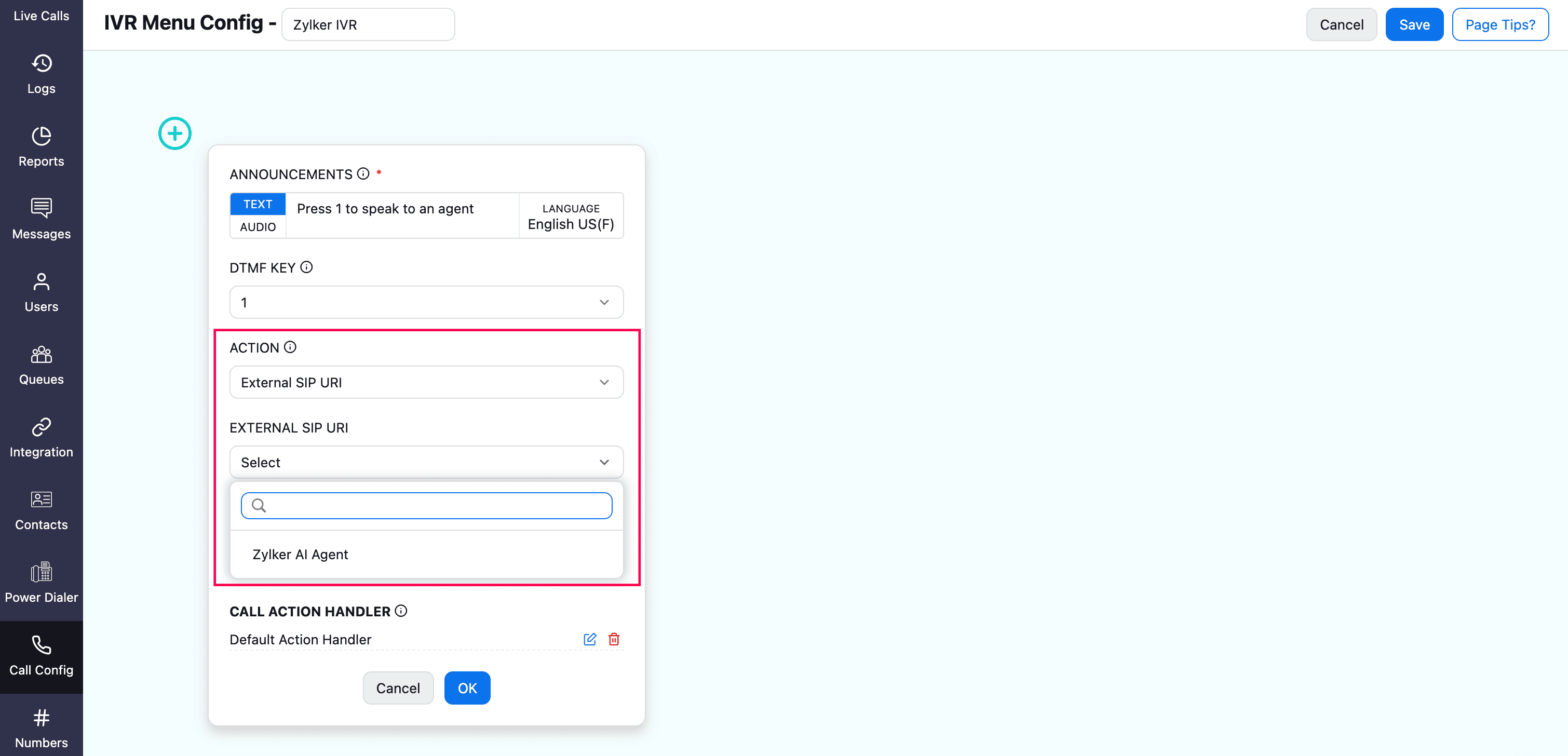
You can also configure External SIP URI in the Call Action Handler.
Click OK to save the IVR.
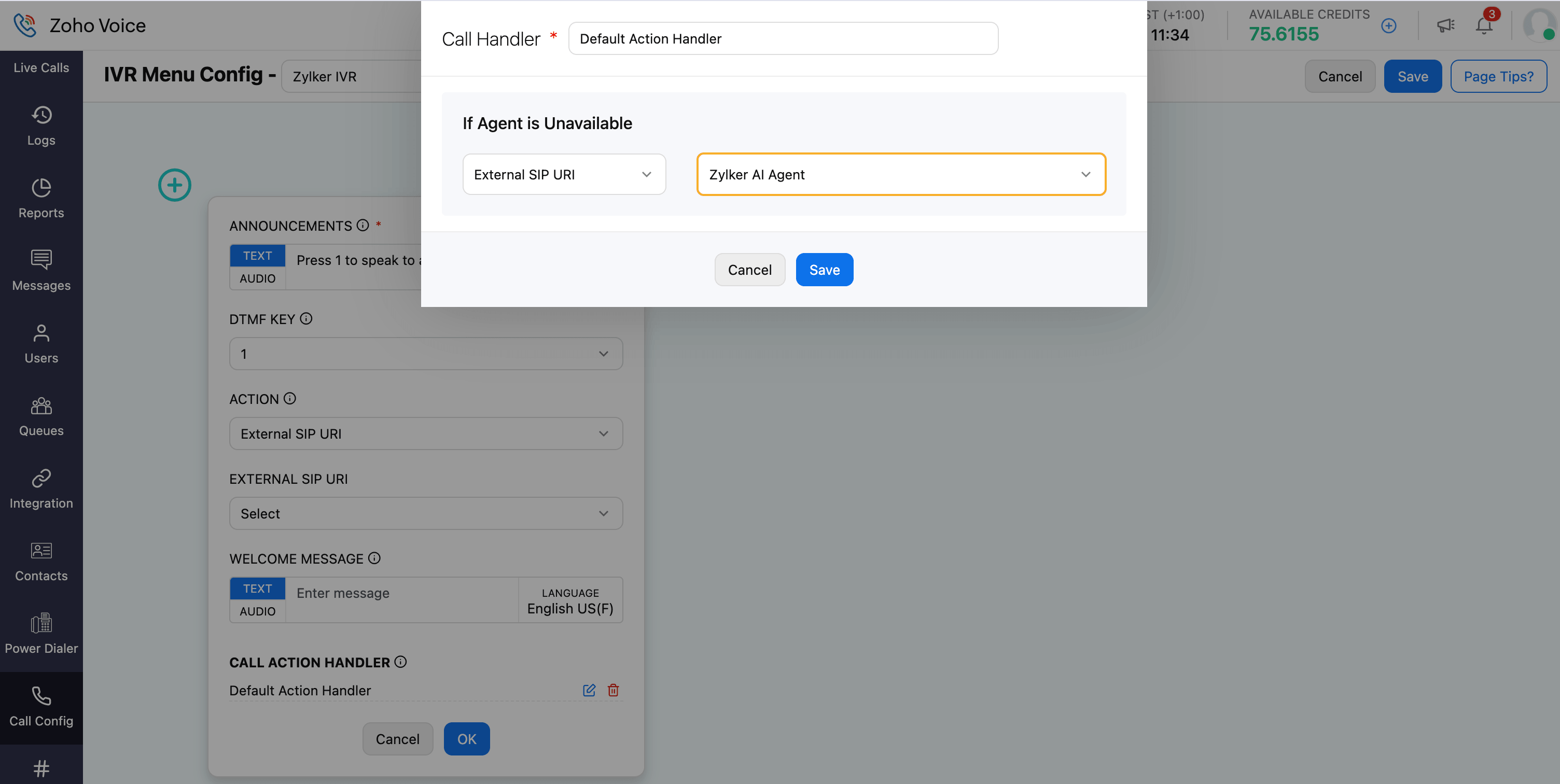
Calls reaching the selected IVR option or Call Action Handler will be routed to the configured External SIP URI (External AI voice agent).
Learn more about IVR profile creation
Off-Duty Handler in Business Hours Config
To route calls to an External SIP URI during off-duty hours:
Go to the Settings → Business Hours/Holiday module.
Under Business Hours tab, create a new profile or edit the existing profile.
Note
Supervisor plus users cannot modify Business Hours/Holiday profiles. As a result, they cannot select or change External SIP URI profiles in the Off-Duty Action Handler settings.
Navigate to the Off-Duty Action section and click Edit of the Off-Duty Handler.
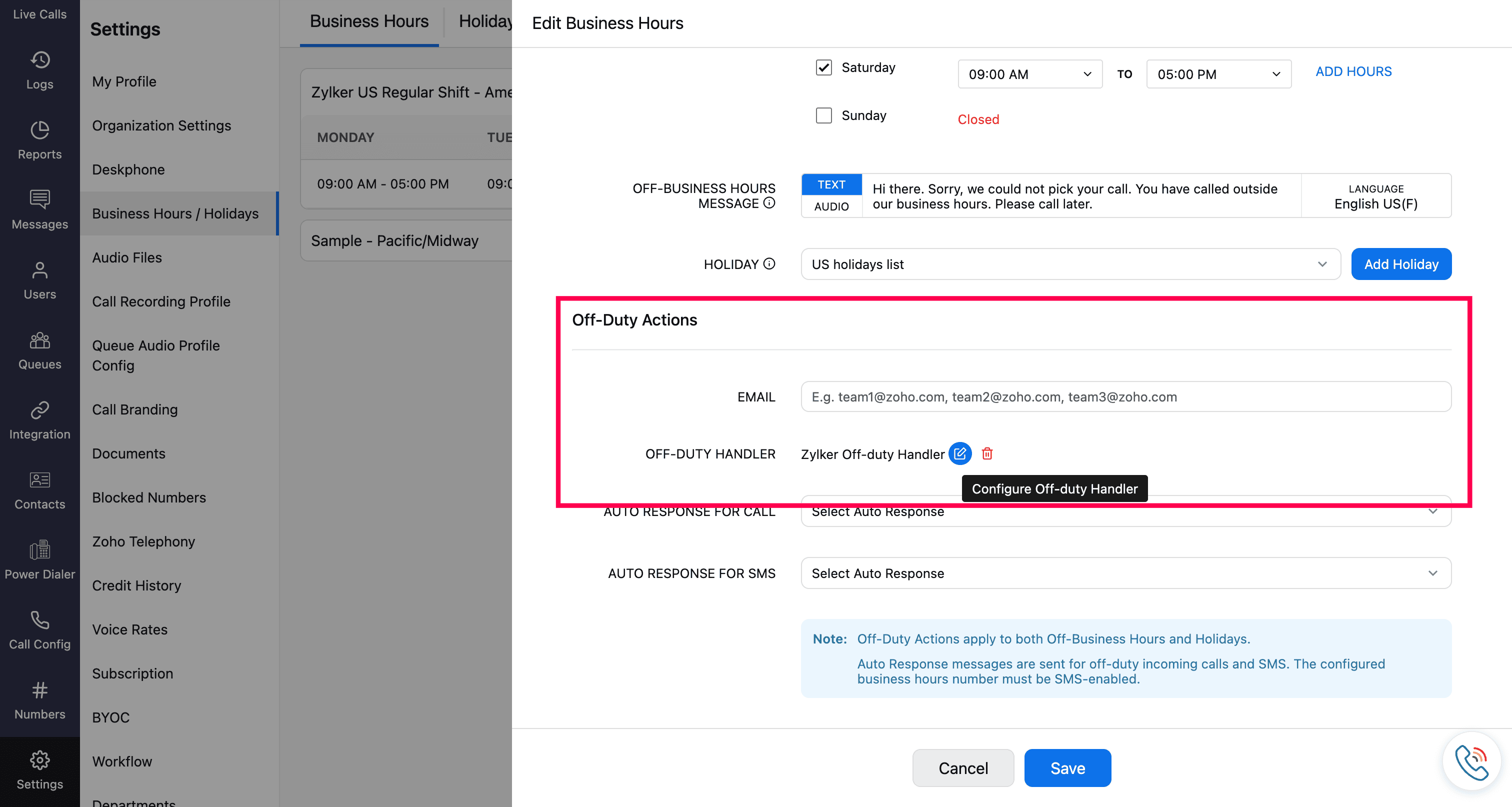
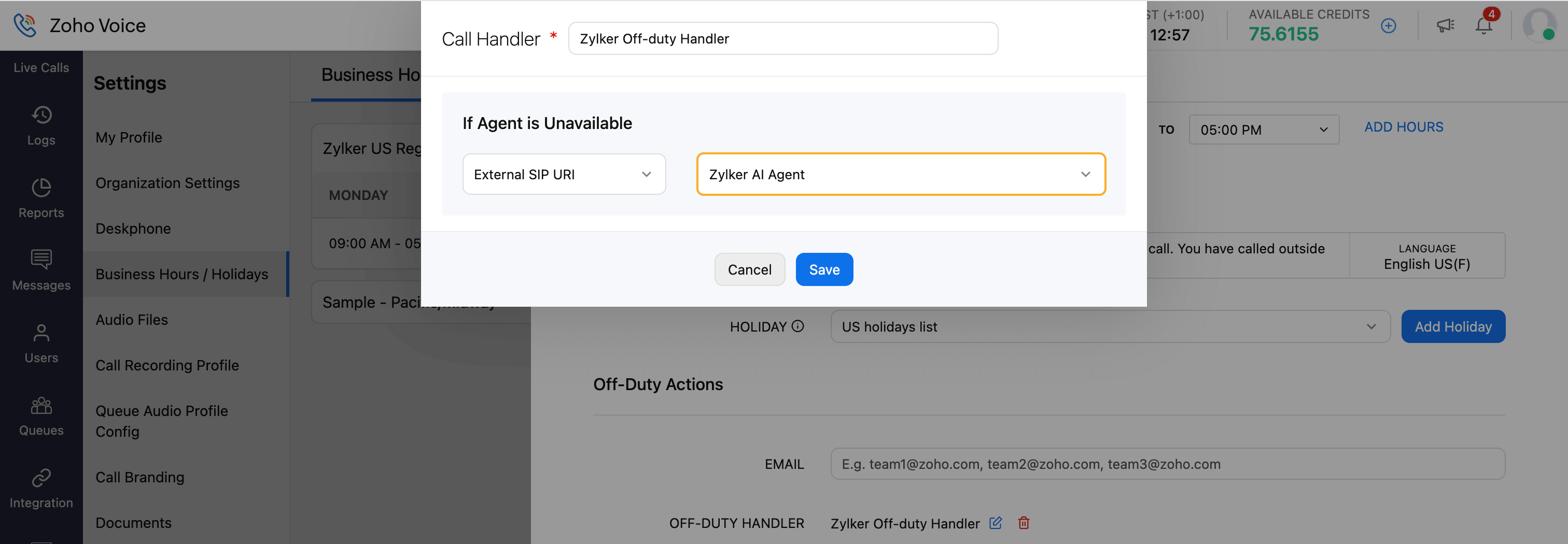
Select the required External SIP URI profile from the dropdown.
Save the Call Handler configuration.
Learn more about business hours/holiday profile creation
SIP REFER Call Transfers
Zoho Voice supports SIP REFER which enables an external AI voice agent to transfer an active call to a Zoho Voice destination, such as an agent extension or queue, without disconnecting the caller.
For example, when an inbound call is routed to an External SIP URI, the external AI voice agent handles the conversation. If the caller requests assistance from a live agent or needs to be connected to a specific department (support or sales), the AI voice agent can transfer the call to a Zoho Voice agent or queue using SIP REFER.
Supported transfer destinations
The external AI voice agent can transfer calls to:
Agent extensions
Queue
Manage External SIP URI Profile
After creating an External SIP URI profile, you can edit or delete it from the External SIP URI listing homepage.
Note
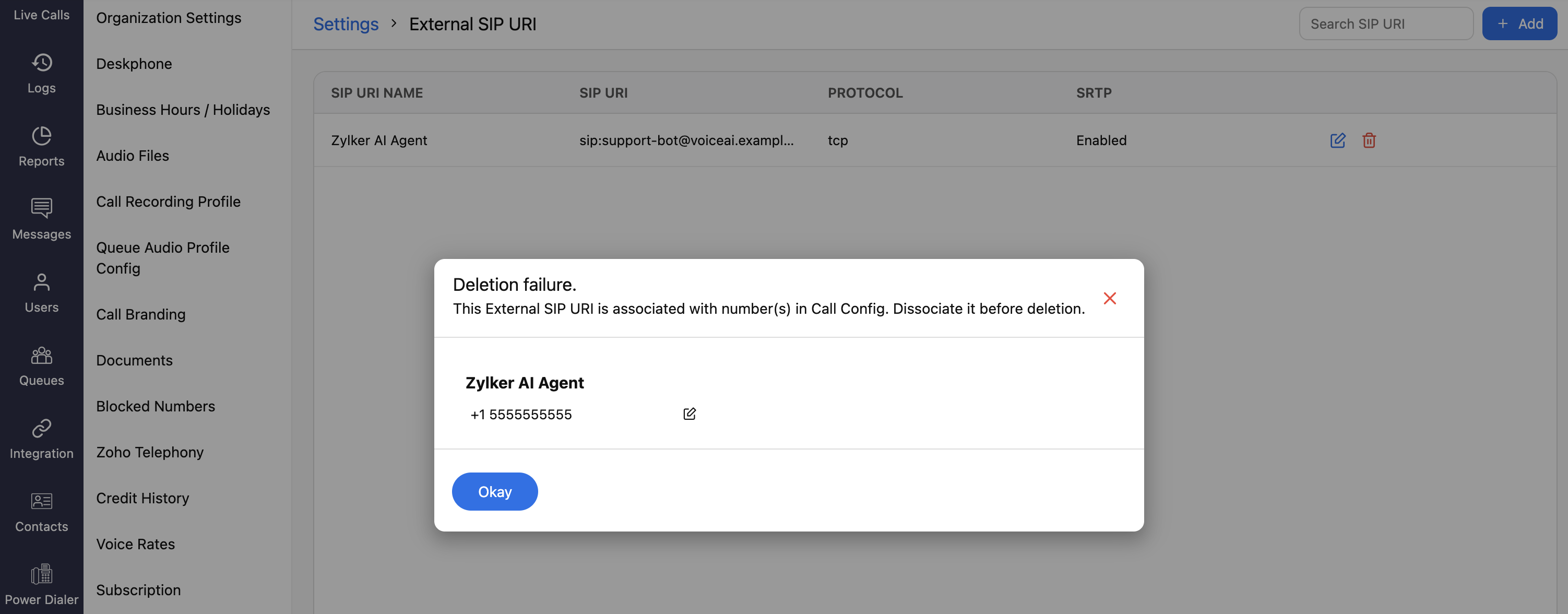
An External SIP URI profile that is associated with an incoming call configuration, IVR, or business hours profile cannot be deleted. Remove all existing associations before attempting to delete it.
View External SIP URI Call Details
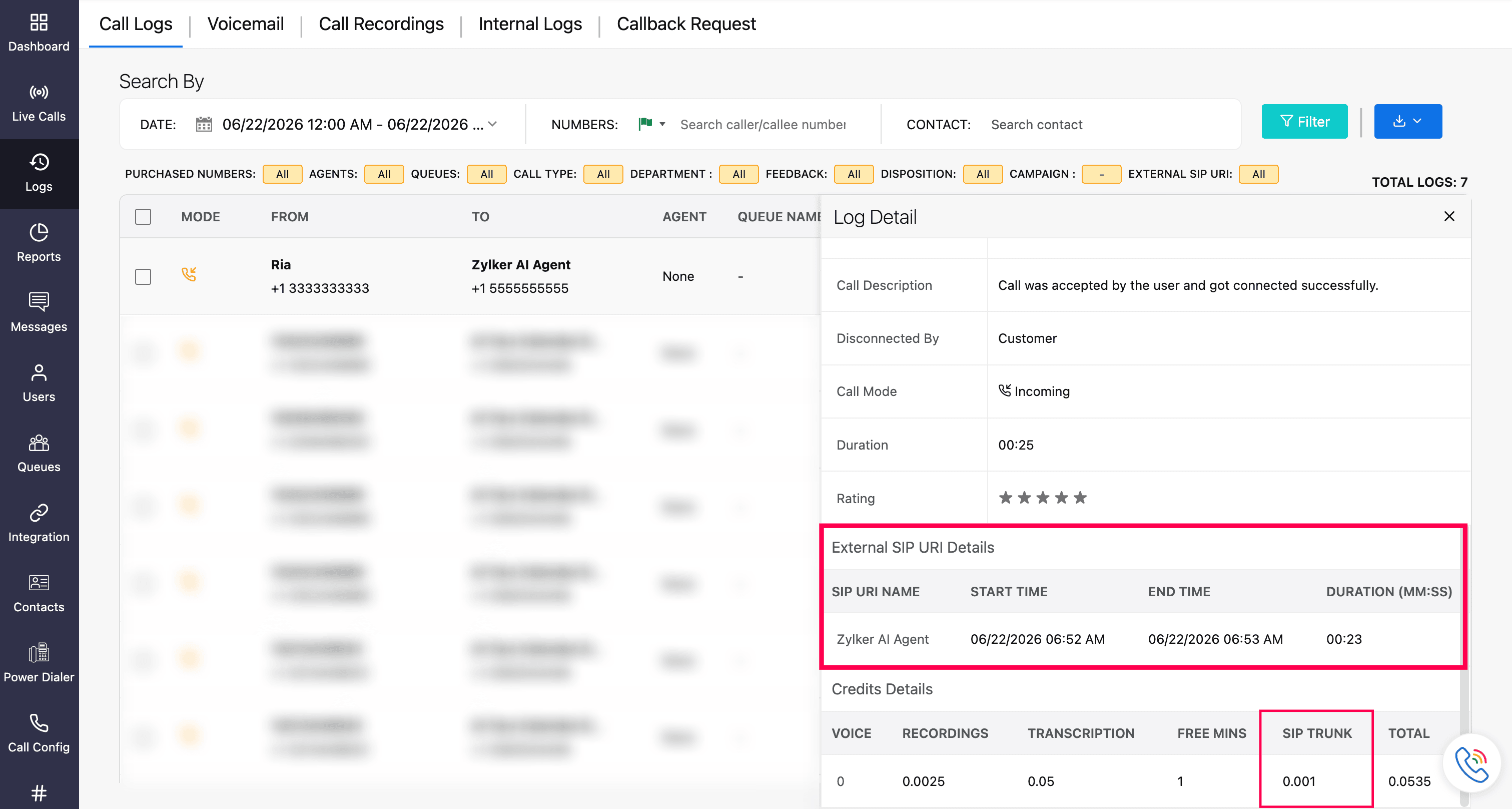
Go to the Logs module and click the required External voice AI call log.
In the Log Details tab, navigate to the External SIP URI Details section.
You can view the SIP URI Name, Start Time, End Time and the Duration of the call.
Additionally, under Credit Details, you can view the credits utilized for the call.