

Enhancing Assist’s user experience with state-of-the-art remote desktop connection features
When learning how to connect to remote desktop, you need to look for the right features. Assist’s extensive feature-set was designed to enable streamlined and top-notch remote support services.

Secured remote desktop connection: Connect to desktops Securely from anywhere
As an organization, Zoho is committed to the security and privacy of our customers' data. This commitment is backed by a combination of security features, latest protocols, internal policies and rigorous audits. Learn more about security and privacy in Zoho Assist.
How to connect to a remote desktop using Zoho Assist
Quick onboarding
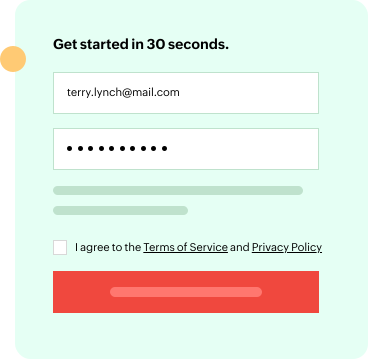
Zoho Assist has a simple how to connect to remote desktop connection process that can be completed in a few minutes. Go to zoho.com/assist and select the Sign up for free option on the home page. Specify your basic details, get your account verified, and you can enjoy a 15-day trial of the remote desktop connection software. If you are a part of Zoho, you can use the Sign In option and proceed to use our services.
Hosting your sessions
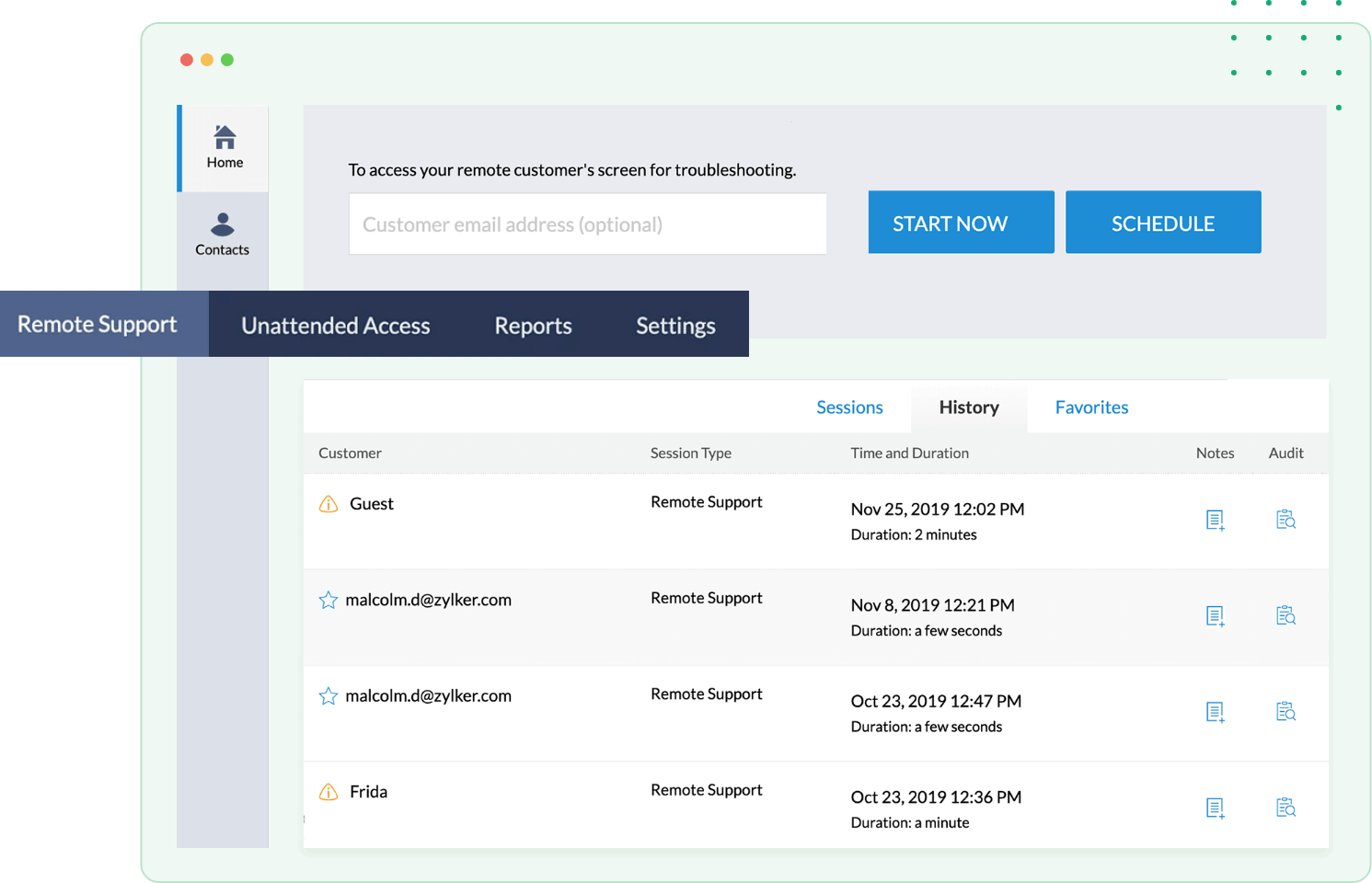
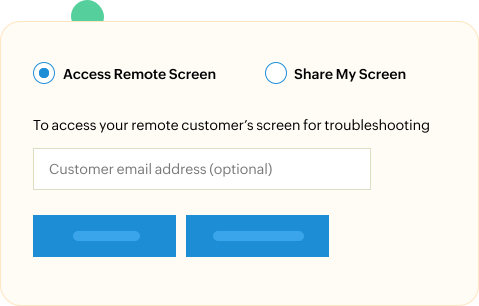
Next, you have to host a remote support session by inviting the user at the remote end. Initiating a remote desktop connection can be done via the Start Now or the Schedule a Session option. The latter helps you organize a session based on the remote end user’s availability. When planning to start a session right away, you can invite the remote end user by sharing the invite link, sending an SMS or email, or by asking them to navigate to join.zoho.com.
Establish a secure remote desktop connection
The customer or the remote end user should accept the invite and join the session to initiate a robust and uninterrupted remote desktop connection. After a successful connection, you will have access to all the features if you are in the trial edition.

What The Community Has to Say
Want to Connect to a remote desktop? Signup now for a free 15 day trial of Zoho Assist!
Frequently Asked Questions
Zoho Assist can be used to effortlessly connect to systems running Windows. Click here to connect your windows system for a remote support session.
Zoho Assist helps you host a secure remote support session and establish connection with the remote end user. You can do this by initiating or scheduling a session with one of the technicians and sharing the invite with them. Learn more.
Zoho Assist provides a 15-day trial version free of cost for all its customers. Post the trial period, we offer a free remote access plan and multiple paid plans, so you can choose one that best suits your requirements.
Yes, Zoho Assist offers a secure environment to host remote support sessions at anytime. To learn more about our security protocols. Click here.