Windows remote desktop connection
A remote desktop connection lets you access, view, and control a computer from a different location over the internet, as if you were sitting in front of it. With Zoho Assist, you can establish a secure, cloud-based remote desktop connection to devices on any major operating system, directly from your web browser, without changing firewall or proxy settings.
Start your 14-day free trial
Key Takeways
- A remote desktop connection lets you access, view, and control a computer from another location in real time, over the internet.
- Zoho Assist sets up in minutes with no VPN, firewall changes, or proxy configuration needed on either end.
- Sessions work across Windows, Mac, Linux, Android, and iOS, so the platform on either end doesn't matter.
- Every connection is protected with end-to-end SSL and 256-bit AES encryption, plus optional two-factor authentication.
- Unattended access lets you connect to a machine with no one present, ideal for servers and off-hours administration.
- A free plan covers personal use indefinitely, with a 15-day trial of enterprise features available at sign-up
What is a remote desktop connection?
A remote desktop connection is a technology that allows you to remotely access and control a computer or device from a different location over a network. Once connected, you see the remote machine's screen in real time and can interact with it fully, opening files, running applications, and transferring data, without being physically present.
For a deeper breakdown of how this connection works under the hood, see our guide on what remote desktop is.

Remote desktop connections are used for:
IT support:
Technicians resolving issues on a user's machine in real time
Remote work:
Employees accessing their office workstation from home
Server management:
IT admins managing infrastructure without on-site visits
Collaboration:
Teams sharing screens across locations for joint troubleshooting
Connect to Windows remote desktop in minutes
- Step 1:
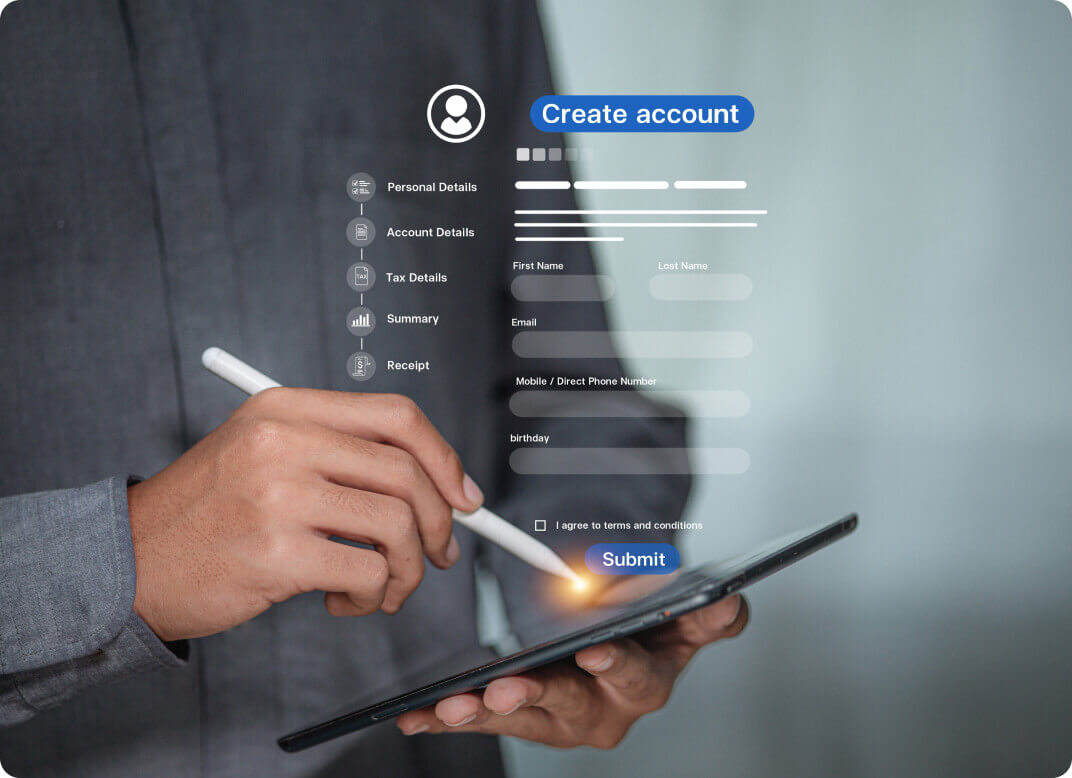
Create your Zoho Assist account
Sign up at zoho.com/assist with your email address. If you're already a Zoho user, click Access Zoho Assist to get started. First-time users get a 15-day trial with all enterprise features included. After 15 days, Zoho Assist remains free for personal use. You can create your free account here to get started right away.
- Step 2:
Initiate a remote support session
From your Zoho Assist dashboard, click Start Now to begin an instant session or Schedule to set a future date and time. Once the session is created, invite the remote user in one of three ways: send an SMS or email invitation, share the join link directly via chat, or ask them to navigate to join.zoho.com and enter the 9-digit session ID.

- Step 3:
Connect and take control
The remote user clicks the link or enters the session ID at join.zoho.com. A lightweight agent installs automatically on their machine with no prior setup needed on their end. Once they accept the connection, you have full access to their remote desktop: keyboard control, mouse control, file transfer, and all session tools.
Remote desktop connection across multiple platforms and devices
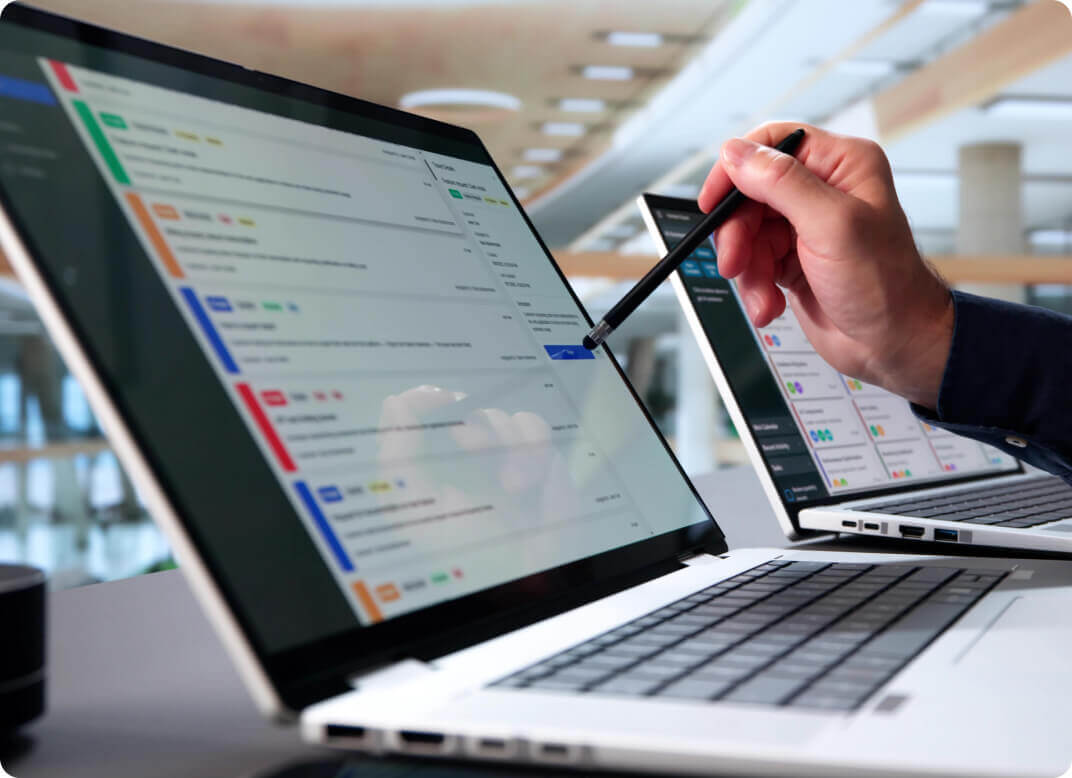
One of the most common challenges with remote desktop connections is compatibility across different operating systems and devices. Zoho Assist removes that barrier entirely. Whether you're connecting from or to a Windows PC, a Mac, a Linux server, or a mobile device, the connection process is identical, with no platform-specific workarounds needed.
Zoho Assist supports remote desktop connections to and from:
Key features for remote desktop connections
Zoho Assist brings together the core capabilities IT teams and support technicians need for reliable remote access: instant on-demand connections, built-in help desk integrations, and enterprise-grade security. Each feature works across Windows, Mac, and Linux without additional configuration.

On-demand remote support
Initiate a remote desktop connection instantly, with no need for the end user to pre-install anything on their machine. Share a session link or session ID, and the connection starts within seconds. Zoho Assist's on-demand remote support sessions run across every major platform, with no firewall or proxy configuration required.

Help desk integrations
Start remote desktop sessions directly from your existing help desk tools without switching platforms. Zoho Assist connects with ServiceNow, Zendesk, Jira, and Zoho Desk. Session details automatically sync back to the original ticket once the session ends. APIs and a mobile SDK support custom integrations.
See all integrations.
Secure remote desktop connection
Each remote desktop connection through Zoho Assist runs on end-to-end SSL and 256-bit AES encryption. Two-factor authentication with one-time password verification is available on every account. Sessions stay connected across major proxies and firewalls without configuration changes, and the Action Log Viewer records a full audit trail.
Learn more about secure remote access
Unattended remote access
Connect to any machine with no user present, ideal for server maintenance, off-hours administration, or always-on workstation access when no one is at the remote end. Zoho Assist keeps the connection active and secure at all times.
See our unattended remote PC access software for full details.
Remote desktop connection applications
Zoho Assist supports remote desktop connections across a wide range of everyday IT and business scenarios, from remote work to server management. Each use case runs on the same secure, cross-platform infrastructure with no added setup.
Remote work and telecommuting
Employees can securely access their office computers from home or while traveling, opening files and applications exactly as if they were physically at their desk. Zoho Assist provides remote access from any device, including laptops, tablets, and smartphones, without VPN complexity or additional network configuration on either end.
IT support and troubleshooting
IT technicians can connect to a user's machine in real time, diagnose issues, push fixes, transfer files, and resolve problems without an on-site visit. Session recording and detailed action logs keep a complete record of every support interaction, helping teams track resolutions and maintain accountability across sessions.
Accessing personal computers
Connect to your home computer from anywhere to retrieve a file you forgot, run an application only installed on that machine, or check something quickly without needing to be physically present. Zoho Assist keeps the connection secure and available whenever you need it, from any device.
Managing servers remotely
System administrators can connect to servers and network infrastructure remotely for maintenance, updates, and diagnostics. Zoho Assist supports headless server connections without requiring a user to be present at the remote machine, making off-hours administration and routine upkeep faster and less disruptive to daily operations.
Collaboration across teams
Share screens with colleagues across different locations for joint troubleshooting, code reviews, demonstrations, or training sessions. Multiple technicians can join the same session when additional expertise is needed, making it easy to resolve complex issues together without scheduling delays or switching between separate tools.
Secure data access
Access sensitive files and systems remotely without transferring data to an unsecured local device. All data stays on the remote machine throughout the session. Your connection is encrypted end-to-end, and every session is fully logged for compliance, auditing, and internal security review purposes.

Remote desktop connection on mobile
Establish and manage remote desktop connections directly from your iOS or Android device using the Zoho Assist mobile app. Full keyboard and mouse control, multi-monitor navigation, and file transfer are all available from your phone or tablet, so you can provide support or access your machines from anywhere.
Learn more about mobile remote supportBest ratings across software review sites
“Easy connection, not require admin privileges in the users’ PC, and works behind firewalls."

Frequently asked questions
A remote desktop connection is a technology that lets you access and control a computer from a different location over the internet. You see the remote machine's screen in real time and can interact with it fully, moving the mouse, typing, opening files, and transferring data, without being physically present. It is used for IT support, remote work, server management, and personal computer access.
With Zoho Assist, no complex network setup or VPN is required:
- Open your browser, go to assist.zoho.com, and sign in with your account
- From your dashboard, click Start Session or Share Screen
- A session key or link is generated automatically
- Share the session key or link with the person at the remote machine
- The remote user enters the session key at assist.zoho.com or clicks the link you shared
- They download and run a small executable file when prompted
- Once they approve the connection, you can view and control their screen remotely
Zoho Assist works with Windows 10, Windows 11, and Windows Server 2016 through 2025 as the primary supported environments. Legacy versions like Windows 7, 8, and 8.1 can still connect on the remote end, though upgrading is recommended for the latest features and security.
Yes. Zoho Assist lets you select files from either the local or remote machine and send them with a single click. File transfers happen in the background and do not interrupt the active desktop sharing session.
Yes. Zoho Assist's unattended remote access feature lets you connect to a machine at any time without someone present at the other end. This is typically used for server maintenance, off-hours administration, and always-on workstation access.
Here are the most common fixes:
- Check that both devices have a stable internet connection
- Enable Remote Desktop on the remote machine via Settings > System > Remote Desktop
- Allow Remote Desktop through Windows Defender Firewall for private and public networks
- Confirm the remote computer is not in sleep, hibernation, or powered off
- Verify port 3389 is open and forwarded in your router or firewall settings
- Check Network Level Authentication settings under System Properties > Remote
- Restart Remote Desktop Services via Win + R > services.msc
- Update your RDP client and install all pending Windows updates
For a full breakdown of connection errors and fixes, see our guide on remote desktop can't connect to the remote computer.
Yes. Zoho Assist offers a free remote access plan for personal use that includes on-demand remote support sessions, screen sharing, and connection to up to 5 unattended devices. A 15-day trial of all enterprise features is available on sign-up, no credit card required.
Explore the full remote desktop suite
- Remote desktop software: Compare features and find the right remote desktop solution for your team
- What is remote desktop?: A complete guide to how remote desktop technology works
- Remote PC access software: Always-on unattended access for servers, workstations, and endpoints
- Remote control software: Live, attended remote control for IT help desks and support teams