How to remotely control Android phones & Tablet
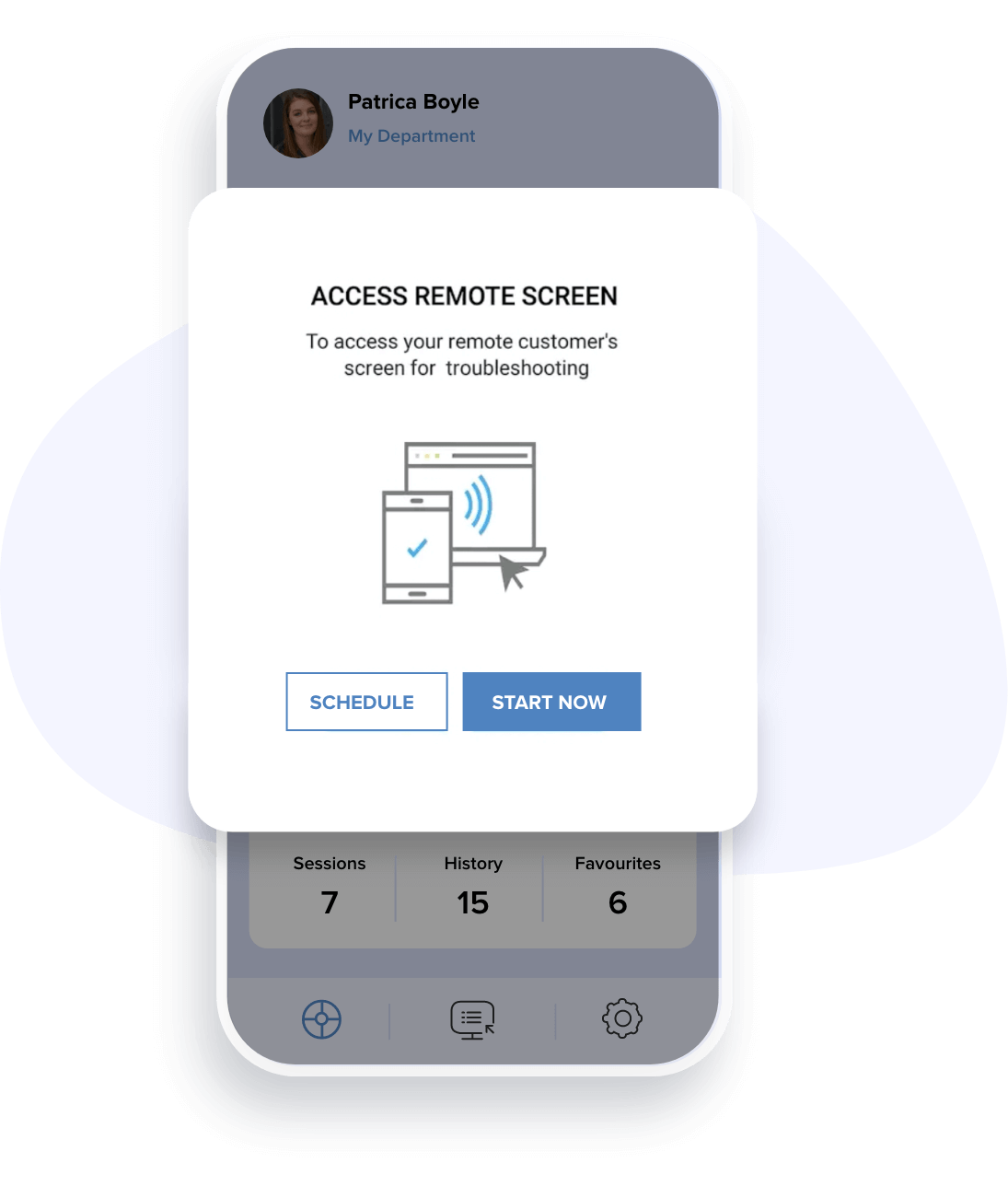
Zoho Assist's android remote control application allows you to seamlessly control your mobile phones, tablets, and other devices running on Android.
Download Zoho Assist for Android
Zoho Assist remote assistance app for Android is available for free of cost at the Google Playstore. Simply search for Zoho Assist in the Google Playstore and start supporting your Android devices from anywhere.
Download Zoho Assist for Android
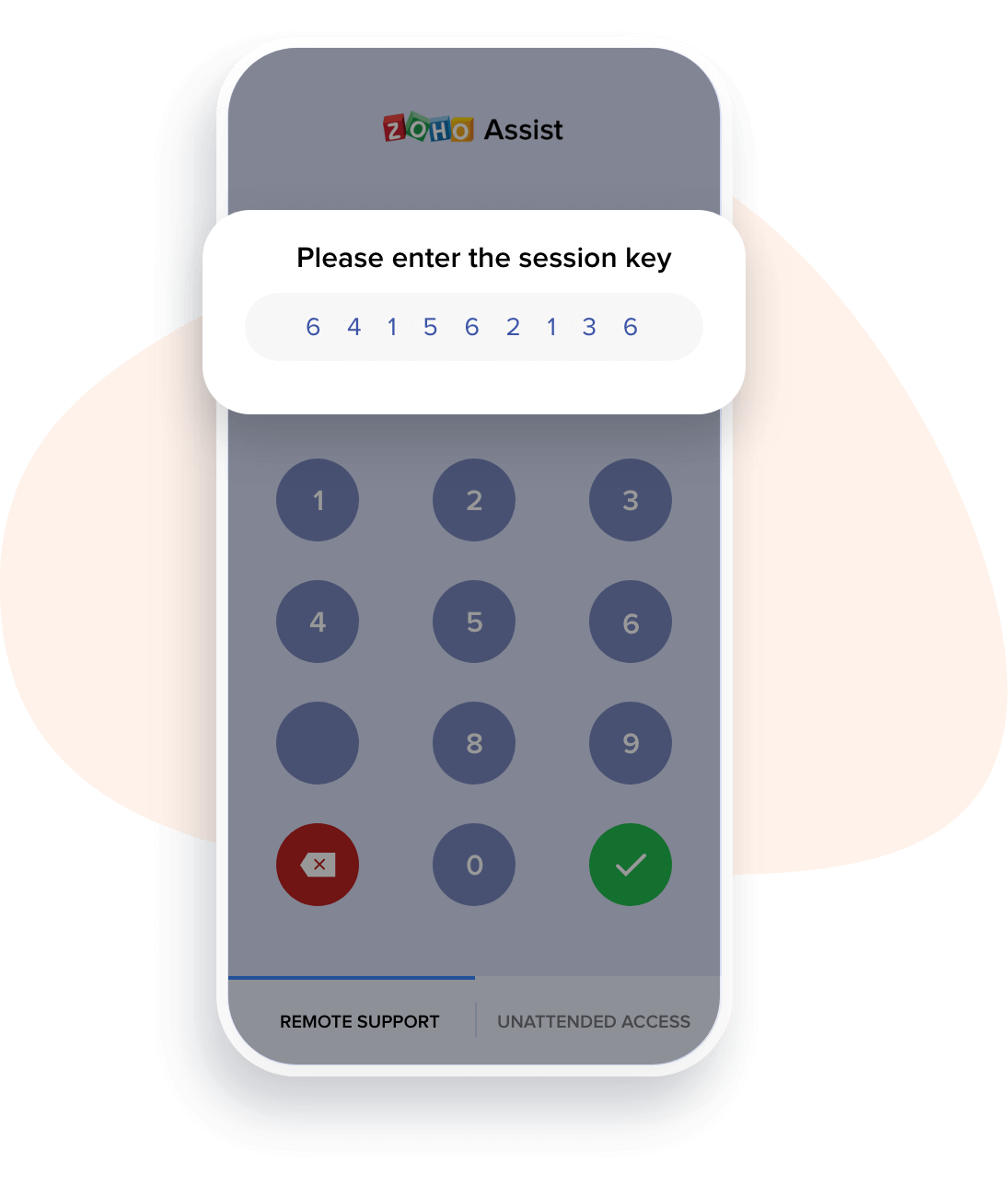
You can now share your mobile screens with technical support technicians and vice-versa during training and demonstrations with this Remote Desktop App for Android. During a session, you can toggle between multiple monitors, sync your clipboard across devices, and annotate your screen to communicate effectively. You can also use Zoho Assist, remote access tool to remote access your Android phones, remote control smartphones such as Samsung, Lenovo, Sony Experia, and HP from your PC and vice-versa.
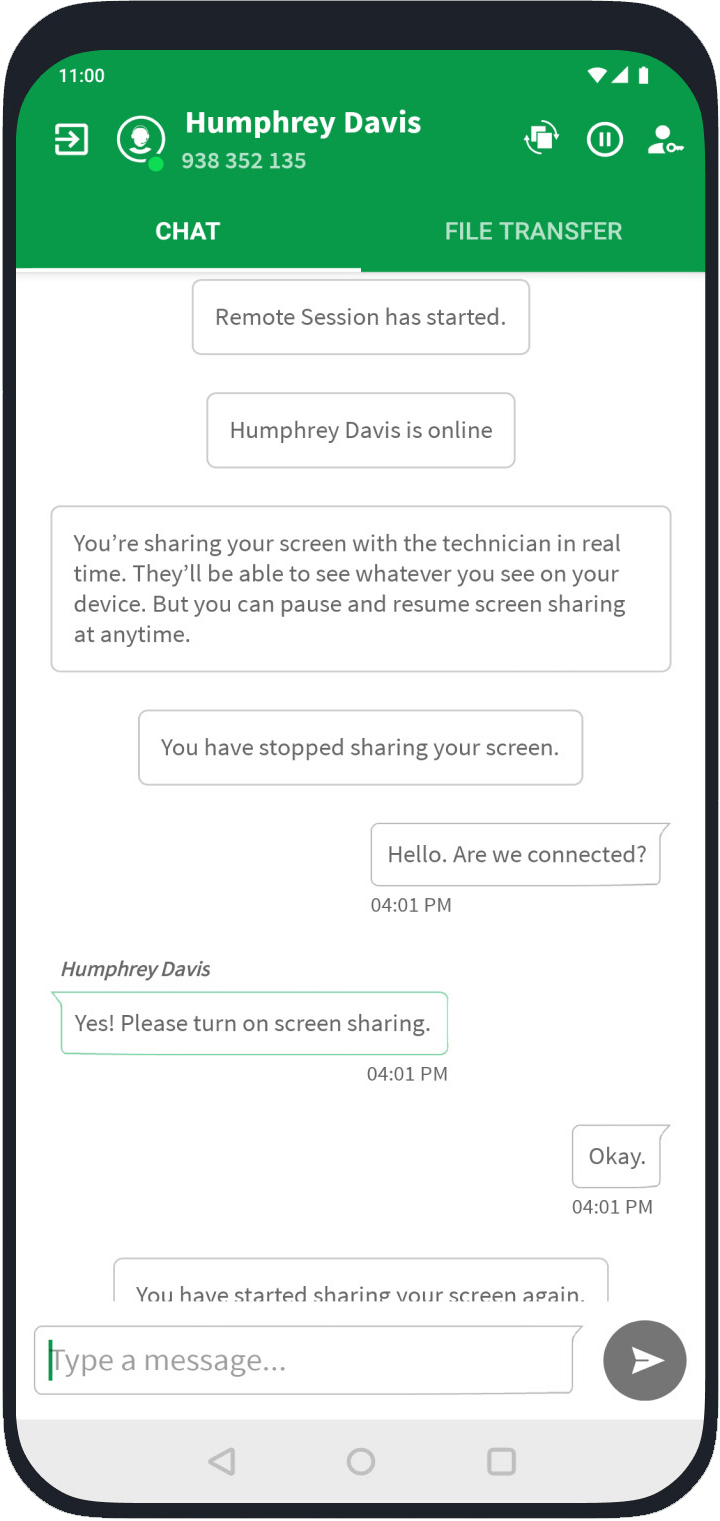
Using Zoho Assist’s Live Chat, you can communicate with your peers directly from your Android devices. Quick and easy communication lets you resolve your IT issues instantly.
With Zoho Assist’s Mobile Software Development Kit, you can embed remote support functionalities to your Android applications by which you can start a remote assistance Android support session right from your customized app. Embedded remote support for android phones is a secure and reliable solution if you are interested in accessing computer screens remotely, troubleshoot mobile devices, or upgrading software versions using your Android devices. Learn More.
You can register your application on the SDK Integrations tab after logging into your Zoho Assist account.
After importing the AssistSDK module into your product you can generate an SDK Token from
https://assist.zoho.com/app/settings/integrations/sdk
Integrate your mobile app on to your new Mobile SDK project.
Post integration, you’ll be able to control your completely customised mobile application matching your business prospects.
On-demand or scheduled remote support helps you establish support sessions with your remote customers at the best possible time. You can transfer files, organize your support sessions, and control remote devices efficiently. You can connect with a wide variety of remote devices including Windows, Mac, Linux, Ubuntu, and iOS.
Learn More.
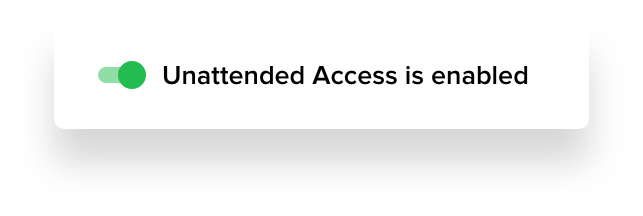
Unattended remote access over internet helps you access, manage, and control devices remotely without a customer present at the other end. Using Zoho Assist’s mass deployment, you can configure android unattended remote access for Android phones in just a few clicks. Simply register and enroll your mobile devices, and you’re ready to access them remotely with Assist’s advanced mass deployment features.
Learn More.
Smoothly navigate between multiple monitors connected to a remote computer during a support session, right from your Android device.
Transfer files between your Android devices remotely up to 2GB. While working from home, you can access, manage, and link these files on your workplace devices at the office, directly from your Android device.
Learn More.
Perform specific system diagnostic operations such as opening the command prompt, accessing the task manager and device manager, and viewing the status of the groups, hardware, printers, services, software, and users directly from your Android device. You can also perform remote power operations such as shut down, log-off, restart, lock, and hibernate as needed, without initiating a Android remote assistance session.
Remote access and control tools have become indispensable for modern businesses. The need for businesses to adopt an efficient and user-friendly remote desktop connection tool continues to become apparent, as do the enormous benefits these tools provide.
Technical glitches on Android devices disrupt work, especially across locations. Android remote control lets IT teams diagnose and fix problems instantly to minimize downtime—no onsite visits needed.
Connect in real-time for live guidance and teamwork. Support agents can use remote control features to help users complete tasks and solve problems faster.
Demonstrate fixes step-by-step to train teams on resolving issues independently. This builds technical skills, reduces recurring incidents, and improves operational efficiency.
Resolve most device problems virtually to eliminate travel expenses, minimize downtime, and maintain smooth operations across locations.
Zoho Assist provides enterprise-grade Android remote support that enables IT teams to securely manage and troubleshoot employee devices from anywhere. With unattended mass deployment and two-way screen control, issues can be resolved faster with minimal disruption. Other features include built-in live chat, file transfers up to 100GB, detailed session reports, and SDK embedding for custom apps to ensure scalable, transparent support. Backed by Zoho’s strong security and privacy standards, Zoho Assist is trusted by global enterprises to deliver reliable, efficient Android device management.
Remote control sessions usually work smoothly, but occasional issues can come up. Here are some quick ways to troubleshoot it.
Remote control on Android allows you to remotely access your phone from a laptop or any other device. It lets you view the screen, control the phone, open apps, fix problems, and manage the device securely over the internet connection.
Yes. Remote control of an Android phone is supported through remote access tools like Zoho Assist, which require the device owner to grant the necessary permission for the session.
You can provide remote assistance for Android phone from PC by installing the unattended access agent on your Android phone.
You can remotely control Android phone from another phone using Zoho Assist’s free remote access app for Android.
No. No, on enabling the standard security protocols employed in Assist, it is not possible to remotely access your Android phone without permission. Click here to know more about blocking remote access to your phone.
Among available solutions, Zoho Assist stands as a best-in-class application for remotely controlling Android devices, as it offers secure connections, real-time screen control, easy setup, and reliable performance for personal and professional use.
Yes. When you use a trusted solution like Zoho Assist, Android remote control uses encrypted connections and permission-based access to keep user data protected.
Take a 15 Day free trial, no credit card required. Alternatively, contact us to get an affordable quote based on your requirements.