



Key Takeaways
Zoho Assist gives technicians live control of any PC. It connects to Windows, Mac, or Linux machines in seconds, with no firewall or proxy changes required on the user's end.
A session covers the full fix, not just viewing. Technicians get full keyboard, mouse, and screen control, transfer files up to 100GB in either direction, annotate the live display, and bring in a second technician, all within one session.
Sessions survive a reboot. Zoho Assist reconnects automatically after a restart, so the technician resumes without re-sending the link.
Starting a session takes three steps. Generate a link, the user clicks it to connect through a temporary browser client, and the technician takes control to resolve the issue.
Every session is secured and logged. 256-bit AES encryption, explicit user consent, MFA, and full audit logs support HIPAA, GDPR, and SOC 2 compliance.
It integrates directly into existing help desk tools. Native integrations with Zendesk, Freshdesk, ServiceNow, Jira, Zoho Desk, Spiceworks, and Zoho SalesIQ mean session outcomes log back to the ticket automatically.
A free plan is available with no commercial use restrictions, with paid tiers adding multi-technician sessions, recording, and white-label branding.
What is remote desktop control software?
Remote desktop control software lets a technician take live, interactive control of a user's computer to diagnose and fix issues in real time, with the user's consent and full visibility of everything on screen.
For help desk teams, this means a technician can see exactly what the user sees, type on their keyboard, move their mouse, and resolve the issue directly, without asking the user to describe the problem, follow verbal instructions, or do anything beyond clicking the session link.


Who uses remote desktop control software?
Remote desktop control software is used by help desk agents, IT support team leads, and managed service providers who need remote support software to resolve user-facing issues as they happen.
The three most common users are:
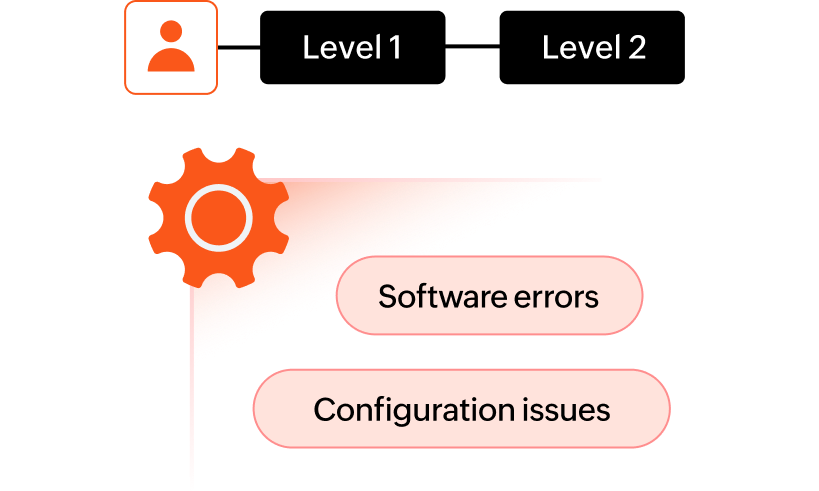
Level 1 and Level 2 help desk agents handling software errors, configuration issues, and guided troubleshooting for end users who cannot resolve issues themselves.
IT support team leads managing technician performance, session quality, and compliance audit trails across a multi-agent support operation, a core reason larger teams move to the Zoho Assist Enterprise plan .
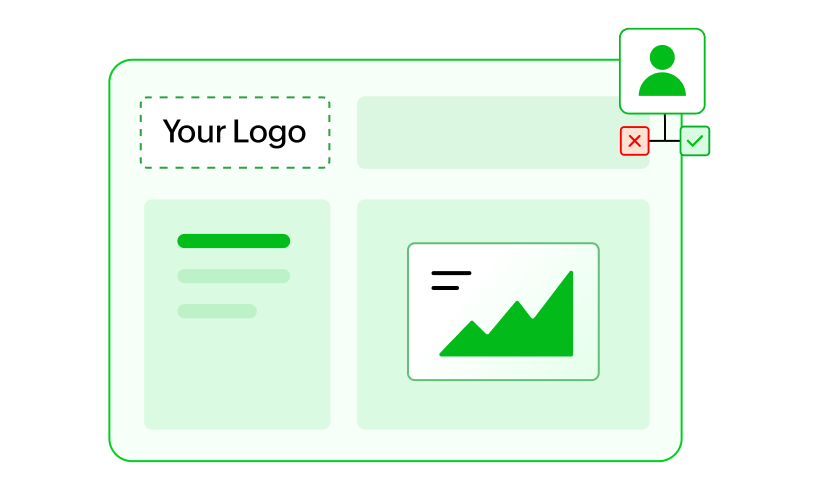
Managed service providers (MSPs) supporting multiple client organizations from a single dashboard, with white-label branding and per-client access controls.
What happens in a remote desktop control session?
A remote desktop control session moves through five stages, from the technician's initial connection to automatic session recording at close. It is not just a feature checklist; it is a live, continuous workflow. Here is how a typical Zoho Assist session runs from connection to ticket close.
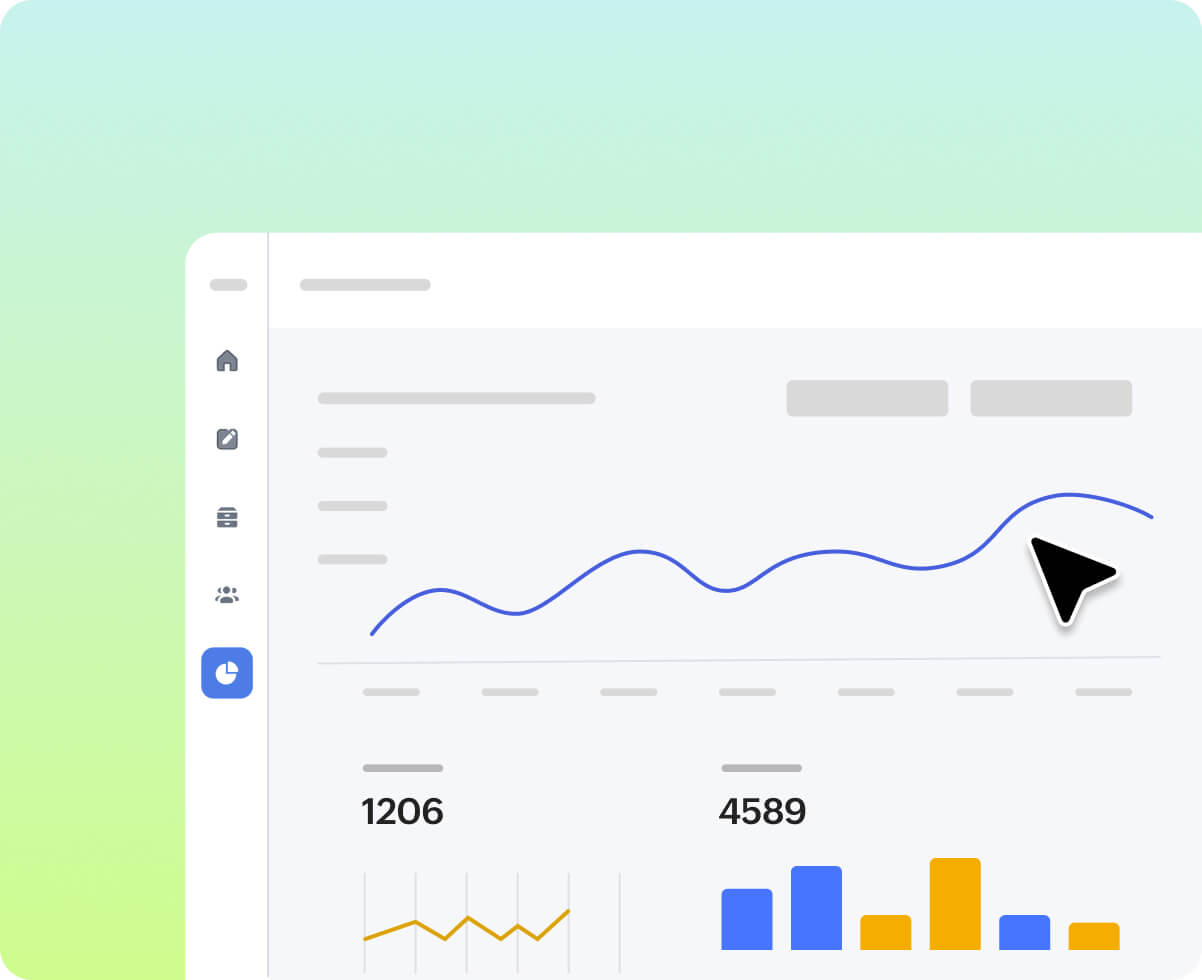
Connect and take control
The technician gets full keyboard and mouse control within seconds of connecting. The user clicks a link, a lightweight client runs in their browser, and the session goes live with no setup on their end.
Transfer files mid-session
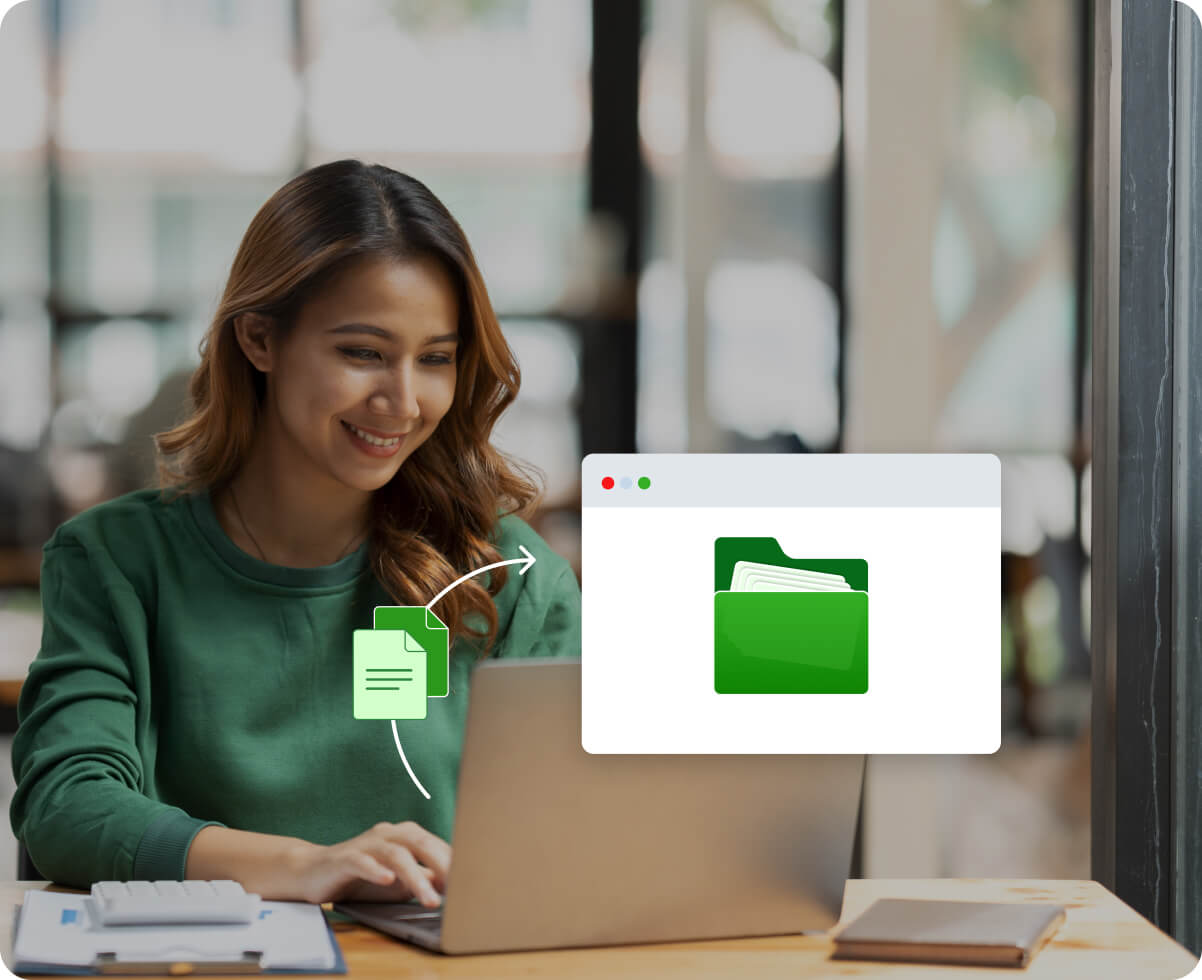
Patches, installers, or diagnostic scripts move directly through the active session, up to 100GB in either direction , without the user downloading anything separately or the technician breaking connection.
Show the user what to do
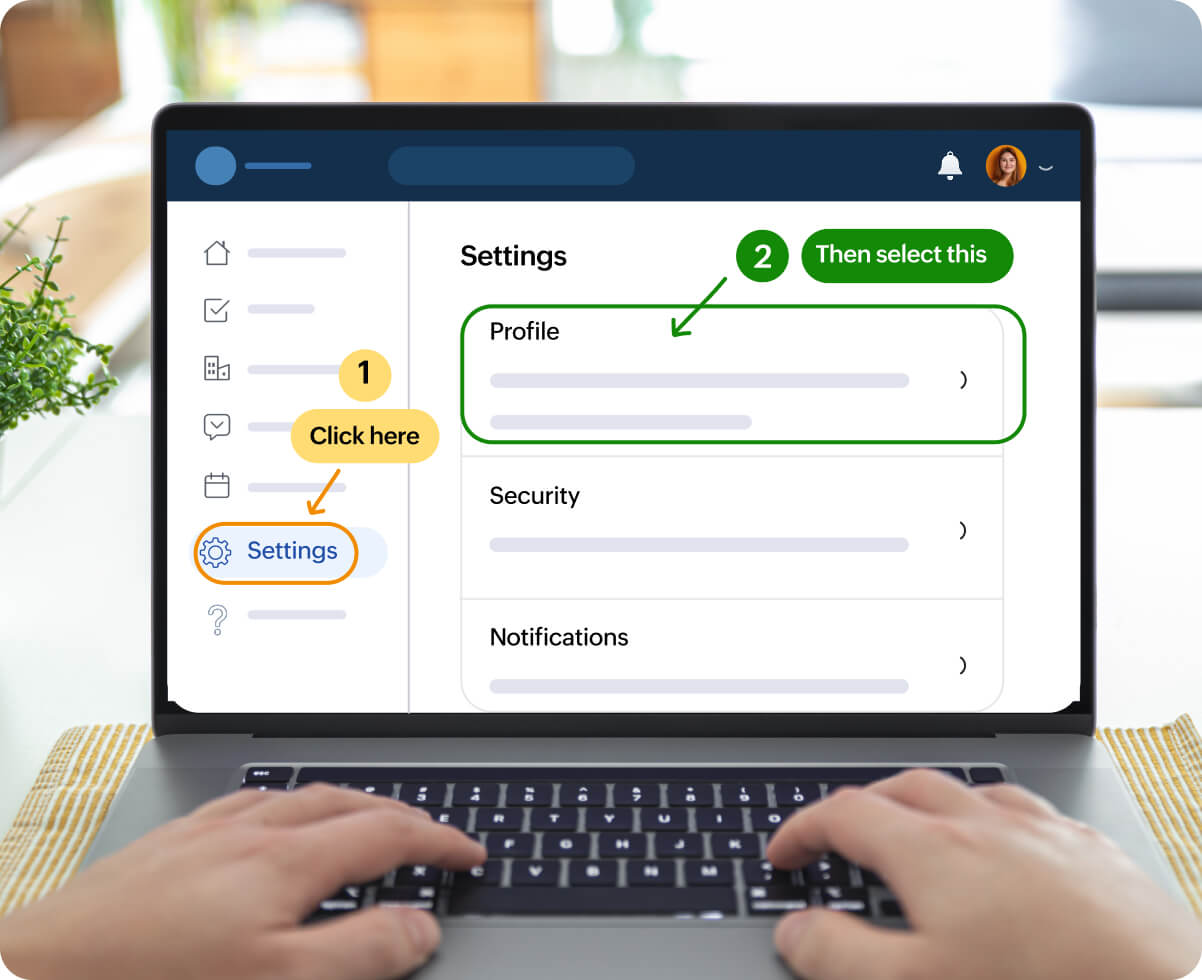
The technician draws, highlights, and labels directly over the live display, so the user sees exactly where to click and what to change instead of following typed instructions.

Loop in a senior engineer
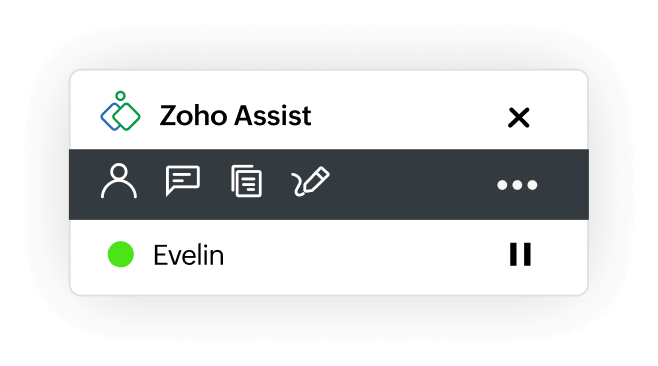
A senior engineer joins the live session instantly when the issue needs escalation. There's no hand-off, no dropped connection, and no repeat explanation from the user. The session continues without interruption.
Reconnect automatically after a reboot
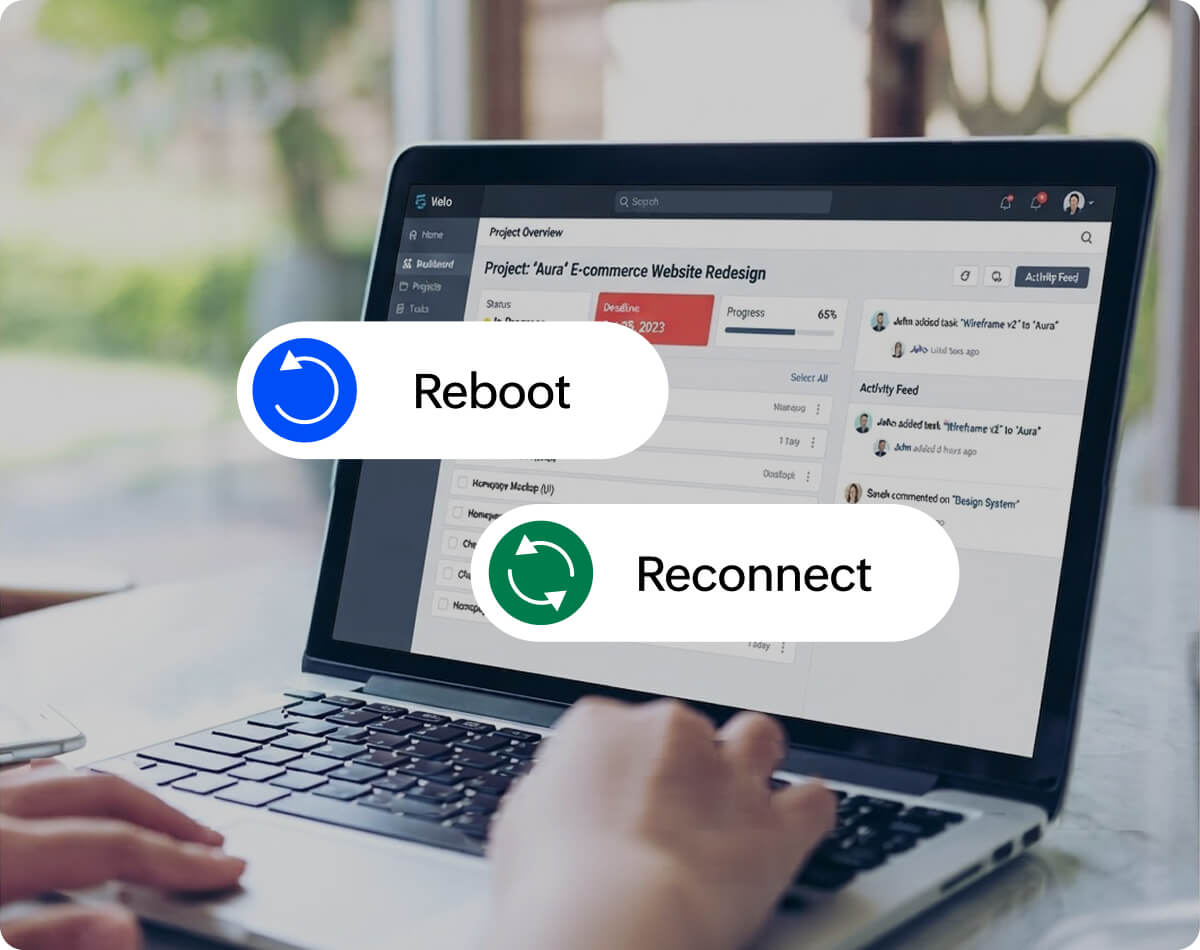
The machine restarts and Zoho Assist reconnects on its own, a core advantage of cloud-based remote desktop architecture, so the technician resumes exactly where they left off without re-sending the session link.
Throughout the session, everything records automatically in the background , leaving a complete activity trail for compliance audits, a reference for recurring issues, and training material for new agents once the ticket closes.
Common support scenarios where remote desktop control solves
Remote desktop control resolves issues that chat, phone, or email can't: escalations, remote deployments, and configuration fixes that are easier to show than explain. Remote support software earns its place when a live, interactive session is the only way to resolve the issue quickly and correctly.
Scenario 1
The remote desktop session that handles L1 to L2 without dropping the user
A user reports an application error. The L1 agent connects, replicates it, and invites a senior engineer into the session instantly. The user never has to re-explain the problem, and the session records automatically for the ticket.
Scenario 2
The software deployment that skips the on-site visit entirely
A remote employee needs a licensed application installed. The technician connects, transfers the installer directly to the user's machine via secure file transfer , runs it remotely, and confirms success without the user doing anything beyond accepting the session.
Scenario 3
The guided fix that resolves the issue and builds user confidence
An end user is overwhelmed by a configuration error. The technician connects, uses screen annotation to highlight exactly what needs to change, walks the user through each step, and records the session so it can be replayed later.
How to start a remote desktop control session in 3 steps
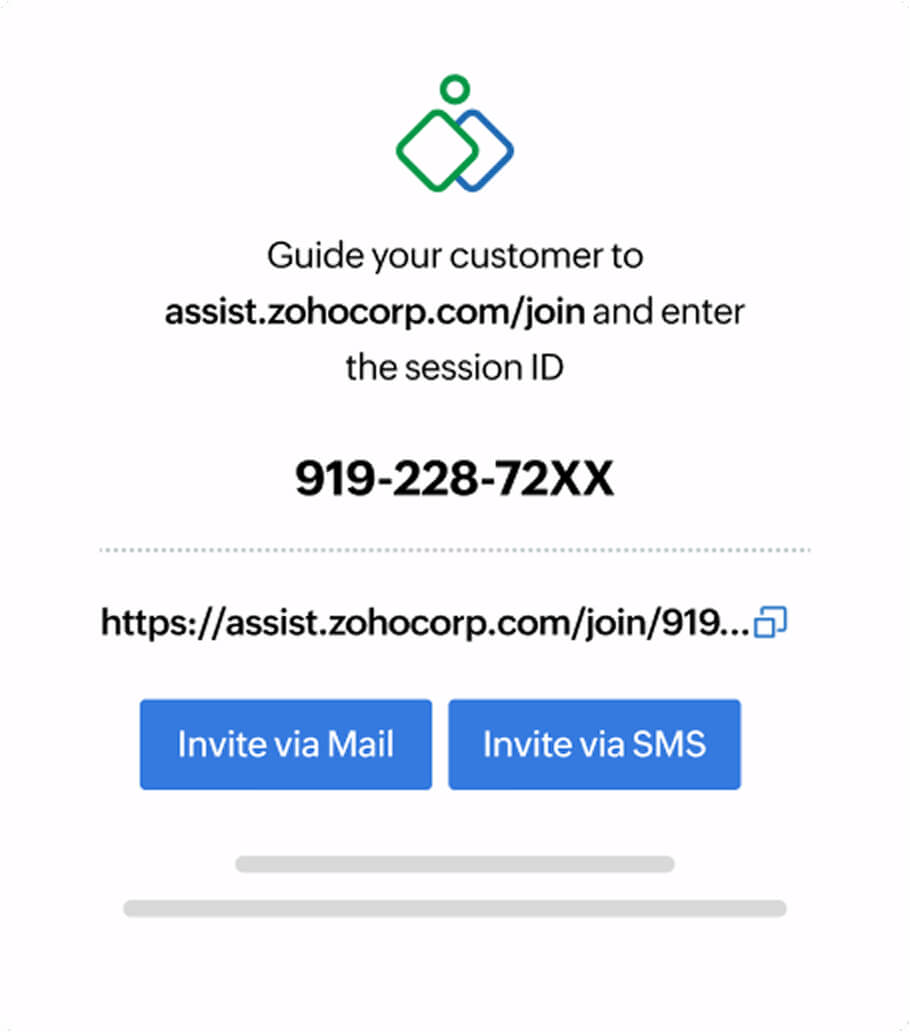
Starting a session takes three steps: generate a link, have the user connect, then take control and resolve.
Step 1:
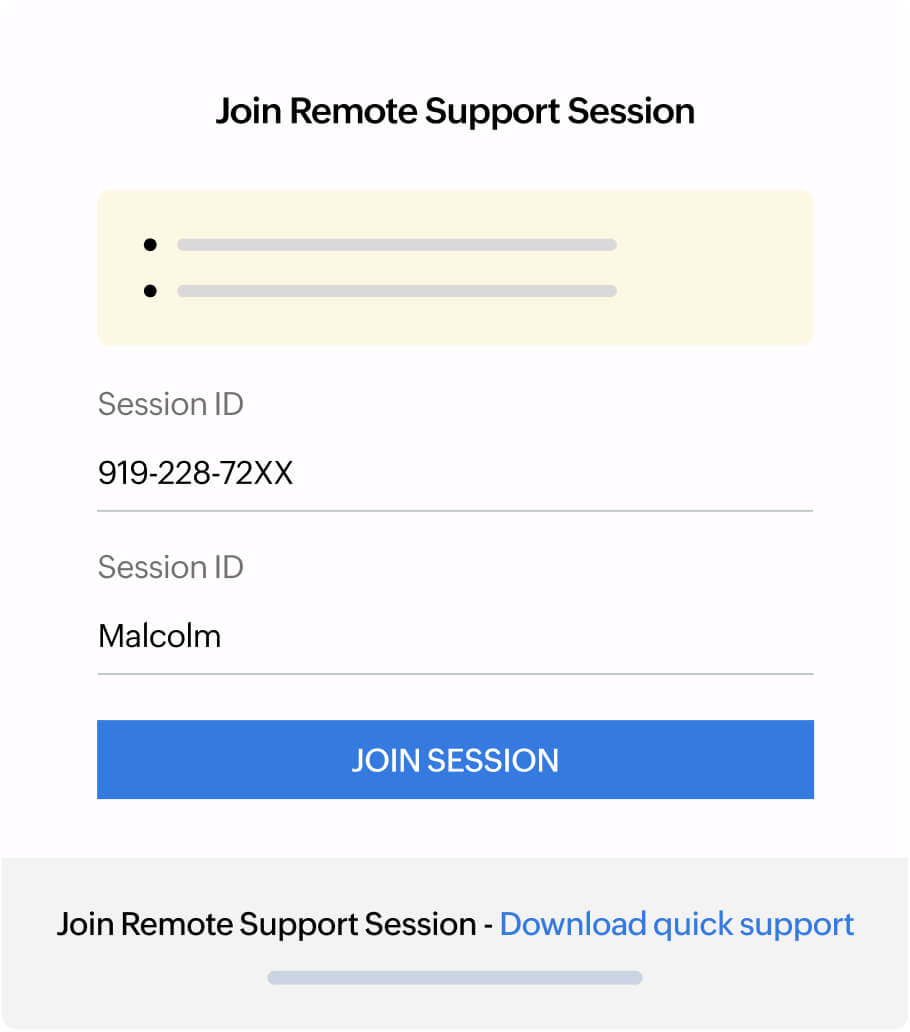
Generate and send the session link
Create a session from your Zoho Assist dashboard or directly from your help desk ticket. Send the link to the user via email, chat, or the ticketing platform integration.
Step 2:
User clicks and connects
The user clicks the link and a lightweight temporary client runs automatically in their browser. No prior installation, no IT configuration, and no firewall changes are needed on their end.
Step 3:
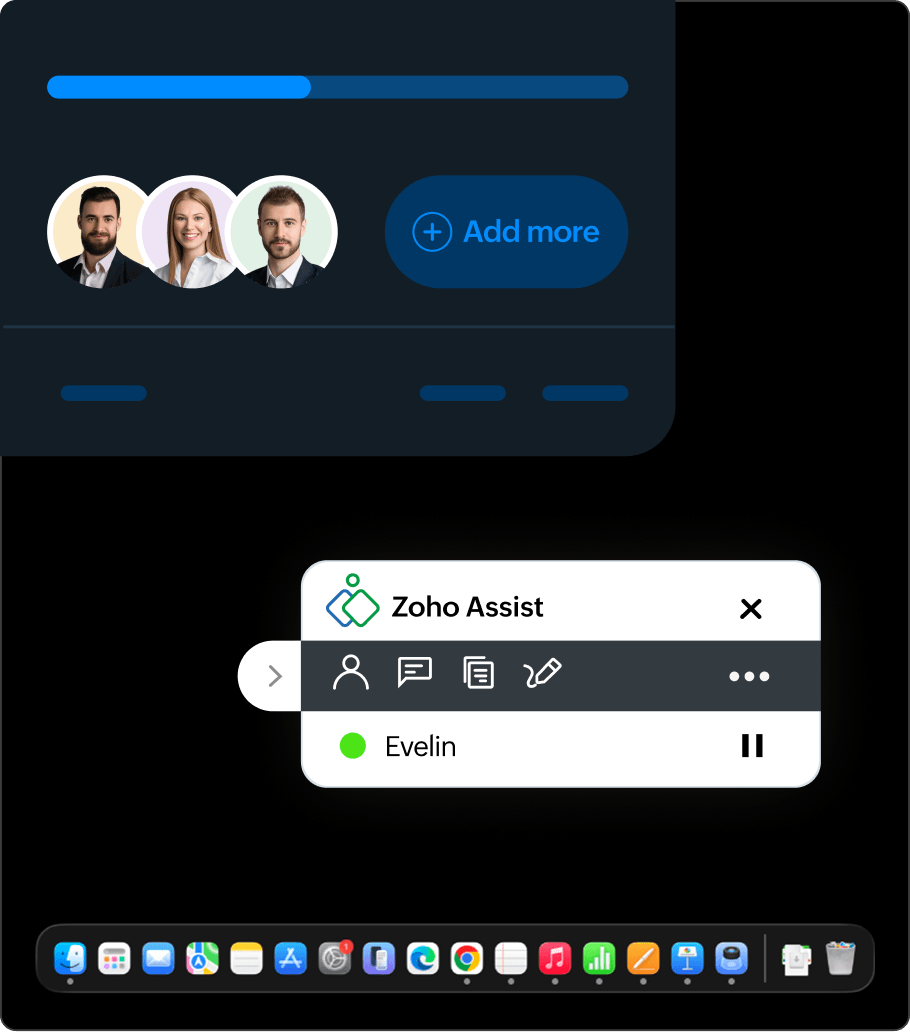
Take control and resolve
Get full keyboard, mouse, and screen control instantly. Transfer files, annotate the screen, bring in a second technician, and reboot without ending the session, all from one window.
How does Zoho Assist fit into your help desk stack?
Zoho Assist integrates directly with seven help desk and ticketing platforms, so technicians launch sessions and log outcomes without leaving the tools they already use.
Unlike API-based integrations that require separate configuration, these are built in to Zoho Assist and require no additional setup. Session summaries are automatically written back to the originating ticket on completion. Browse the full integrations directory full integrations directory for CRM, ITSM, and automation connections beyond help desk platforms.
Is Zoho Assist secure enough for enterprise help desks?
Yes. Every Zoho Assist session is protected by 256-bit AES encryption, requires explicit user consent before a technician can connect, and generates a full audit trail for HIPAA and GDPR compliance.
Every session is protected by:
256-bit AES encryption over TLS:
Every session is secured with the same standard used by financial institutions, government agencies, and healthcare providers worldwide.
Explicit user consent:
No technician can access the machine until the user approves the session, and the user can terminate it at any point.
Multi-factor authentication (MFA)
All technician accounts require an additional verification step at login, preventing unauthorized access if credentials are compromised.
Role-based technician access
Team leads assign technicians to specific clients or departments, so each agent only reaches the machines relevant to their work.
Full session audit logs
Every session generates a complete timestamped activity record to satisfy HIPAA, GDPR, and SOC 2 compliance audit requirements.
Zoho as a platform holds ISO 27001 certification and operates under GDPR-compliant data processing agreements. See the Zoho Assist compliance and certification details for the full breakdown and how our enterprise teams use these controls in practice in our Zoho Assist customer stories.
Best ratings across software review sites
“Easy connection, not require admin privileges in the users’ PC, and works behind firewalls."

Frequently asked questions
Yes. The user must explicitly approve the session before a technician can connect. Once live, the user sees all activity in real time, can see who has joined, and can close the session window to end it at any point.
Yes. Remote desktop control is for attended, user-present sessions where a technician resolves an issue live alongside the user. Remote access connects to machines with no one present, which is a separate product category Zoho Assist also supports.
Yes. A second technician can join any active session instantly and either observe or take shared control. There is no session restart, no limit on control transfers, and the user is notified when a new technician joins the call.
No. Users connect by clicking the session link, which runs a small temporary client automatically. Nothing is permanently installed on their machine, no IT configuration is required, and the client removes itself when the session ends.
Zoho Assist matches TeamViewer and AnyDesk on core live control capabilities and adds native integrations for seven help desk platforms that neither competitor offers out of the box. Unlike TeamViewer, Zoho Assist has a free plan with no commercial use restrictions. See the full Zoho Assist vs TeamViewer comparison or the Zoho Assist vs AnyDesk comparison.
Windows RDP requires both machines on the same network or a VPN and has no annotation, multi-technician support, or help desk integrations. Zoho Assist works over the internet without a VPN, supports multiple simultaneous sessions, and includes compliance logging and collaboration tools. See the full comparison on our Zoho Assist vs. RDP page.
Yes. Zoho Assist offers a free plan for small teams with no time limit and no commercial use restrictions, making it a genuinely free remote desktop control option. Paid tiers unlock multi-technician sessions, session recording, help desk integrations, and white-label branding. See the Zoho Assist pricing page for a full plan breakdown. For more common questions, visit the Zoho Assist FAQ page.