Add Conferencing using Zoom
You can add Zoom conferencing while creating or editing an event in Zoho Calendar. When Zoom conferencing is added, Zoho Calendar automatically creates a meeting in your Zoom account and includes the meeting link in the event invitation sent to attendees.
Note
Zoom integration is available only for the users who have subscribed to one of the Zoho Mail's paid plans. To avail this feature, you will need to upgrade to any of our paid plans.
Authenticate Zoom conferencing in Zoho Calendar
- Log in to Zoho Calendar.
- Navigate to Settings > Calendar > Integrations.
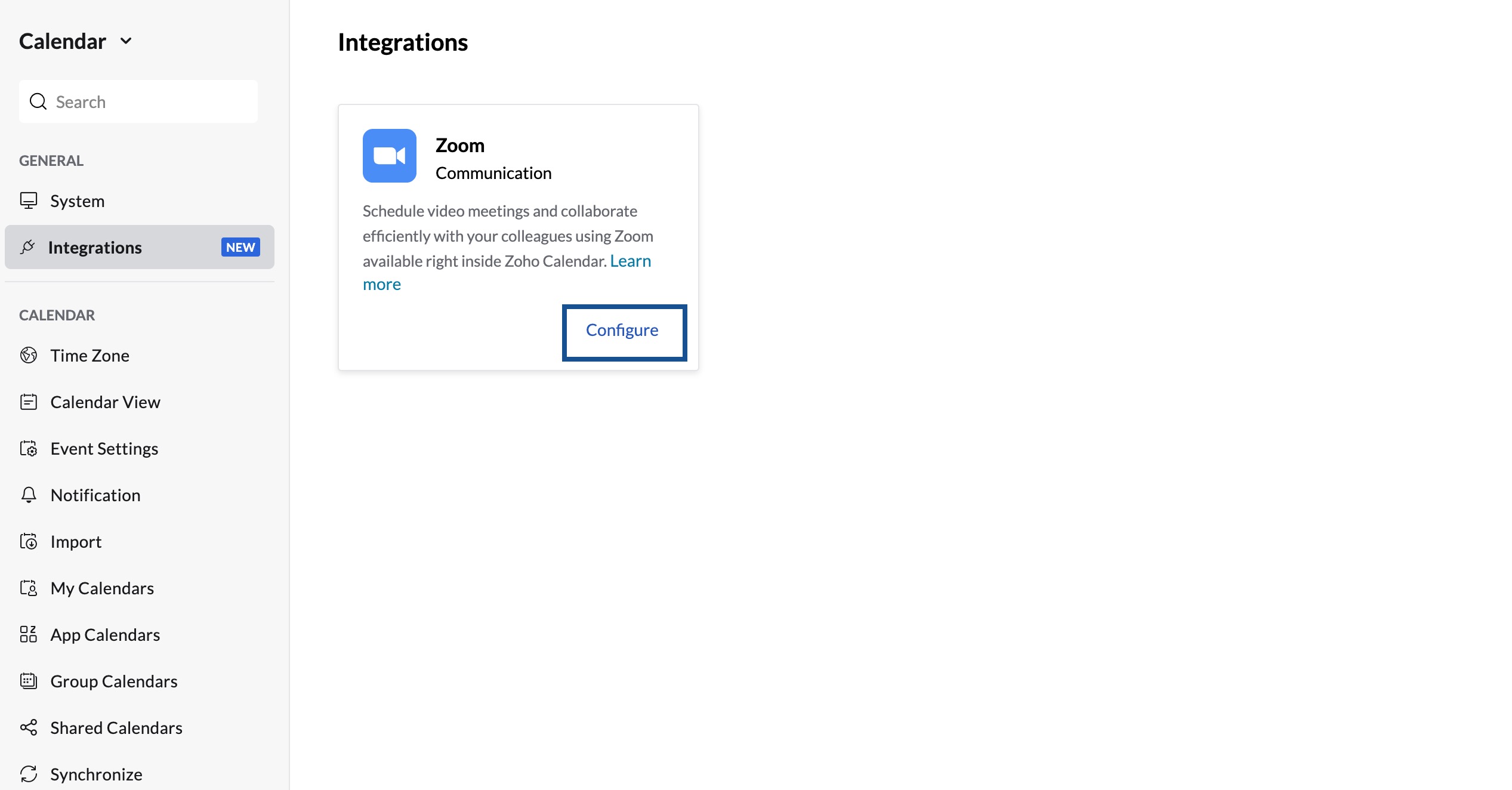
- On the Zoom integration card, click Configure.
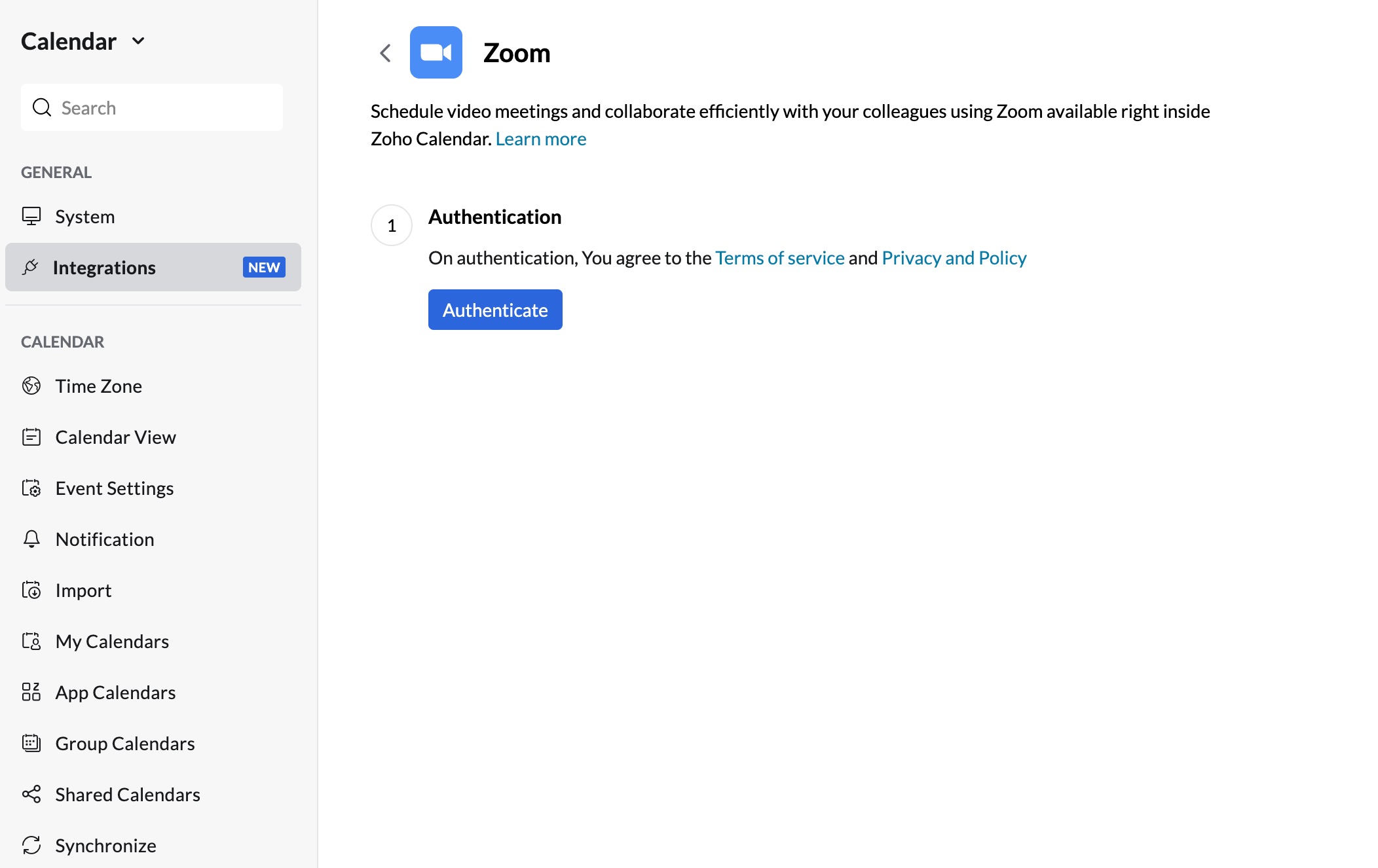
- Click Authenticate.
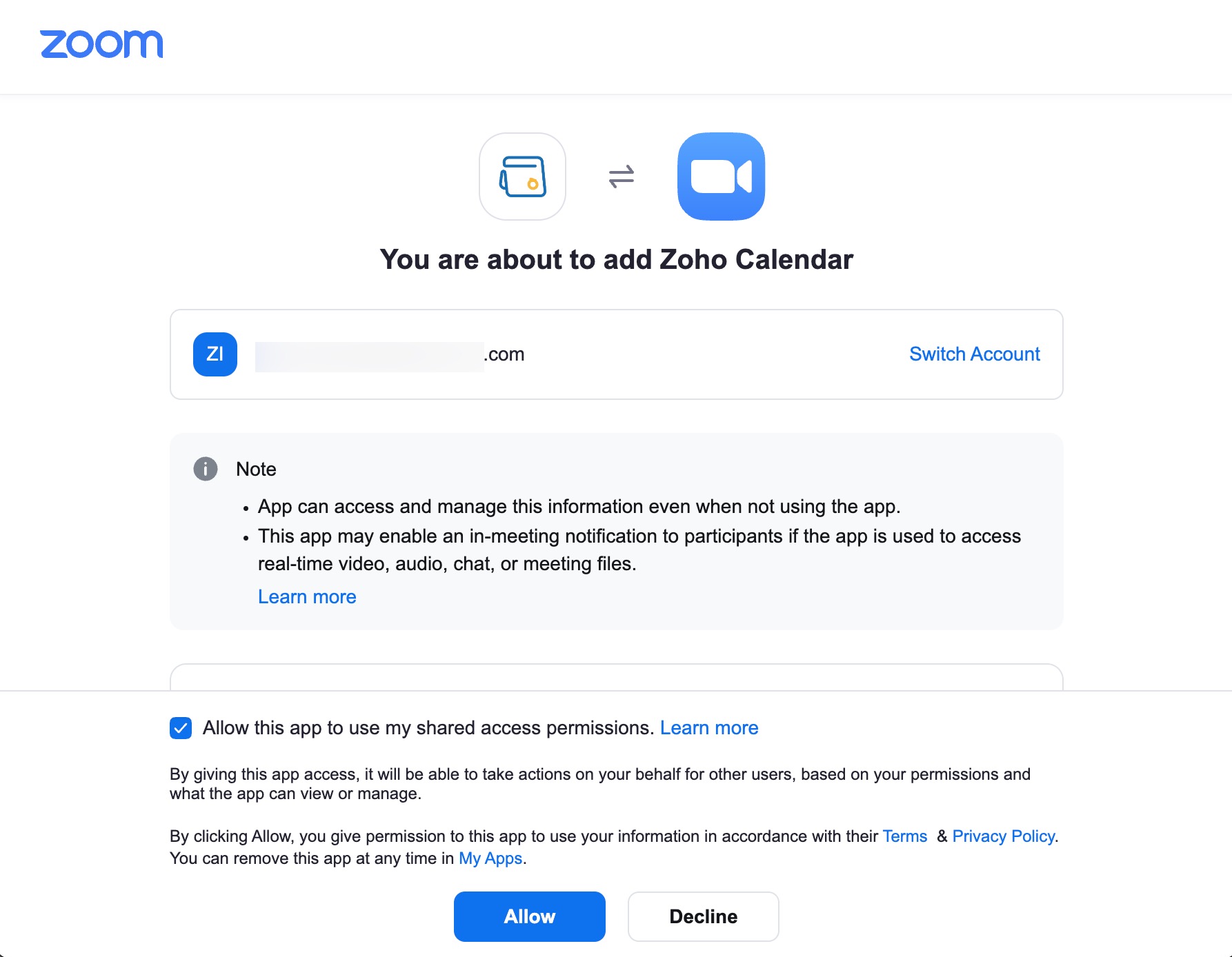
- Sign in to your Zoom account.
- If prompted, select Allow this app to use my shared access permissions.
- Click Allow.
After successful authentication, your Zoom account is displayed under Integrations.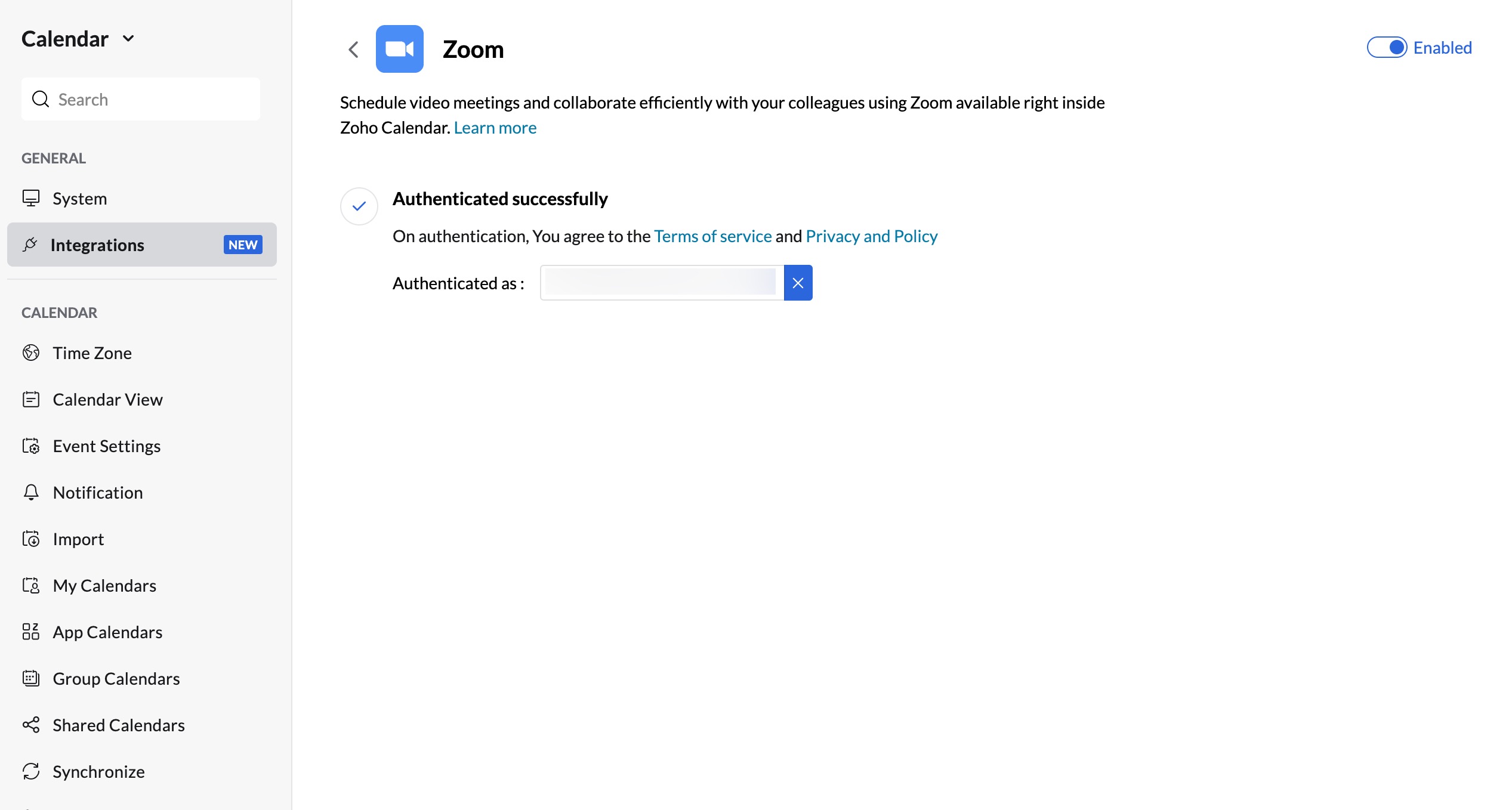
You can use the toggle on the Zoom integration card to show or hide Zoom Meeting from the Add Conferencing menu while creating or editing events.
Remove Zoom Authentication in Zoho Calendar
To disconnect your Zoom account:
- Go to Settings > Calendar > Integrations.
- On the Zoom integration card, click the Remove icon.
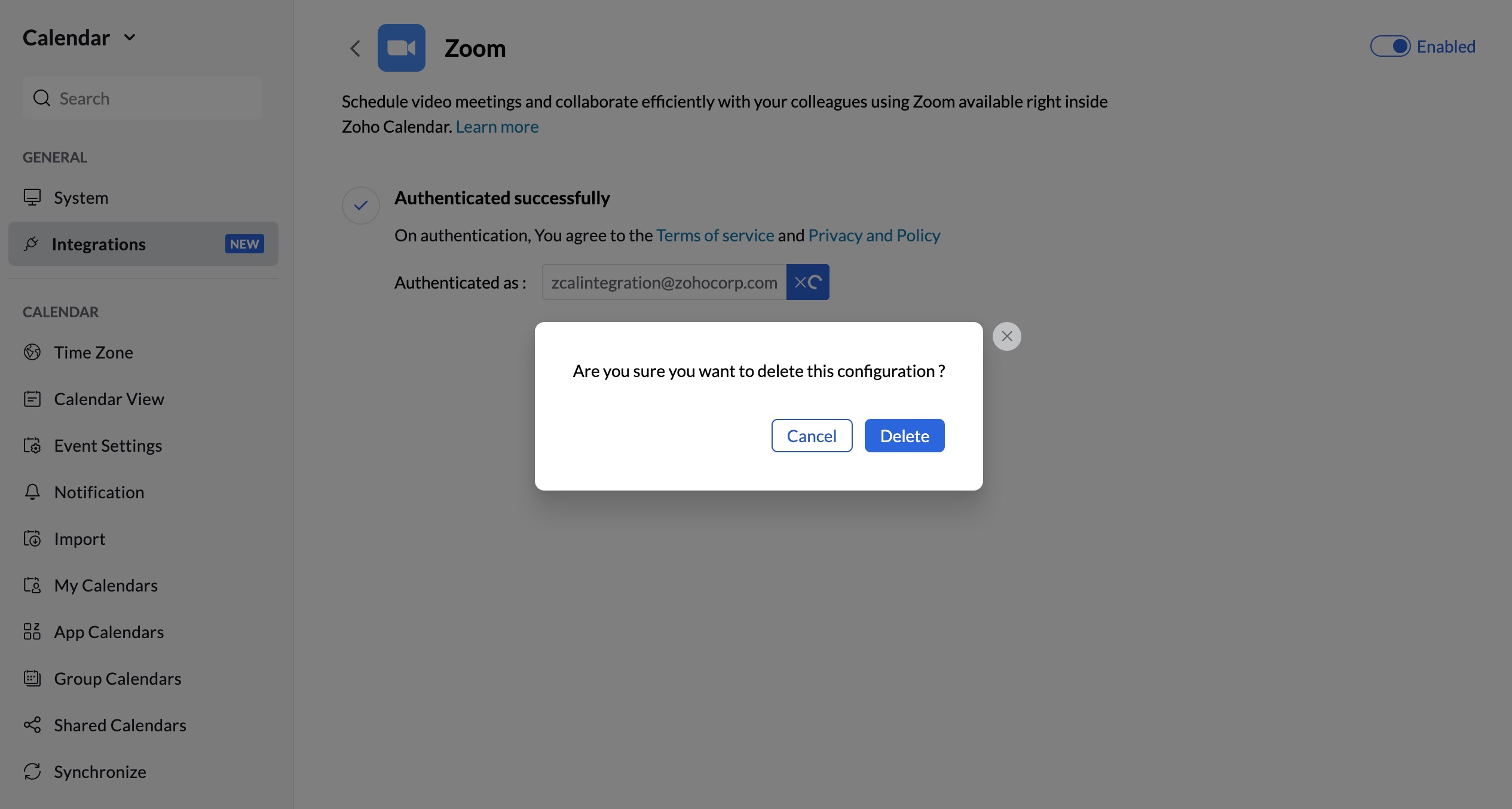
Your Zoom account is removed from Zoho Calendar and can no longer be used to schedule Zoom meetings.
Note
If you are still signed in to Zoom in your browser, clicking Authenticate re-authenticates the integration automatically. Otherwise, you'll be prompted to sign in again.
Add Zoom Conferencing to an Event
- Log in to Zoho Calendar.
- Create a new event or edit an existing event.
- Provide the event details such as Event title, Date, Time, Attendees, and other required information.
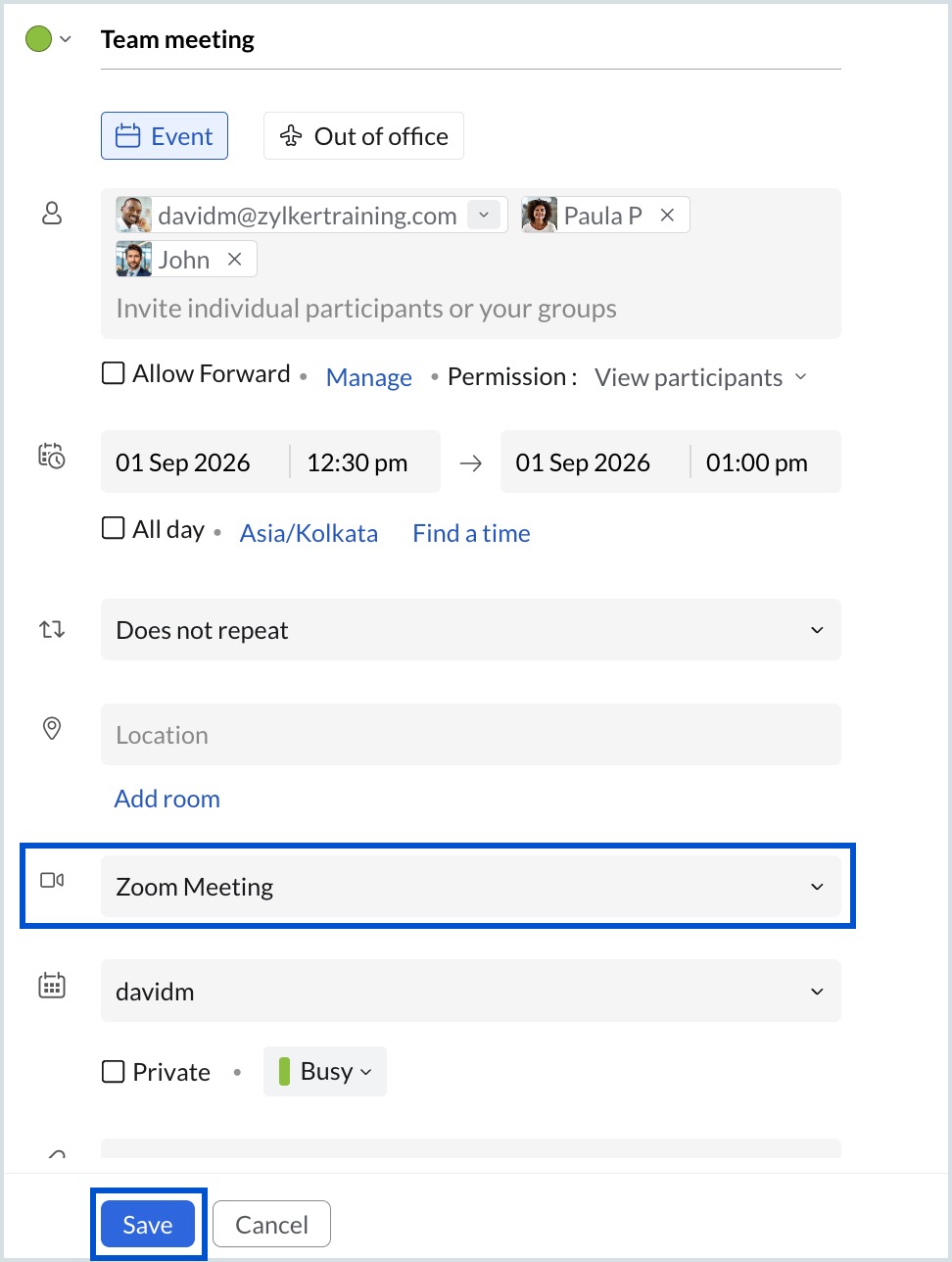
In the Create Event/Edit Event tab, click Add Conferencing, select ZoomMeeting from the drop-down list, and click Save.
Note
If you haven't authenticated Zoho Calendar with Zoom, click Authenticate and authorize Zoho Calendar to access your Zoom account.
- In the Send Event Invitation window, choose the the preferred invitation option and click Confirm.
A Zoom meeting is created automatically. The meeting link is available in the Quick View and View Event pages, where you can copy the link or start the meeting. The meeting link is also included in the event invitation email sent to the attendees. You can also find the meeting in your Zoom account under Meetings > Upcoming, where you can view, start, edit, or delete the meeting.
Note
- Changes made directly in the Zoom application are not reflected in Zoho Calendar.
- You cannot add Zoom conferencing while creating an event in a Group Calendar.
Add Zoom conferencing to a Repeat Event
- Log in to Zoho Calendar.
- Click on the New Event button on the left pane. A separate Create event tab will be opened.
- Enter the Event title and choose the Event color.
- Choose the Time zone, Date, and Time of the event occurrence.
- Check the Repeat option checkbox.
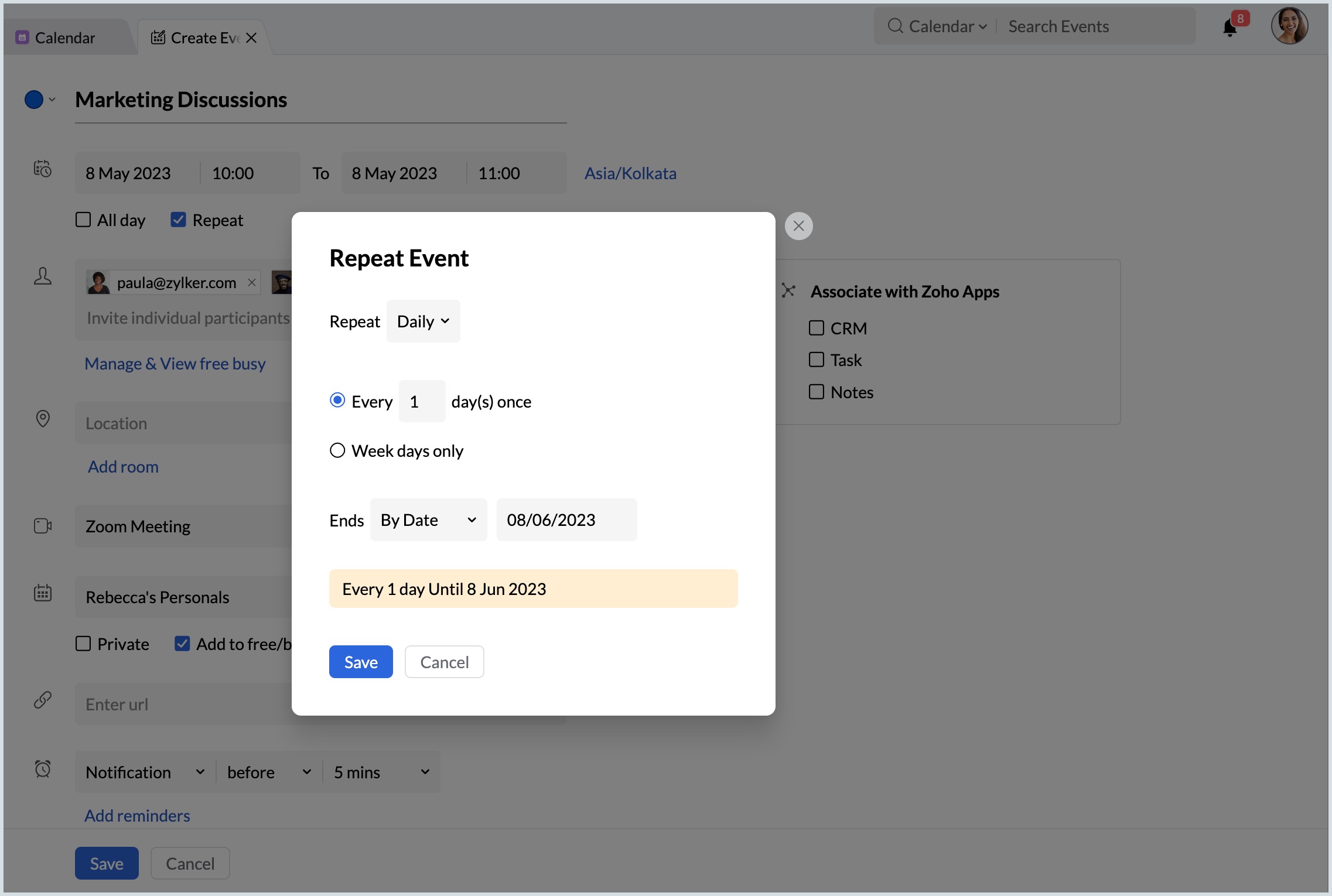
- A Repeat event pop-up will appear. Choose Daily/ weekly/ monthly from the Repeat drop-down menu.
- For daily events- Check the days' interval checkbox if you want the event to occur once in n number of days and enter the number of days once in which the event should be repeated.
- For weekly events- Enter the number of weeks (s) once in which the event should be repeated and select the days on which the event should be repeated weekly.
- For monthly events- Enter the number of months (s) once the event should be repeated. Check the On-Day checkbox if the event should occur on a particular month's date and enter the date. If you want the event to occur on a particular day and particular week select the week number and day from the drop-down menu.
- Click on the Ends dropdown,
- Select By Date and choose the date from the Calendar pop-up on which the event should end.
- Select By Count and enter the number of occurrences after which the event should end if, the event has a definite number of sessions. A statement with the details of the repeat event will be displayed at the bottom of the Repeat event pop-up and Click Save.
- Click on the add conferencing option and select Zoom meeting from the drop-down.
- Enter other details like the Email address of the attendees, Location, etc., and choose the Calendar in which the event should be created.
- Click Save.
The repeat event is created with Zoom conferencing.
Limitations for Zoom Conferencing in Repeat Events
- Zoom conferencing for repeat events is not supported for events that occur for more than 24 hours (both all-day and multi-day events).
- Zoom conferencing is not supported when you create a new event on the past date.
Troubleshooting
Unable to Authenticate Zoom
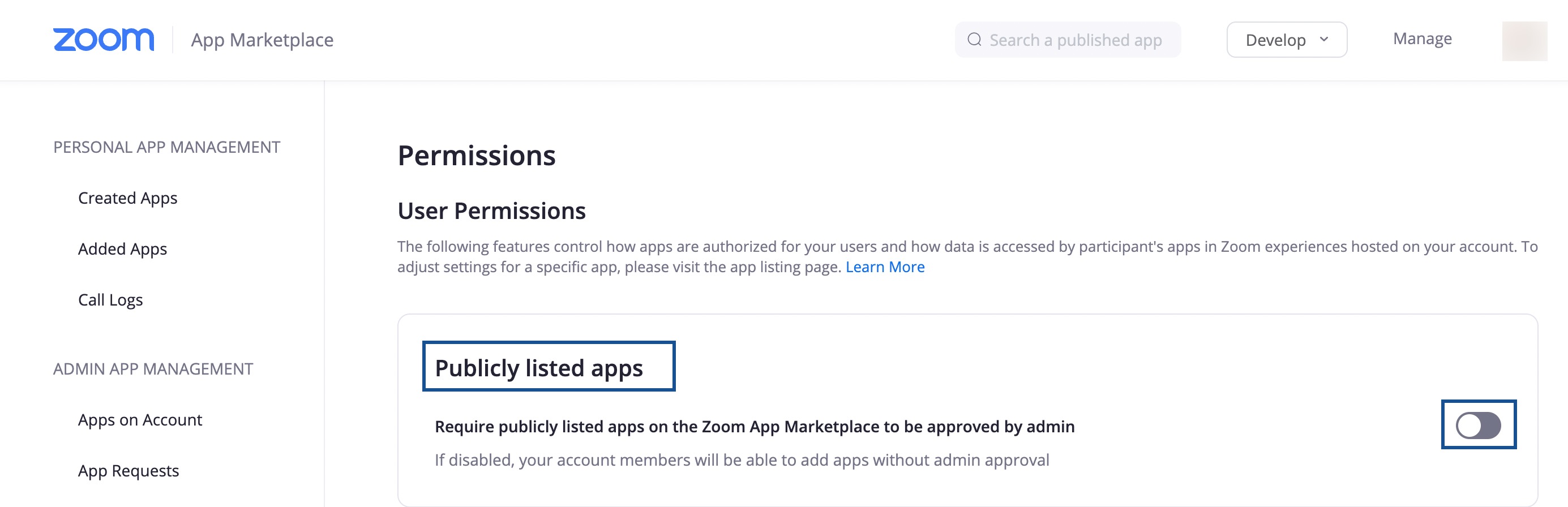
If your organization has enabled the Zoom setting Require publicly listed apps on the Zoom App Marketplace to be approved by admin, your Zoom administrator must approve the Zoho Calendar app before you can authenticate your account.
Contact your Zoom administrator to approve the Zoho Calendar app, then try authenticating again.