Create and Edit events
You can create an event in the Zoho Calendar using three methods. Any of the three methods can be chosen based on the details required to create an event. If the event creation requires a more detailed description you can use the New Event button to create an event. If you want to add an event using just a line like "Conference at 11 AM", you can use the Smart Add icon in the left top corner of your calendar. Quick Add can be used to create an event by clicking on the calendar cell based on the chosen time or date.
Steps to create a New Event
- Log into Zoho Calendar.
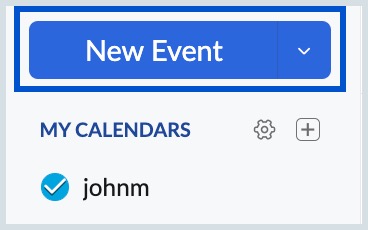
Click on the New Event button on the top of the left pane.
Note
If you see a DKIM configuration warning while creating an event, it indicates that DKIM is not configured or verified for your organization’s domain. Contact your organization’s administrator to complete DKIM configuration and initiate DKIM verification.
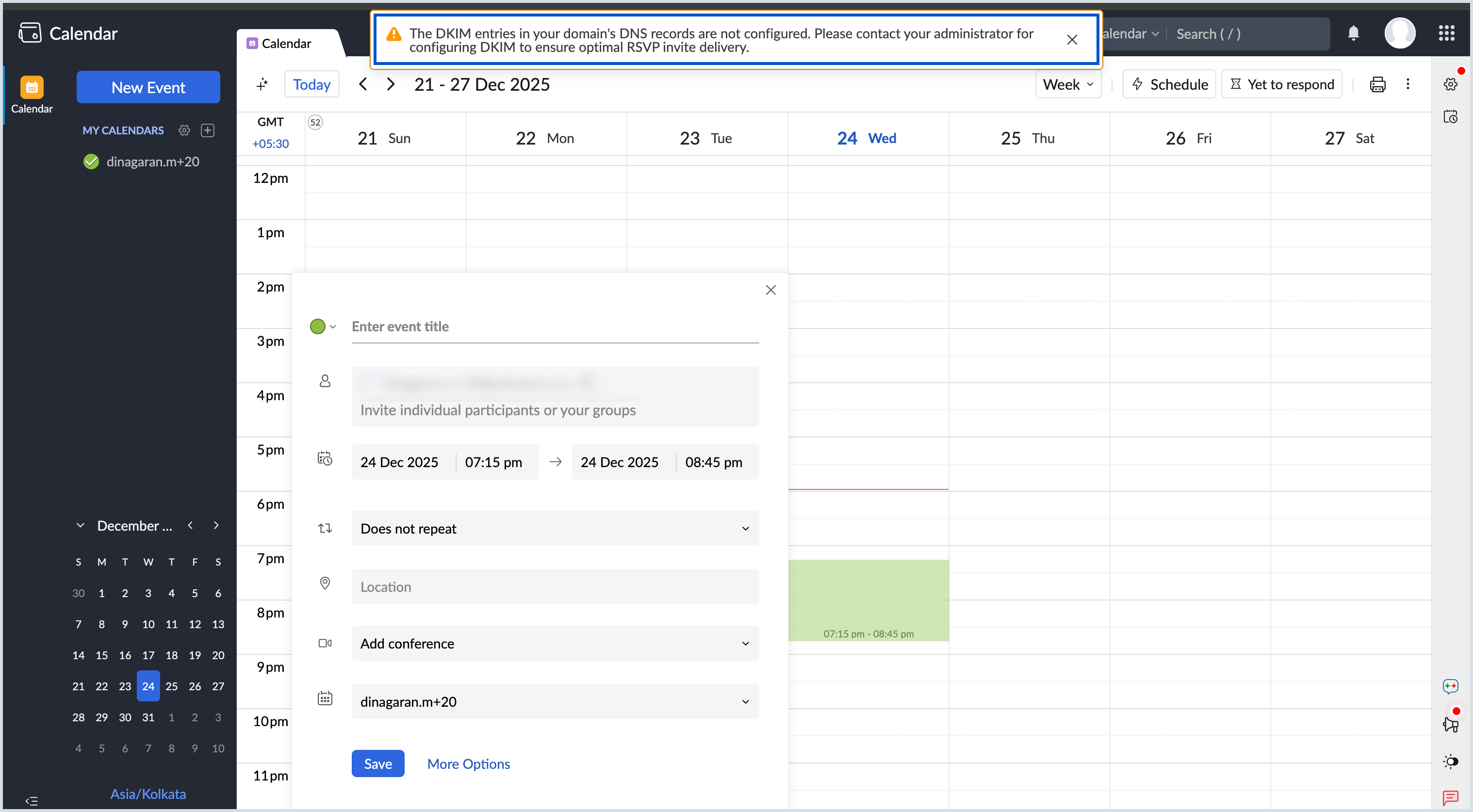
Provide the following details to create an event.
- Event title and Event color to clearly identify the event
- Participants (individual users, groups, categories) and manage their permissions
- Date and time of the event, with the option to adjust the time zone or mark it as an All-day event
- Find a time option to check participant availability and schedule accordingly
- Repeat pattern, if the event needs to recur
- Location details or Add room to book a meeting room
- Conferencing options using Zoho Meeting, Zoho Cliq Meeting, Zoom or Google Meet
- Calendar selection to choose which calendar the event should be created in
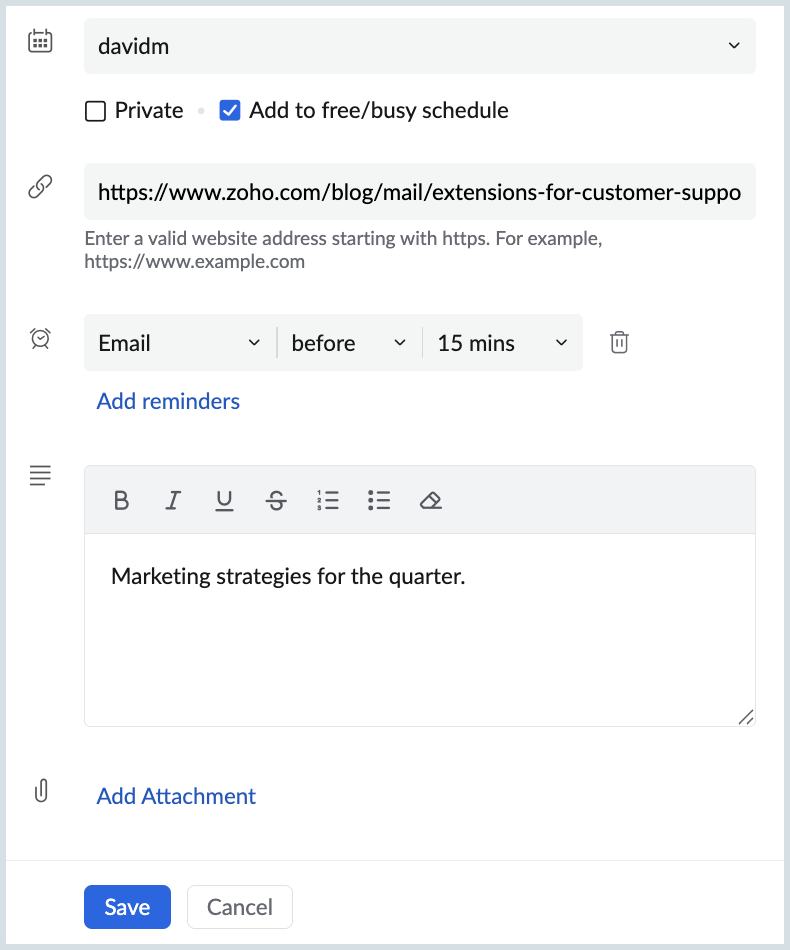
- Privacy settings to mark the event as Private
- Availability status to indicate how the event affects your schedule: Busy, Free, Tentative, or Remote
- Event URL to share additional information with attendees
- Reminders to receive notifications before the event starts
- Event Description, with rich text formatting options for better clarity
- Attachments to include files related to the event
- Associate the event with other Zoho applications such as Zoho CRM Tasks, Zoho Mail ToDo, or Zoho Mail Notes
Note
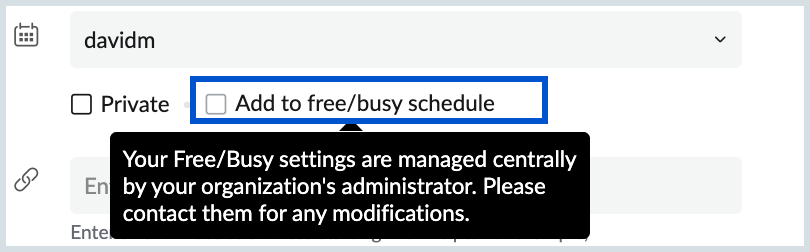
- The Free/busy/Tentative/Remoteoption will be disabled if your administrator has set specific permissions for free/busy sharing or has disabled this feature entirely for your organization.
- Room booking is available only for the events that do not repeat.
- The maximum file size limit for attachments is 10,240 KB.
- Click Save to create the event.
- After saving, a confirmation message appears at the top, click View event to open the Event details page.
By default, Primary email address is selected in the Create Event. If you wish to protect the privacy of your primary email address, you can choose to use your Alias email address to create an event and send the event invitation.
To use your Alias email address when creating an event, click on the drop-down menu next to your primary email address in the Invite participants field. Then, choose your Alias email address and proceed to create the event.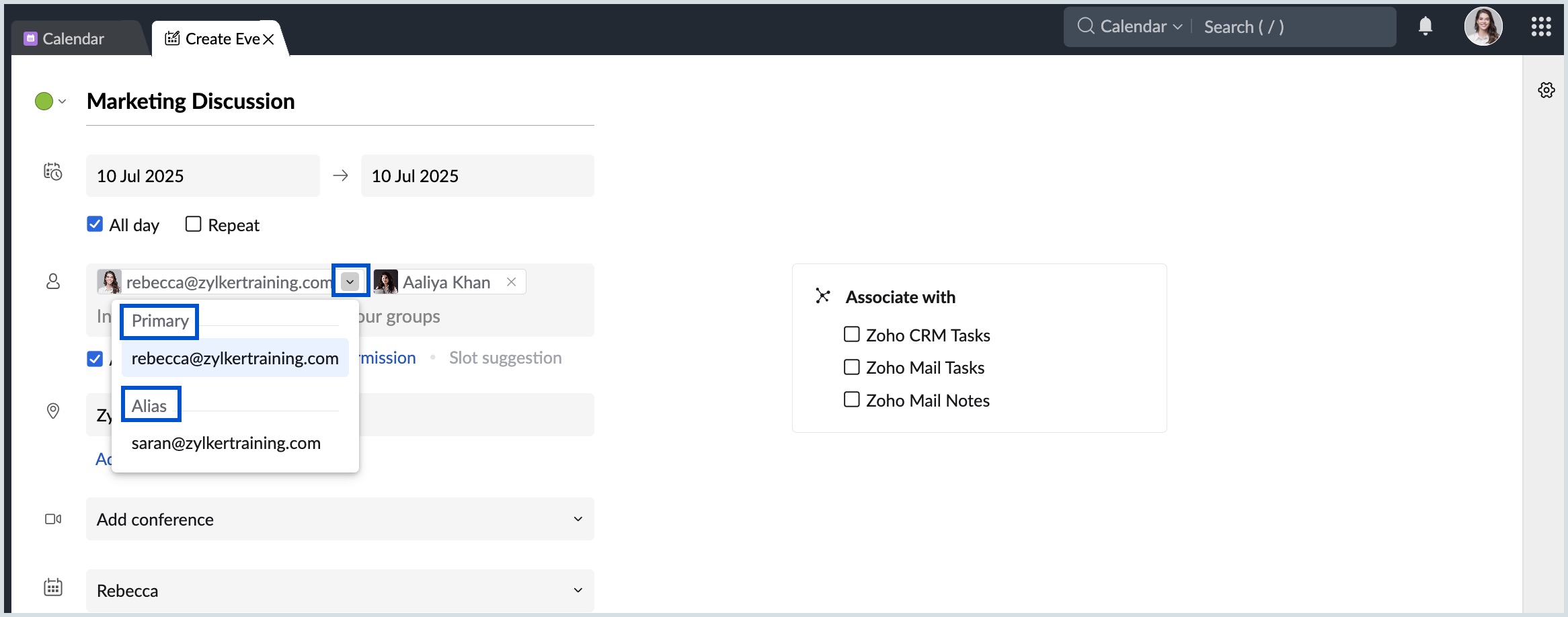
Note
Once the email address (Primary/Alias) is selected during the event creation, you will not be able to edit it for that event.
Event Color
To distinguish between various events in the same calendar you can choose different colors of your choice from the colors preset provided.
Steps to choose the Event Color
- Log in to Zoho Calendar.
- Click on the New Event button on the top of the left pane.
- Click on the Event Color left to the Event title.
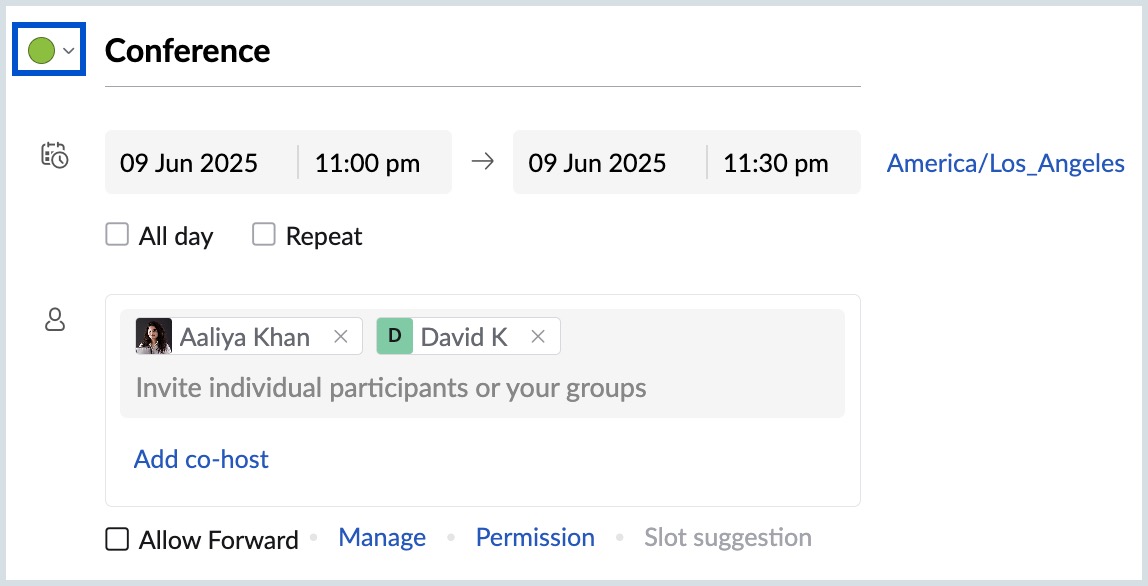
- Choose the preferred color for the event from the colors preset provided.
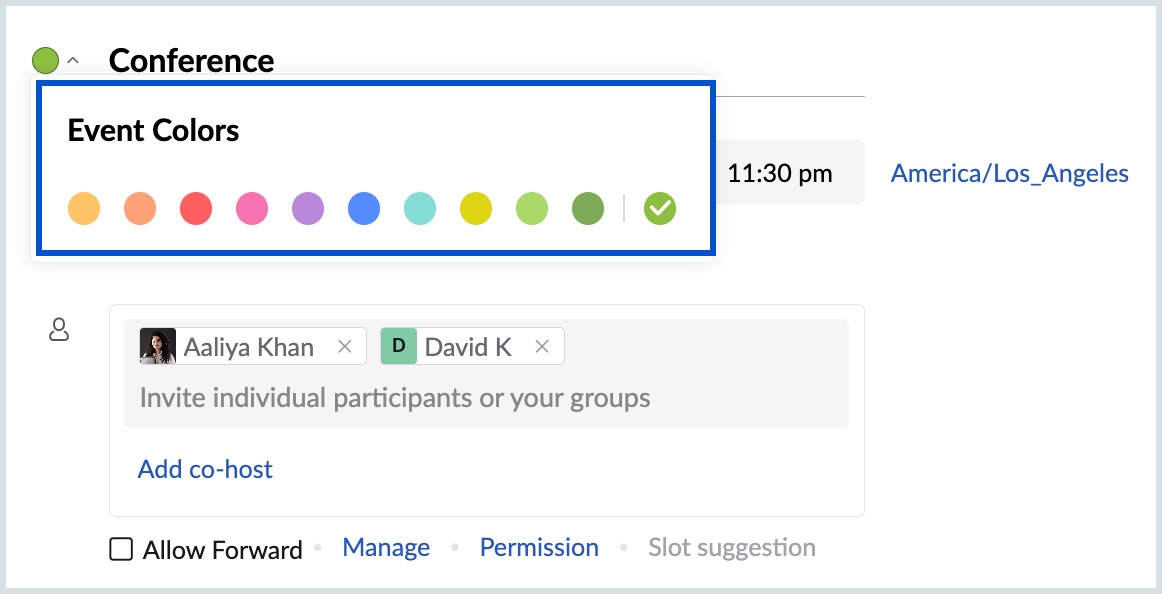
- Provide other details of the event and click Save.
The event will be saved and the chosen color will be displayed to the left of the event title in the calendar grid. If the event is an all-day event, the color band will be displayed to the length of the date grid.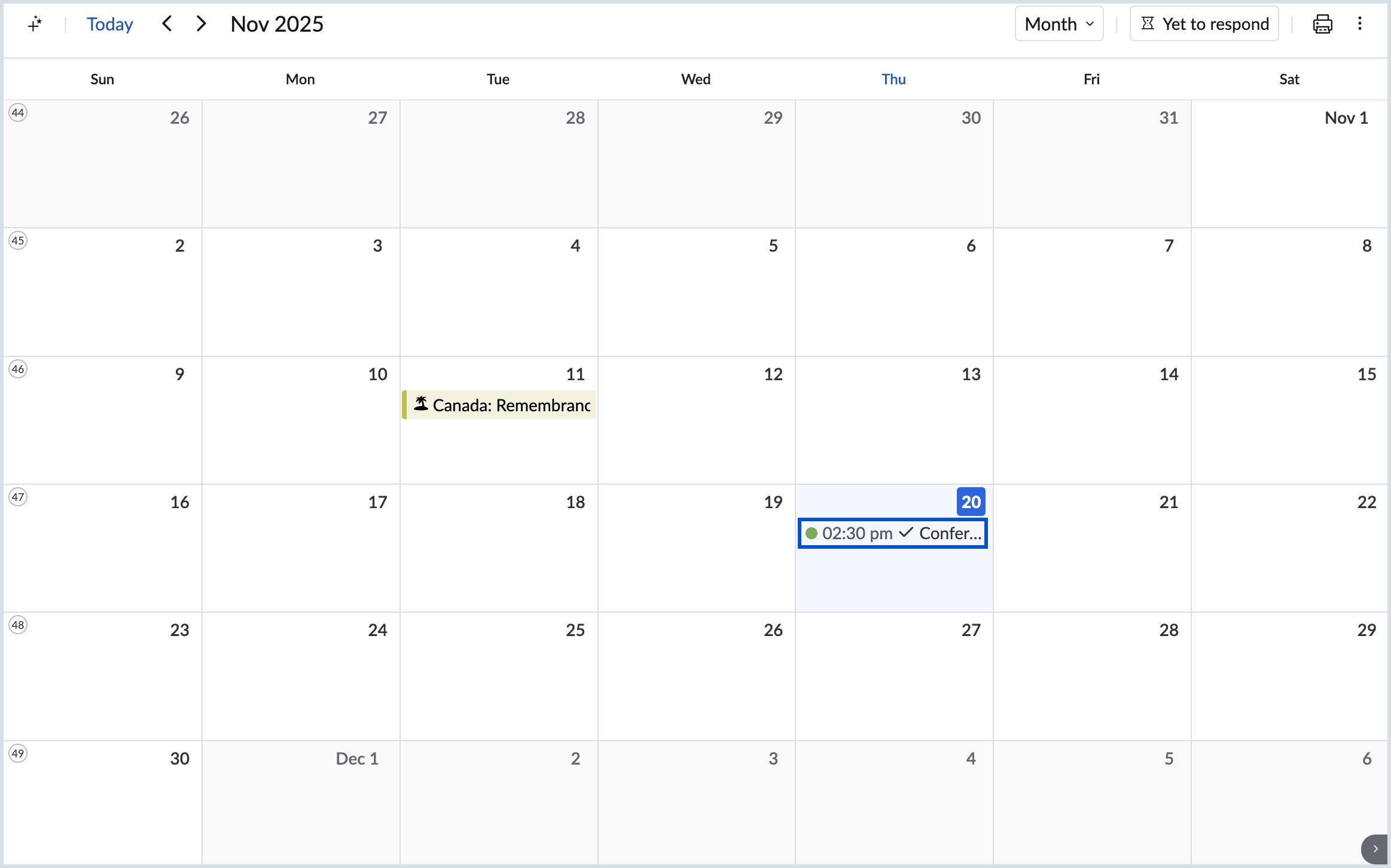
Note
If you don't pick any color for the individual event you're creating the calendar color in which the event is being created will be chosen as the event color.
Steps to edit the Event Color
- Log into Zoho Calendar.
- Click on the event you have added to your calendar.
- Click on the Edit icon at the top of the event view pop-up.
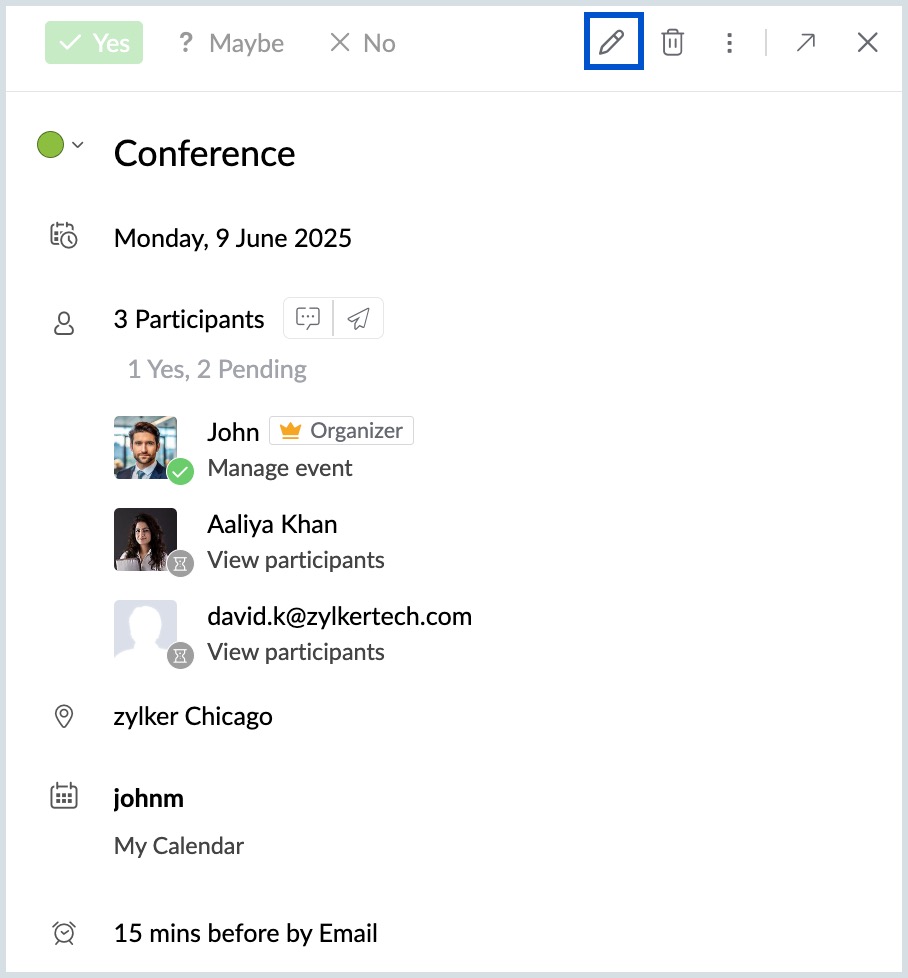
- The Edit event tab will be opened. Click the Event Color left to the Event Title.
- Pick the preferred color from the color presets provided.
- Click Save.
The event color will be changed and the changes can be seen in the calendar grid. 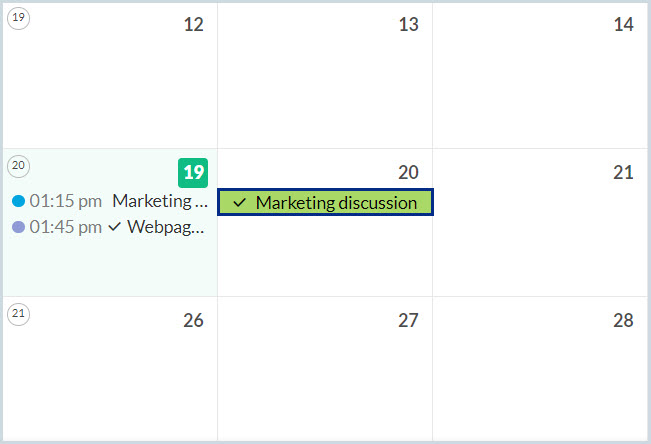
Smart Add
Smart Add allows you to create events quickly by entering a simple sentence. For example, typing “Marketing Conference at 11 AM on Monday” automatically creates an event titled Marketing Conference scheduled for the upcoming Monday at 11 AM.
Smart Add uses Zia to identify key details such as the Event title, Date, Time, Duration, Recurrence, and Participants from your input, reducing the need to manually fill in individual fields.
Tip
For detailed steps on using Smart Add and to learn more about other AI capabilities in Zoho Calendar, refer to our Zia for Calendar help page.
Quick Add
The Quick Add option in Zoho Calendar helps you add an event on a particular hour/ day or for several hours/ days.
Steps to Quick Add an event
- You can create an event by clicking on the grid of the calendar.
- If your event stretches across several hours or days, click and drag your mouse to the desired duration of the event. A simple event creation dialogue box will appear
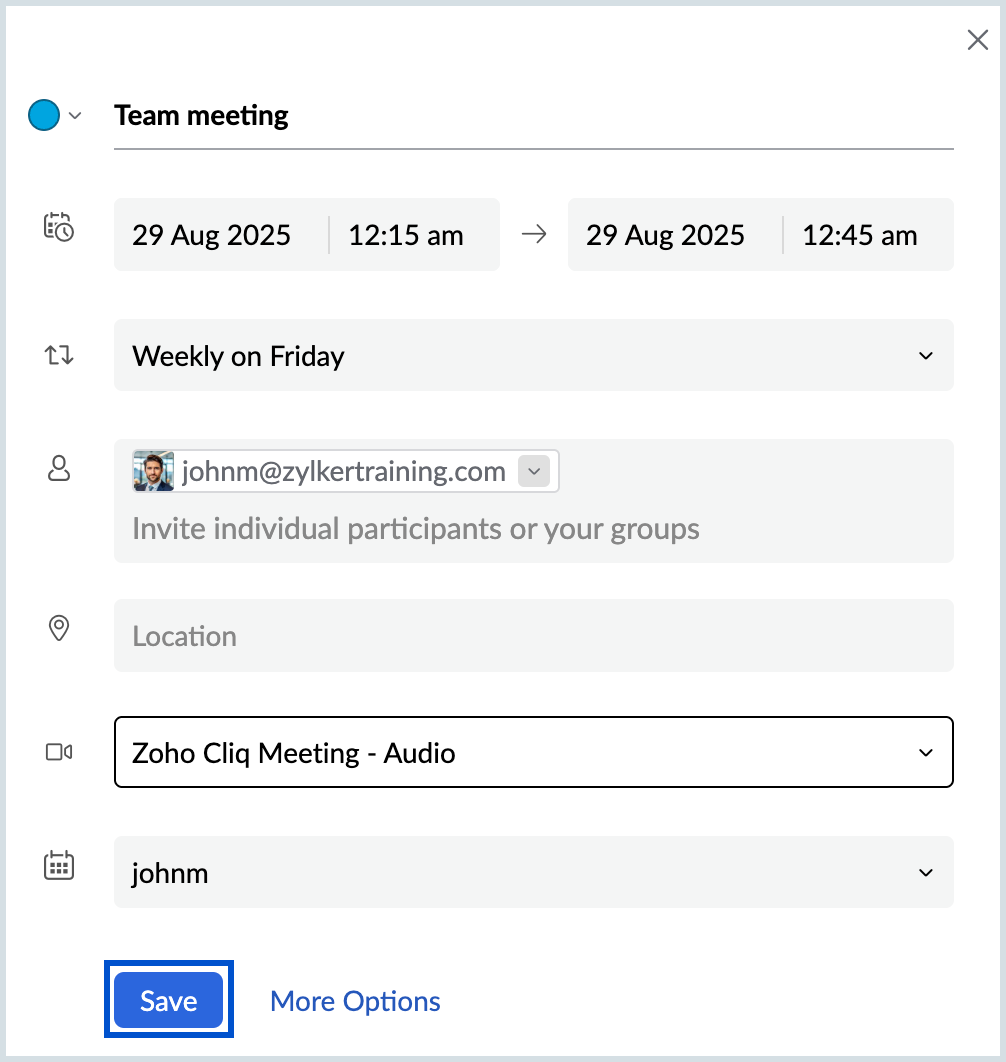
- Type the Event Title. Select the Event Color.
- Set the time and date of the event duration.
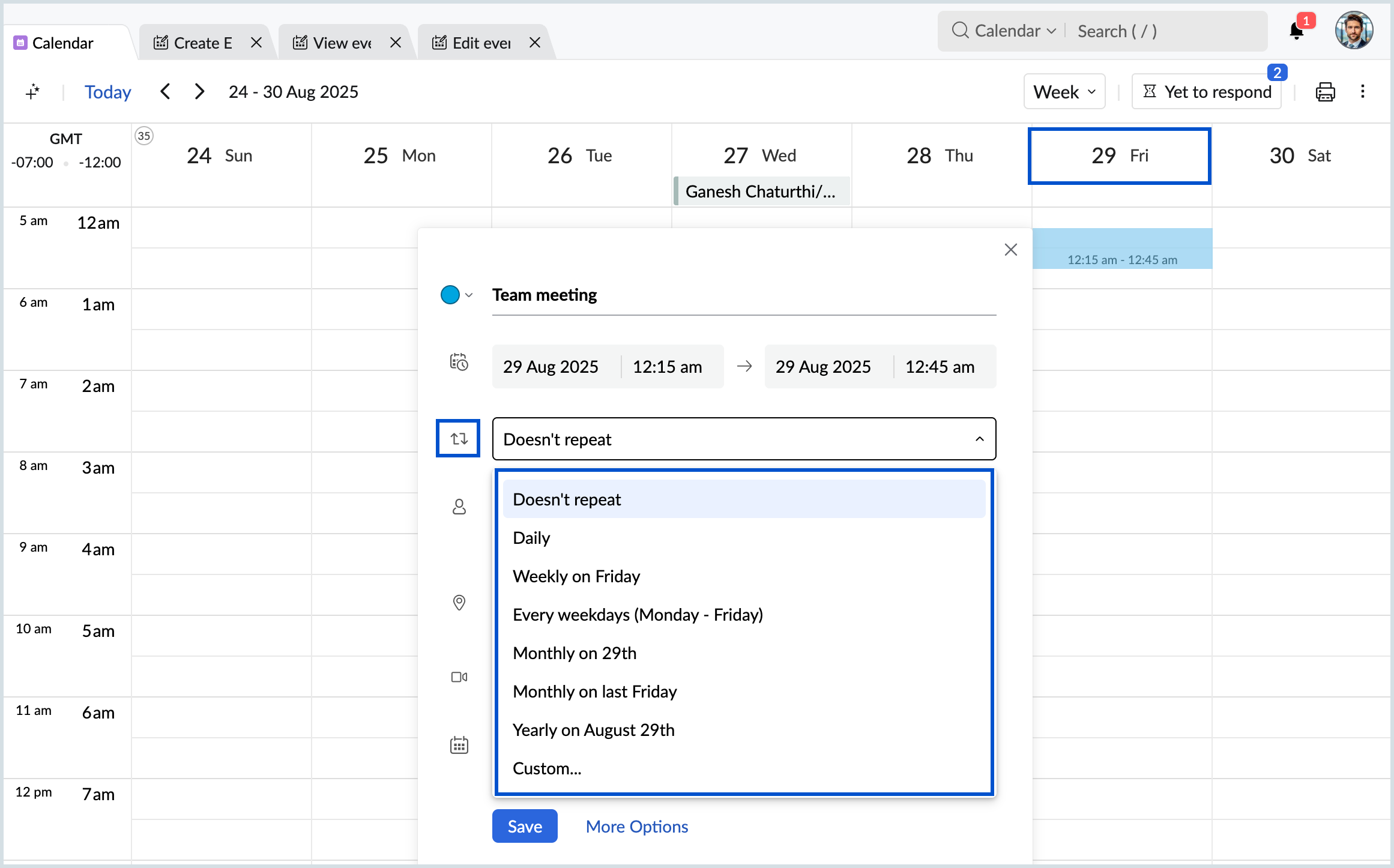
Select the desired repeat option from the repeat drop-down.
Note
The repeat drop-down populates with the options based on the date/day selected for better user convenience.
- Enter the Email address/ Group name of the participants.
- Enter the location where the event is going to be held.
- Select Zoho Meeting from the Add Conference drop-down if the meeting has virtual participants.
- Select the calendar to which the event should be added.
- Click Save.
Note
Click More options and open the detailed event creation tab if you want to add more details.
View an event
Once you add an event to your Zoho Calendar, the event title and time will be displayed on the particular date with the color code of the chosen calendar. If it is an all-day event, the entire cell of that particular date will be shaded with your calendar color. You can follow the steps given below to view an event.
Steps to view an event
- Log in to Zoho Calendar.
- Click on the event you want to view.
- An Event View pop-up will appear with the event title, time and date of the event in your time zone, and other details that you have given in the event creation box.
- Click on the Arrow icon on the top right corner of the event view pop-up.
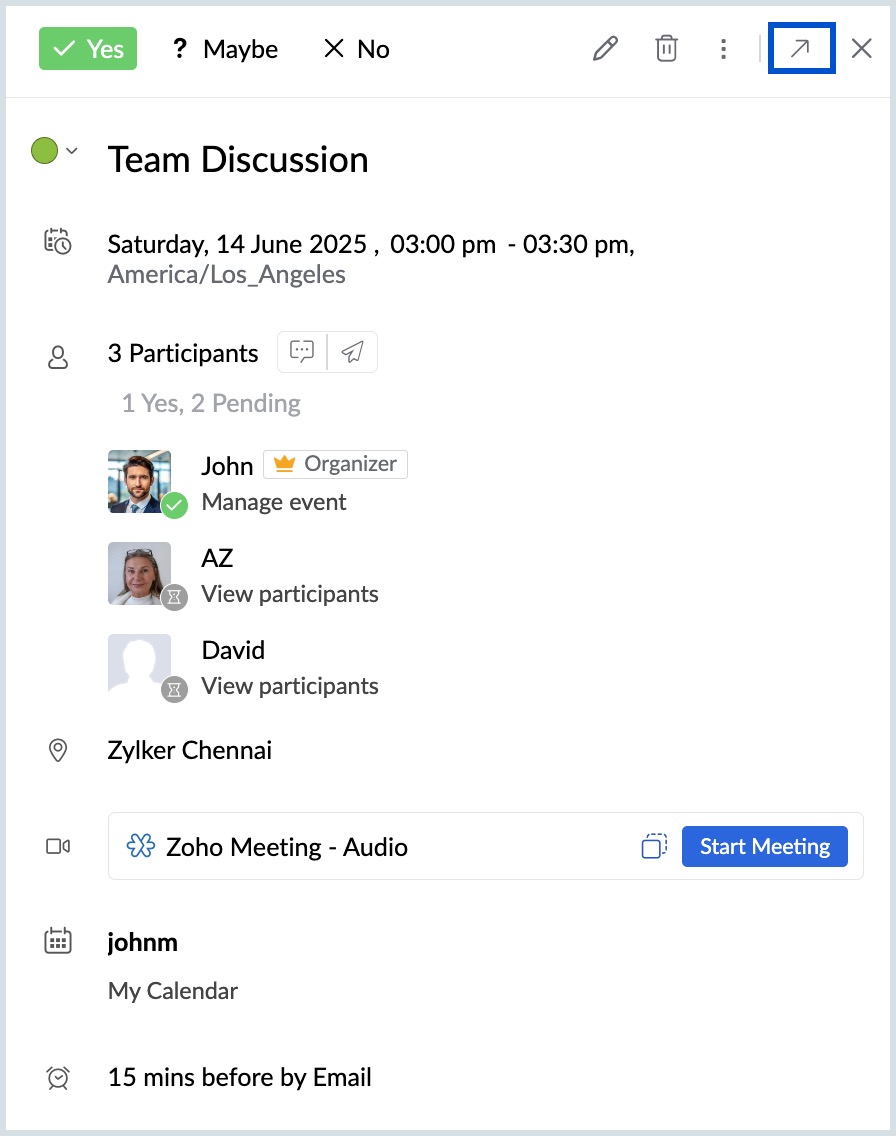
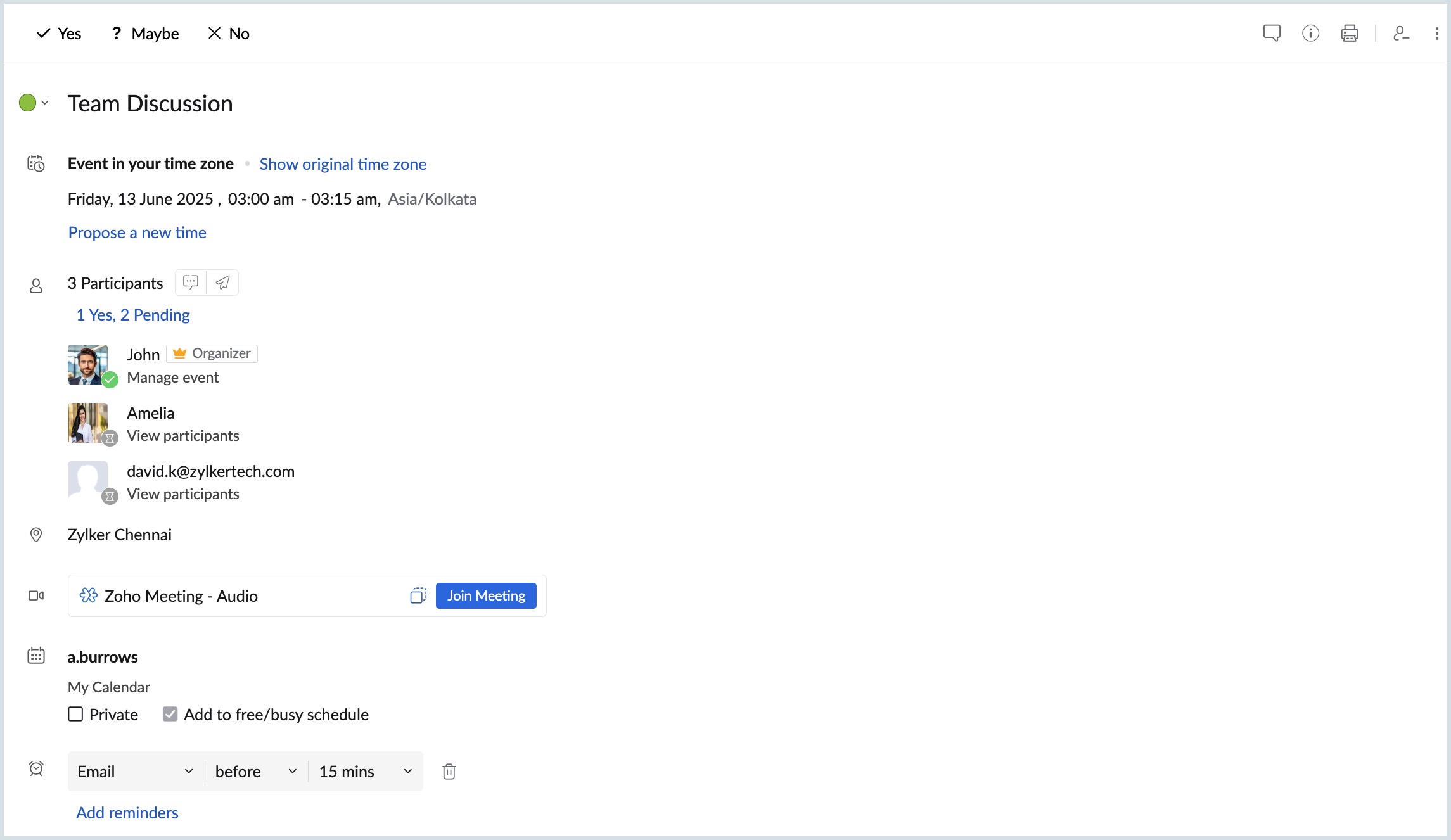
- A separate View event tab will be opened and you can view the entire info of the event.
Tip
If you view an event from a Notification or the Yet to respond section, use the View in Calendar option in the Event details page to quickly locate it in your calendar grid.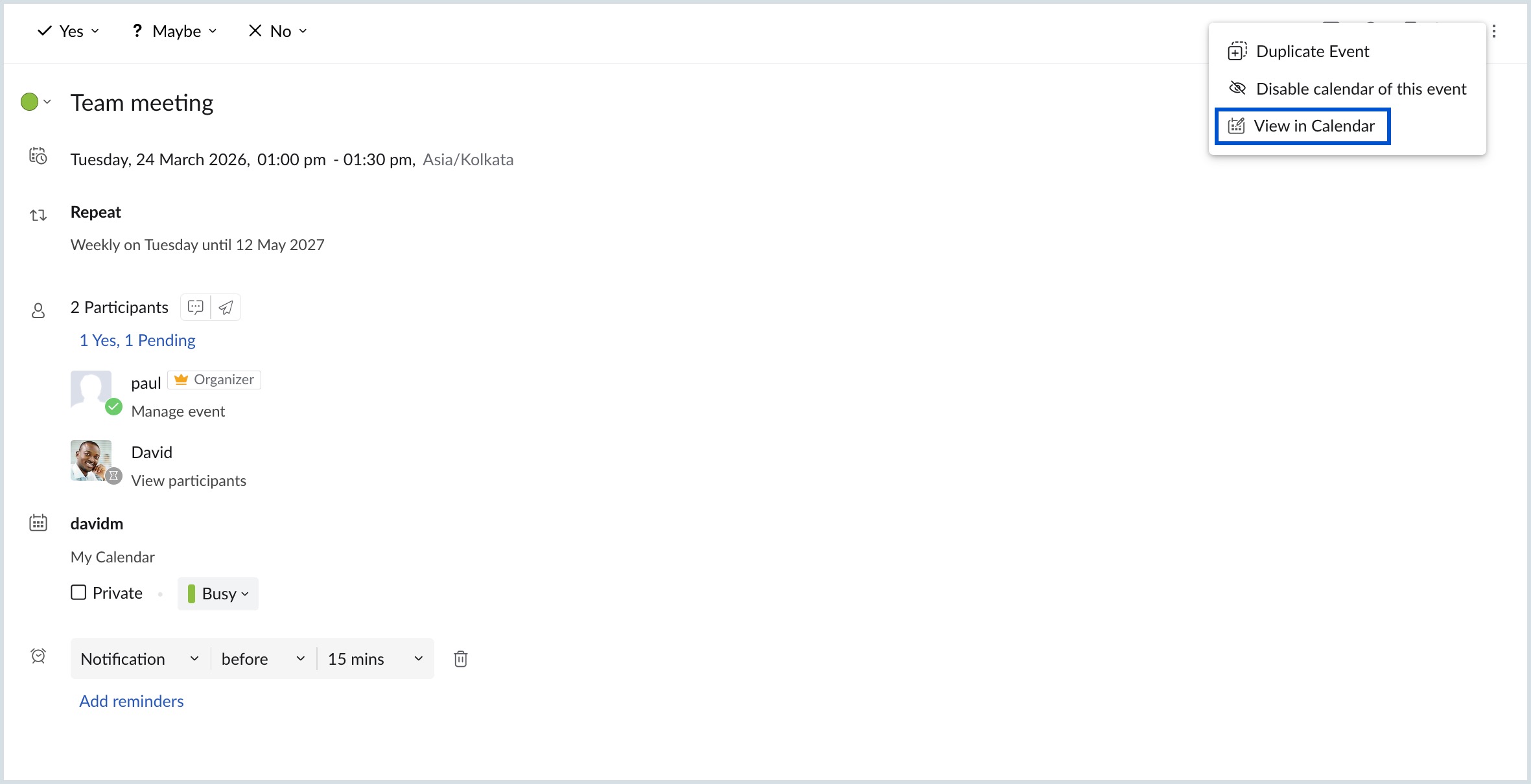
Steps to view an attachment in an event
You can view and access the attachments given in an event either in the quick view tab or in the view event tab by using the steps given below:
- Log in to Zoho Calendar.
- Click on the event you want to view.
- An event view pop-up will appear with the event title, time and date of the event in your time zone, attachments, and other details that you have given in the event creation box.
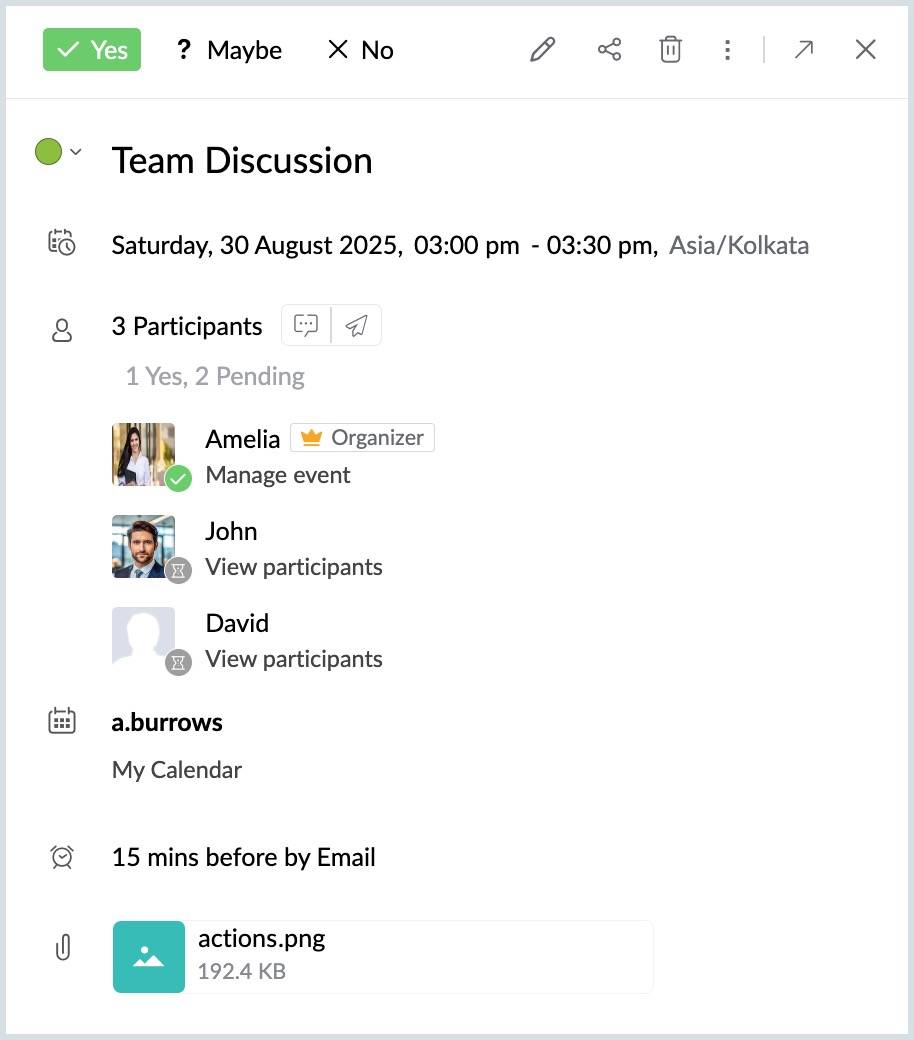
- Hover over the attachment to either view or download the attachment from the quick view tab.
- Click on the arrow icon on the top right corner of the event view pop-up.
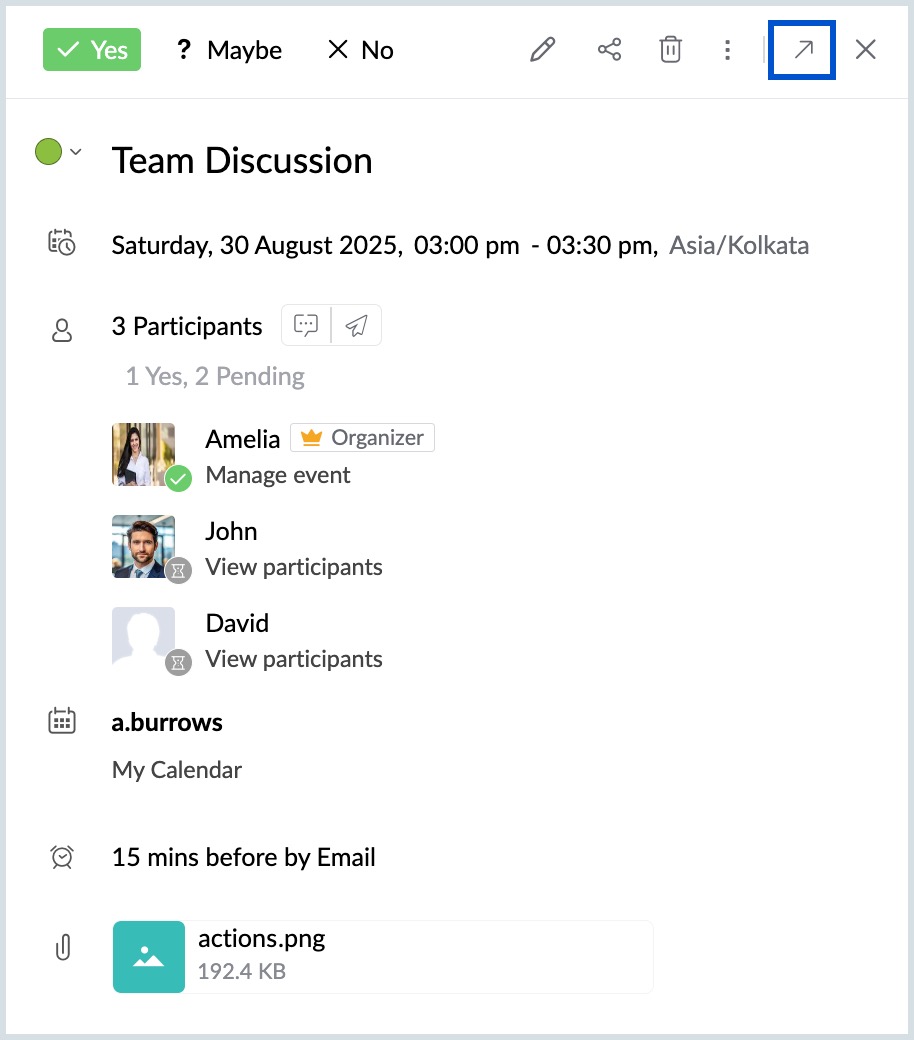
- A separate View event tab will be opened and you can view the entire info of the event.
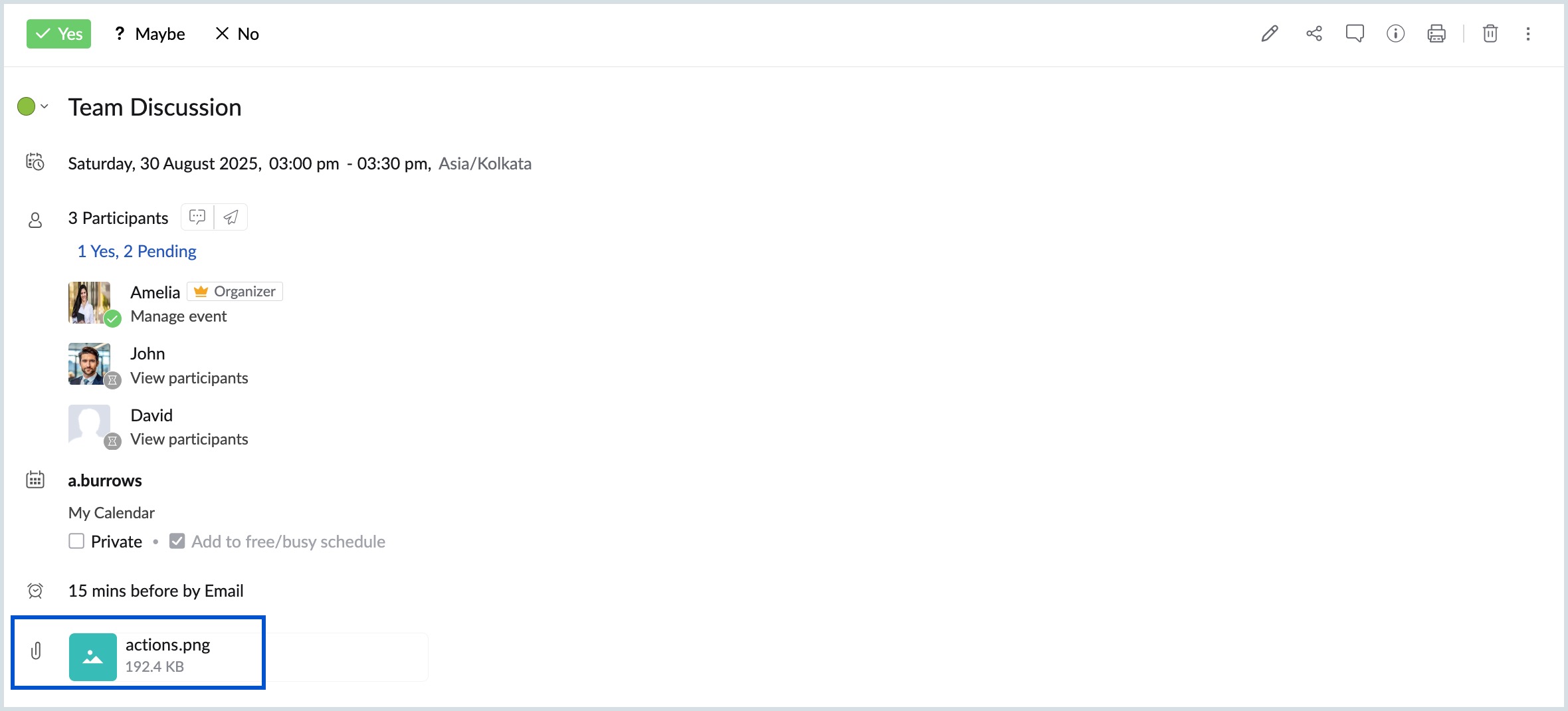
The attachment will be available at the bottom of the event view tab. You can click on the attachment and access/ download it to your computer.
Edit an event
You can make changes to the events anytime you want using the Edit option. If you want to edit a reminder, change event timings, etc, you can do that using the Edit option.
Steps to edit an event
- Log in to Zoho Calendar.
- Click on the event you have added to your calendar.
- Click on the Edit icon at the top of the event view pop-up.
- An Edit event tab will be opened for you to edit the details of the event.
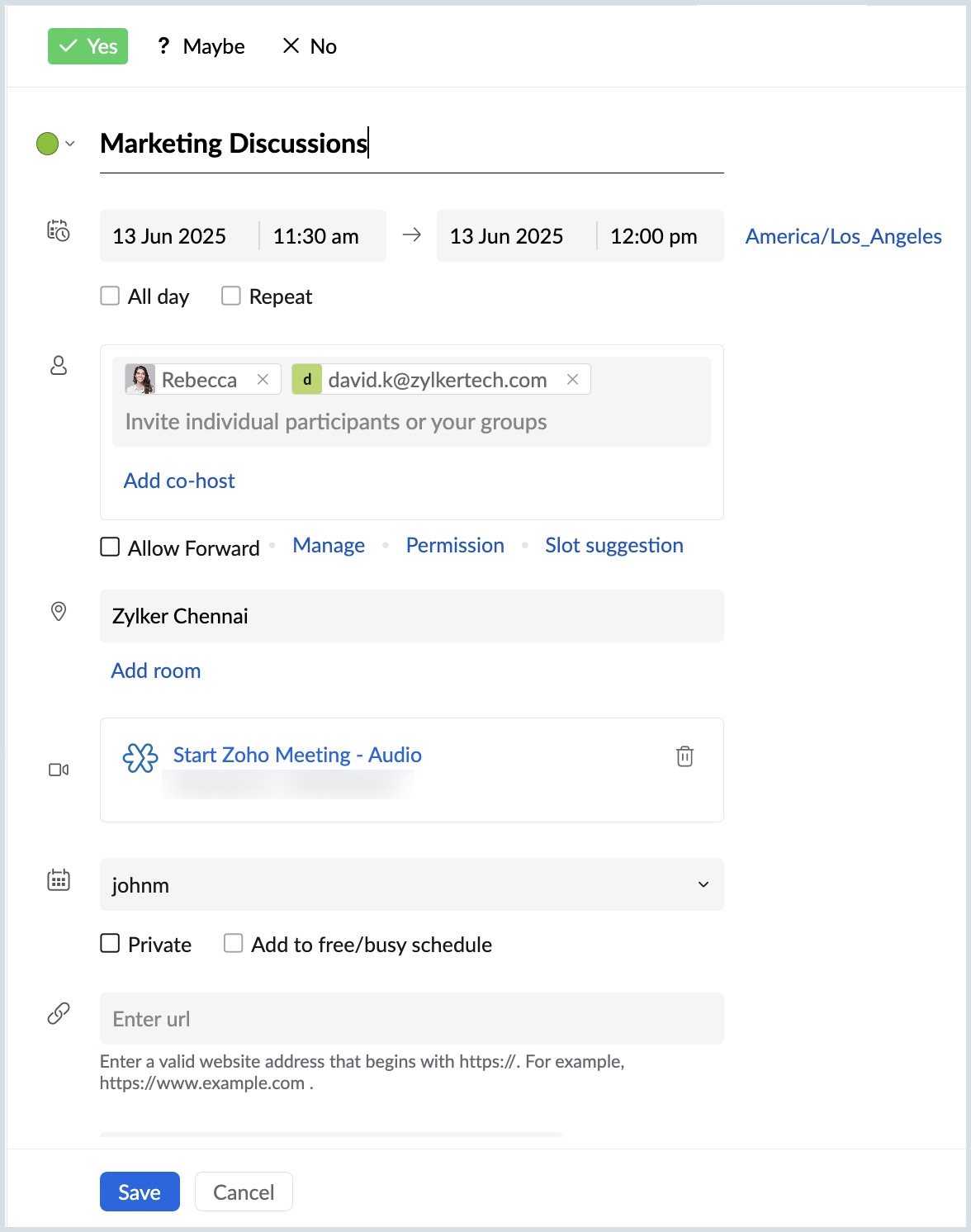
- You can make the necessary changes and click Save.
- After saving changes, a confirmation message appears at the top, click View event to open the updated Event details page.
Duplicate an event
Once you have created an event in Zoho Calendar, you can create a similar event without having to add all the details like attendees, location, etc., by simply duplicating the event to the necessary date and time. Follow the steps given below to duplicate an event.
Steps to duplicate an event
- Log into Zoho Calendar.
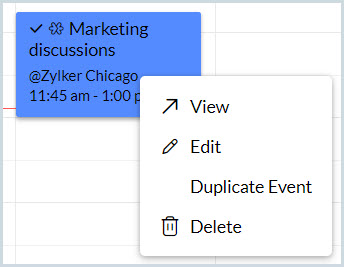
- Right-click on the event you want to duplicate.
- Select the Duplicate event option in the drop-down.
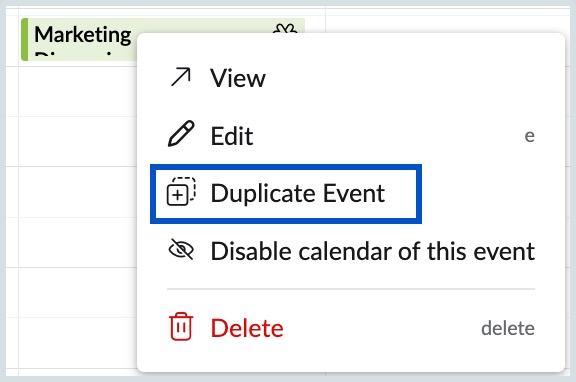
- A separate Edit Event tab will be opened and you can view the entire info of the event.
- Provide the date and time for which you want to duplicate the event and verify whether all the information are correct.
- Click Save
The event will be duplicated for the selected date with all the information from the original event.
Note
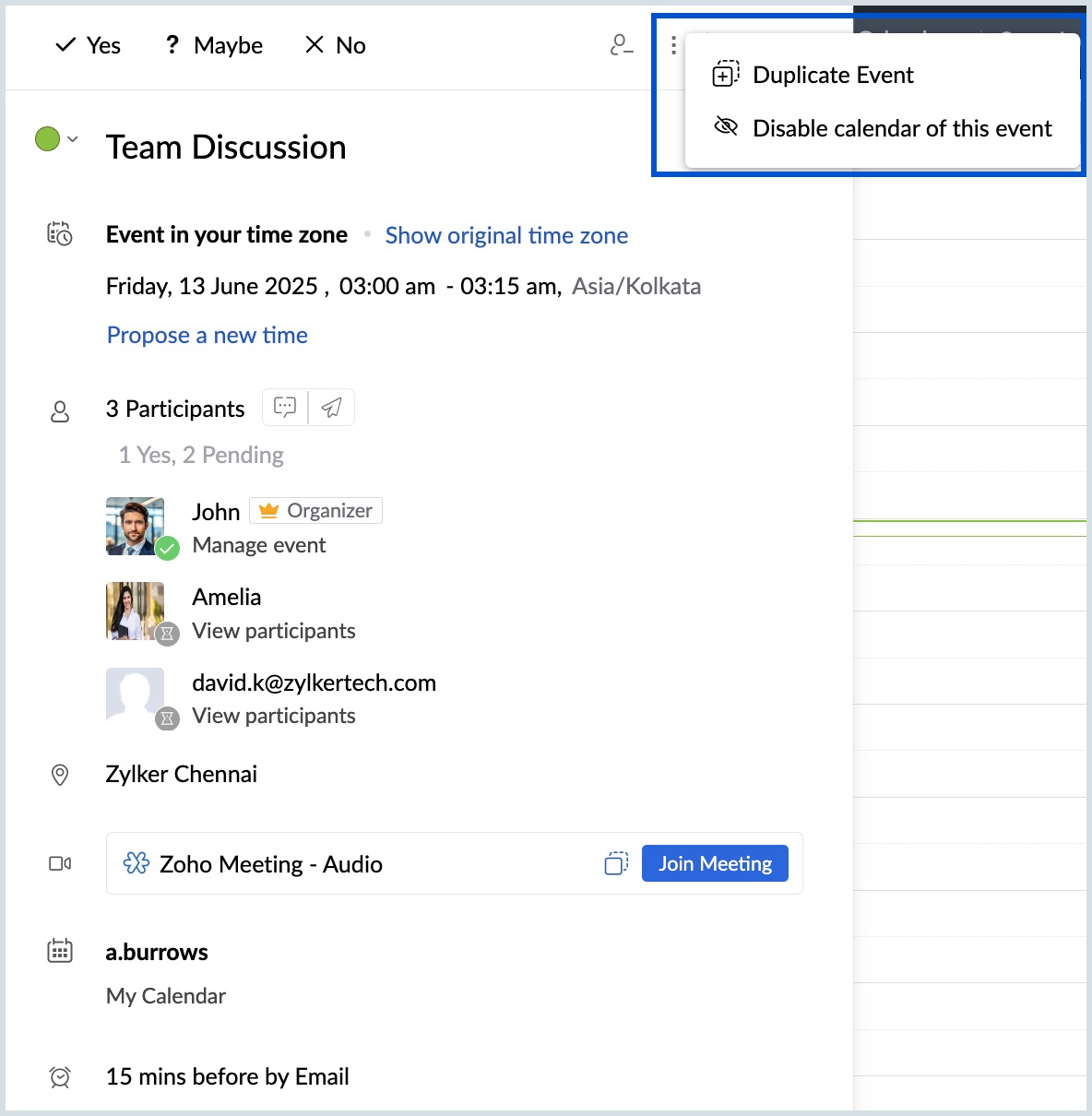
- You can also duplicate the event from the more options icon on the top right corner of the event view tab.
- While Duplicating an event, your attachments, comments and chat lists will not be duplicated.
Share an event Invite
When you create an event, invites will be sent to the attendees via email. If you want to share the invite with people apart from the attendees you can choose either of the below options:
Share via email
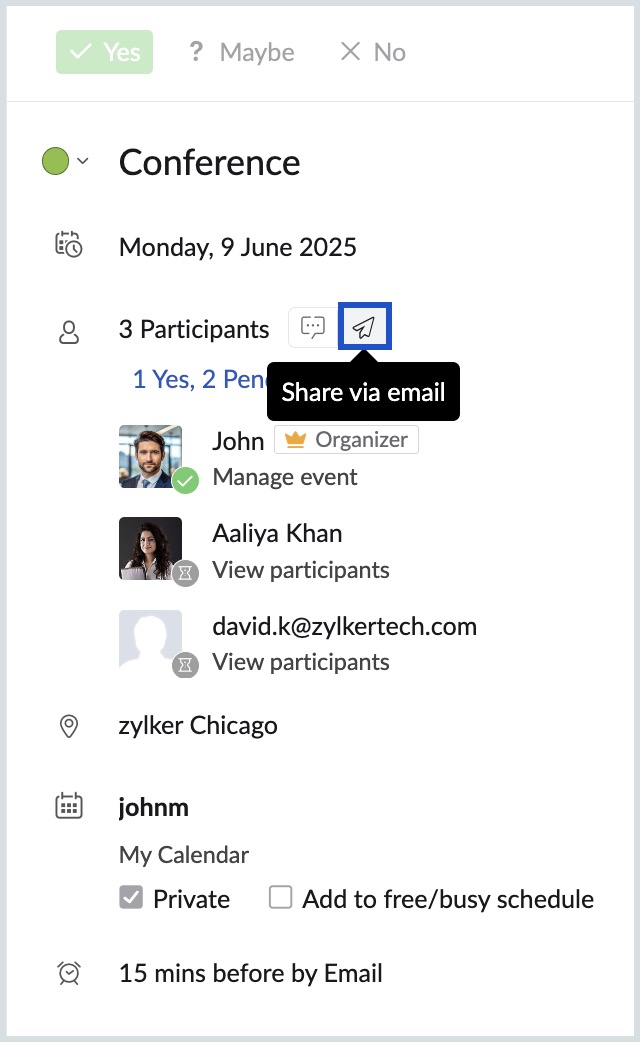
You can use the Send icon in the Quick view pop-up or the View event tab to share the invite through email.
Steps to share an event via email
- Log in to Zoho Calendar.
- Click on the event you want to view.
- An Event View pop-up will appear with the event title, time and date of the event in your time zone, and other details that you have given in the event creation box.
- Click on the Send icon next to the participants section in the View event tab.
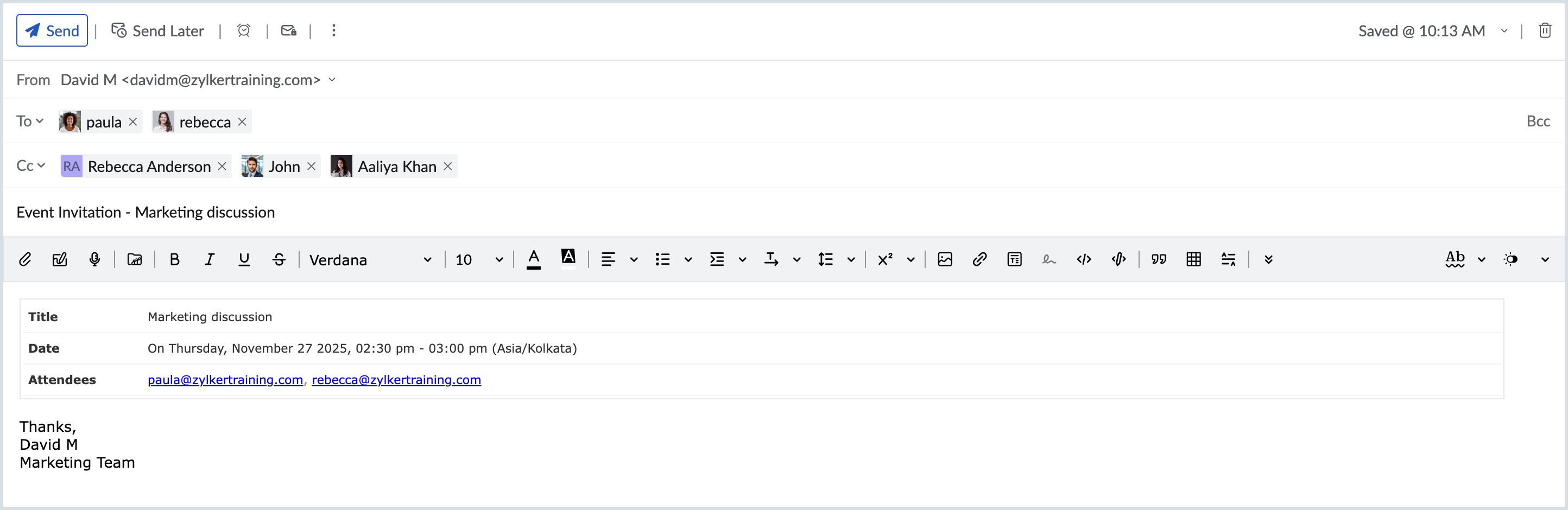
- An email will be composed with the attendees' email addresses in the To field. You can add more recipients by providing their email addresses in the To, Cc and Bcc fields.
Note
- You can send event invites via email only for the events that you create.
- The recipients you add apart from the attendees will not be able to RSVP to the event.
Share via URL
You can send the event details to someone who is not part of the event that you have created by sharing the URL of the event.
Note
The Share event feature is being rolled out in phases and is currently available to users in the United States (US) and India (IN) data centers.
Steps to share an event via URL
- Log in to Zoho Calendar.
- Click on the event you want to view.
- An Event View pop-up will appear with the event title, time and date of the event in your time zone, and other details that you have given in the event creation box.
- Select the Share Event icon on the top pane.
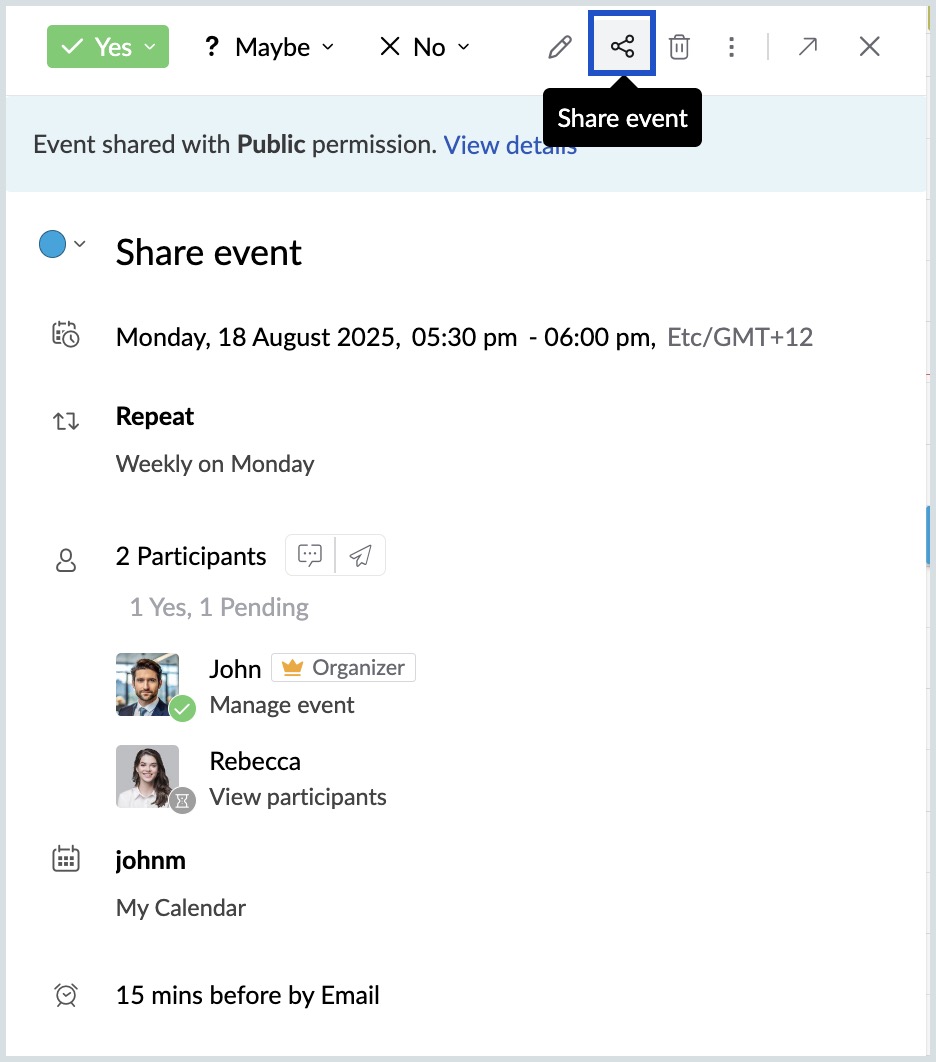
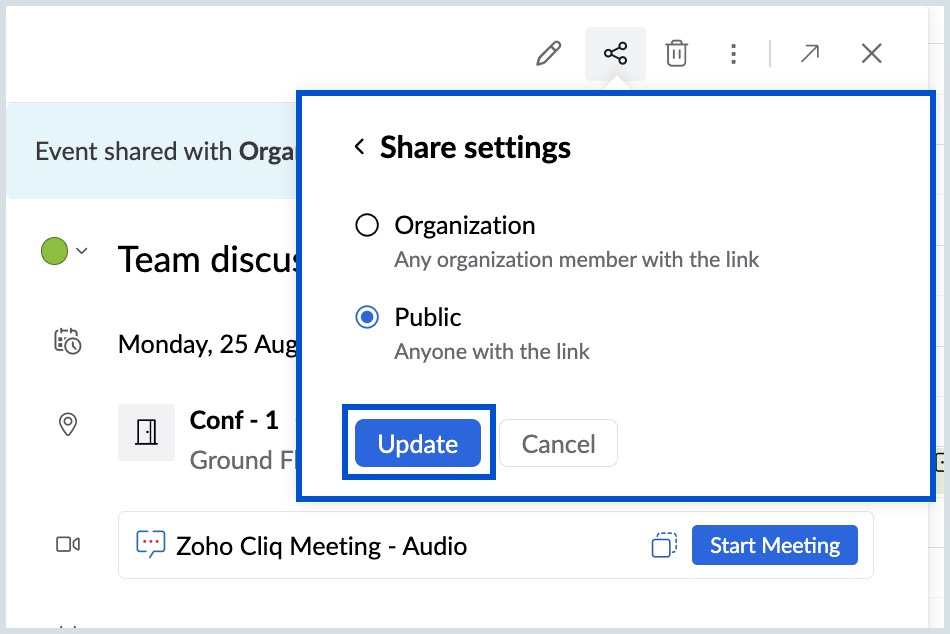
In the Share settings pop up, select either Organization or Public and click Apply.
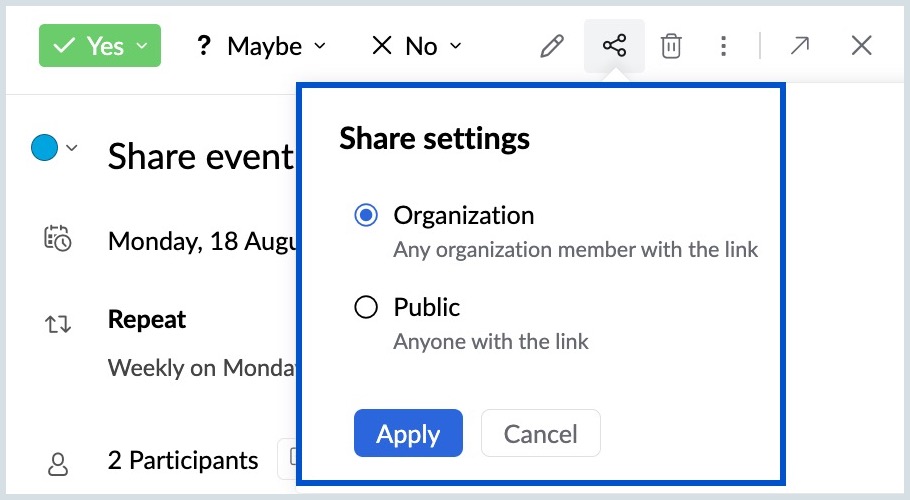
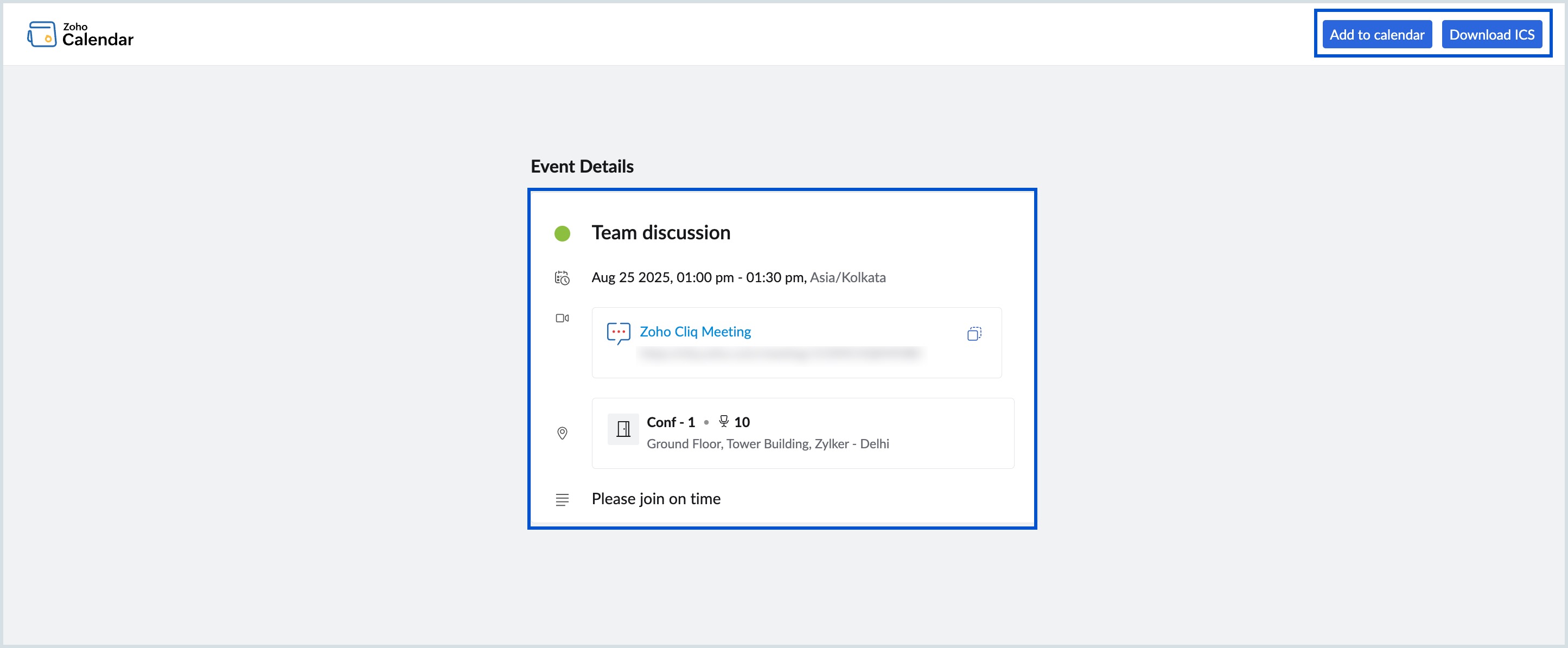
Organization - Any org member with the link can view the event details. The event details visible to the org members include:- Title
- Meeting
- Location / Resources
- Repeat instance
- All day
- Events date and time
- Description
Note
- When an organization's member access the link that is marked as Organization, the above mentioned details are visible to them. They can either select Add to calendar or Download ICS of the event details.
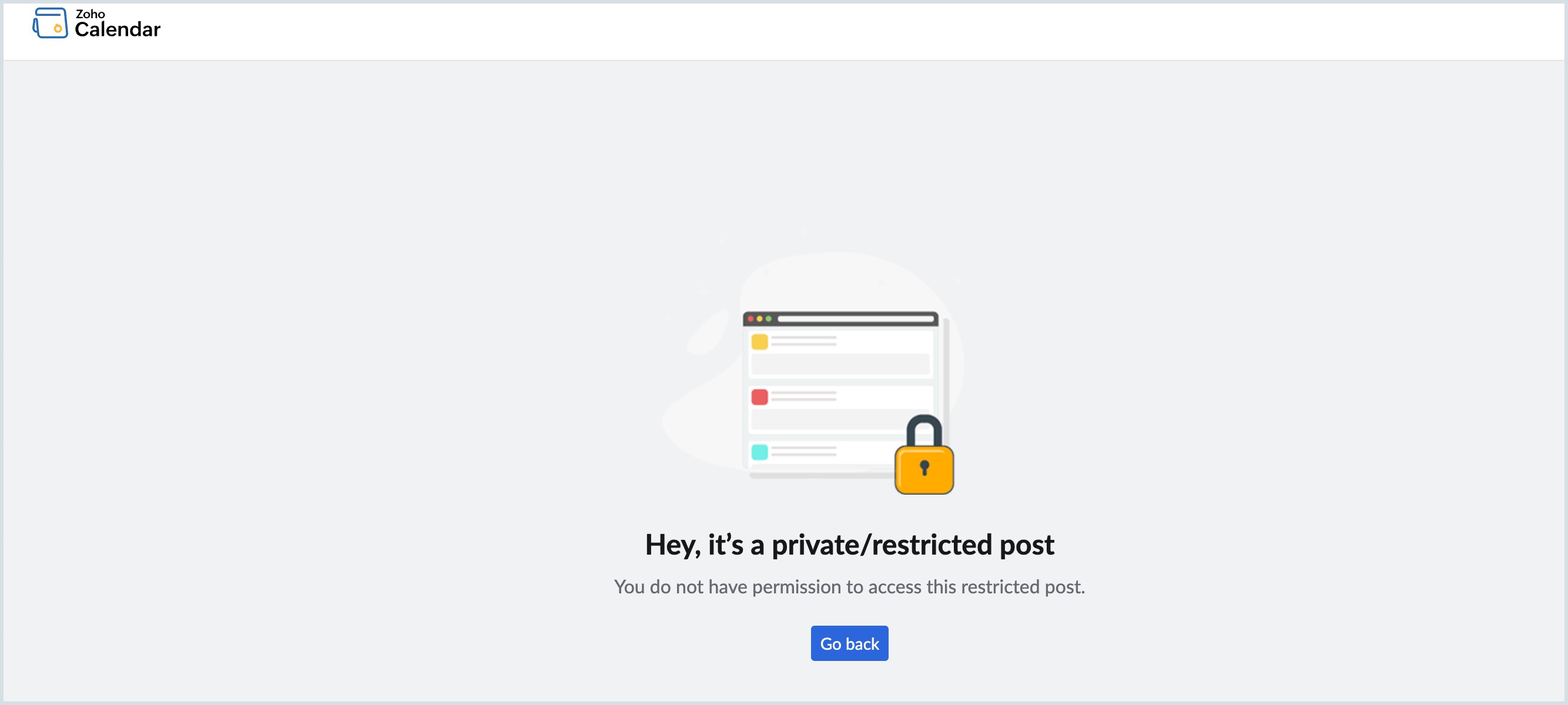
- However, a non-org member cannot access the event link that is marked as Organization in the Share settings. The following page appears mentioning that it is a private/restricted post.
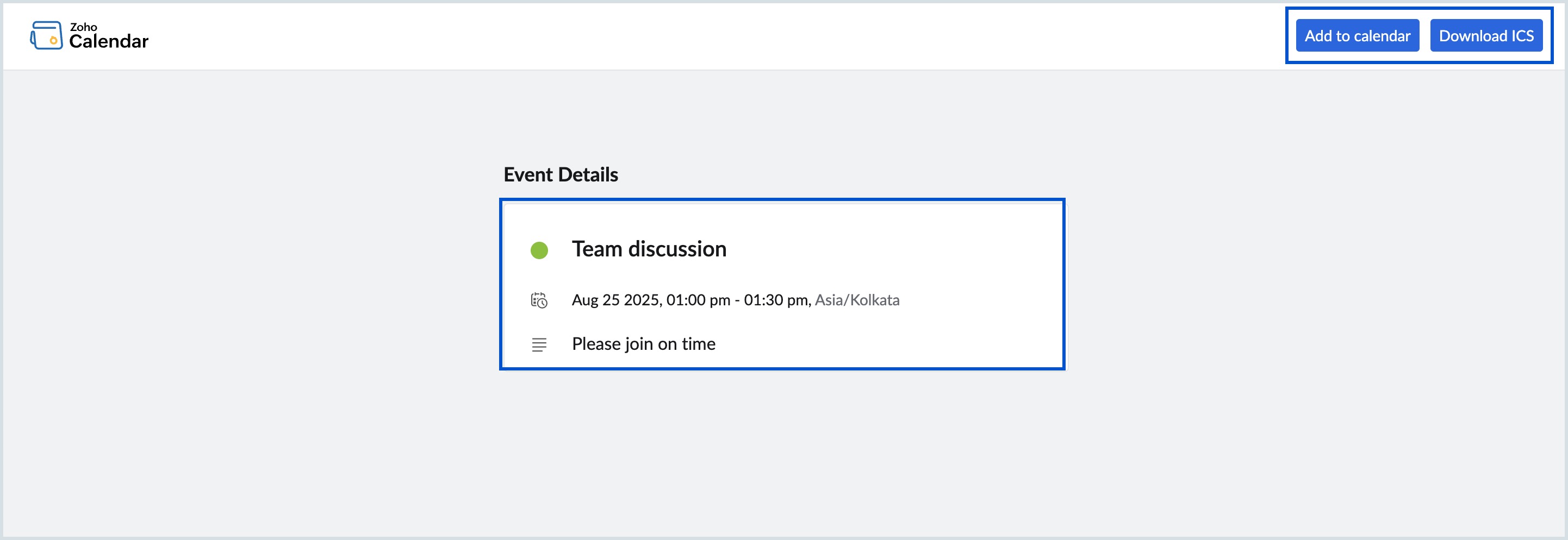
Public - Anyone with the link can view the event details with limited information. The event details visible to non-org members include:
- Title
- Repeat instance
- All day
- Events date and time
- Description
Note
- The share event link that is marked as Public when accessed by a non-org member, the above details alone are visible to them. They can either select Add to calendar or Download ICS of the event details.
- Details like location, resources, room details, and meeting details(Zoom/Cliq conference) are hidden.
- However, when an organization's member access the link that is marked as Public, all the details about the events are visible to them.
- You can switch between Organization/Public in the Share Settings and click Update to save the changes made.
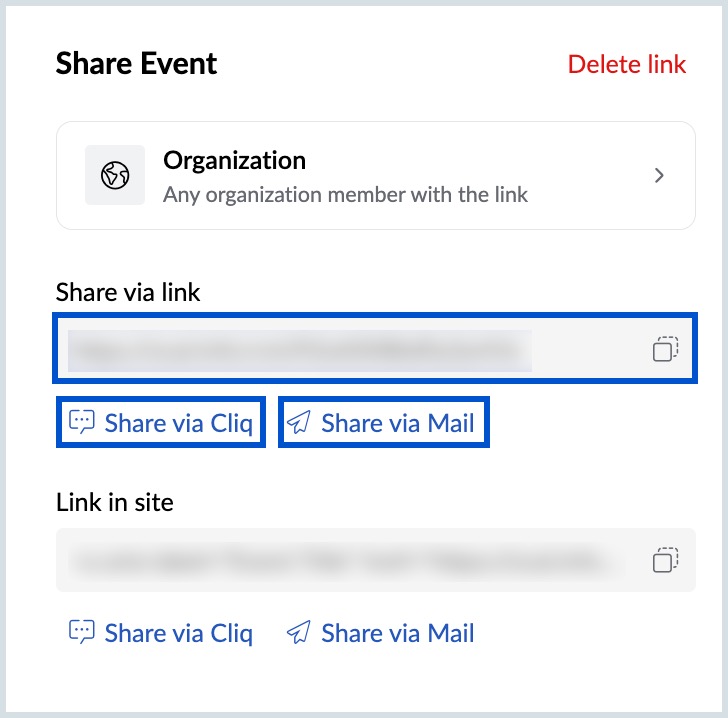
- The event link is generated in the Share Event pop up and you can copy and send to the desired participant.
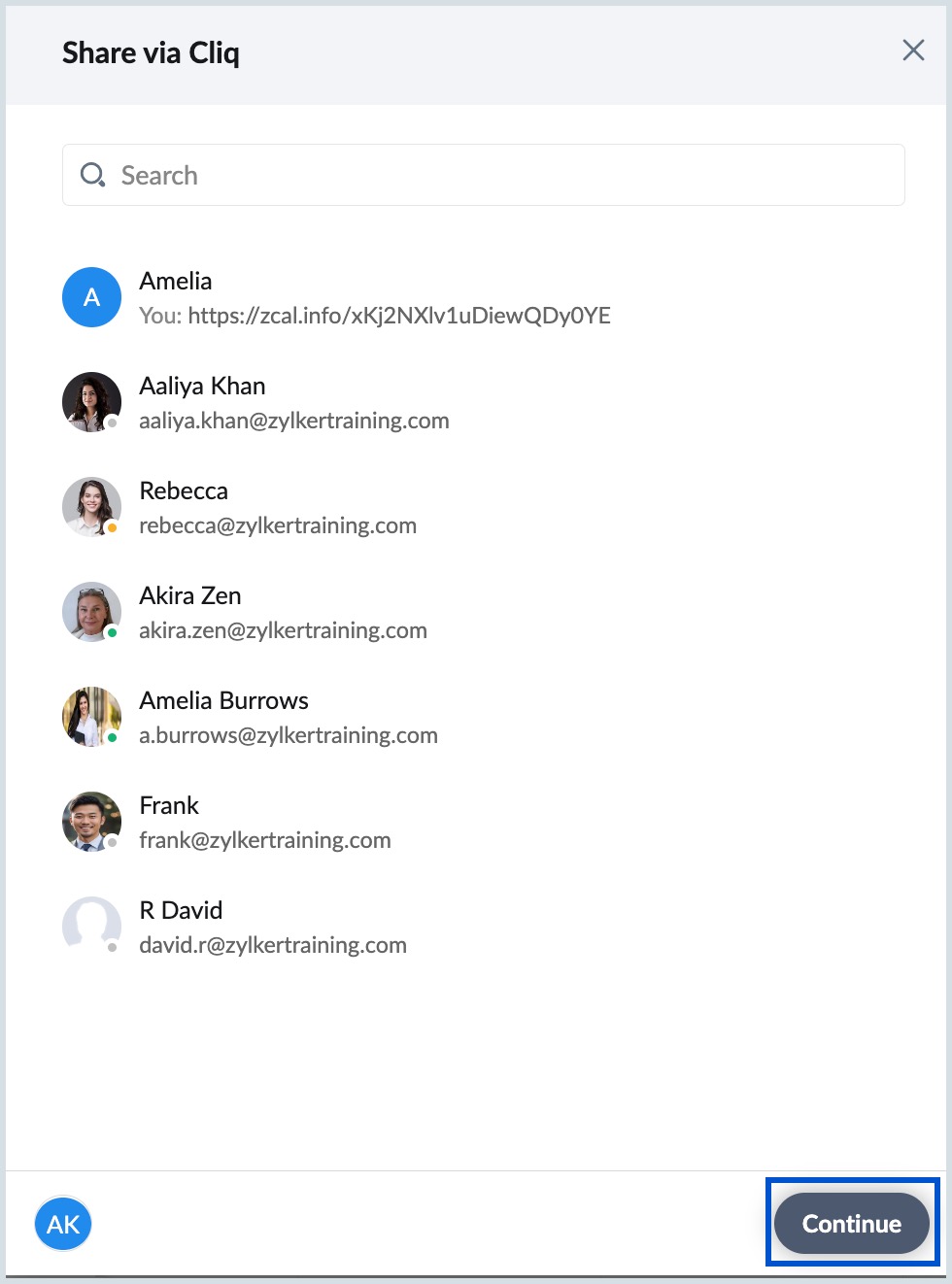
- Select Share via Cliq to send the event link through Cliq chat. Choose the desired participant, and click Continue. The meeting link will be sent to the selected participant.
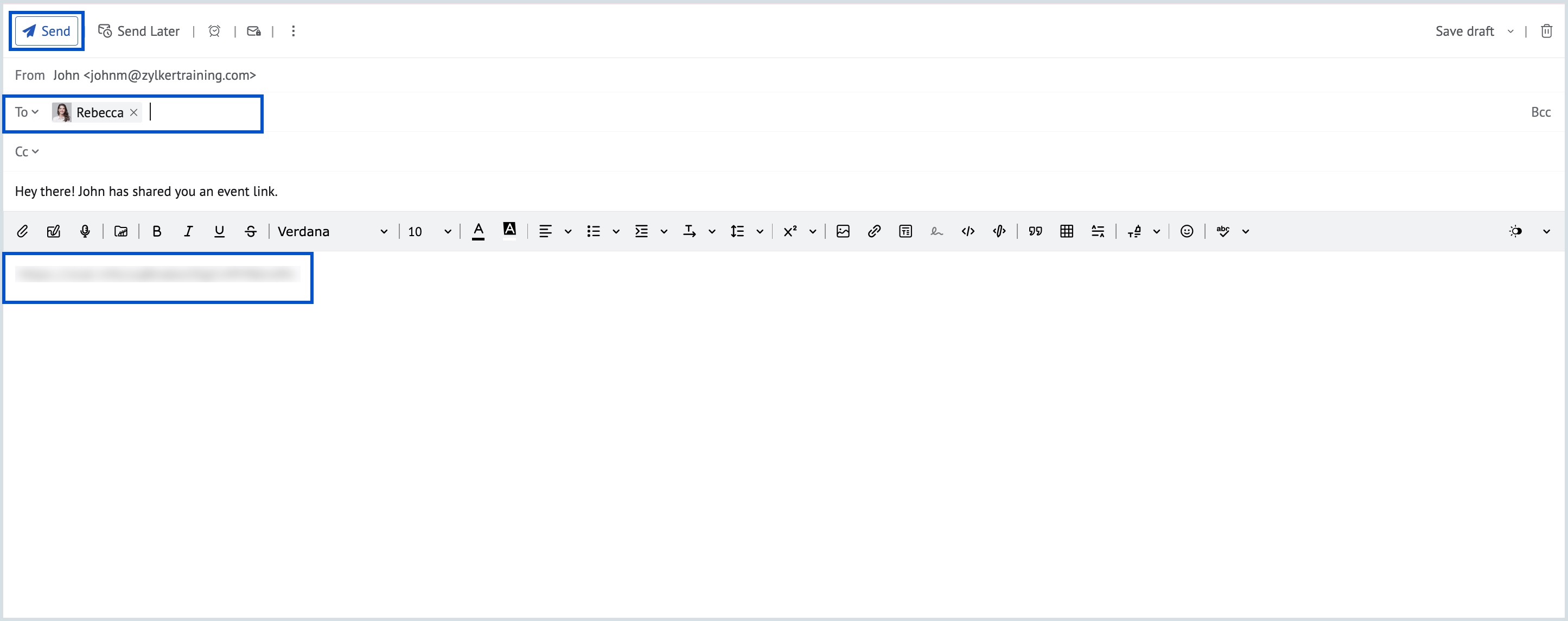
- Select Share via Mail to send the event link through Mail. Enter the desired participant(s) in the To field and click Send. The meeting link, present in the body of the Mail, is shared with the chosen participants.
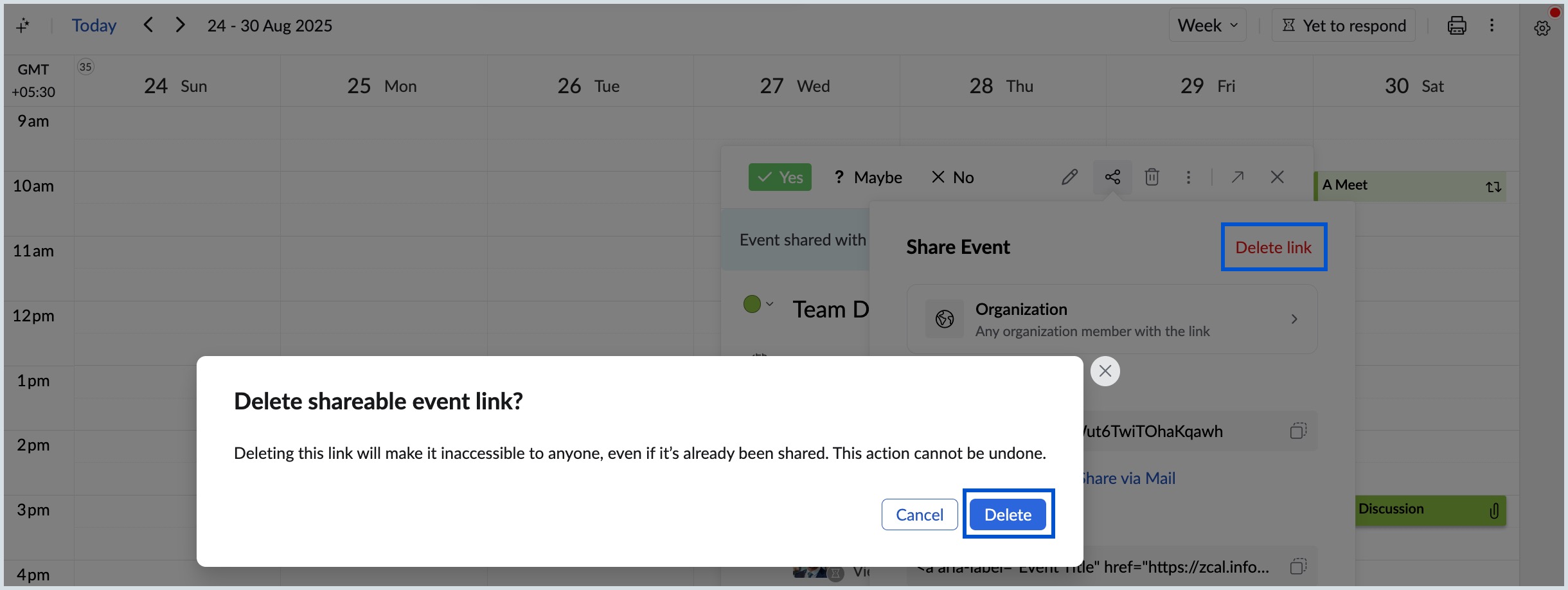
- To delete the link generated, click Delete link in the Share Event pop up and select Delete.
Delete an event
You can delete an event if the event has been cancelled. You can follow the steps given below to delete an event.
Steps to Delete an event
- Log in to Zoho Calendar.
- Click on the event you have added to your calendar.
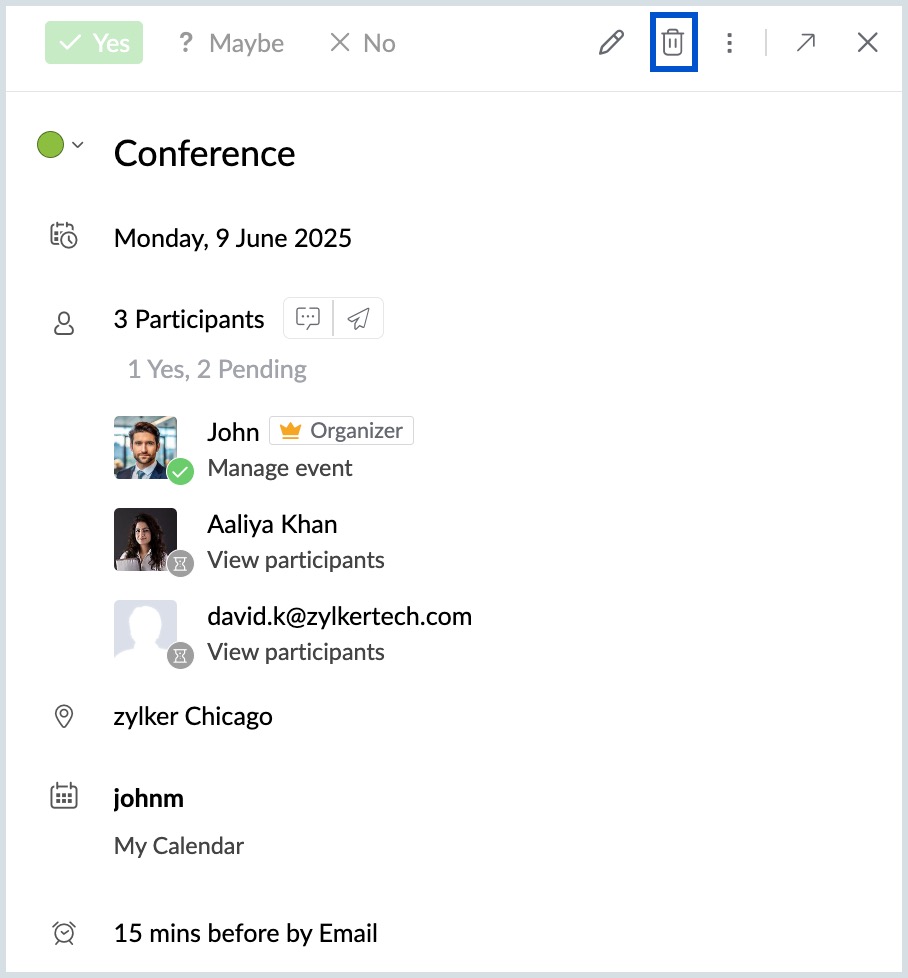
- Click on the Delete icon at the top of the event view pop-up.
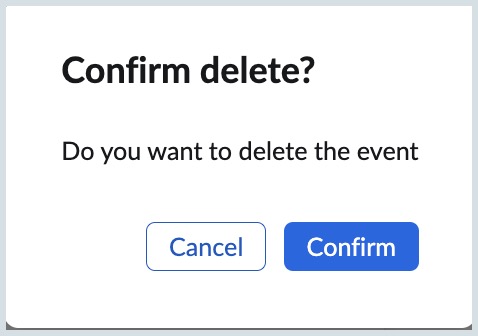
- A Confirm Delete? pop-up will appear.
- Click Confirm.
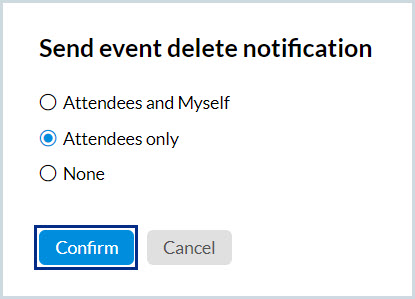
- A Send event deletes notification pop-up will appear. Select any of the options and click Confirm.
- After deleting, a confirmation message appears at the top, click View in trash to open the deleted event.
Note
- You can recover the deleted events from the Trash. Learn more on how to recover events from trash.
- You can also right-click on an event in the calendar grid to view, edit, duplicate and delete the event.
Remove me from the event
At any point after the event creation, you can remove yourself from the event using the 'Remove me' option.
Steps to remove yourself from the event
- Log in to Zoho Calendar.
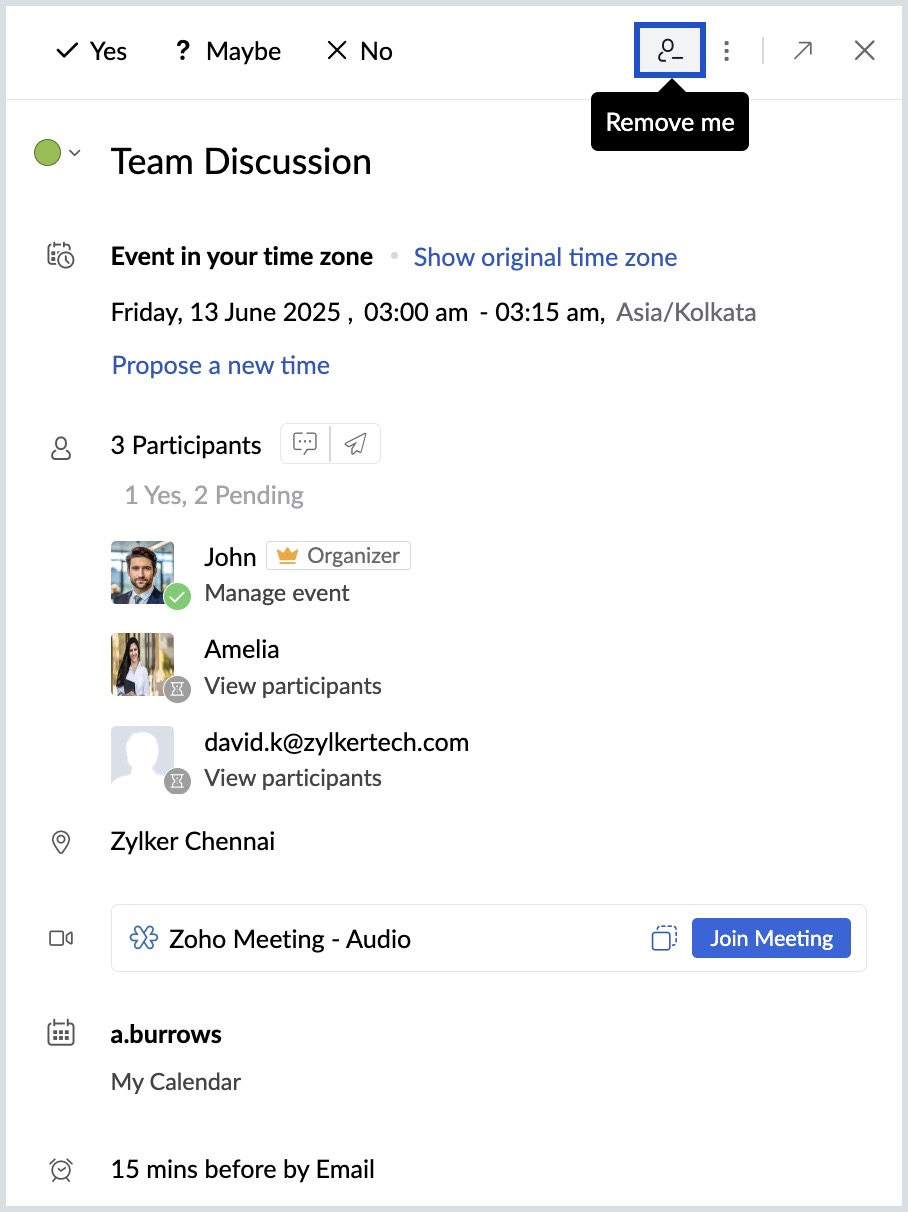
- Click on the event you want to remove from your calendar.
- Click on the Remove Me icon at the top of the event view pop-up.
- A confirmation pop-up will appear.
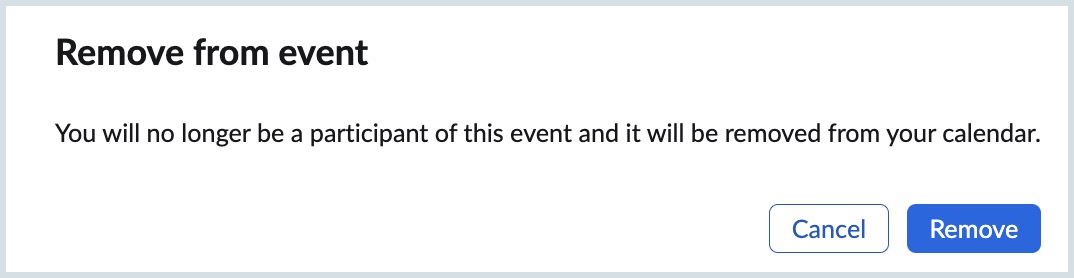
- Select 'Remove' to remove yourself from the event and the event gets removed from your calendar grid.
Note
You can remove yourself from an event only when you are a participant for that specific event. An organizer cannot use Remove me option.