BYOK for third party AI integration
Bring Your Own Key (BYOK) method allows you to use your very own API key from various third party AI providers directly to the Zoho Mail. By configuring the AI providers in Zoho Mail's Admin Console via BYOK approach, the AI providers uses your own key whenever they are triggered or called. This gives you direct control over usage and data shared.
Note:
- This feature is available only to the organization users who have subscribed to one of our paid plans.
- If BYOK feature is not available to your organization, please write to support@zohomail.com
- Once configured, the third party AI integration can be accessed from the user's Zoho Mail account. Know more on using Zia for Mail in Zoho Mail.
Note:
While using the AI features mentioned below, your organization's data and email content may be shared to an external third party based on the features selected during configuration.
- Mail Preferences
- Auto-complete sentences - Contextual data based on the type of sentence the user writes will get shared to the AI provider.
- Generate email content - Brief of the email content provided will be shared to the AI provider.
- Summarize email - Entire email conversation will be shared.
- Smart auto-reply - Content of the email will be shared to provide AI generated suggestions for auto-reply.
- Calendar Preferences
- Create events with natural language - Natural language given by users will be shared.
- AI-powered event title suggestions - Contextual Calendar event titles will be shared to the AI provider.
- AI-powered event description generation - Brief of the Calendar event being created will be shared to the AI provider.
- Subtask generation - Task details given by the users will be shared.
- Task description generation - Brief description of the task based on the given task name will be shared.
The liability for data shared to any external third party thus lies with the organization's administrator since the configuration of these AI providers is done from the Admin Console.
Steps to configure third party AI provider
- Log in to Zoho Mail Admin Console.
- Navigate to Zia for Mail on the left pane.
- Select Bring Your Own Key option and enable the toggle button ON.
- List of AI providers like ChatGPT, Gemini, Claude, and Cohere will be listed.
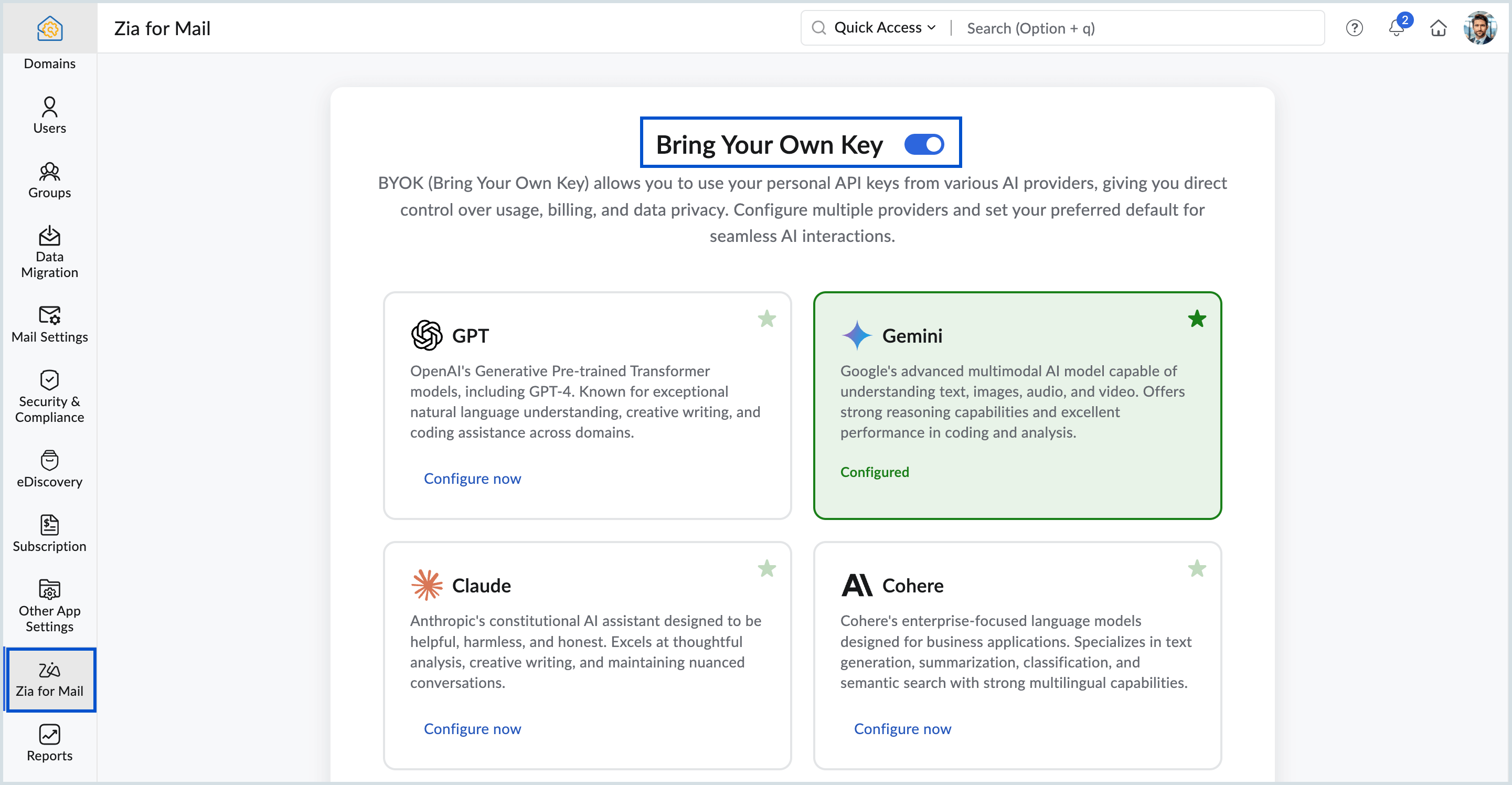
- Select the preferred AI provider and perform the configuration steps.
Steps to configure ChatGPT
- Log in to Zoho Mail Admin Console.
- Navigate to Zia for Mail from the left pane.
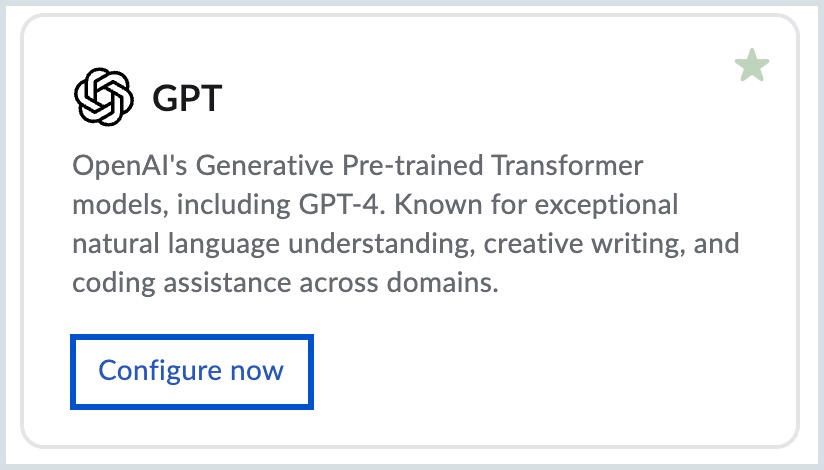
- Select Configure now in ChatGPT from the list of AI providers listed.
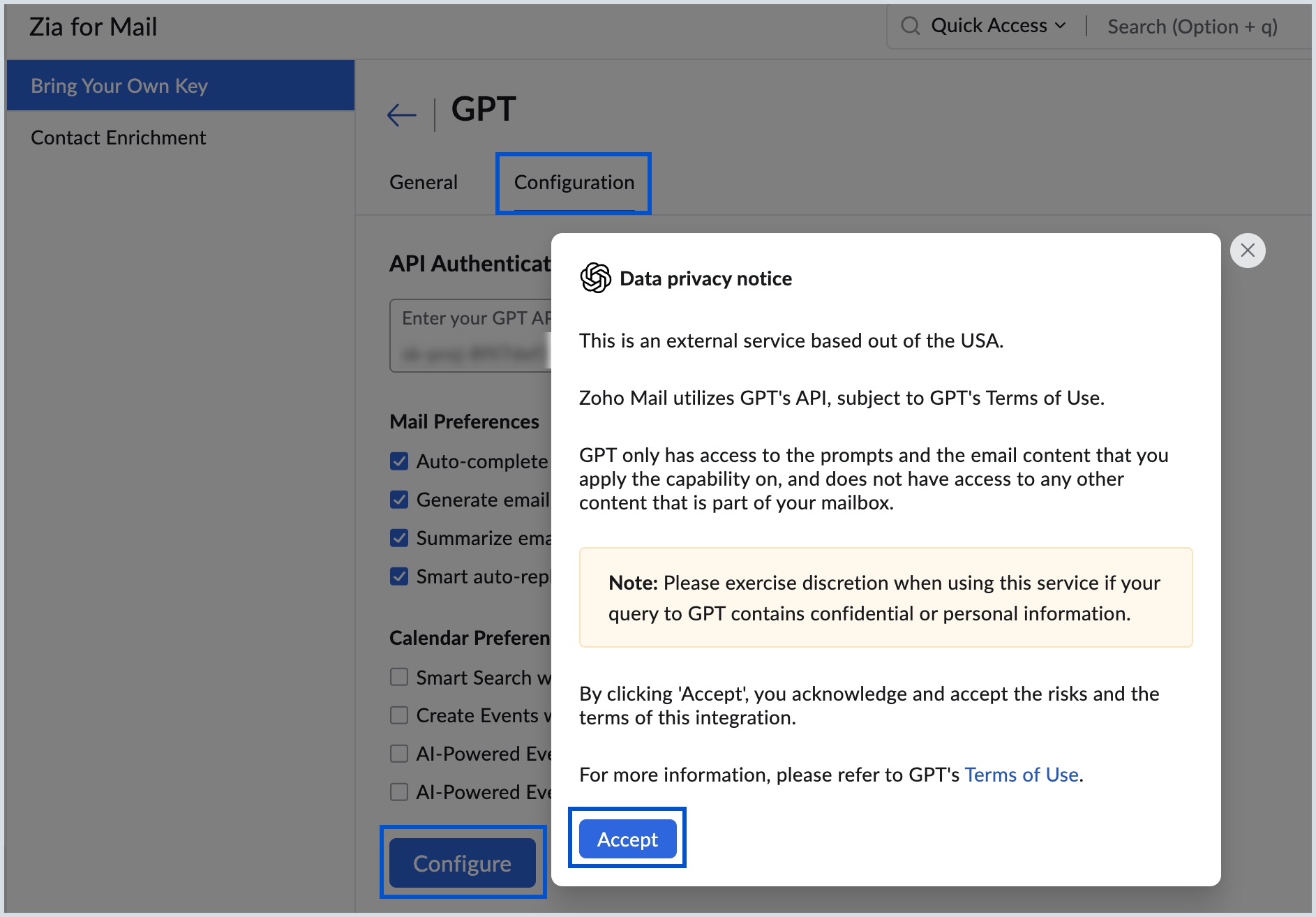
- Navigate to Configuration tab under ChatGPT.
- Provide your API Authentication key in the Enter your ChatGPT API key field. Refer to find the details to fetch the ChatGPT API key.
- Under Mail Preferences, select the desired check boxes:
- Auto-complete sentences
- Generate email content
- Summarize email
- Smart auto-reply
- Select the preferred options from the list under Calendar Preferences:
- Create events with natural language
- AI-powered event title suggestions
- AI-powered event description generation
- Select the desired options from the ToDo Preferences:
- Subtask generation
- Task description generation
- Click Configure once all the selections are made.
- Select Accept in the Data Privacy Note that pops up.
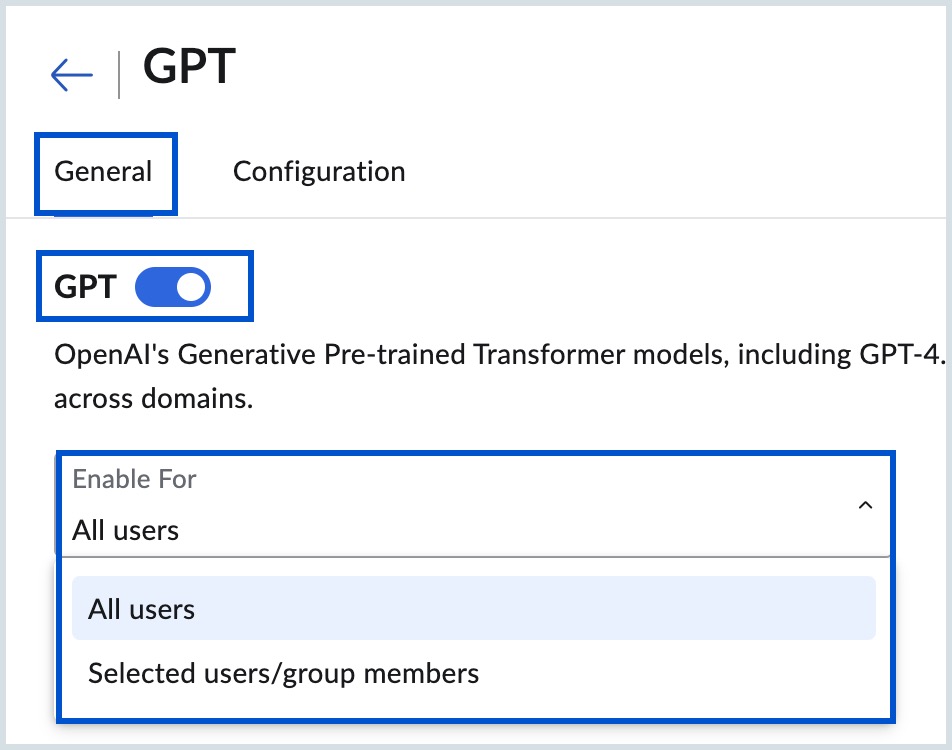
- Now, navigate to the General tab on the top pane and enable the toggle button ON which is next to ChatGPT.
- Select either All users or Selected users/group members from the Enable For drop-down.
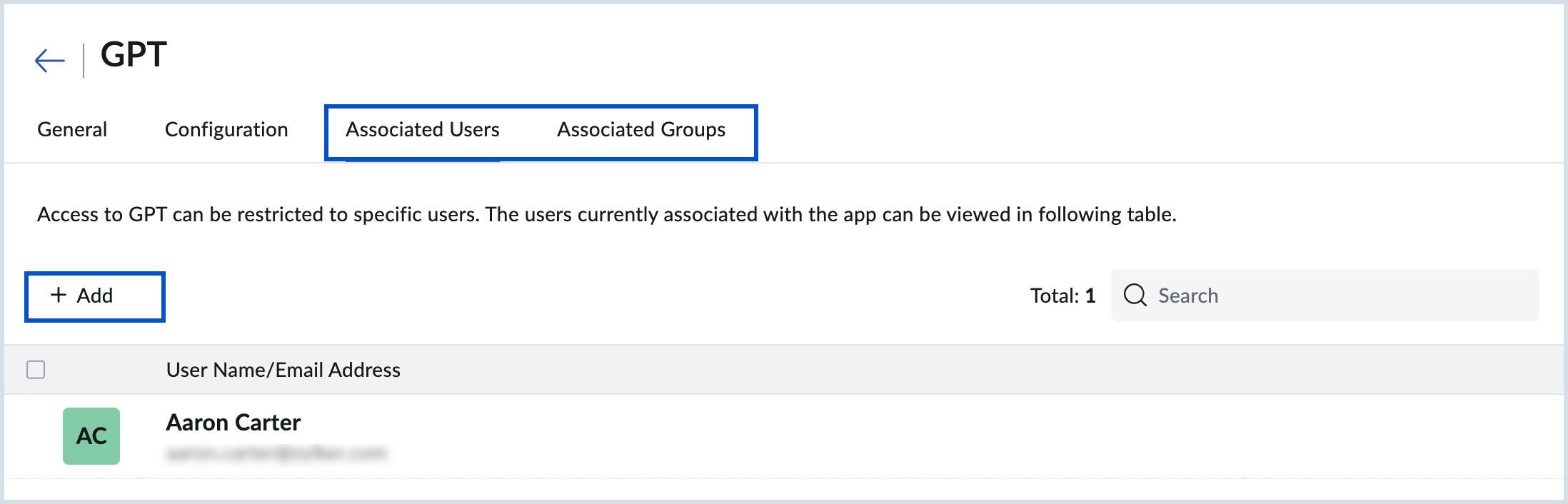
- If you choose Selected users/group members, navigate to the Associated Users or Associated Groups tab and click +Add to add respective users or groups based on the requirement.
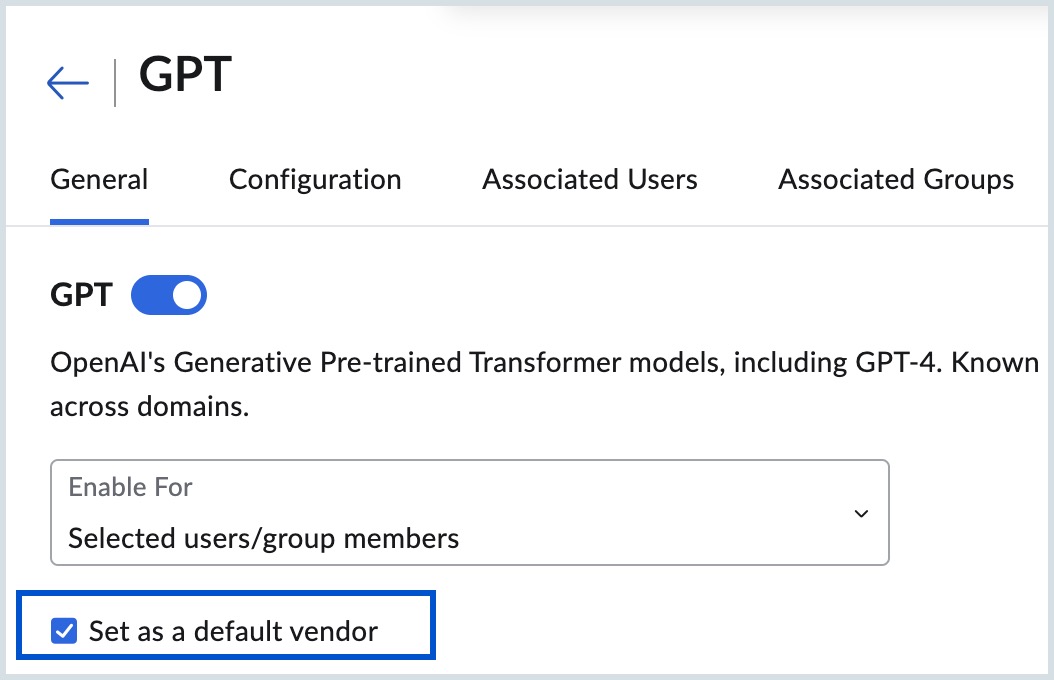
- Select the check box Set as a default vendor under General tab, if you wish to set ChatGPT as your default AI provider.
Note:
- You can select any one of the AI providers as default. The default AI tool is highlighted with a star icon.
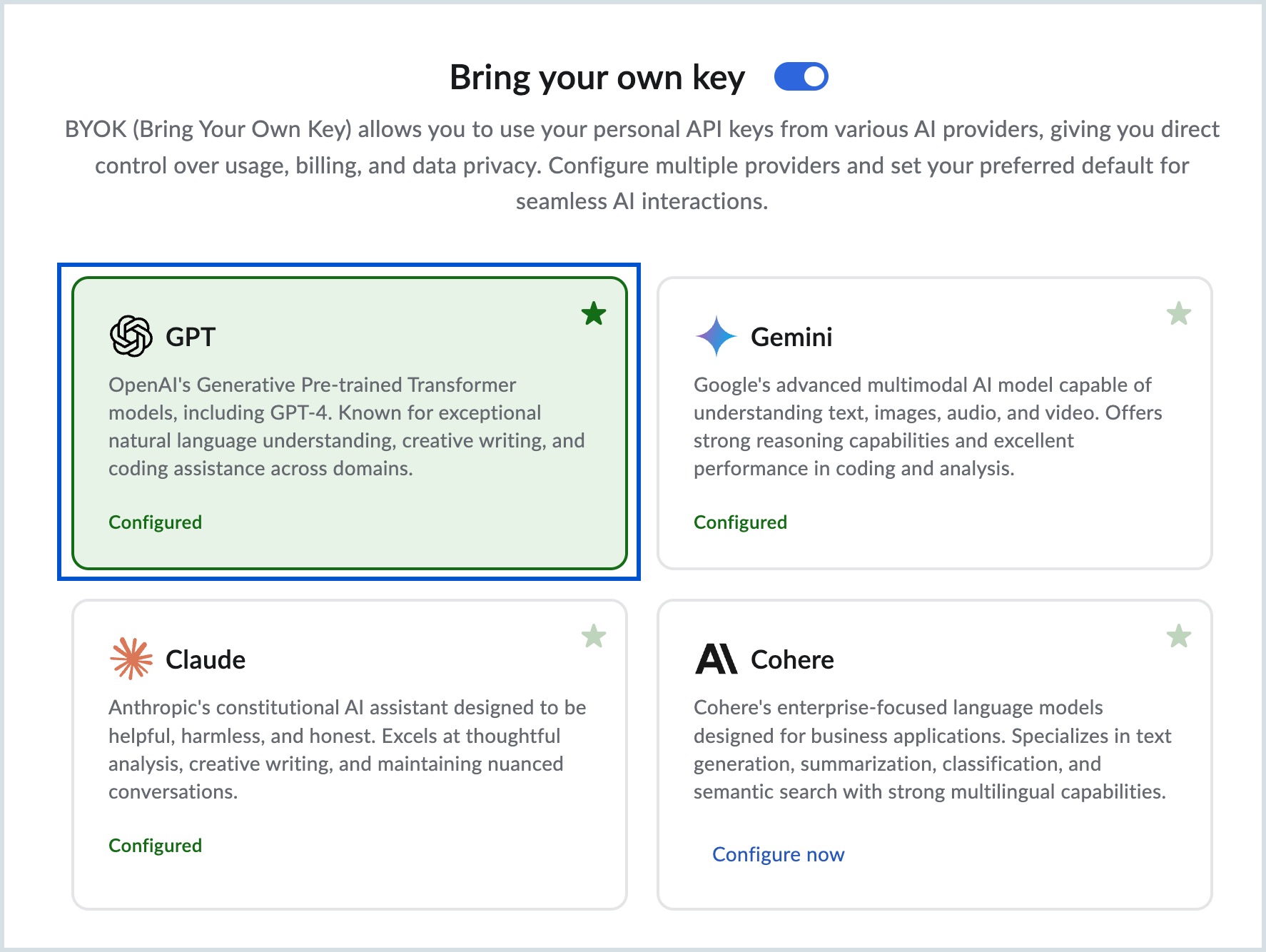
- All the AI providers configured are available for the users to select while composing a New Mail along with the one which is set as default.
Steps to configure Gemini
- Log in to Zoho Mail Admin Console.
- Navigate to Zia for Mail from the left pane.
- Select Configure now in Gemini from the list of AI providers listed.
- Navigate to Configuration tab under Gemini.
- Provide your API Authentication key in the Enter your Gemini API key field. Refer to find the details to fetch the Gemini API key.
- Under Mail Preferences, select the desired check boxes:
- Auto-complete sentences
- Generate email content
- Summarize email
- Smart auto-reply
- Select the preferred options from the list under Calendar Preferences:
- Create events with natural language
- AI-powered event title suggestions
- AI-powered event description generation
- Select the desired options from the ToDo Preferences:
- Subtask generation
- Task description generation
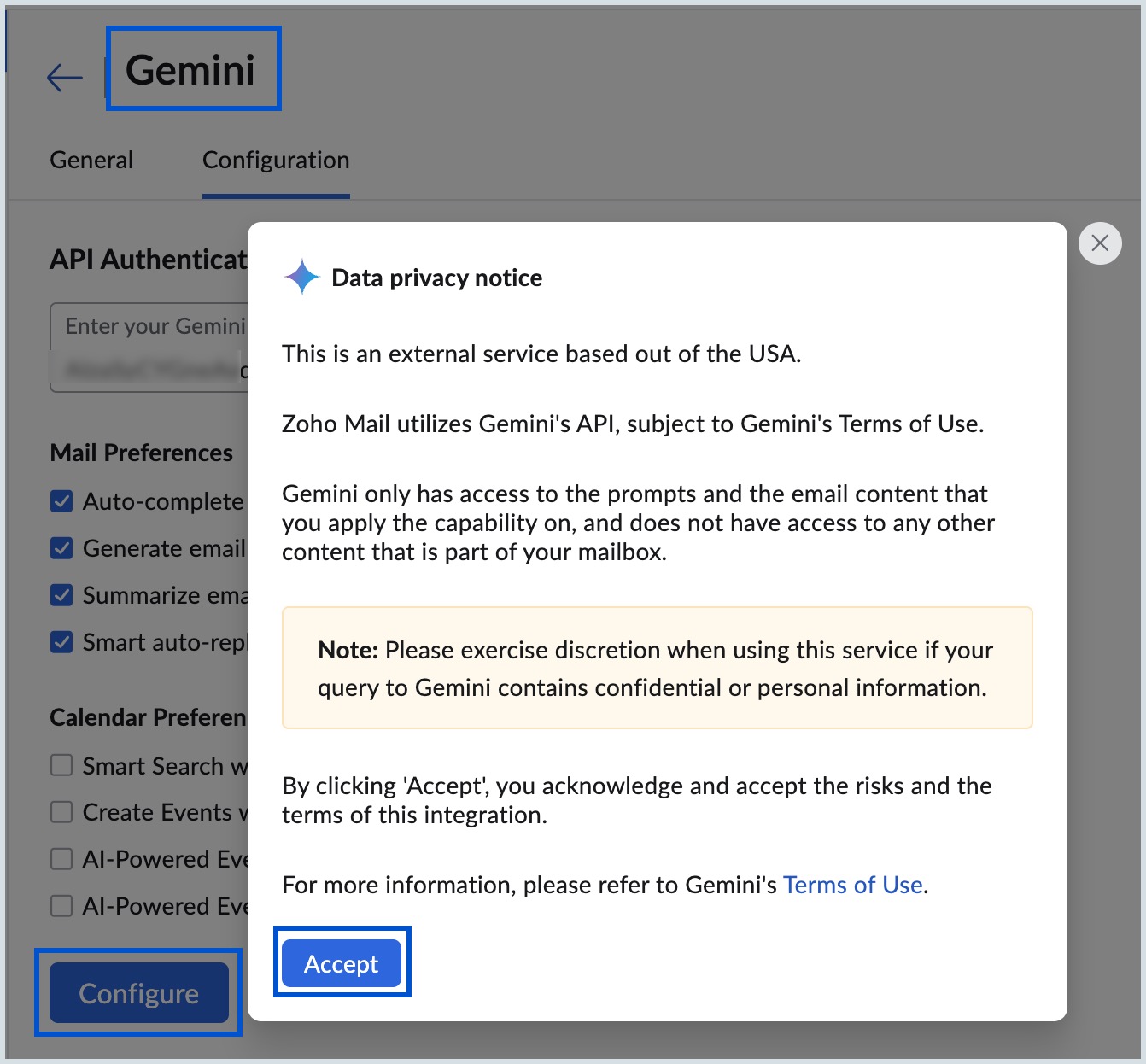
- Click Configure once all the selections are made.
- Select Accept in the Data Privacy Note that pops up.
- Now, navigate to the General tab on the top pane and enable the toggle button ON which is next to Gemini.
- Select either All users or Selected users/group members from the Enable For drop-down.
- If you choose Selected users/group members, navigate to the Associated Users or Associated Groups tab to add respective users or groups based on the requirement.
- Select the check box Set as a default vendor if you wish to set Gemini as your default AI provider.
Steps to configure Claude
- Log in to Zoho Mail Admin Console.
- Navigate to Zia for Mail from the left pane.
- Select Configure now in Claude from the list of AI providers listed.
- Navigate to Configuration tab under Claude.
- Provide your API Authentication key in the Enter your Claude API key field. Refer to find the details to fetch the Claude API key.
- Under Mail Preferences, select the desired check boxes:
- Auto-complete sentences
- Generate email content
- Summarize email
- Smart auto-reply
- Select the preferred options from the list under Calendar Preferences:
- Create events with natural language
- AI-powered event title suggestions
- AI-powered event description generation
- Select the desired options from the ToDo Preferences:
- Subtask generation
- Task description generation
- Click Configure once all the selections are made.
- Select Accept in the Data Privacy Note that pops up.
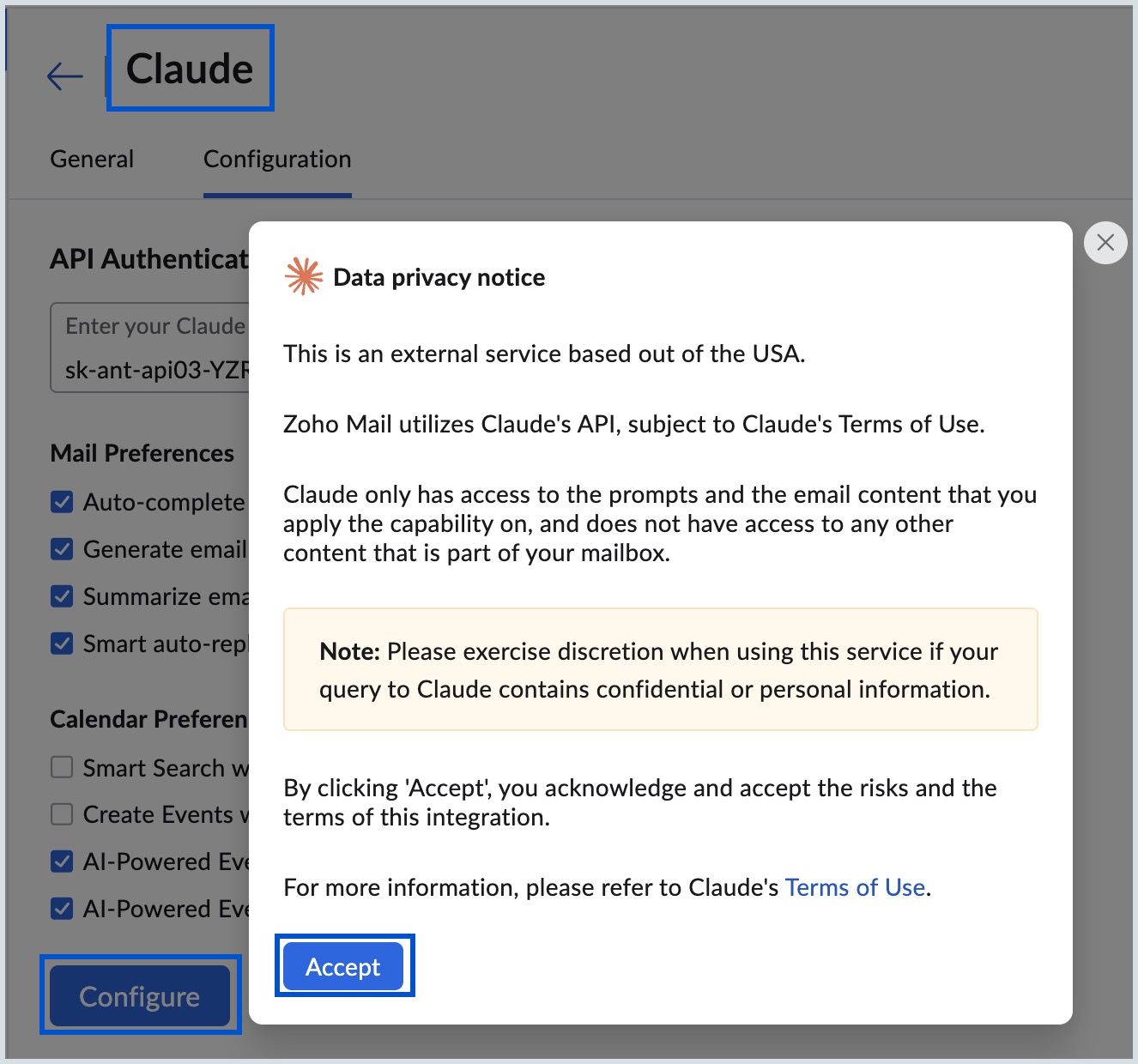
- Now, navigate to the General tab on the top pane and enable the toggle button ON which is next to Claude.
- Select either All users or Selected users/group members from the Enable For drop-down.
- If you choose Selected users/group members, navigate to the Associated Users or Associated Groups tab to add respective users or groups based on the requirement.
- Select the check box Set as a default vendor if you wish to set Claude as your default AI provider.
Steps to configure Cohere
- Log in to Zoho Mail Admin Console.
- Navigate to Zia for Mail from the left pane.
- Select Configure now in Cohere from the list of AI providers listed.
- Navigate to Configuration tab under Cohere.
- Provide your API Authentication key in the Enter your Cohere API key field. Refer to find the details to fetch the Cohere API key.
- Under Mail Preferences, select the desired check boxes:
- Auto-complete sentences
- Generate email content
- Summarize email
- Smart auto-reply
- Select the preferred options from the list under Calendar Preferences:
- Create events with natural language
- AI-powered event title suggestions
- AI-powered event description generation
- Select the desired options from the ToDo Preferences:
- Subtask generation
- Task description generation
- Click Configure once all the selections are made.
- Select Accept in the Data Privacy Note that pops up.
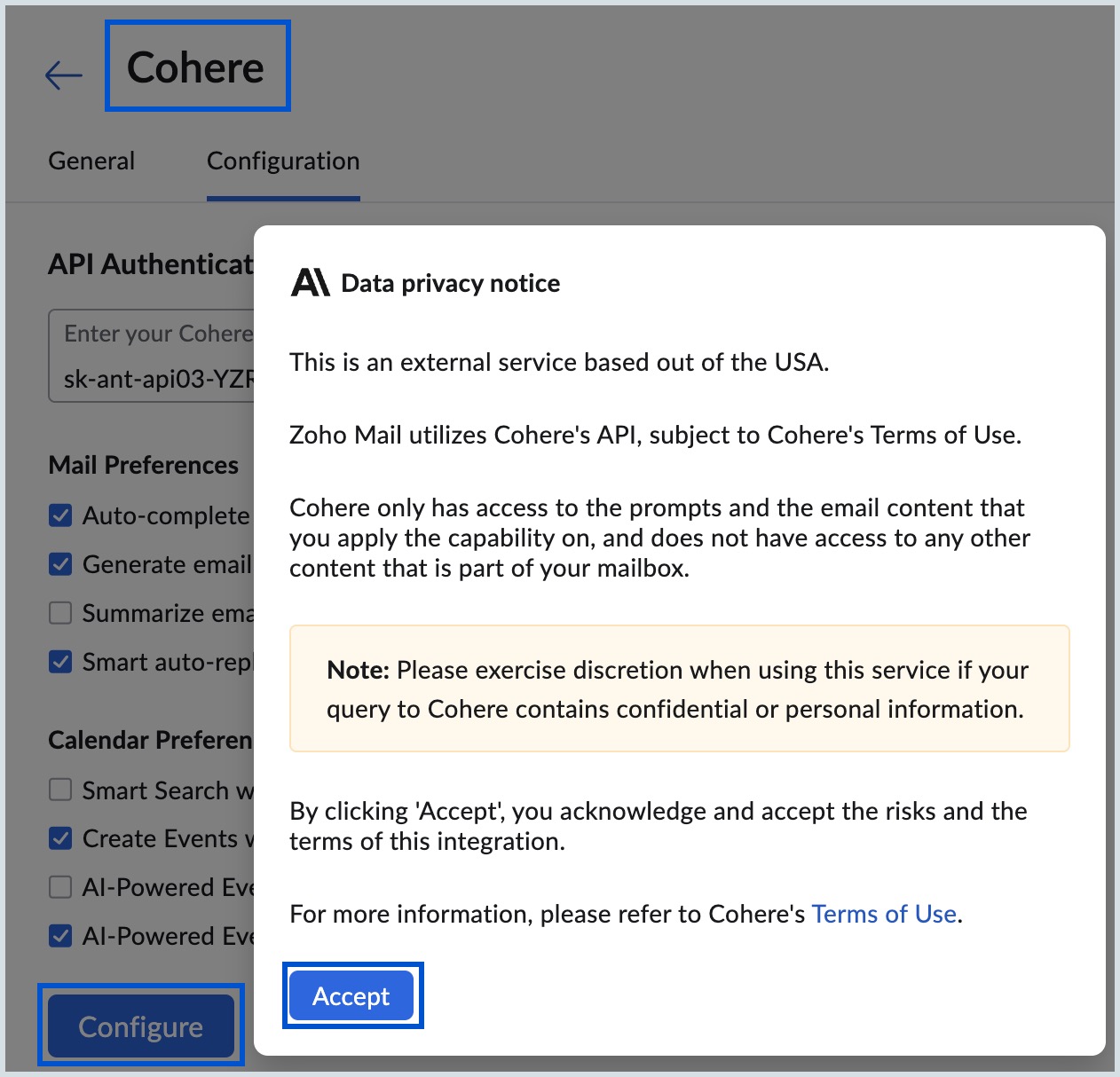
- Now, navigate to the General tab on the top pane and enable the toggle button ON which is next to Cohere.
- Select either All users or Selected users/group members from the Enable For drop-down.
- If you choose Selected users/group members, navigate to the Associated Users or Associated Groups tab to add respective users or groups based on the requirement.
- Select the check box Set as a default vendor if you wish to set Cohere as your default AI provider.
Steps to disable configuration
Admin or Super Admin can disable the BYOK feature whenever necessary. The users will not be able to access any of the configured AI tools' functionalities in this state. However, the AI tools configurations remain intact while the feature is disabled. Follow the below steps to disable BYOK feature from Admin Console:
- Log in to Zoho Mail Admin Console.
- Navigate to Zia for Mail on the left pane.
- Turn off the toggle button next to Bring Your Own Key.
- Select Disable in the Confirm Action! dialog box.
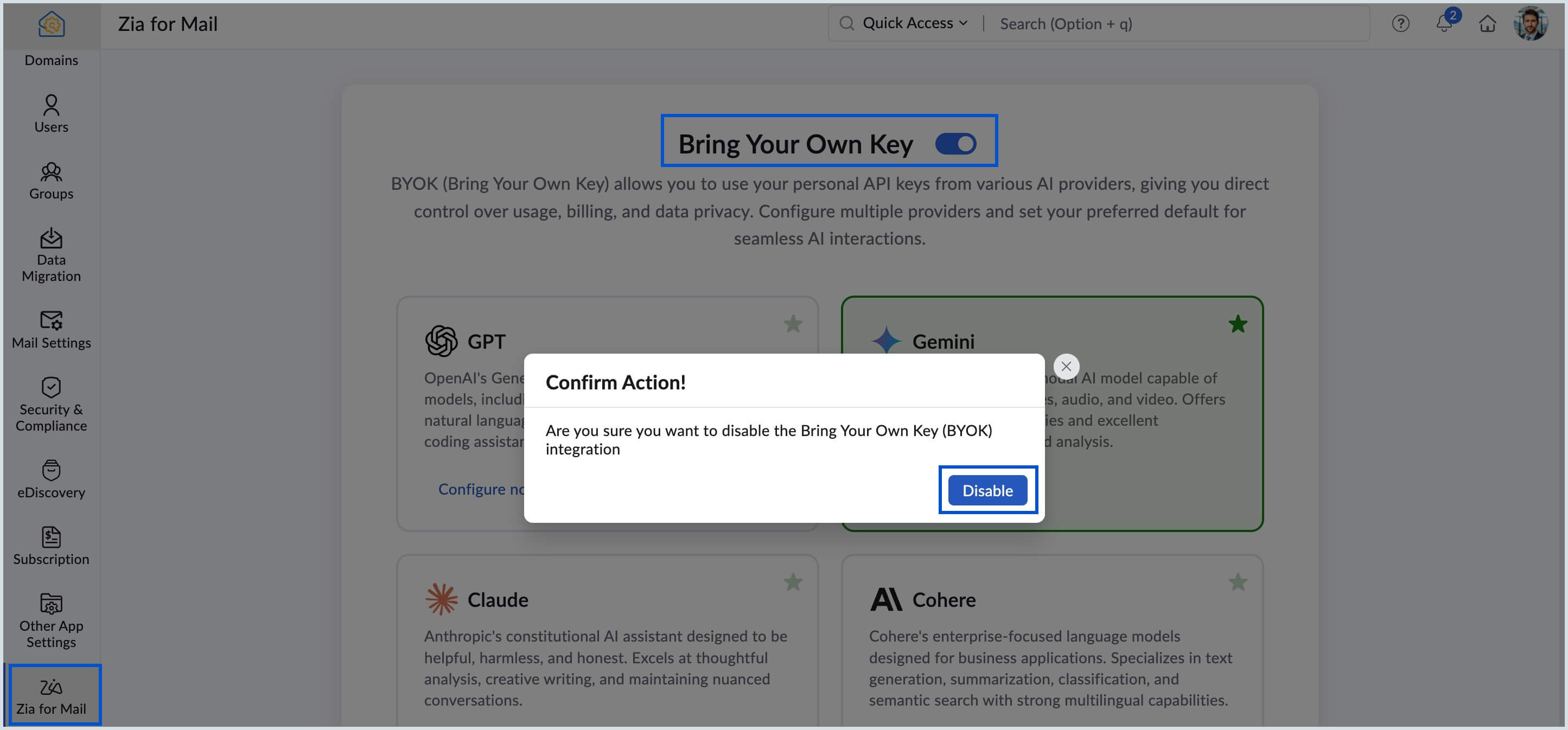
To enable the feature again, turn the toggle button ON.
Steps to remove AI configuration
Admin or Super Admin can remove the configuration of any of the AI tools under Bring Your Own Key section of Admin Console. Once the configuration is removed, the particular AI tool cannot be set as a default vendor and users' across the organization cannot use it for mail assistance. The steps to remove AI tool configuration are:
- Log in to Zoho Mail Admin Console.
- Navigate to Zia for Mail on the left pane.
- Under Bring Your Own Key section, select the desired AI tool for which configuration has to be removed.
- Navigate to the Configuration tab on the top pane.
- Select Remove Configuration at the bottom of Configuration section.
- Click Remove in the Confirm Action! dialog box to remove the configuration.
