Migrating emails from the existing email service to Zoho Mail
Organizations can migrate emails from their previous email provider to Zoho Mail using IMAP protocol. Ensure that have added the user accounts in Zoho Mail before proceeding with the migration. If IMAP is not supported, then you can migrate your emails via POP migration.
Configuration details needed before migration
To create a new IMAP Migration in Zoho Mail, the following details are required:
- Name of the Server - Hostname of the IMAP Server from which the migration needs to be initiated
- Server Port - The supported server ports are 143 (Non-SSL), 993 (SSL)
- SSL Type - Only Trusted Certificates are supported. Self Signed SSL certificates are not supported due to security reasons
- Maximum Connection Limit - The maximum connection limit is the number of maximum connections accepted by the server at a given time. For example, if you provide 5 as the maximum connection limit when the migration is started, the migration process will be started simultaneously for 5 users. The migration process will be faster when parallel migrations are happening between the servers.
- Path Prefix - Some IMAP servers expect the PATH Prefix details for connecting and retrieving emails via IMAP.
Adding the IMAP Migration
The steps to create a new IMAP migration are:
Adding server details for IMAP migration
The first step in IMAP migration is to add the server details for your migration. Follow these steps to configure server details:
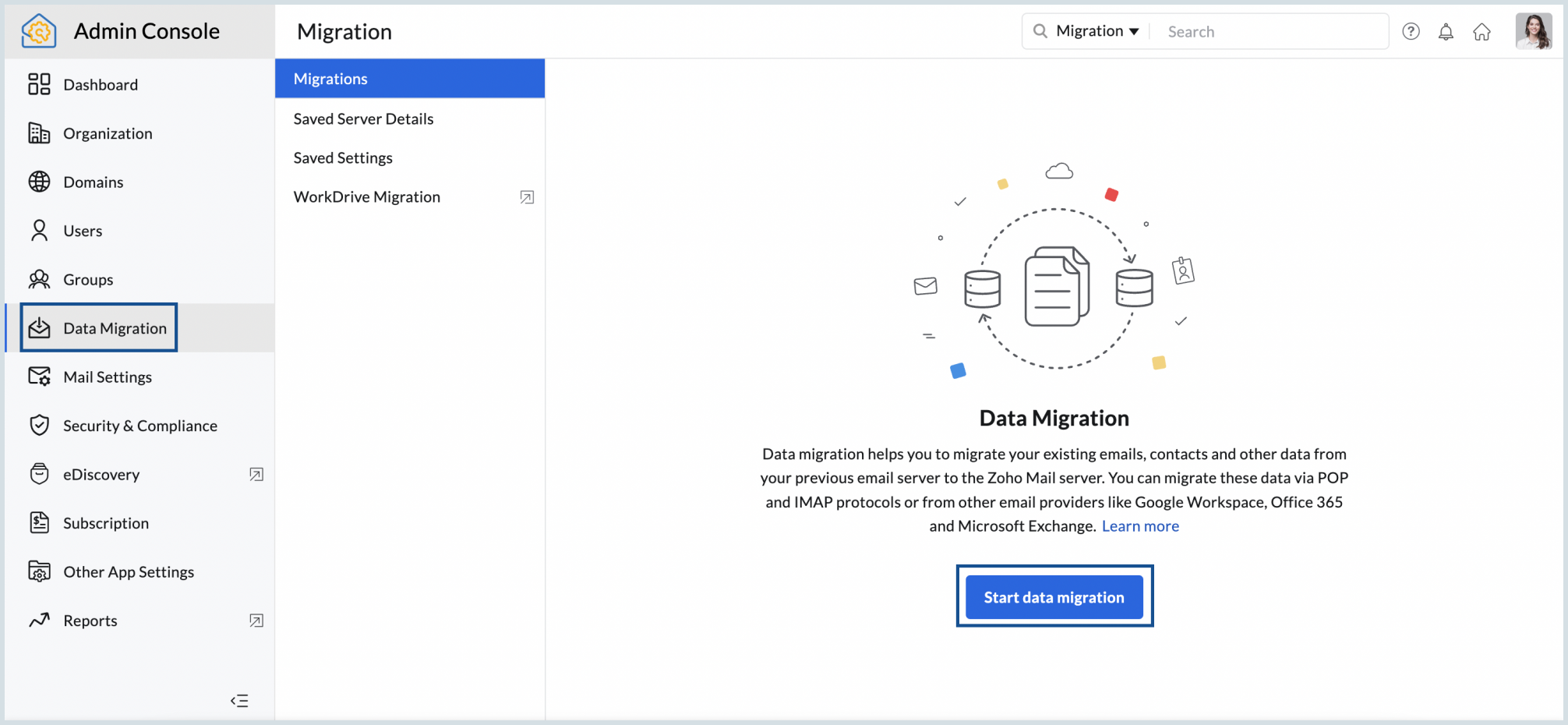
- Log in to Zoho Mail Admin Console and select Data Migration on the left pane.
- Click Start data migration for the first migration or click Create for subsequent migrations.
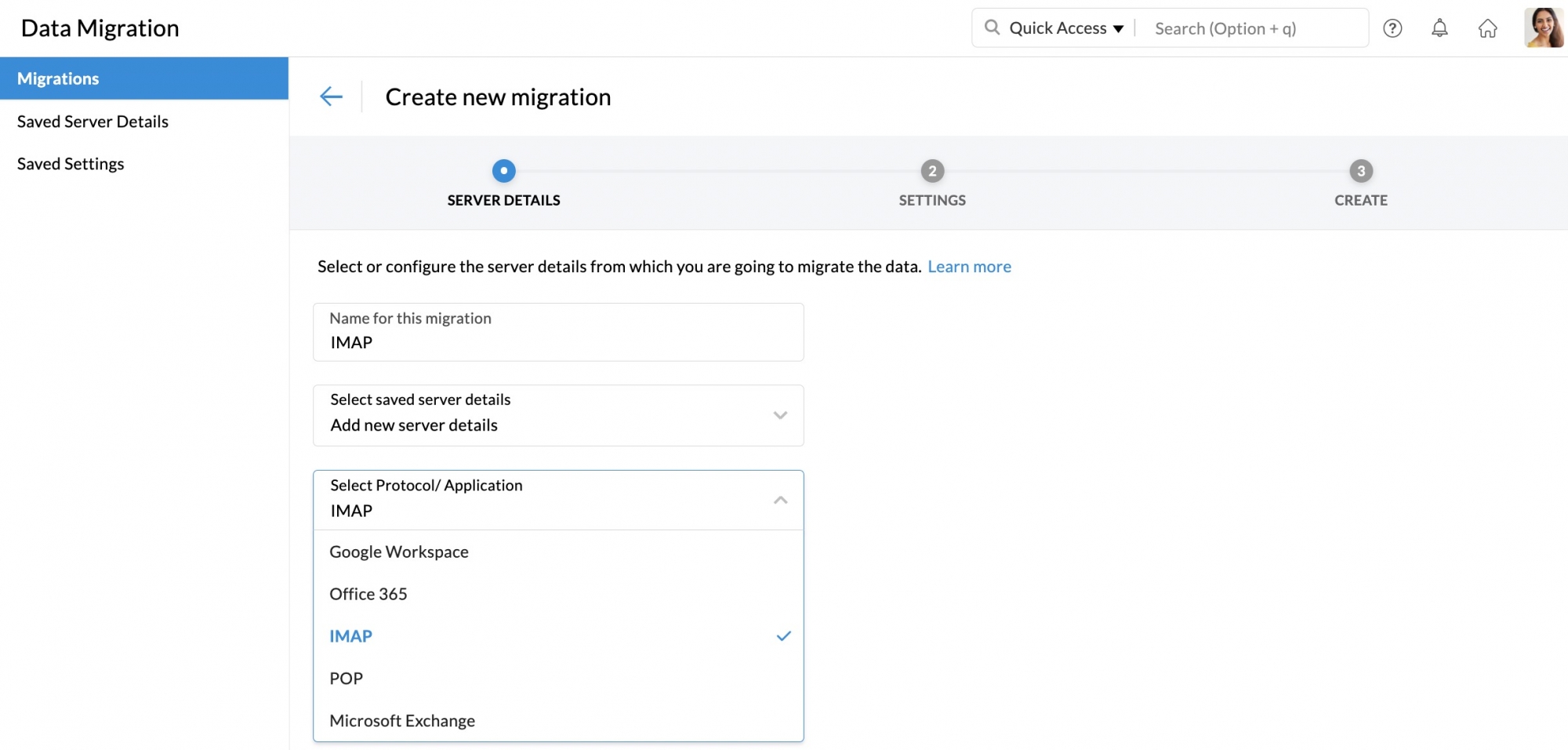
- Enter a name for the server configuration.
- In the Select saved server details drop-down, choose Add new server details.
- Choose IMAP in the Select Protocol/Application drop-down menu.
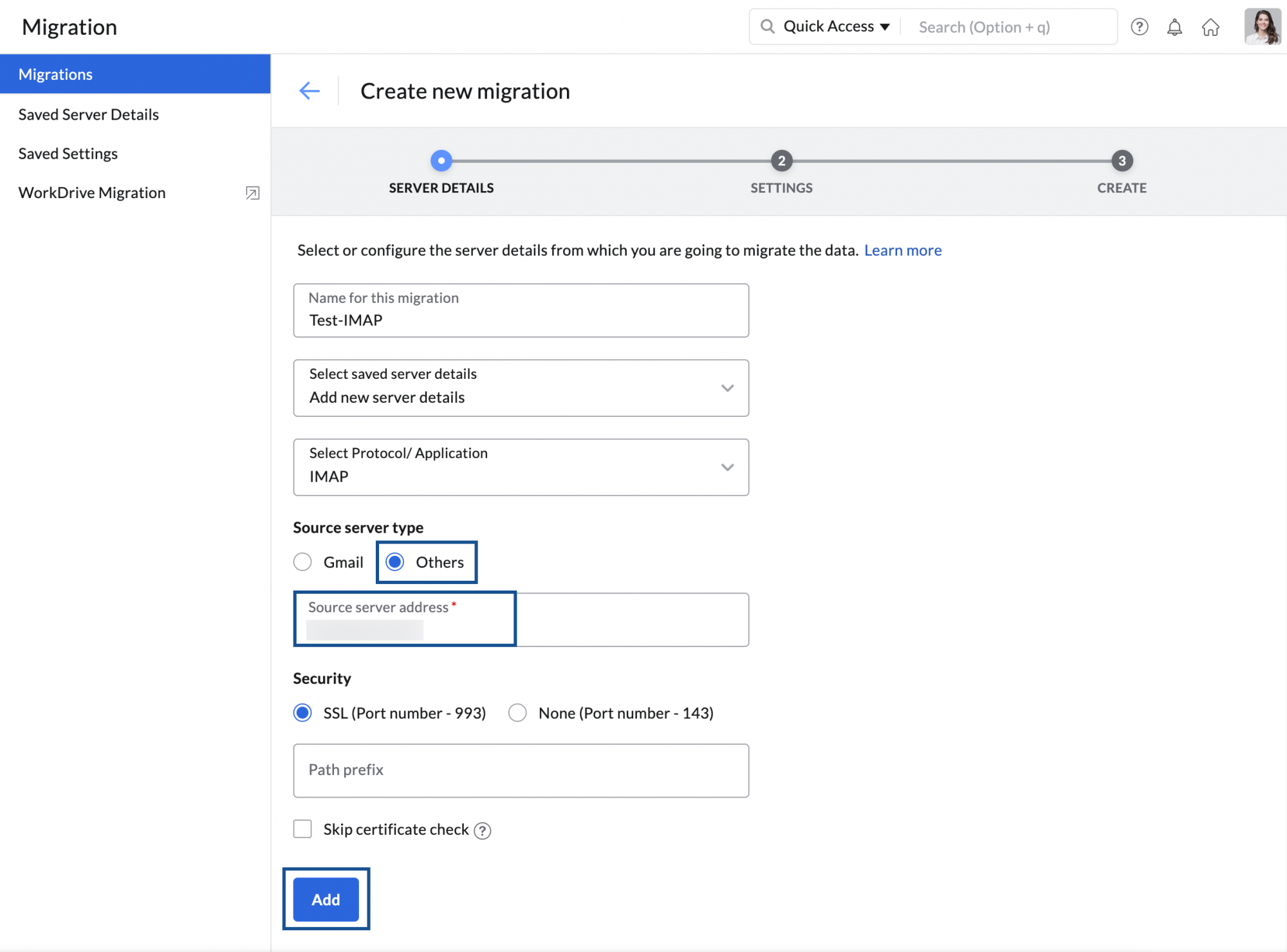
- Enter the Source server address or copy and paste the desired value by hovering over the tool tip icon.
- If your source server recommends Port Number 993, choose SSL under Security, if it is 143, choose None.
- Enter the Path prefix, if your source server mandates it.
- If you wish to proceed without the SSL certificate check, select the Skip certificate check checkbox, and click Add.
The server details you added will be saved on the Saved Server Details page, and you can use it for performing other migrations just by picking it from the drop-down.
Note:
- You can add server details from the Saved Server Details section under DataMigration by selecting +Add icon and follow the steps in Add server details.
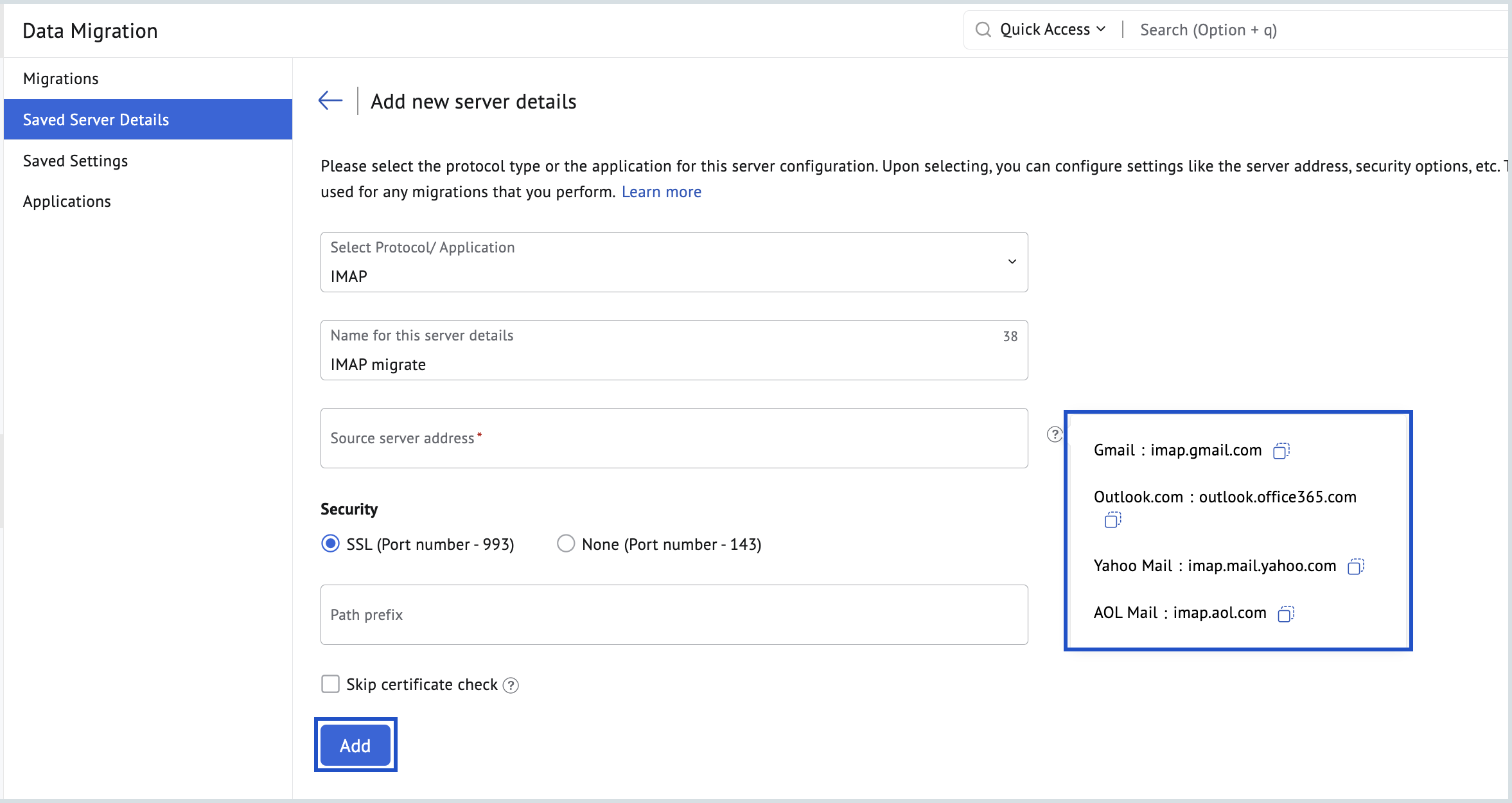
- The server details added here will be available in the Select saved server details drop-down under the Migration section.
Adding the settings for IMAP migration
Configure the server settings for the migration as follows:
- Enter a name for the server setting.
- Under Folders to migrate, you can choose either the All folders or Specific folders.
- If you choose the All folders option, you can choose to skip any folders during migration using the Exclude Folder List option.
- The skip folders option will be handy when the admin reruns migrations for the same set of users for some new emails or missed emails. Enter the names of the folders within double quotes ("Folder1"), in which case only that folder will be excluded. If you want all subfolders under a parent folder to be migrated enter the folder name followed by /* within double quotes ("Folder1/*"). Refer to folder conventions for more information.
- If you choose the Specific folders option, you can specify the folders that need to be included in the Include Folder List.
- In the Include Folder List, enter the names of the folders within double quotes ("Folder1"), in which case only that folder will be included. If you want all subfolders under a parent folder to be migrated enter the folder name followed by /* within double quotes ("Folder1/*"). Refer to folder conventions for more information.
- Under Emails to migrate, select whether you want to migrate all the emails or the emails that you have received after a specific date.
- In Enable POP access for the migrated emails, select Yes if you want your users to view the migrated emails when the account is configured as POP in other email clients. Otherwise, select No.
- In the Do you want to suppress migration status notification emails for users? section, select Yes to suppress migration status notification emails. Users will not be notified about the success or failure of their migration. Select No to keep notifications enabled, so users receive an email about their migration status.
- Click Add and proceed to Create migration.
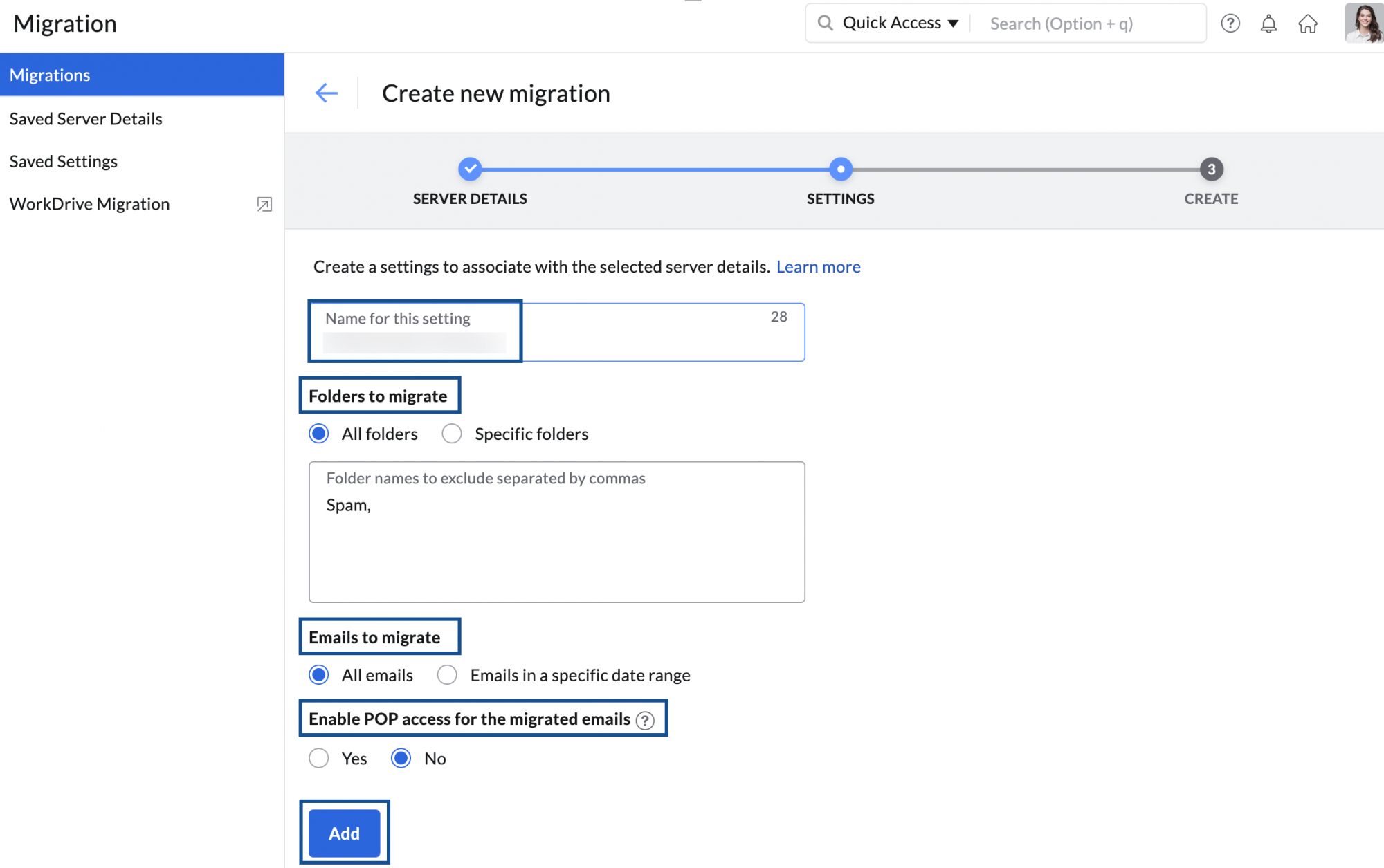
The settings you added will be saved on the Saved Settings page, and you can use it for performing other migrations just by picking it from the drop-down.
Convention for mentioning folders
- In case you want to mention a specific parent folder (E.g. Reports), enter it as "Reports".
- In case there are multiple subfolders under Reports and you want to mention all the subfolders, enter it as "Reports/*"
- In case there exists a subfolder under Reports named 2016, and you want to mention this particular subfolder, enter it like this - "Reports/2016".
- If you want all the subfolders under Inbox, only the Marketing folder without the subfolders, and a specific subfolder, 2012, alone under the Sales Reports folder to be mentioned, you will have to type the Folder List like this - "Inbox/*", "Marketing", "Sales Reports/2012".
Creating a new migration
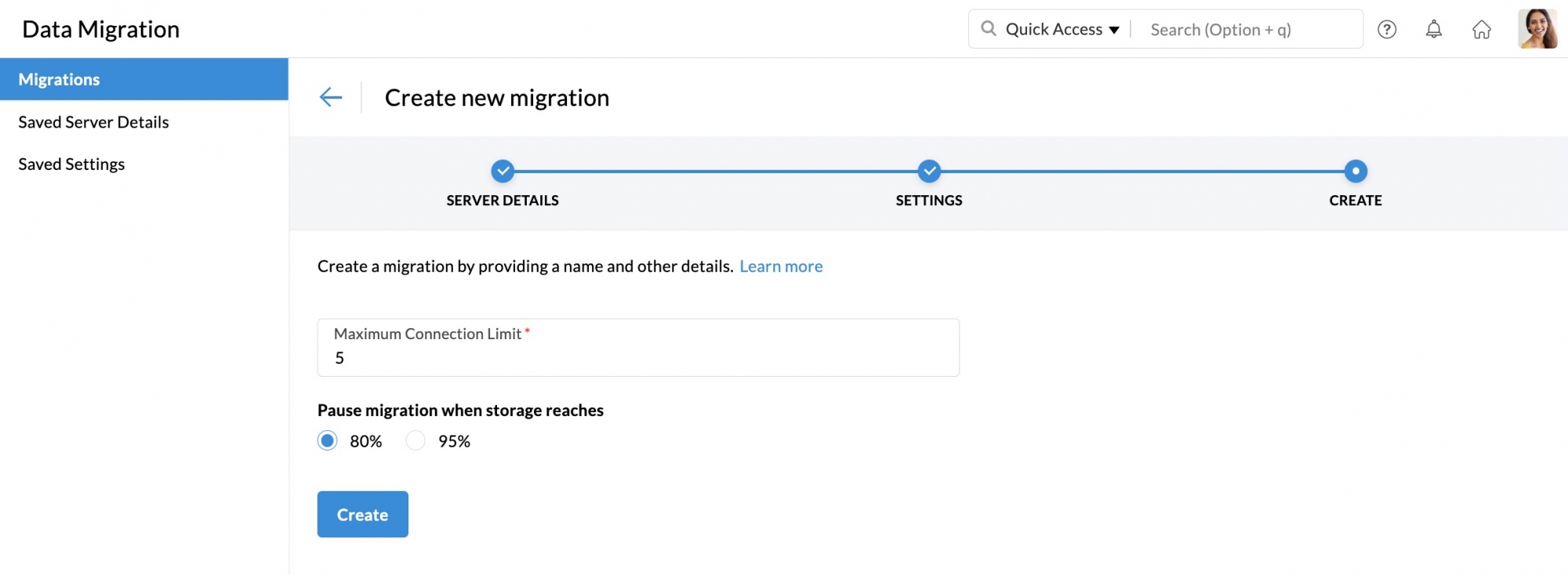
- Enter a Maximum Connection Limit. Click here to know about the maximum connection limit.
- Select whether you would like to pause the migration when the storage reaches 80% or 95%, and finally click Create.
Adding user details for IMAP migration
Zoho Mail provides the below options to add user accounts for migration:
- Manual user addition
- Import bulk users through the CSV option
Manual User Addition
Follow these instructions to add users manually for migration:
- From the Migration list, select the migration to which you want to add the source and destination user account details.
- Select the Users tab and click Add to add the account details manually.
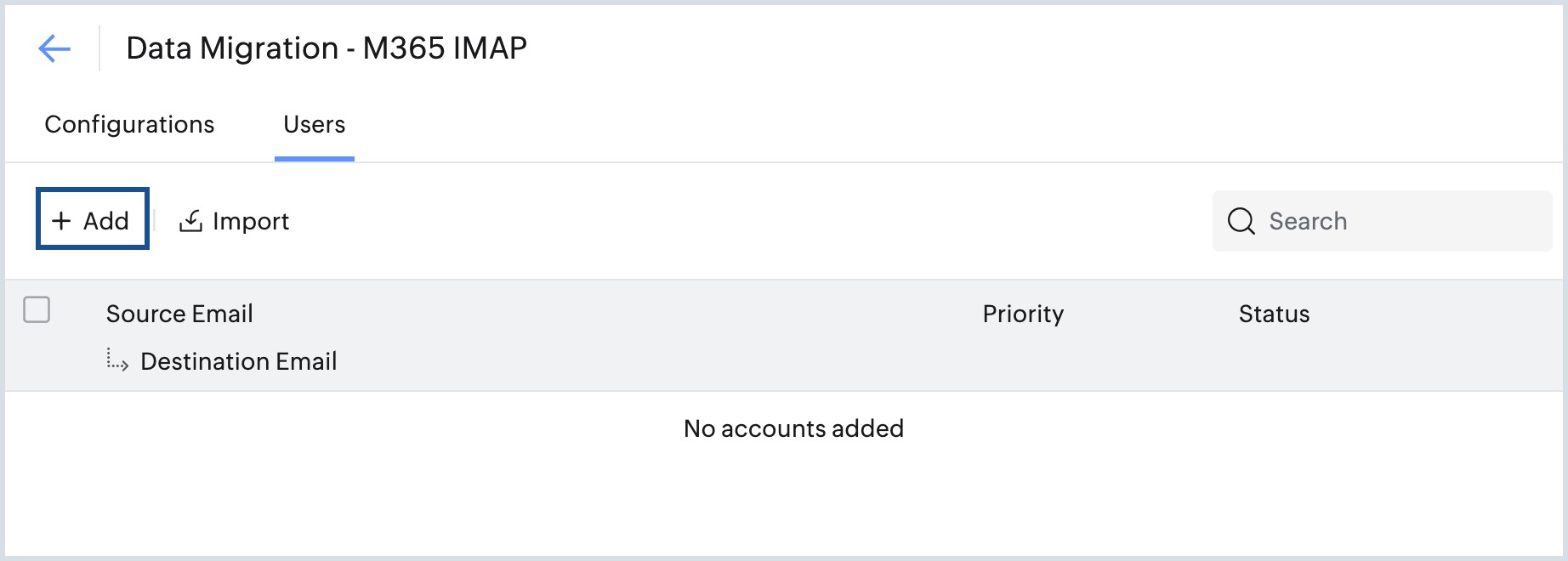
- Enter the Source user name, Source password and Select the destination email address.
- Choose the priority for the migration and click Add. The user gets added successfully.
- Proceed to the Start Migration step.
Repeat the steps to add more users for migration.
Steps to Import users from CSV file
Instead of manually adding the users for migration, you can add the user details to an excel sheet, save it as a CSV file and upload it. The user accounts mentioned in the CSV will be uploaded for migration.
- From the Migration list, select the migration to which you want to add the source and destination user account details.
- Select the Users tab and click Import to upload the user accounts using a CSV file.
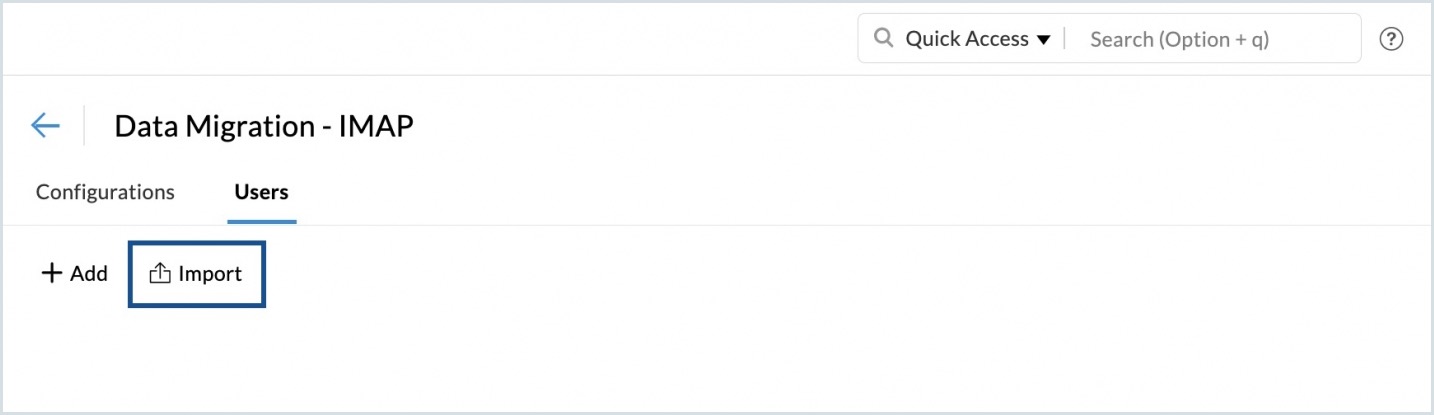
- The format for entering the User Details in the CSV file can be found in the sample file attached in the pop-up.
- Once you have prepared your CSV file, click Browse Files, and choose the CSV file that you would like to import.
- A preview of all the users in the CSV file, along with details about whether they were imported or not will be shown on the screen.
Note:
- The source account and the destination account details should mandatorily be entered in the CSV file.
- Sometimes, there might be an issue with authenticating your source account due to various reasons. For more details, refer to the Troubleshooting Migration help page.
Starting the migration process
Once you have added the user accounts for the migration, you can start the migration. Ensure that the source passwords are not changed after adding the users for migration. The password should be the same until the entire migration process is completed.
- Click the Start Migration button after adding the users. If you have navigated out of the page where you added the users, select the migration that you want to start from this page, and click Start Migration.
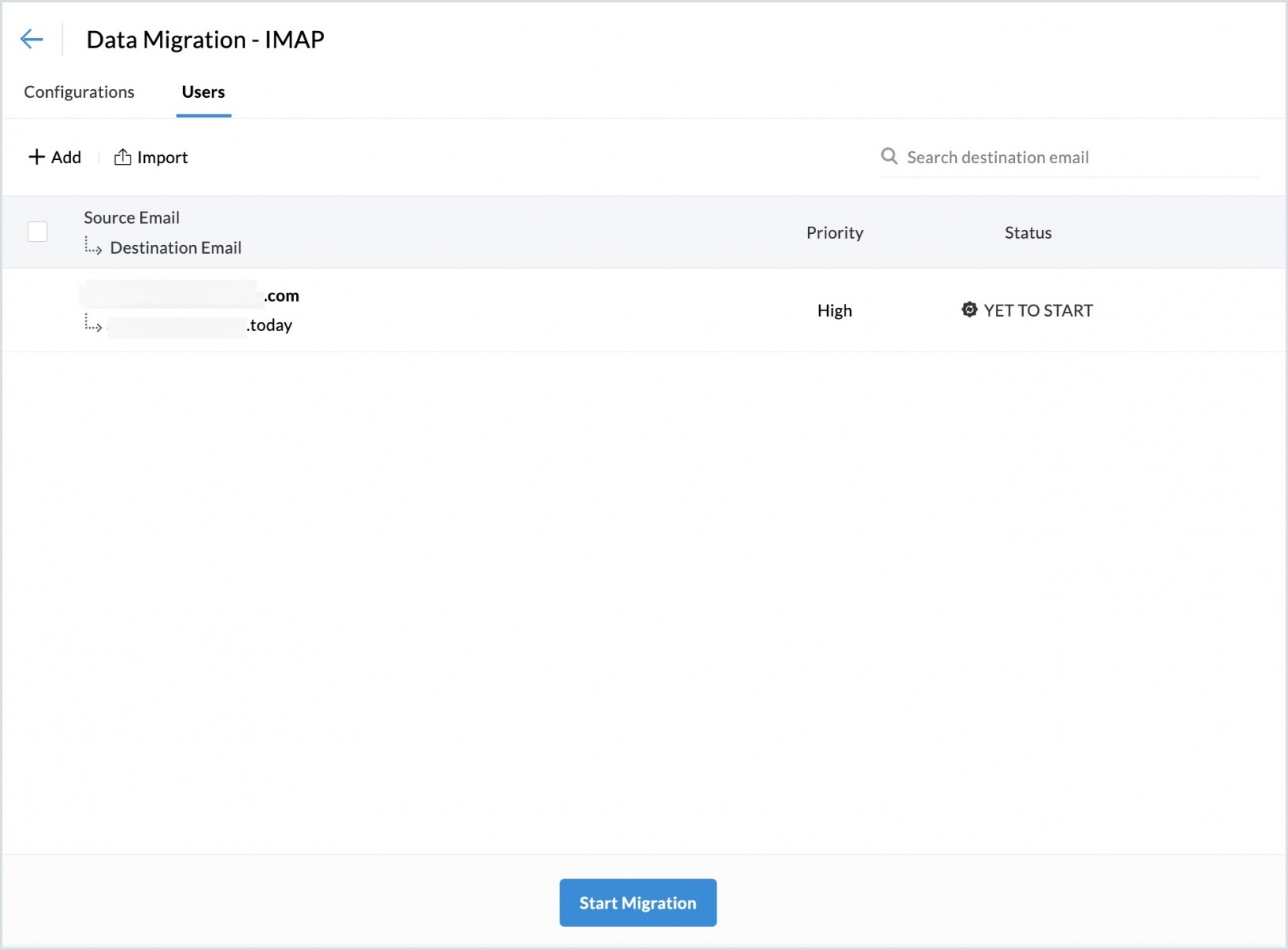
- You can view the progress and statistics regarding the migration on the same page.
- Detailed statistics regarding each user's migration can be viewed by clicking on their email address on the migration progress page.
- For mail migration, detailed reports along with folder information will be available.
- Click Mail Failures to view the detailed information about the folder-wise migration details.
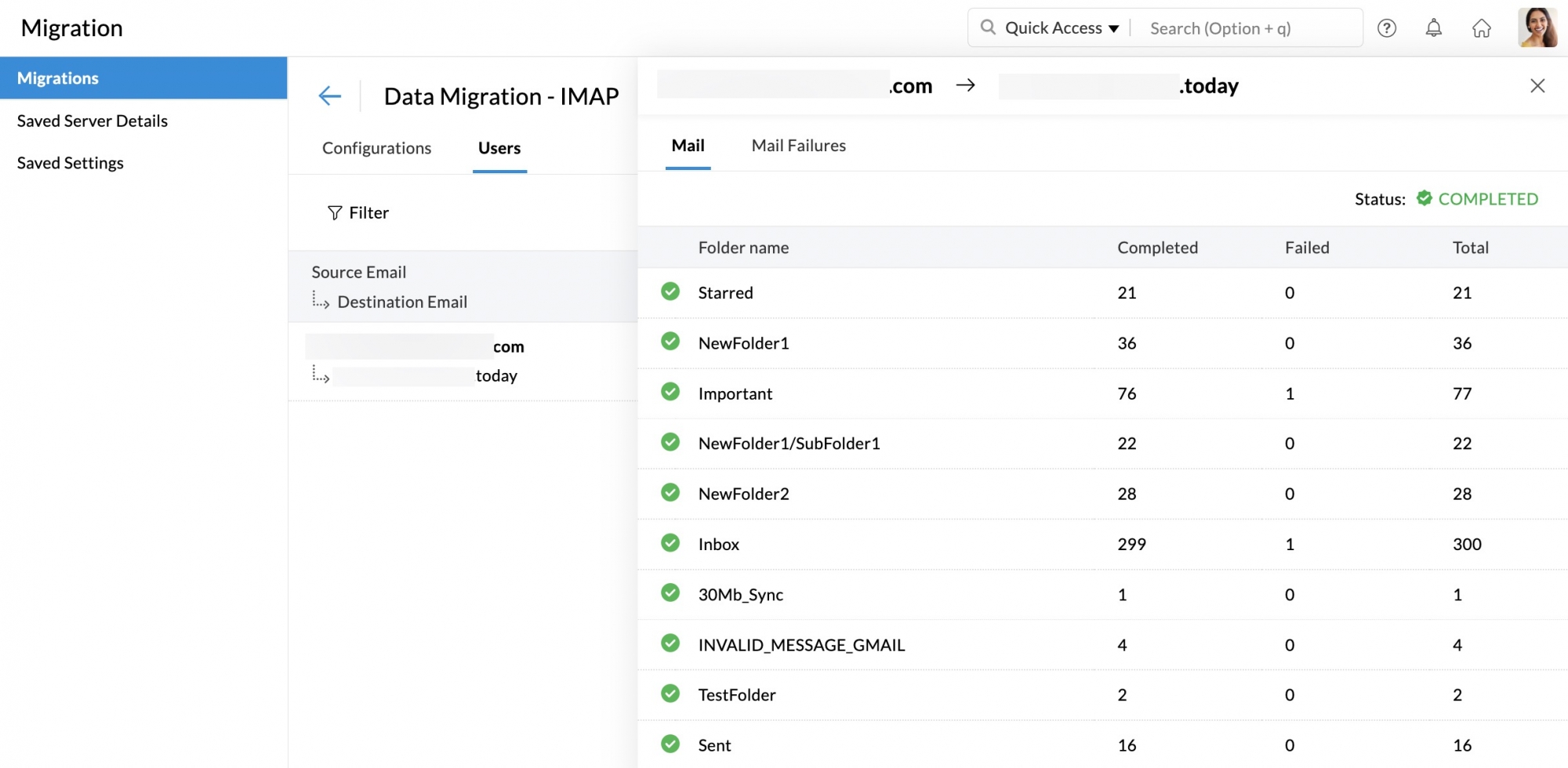
- When the status of the migration is marked as Completed, you can perform the following actions from the Users tab of the specific migration:
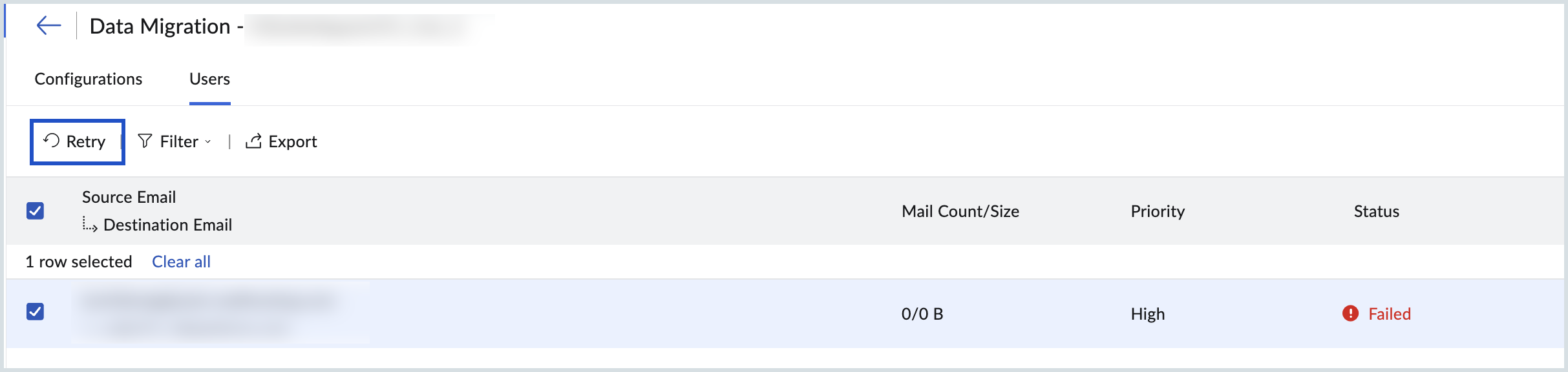
- Retry / Retry All - Select a user with a Failed status and click Retry to re-initiate migration for that user. Click Retry All to retry migration for all failed users at once.
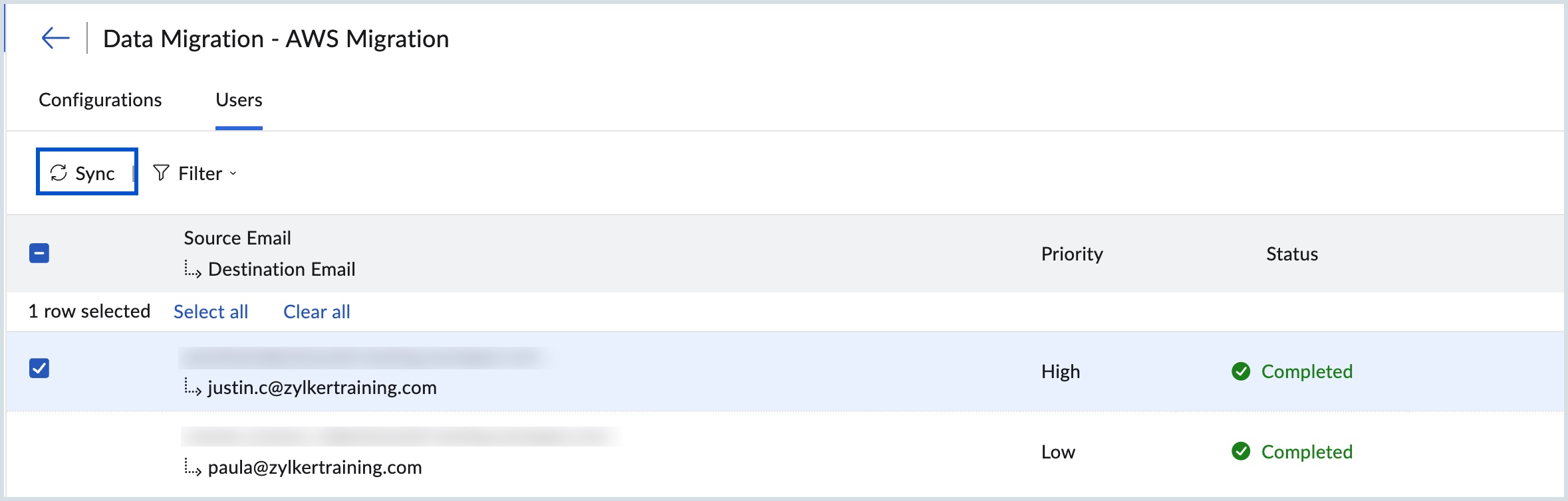
- Sync / Sync All - Select a user with a Completed status and click Sync to sync the latest migration data for that user. Click Sync All to sync data for all completed users at once.
- Retry / Retry All - Select a user with a Failed status and click Retry to re-initiate migration for that user. Click Retry All to retry migration for all failed users at once.
For more information on reasons for migration failure, follow this help page.
User migration details
The Users section provides real-time visibility into the migration progress and user-specific details.
- From the Userspage, administrators can monitor overall migration progress and review detailed statistics related to each user involved in the migration.
- Each user’s migration status is listed with the following information:
- Source Email and Destination Email Address – Displays the user’s current email address and the target Zoho Mail address.
- Priority – Indicates whether the migration is set as High or Low priority.
- Status – Displays the current migration state (Completed, In Progress, Aborted, Suspended, or Failed).
- Detailed statistics for each user can be accessed by clicking on the user’s email address on the migration progress page.
- For mail migrations, comprehensive reports including folder-wise migration details will be available.
- Click Mail Failures to view detailed information about folders where migration issues occurred. For more information on reasons for migration failure, refer this help page.
- Hover over a user’s email address to Abort the migration if required.
- To remove a user from the migration list, click the Delete icon next to the user’s email address.
Note
Suspension of Migration
During the process of migration, if the size of the emails migrated in the account, exceeds the allowed storage, the incoming emails may get blocked. Hence to avoid this, if the account reaches the allowed storage, as selected by you, the migration gets suspended (paused) temporarily. You can create more space either by deleting some of the old or unwanted emails in your previous account or by purchasing additional storage for your Zoho account.
Once you are confident that the account has enough space, you can resume the migration.