Creating a Custom Server
Learn how to create a custom MCP server in Zoho CRM to control tool availability and user access.
Create a custom MCP server to make a specific set of CRM tools available to your AI agent. You can also control which users can connect to the server.
Note
You can create up to 200 custom servers per organization, with each server supporting up to 300 tools.
Create a Custom Server
- Step 1: Go to Setup > Developer Hub > MCP for AI Agents.
- Step 2: Click Create Server.
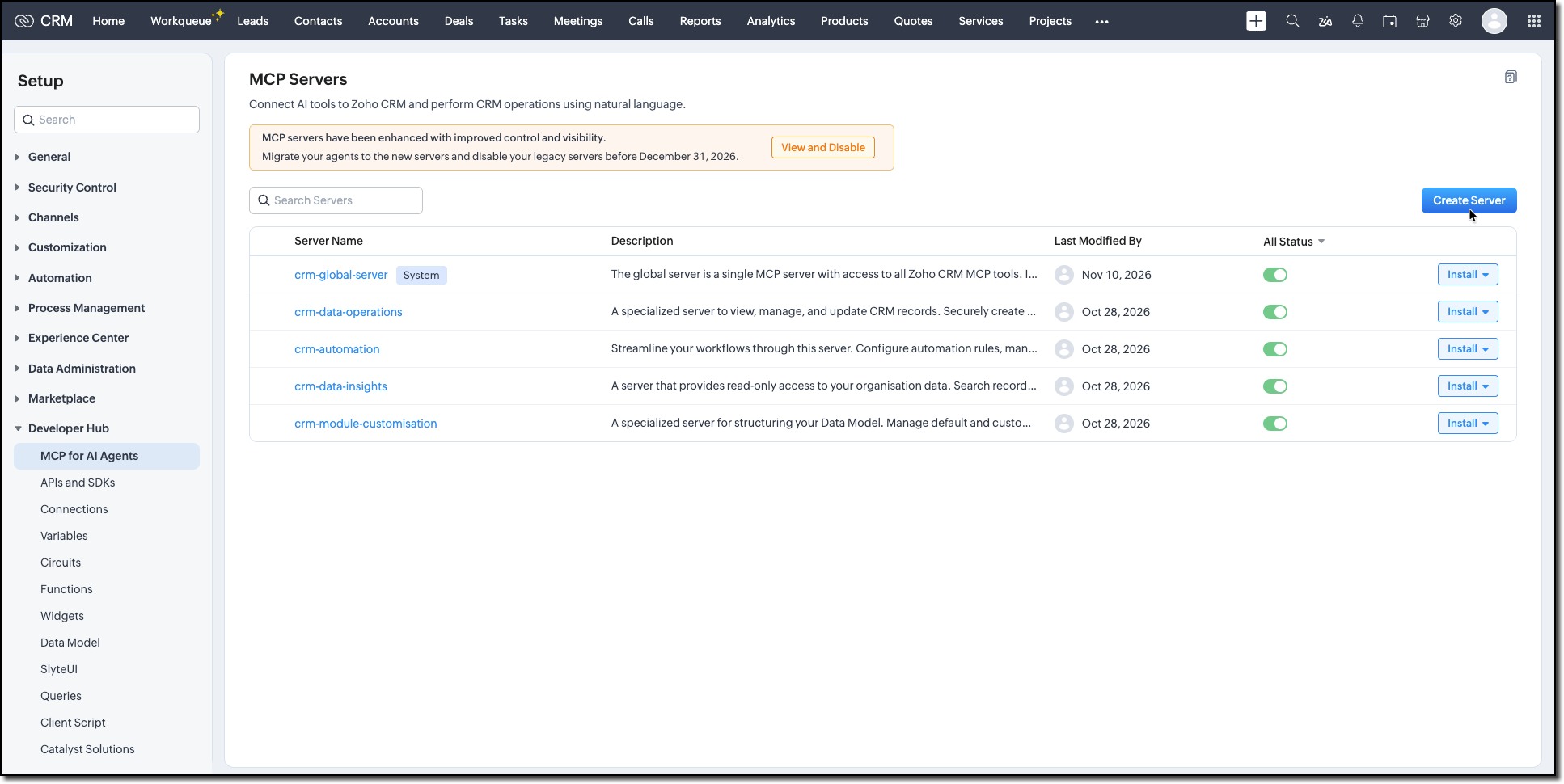
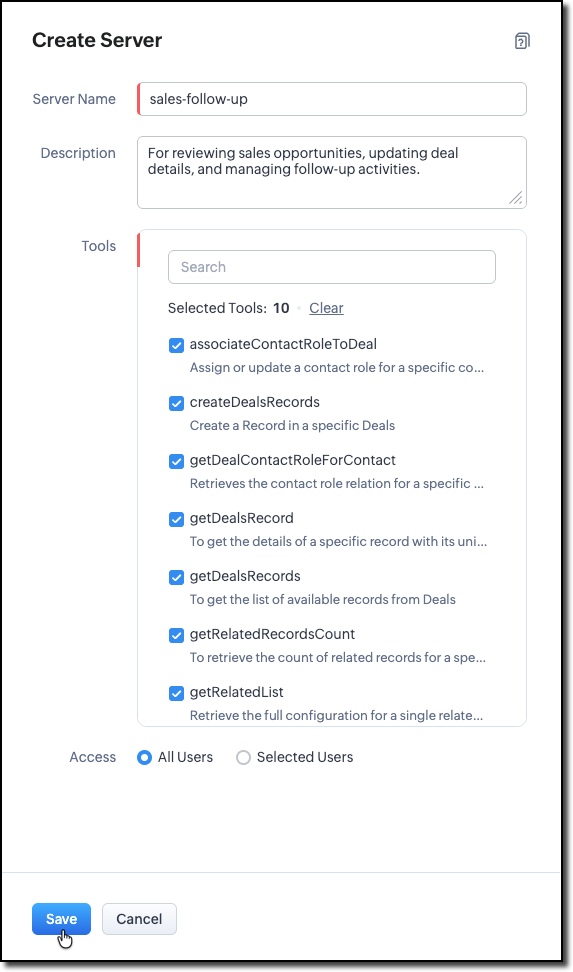
- Step 3: Enter a Server Name and Description.
- Step 4: Select the Tools you want to add to the server.
- Step 5: Choose who can Access the server.
- Everyone: All the users from your CRM organization.
- Selected Users: Particular users from your CRM organization.
- Step 6: Click Save.
Note
- Adding a user to the Access setting allows the user to connect to the server but does not grant them additional CRM permissions.
- To use the server’s tools, the user must also have API Access for Zoho MCP with the required access level and the necessary CRM permissions for the requested operation. For more information, check the MCP Permissions help page.
What's Next?
- MCP Permissions:Manage server permissions and access to tools.
- Managing Servers:Regenerate server URLs and review activity through server logs.
- Setup:Connect Zoho CRM MCP servers to your AI tool.