Managing Servers
Learn how to manage your MCP servers, including server details, regenerating server URLs, and monitoring server activity through logs.
Manage your MCP servers from their detail page. Each server provides an Overview tab for its configuration and connection details and a Logs tab for monitoring server activity.
Overview Tab
The overview tab displays the server’s configuration, status, available tools, and a short AI tool setup guide.
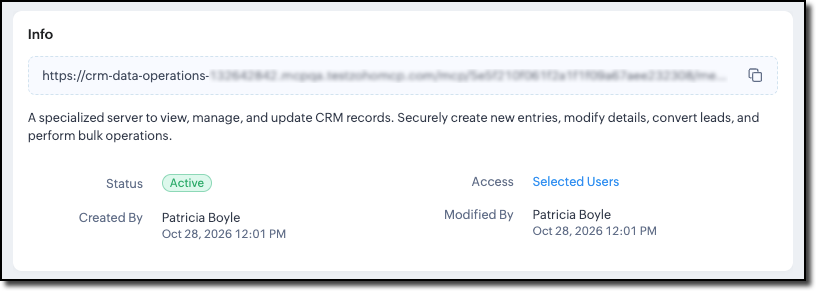
Info
This section displays the MCP server’s URL, description, status, access settings, and details about who created and last modified the server. The URL allows AI tools to connect to the server, while the status and access settings determine whether and who can connect to it.
Regenerate Server URL
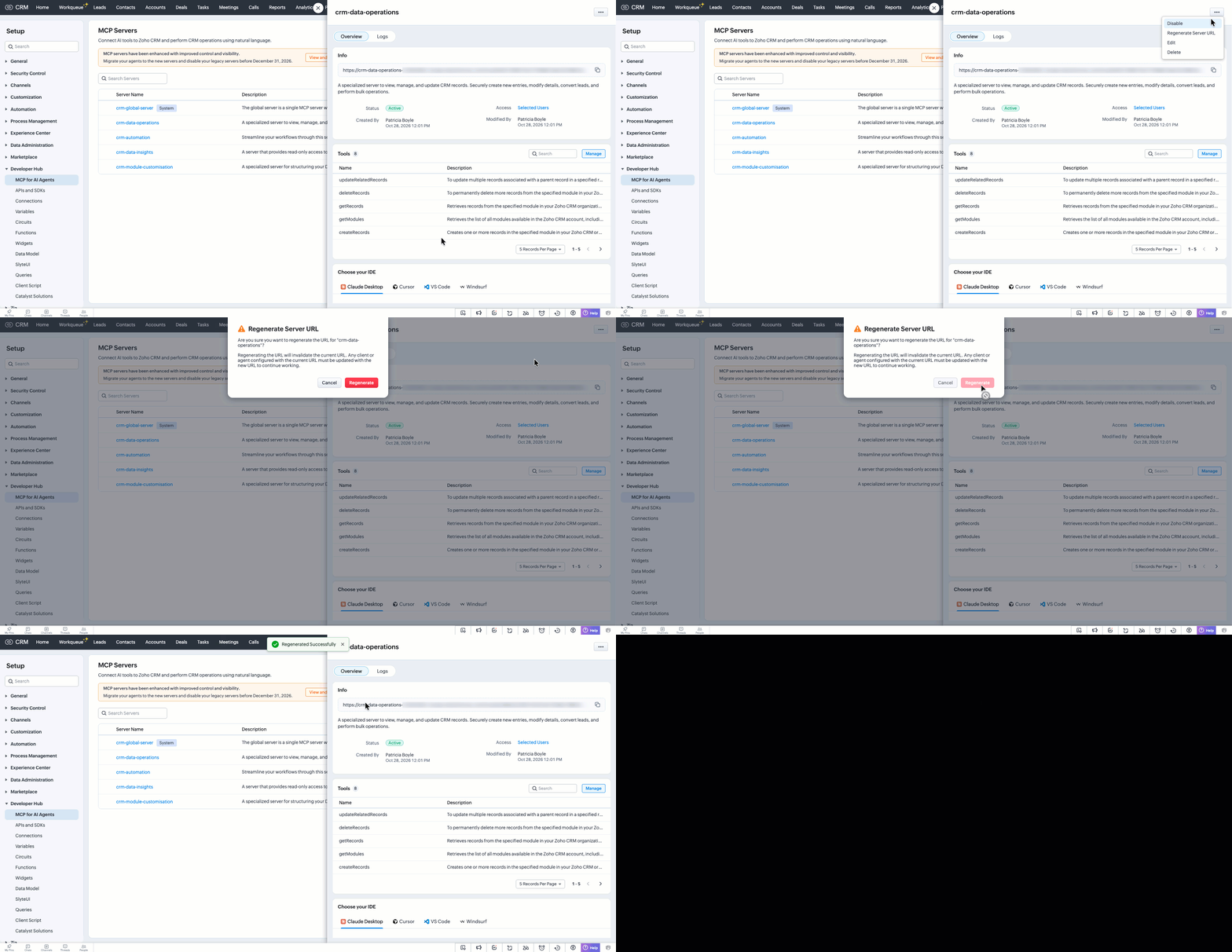
Regenerating the server URL replaces the existing URL with a new one and invalidates the old URL. Any AI tool or client configured with the old URL will no longer be able to connect to the server until you update it with the new URL.
To regenerate the URL, click the More icon in the top-right corner and select Regenerate Server URL.
Tools
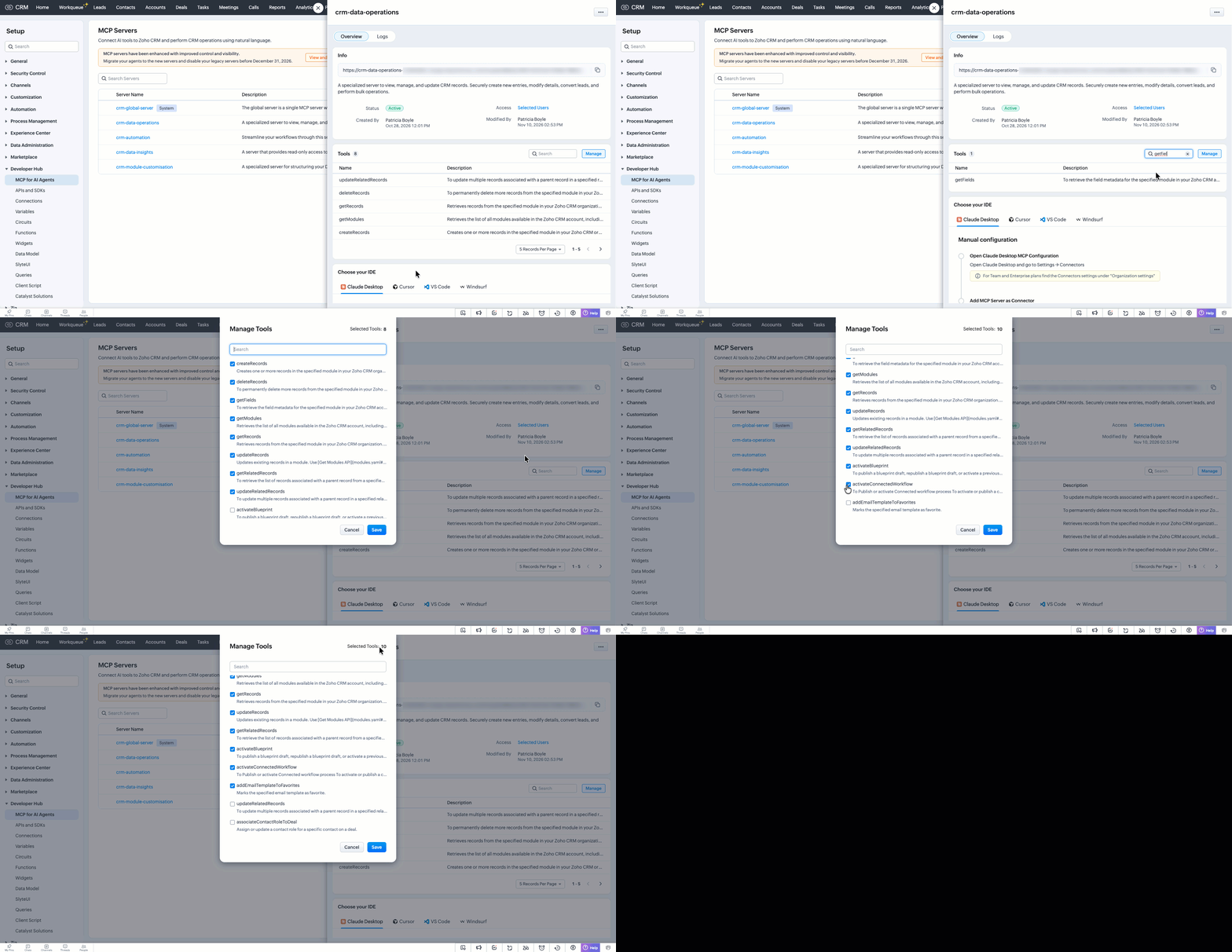
The Tools section displays the CRM tools available through the server.
On the right-top corner of the tool section, you can find the Search bar and a Manage support. Use the Search bar to quickly find a specific tool and Manage button to add or remove tools from the server.
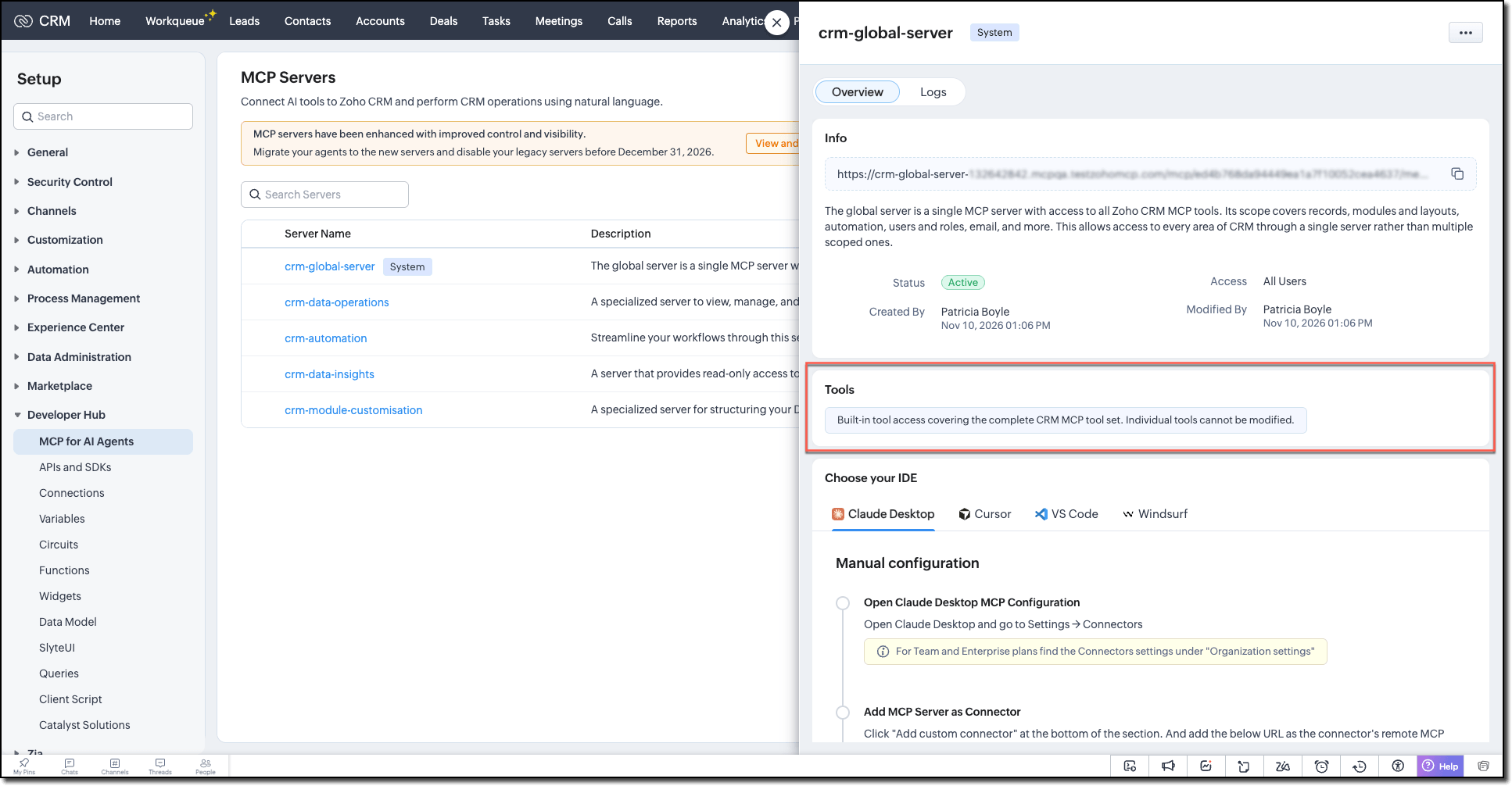
For the Global Server, the Tools section provides built-in access to the complete CRM MCP tool set available through MCP. Individual tools cannot be added, removed, or modified.
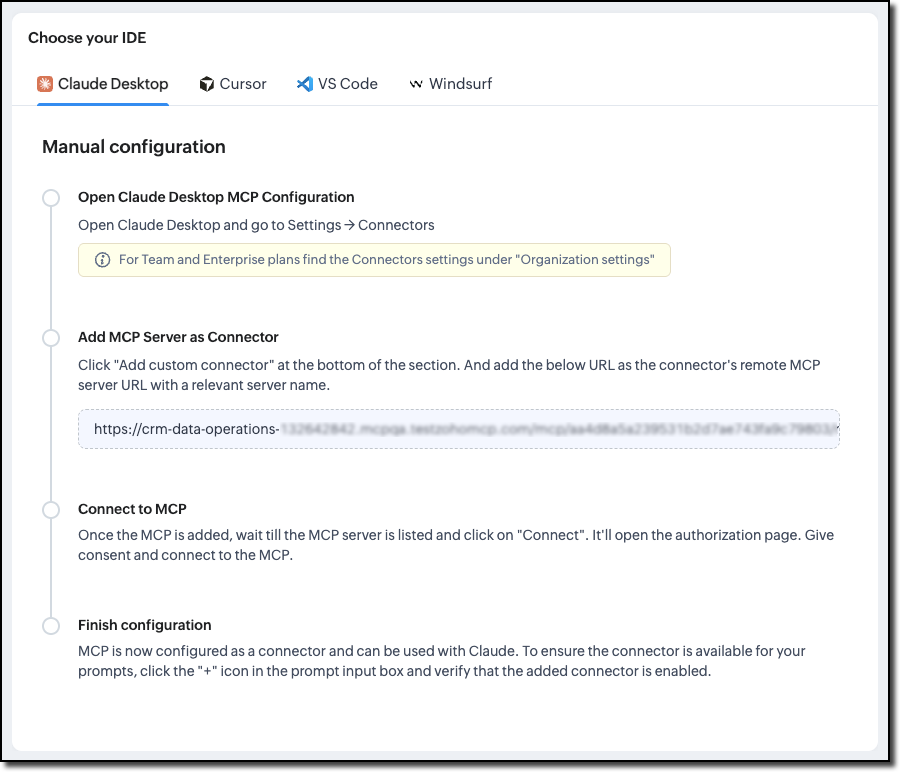
Choose your IDE
This section provides quick setup instructions for connecting the MCP server to supported AI tools, including Claude Desktop, VS Code, Windsurf, and Cursor.
For detailed setup instructions and videos, check out the Setup help section.
Logs Tab
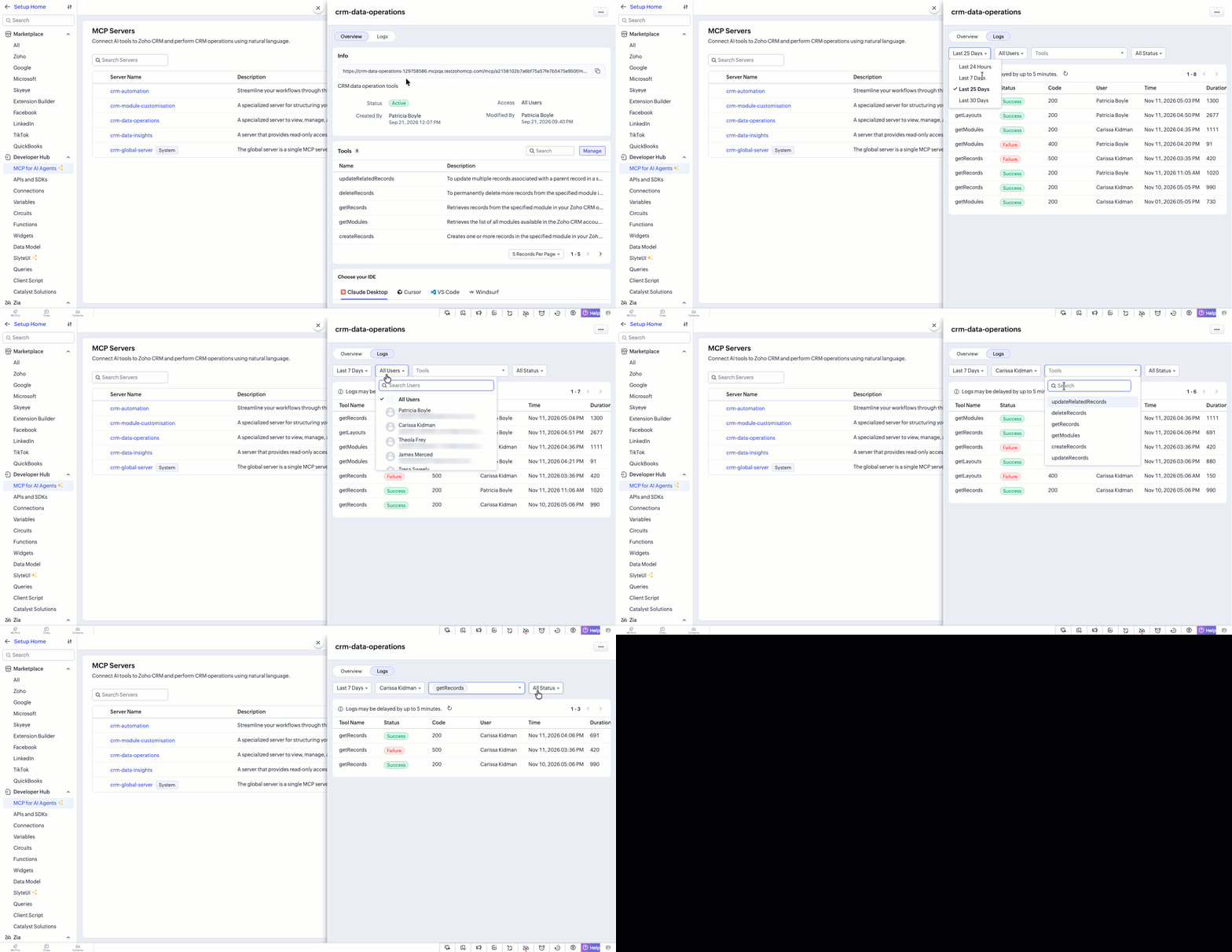
The Logs tab records the requests made through the MCP server. Use the filters and search options to find specific requests and review their execution details.
Filters
Use the Date Range, Users, Search, and Status filters to narrow down the logs. You can view logs for up to 30 days, search for up to 30 tools, and filter requests by user or status. The Users filter is available only to administrators.
Note
The logs may be delayed by up to 5 minutes.
Details
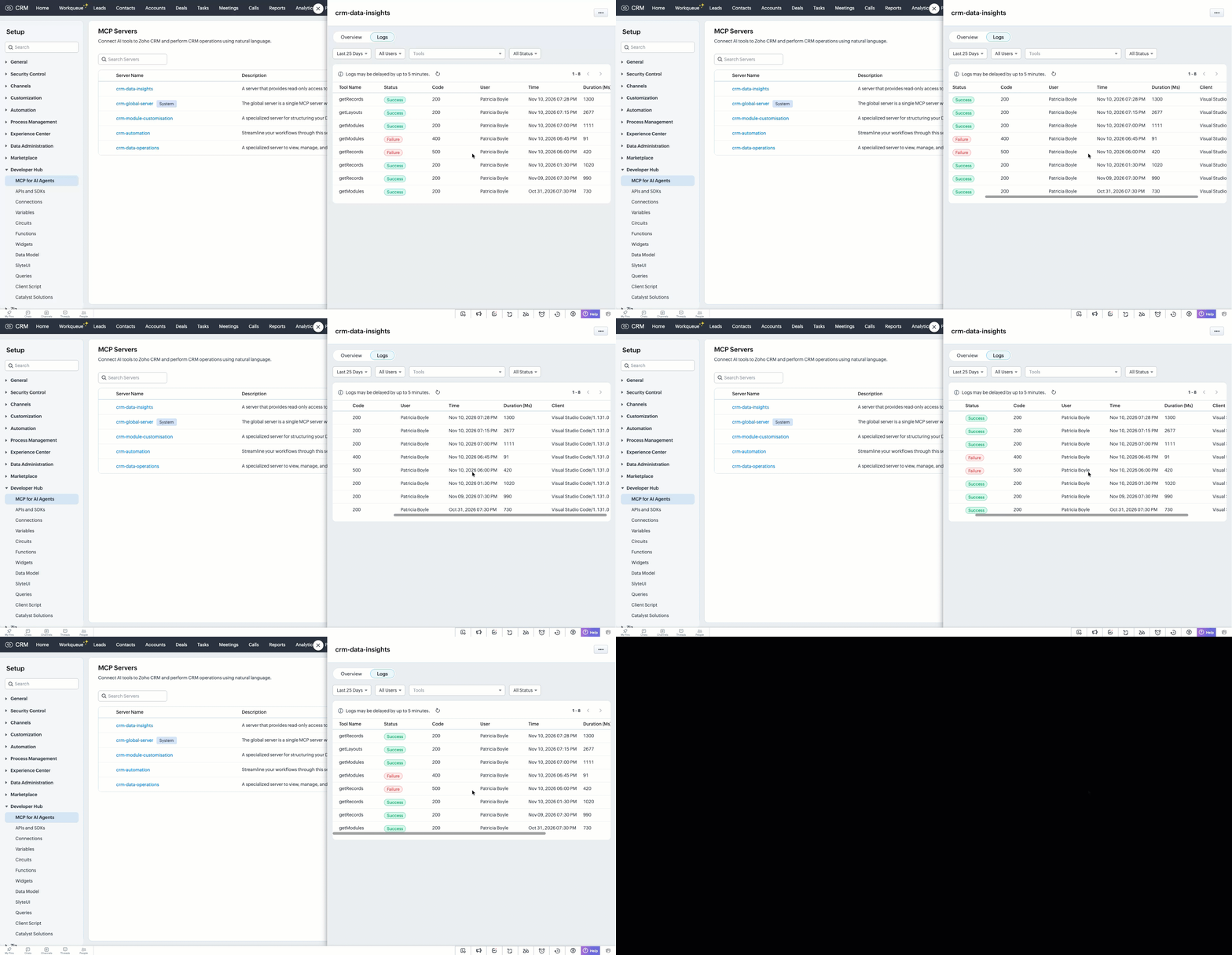
Each log entry displays information such as the tool name, status, response code, user, time, duration, and client. Click the Refresh icon to retrieve the latest log entries.
Note
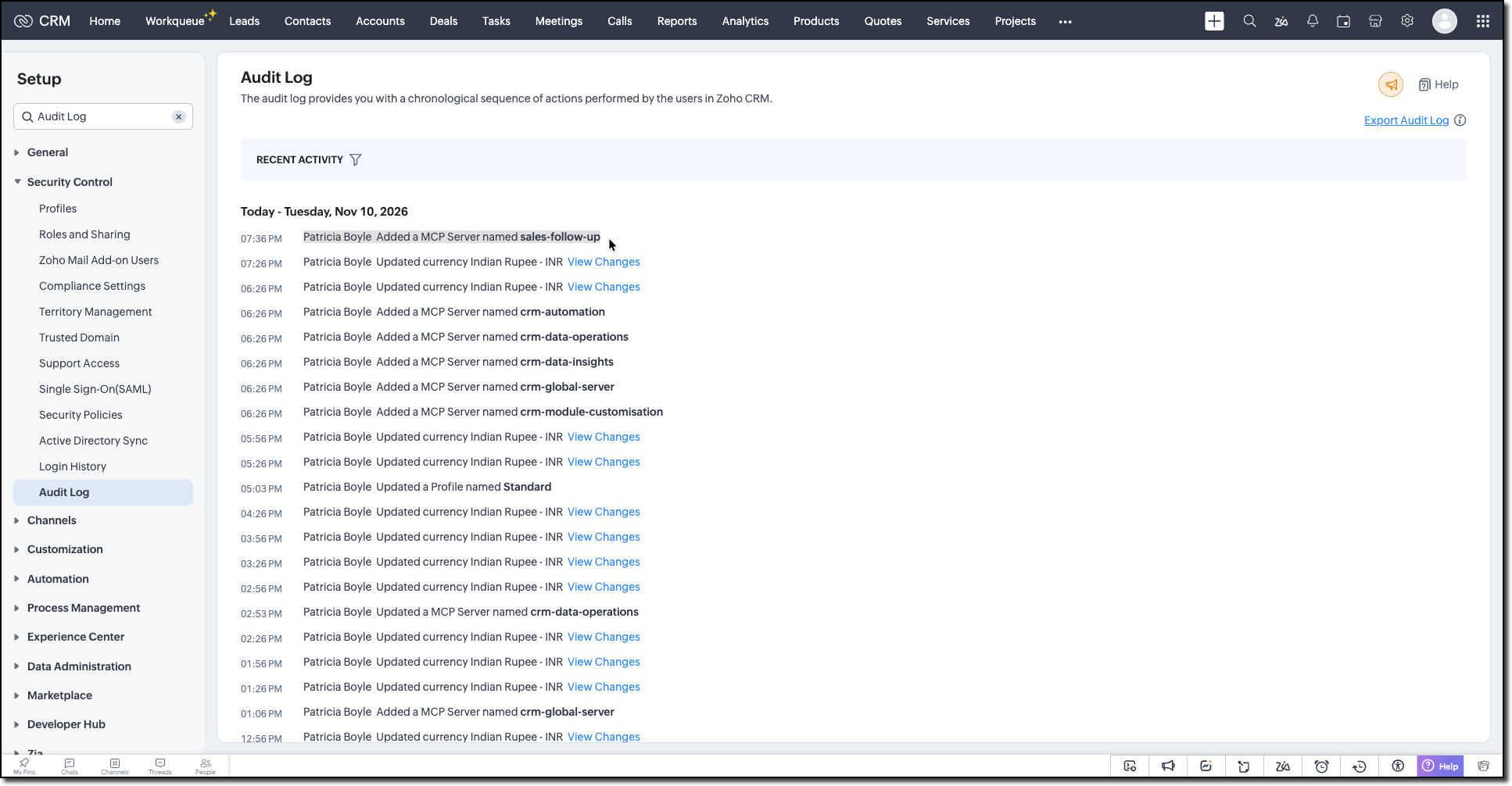
- You can view server management activities, such as creating, editing, deleting, enabling, or disabling an MCP server, in your organization’s Audit Log reports.
- Server execution logs, which record requests made through the MCP server, are available only on the Logs tab.
- API calls executed through MCP consume API credits in the same way as standard API calls. These requests are subject to the existing API credit limits.
What's Next?
- MCP Permissions:Manage server permissions and access to tools.
- Creating a Custom Server:Create custom servers based on your requirements.
- Setup:Connect Zoho CRM MCP servers to your AI tool.