How to configure Email Policies in Zoho Mail Admin Console
An email policy or email usage policy is a set of rules and regulations laid down by an organization for its users to follow while using their professional email addresses. This can easily be confused with the email policy which administrators configure for specific users or groups. The Email Policy section under Mail Settings in Zoho Mail Admin Console allows an admin to manage and review the organization's email sending and receiving parameters.
In Zoho Mail, you can define multiple email policies and apply them to various sets of users and groups. You can add email policies to restrict email access from other devices, other networks and also add account restrictions in the email policies.
It also helps the administrator to define and apply different privilege levels and restrictions to users and groups based on their role, requirement, and permissions in the organization. The different types of policies that can be set using Zoho Mail's secure email policy can be classified based on email and domain, access, account and email forwarding restrictions.
Zoho Mail applies the default Zoho Mail Business Policy to users and groups on creation. You can create new policies based on your organization's requirement and apply them to specific users and groups.
How to create and apply an Email Policy in Zoho Mail
Creating an email policy in Zoho Mail involves defining restrictions across four categories: email and domain, account, access, and forwarding. These configured policies are then applied to the relevant users and groups. Zoho Mail applies the default Business Policy to all users and groups on creation, but admins can create custom policies to meet specific organizational requirements.
The steps involved are:
- Create a new email policy.
- Configure the General Restrictions for the policy.
- Add an Email and domain Restriction.
- Add an Account Restriction.
- Add an Access Restriction.
- Add an Email Forwarding Restriction.
- Apply the relevant restrictions to the policy.
- Apply the configured policy to users and groups.
How to create a new email policy in Zoho Mail Admin Console
Follow the below steps to create a new email policy:
- Login to the Zoho Mail Admin Console.
- Go to the Mail Settings menu from the left pane and select Email Policy.
- You will see the default Zoho Mail Business Policy listed.
- Click Create to create a new policy.
- Enter a name for the policy that you are going to create, and click Create.
- You will now have to define the restrictions that you would like to apply in this policy.
What are General Restricitons in Zoho Mail Email Policy?
General Restrictions in Zoho Mail Email Policy let admins control the basic email parameters for users assigned to the policy, including maximum email size, incoming email rate limits, and mailbox delegation access.
- In the General tab of a policy that you have created, you can change the name of the policy if required.
- Enter the maximum incoming and outgoing email size that you want to allocate for this policy. A maximum of 40MB is permitted.
- Then, enter the number of incoming emails permitted per minute in this policy. A maximum of 100 emails per minute is permitted.
- You can choose to enable/ disable the Mailbox delegation access to the users to whom the policy is assigned.
- Decide whether to allow or restrict connectivity with less secure applications. Older or non-upgraded email clients using outdated TLS versions (such as TLS 1.0 and TLS 1.1) are considered "Less Secure." By default, Zoho Mail requires email clients to support TLS 1.2 or higher for secure communication. However, if necessary, you can enable access for these older clients by enabling this option, although it is generally advisable to keep this feature disabled for better security.
How to set Email Restrictions in Zoho Mail email policy
Email Restrictions in Zoho Mail let admins define allowed or blocked domains, email addresses, attachment types, and subject text for both incoming and outgoing emails at the policy level. These restrictions apply only to users and groups associated with the policy, giving admins precise control over who can send to or receive from specific addresses and domains.
Steps to define new email restrictions:
- In the Admin Console, go to the Mail Settings menu.
- Go to the Email Restrictions section.
- Click Create and enter a new name for the restriction.
- You can define restrictions for domains, email addresses, attachments and email subjects in this section.
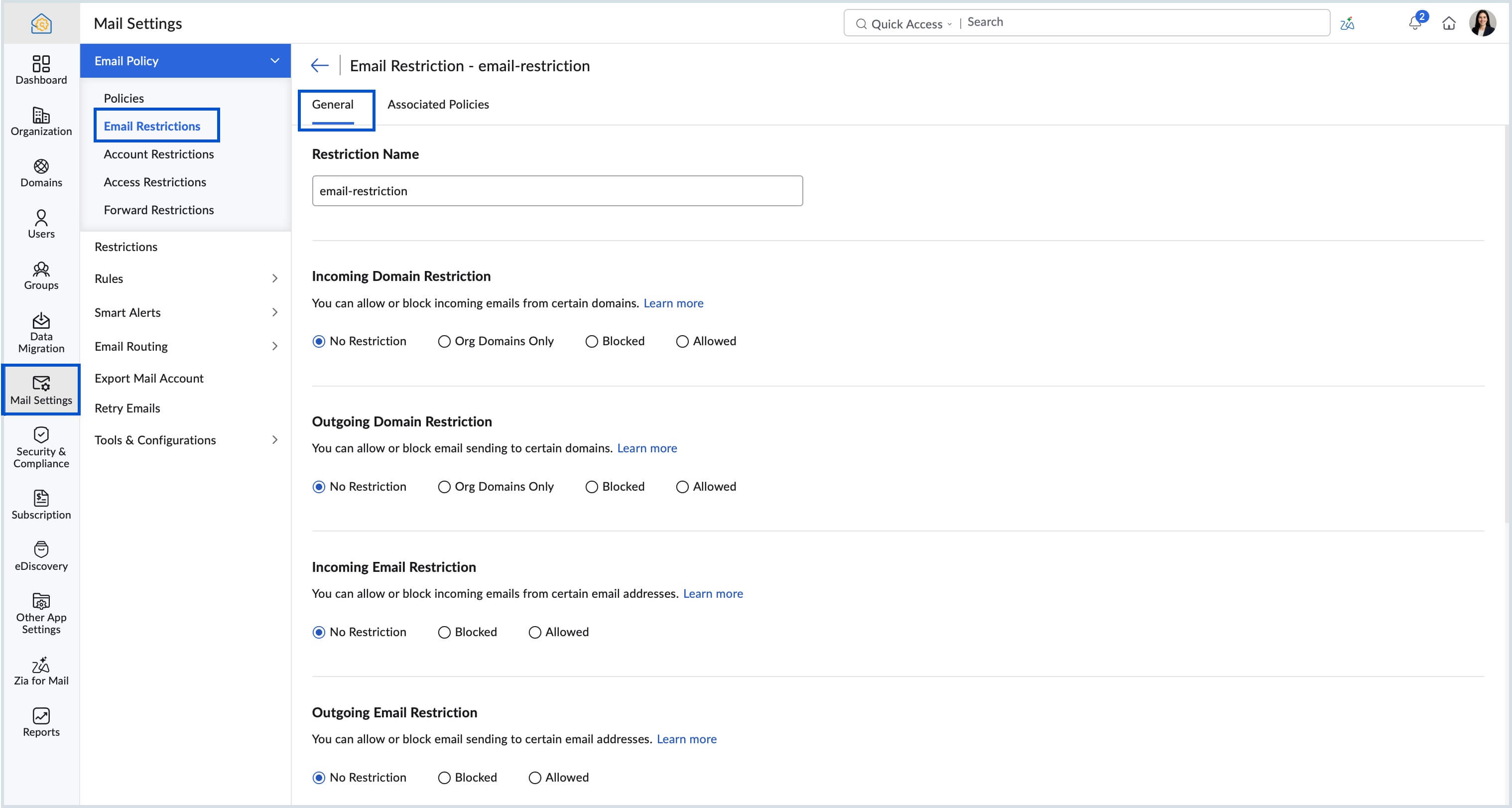
How to allow or block domains for incoming and outgoing emails in Zoho Mail
Admins can configure domain restrictions in a Zoho Mail email policy to allow emails only within the organization, restrict sending to specific allowed domains, or block emails from certain domains for both incoming and outgoing directions.
The options available under domain restrictions are:
- No restrictions
- Org Domains only - To allow emails only within the organization
- Blocked domains
- Allowed domains
You can define the restrictions for incoming emails, outgoing emails or for both. You can allow or block certain domains for incoming and/or outgoing emails.
Allow: When you specify a domain as allowed domain for outgoing, the users and groups for whom the policy is applied will be able to send emails only to those domains. When they send emails to other domains, the outgoing server will reject them and bounce the email back to the sender.
Block: When you specify a domain as a blocked domain, emails can be sent to all the domains, other than the ones specified in the blocked domain.
Org Domains only: You can also allow email sending or receiving within the organization domains alone. When this restriction is applied, emails cannot be sent outside the organization domains or received from external accounts.
You can choose no restrictions to allow sending and receiving of emails without any domain restrictions.
How to allow or block specific email addresses in Zoho Mail Email Policy
Email address restrictions in Zoho Mail let admins define a list of allowed or blocked addresses for incoming and outgoing emails, ensuring users under the policy can only communicate with approved contacts.
The options available under email address restrictions are:
- No restrictions
- Blocked email addresses
- Allowed email addresses
You can define the restrictions for incoming emails, outgoing emails or for both. You can allow or block certain email addresses for incoming and/or outgoing emails.
Allow: When you specify an email address as allowed email address for outgoing, the users and groups for whom the policy is applied will be able to send emails only to those email addresses. When they send emails to other email addresses, the outgoing server will reject them and bounce the email back to the sender. The same can be applied to incoming emails as well. When the restriction is applied for incoming, the incoming emails are delivered only from the allowed email addresses. Any email from the other email addresses not specified in the list will be rejected (bounced back).
Block: When you specify an email address as blocked email address, the emails can be sent to all the email addresses, other than the one specified in the blocked email addresses.
You can choose no restrictions to allow sending and receiving of emails without any email address restrictions.
How to restrict attachment types in Zoho Mail Email Policy
Admins can configure attachment restrictions in a Zoho Mail email policy to allow or block specific file types for both incoming and outgoing emails, preventing users from sending or receiving potentially harmful file formats.
The options available under attachment restrictions are:
- No restrictions
- Blocked attachments
- Allowed attachments
You can define the attachment type restrictions for incoming, outgoing or for both. You can allow or block certain attachment types for incoming and/or outgoing emails.
Allow: When you specify some attachment types as allowed type for outgoing, the users and groups for whom the policy is applied will be able to send emails only with the specified attachment type. When they send emails with other attachment types, the outgoing server will reject them and bounce the email back to the sender.
Block: When you specify a type as blocked attachment type, the emails can be sent with any other attachment, other than the ones specified in the blocked attachment.
You can make sure that attachments with specific file names are blocked or allowed for both the incoming and outgoing emails.
For example, if you want to specify files with the name check, follow the below instructions:
- Select whether you want to apply the attachment conditions for incoming or outgoing.
- Once you click on either incoming or outgoing, select the condition you want to apply.
- You can choose no restrictions to allow sending and receiving of emails without any attachment restrictions.
- If you choose either the Allowed or Blocked option, enter the file name that you would like to specify.
- Follow the below convention to mention the file names:
- Mention check if the file might contain the name check
- Mention "check" if the name of the file might be check
- Mention *check if the file name might end with check
- Mention check* if the file name might begin with check
- The restriction will be applied according to your specifications.
How to block or allow emails based on subject line in Zoho Mail Email Policy
Subject restrictions in Zoho Mail email policy let admins define allowed or blocked keywords in the email subject line for both incoming and outgoing emails. When a blocked subject keyword is configured, any email containing that word anywhere in the subject line is automatically rejected, regardless of its position in the subject.
The options available under email subject restrictions are:
- No restrictions
- Blocked subjects
- Allowed subjects
You can define the restrictions for incoming, outgoing or for both. You can allow or block certain subjects for incoming and/or outgoing emails.
Allow: When you specify some subjects as allowed email subject for outgoing, the users and groups for whom the policy is applied will be able to send emails only with that subject. When they send emails with other subjects, the outgoing server will reject them and bounce the email back to the sender.
Block: When you specify a subject as a blocked email subject, the emails can be sent with any other subject, other than the ones specified in the blocked subject.
Example: If you specify the word "pharmacy" in the subject, it will block the emails irrespective of where the word appears in the subject.
You can choose no restrictions to allow sending and receiving of emails without any subject restrictions.
Explore allow and block list from Zoho Mail's user's section.
What are Account Restrictions in Zoho Mail Email Policy?
Account Restrictions in Zoho Mail Email Policy let admins control what users can do within their mailbox accounts, including access to external email accounts via POP or IMAP, signature customization, email , cloud attachment access, and BCC permissions. These restrictions are configured separately and applied to the policy, allowing admins to enforce account-level controls for specific user groups.
Steps to define new account restrictions:
- In the Admin Console, go to the Mail Settings menu.
- Go to the Account Restrictions section.
- Click Create and enter a new name for the restriction.
- You can define account-based restrictions such as external account access, import/export of emails, etc. from this section.
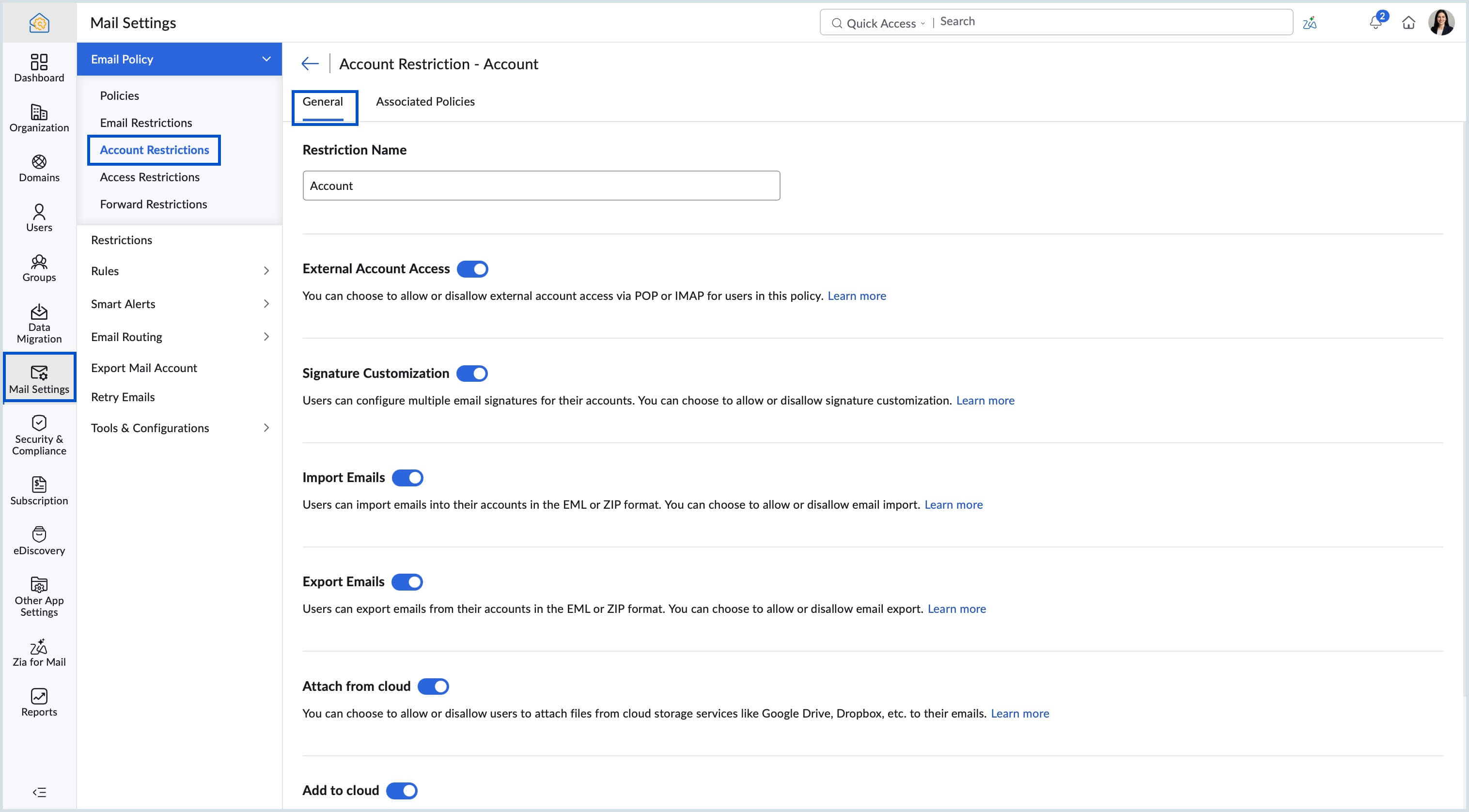
How to restrict External Account Access via POP and IMAP in Zoho Mail
By default, Zoho Mail allows users to configure external accounts via POP or IMAP, but admins can turn off this access for specific users through the Account Restrictions section of the Email Policy. When disabled, users assigned to the policy will not be able to add or access external accounts via POP or IMAP from their Zoho Mail account.
How to restrict users from customizing Email Signatures in Zoho Mail
Zoho Mail allows users to create and manage multiple email signatures by default, but admins can disable this capability for specific users through the Account Restrictions section of the Email Policy. When turned off, users assigned to the policy will not be able to customize their signatures from the webmail console.
How to restrict email for users in Zoho Mail
Admins can disable the Import and Export emails feature for specific users through the Account Restrictions section of the Email Policy, preventing them from migrating emails in EML or ZIP format. When turned off, users assigned to the policy will not be able to import emails into or export emails from their Zoho Mail account.
How to prevent users from saving Email Attachments to Cloud Storage in Zoho Mail
The Add to Cloud option in Zoho Mail allows users to save incoming email attachments directly to cloud services like Google Drive, Dropbox, and Zoho Docs. Admins can disable this option through the Account Restrictions section of the Email Policy to prevent users from saving attachments to external cloud storage.
How to restrict users from attaching files from Cloud Services in Zoho Mail
By default, Zoho Mail allows users to attach files from cloud services like Google Drive, Dropbox, and Zoho Docs when composing emails. Admins can turn off this option through the AccountRestrictions section of the Email Policy to prevent users from adding cloud-sourced attachments to outgoing emails.
How to restrict BCC usage for users in Zoho Mail Email Policy
The Allow BCC option in Zoho Mail controls whether users assigned to a policy can add recipients in the BCC field when composing emails. When disabled through the Account Restrictions section, users will not be able to send any email with recipients in their BCC field.
What are Access Restrictions in Zoho Mail Email Policy?
Access Restrictions in Zoho Mail Email Policy let admins control how users access their mailboxes, including permissions for POP, IMAP, and ActiveSync access, email forwarding, session limits, and IP-based login restrictions. These settings allow admins to enforce secure access standards across specific user groups without affecting the rest of the organization.
Steps to define new email restrictions:
- In the Admin Console, go to the Mail Settings menu.
- Go to the Access Restrictions section.
- Click Create and enter a new name for the restriction.
- You can define restrictions for domains, email addresses, attachments and email subjects in this section.
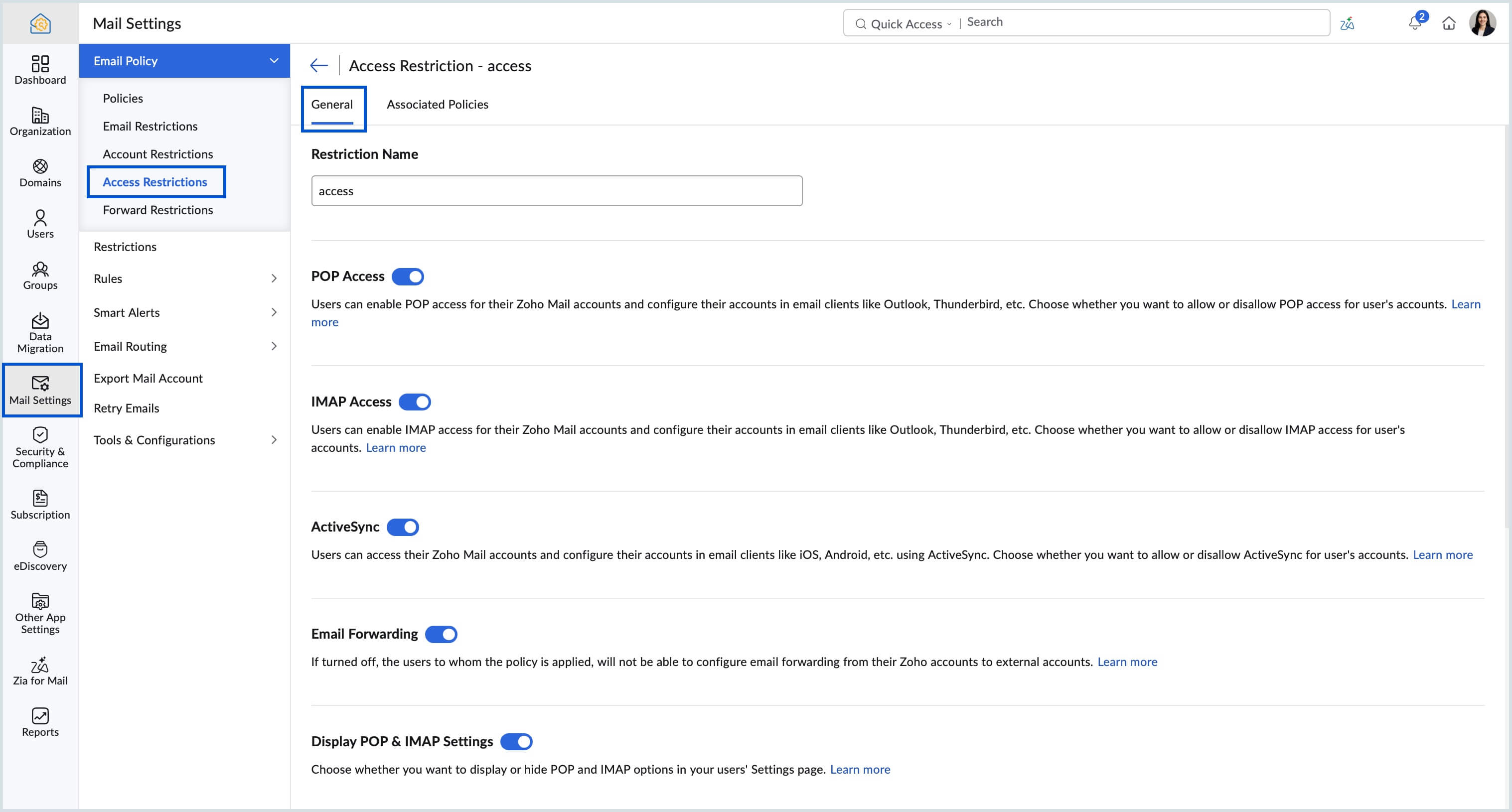
How to enable or disable POP Access for users in Zoho Mail Email Policy
POP Access in Zoho Mail allows users to retrieve emails via POP in email clients like Outlook and Thunderbird, but admins can turn this off for specific users through the Access Restrictions section of the Email Policy. When disabled, users assigned to the policy will not be able to access their Zoho account via POP and will receive an error message if they attempt to enable it from the webmail console.
How to enable or disable IMAP Access for users in Zoho Mail Email Policy
IMAP Access in Zoho Mail lets users sync their emails across devices and email clients like iPhone and Outlook, and admins can control this access through the Access Restrictions section of the Email Policy. When disabled, users assigned to the policy will not be able to access their Zoho Mail account via IMAP in any external email client.
How to enable or disable ActiveSync access for users in Zoho Mail Email Policy
ActiveSync allows users to access their Zoho Mail account on mobile devices like iPad and Android devices, and admins can control this through the Access Restrictions section of the Email Policy. When disabled, users assigned to the policy will not be able to sync their Zoho Mail account via ActiveSync on any mobile device.
How to allow or restrict users from setting up Email Forwarding in Zoho Mail
By default, Zoho Mail allows users to configure email forwarding from their accounts to external addresses, but admins can disable this through the Access Restrictions section of the Email Policy. When turned off, users assigned to the policy will not be able to configure email forwarding from their Zoho Mail accounts to any external address.
How to display or hide POP and IMAP Settings from users in Zoho Mail Email Policy
The Display POP and IMAP Settings option controls whether users can view and change their POP and IMAP status from their Settings page. When turned off by an admin, users assigned to the policy will not be able to see or modify their POP and IMAP settings. Only admins will have the ability to enable or disable these access options.
How to display or hide Mail Forward Settings from users in Zoho Mail
The Display Mail Forward Settings option controls whether users can view and configure their email forwarding settings from their personal settings page. When turned off, users assigned to the policy will not be able to add or remove email forwarding. Only admins will have the authority to manage forwarding for those accounts.
You can also specify the IP restrictions if any for the users to whom the policy is applied to.
How to limit the number of active sessions for a user in Zoho Mail
The Maximum Session Count setting in Zoho Mail Email Policy lets admins define how many simultaneous login sessions a user can have open at one time, with a minimum of 1 and a maximum of 50. Once the limit is reached, the user will not be able to log in to a new session until an existing session is closed.
How to restrict mailbox access to specific IP addresses in Zoho Mail
The Mail Client IP Restriction setting in Zoho Mail Email Policy lets admins apply an IP range restriction to users accessing their mailbox from external email clients, in addition to webmail. When enabled, users assigned to the policy can only access their mailbox from within the specified IP range, regardless of whether they are using webmail or an external client.
How to restrict user login to specific IP addresses in Zoho Mail Email Policy
The Allowed IP Addresses setting in Zoho Mail Email Policy lets admins define a specific IP range from which users assigned to the policy are permitted to log in to their accounts. Users will not be able to log in from any IP address outside the configured range, making this a useful control for organizations that want to limit mailbox access to office networks or approved locations.
How to configure Outgoing Email Forwarding restrictions in Zoho Mail Email Policy
Outgoing Email Forwarding Policy in Zoho Mail let admins automatically forward all outgoing emails sent by specific users to another email address within the organization. This is useful for compliance, monitoring, or delegation purposes. Outgoing emails can only be forwarded to an internal organization account and not to any external address.
If you would like all outgoing emails sent by users to whom this policy is applied to be forwarded to another email address in the organization, follow the below steps to configure:
Steps to define new forward restrictions
- In the Admin Console, go to the Mail Settings menu.
- Go to the Forward Restrictions section.
- Click Create and enter a new name for the restriction.
- In the Outgoing Email Forwarding Policy field, enter the email address to which all outgoing emails should be forwarded.
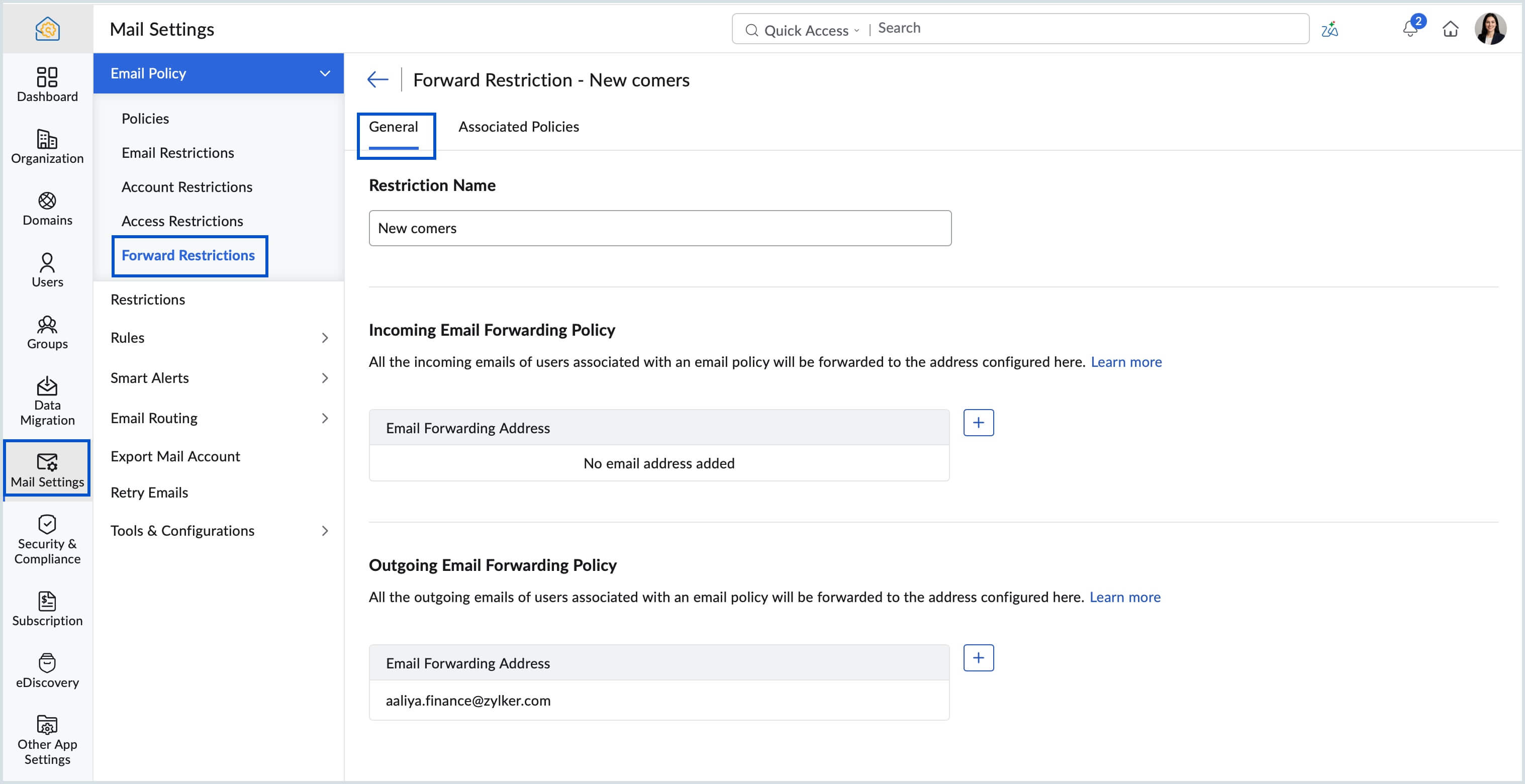
The outgoing emails can be forwarded only to another organization account and not to any external account.
Learn more about email forwarding in Zoho Mail user's section.
What is Strict TLS in Zoho Mail and how do you configure it?
Transport Layer Security (TLS) is an email encryption technique that encrypts communication between servers and web applications to prevent unauthorized access to sensitive data. Strict TLS in Zoho Mail takes this further by ensuring emails are sent and received only between servers that support TLS, and admins can enable it as part of an email policy for incoming emails, outgoing emails, or both. Admins can also include or exclude specific domains from the Strict TLS check, giving them precise control over which email communications are subject to the encryption requirement.
When Strict TLS is enabled:
- Organization users can send emails only when the destination server supports TLS.
- Users receive a bounce message when an email is sent to a domain which does not support TLS.
- Users will not receive emails from a domain which does not support TLS.
Note:
The Strict TLS feature is being released in a phased manner. If you wish to enable this feature for your organization, please reach out to support@zohomail.com
Follow these steps to configure Strict TLS for your organization:
- Log in to Zoho Mail Admin Console and navigate to Mail Settings on the left pane.
- From the Policies section create a new policy.
- Configure the desired restrictions (General, Email, Account, Access and Forward) for the policy from the Restrictions drop-down.
- Click the Restrictions drop-down and select Strict TLS.
- Enable Strict TLS and select the preferred option:
- Incoming emails
- Outgoing emails
- Both
- Click Enable and select either to include or exclude domains.
- Included - Emails sent or received to/ from the domains added here will be scrutinized for a secure connection.
- Excluded - Emails can be sent or received to/ from the domains even when there is no TLS connection.
- Click Add.
- Mention the domain names separated by a comma and click Add.
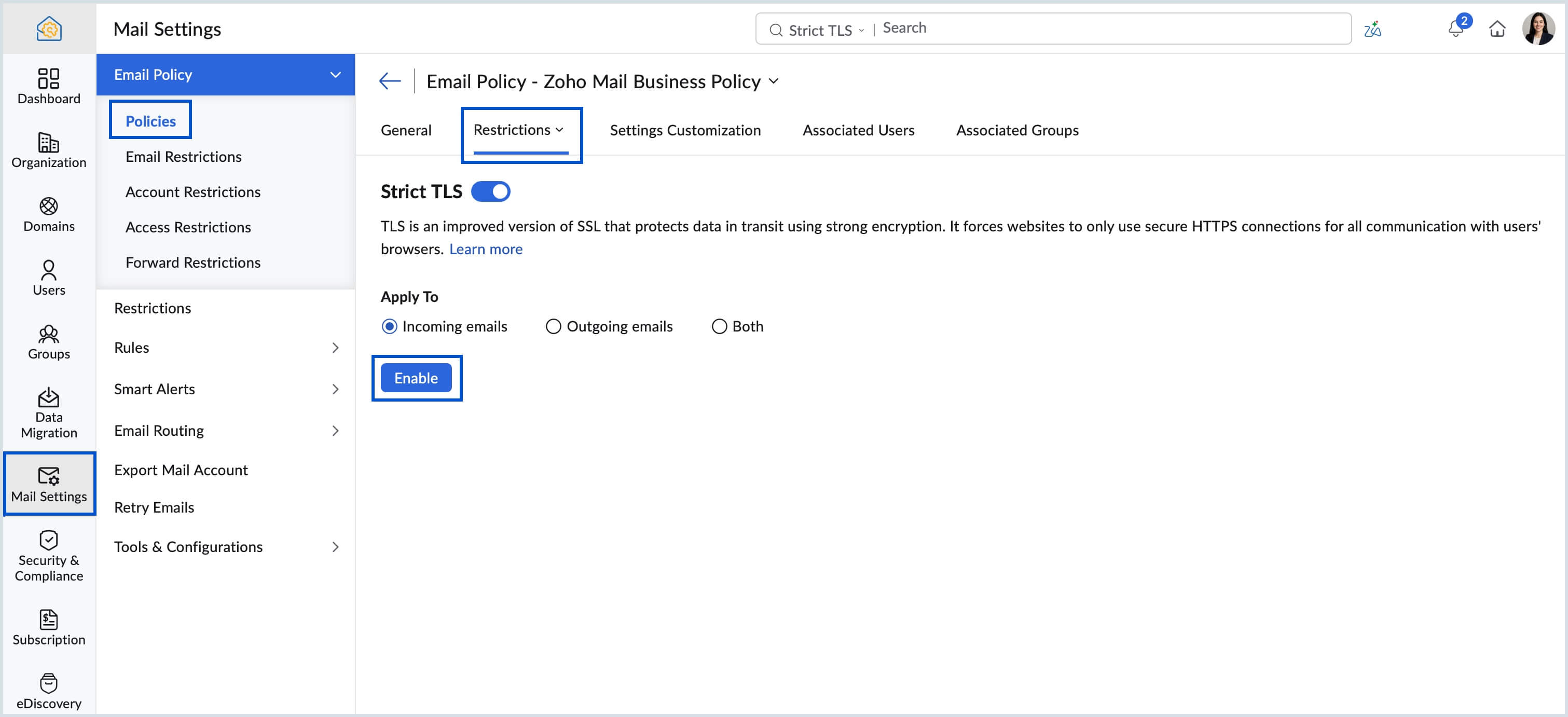
Strict TLS is now configured for the policy. Navigate to the Associated Users and Associated Groups tabs and assign the policy as per your requirement.
What is Settings Customization in Zoho Mail Email Policy and how does it work?
Settings Customization in Zoho Mail Email Policy lets admins control whether users can view or modify their own mail settings, with three permission levels: Read and Write, Read Only, and Hide, applied per setting.
Settings Customization feature is available only if you have subscribed to one of our paid plans.
Follow these steps to set user permissions:
- Login to the Zoho Mail Admin Console.
- Go to the Mail Settings menu from the left pane and select Email Policy.
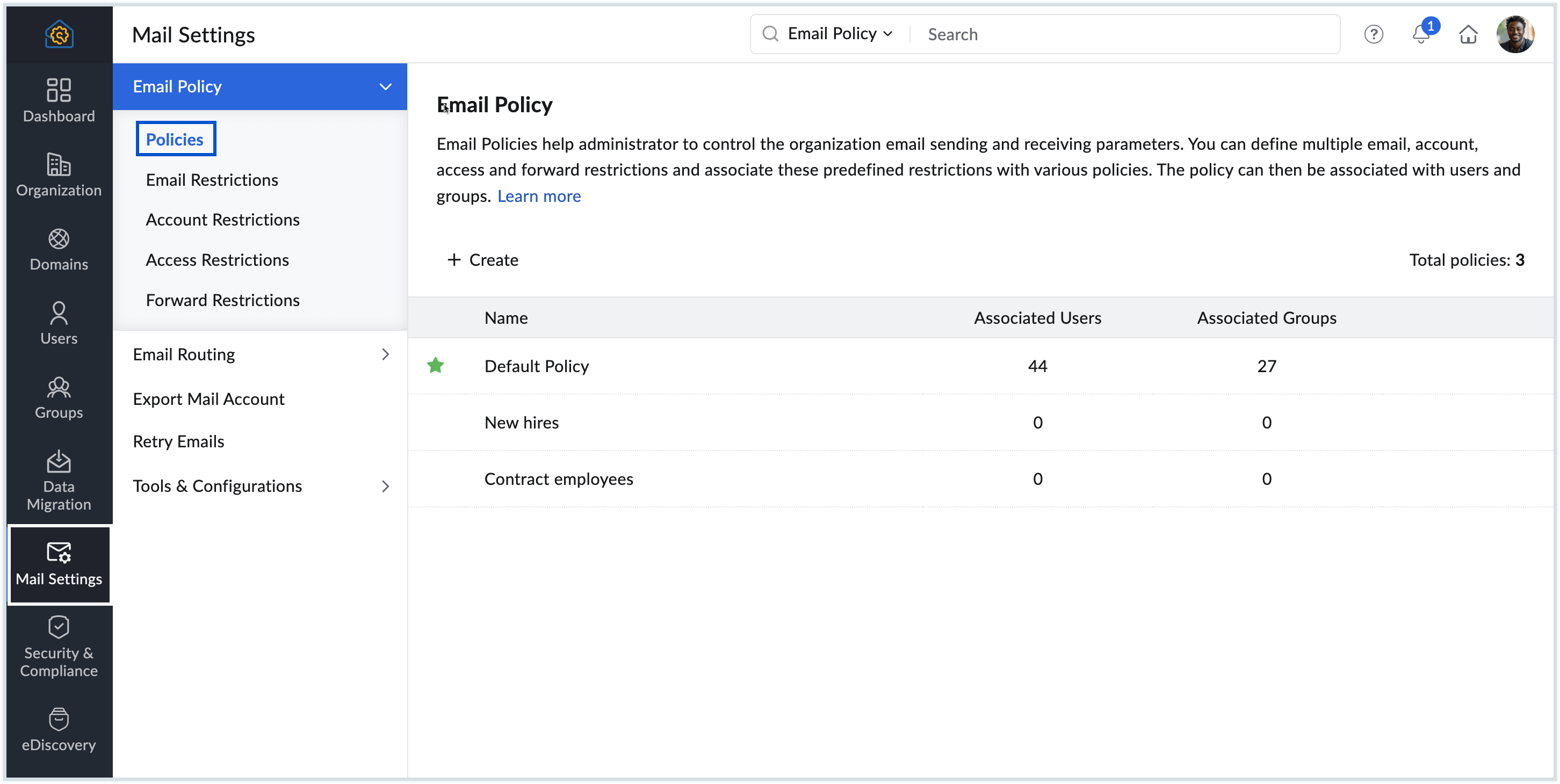
- Navigate to the Settings Customization tab of the policy that you have created.
- Select the setting you want to configure from the left menu of the Settings Customization tab.
- Customize the settings available under each section according to your preferences.
- Choose the User Permission options against each setting to allow users to:
- Read & Write - When selected, existing users can both view and make modifications to their settings and will continue to retain their existing settings. Any new user added under the policy during user creation will have the default settings applied based on the admin’s configuration, but they will still have the flexibility to modify them as needed.
- Apply Once - If selected, any changes made to the settings will become the default settings for all users (both existing and new) who are part of the policy. However, users will have the flexibility to modify these admin enforced settings based on their specific needs if required.
- Read Only - Users will have the settings configured here as their default fixed settings. They can only view the settings and cannot make any modifications.
- Hide - Users are restricted from both viewing and modifying the settings but will continue to use the settings configured here.
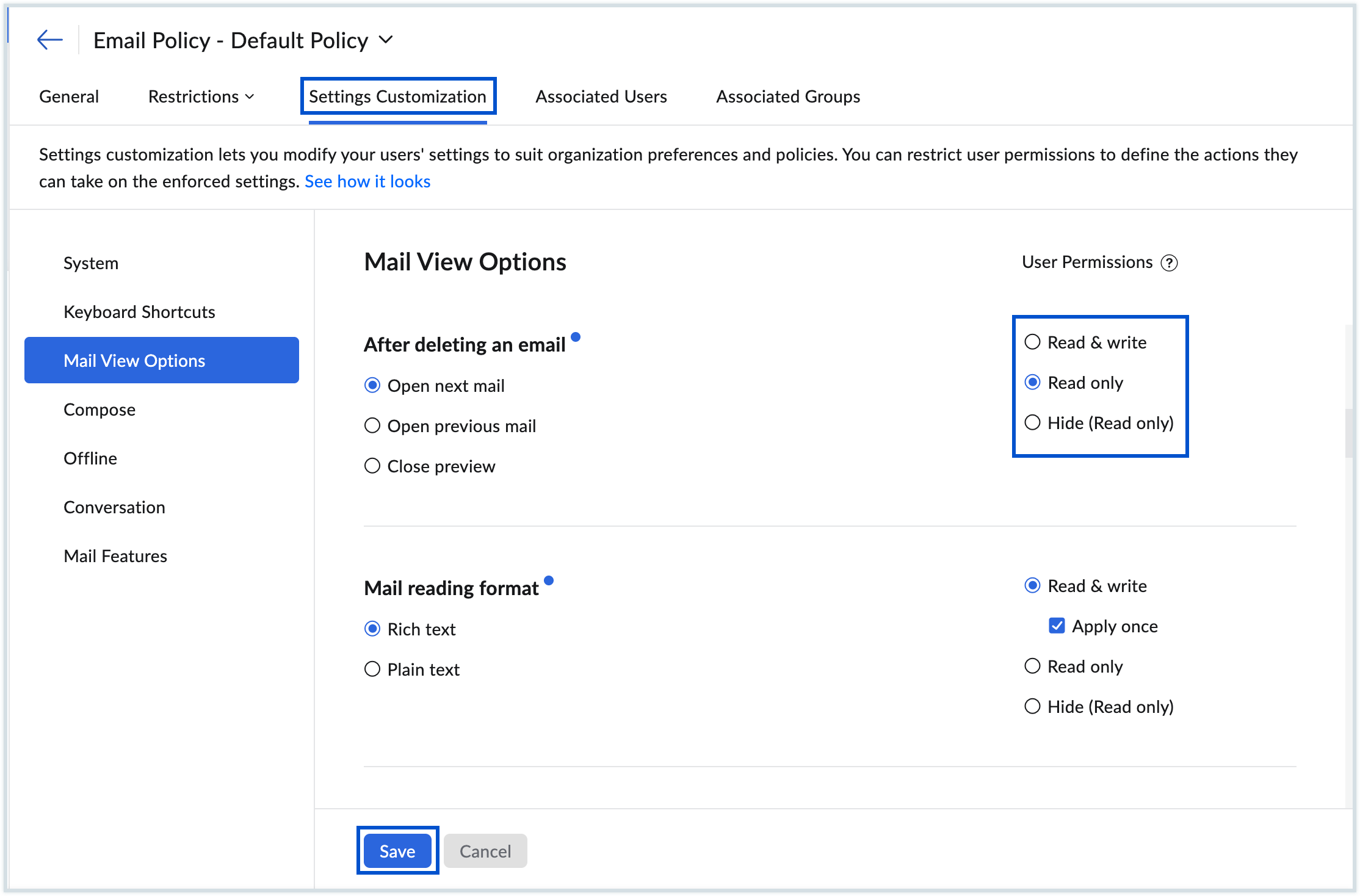
- Read & Write - When selected, existing users can both view and make modifications to their settings and will continue to retain their existing settings. Any new user added under the policy during user creation will have the default settings applied based on the admin’s configuration, but they will still have the flexibility to modify them as needed.
- Once done, click Save.
Note:
Admins can only enable or disable settings under the Mail Features section of the Settings Customization tab.
How to apply restrictions to an Email Policy in Zoho Mail Admin Console
After creating individual restrictions for email, account, access, and forwarding, admins must apply each restriction to the relevant policy from the Policies section under Mail Settings in the Admin Console. Each restriction type: Email, Account, Access, and Forward, is applied separately from the Restrictions dropdown within the selected policy.
Follow the below steps to apply restrictions to the policies:
- In the Admin Console, go to the Mail Settings menu.
- Go to Policies, and select the policy with which you would like to associate the restrictions.
- In the Restrictions dropdown, select Email Restriction.
- In the Email Restriction Applied dropdown, select the restriction that you'd like to associate with this policy.
- Review the settings once, and click Change.
- In the Restrictions dropdown, select Account Restriction.
- In the Account Restriction Applied dropdown, select the restriction that you'd like to associate with this policy.
- Review the settings once, and click Change.
- In the Restrictions dropdown, select Access Restriction.
- In the Access Restriction Applied dropdown, select the restriction that you'd like to associate with this policy.
- Review the settings once, and click Change.
- In the Restrictions dropdown, select Forward Restriction.
- In the Mail Forward Restriction Applied dropdown, select the restriction that you'd like to associate with this policy.
- Review the settings once, and click Change.
Now, the relevant restrictions will be applied to the policy that you have created.
How to apply an Email Policy to users and groups in Zoho Mail
Once all restrictions are configured and applied to a policy, admins can associate the policy with specific users and groups from the Associated Users and Associated Groups tabs within the policy. Users and groups can be added manually or imported in bulk via CSV.
Steps to associate policy with users and groups
- In the Admin Console, go to the Mail Settings menu.
- Go to Policies, and select the policy with which you would like to associate users and groups.
- Go to the Associated Users tab.
- Click Add to manually select the users for this policy. Select the users that you'd like to add, and click Proceed.
- Click Import if you'd like to import users for this policy using a CSV file. Browse and select the CSV file containing the user list, and click Import.
- Similarly, go to the Associated Groups tab.
- Click Add to manually select the groups for this policy. Select the groups that you'd like to add, and click Proceed.
- Click Import if you'd like to import groups for this policy using a CSV file. Browse and select the CSV file containing the group list, and click Import.
- You can also change the policy of users in this section by clicking the Change Policy icon the respective user. You can also select multiple users, click on the Change Policy icon and select the policy you'd like to apply for all the selected users.
You can also apply the email policy for users and groups in the user-specific or group-specific settings, or even at the time of creating the user or group.
Note:
- You can create multiple policies and apply them to different sets of users or groups, but you can apply only one policy to a particular user or group.
- If you delete a specific policy, all users or groups under that policy will be moved to the Default Policy.
- If an admin associates another admin with an email policy, the restrictions in that policy will apply to the admin as well.
- The restrictions created by the email policy apply not only in the Mail Settings but in the Mail Admin Console too.
Frequently Asked Questions (FAQs)
Can a Zoho Mail admin apply an email policy to a group in addition to individual users?
Yes. Email policies in Zoho Mail can be applied to both individual users and groups from the Associated Users and Associated Groups tabs within the selected policy. Users and groups can be added manually or imported in bulk via CSV file, and the policy restrictions will apply to all members of the associated group.
What happens to users when an email policy is deleted in Zoho Mail?
When an email policy is deleted in Zoho Mail, all users and groups associated with that policy are automatically moved to the Default Policy. Admins should review the Default Policy settings before deleting a custom policy to ensure the transition does not unintentionally remove restrictions that were in place for those users.
Can a Zoho Mail admin restrict users from saving email attachments to cloud storage?
Yes. The Add to Cloud and Attach from Cloud options in the Account Restrictions section of the email policy let admins control whether users can save incoming attachments to cloud services like Google Drive, Dropbox, or Zoho Docs, or attach files from those services when composing emails. Turning off either option prevents users assigned to the policy from using cloud storage in connection with their Zoho Mail account.
How does the Maximum Session Count setting work in Zoho Mail email policy
The Maximum Session Count setting lets admins define the maximum number of simultaneous login sessions a user can have open at one time, with a minimum of 1 and a maximum of 50 sessions. Once the limit is reached, the user cannot log in to a new session until an existing one is closed. This helps prevent unauthorized or excessive concurrent access to a user's mailbox.
Can a Zoho Mail admin monitor outgoing emails sent by specific users?
Yes. The Forward Restrictions section in Zoho Mail email policy lets admins automatically forward all outgoing emails sent by users assigned to the policy to a designated email address within the organization. This is useful for compliance monitoring, supervision, or delegation purposes. Outgoing emails can only be forwarded to an internal organization account and not to any external address.
Related Pages
Email Forwarding | emails | POP and IMAP