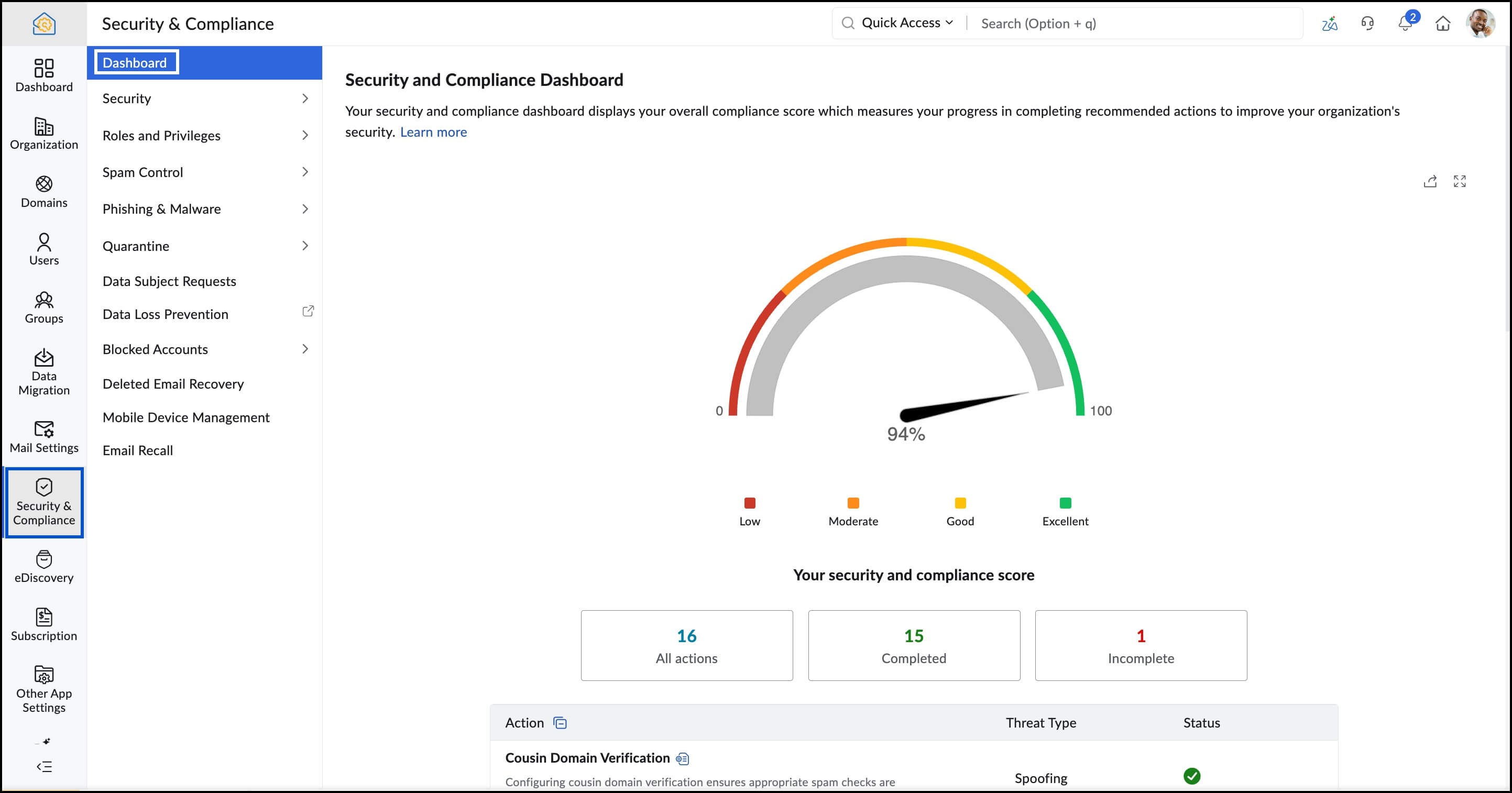
Security and Compliance Dashboard
The Security and Compliance Dashboard in the Zoho Mail Admin Console gives administrators a single view of all recommended security configurations, along with the organization's overall compliance score and the completion status of each setting.
Note
This dashboard is available only to organizations subscribed to one of our paid plans: Zoho Workplace / Zoho Mail / Zoho One. To learn more about the available plans and pricing, refer to our pricing page.
What is the Security and Compliance Dashboard?
The dashboard is a centralized checklist that tracks how well your organization's email environment is protected. It measures your progress across key security parameters — from email authentication protocols to account security settings — and reflects that progress as a compliance score.
When you first add and verify your domain in Admin Console, a few configurations are set automatically. From there, you work through the remaining settings at your own pace until your score reaches Excellent.
Key features at a glance
- Security Score - Tracks your organization's security progress across four levels: Low, Moderate, Good, and Excellent. The score updates in real time as you complete each recommended configuration.
- Suspicious Login Monitoring - Instantly see how many organizational accounts have flagged unusual sign-in activity, so you can act before a potential breach escalates.
- Domain Authentication Status - View at-a-glance coverage of MX, SPF, and DKIM configurations across all domains in your organization, from the main Admin Console dashboard's Security widget.
- Compliance Standards - Zoho Mail is GDPR compliant and HIPAA compliant, and holds ISO/IEC 27001 and SOC 2 Type II certifications. Built-in tools — including email archiving, eDiscovery, and audit tracking — help ensure your email infrastructure aligns with these international regulations.
What you can do from the Dashboard
Filter by status - Use the tabs at the top to view All actions, Completed, or Incomplete configurations. Clicking Incomplete quickly surfaces any pending security configurations that still need attention.
Configure a security parameter - Hover over any incomplete parameter and click Configure now. You'll be taken directly to the relevant settings page in Admin Console. The Configure now button appears only when hovering over unconfigured parameters.
Review an existing configuration - Click the tooltip icon next to any parameter to navigate to its current configuration in Admin Console, where you can review or modify it.
Security threats covered
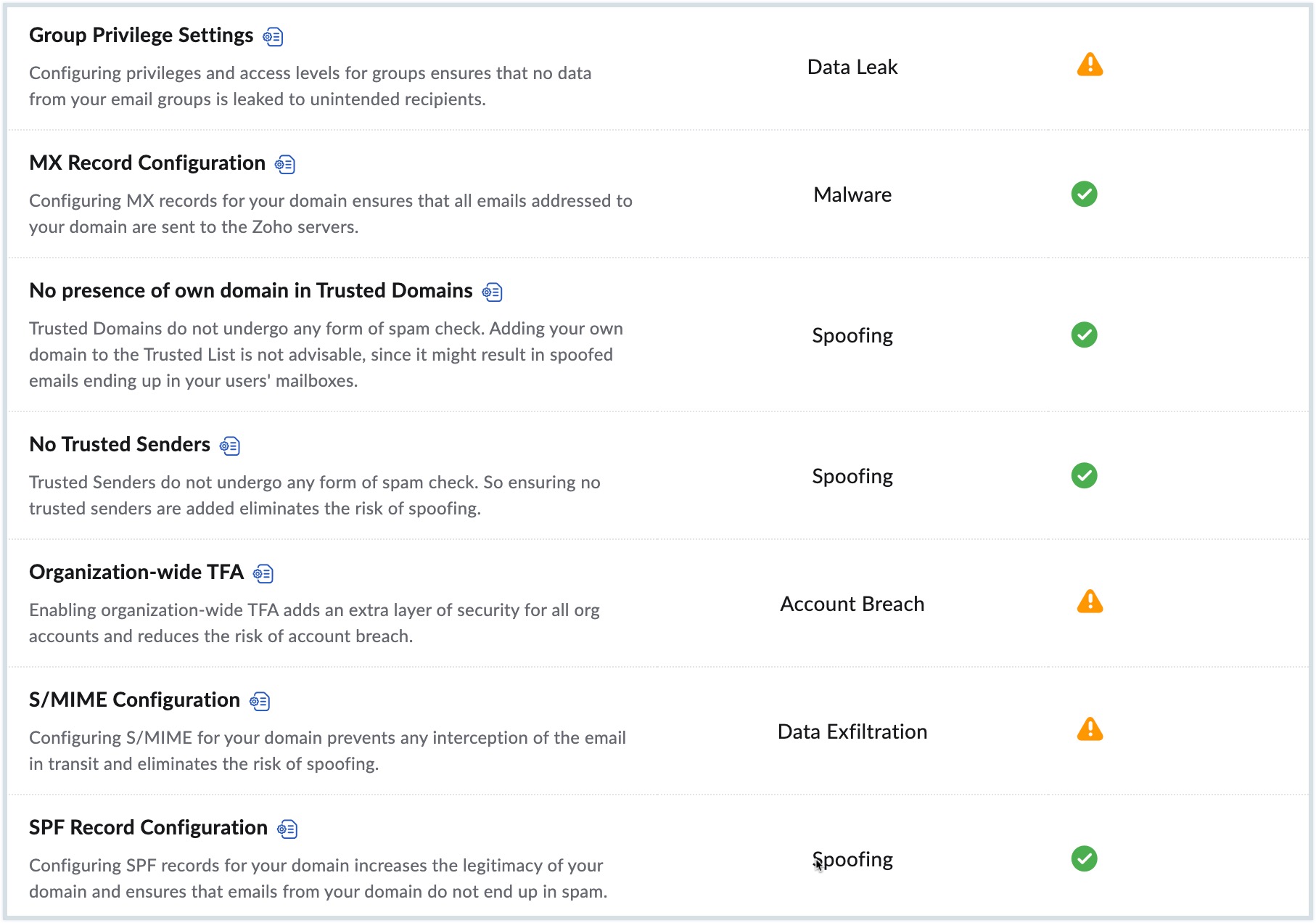
The dashboard monitors your protection against five categories of threats:
- Spoofing - When spammers forge the email address of a person or organization to make messages appear legitimate.
- Malware - Files or programs intentionally designed to harm your computers, networks, or servers.
- Account Breach - A security violation that exposes confidential or sensitive information to unauthorized parties.
- Data Exfiltration - The unauthorized transfer or removal of data from a device or system.
- Data Leak — The accidental exposure of sensitive data to the internet.
Understanding your security score
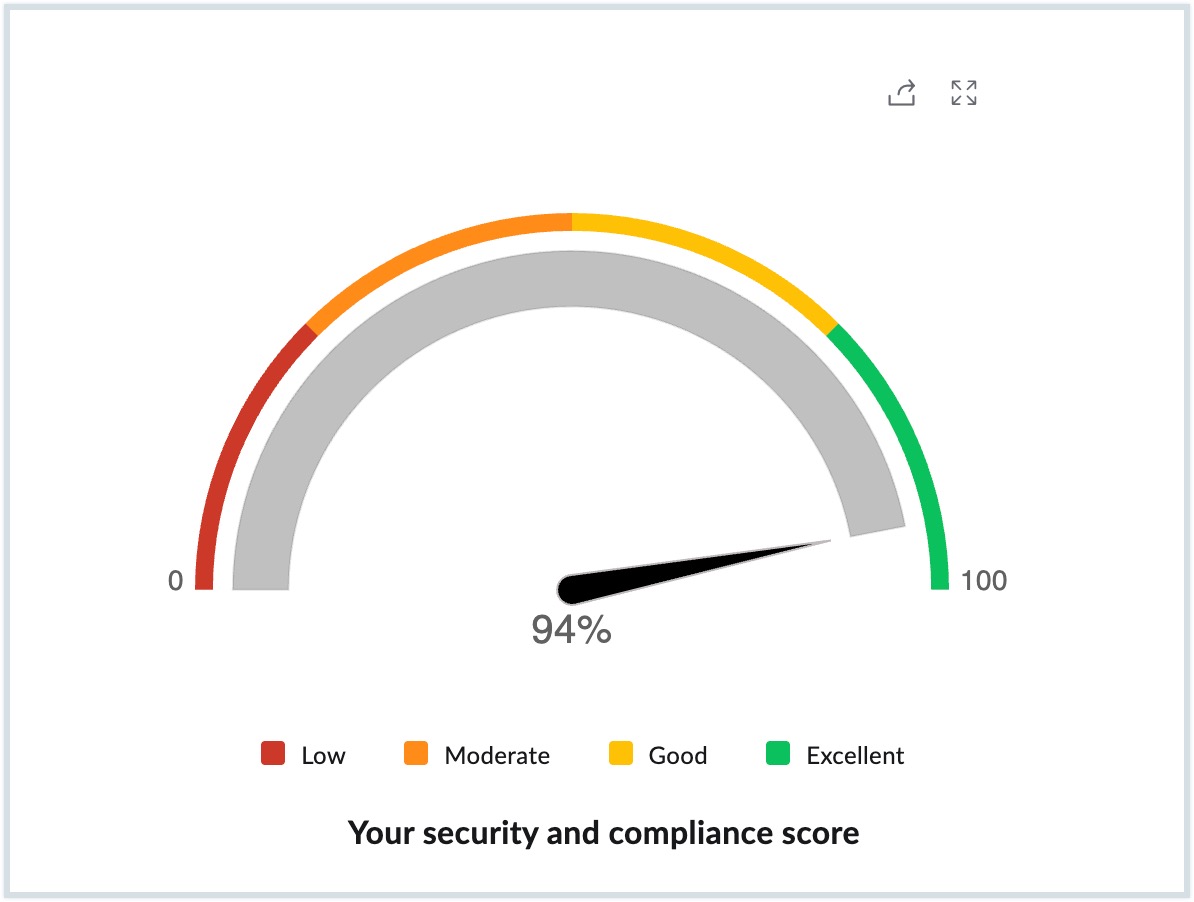
Your score reflects how many of the recommended configurations are complete. It falls into one of four levels:
- Low - Automatically assigned when you add and verify your domain. At this point, DMARC Verification, DNSBL Verification, No Trusted Senders, and No presence of own domain in Trusted Domains are configured by default.
- Moderate - Achieved after configuring email authentication protocols (SPF, DKIM, DMARC) for all your mail-hosted domains.
- Good - Reached by completing spam control settings and account-related parameters such as Two-Factor Authentication and Suspicious Login Alerts.
- Excellent - Achieved when all parameters listed in the Security & Compliance Dashboard are configured.
There is no required order for completing these configurations. Work through them based on your organization's priorities, and aim to reach Excellent.
Note
A high security score does not replace the need for users to follow standard email security practices. Educating your team on phishing awareness and safe email habits is equally important.
Recommended security settings
Each parameter in the dashboard addresses a specific threat type. Here is a complete reference:
Spoofing
| Parameter | Description |
| SPF Record Configuration | SPF identifies which IP addresses are permitted to send email on behalf of your domain. Refer to SPF Record Configuration for steps to configure SPF records. |
| DKIM Configuration | DKIM uses encryption to validate that emails are sent from servers authorized by the domain administrator. Refer to DKIM Configuration for steps to configure DKIM. |
| DMARC Policy | DMARC builds on SPF and DKIM and includes a reporting function, giving senders and receivers visibility into domain use and protection against fraudulent emails. Refer to DMARC Policy for steps to configure your organization's DMARC policy. |
| DMARC Verification | DMARC builds on SPF and DKIM. In case of authentication failure, the DMARC policy is set to quarantine by default. Refer to DMARC Verification for steps to configure your preferred setting. |
| DKIM Verification | Emails that fail DKIM checks are detected as spam. Refer to DKIM Verification for steps to configure your preferred setting. |
| SPF Verification | Emails that fail SPF or SPF Soft Fail checks are detected as spam. Refer to SPF Verification for steps to configure your preferred setting. |
| DNSBL Verification | DNSBL is a consolidated blocklist based on spam marking, abuse patterns, and third-party blocklists. Emails from blocklisted domains, addresses, or IPs are flagged as spam. Refer to DNSBL Verification for steps to configure your preferred setting. |
| No Trusted Senders | Emails from addresses on the Trusted Emails list bypass all spam checks, including SPF, DKIM, and blocklist validation. Exercise caution — adding addresses here can expose your organization to phishing attacks. Refer to No Trusted Senders to add email addresses to the Trusted List. |
| No presence of own domain in Trusted Domains | Domains on the Trusted Domains list bypass all spam checks. Adding your own domain here is a significant security risk and should be avoided. Refer to No Trusted Domains to ensure that there are no own domains in the Trusted Domain list. |
| Cousin Domain Verification | Cousin (look-alike) domains mimic legitimate domains with minor spelling variations. Emails from flagged variations are marked as spam. Refer to Cousin Domain Verification for steps to configure cousin domains. |
| Display Name Verification | Associates specific display names with authorized email addresses. Emails arriving with unrecognized display names are treated as spoofed. Refer to Display Name Fraud for steps to configure display name verification. |
| Internationalized Spam Settings | Allows or blocks emails based on the language used. Emails in allowed languages are delivered; emails in blocked languages are moved to spam. Refer to Internationalized Spam for steps to configure your preferred language settings. |
Malware
| Parameter | Description |
| MX Record Configuration | MX records designate recipient email servers for your domain. Configuring MX records ensures all emails addressed to your domain are routed to Zoho servers. Refer to Configure Email Delivery for steps to configure MX records. |
Account Breach
| Parameter | Description |
| Suspicious Login Alerts | Sends an email alert to users when unusual login activity is detected on their account, enabling them to act quickly. Refer to Suspicious Login Alerts for steps to configure suspicious alerts. |
| Organization-wide TFA | Two-factor authentication adds a second verification step — a mobile device or authenticator app — to protect accounts beyond passwords. Admins can enable or enforce TFA for the entire organization. Refer to Two-factor Authentication for steps to configure TFA. |
Data Exfiltration
| Parameter | Description |
| S/MIME Configuration | S/MIME encrypts email content using keys, ensuring only authorized recipients can access your data and preventing misuse. Refer to S/MIME Configuration for steps to configure S/MIME. |
Data Leak
| Parameter | Description |
| Group Privilege Settings | Controls who in your organization can create groups. Restricting group creation reduces the risk of sensitive information being shared outside the organization. Refer to Group Privilege Settings for steps to configure group privileges. |
Admin actions you can take
The Security and Compliance Dashboard tracks configuration progress, but the broader Security & Compliance section in Admin Console lets you actively enforce policies across your organization:
- IP Restrictions-Limit email access to specific approved IP addresses or corporate networks. Users outside those ranges will be unable to log in.
- Password Policies - Require users to meet minimum password strength standards beyond Zoho Mail's defaults, reducing the risk of compromised credentials.
- SAML Authentication-Enable Single Sign-On (SSO) for web applications using SAML (Security Assertion Markup Language), allowing users to authenticate across services with a single set of credentials.
- Idle Session Timeout- Automatically lock the Admin Console after a defined period of inactivity. Admins must re-enter their password to resume the session. This setting is only visible to the Super Admin on paid plans.
- Activity Tracking - Monitor login behaviour across your organization through the Login Activity report,, which logs each login with user details, device, IP address, location, and login type. The Failed Login report surfaces repeated unsuccessful attempts, and the Suspicious Login report collects logins that deviate from normal user behaviour.
Frequently Asked Questions
What does the Security and Compliance Dashboard measure?
It measures how many of the recommended security configurations have been completed in your Zoho Mail Admin Console, and reflects your overall protection level as a score from Low to Excellent.
What security score should my organization aim for?
Aim for Excellent. This means all recommended parameters across spoofing, malware, account breach, data exfiltration, and data leak categories are configured.
Does a high security score mean my organization is fully protected?
A high score indicates strong technical configurations are in place. However, user behavior also matters — employees should be trained to recognize phishing attempts and follow safe email practices regardless of the score.
Is the Security and Compliance Dashboard available on all Zoho Mail plans?
No. This feature is available only on paid Zoho Mail plans.
Do I need to configure security settings in a specific order?
No. You can configure them in any order. The dashboard score updates as you complete each setting.
What happens when a domain is added and verified?
DMARC Verification, DNSBL Verification, No Trusted Senders, and No presence of own domain in Trusted Domains are configured automatically, and your score starts at Low.
Related pages
Regulatory compliance for enterprise email
Admin reports in Zoho Mail: A complete overview of dashboard and reporting features